
The status bar in Excel is the thin strip at the bottom of the window, and it can total, average, or count any cells you select without a formula.
It also holds the view buttons and zoom slider, tells you which mode or key lock is active, and has a few buttons you can click.
In this article, I’ll show you how to read and copy quick calculations, customize the bar, read its mode indicators, and bring it back when it goes missing.
Method #1: Using the Status Bar for Quick Calculations
On the Call Log sheet, resolution times are in D2:D11. Select that range and look at the bottom of the Excel window.
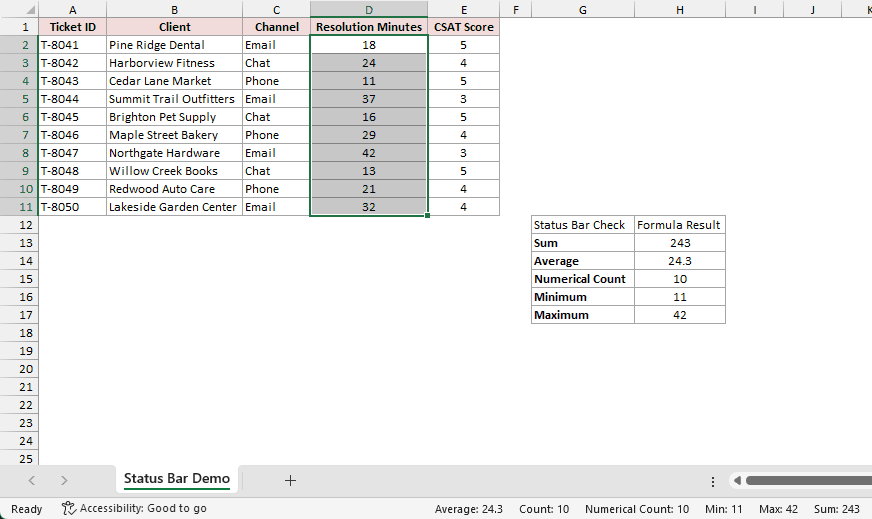
The ten values sum to 243 minutes and average 24.3 minutes. Their minimum is 11, maximum is 42, and Numerical Count is 10.
The small check table at G12:H17 contains worksheet formulas for the same measures.
It sits below and to the right of the source list so you can compare the temporary status-bar readout with stored results.
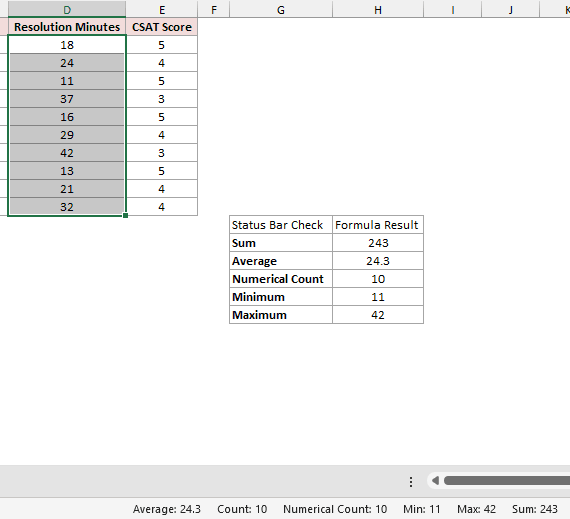
The status bar reads the current selection. It is useful for a quick check, but the number goes away as soon as you select something else.
Copying a Value From the Status Bar
In Microsoft 365 for Windows, you can copy any of these numbers with one click.
Here are the steps to copy the Sum into a cell:
- Select
D2:D11on theCall Logsheet. - Click Sum: 243 on the status bar. Excel copies 243 to your clipboard.
- Select an empty cell, such as
G2, and press Ctrl + V.
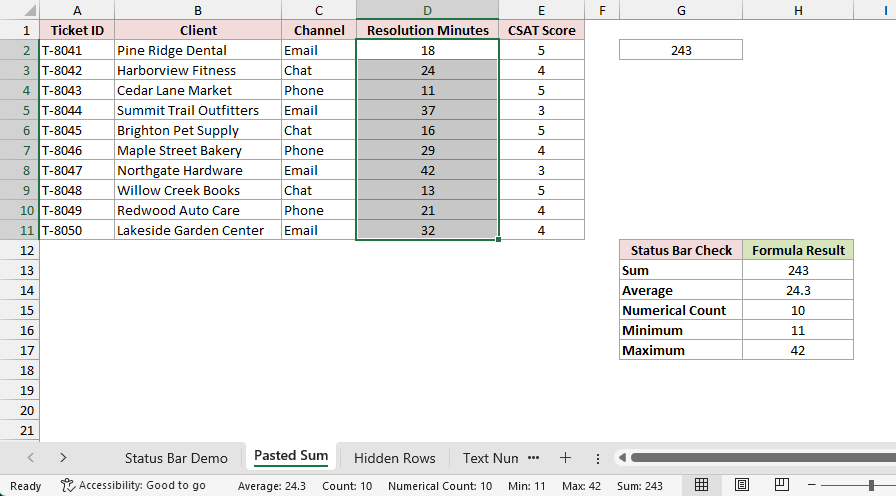
The pasted value is a plain number, not a formula. If the resolution times change later, it won’t update.
Note: Older versions of Excel don’t have click-to-copy. There, type a formula like =SUM(D2:D11) when you need the number in a cell.
What the Quick Calculations Include
The status bar skips any rows you can’t see. On the Hidden Rows sheet, the three Chat tickets in rows 3, 6, and 9 are hidden.
Select D2:D11 on that sheet and check the status bar again.
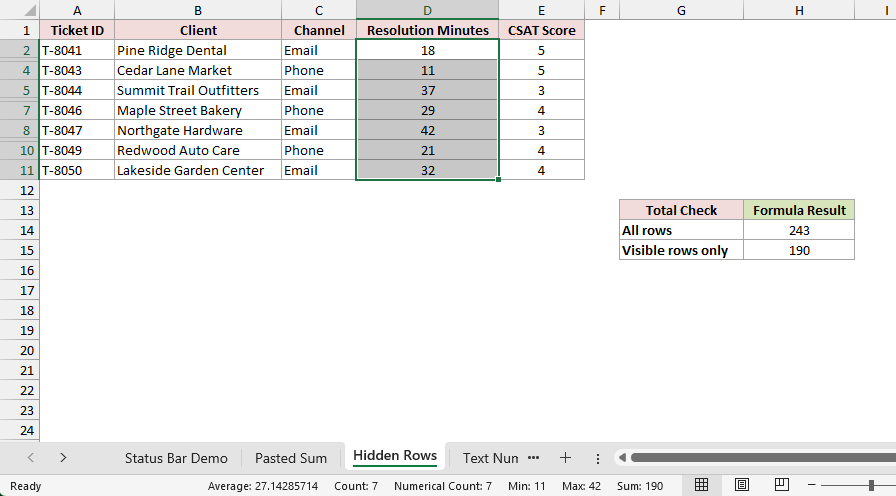
The Sum is now 190, not 243. The status bar skips the 53 minutes in the hidden rows, and rows hidden by a filter work the same way.
The check table at G13:H15 shows both totals. SUM returns 243 because it adds hidden rows too.
SUBTOTAL with 109 as its first argument adds only visible rows, so it returns 190, the same as the status bar.
Hidden columns are different. If your selection spans a hidden column, the status bar still includes its values.
Numbers stored as text get skipped as well.
On the Text Numbers sheet, the 37 in D5 and the 29 in D7 are text, which is why they show small green triangles.
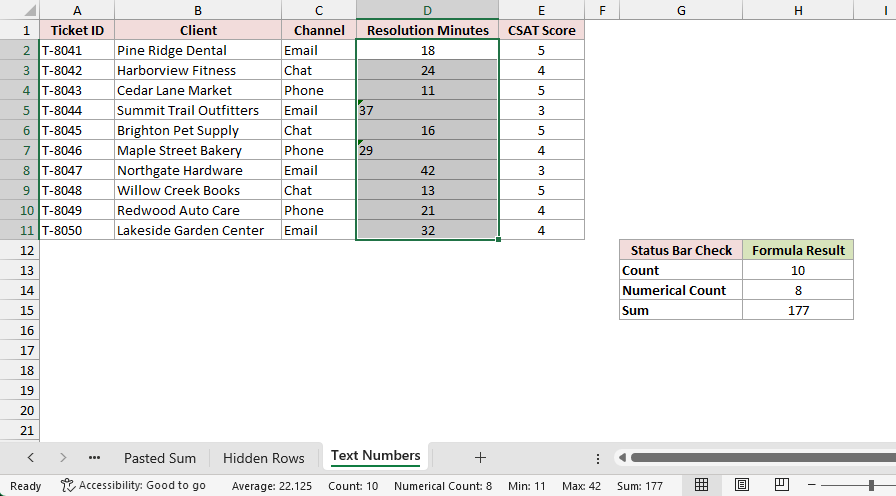
Select D2:D11 and Count still shows 10, but Numerical Count drops to 8 and Sum drops to 177.
Count includes every nonempty cell, while Sum, Average, and Numerical Count use only real numbers.
To fix it, select D5 and D7, click the warning icon next to the selection, and choose Convert to Number.
Method #2: Customizing the Status Bar
The status bar doesn’t show every item out of the box, so here’s how to pick what you see.
Right-click the desktop Excel status bar to open its list of available items. Select an item to show or hide it.
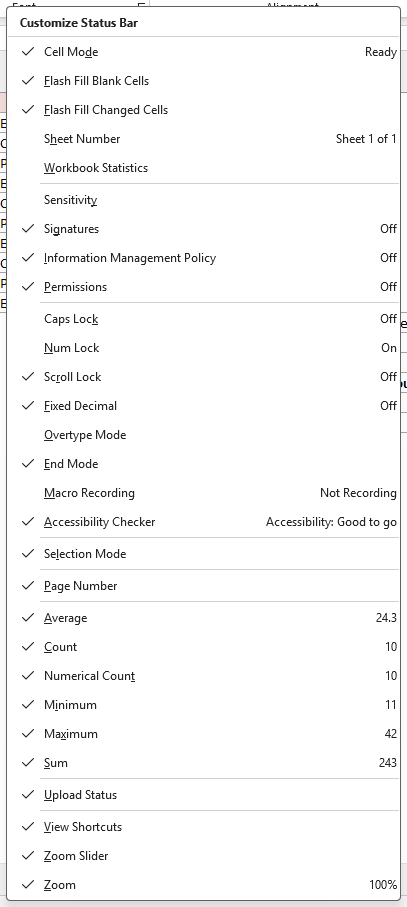
For the call-log range, turn on Sum, Average, Numerical Count, Minimum, and Maximum if you want the five checks together.
By default, Excel shows only Average, Count, and Sum. Numerical Count, Minimum, and Maximum stay off until you turn them on.
Count and Numerical Count are different: Count includes nonempty cells, while Numerical Count includes numeric cells. Both would be 10 for this all-numeric range.
The same menu also controls the mode indicators and buttons covered in Methods #4 and #5.
In Excel for the web, summary choices use its status-bar menu rather than the desktop right-click menu. The available items can also differ by Excel version.
Method #3: Using the View and Zoom Controls
Next, look at the other end of the bar.
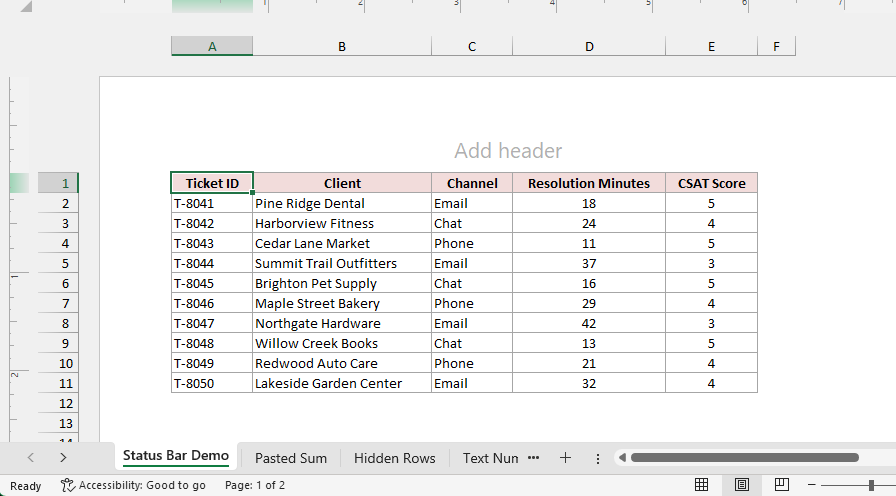
The bottom-right end of the status bar holds worksheet view buttons and the zoom slider.
Use them when the sheet is too wide or when you want to check its printed layout.

Choose Normal for ordinary editing, Page Layout to see pages, or Page Break Preview to inspect where pages divide. Drag the zoom slider to change only the on-screen size.
Zoom does not change the values or formulas. It can, however, make a wide table easier to fit in the window while you inspect it.
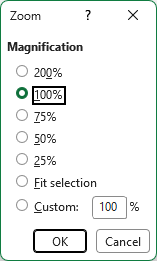
For an exact size, click the zoom percentage (such as 100%) at the far right.
That opens the Zoom dialog, where you can pick a preset or type a custom percentage.
In Page Layout view, the left side of the status bar also shows which page you’re on and how many pages the sheet has.
Method #4: Reading Cell, Selection, and Keyboard Modes
The left side of the status bar tells you which cell mode is active. Ready means Excel is waiting for an action; Enter appears while you type a new value.

Edit appears when you change a cell’s existing contents. Point appears while you select cells for a formula you are editing.
Excel can separately show selection modes such as Extend Selection (press F8) or Add to Selection (press Shift + F8).
These indicators appear only while their mode is active, so a normal worksheet may show none of them.

If selecting cells behaves unexpectedly, read the left status label before changing your data. Press Esc to leave an unfinished edit or selection action.
The status bar can also tell you when a keyboard mode is on. These are the ones worth knowing:
- Caps Lock and Num Lock show when those keys are on. Both are off in the right-click menu by default, so turn them on if you want to see them.
- Scroll Lock means the arrow keys scroll the sheet instead of moving the active cell.
- Overtype Mode appears when you press Insert while editing a cell. New characters then replace the ones after the cursor. It’s off in the menu by default.
- End Mode appears after you press End. The next arrow key jumps to the edge of the data, like Ctrl plus that arrow.
- Fixed Decimal means Excel adds a decimal point to numbers you type. It comes from Automatically insert a decimal point in File > Options > Advanced.

If the arrow keys scroll the sheet instead of moving the cell, look for Scroll Lock on the status bar first.
Method #5: Using the Status Bar Buttons
A few status bar items are buttons, so you can click them instead of just reading them.
Turn on Macro Recording in the right-click menu, and a small icon shows up next to Ready.
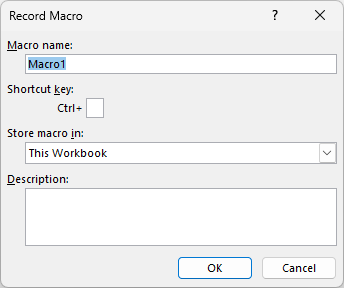
Click it, give the macro a name in the Record Macro dialog, and click OK.
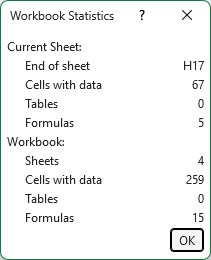
Workbook Statistics gives you a quick count of what’s in the file. Turn it on from the right-click menu, or go to Review > Workbook Statistics.
Excel opens a dialog that counts sheets, cells with data, tables, formulas, and more for the current sheet and the whole workbook.
The Accessibility item shows Good to go when Excel finds no accessibility problems. If it says Investigate, click it to open the Accessibility pane and see the issues.
What to Do When the Status Bar Is Missing
If the strip at the bottom of the window is gone, it’s usually one of these three things.
Excel is in full-screen mode. If the ribbon and the status bar both disappeared, you probably pressed Ctrl + Shift + F1. Press it again to bring them back.
The window is bigger than your screen. The bottom of the Excel window may sit below the screen edge or behind the taskbar. Double-click the title bar to maximize Excel.
A macro turned it off. Some macros hide the status bar and never turn it back on.
Here are the steps to bring it back:
- Press Alt + F11 to open the VBA Editor.
- Press Ctrl + G to open the Immediate window.
- Type the line below and press Enter.
Application.DisplayStatusBar = TrueThe status bar comes back right away. This setting applies to all of Excel, not only the workbook you have open.
Additional Notes About the Status Bar in Excel
- Select at least two relevant cells when checking a summary. A single selected cell won’t show the quick calculation.
- The status bar is for a temporary check. Use
SUM,AVERAGE, or another worksheet formula when the result must stay in the workbook. - A small or narrow Excel window can leave less room for status items. Expand the window before assuming an item is unavailable.
Frequently Asked Questions
Where is the status bar in Excel?
It is the horizontal strip at the bottom of the Excel window, below the worksheet and sheet tabs.
How do I show Sum or Average there?
On desktop Excel, right-click the status bar and enable Sum or Average. Then select the cells you want to check.
Can I copy a status-bar calculation into a cell?
Yes, in Microsoft 365 for Windows. Click a value on the status bar, like Sum: 243, and Excel copies it to your clipboard. Paste it into any cell.
It pastes as a fixed number, so use =SUM(D2:D11) when you want a result that updates.
Why is Sum missing from my status bar?
Either Sum is turned off in the right-click menu, or your selection has no real numbers. Numbers stored as text don’t count toward Sum.
Conclusion
I showed you how to use the status bar for quick calculations, customize its items, read its modes and buttons, and bring it back when it goes missing.
It’s most useful for quick checks. When a number needs to stay, copy it or use a formula. I hope you found this article helpful.
Other Excel articles you may also like:
