
Excel’s PERMUT function returns the number of ordered selections you can make from a set of distinct items. It selects without replacement, so an item cannot appear twice.
Order is the deciding factor. Assigning Ana first and Ben second differs from assigning Ben first and Ana second. Use COMBIN for unordered groups and PERMUTATIONA when repetition is allowed.
In this article, I’ll show you how PERMUT handles ranked slots, compares with COMBIN and PERMUTATIONA, builds probability denominators, and matches FACT for complete arrangements.
PERMUT Function Syntax in Excel
The PERMUT function uses the following syntax:
=PERMUT(number,number_chosen)
numberis the total number of distinct available items. It must be a positive number.number_chosenis the number of ordered positions to fill. It must be zero or greater and cannot exceednumber.
Excel truncates both arguments to integers. Nonnumeric arguments return #VALUE!, while invalid numeric arguments return #NUM!.
When to Use PERMUT Function
- Count ways to assign distinct people to ranked roles or time slots.
- Calculate ordered selections from a larger set of items.
- Count codes when each available character can be used only once.
- Build probability denominators when every ordered result is equally likely.
- Count complete arrangements when every distinct item is used.
Example 1: Count Ordered Presenter Slots
Let’s start with three speaking slots at an event.
Below is the dataset with presenter pools from 5 through 12 and three ordered speaking slots in each row.
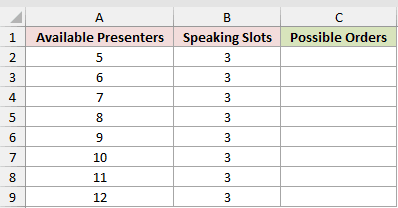
We want to count the possible presenter orders for every pool size without assigning one presenter twice.
Enter this formula in cell C2:
=PERMUT(A2:A9,B2:B9)
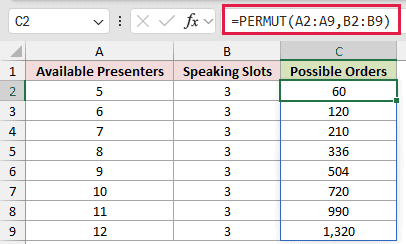
In Excel 2021, Excel 2024, and Microsoft 365, this array formula spills results through C9.
Five presenters can fill three ordered slots in 60 ways. With 12 available presenters, the count rises to 1,320.
For five presenters, the calculation is 5 choices for the first slot, 4 for the second, and 3 for the third. Multiplying gives 60.
Pro Tip: PERMUT assumes distinct presenters and no repeated selection. If one person can fill more than one slot, this function does not match that rule.
Example 2: PERMUT Versus COMBIN
This comparison shows why order changes the count.
Below is the dataset with 4 through 11 display items and three positions to fill.
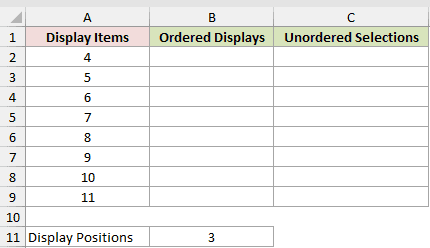
We first want to count displays where placing the same items in a different order creates a different result.
Enter this PERMUT formula in cell B2:
=PERMUT(A2:A9,$B$11)
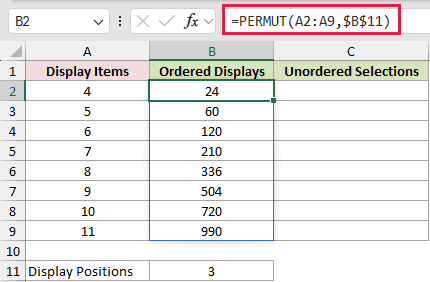
The formula spills ordered counts through B9. The dollar signs keep the three display positions in B11 fixed.
We also want to count selections where the chosen items matter but their display order does not.
Enter this COMBIN function formula in cell C2:
=COMBIN(A2:A9,$B$11)
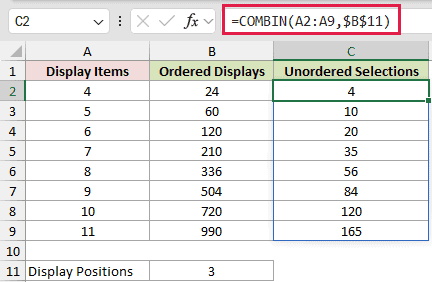
This formula spills unordered counts through C9. With four items, PERMUT returns 24 ordered displays, while COMBIN returns 4 selections.
Each three-item selection can be arranged in six orders. That is why 4 unordered selections produce 24 ordered displays.
With 11 items, the comparison is 990 ordered displays versus 165 unordered selections. Choose the function based on whether changing positions creates a new outcome.
Example 3: PERMUT Versus PERMUTATIONA for Codes
Now let’s compare codes with and without repeated digits.
Below is the dataset with code lengths from 1 through 8 and ten available digits, including zero.
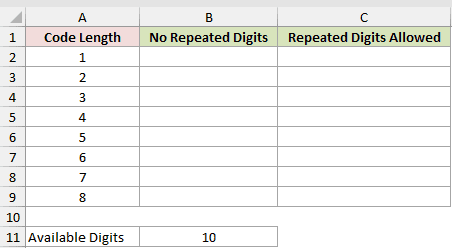
We first want to count codes where each digit can appear at most once.
Enter this PERMUT formula in cell B2:
=PERMUT($B$11,A2:A9)
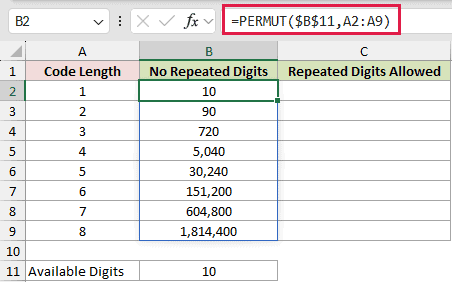
The formula spills nonrepeating counts through B9. A three-character code has 720 possibilities because the choices are 10, then 9, then 8.
We also want to count codes where the same digit can be used more than once.
Enter this PERMUTATIONA formula in cell C2:
=PERMUTATIONA($B$11,A2:A9)
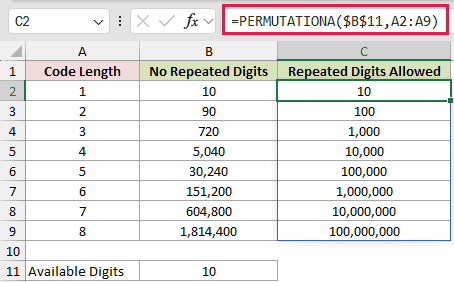
PERMUTATIONA spills the repeating counts through C9. A three-character code has 1,000 possibilities because each position has all ten digits available.
These are codes, so a leading zero is allowed. For example, 042 is a valid three-character code in both counts.
If you were counting three-digit numbers, the first position could not be zero. You would need a different calculation to enforce that restriction.
Pro Tip: PERMUT counts selections without repetition. PERMUTATIONA counts selections with repetition. Decide whether reuse is allowed before choosing the function.
Example 4: Calculate Award Probabilities
This example turns permutation counts into probabilities.
Below is the dataset with nine finalists and three ranked awards.
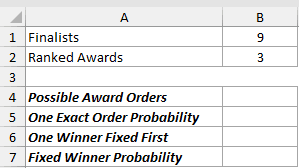
We first want to count every possible winner, runner-up, and third-place order.
Enter this formula in cell B4:
=PERMUT(B1,B2)
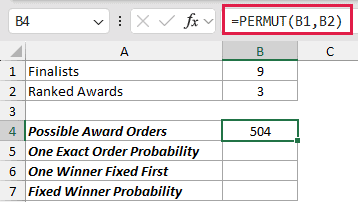
PERMUT returns 504 possible award orders. The three ranks are distinct, and one finalist cannot receive two awards.
We next want the probability of one specified three-person award order.
Enter this formula in cell B5:
=1/PERMUT(B1,B2)
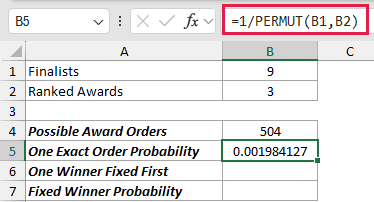
The result is 1/504, or about 0.1984%. This probability is valid only when all 504 ordered outcomes are equally likely.
We also want to count the orders where one specified finalist is fixed as the winner.
Enter this formula in cell B6:
=PERMUT(B1-1,B2-1)
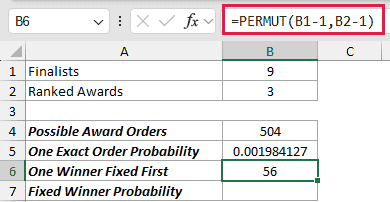
After fixing first place, eight finalists remain for the other two ranked awards. PERMUT returns 56 possible runner-up and third-place orders.
Finally, we want the share of all award orders that have the specified finalist in first place.
Enter this formula in cell B7:
=B6/B4
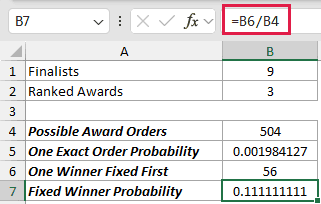
The result is 56/504, which simplifies to 1/9 or about 11.11%. Under uniform selection, every finalist has the same chance of finishing first.
Pro Tip: Count ratios become probabilities only when the outcomes being counted are equally likely. Weighted judging or unequal finalist strengths require a different probability model.
Example 5: Full Arrangements and FACT
Let’s finish by arranging every available item.
Below is the dataset with 1 through 8 distinct agenda items and an empty results column for their complete arrangements.
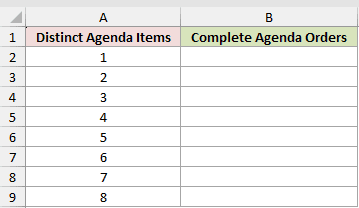
We want to count the possible agenda orders when every distinct item must appear exactly once.
Enter this formula in cell B2:
=PERMUT(A2:A9,A2:A9)
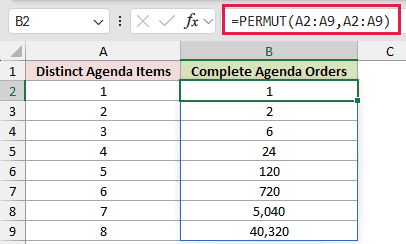
The formula spills results through B9. Three agenda items have 6 complete orders, while eight items have 40,320.
When number_chosen equals number, PERMUT returns the same count as FACT. Both calculate the factorial because every distinct item is used.
PERMUT is useful when you want one formula pattern for partial and complete arrangements. FACT is shorter when you always arrange the entire set.
Tips & Common Mistakes
- Use PERMUT only when order matters. If changing the order does not create a new outcome, use COMBIN.
- PERMUT does not allow repeated items. Use PERMUTATIONA when the same item may fill more than one position.
- Both PERMUT arguments are truncated to integers. For example, 6.9 is treated as 6.
numbermust be positive.number_chosencannot be negative or greater thannumber, or PERMUT returns#NUM!.- Choosing zero items returns 1 when
numberis valid. There is one empty arrangement. - PERMUT returns a count, not the actual list of arrangements.
- Spilled formulas need clear destination cells. A blocked range produces a
#SPILL!error in dynamic-array Excel. - In Excel 2019 and earlier, enter row-level formulas and fill them down, or use the legacy array-formula workflow.
PERMUT counts ordered selections without replacement. The examples covered partial arrangements, repetition choices, probability denominators, and the full-arrangement case shared with FACT.
I hope you found this article helpful.
Related Excel Functions / Articles:
