
Excel’s COMBINA function returns the number of unordered selections when an item can be chosen more than once.
Use it when order doesn’t matter and repeats are allowed. COMBIN handles the no-repeat case, so COMBINA counts more by including same-item selections.
In this article, I’ll show you how to count boxes bigger than the menu, require at least one of each type, and find the smallest menu for a target.
COMBINA Function Syntax in Excel
The COMBINA function uses the available item count and the number of items chosen.
=COMBINA(number, number_chosen)
- number (required) is the number of distinct items available.
- number_chosen (required) is the number of items in each selection. The same item may be chosen repeatedly.
When to Use COMBINA Function
- Count product bundles when customers may select the same option more than once.
- Compare plans with different pool sizes and items per box.
- Count larger boxes even when they contain more items than the available types.
- Enforce minimum quantities, such as making sure every flower type appears at least once.
- Find the smallest menu that reaches a target number of possible selections.
Example 1: Compare Repeat and No-Repeat Counts
Let’s start with the difference that decides whether you need COMBINA or COMBIN.
Below is the dataset. Column A lists gelato flavors, column C names each cup rule, and column D is reserved for possible-cup counts.
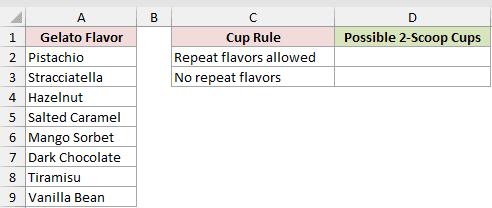
We want to count two-scoop cups when repeated flavors are allowed.
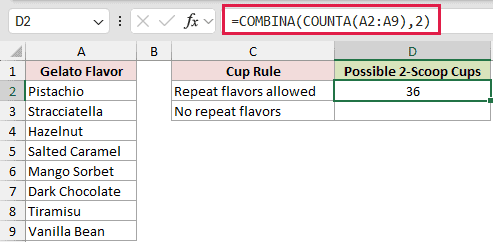
Here is the COMBINA formula:
=COMBINA(COUNTA(A2:A9),2)
For comparison, here is the COMBIN formula for cups that cannot repeat a flavor:
=COMBIN(COUNTA(A2:A9),2)
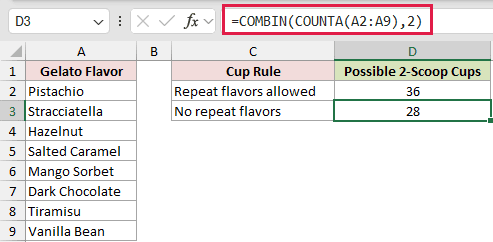
COUNTA finds the eight listed flavors. COMBINA returns 36 cups because it includes repeated flavors, while the COMBIN comparison returns 28.
The gap is eight cups. Those are the same-flavor pairs, one for each flavor in the list.
Example 2: Compare Box Plans With One Formula
Now let’s compare several subscription-box plans at once.
Below is the dataset. A names each box plan, B gives the number of items to choose from, C gives items per box, and D reserves space for possible-box counts.
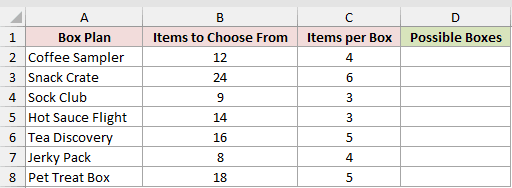
We want one formula to pair each plan’s available items with its items per box.
Here is the formula:
=COMBINA(B2:B8,C2:C8)
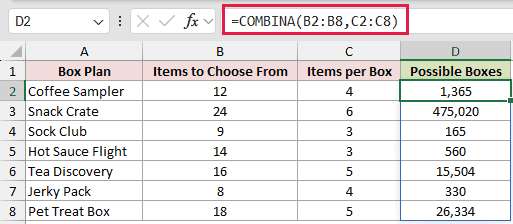
COMBINA pairs each row’s value in column B with its value in column C. The Coffee Sampler returns 1,365 possible boxes, while the Snack Crate returns 475,020.
This formula spills in Excel 2021, Excel 2024, and Microsoft 365. In Excel 2019 and earlier, enter a per-row version and fill it down.
Pro Tip: Keep the cells below D2 empty. A blocked output range causes a #SPILL! error instead of the full result set.
Example 3: Choose More Items Than Available Types
Here’s a case where COMBINA behaves very differently from COMBIN.
Below is the dataset. Columns A and B define each box, column E lists donut flavors, and column C will hold possible-box counts.
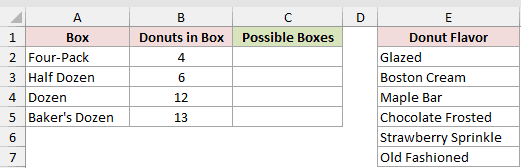
We want to count each box even when it holds more donuts than the menu has flavors.
Here is the formula:
=COMBINA(COUNTA(E2:E7),B2:B5)
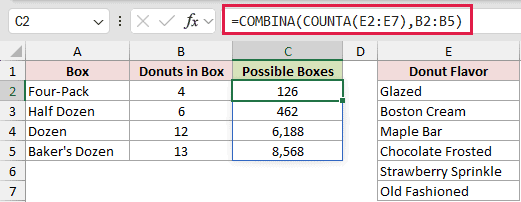
COUNTA finds six flavors, and column B supplies each box size. The formula returns 126, 462, 6,188, and 8,568 possible boxes.
The dozen works even though 12 is larger than six because flavors can repeat. Plain COMBIN returns #NUM! for that no-repeat request.
You can reproduce the same four counts with COMBIN(n+k-1,k), where the pool becomes the flavor count plus the box size minus one. It is less direct than COMBINA.
Example 4: Require Every Flower Type
Next, let’s add a minimum rule without listing every bouquet.
Below is the dataset. Columns A and B define bouquet sizes, column E lists flower types, and column C will hold qualifying mix counts.
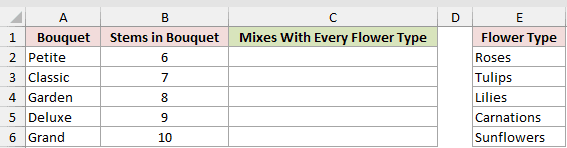
We want every bouquet to contain at least one stem from each flower type.
Here is the formula:
=COMBINA(COUNTA(E2:E6),B2:B6-COUNTA(E2:E6))
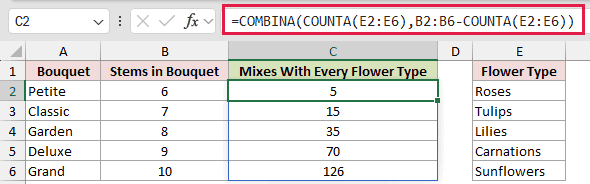
COUNTA finds five flower types. The formula assigns one stem to each type first, then counts ways to distribute the remaining stems with repeats allowed.
A six-stem bouquet leaves one flexible stem and returns 5 mixes. A ten-stem bouquet leaves five flexible stems and returns 126 mixes.
The same idea works for exclusions. Remove an unavailable type from the pool before counting the remaining choices.
Example 5: Find the Smallest Menu
Let’s reverse the question and work backward from a target.
Below is the dataset. Column A lists candidate oil counts, D2 holds the target, and columns B and E are reserved for the calculated results.
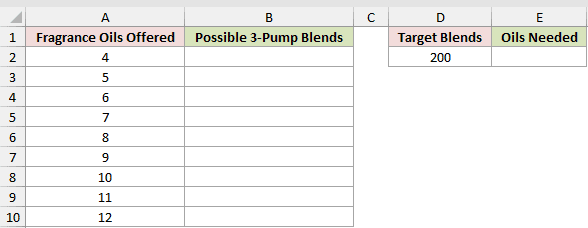
We first want the possible three-pump blends for every candidate menu size.
Here is the COMBINA formula:
=COMBINA(A2:A10,3)
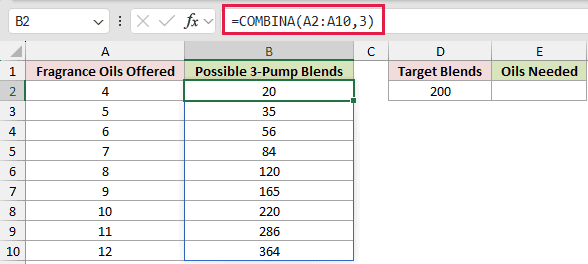
The spill rises from 20 blends with four oils to 364 blends with 12 oils. Ten oils produce 220 possible blends.
Now we want the smallest oil count that reaches the target in D2.
Here is the XLOOKUP formula:
=XLOOKUP(D2,ROUND(B2:B10,0),A2:A10,,1)
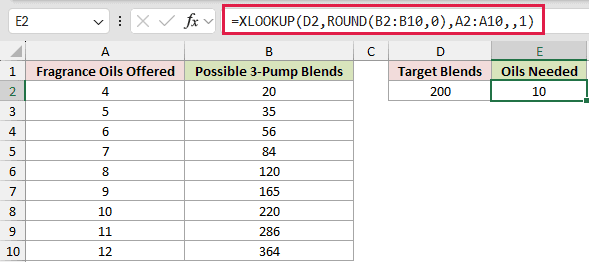
ROUND cleans the count array before XLOOKUP uses match mode 1 to find an exact match or the next larger value.
The target is 200 blends, so XLOOKUP returns 10 oils. XLOOKUP requires Excel 2021 or later.
Pro Tip: =COMBINA(31,3)=5456 returns TRUE although the raw result is 5455.999999999999. Rounding before XLOOKUP or MATCH remains a safe habit.
Example 6: Count Up to Three Toppings
Finally, let’s count every pizza from no toppings through three toppings.
Below is the dataset. Column A lists toppings, column C holds allowed topping counts, and column D includes the possible-pizza and total result cells.
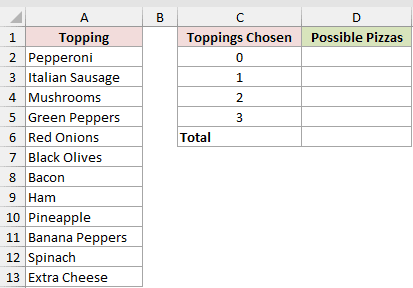
We want one spilled formula to count pizzas for each allowed number of toppings.
Here is the COMBINA formula:
=COMBINA(COUNTA(A2:A13),C2:C5)
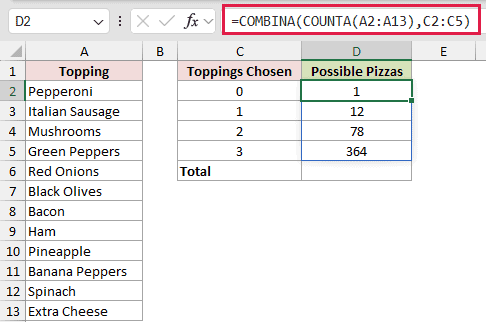
The formula returns 1, 12, 78, and 364. Choosing zero toppings returns 1 because the plain-cheese pizza is one valid selection.
Now we want the total across every allowed topping count.
Here is the SUM formula:
=SUM(D2#)
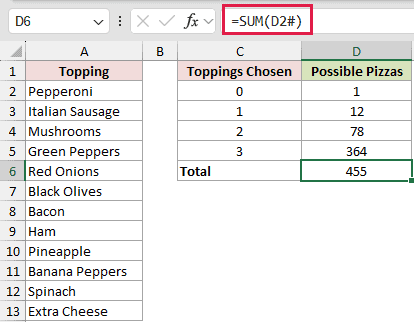
The spill reference D2# passes all four COMBINA results to SUM. The total is 455 possible pizzas.
Spill references require Excel 2021 or later. Repeated toppings are allowed here, so double pepperoni counts as a valid choice.
Tips & Common Mistakes
- COMBINA is available in Excel 2013 and later.
- Decimal arguments are truncated. Inputs of 4.9 and 3.2 behave like 4 and 3, returning 20.
- Negative arguments return #NUM!. A blank
number_chosencell acts like zero and silently returns 1. - Very large requests can overflow. A pool of 1,000 with 500 choices returns #NUM!.
- COMBINA counts selections but doesn’t list them. You need a separate enumeration method when the actual combinations matter.
- Don’t treat one divided by a COMBINA count as the probability of a random pick. A mixed selection can come from several pick orders, while a same-item selection has only one.
- Use PERMUTATIONA for permutations when order matters and repetition is allowed.
Before committing a menu or bundle plan, check that the count matches the choices customers can actually make.
That quick check catches most errors around minimum quantities and zero-item selections.
Related Excel Functions / Articles:
