
Excel’s COMBIN function returns the number of different groups you can choose from a set of items, where order doesn’t matter and no item repeats.
For example, you can count possible committees from a candidate list. Each committee counts once, however you arrange its members’ names.
Assigning roles such as chair and secretary makes order matter, so that calls for PERMUT instead. COMBIN counts groups without listing their members.
In this article, I’ll show you how to count possible committees, calculate round-robin match counts, and compare combinations with permutations.
COMBIN Function Syntax in Excel
COMBIN takes the number of available items and how many you want to choose:
=COMBIN(number, number_chosen)
- number (required) is the total number of distinct items available.
- number_chosen (required) is how many items go into each group. It cannot exceed
number.
COMBIN counts groups where order doesn’t matter and no item repeats. Choosing Jessica, Andre, and Emily makes the same committee however you arrange their names.
Both arguments must be numeric. Excel truncates decimal arguments before calculating, so the fractional parts don’t affect the count.
When to Use COMBIN Function
- Count committees you can form from a candidate list.
- Compare how many groups are possible at different group sizes.
- Calculate the number of matches when every team plays every other team once.
- Count possible draws or card hands when selection order doesn’t matter.
Example 1: Count the Possible 3-Person Committees
Let’s start with a candidate list and a fixed committee size.
Below is the dataset. Cells A2:A11 contain ten committee candidates, and column C labels the two calculations we’ll make.
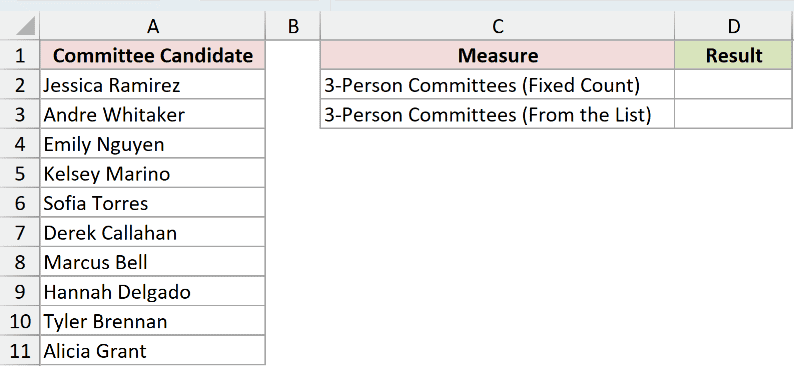
We want to count the different three-person committees we can form from these candidates.
Here is the formula for D2:
=COMBIN(10,3)
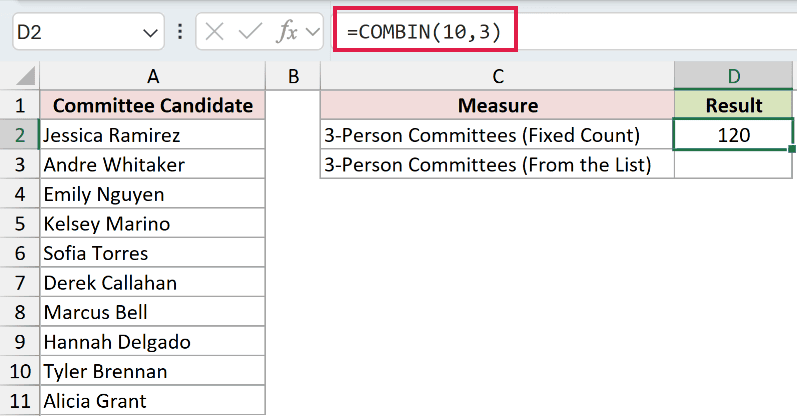
The result is 120. The first argument gives the candidate count, and the second sets the committee size.
Each committee counts once. We’re choosing members without assigning roles, so changing their order doesn’t create another committee.
To count committees using the candidate count from the list, enter this formula in D3:
=COMBIN(COUNTA(A2:A11),3)
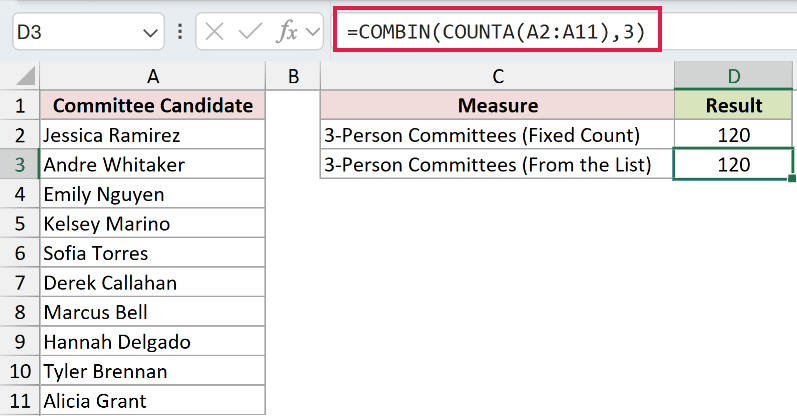
This also returns 120. COUNTA counts the filled cells in A2:A11, and COMBIN uses that count as the available pool.
The formula responds when cells within that range are filled or cleared. If you append candidates below A11, you’ll need to extend the reference.
COMBIN also saves you from building the calculation with FACT and dividing factorials yourself. There’s no newer replacement you need to switch to.
Pro Tip: Keep one candidate per cell in A2:A11. COUNTA counts filled cells, so a note or duplicate name would be counted as another candidate.
Example 2: Spill COMBIN Across Every Committee Size
Now let’s compare different committee sizes without writing a formula for each one.
Below is the dataset. Cells A2:A11 list committee sizes from 1 to 10.
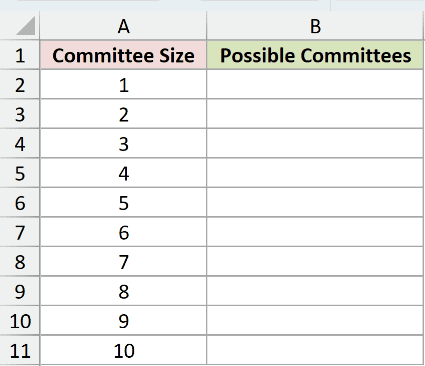
We want the number of possible committees for every listed size, using the same pool of ten candidates.
Here is the formula for B2:
=COMBIN(10,A2:A11)
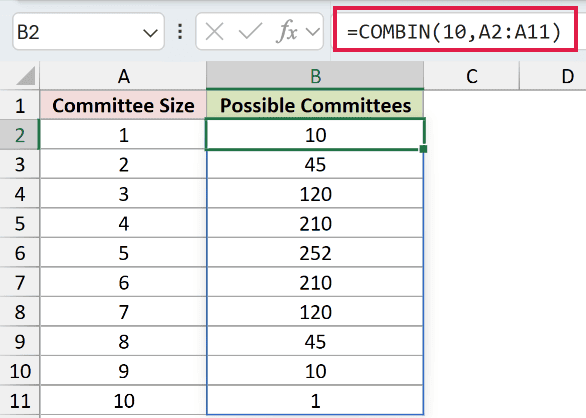
The formula spills into B2:B11. The pool stays fixed at 10, while each value in A2:A11 supplies a different number to choose.
The largest count is 252 in B6, for a five-person committee. Choosing all ten candidates returns 1 in B11 because there’s only one complete group.
Notice the symmetry: choosing three gives 120, and choosing seven also gives 120. Each three-person selection corresponds to a seven-person group left behind.
In Excel 2021 and later, SEQUENCE can supply the committee sizes instead of a typed column. The worksheet keeps them visible so you can compare each size.
Pro Tip: Enter the formula only in B2 and leave B3:B11 empty. Existing content in that output range causes a #SPILL! error.
Example 3: Work Out a Round-Robin Schedule Size
Choosing a pair of teams for a match is another way to use combinations.
Below is the dataset. Column A lists eight club divisions, and B2:B9 contains their team counts.
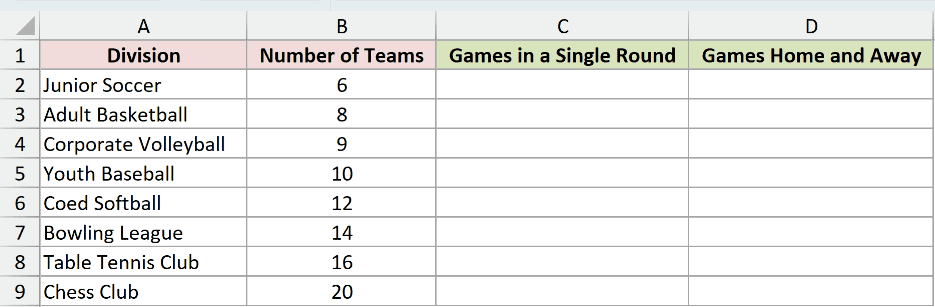
We want the total games when every pair meets once, then the total for a home-and-away season.
Here is the formula for C2:
=COMBIN(B2:B9,2)
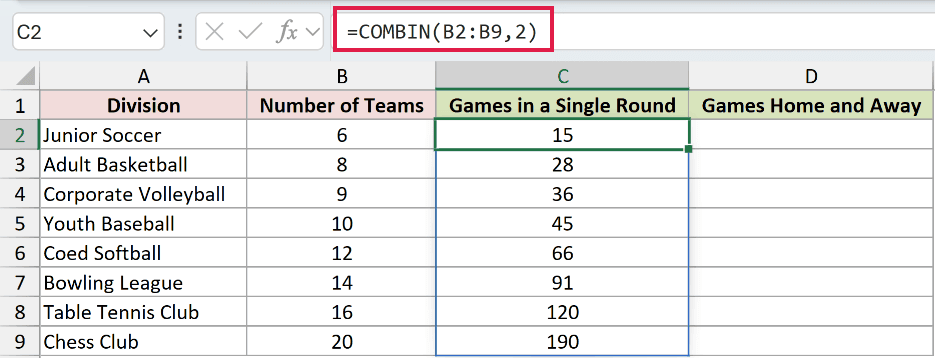
The results spill into C2:C9. Junior Soccer’s 6 teams need 15 games, while the Chess Club’s 20 teams need 190.
Here, “a single round” means a complete round-robin cycle where every pair meets once. It doesn’t mean one matchday.
For two meetings per pair, enter this formula in D2:
=COMBIN(B2:B9,2)*2
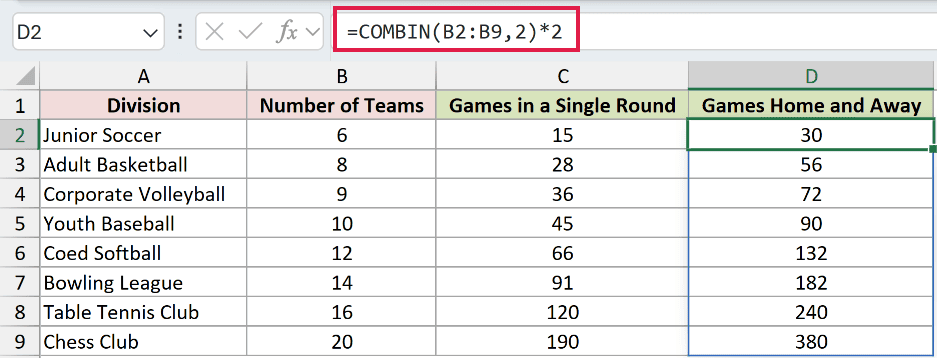
This spills into D2:D9, returning 30 for Junior Soccer and 380 for the Chess Club.
Multiplying by 2 allows one game at each team’s venue. This counts games, but it doesn’t assign dates or decide which teams play first.
Treating home and away as ordered positions gives the same count through PERMUT. We’ll compare that function with COMBIN in Example 5.
Example 4: Calculate Lottery and Card-Hand Combinations
Let’s put both arguments in cells so each row can describe a different draw.
Below is the dataset. Column A labels six draws, column B gives each pool size, and column C specifies how many items are picked.
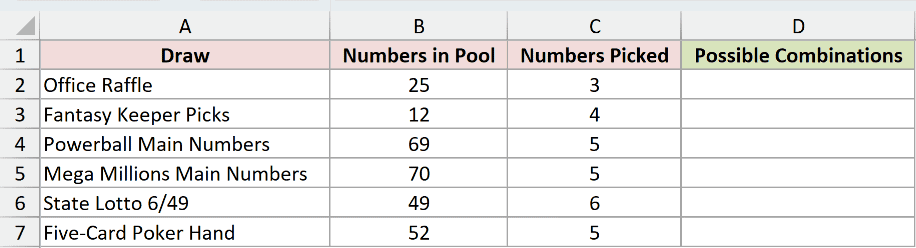
We want to count possible selections for each row, assuming no repeats and no importance attached to selection order.
Here is the formula for D2:
=COMBIN(B2:B7,C2:C7)
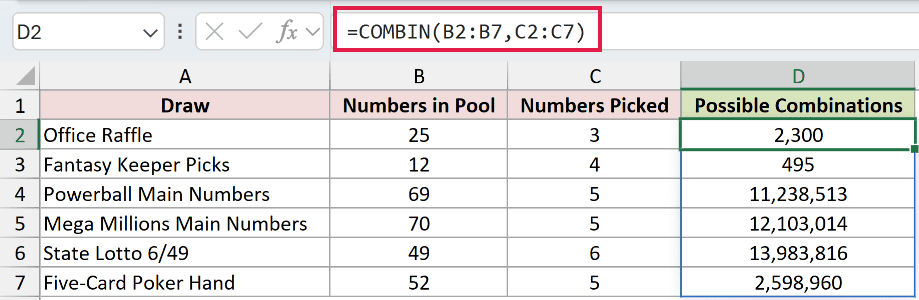
The formula pairs each pool size with the pick count on the same row, then spills the answers into D2:D7.
The Office Raffle returns 2,300 possible groups. The 6/49 row returns 13,983,816, while the five-card hand returns 2,598,960.
These are counts of complete selections. COMBIN doesn’t calculate the chance of a particular poker hand category, such as a flush.
Pro Tip: The lottery rows use the pool sizes shown in this worksheet and cover main numbers only. Separate bonus-ball selections aren’t included, so these counts aren’t full jackpot odds.
Example 5: COMBIN vs COMBINA vs PERMUT vs PERMUTATIONA
The right function depends on whether order matters and whether an item can repeat.
Below is the dataset. Cells A2:A6 contain available item counts, and B2:B6 contains the corresponding numbers chosen.
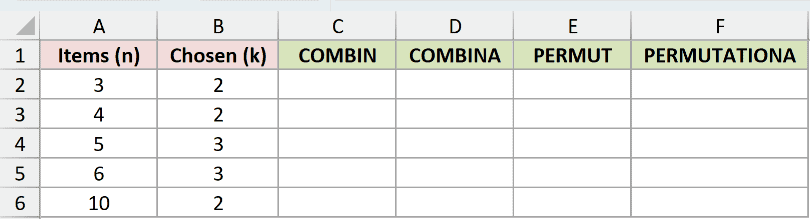
We want to compare all four functions using exactly the same inputs.
Here is the COMBIN formula for C2:
=COMBIN(A2:A6,B2:B6)
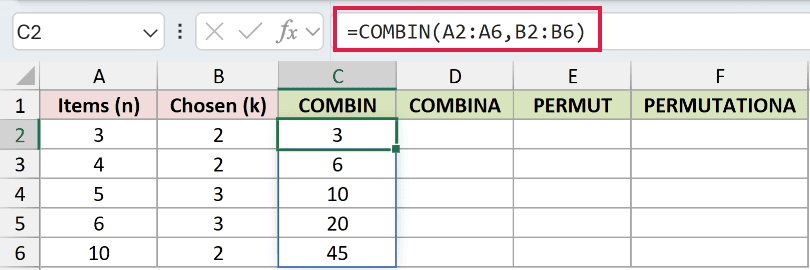
This spills into C2:C6. For five items with three chosen, C4 returns 10. Order doesn’t matter, and each item can appear only once.
Here is the COMBINA formula for D2:
=COMBINA(A2:A6,B2:B6)
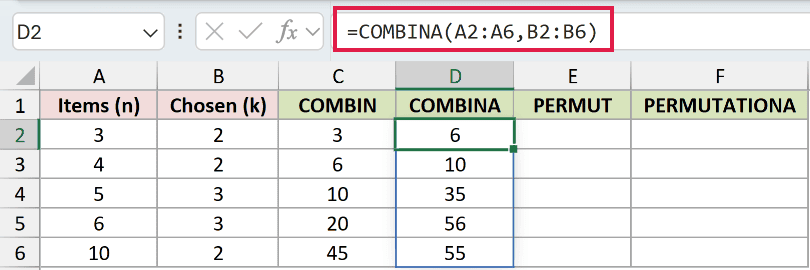
This spills into D2:D6, with 35 in D4. Order still doesn’t matter, but repeated selections of the same item are allowed.
Here is the PERMUT formula for E2:
=PERMUT(A2:A6,B2:B6)
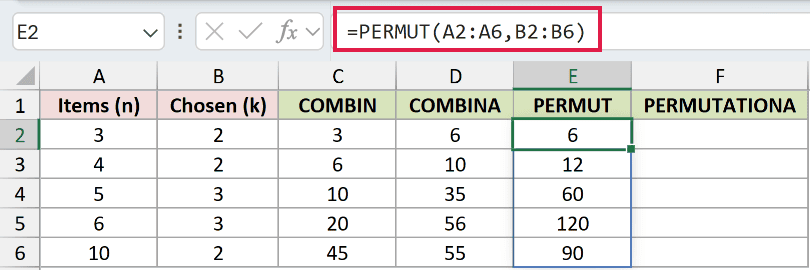
This spills into E2:E6, with 60 in E4. Order matters now, but items still can’t repeat.
Think of assigning distinct roles to committee members. Swapping who holds each role creates a different assignment even when the members stay the same.
Here is the PERMUTATIONA formula for F2:
=PERMUTATIONA(A2:A6,B2:B6)
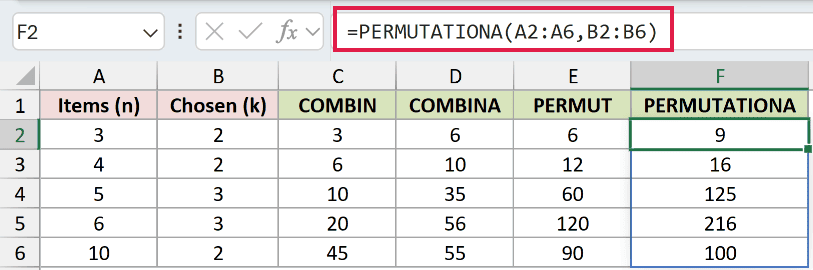
This spills into F2:F6, with 125 in F4. Both order and repeated items are allowed.
These functions answer different questions. Use this table to choose the one that matches your selection rules.
| Does order matter? | Can an item repeat? | Function | Example |
|---|---|---|---|
| No | No | COMBIN | Choose committee members without assigning roles. |
| No | Yes | COMBINA | Choose ice cream scoops, allowing repeated flavors. |
| Yes | No | PERMUT | Assign different people to distinct committee roles. |
| Yes | Yes | PERMUTATIONA | Build a code with repeated characters allowed. |
Example 6: Decimals, Zero, and COMBIN Errors
Finally, let’s see what happens when the inputs aren’t ordinary positive whole numbers.
Below is the dataset. Column A labels seven cases, while columns B and C contain the available counts and numbers chosen.
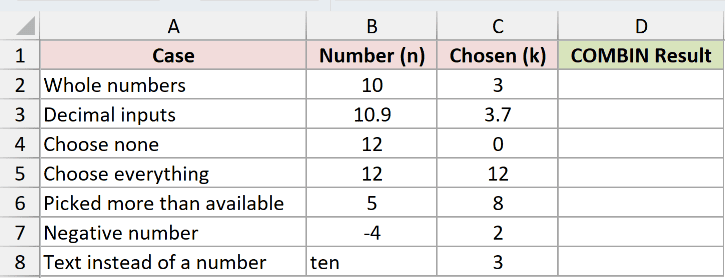
We want to check how COMBIN handles decimals, boundary cases, and invalid inputs.
Here is the formula for D2, which you then copy down through D8:
=COMBIN(B2,C2)
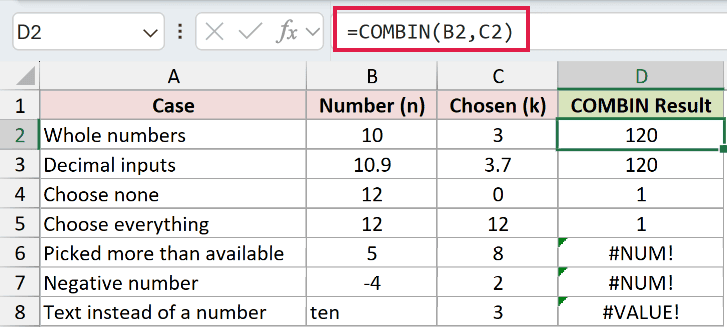
This example deliberately uses separate formulas in each row so you can select any error case and see its own references in the formula bar.
The whole-number row returns 120. The decimal row also returns 120 because Excel truncates 10.9 to 10 and 3.7 to 3 before calculating.
Choosing none returns 1 in D4: there’s one empty selection. Choosing all 12 items also returns 1 in D5: there’s one complete selection.
The last three cells show deliberate errors:
D6returns#NUM!because the row tries to choose 8 items from only 5. Reduce the chosen count or correct the pool size.D7returns#NUM!because the available count is -4. Replace the negative count with a valid nonnegative number.D8returns#VALUE!because the input is the wordten. Enter a numeric count instead.
Pro Tip: COMBIN truncates decimals; it doesn’t round them. If fractional counts indicate a data-entry mistake, correct the inputs rather than accepting a plausible-looking result.
Tips & Common Mistakes
- COMBIN counts combinations; it doesn’t list the members of each combination. For enumeration, see the separate guide on creating all possible combinations from two lists.
- Either negative argument, or a chosen count greater than the available count, produces
#NUM!. Very large pools can also eventually return#NUM!. - COMBIN works in every supported Excel version. Range formulas spill in Excel 2021, Excel 2024, and Microsoft 365. In Excel 2019 and earlier, select the output range and confirm the array formula with Ctrl+Shift+Enter.
- Opening formulas authored in pre-dynamic-array Excel in a dynamic-array version can add
@. Remove it to restore spilling when the formula returns a range or array. - Check the selection rules before choosing a sibling function. COMBINA allows repetition, PERMUT counts ordered selections, and PERMUTATIONA allows both order and repetition.
For a plain group count, COMBIN keeps the calculation short. Before using the result, check that your pool, group size, and selection rules match the question.
Other Excel articles you may also like:
