
Excel’s BESSELJ function returns the Bessel function value Jn(x) for a specified number and nonnegative order.
These values describe how circular wave patterns change with position or order. Their zeros mark places where an oscillating quantity drops to zero.
In this article, I’ll show you how to tabulate Bessel values, find J0 zeros, and model a circular aperture pattern.
BESSELJ Function Syntax in Excel
The BESSELJ function uses two required arguments.
=BESSELJ(x, n)
- x (required) is the value at which you want to evaluate the Bessel function. Positive, zero, and negative numeric values are accepted.
- n (required) is the order of the Bessel function. It must be zero or positive, and Excel truncates a decimal order to an integer.
When to Use BESSELJ Function
- Build tables of J0, J1, or higher-order Bessel values across a set of x values.
- Calculate carrier and sideband amplitudes in frequency-modulation models.
- Find Bessel zeros used in circular vibration and wave problems.
- Model drumhead modes or circular-aperture diffraction patterns.
Example 1: Calculate J0 and J1 Across x Values
Let’s start by comparing the first two Bessel orders across the same x values.
Below is the dataset. Column A lists x values from 0 through 10, while the green headers and empty cells in columns B and C mark the two result columns.
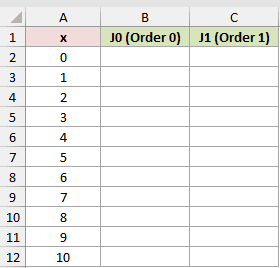
Column B should return J0 for every x value.
Here is the formula entered in B2 and copied down:
=BESSELJ(A2,0)
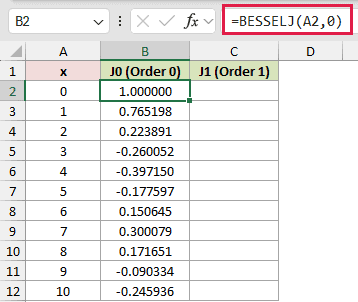
J0 starts at 1.000000, turns negative between x = 2 and x = 3, and continues oscillating as x increases.
Column C will return J1 for the same x values.
Here is the formula entered in C2 and copied down:
=BESSELJ(A2,1)
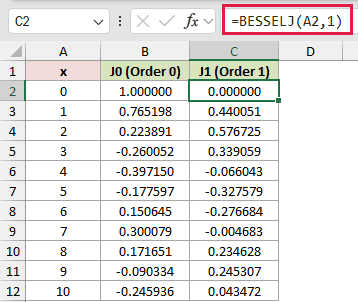
J1 starts at 0.000000 and reaches 0.576725 at x = 2. Its sign changes between x = 3 and 4, then again between 7 and 8.
A chart of columns B and C makes the oscillations and their shrinking swings easier to see.
Pro Tip: A plain cell range returns one #VALUE! error. In Excel 2021, Excel 2024, or Microsoft 365, =BESSELJ(A2:A12+0,0) uses a computed array and spills.
Example 2: Calculate FM Sideband Amplitudes
Here’s a frequency-modulation example built around one modulation index.
Below is the dataset. Columns A and B identify the carrier and five sideband pairs, while column E contains the Modulation Index card.
Column C has a green Amplitude header with empty bordered cells below it.
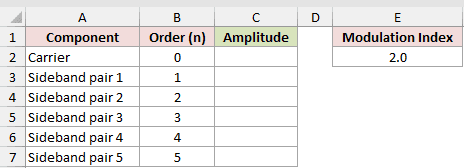
Column C should return the amplitude for orders 0 through 5.
Here is the spilling formula entered in C2:
=BESSELJ(E2,SEQUENCE(6,1,0))
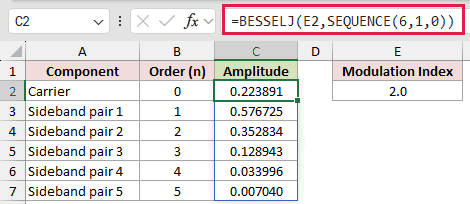
In frequency modulation, J0 represents the carrier amplitude, while J1 through J5 represent successive sideband-pair amplitudes.
At a modulation index of 2, the formula returns 0.223891 in C2 for the carrier amplitude. The first sideband pair is strongest at 0.576725, and later pairs get progressively smaller.
SEQUENCE creates the orders 0 through 5, so the formula spills through C2:C7. This approach works in Excel 2021, Excel 2024, and Microsoft 365.
In Excel 2019 or earlier, use =BESSELJ($E$2,B2) in C2 and copy it down.
Pro Tip: At a modulation index of 2.405, J0 is about -0.0000906, so the carrier amplitude nearly vanishes.
Example 3: Find Zeros of J0
Let’s use two Newton steps to refine rough guesses for the first five zeros of J0.
Below is the dataset. It lists each zero number and starting guess.
Green headers for After Step 1, After Step 2, and J0 at Step 2 sit above empty bordered cells.
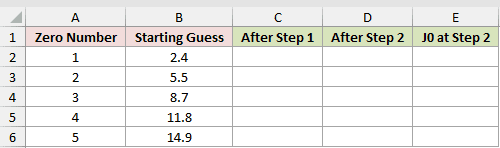
Column C should apply the first Newton step to each starting guess.
Here is the formula entered in C2 and copied down:
=B2+BESSELJ(B2,0)/BESSELJ(B2,1)
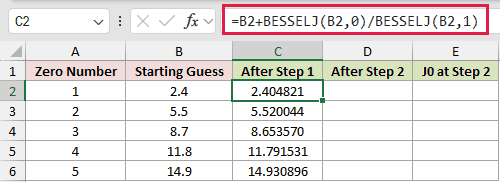
For J0, this Newton step uses J1 because the derivative of J0 is negative J1.
Column D repeats the calculation using the refined value from column C.
Here is the formula entered in D2 and copied down:
=C2+BESSELJ(C2,0)/BESSELJ(C2,1)
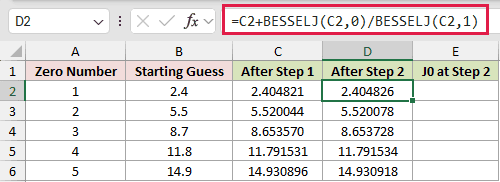
The first estimate becomes 2.404821 after one step and 2.404826 after two. The fifth estimate reaches 14.930918.
Column E will evaluate J0 at each value from the second step.
Here is the formula entered in E2 and copied down:
=BESSELJ(D2,0)
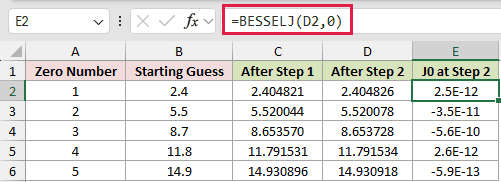
The first check returns 2.5E-12. Every displayed check lies within 5.6E-10 of zero, which confirms that two steps produced close estimates.
Pro Tip: Don’t compare a Bessel result directly with zero. Test a tolerance such as =ABS(E2)<1E-6, or round the value first.
Example 4: Model Circular Drumhead Modes
Here’s a physical example using two Bessel zeros to scale vibration shapes across a circular drumhead.
Below is the dataset. Column A lists normalized distances, while columns E and F contain the mode labels and Bessel zeros.
Green Mode (0,1) Shape and Mode (0,2) Shape headers sit above empty bordered cells in columns B and C.
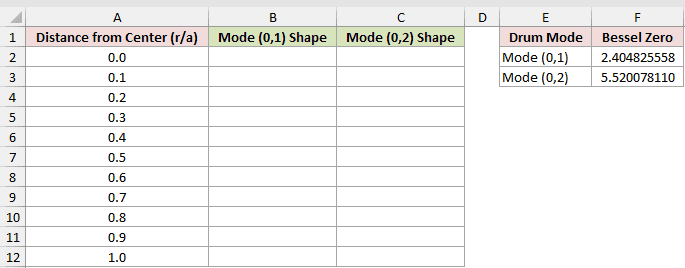
Column B should calculate the mode (0,1) shape from the center to the rim.
Here is the formula entered in B2 and copied down:
=BESSELJ($F$2*A2,0)
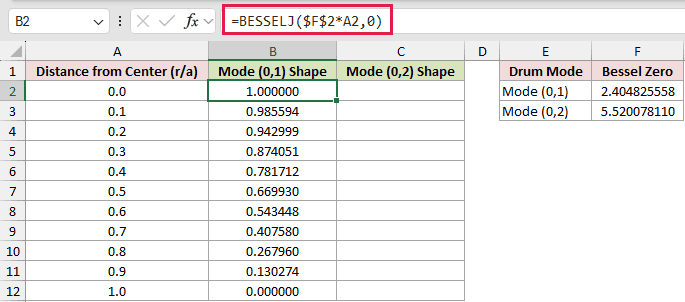
The first mode decreases from 1.000000 at the center to 0.000000 at the rim. A fixed drum edge must have zero displacement.
Column C will calculate the mode (0,2) shape using the second Bessel zero.
Here is the formula entered in C2 and copied down:
=BESSELJ($F$3*A2,0)
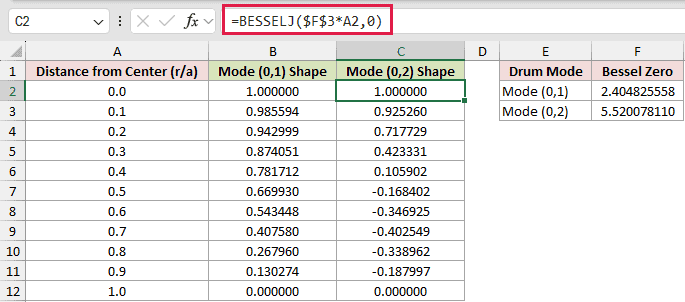
The second mode changes sign between r/a = 0.4 and 0.5. Its nodal ring sits at about r/a = 0.4357, where the drumhead doesn’t move.
Each drumhead mode’s frequency is proportional to its Bessel zero.
The ratio 5.520078110 / 2.404825558 = 2.2954 is also the frequency ratio, so it isn’t an exact multiple of the fundamental.
Example 5: Calculate a Circular Aperture Pattern
Let’s place BESSELJ inside a larger formula for light passing through a circular opening.
Below is the dataset. Column A lists distances from the pattern’s center, including important ring locations.
Column B has a green Relative Intensity header over empty bordered cells.
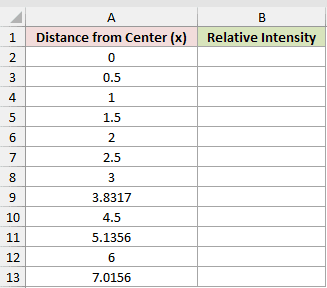
Column B should return the relative light intensity at each distance.
Here is the formula entered in B2 and copied down:
=IF(A2=0,1,(2*BESSELJ(A2,1)/A2)^2)
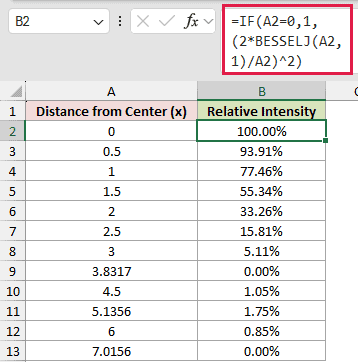
The squared Bessel expression describes the circular diffraction pattern. The IF branch returns the limiting value of 1 at the center and avoids division by zero.
Intensity falls from 100.00% at x = 0 to 0.00% at x = 3.8317. It rises to 1.75% at x = 5.1356.
The value returns to 0.00% at x = 7.0156, marking the second dark ring in the table.
Example 6: Test BESSELJ Arguments and Errors
The last example checks the argument rules that are easy to misread.
Below is the dataset. It lists seven scenarios with x and n inputs.
Column D has a green BESSELJ Result header over empty bordered cells ready to show values or errors.
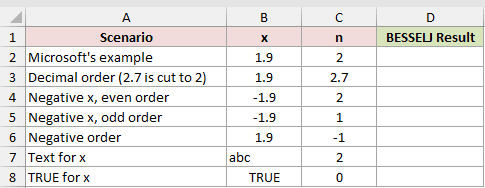
Column D should evaluate every input pair and expose the deliberate errors.
Here is the formula entered in D2 and copied down:
=BESSELJ(B2,C2)
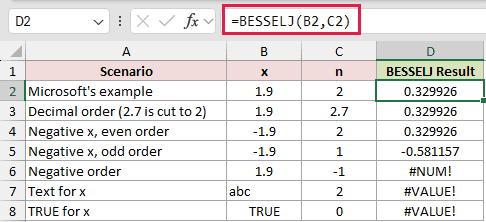
The first row returns 0.329926. An order of 2.7 returns the same displayed result because Excel truncates it to 2.
Negative x values are allowed. With x = -1.9, even order 2 returns 0.329926, while odd order 1 returns -0.581157.
A negative order returns #NUM!. Text and a logical TRUE used for x both return #VALUE!.
Tips & Common Mistakes
- A plain cell range passed to BESSELJ returns one #VALUE! error. Fill the formula down, add
+0to the range, or feed SEQUENCE or an array constant in Excel 2021, Excel 2024, or Microsoft 365. - Excel’s BESSELJ results can differ from reference tables around the 7th decimal place for higher orders. Round results or use a tolerance when checking expected ones, zeros, or reference-table values.
- Excel truncates a decimal order. An order of 2.7 becomes 2, while any negative order returns #NUM!.
- Negative x values are valid. For an even order, the result at -x equals the result at x. For an odd order, it’s the negative of the result at x.
- Non-numeric text and logical values return #VALUE!, although numeric text is accepted. Excel rejects the formula when n is left out, but a referenced blank n cell acts as zero.
- Higher orders can become tiny quickly. BESSELJ(1,10) is about 2.63E-10, so use scientific formatting when small values matter.
You can now use BESSELJ to build order tables and refine J0 zeros in Excel.
The drumhead and aperture examples show how those values fit into larger physical models.
Other Excel articles you may also like:
