
The IMCSC function in Excel returns the cosecant of a complex number. Cosecant means the reciprocal of sine, so it divides 1 by the complex sine.
Excel stores this answer as text containing the real and imaginary parts. You’ll need to extract those parts before rounding them or using them as ordinary numbers.
The examples cover reading complex results and choosing between IMCSC and CSC for real angles.
IMCSC Function Syntax in Excel
IMCSC takes a complex number as its argument:
=IMCSC(inumber)
- inumber (required): The complex number whose cosecant you want. Supply a cell reference, complex text using lowercase
iorj, or a real number.
You can also use COMPLEX to build the input from separate real and imaginary parts. IMCSC is available in Excel 2013 and later.
When to Use IMCSC Function
- Calculate cosecants for complex inputs in a math worksheet.
- Extract the real and imaginary parts of a complex cosecant for further calculations.
- Check a reciprocal-of-sine calculation against Excel’s dedicated cosecant function.
Example 1: Calculate and Read Complex Cosecants
Let’s start with a column of complex numbers and split each answer into readable parts.
Below is the dataset. Columns A and B contain point labels and complex inputs. Columns C through E have headers for the cosecant and its real and imaginary parts.
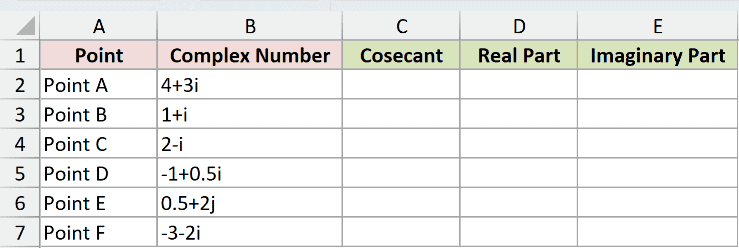
We want each point’s cosecant, followed by its rounded real and imaginary parts.
Enter this formula in C2, then copy it down through C7:
=IMCSC(B2)
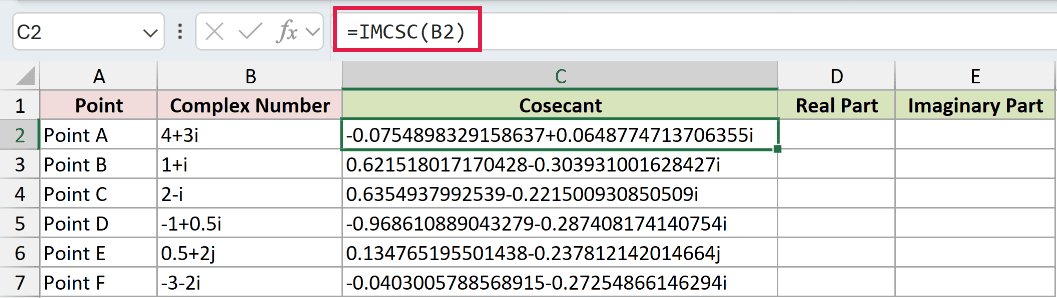
For Point A, C2 returns -0.0754898329158637+0.0648774713706355i. The part before the plus sign is real, and the coefficient beside i is imaginary.
The answer is text, so changing its number format won’t shorten it. Instead, extract each component and round the resulting number.
Enter the real-part formula in D2 and copy it down through D7:
=ROUND(IMREAL(C2),4)
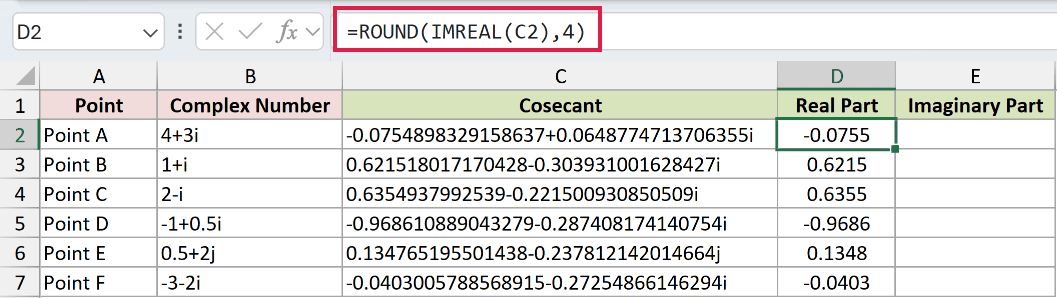
IMREAL extracts the real component, and ROUND limits its decimal places. Point A’s result in D2 is -0.0755.
Enter the imaginary-part formula in E2 and copy it down through E7:
=ROUND(IMAGINARY(C2),4)
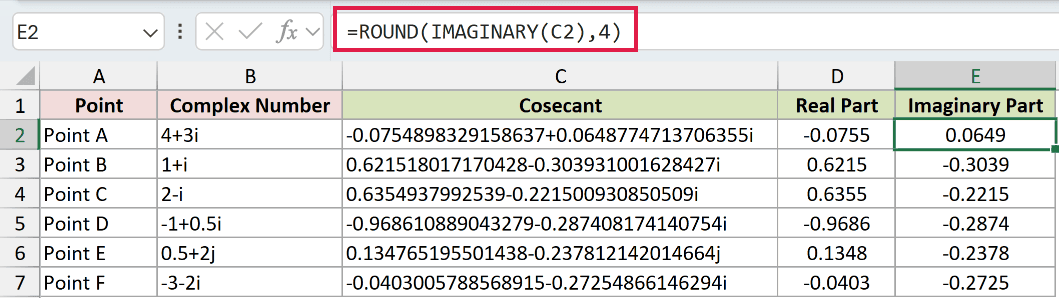
IMAGINARY extracts the coefficient without the suffix. Point A’s result in E2 is 0.0649, which is a number you can use in ordinary calculations.
Point B makes the sign difference clear: its extracted values are 0.6215 and -0.3039. Keep that negative sign when interpreting the imaginary component.
Pro Tip: Copy these formulas down one row at a time. Passing a bare range to IMCSC returns a single #VALUE!.
Example 2: Check the Reciprocal of Sine
Now let’s check the cosecant definition using separate sine and division steps.
Below is the dataset. Column A contains complex inputs. Columns B through E provide spaces for the sine check, direct cosecant, reciprocal comparison, and difference check.
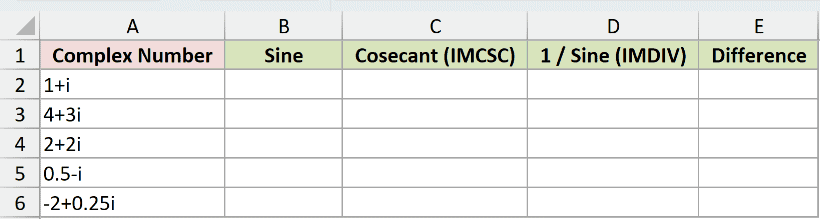
We want to compare IMCSC with the reciprocal of the complex sine and measure any numerical gap.
First, calculate the sine used by the check in B2, then copy down through B6:
=IMSIN(A2)
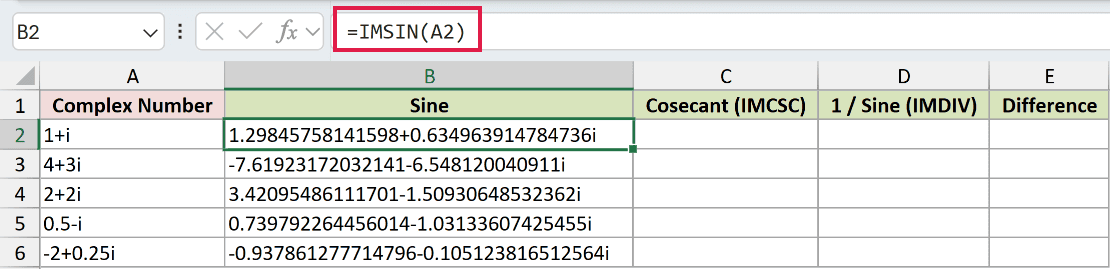
For 1+i, this intermediate check returns 1.29845758141598+0.634963914784736i. It’s the sine that we’ll divide into 1.
Calculate the direct cosecant in C2 and copy down through C6:
=IMCSC(A2)

The direct result in C2 is 0.621518017170428-0.303931001628427i.
For the reciprocal comparison, enter this in D2 and copy down through D6:
=IMDIV(1,B2)

IMDIV divides 1 by the sine check in B2. This comparison returns 0.621518017170428-0.303931001628425i in D2.
The final digits differ from the direct IMCSC result. That’s why comparing the text strings for exact equality isn’t a useful numerical check.
Measure the difference in E2 with this formula, then copy down through E6:
=IMABS(IMSUB(C2,D2))

IMSUB subtracts the reciprocal comparison from the direct result. IMABS then returns the magnitude of that difference as a number.
The difference check in E2 displays 2.0E-15. The other comparison rows display 0.0E+00, so this worksheet shows both a tiny gap and exact agreement.
Example 3: Compare IMCSC and CSC
For real angles, CSC returns an ordinary number that you can format directly.
Below is the dataset. Column A lists angles in degrees, column B is reserved for IMCSC results, and column C holds the CSC comparison.
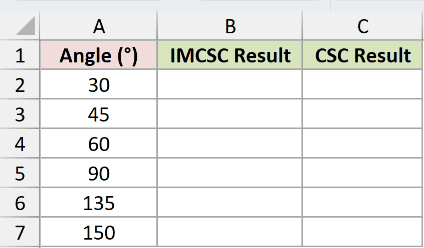
We want to calculate each angle’s cosecant and compare the text and numeric outputs.
Enter this in B2 and copy it down through B7:
=IMCSC(RADIANS(A2))
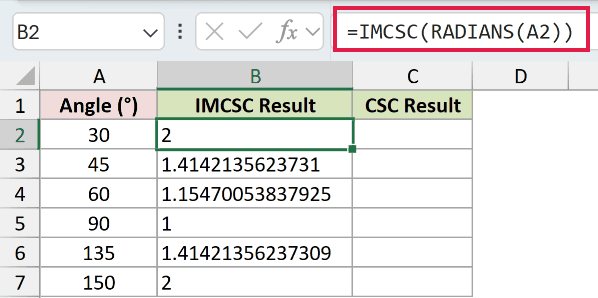
RADIANS converts the degree input before IMCSC calculates its cosecant. The 30-degree row returns 2, while the 45-degree row returns 1.4142135623731.
Those results are still text, even though neither has an imaginary part.
For the numeric CSC comparison, enter this in C2 and copy down through C7:
=CSC(RADIANS(A2))
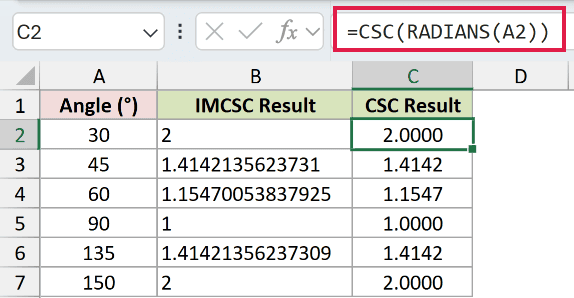
The CSC comparison displays 2.0000 and 1.4142 for those same rows. Its number format controls the displayed decimals because CSC returns numbers.
Both functions need radians. For real-angle work, I’d use CSC so the answer is ready for ordinary arithmetic. Use IMCSC when the input includes an imaginary part.
Example 4: Check Input Forms and Errors
Finally, let’s see which inputs work and why the deliberate error rows fail.
Below is the dataset. Column A labels each input type, column B contains the test inputs, and column C is reserved for cosecants or deliberate errors.
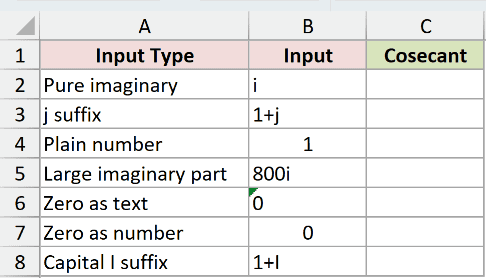
We want to check accepted input forms alongside zero inputs and an invalid suffix.
Enter this formula in C2 and copy it down through C8:
=IMCSC(B2)
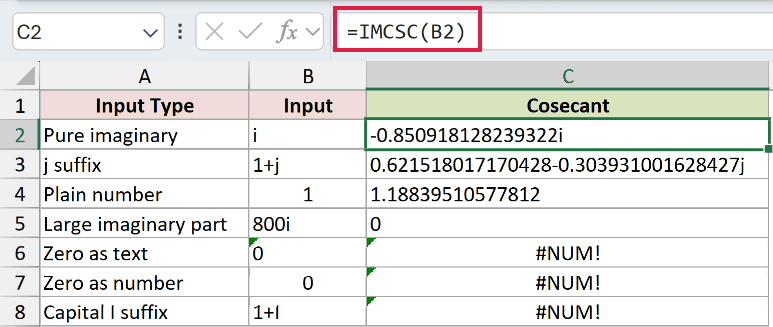
Read each row separately:
- Pure imaginary:
ireturns-0.850918128239322iinC2. An input doesn’t need a real component. - j suffix:
1+jreturns0.621518017170428-0.303931001628427jinC3. Excel preserves the lowercasej. - Plain number: The numeric input
1returns1.18839510577812inC4. IMCSC accepts it but still returns text. - Large imaginary part:
800ireturns the text0inC5. This is an edge-case result, not an overflow error. - Zero as text: The text
0produces the deliberate#NUM!inC6. Its sine is zero, so its reciprocal is undefined. - Zero as number: Numeric
0produces the deliberate#NUM!inC7for the same reason. Changing the input’s storage type doesn’t fix it. - Capital I suffix:
1+Iproduces the deliberate#NUM!inC8. Use a lowercase suffix so Excel can read the complex number.
For a #NUM! error, check whether the input is zero or has an invalid suffix. A lowercase suffix fixes the spelling; zero still has no defined cosecant.
Tips & Common Mistakes
- Keep complex results as text until you need their components. Number formats won’t round a complex string. Extract its real or imaginary part, then round that number.
- Use radians for real angles. Convert degree inputs with RADIANS, as shown in the CSC comparison. Inputs already in radians don’t need that conversion.
- Check numerical differences instead of text equality. The reciprocal calculation can differ from IMCSC in its last digits. The IMABS and IMSUB check shows the size of that gap.
- Check availability in older workbooks. IMCSC and CSC require Excel 2013 or later.
Other Excel articles you may also like:
