
The IMLOG10 function in Excel returns the base-10 logarithm of a complex number, with the answer stored as text.
Its result can contain both real and imaginary parts. The real part describes the input’s magnitude on a logarithmic scale; the imaginary part reflects its angle.
IMLOG10 also handles negative numbers, where LOG10 returns an error. Even when the result looks like an ordinary number, you’ll need IMREAL to extract it as a number.
I’ll show you how to separate the result’s parts, recognize the effect of scaling by ten, and compare IMLOG10 with LOG10 and IMLN.
IMLOG10 Function Syntax in Excel
IMLOG10 takes the complex number you want to calculate the logarithm of:
=IMLOG10(inumber)
- inumber (required): A complex number written as text in
x+yiorx+yjform, a real number, or a reference to a cell containing either.
Use lowercase i or j for the imaginary suffix. COMPLEX can build the input when the real and imaginary parts are in separate cells.
When to Use IMLOG10 Function
- Calculate common logarithms for complex values in a worksheet.
- Work with negative inputs that LOG10 cannot handle.
- Check how scaling a complex input changes its logarithm.
- Compare a complex base-10 logarithm with a calculation using IMLN.
Example 1: Calculate and Separate a Complex Logarithm
Let’s start with a column of complex numbers and make the output easier to read.
Below is the dataset. Column A contains complex inputs, and columns B through D will hold each logarithm and its separate real and imaginary parts.
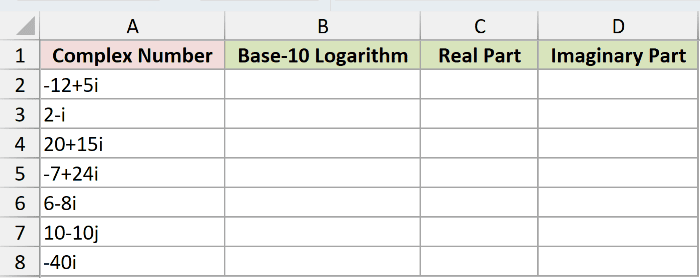
We want each complex logarithm, followed by numeric components we can round and use in other calculations.
Enter this formula in B2, then copy it down to B8:
=IMLOG10(A2)
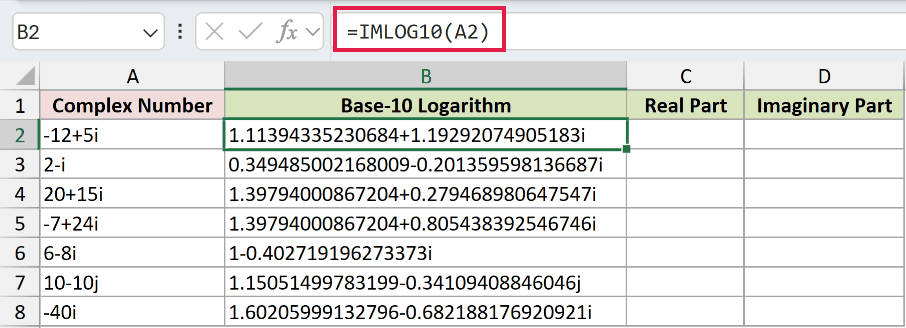
For -12+5i, the result is 1.11394335230684+1.19292074905183i. That’s text, so changing the cell’s decimal format won’t shorten it.
The input 10-10j returns 1.15051499783199-0.34109408846046j. Excel keeps the input’s lowercase j suffix.
To extract and round the real part, enter this in C2 and copy it down to C8:
=ROUND(IMREAL(B2),4)
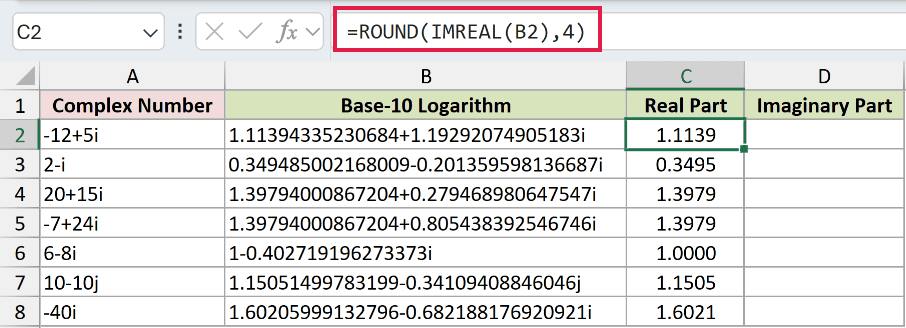
IMREAL extracts a number from the complex text. ROUND then rounds it, so C2 displays 1.1139.
For the imaginary part, enter this in D2 and copy it down to D8:
=ROUND(IMAGINARY(B2),4)
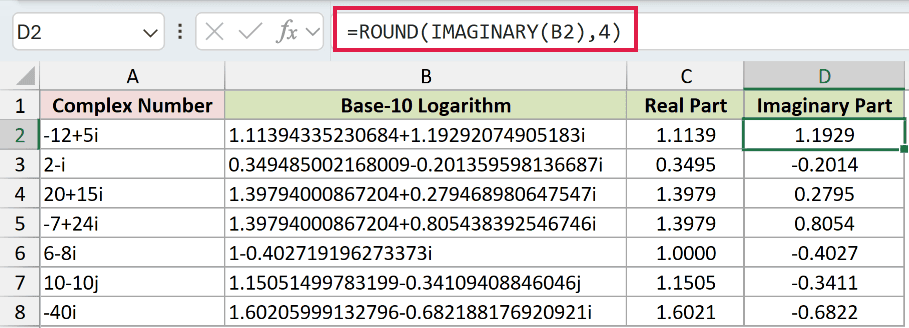
Cell D2 displays 1.1929. IMAGINARY returns the imaginary coefficient as a number, without the suffix.
Notice that 20+15i and -7+24i both have a real component of 1.3979. Their magnitudes match, but their angles differ.
Their imaginary components are 0.2795 and 0.8054, respectively.
Pro Tip: A bare range gives one #VALUE!. A unary plus or appended &"" enables spilling in Excel 2021, Excel 2024, and Microsoft 365.
Pro Tip: In Excel 2019 and earlier, enter =IMLOG10(A2) and copy it down, as these examples do.
Example 2: Scale Complex Inputs by Ten
A larger input doesn’t increase every part of its logarithm.
Below is the dataset. Column A contains scaled complex inputs and real powers of ten; columns B and C will hold their logarithms and extracted real parts.
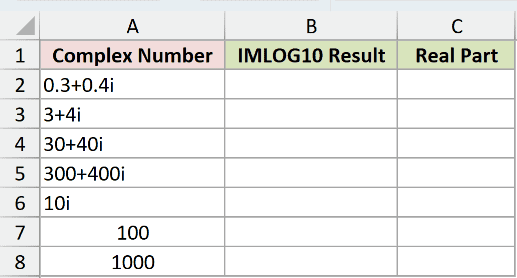
We want to see which part of the logarithm changes when both input components are multiplied by ten.
Enter this in B2 and copy it down to B8:
=IMLOG10(A2)
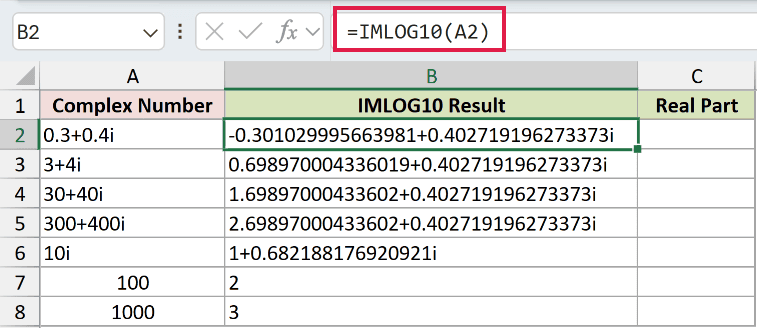
The input 0.3+0.4i returns -0.301029995663981+0.402719196273373i. The next input, 3+4i, returns 0.698970004336019+0.402719196273373i.
Multiplying the input by ten adds one to the logarithm’s real part. The imaginary part stays unchanged because scaling doesn’t change the input’s angle.
To see the real parts clearly, enter this in C2 and copy it down to C8:
=ROUND(IMREAL(B2),4)
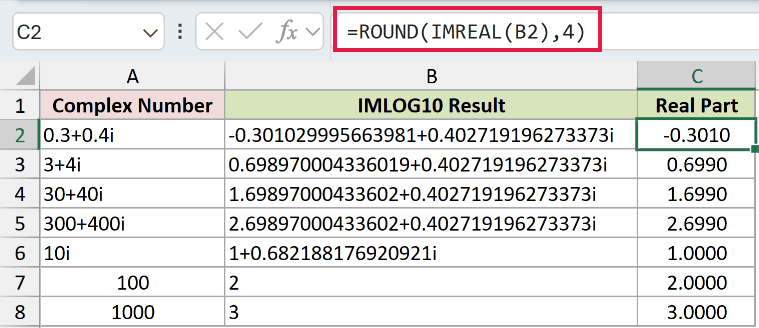
The scaled sequence displays -0.3010, 0.6990, 1.6990, and 2.6990 in C2:C5.
The purely imaginary input 10i returns 1+0.682188176920921i. Having no real input component doesn’t mean the logarithm has no real component.
For the real inputs 100 and 1000, IMLOG10 returns the text strings 2 and 3. The extracted numbers display as 2.0000 and 3.0000.
Pro Tip: For positive real inputs, LOG10 is more direct because it returns a number immediately. Choose IMLOG10 when you need a complex logarithm.
Example 3: Compare IMLOG10 and LOG10 on Negatives
Negative inputs are where the choice between these functions matters most.
Below is the dataset. Column A contains positive, negative, and zero inputs, with columns for the LOG10 comparison, IMLOG10 result, and extracted imaginary part.
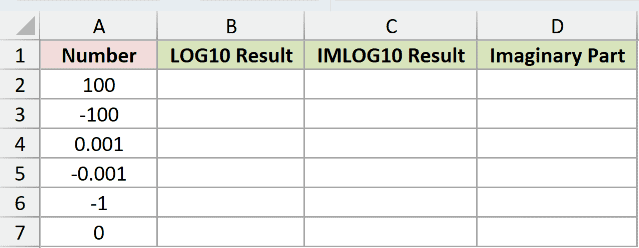
We want to compare the real-number logarithm with the complex logarithm for each input.
Start with the real-number comparison in B2, then copy it down to B7:
=LOG10(A2)
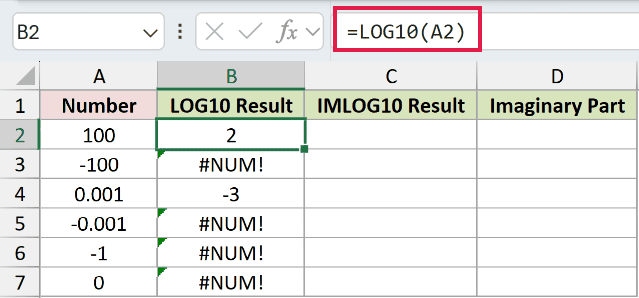
The LOG10 comparison returns 2 for 100 and -3 for 0.001. Both are valid positive inputs, even though the smaller input has a negative logarithm.
The comparison errors are deliberate: -100, -0.001, and -1 return #NUM! because they’re negative. The zero input also returns #NUM! because its logarithm is undefined.
Now enter IMLOG10 in C2 and copy it down to C7:
=IMLOG10(A2)
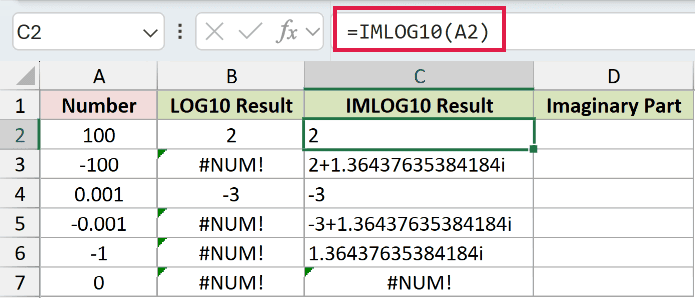
For -100, IMLOG10 returns 2+1.36437635384184i. For -0.001, it returns -3+1.36437635384184i.
The input -1 returns 1.36437635384184i. Each negative input has the same imaginary component because all lie on the negative real axis.
Zero still returns #NUM! in C7. Allowing complex results doesn’t make a logarithm of zero possible.
To isolate that shared imaginary component, enter this in D2 and copy it down to D7:
=ROUND(IMAGINARY(C2),4)
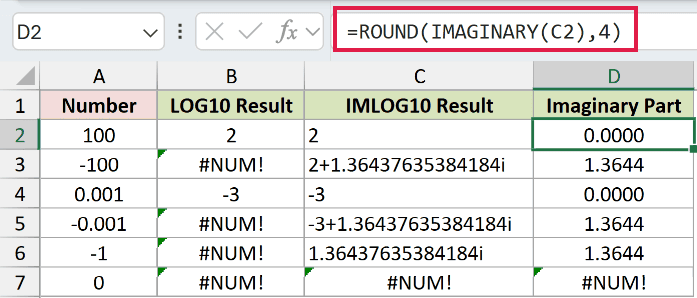
The negative-input rows display 1.3644. The positive-input rows display 0.0000, because their logarithms have no imaginary component.
Cell D7 deliberately retains #NUM! from C7. Extracting a component cannot repair an undefined logarithm.
Example 4: Check IMLOG10 Against IMLN
You can also calculate a complex base-10 logarithm from its natural logarithm, but comparing the resulting text needs care.
Below is the dataset. Column A holds the inputs; columns B through D will show IMLOG10, the IMLN comparison, and the magnitude of their difference.
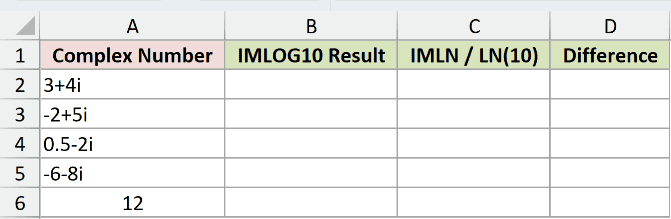
We want to check whether the direct calculation and the longer comparison route agree numerically.
Enter the direct formula in B2 and copy it down to B6:
=IMLOG10(A2)
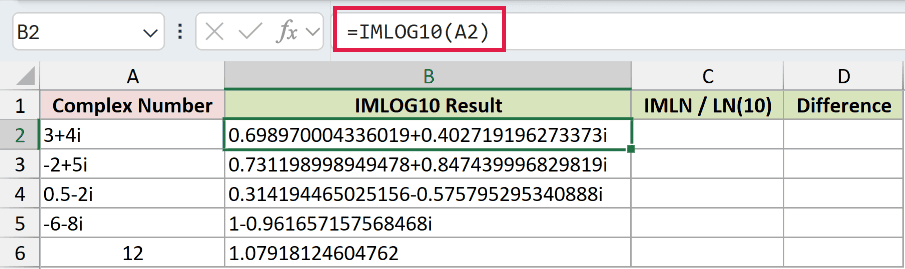
For 3+4i, the result is 0.698970004336019+0.402719196273373i.
For the IMLN comparison, enter this in C2 and copy it down to C6:
=IMDIV(IMLN(A2),LN(10))
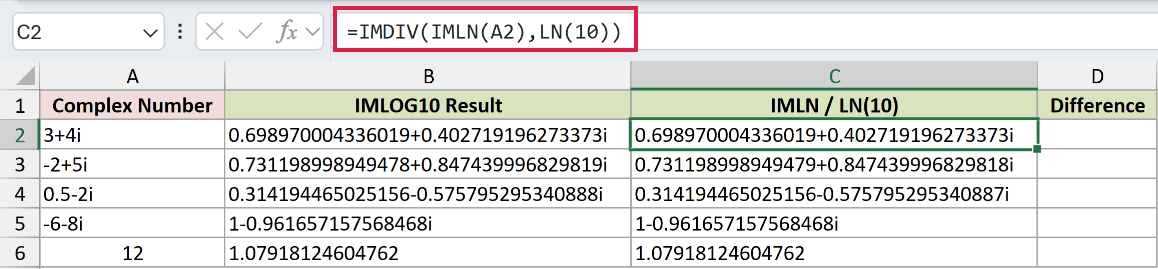
IMLN calculates the complex natural logarithm. LN calculates the natural logarithm of ten.
IMDIV divides the IMLN result by that value to convert it to base ten.
The comparison matches the direct result’s text for 3+4i, -6-8i, and 12. For -2+5i and 0.5-2i, the final digits differ.
For example, -2+5i returns 0.731198998949478+0.847439996829819i through IMLOG10. The IMLN comparison returns 0.731198998949479+0.847439996829818i.
A text equality check would treat those as different strings. That doesn’t tell you whether the numeric difference matters.
Measure the difference in D2, then copy this check down to D6:
=IMABS(IMSUB(B2,C2))
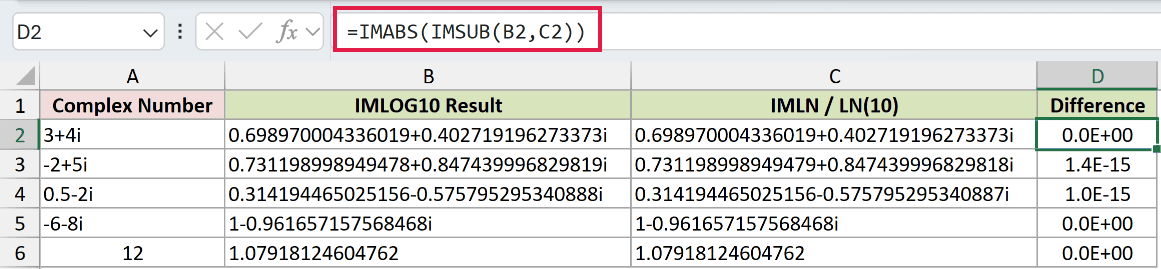
IMSUB subtracts the complex results, and IMABS returns the magnitude of the difference as an ordinary number.
The check displays 0.0E+00 for 3+4i, -6-8i, and 12. For -2+5i and 0.5-2i, it displays 1.4E-15 and 1.0E-15.
Those tiny differences reflect floating-point rounding. Use the numeric difference to judge agreement at the precision your calculation needs, rather than requiring identical text.
Tips & Common Mistakes
- Lowercase
iandjwork. A capitalIor malformed complex text returns#NUM!. Spaces are tolerated. - A blank referenced cell is treated as zero, so IMLOG10 returns
#NUM!. A logical value such asTRUEreturns#VALUE!. - IMLOG10 returns text, even when it looks numeric. Use IMREAL or IMAGINARY for numeric components instead of relying on number formatting.
- An amplitude level in decibels uses twenty times the real base-10 logarithm of the magnitude from IMABS. LOG10 handles that calculation.
Related Excel Functions / Articles:
