
The REPLACEB function in Excel replaces part of a text string using a starting byte position and a byte count, then returns the edited text.
It’s useful when a code contains a fixed segment you need to change. You can also insert text or delete a segment by changing the arguments.
In this article, I’ll show you how to update fixed-position codes, mask member numbers, and replace a status whose position varies between rows.
REPLACEB Function Syntax in Excel
REPLACEB takes the original text, the location to edit, and the replacement text:
=REPLACEB(old_text, start_num, num_bytes, new_text)
- old_text (required): The text to edit, supplied directly or through a cell reference.
- start_num (required): The byte position where replacement begins. Counting starts at the beginning of the text.
- num_bytes (required): How much of the original text to remove. Use zero to insert without removing anything.
- new_text (required): The replacement text. Use
""to delete the selected segment without inserting anything.
Microsoft marks REPLACEB as deprecated, but it still works in the examples below.
Byte counting differs from character counting only when a double-byte language is enabled and set as the default editing language; the English setup used here counts characters normally.
When to Use REPLACEB Function
- Update a fixed segment in an existing code, such as its fiscal-year label.
- Insert a separator without removing any of the original text.
- Mask the beginning of identifiers that have different lengths.
- Remove a fixed prefix from imported descriptions.
- Replace a status after a separator when its location varies by row.
Example 1: Update a Budget Code Segment
Let’s start with budget codes whose fiscal-year label sits in a fixed position.
Below is the dataset. Column A contains the original budget codes, and column B will hold the updated codes.
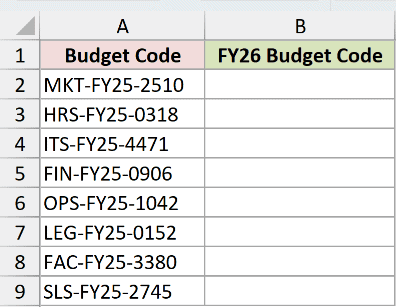
We want to replace the fiscal-year segment while keeping each department prefix and trailing identifier.
Enter this formula in B2:
=REPLACEB(A2:A9,5,4,"FY26")
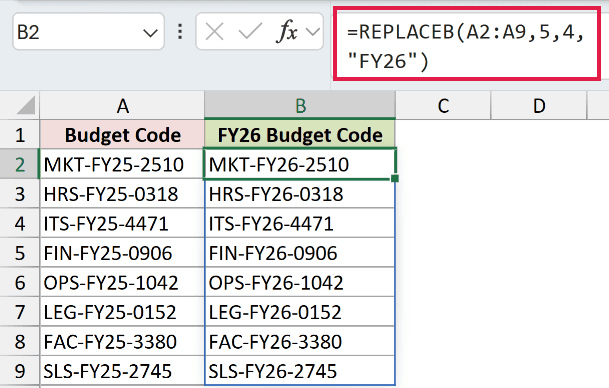
The formula returns MKT-FY26-2510 in B2 and spills the remaining updated codes into B3:B9.
The starting position points to the fiscal-year label, and the byte count covers that label. The trailing identifier stays intact because it’s outside the replacement segment.
This range formula spills in Excel 2021, Excel 2024, and Microsoft 365. In Excel 2019 and earlier, use a per-row reference and copy the formula down.
Example 2: Insert a Postal Code Space
You can use REPLACEB to insert text without overwriting anything.
Below is the dataset. Column A lists branches, column B holds postal codes without spaces, and column C will contain the formatted codes.
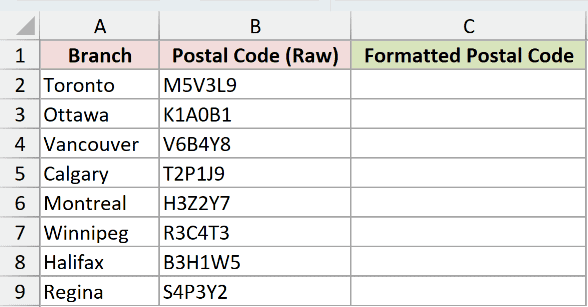
We want to add the missing space inside each postal code.
Enter this formula in C2:
=REPLACEB(B2:B9,4,0," ")
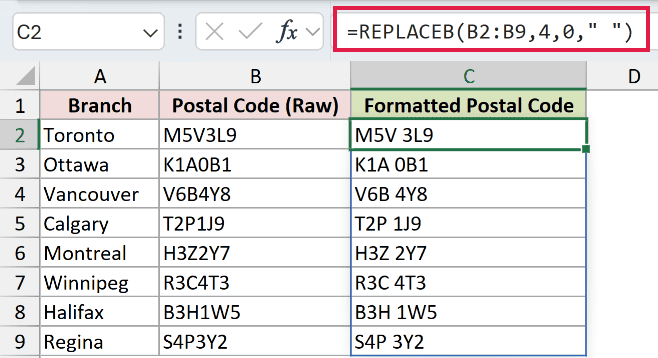
The results spill into C2:C9. Toronto’s code becomes M5V 3L9, while Ottawa’s becomes K1A 0B1.
The zero byte count tells REPLACEB to remove nothing. The quoted space is inserted at the specified position, and the remaining text moves along.
Pro Tip: " " contains a space, while "" is empty text. Use the space for this insertion; empty text would add nothing.
Example 3: Mask Variable-Length Member Numbers
A fixed replacement length won’t suit every member number in this list.
Below is the dataset. Column A lists members, column B contains their member numbers, and column C will show the masked versions.
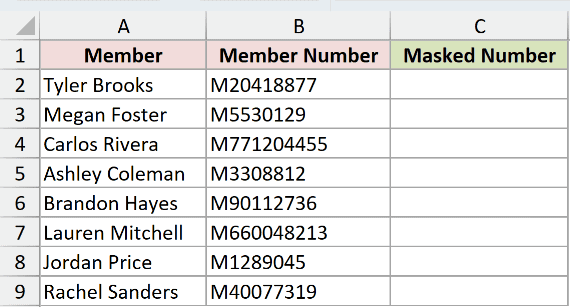
We want to mask the beginning of each member number while leaving its final digits visible.
LENB measures each text value’s byte length, and REPT repeats an asterisk. Together, they calculate how much REPLACEB should mask and the replacement text it needs.
Enter this formula in C2:
=REPLACEB(B2:B9,1,LENB(B2:B9)-4,REPT("*",LENB(B2:B9)-4))
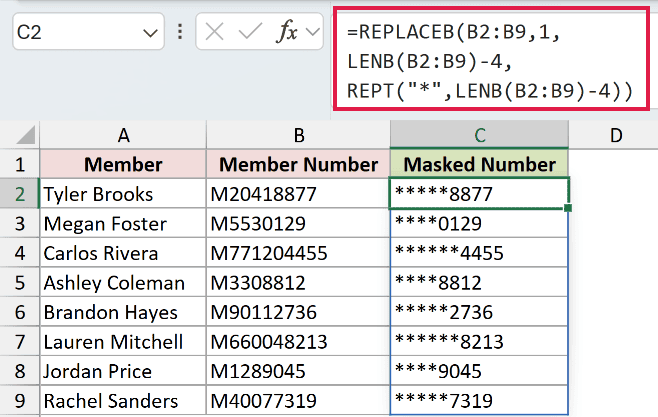
The formula spills into C2:C9. Tyler Brooks returns *****8877, Megan Foster returns ****0129, and Carlos Rivera returns ******4455.
How this formula works:
- LENB measures each member number, and the subtraction leaves the ending outside the replacement segment.
- REPT builds an asterisk string matching the part being removed.
- REPLACEB starts at the beginning and replaces that part with the asterisks.
The mask adjusts to each input’s length. Megan’s ending keeps its leading zero because REPLACEB leaves the characters outside the replaced segment unchanged.
Example 4: Delete a Bank Export Prefix
Empty replacement text turns REPLACEB into a deletion formula.
Below is the dataset. Column A contains bank-export descriptions, column B lists amounts, and column C will hold the merchant names.
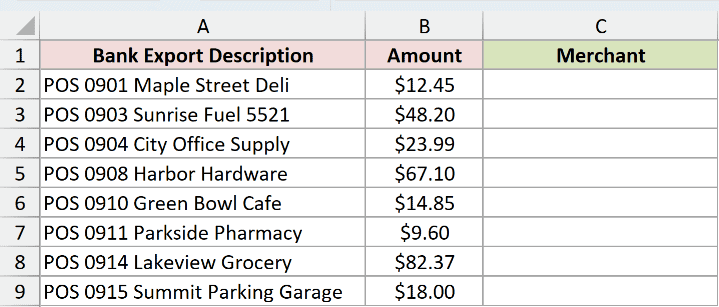
We want to remove the transaction marker and date prefix while keeping each merchant description.
Enter this formula in C2:
=REPLACEB(A2:A9,1,9,"")
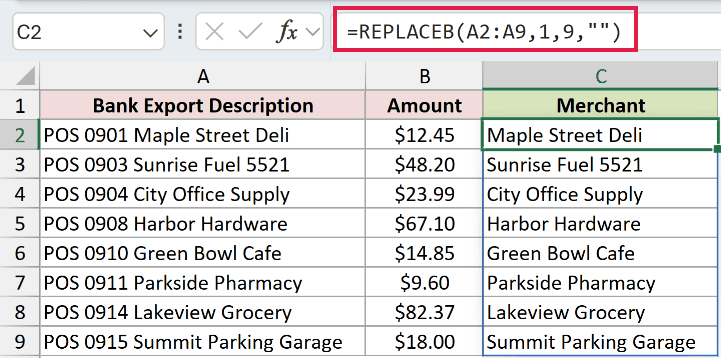
The results spill into C2:C9. The first result is Maple Street Deli, followed by Sunrise Fuel 5521.
REPLACEB removes the fixed prefix, including its trailing space. The empty new_text argument inserts nothing in its place.
Spaces inside merchant names remain untouched.
Example 5: Use Each Row’s Revision Letter
The replacement text can come from another column instead of being typed into the formula.
Below is the dataset. Column A contains part numbers, column B holds new revision letters, and column C will show the updated part numbers.
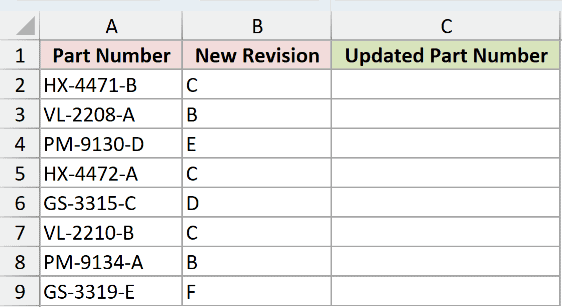
We want to replace each part number’s revision letter with the corresponding entry in column B.
Enter this formula in C2:
=REPLACEB(A2:A9,9,1,B2:B9)
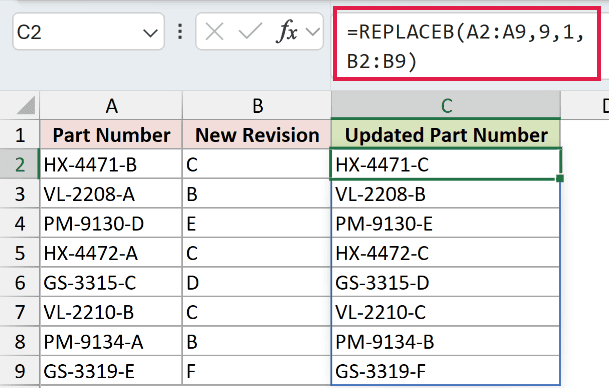
The results spill into C2:C9. The first entries are HX-4471-C, VL-2208-B, and PM-9130-E.
REPLACEB pairs each part number with the revision on the same row.
The position and replacement length stay fixed because the revision occupies the same place in every input. Only the replacement text changes between rows.
Example 6: Replace Text After a Separator
Pallet identifiers vary in length, so their status text doesn’t always start in the same position.
Below is the dataset. Column A contains pallet tags with a status after the vertical bar, and column B will hold the released tags.
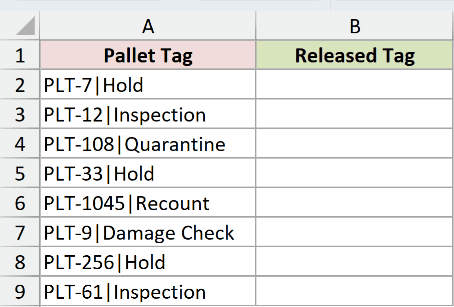
We want to replace the entire status with Released, keeping the pallet identifier and separator.
FINDB locates the separator by byte position, while LENB measures the full tag. These supply REPLACEB’s starting position and replacement length for each row.
Enter this formula in B2:
=REPLACEB(A2:A9,FINDB("|",A2:A9)+1,LENB(A2:A9)-FINDB("|",A2:A9),"Released")
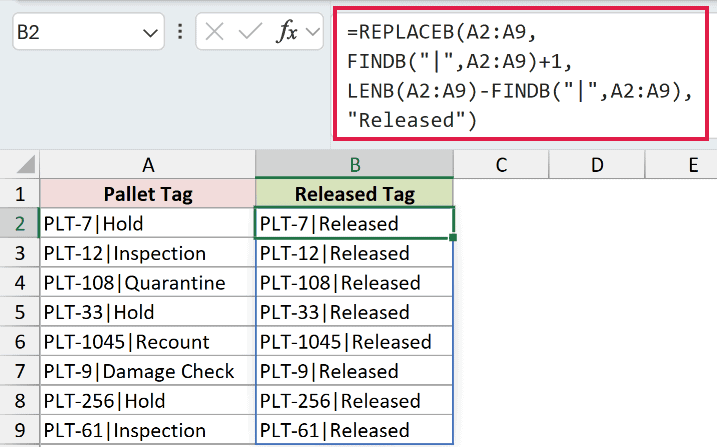
The results spill into B2:B9, including PLT-7|Released, PLT-12|Released, and PLT-1045|Released.
How this formula works:
- FINDB finds the vertical bar. Adding 1 to that position moves the replacement start past the separator.
- Subtracting the separator’s position from the full byte length counts the status text that follows it.
- REPLACEB removes that entire status and inserts
Released.
Both the starting position and removal length adjust by row. That handles short statuses and longer text such as Damage Check with the same formula.
Tips & Common Mistakes
- Check the position and removal count. A zero starting position or a negative byte count returns
#VALUE!. - A start beyond the text appends the replacement. It doesn’t return empty text. A removal count extending beyond the end replaces everything remaining from the starting position.
- Keep the replacement argument. Use
""for deletion; omittingnew_textcauses Excel to reject the formula at entry. - Expect text results. Even when the original input is a number, REPLACEB returns text.
- For new character-based formulas, consider REPLACE. It replaces text by character position and produced identical results to REPLACEB on the English setup used here.
Other Excel articles you may also like:
