
Excel’s FINDB function returns the starting position of text within another text string. Its searches are case-sensitive.
FINDB behaves like FIND unless a double-byte language is enabled and set as Excel’s default. That distinction matters when existing formulas use byte positions to extract text.
Microsoft has deprecated FINDB and recommends FIND. FINDB still works and returns the results shown here.
I’ll show you how to locate repeated separators, extract ticket IDs and payment statuses, and check whether account notes contain uppercase VIP.
FINDB Function Syntax in Excel
The FINDB function takes two required arguments and one optional argument:
=FINDB(find_text,within_text,[start_num])
- find_text: The text to locate. Put literal text in double quotes, or use a cell reference.
- within_text: The text to search. The examples below use ranges to search several cells at once.
- start_num: Optional. The byte position where searching begins, starting at 1. If omitted, Excel starts at the beginning and returns the first match.
When to Use FINDB Function
- Locate a separator in text when maintaining formulas that use byte positions.
- Find a second occurrence by starting after the first match.
- Supply a byte position to LEFTB or MIDB when extracting part of a string.
- Check whether text contains a specific, case-sensitive label.
Example 1: Find the First Slash
Each folder path contains slashes separating its parts.
Below is the dataset with Folder Path in column A and empty result cells under Position of First Slash in column B.
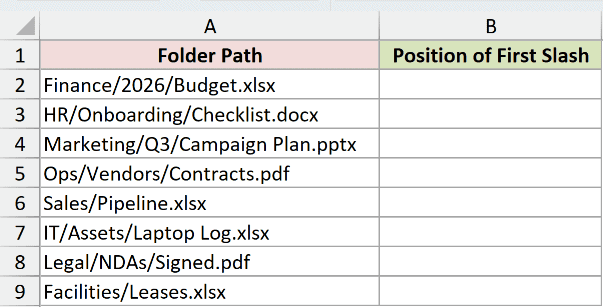
We want the position of the first slash in each path, starting the results in B2.
Here is the formula:
=FINDB("/",A2:A9)
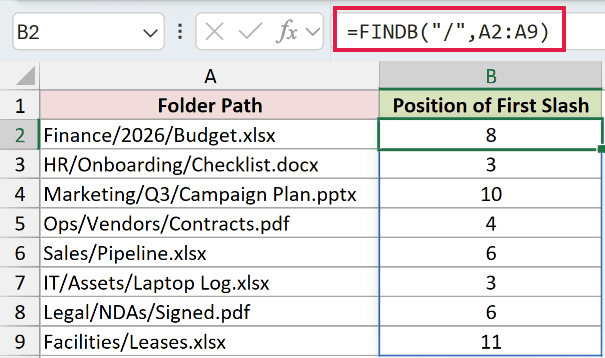
FINDB searches each path in A2:A9 for /. With no third argument, it starts at position 1 in every cell.
For Finance/2026/Budget.xlsx, the first slash is at position 8, so B2 returns 8. For HR/Onboarding/Checklist.docx, B3 returns 3.
Enter the formula once in B2. In Excel 2021, Excel 2024, and Microsoft 365, its eight results spill into B2:B9 automatically.
Pro Tip: FINDB counts double-byte characters as two only when Japanese, Chinese (Simplified or Traditional), or Korean is enabled for editing and set as the default language. Otherwise, it counts each character as one, like FIND. These examples use single-byte text, so their results do not depend on that setting.
Example 2: Match Lowercase x in Item Descriptions
Case sensitivity helps when the same letter appears in product names and size labels.
Below is the dataset with Item Description in column A and empty result cells under Position of Lowercase x in column B.
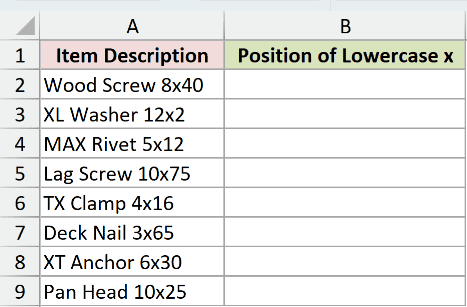
We want to locate the lowercase x separating each item’s dimensions, with results starting in B2.
Here is the formula:
=FINDB("x",A2:A9)
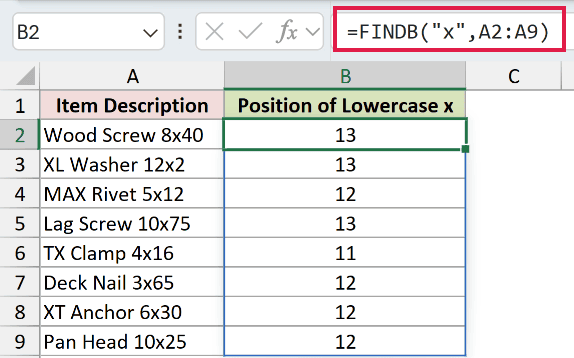
FINDB looks specifically for lowercase x. In XL Washer 12x2, it skips the uppercase X at the beginning and returns 13 in B3.
Likewise, MAX Rivet 5x12 returns 12 in B4. The uppercase X in MAX does not count as a match.
The formula spills down B2:B9, returning one position per description. Spaces count toward each position too.
Pro Tip: Use SEARCHB when you need a byte-based search that ignores case. The case-sensitivity difference between SEARCH and FIND also applies to SEARCHB and FINDB. Here, ignoring case would find the X in XL before reaching the dimensions.
Example 3: Find the Second Dot
The start_num argument lets us skip a match we’ve already found.
Below is the dataset with Application and Version in columns A and B, plus empty Position of Second Dot cells in column C.
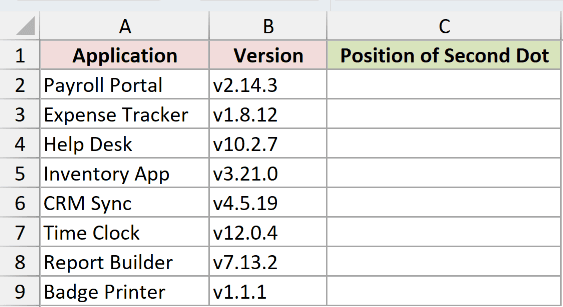
We want to locate the second dot in each version number, with the formula entered in C2.
Here is the formula:
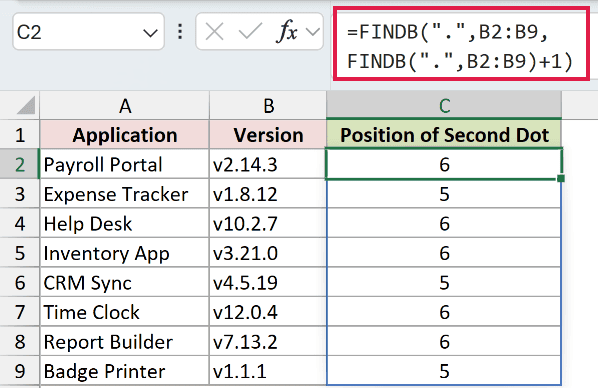
=FINDB(".",B2:B9,FINDB(".",B2:B9)+1)
How this formula works:
- The inner FINDB locates the first dot in each version. In
v2.14.3, that position is 3. - Adding 1 sets the next search’s starting position to 4, immediately after that dot.
- The outer FINDB searches from there and returns 6, the second dot’s position in the original string.
The results spill into C2:C9. Payroll Portal returns 6 in C2, while Expense Tracker’s v1.8.12 returns 5 in C3.
Pro Tip: The result is still measured from the beginning of the original text. Changing start_num changes where FINDB searches, not where it starts counting the returned position.
Example 4: Extract Ticket IDs Before a Colon
The colon marks where the ticket ID ends and the issue description begins.
Below is the dataset with Ticket Subject in column A and empty Ticket ID result cells in column B.
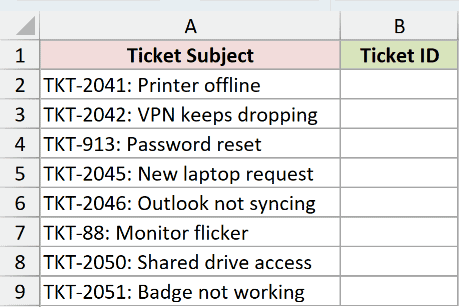
We want to extract everything before the colon in each subject, starting in B2.
Here is the formula:
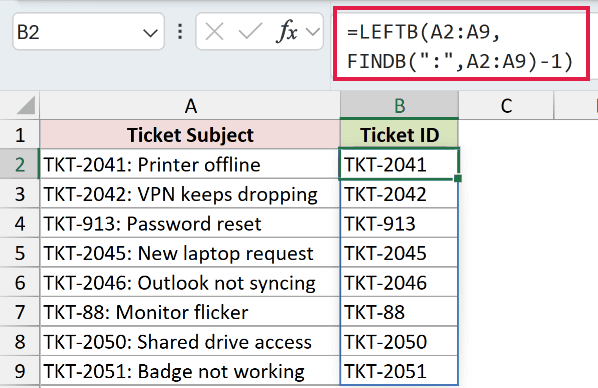
=LEFTB(A2:A9,FINDB(":",A2:A9)-1)
How this formula works:
- FINDB locates the colon. In
TKT-2041: Printer offline, it is at position 9. - Subtracting 1 leaves 8 bytes to extract, excluding the colon itself.
- LEFTB returns those first 8 bytes, producing
TKT-2041in B2.
The formula spills into B2:B9 and handles different ID lengths. It returns TKT-913 in B4 and TKT-88 in B7.
LEFTB and FINDB both use byte counts. This keeps the extraction length in the same units as the separator’s position.
Pro Tip: TEXTBEFORE is a more direct option for extracting text before a colon when your Excel version includes it. The LEFTB and FINDB combination remains useful for maintaining older byte-based formulas.
Example 5: Extract Text Between Brackets
Two separator positions let us extract a value from the middle of a note.
Below is the dataset with Invoice Note in column A and empty Payment Status result cells in column B.
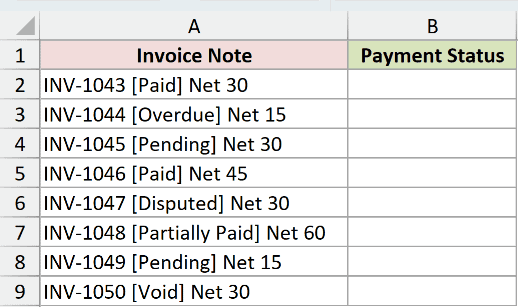
We want the payment status inside each pair of square brackets, starting the results in B2.
Here is the formula:
=MIDB(A2:A9,FINDB("[",A2:A9)+1,FINDB("]",A2:A9)-FINDB("[",A2:A9)-1)
![=MIDB(A2:A9,FINDB("[",A2:A9)+1,FINDB("]",A2:A9)-FINDB("[",A2:A9)-1) in B2](https://spreadsheetplanet.com/wp-content/uploads/2026/09/findb-example-5-payment-status.png)
How this formula works:
- FINDB locates the opening bracket. Adding 1 tells MIDB to begin immediately after it.
- Another FINDB locates the closing bracket.
- Subtracting the opening position and then 1 calculates the number of bytes between the brackets.
- MIDB extracts that portion from each note and spills the statuses into B2:B9.
In INV-1043 [Paid] Net 30, the brackets are at positions 10 and 15. Extraction starts at 11 and takes 4 bytes, returning Paid.
The same calculation handles longer statuses. B6 returns Disputed, and B7 returns Partially Paid, including its internal space.
Pro Tip: TEXTAFTER followed by TEXTBEFORE can simplify this extraction when those functions are available. MIDB with FINDB remains relevant when maintaining formulas that depend on byte positions.
Example 6: Check Whether Notes Contain VIP
This example finds VIP’s position in each note, then uses TRUE or FALSE to show whether it was found.
Below is the dataset with Customer and Account Note, plus empty FINDB Result and Is VIP? columns in C and D.
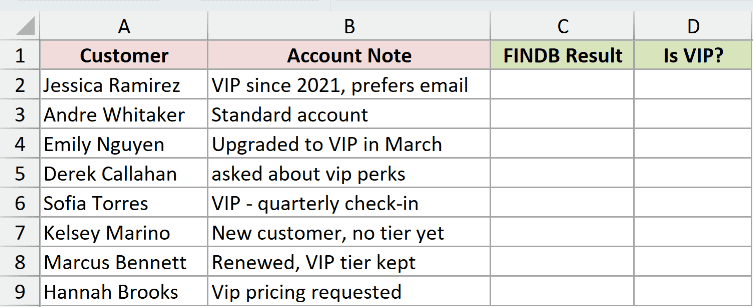
We first want to see where uppercase VIP appears in each account note, starting in C2.
Here is the formula:
=FINDB("VIP",B2:B9)
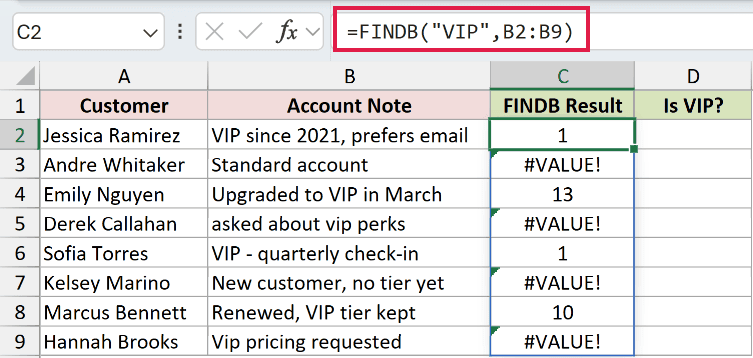
Jessica Ramirez’s note starts with VIP, so C2 returns 1. Emily Nguyen’s note returns 13 in C4, and Marcus Bennett’s returns 10 in C8.
Andre Whitaker’s Standard account contains no match, so C3 returns #VALUE!. FINDB also returns that error for lowercase vip and mixed-case Vip.
Now we want TRUE or FALSE for each note instead of positions and errors. Enter the next formula in D2.
Here is the formula:
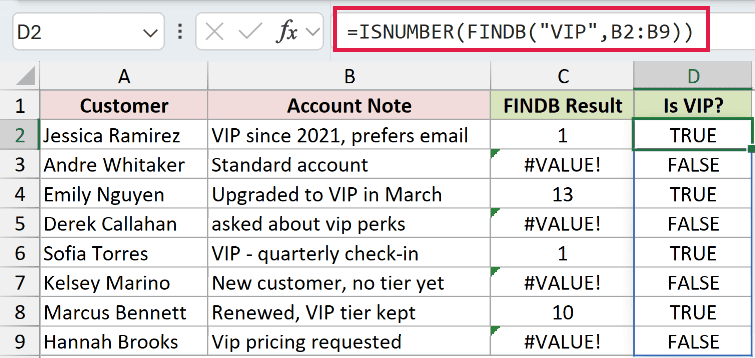
=ISNUMBER(FINDB("VIP",B2:B9))
How this formula works:
- FINDB returns a number when it finds uppercase VIP, or an error when it does not.
- ISNUMBER returns TRUE for numeric positions and FALSE for the error values.
- The results spill into D2:D9, giving four TRUE results and four FALSE results.
Derek Callahan’s asked about vip perks returns FALSE in D5. Hannah Brooks’s Vip pricing requested also returns FALSE in D9 because the capitalization differs.
Pro Tip: This checks for the text VIP anywhere in a note. It does not validate account membership or require VIP to be a separate word, so use it only when that matches your labeling rules.
Tips & Common Mistakes
- FINDB versus FIND: Use FIND for character positions. FINDB’s double-byte counting depends on the default editing language; typing Japanese or Chinese text alone does not enable it.
- Keep byte units consistent: Pair FINDB positions with LEFTB or MIDB. Mixing byte positions with LEFT or MID can extract the wrong text when double-byte counting applies.
- Check missing matches: FINDB returns
#VALUE!when the requested text is absent. Check spelling and capitalization first. Use ISNUMBER for a contains test, or IFERROR when you need a replacement result. - Check start_num: A starting position below 1 or beyond the text’s length returns
#VALUE!. When finding a second occurrence, begin after the first match. - No wildcard matching: FINDB treats
*and?as literal characters. SEARCHB supports wildcard searches and ignores case. - Empty search text: An empty find_text returns the starting position, normally 1. A blank search cell can therefore look like a successful match.
- Leave spill cells empty: These range formulas spill in Excel 2021, Excel 2024, and Microsoft 365. Occupied output cells can cause
#SPILL!; an inserted@can reduce a range calculation to one result. - Older Excel versions: In Excel 2019 and earlier, use a single-row reference for each input range, enter the formula normally, and fill down instead of using these spilling formulas.
Use FINDB to locate text when maintaining formulas that depend on byte positions.
For extraction, pair its results with LEFTB or MIDB so the positions and lengths use the same counting method.
Related Excel Functions / Articles:
