
Excel’s Range.TextToColumns method splits one column of text into separate fields, much like running the Text to Columns wizard from a macro.
I use it when the same kind of imported record needs splitting again and again. One catch is that omitted delimiter settings can carry over from an earlier split.
The examples cover delimited and fixed-width records, show how to control the output, and explain why a multi-column source needs a loop.
Text to Columns VBA Syntax
TextToColumns belongs to a Range object. The range can contain many rows, but it must be exactly one column wide.
Here is the full syntax:
expression.TextToColumns(Destination, DataType, TextQualifier, _
    ConsecutiveDelimiter, Tab, Semicolon, Comma, Space, Other, _
    OtherChar, FieldInfo, DecimalSeparator, ThousandsSeparator, _
TrailingMinusNumbers)The method returns a Variant. Every parameter is optional, but leaving one out doesn’t always behave as safely as you might expect.
| Parameter | Value you pass | Microsoft default | What it controls |
|---|---|---|---|
Destination | Range | Not stated | The top-left output cell. In my test, omitting it made the split start in the source range. |
DataType | XlTextParsingType | xlDelimited | Uses xlDelimited for separators or xlFixedWidth for character positions. |
TextQualifier | XlTextQualifier | Not stated | Uses double quotes, single quotes, or no qualifier. In my tests, omitting it used double quotes. |
ConsecutiveDelimiter | Boolean | False | Treats repeated delimiters as one when set to True. |
Tab | Boolean | False | Splits at tab characters. Setting it to True forces DataType to xlDelimited. |
Semicolon | Boolean | False | Splits at semicolons. Setting it to True forces DataType to xlDelimited. |
Comma | Boolean | False | Splits at commas. Setting it to True forces DataType to xlDelimited. |
Space | Boolean | False | Splits at spaces. Setting it to True forces DataType to xlDelimited. |
Other | Boolean | False | Uses OtherChar. Setting it to True forces DataType to xlDelimited. |
OtherChar | String | Not stated | Supplies a custom delimiter and is required when Other is True. Excel uses only its first character. |
FieldInfo | Array | Not supplied | Sets each output field’s format or tells Excel to skip it. |
DecimalSeparator | String | System setting | Microsoft documents this as the character Excel uses when recognizing decimal numbers. |
ThousandsSeparator | String | System setting | Microsoft documents this as the character Excel uses when recognizing thousands. |
TrailingMinusNumbers | Boolean | Not stated | Microsoft’s description is: “Numbers that begin with a minus character.” |
Microsoft documents False as the default for each delimiter flag. In practice, Excel reused the last-used Text to Columns setting for every flag I omitted.
That is why every delimited macro below sets Tab, Semicolon, Comma, Space, and Other explicitly.
Note: The practice workbook is an .xlsx file and contains data only. Paste each macro into a standard module, then save your working copy as .xlsm if you want to keep the code.
Understanding FieldInfo
FieldInfo uses two-item arrays, but the first item changes meaning with the parsing mode.
| Mode | Worked example | How to read the first item |
|---|---|---|
| Delimited | Array(Array(1, 2), Array(3, 9)) | Field 1 stays as text, and field 3 is skipped. The field numbers are 1-based. |
| Fixed width | Array(Array(0, 1), Array(7, 1), Array(21, 1)) | Fields start at character positions 0, 7, and 21. The positions are 0-based. |
In delimited mode, the first element is a column number. In fixed-width mode, it is the character position where a field begins.
The second element is an XlColumnDataType value:
xlGeneralFormatis 1.xlTextFormatis 2 and preserves values such as00123.- The date formats run from
xlMDYFormatat 3 throughxlYDMFormatat 8. xlSkipColumnis 9 and removes that field from the output.xlEMDFormatis 10. Microsoft documents it for Taiwanese era dates and notes that the relevant language support is required.
Any field you don’t include in FieldInfo uses general parsing. You can also list the field specifiers in any order.
Method #1: Using TextToColumns With a Comma Delimiter
This first macro splits comma-separated customer records while keeping the source data intact.
Below I have order IDs in A2:A11 and customer records in B2:B11 on the Comma Delimited sheet. I want the three fields in D2:F11.
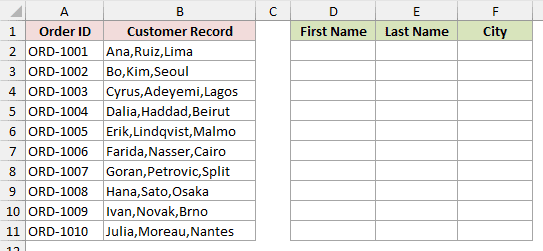
Note: Never omit Destination unless you intend to overwrite in place. Excel can silently replace occupied cells to the right, shows no warning, and leaves no undo.
Here is the unsafe case I tested. Every cell in A1:A3 held Ana Ruiz,Lima,03/04/2024, while B1:B3 held KEEP1, KEEP2, and KEEP3.
Range("A1:A3").TextToColumns DataType:=xlDelimited, Comma:=TrueAfter the call, A held Ana Ruiz, B held Lima, and C held 3/4/2024. The KEEP values were gone, with no prompt and no undo.
The safe macro supplies Destination and writes to a blank area:
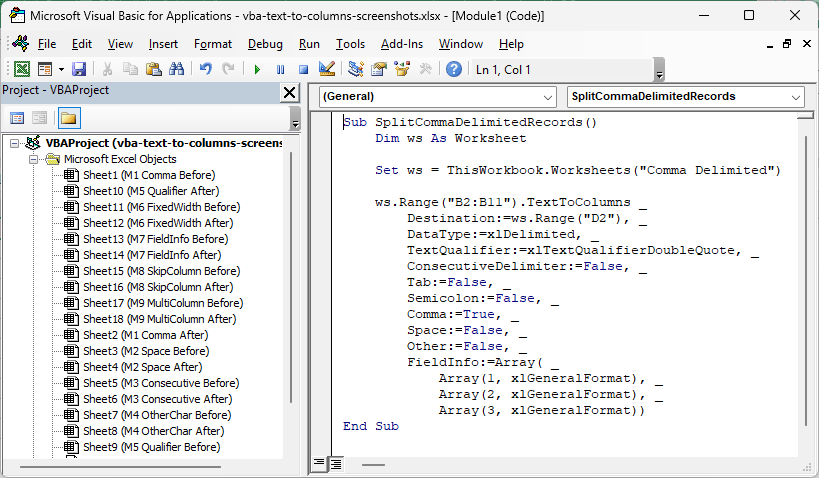
Sub SplitCommaDelimitedRecords()
    Dim ws As Worksheet

    Set ws = ThisWorkbook.Worksheets("Comma Delimited")

    ws.Range("B2:B11").TextToColumns _
        Destination:=ws.Range("D2"), _
        DataType:=xlDelimited, _
        TextQualifier:=xlTextQualifierDoubleQuote, _
        ConsecutiveDelimiter:=False, _
        Tab:=False, _
        Semicolon:=False, _
        Comma:=True, _
        Space:=False, _
        Other:=False, _
        FieldInfo:=Array( _
            Array(1, xlGeneralFormat), _
            Array(2, xlGeneralFormat), _
            Array(3, xlGeneralFormat))
End SubHere are the steps to run this macro:
- Open the
Comma Delimitedsheet, press Alt + F11, choose Insert > Module, then paste the code.
- Place the cursor inside
SplitCommaDelimitedRecordsand press F5.
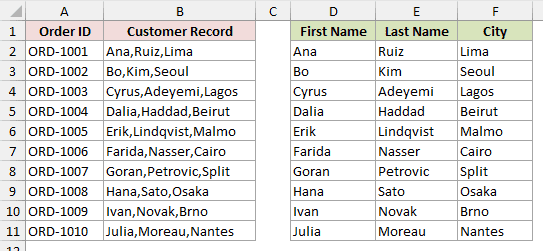
The macro keeps B2:B11 unchanged and writes First Name, Last Name, and City to D2:F11.
All delimiter flags are set explicitly. That matters because Excel can reuse a delimiter setting from an earlier Text to Columns operation.
Method #2: Using TextToColumns With a Space Delimiter
Here’s another way to use the method. This macro separates two-part driver names at the space.
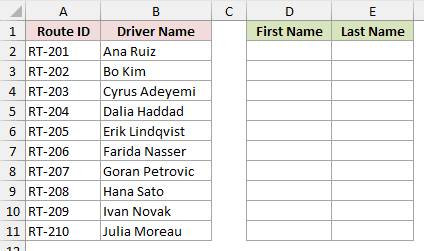
Below I have route IDs in A2:A11 and driver names in B2:B11 on the Space Delimited sheet. I want first and last names in D2:E11.
Use this macro:
Sub SplitDriverNamesAtSpaces()
    Dim ws As Worksheet

    Set ws = ThisWorkbook.Worksheets("Space Delimited")

    ws.Range("B2:B11").TextToColumns _
        Destination:=ws.Range("D2"), _
        DataType:=xlDelimited, _
        TextQualifier:=xlTextQualifierDoubleQuote, _
        ConsecutiveDelimiter:=False, _
        Tab:=False, _
        Semicolon:=False, _
        Comma:=False, _
        Space:=True, _
        Other:=False, _
        FieldInfo:=Array( _
            Array(1, xlGeneralFormat), _
            Array(2, xlGeneralFormat))
End SubAfter it runs, First Name and Last Name appear in D2:E11.
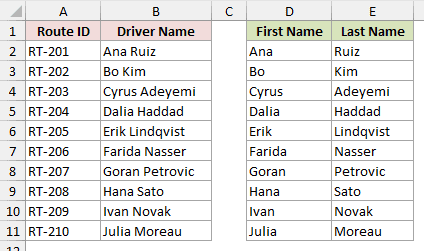
Space:=True makes the space the active delimiter, so you get one name part in each output column.
Method #3: Using ConsecutiveDelimiter for Extra Spaces
This version handles names with uneven runs of spaces. Without it, those extra spaces can create blank fields.
Below I have route IDs in A2:A11 and Driver Name (Messy) values in B2:B11 on the Extra Spaces sheet.
I want First Name and Last Name in D2:E11.
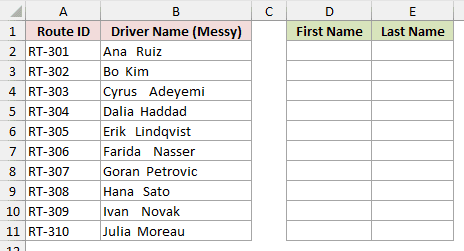
The change is in ConsecutiveDelimiter:
Sub SplitNamesWithExtraSpaces()
    Dim ws As Worksheet

    Set ws = ThisWorkbook.Worksheets("Extra Spaces")

    ws.Range("B2:B11").TextToColumns _
        Destination:=ws.Range("D2"), _
        DataType:=xlDelimited, _
        TextQualifier:=xlTextQualifierDoubleQuote, _
        ConsecutiveDelimiter:=True, _
        Tab:=False, _
        Semicolon:=False, _
        Comma:=False, _
        Space:=True, _
        Other:=False, _
        FieldInfo:=Array( _
            Array(1, xlGeneralFormat), _
            Array(2, xlGeneralFormat))
End SubThe names split cleanly into D2:E11 without blank columns between them.
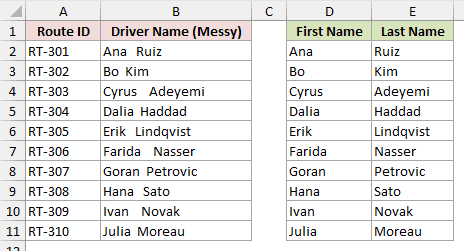
ConsecutiveDelimiter:=True treats each run of spaces as one separator. With False, the extra spaces produce blank output columns.
Method #4: Using a Custom Delimiter With OtherChar
For a separator such as a pipe, the four built-in delimiter flags are not enough. Use Other with OtherChar instead.
Below I have trip IDs in A2:A11 and pipe-separated Route Stops in B2:B11 on the Custom Delimiter sheet.
I want Stop 1, Stop 2, and Stop 3 in D2:F11.
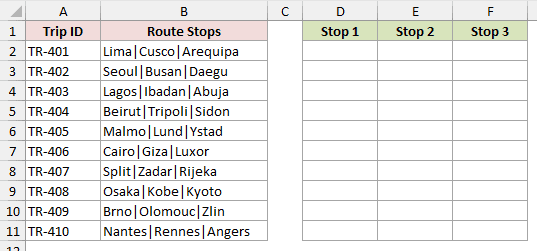
This macro uses a pipe:
Sub SplitRouteStopsAtPipes()
    Dim ws As Worksheet

    Set ws = ThisWorkbook.Worksheets("Custom Delimiter")

    ws.Range("B2:B11").TextToColumns _
        Destination:=ws.Range("D2"), _
        DataType:=xlDelimited, _
        TextQualifier:=xlTextQualifierDoubleQuote, _
        ConsecutiveDelimiter:=False, _
        Tab:=False, _
        Semicolon:=False, _
        Comma:=False, _
        Space:=False, _
        Other:=True, _
        OtherChar:="|", _
        FieldInfo:=Array( _
            Array(1, xlGeneralFormat), _
            Array(2, xlGeneralFormat), _
            Array(3, xlGeneralFormat))
End SubThe result places Stop 1, Stop 2, and Stop 3 in D2:F11.
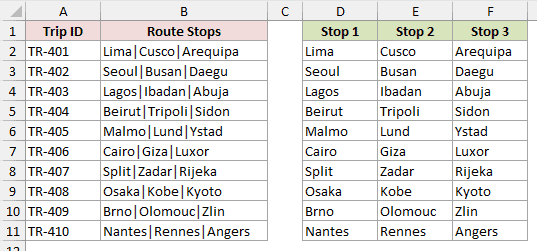
Other:=True activates the custom separator, and OtherChar:="|" supplies the pipe. If you pass a longer string, Excel uses only the first character.
Method #5: Using TextQualifier for Quoted Text
Quoted data needs a different treatment because a delimiter can belong to the value. A text qualifier tells Excel to leave that delimiter alone.
Below I have invoice IDs in A2:A11 and quoted billing lines in B2:B11 on the Text Qualifier sheet. I want Customer and City in D2:E11.
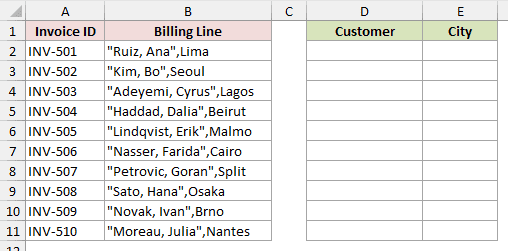
Use this code:
Sub SplitQuotedBillingLines()
    Dim ws As Worksheet

    Set ws = ThisWorkbook.Worksheets("Text Qualifier")

    ws.Range("B2:B11").TextToColumns _
        Destination:=ws.Range("D2"), _
        DataType:=xlDelimited, _
        TextQualifier:=xlTextQualifierDoubleQuote, _
        ConsecutiveDelimiter:=False, _
        Tab:=False, _
        Semicolon:=False, _
        Comma:=True, _
        Space:=False, _
        Other:=False, _
        FieldInfo:=Array( _
            Array(1, xlGeneralFormat), _
            Array(2, xlGeneralFormat))
End SubCustomer and City appear in D2:E11 after the macro runs.
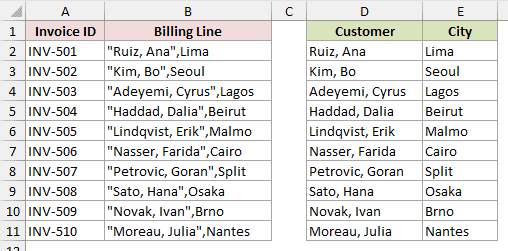
For "Ruiz, Ana",Lima, the double-quote qualifier keeps Ruiz, Ana together. In the test, xlTextQualifierNone split at the comma inside the quotes.
Method #6: Using TextToColumns in Fixed Width Mode
Fixed-width records use character positions instead of separator characters. This approach works when each field starts at a consistent position.
Below I have line numbers in A2:A11 and Tracking Line values in B2:B11 on the Fixed Width sheet.
I want Tracking Code, Driver, and City in D2:F11.
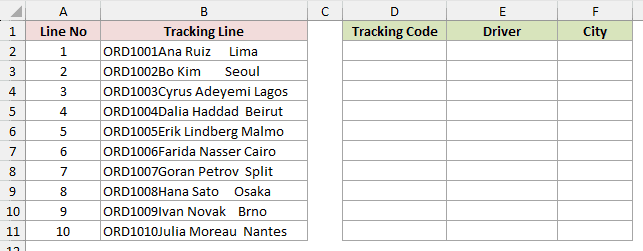
The positions are set in FieldInfo:
Sub SplitFixedWidthTrackingLines()
    Dim ws As Worksheet

    Set ws = ThisWorkbook.Worksheets("Fixed Width")

    ws.Range("B2:B11").TextToColumns _
        Destination:=ws.Range("D2"), _
        DataType:=xlFixedWidth, _
        FieldInfo:=Array( _
            Array(0, xlGeneralFormat), _
            Array(7, xlGeneralFormat), _
            Array(21, xlGeneralFormat))
End SubThe result fills Tracking Code, Driver, and City in D2:F11.
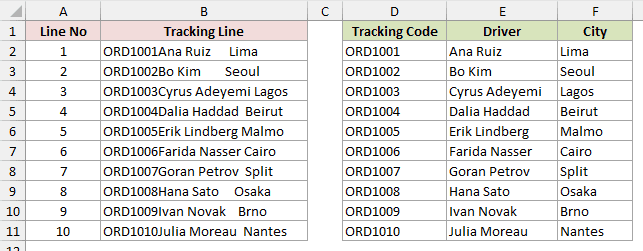
The fields begin at positions 0, 7, and 21. You can match each 0-based position to the start of a field in the worksheet data.
Fixed-width mode ignores delimiter flags. Microsoft also documents that setting any delimiter flag to True forces DataType back to xlDelimited.
You can use xlSkipColumn in a fixed-width FieldInfo entry when you need to discard a span of characters.
Method #7: Setting Column Formats With FieldInfo
When the output needs specific formats, FieldInfo can protect one field as text while assigning another field a date order.
Below I have parcel numbers in A2:A11 and Parcel Record values in B2:B11 on the Format Trap sheet.
I want Locker Code, Driver, and Dispatch Date in D2:F11.
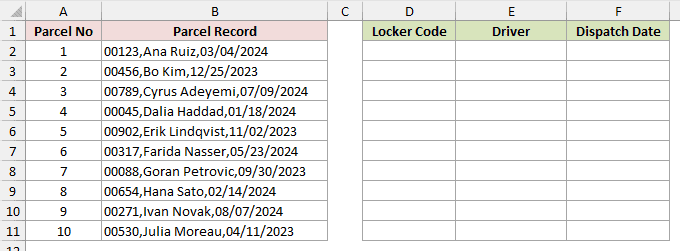
This macro sets both formats:
Sub SplitParcelRecordsWithFormats()
    Dim ws As Worksheet

    Set ws = ThisWorkbook.Worksheets("Format Trap")

    ws.Range("B2:B11").TextToColumns _
        Destination:=ws.Range("D2"), _
        DataType:=xlDelimited, _
        TextQualifier:=xlTextQualifierDoubleQuote, _
        ConsecutiveDelimiter:=False, _
        Tab:=False, _
        Semicolon:=False, _
        Comma:=True, _
        Space:=False, _
        Other:=False, _
        FieldInfo:=Array( _
            Array(1, xlTextFormat), _
            Array(2, xlGeneralFormat), _
            Array(3, xlMDYFormat))
End SubLocker Code, Driver, and Dispatch Date appear in D2:F11.
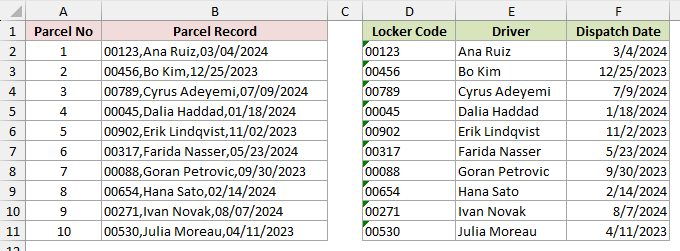
The first field uses xlTextFormat, so a locker code such as 00123 keeps its leading zeros.
The third field uses xlMDYFormat, so the output arrives as a real date value rather than text.
Without the text format, general parsing changes 00123 to 123.
Method #8: Skipping a Column With xlSkipColumn
When the input includes a field you do not need, xlSkipColumn drops it during the split.
Below I have ticket IDs in A2:A11 and support records in B2:B11 on the Skip A Column sheet. I want Customer and Issue in D2:E11.
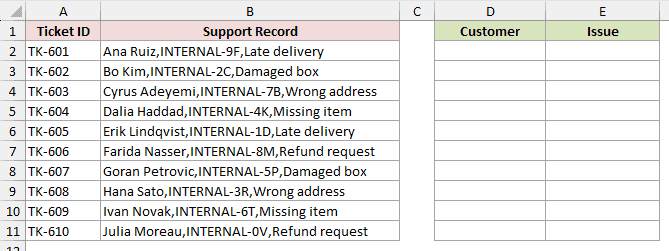
Set the unwanted field to xlSkipColumn:
Sub SplitSupportRecordsAndSkipCode()
    Dim ws As Worksheet

    Set ws = ThisWorkbook.Worksheets("Skip A Column")

    ws.Range("B2:B11").TextToColumns _
        Destination:=ws.Range("D2"), _
        DataType:=xlDelimited, _
        TextQualifier:=xlTextQualifierDoubleQuote, _
        ConsecutiveDelimiter:=False, _
        Tab:=False, _
        Semicolon:=False, _
        Comma:=True, _
        Space:=False, _
        Other:=False, _
        FieldInfo:=Array( _
            Array(1, xlGeneralFormat), _
            Array(2, xlSkipColumn), _
            Array(3, xlGeneralFormat))
End SubCustomer and Issue fill D2:E11.
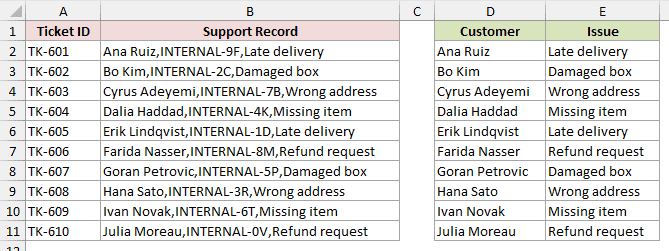
The macro discards the internal code in field 2. You get Customer and Issue in adjacent output columns, with no blank gap between them.
Method #9: Running TextToColumns on Multiple Columns
For two or more source columns, loop through them and call TextToColumns once per column. Excel rejects a source range that is wider than one column.
Below I have leg IDs in A2:A11, Pickup records in B2:B11, and Dropoff records in C2:C11 on the Multiple Columns sheet.
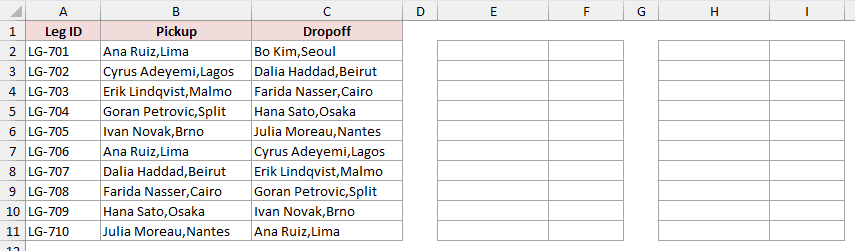
The loop looks like this:
Sub SplitPickupAndDropoffColumns()
    Dim ws As Worksheet
    Dim sourceRange As Range
    Dim columnIndex As Long
    Dim destinationColumn As Long

    Set ws = ThisWorkbook.Worksheets("Multiple Columns")
    Set sourceRange = ws.Range("B2:C11")

    For columnIndex = 1 To sourceRange.Columns.Count
        destinationColumn = 5 + ((columnIndex - 1) * 3)

        sourceRange.Columns(columnIndex).TextToColumns _
            Destination:=ws.Cells(2, destinationColumn), _
            DataType:=xlDelimited, _
            TextQualifier:=xlTextQualifierDoubleQuote, _
            ConsecutiveDelimiter:=False, _
            Tab:=False, _
            Semicolon:=False, _
            Comma:=True, _
            Space:=False, _
            Other:=False, _
            FieldInfo:=Array( _
                Array(1, xlGeneralFormat), _
                Array(2, xlGeneralFormat))
    Next columnIndex
End SubPickup values split into E2:F11, while Dropoff values split into H2:I11.
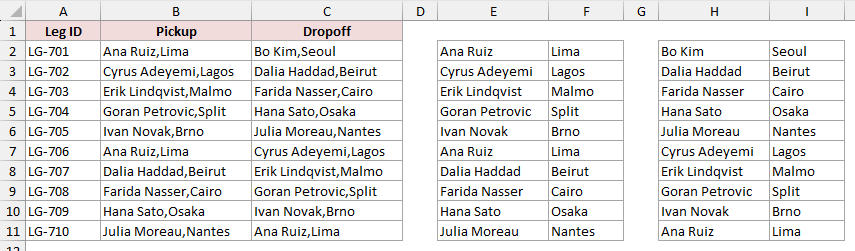
Each pass supplies a one-column source. Passing B2:C11 directly raises Excel’s one-column-only error, although the range may be many rows tall.
Additional Notes About Using Text to Columns in Excel VBA
- Pass every delimiter flag explicitly. An omitted flag can inherit the last-used setting, even when Microsoft documents its default as
False. - Keep the source range exactly one column wide. When you have several columns to split, loop through them one at a time.
- Use
xlTextFormatfor codes that must keep leading zeros. General parsing changes a value such as00123to123. - Remember that
xlSkipColumnremoves the field and shifts later output fields left. It doesn’t reserve an empty column. - The examples use
B2:B11. For changing data, calculate the last used row and pass the resulting one-column range.
Frequently Asked Questions
Here are answers to a few common questions about using TextToColumns in VBA.
Can TextToColumns Use More Than One Delimiter at a Time?
Yes. Set each delimiter you need to True, such as Comma:=True and Space:=True. Any active delimiter flag forces DataType to xlDelimited.
Can OtherChar Use a Multi-Character Delimiter?
No. Excel uses only the first character you pass through OtherChar.
How Do I Run These Macros on More Than 10 Rows?
Replace the fixed B2:B11 reference with a one-column range that ends at your last used row. Keep the source exactly one column wide.
Can Fixed-Width Mode Skip Part of Each Record?
Yes. Use xlSkipColumn for the corresponding fixed-width FieldInfo entry to discard that character span.
What Do DecimalSeparator and ThousandsSeparator Do?
Microsoft documents these arguments as the characters Excel uses when recognizing decimal numbers and thousands in imported text.
Conclusion
Choose xlDelimited when separators mark the fields and xlFixedWidth when consistent character positions do.
I use a loop when several source columns need splitting, because each call must receive a one-column range.
Other Excel articles you may also like:
- Split Text to Rows in Excel
- How to Extract First Name in Excel
- How to Extract Part of Text in a Cell in Excel
- How to Extract Text After Space Character in Excel?
- Opposite of Concatenate in Excel (Reverse Concatenate)
- How to Remove Commas in Excel
- TEXTSPLIT Function in Excel
- TEXTBEFORE Function in Excel
