
Excel’s TEXTBEFORE function returns the text before a delimiter you specify.
It can separate a name, prefix, or other part of a structured text value. You can select a particular delimiter occurrence or search backward from the end.
In this article, I’ll show you how to extract text before a chosen or last delimiter, ignore delimiter case, and handle missing delimiters.
TEXTBEFORE Function Syntax in Excel
The TEXTBEFORE function uses the following syntax:
=TEXTBEFORE(text, delimiter, [instance_num], [match_mode], [match_end], [if_not_found])
textis the required text or cell reference you want to search.delimiteris the required character or text string that marks where the returned text should stop.instance_numis optional. It selects which delimiter occurrence to use. The default is 1, and a negative number searches from the end.match_modeis optional. Use 0 or omit it for a case-sensitive match. Use 1 for a case-insensitive match.match_endis optional. Use 1 to treat the end of the text as a delimiter. The default is 0.if_not_foundis optional. It supplies a result when Excel cannot find the delimiter. The default result is#N/A.
TEXTBEFORE is especially handy when you need one part of a longer entry. Our guide to extracting part of text in Excel covers several other methods.
When to Use TEXTBEFORE Function
- Extract an ID, category, or department before a separator.
- Return text before a specific occurrence of a repeated delimiter.
- Remove the final extension from a file name.
- Match delimiters regardless of letter case.
- Supply a fallback when some entries do not contain the delimiter.
Example 1: Extract Text Before a Delimiter
A work-order list is a simple place to start.
Below is a list of work-order descriptions where a double colon separates the ID from the task.
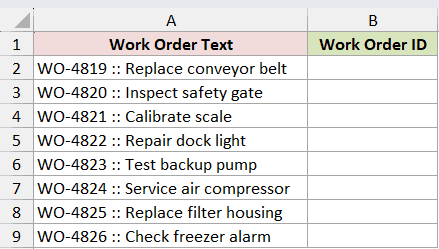
I want to extract every work-order ID into column B.
Here is the formula:
=TEXTBEFORE(A2:A9," :: ")
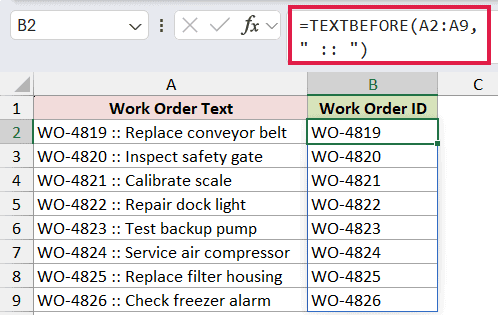
The delimiter includes the spaces around the double colon. Excel returns WO-4819 through WO-4826 without leaving a trailing space.
Because the formula uses A2:A9, the eight results spill from B2 through B9.
If you need both sides of the delimiter, the TEXTSPLIT function is a better fit. For one row, =TEXTSPLIT(A2," :: ") returns both fields.
Pro Tip: Include surrounding spaces in the delimiter when you do not want those spaces left in the result. The delimiter must match the source text exactly unless you change the case setting.
Example 2: Return Text Before the Nth Delimiter
Repeated delimiters let you choose how many sections to keep.
Below is a set of location paths with four parts separated by hyphens.
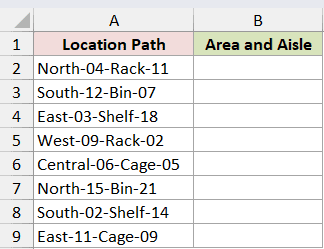
I want to keep the area and aisle, which appear before the second hyphen.
Here is the formula:
=TEXTBEFORE(A2:A9,"-",2)
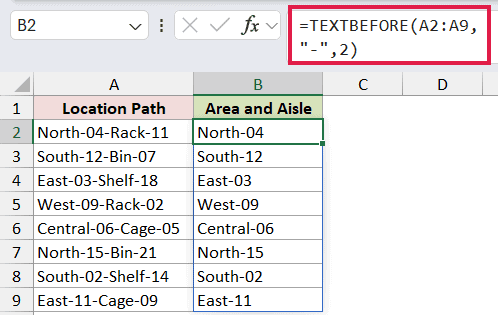
The instance_num argument is 2, so Excel stops at the second hyphen. North-04-Rack-11 becomes North-04, and the remaining location paths follow the same pattern.
Example 3: Extract Text Before the Last Delimiter
A negative instance number makes TEXTBEFORE search from the end.
Below is a list of document names that contain different numbers of periods.
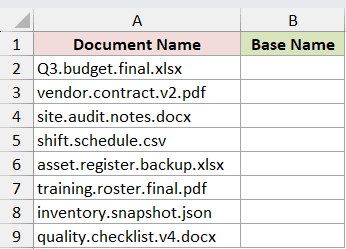
I want to remove only the final file extension and keep earlier periods in the base name.
Here is the formula:
=TEXTBEFORE(A2:A9,".",-1)
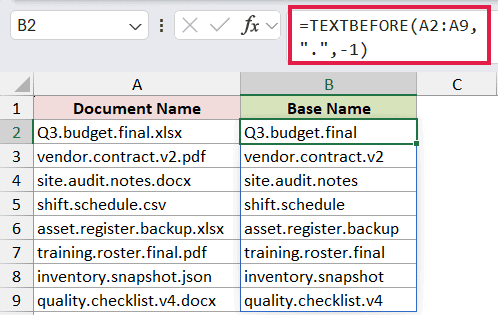
The -1 tells Excel to use the first period found from the right. Q3.budget.final.xlsx becomes Q3.budget.final, while shift.schedule.csv becomes shift.schedule.
Example 4: Match Delimiter Without Case Sensitivity
The match_mode argument controls whether capitalization matters.
Below is a list of alerts where STOP appears in uppercase, lowercase, and title case.
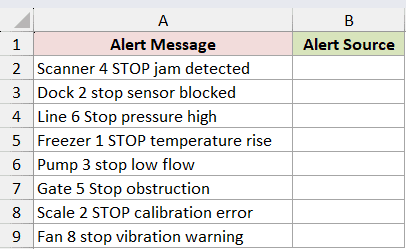
I want to return the source at the start of every alert, regardless of how STOP is capitalized.
Here is the formula:
=TEXTBEFORE(A2:A9," STOP",,1)
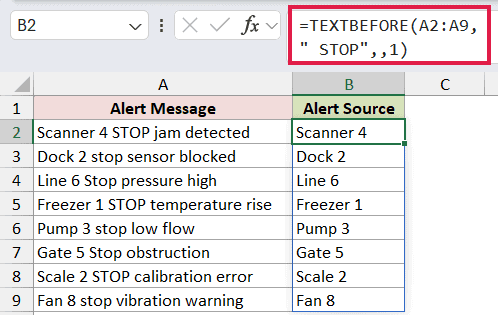
The omitted third argument keeps the first occurrence. Setting match_mode to 1 makes the search case-insensitive, so the spill returns sources from Scanner 4 through Fan 8.
If you use 0 or omit match_mode, the delimiter is case-sensitive and only the uppercase STOP entries match this formula’s delimiter.
Example 5: Treat End of Text as Delimiter
Some rows may already contain only the text you want.
Below is a maintenance-note list where some entries have a separator and others do not.
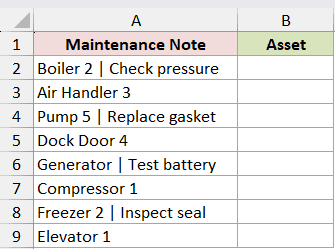
I want the asset name before the separator, while keeping a complete entry unchanged when the separator is missing.
Here is the formula:
=TEXTBEFORE(A2:A9," | ",,,1)
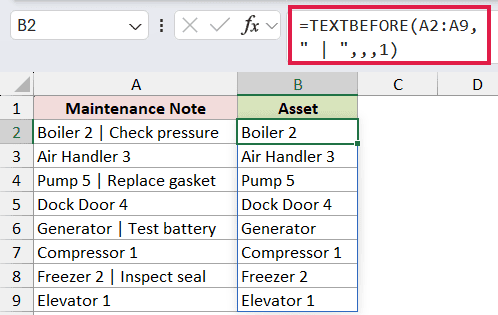
The fifth argument is 1, so Excel treats the end of each entry as a delimiter. Boiler 2 | Check pressure returns Boiler 2, while Air Handler 3 remains Air Handler 3.
This setting is useful when the whole original text is the correct result whenever the separator is absent.
Example 6: Return a Value When Delimiter Is Missing
Missing delimiters are common in mixed lists like this one.
Below is a request list where some subjects begin with a department followed by a colon.
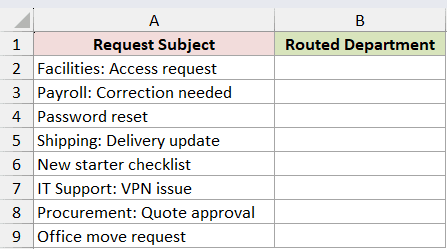
I want to route subjects with a department and label every other subject as Unassigned.
Here is the formula:
=TEXTBEFORE(A2:A9,":",,,,"Unassigned")
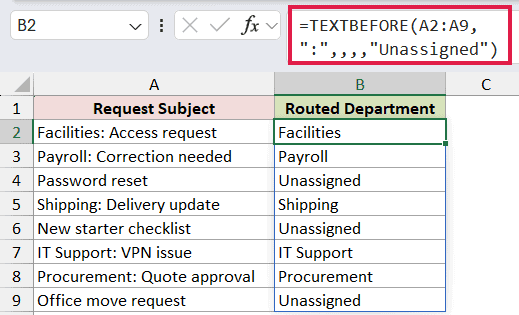
The formula returns departments such as Facilities, Payroll, and IT Support. Entries without a colon return Unassigned, including Password reset, New starter checklist, and Office move request.
Using if_not_found is more precise than wrapping the formula in IFERROR. It handles a missing delimiter without hiding unrelated errors.
Tips & Common Mistakes
- TEXTBEFORE is available in Microsoft 365 and Excel 2024.
- The default
instance_numis 1. Use a negative number when you want Excel to count delimiter occurrences from the end. - The default search is case-sensitive. Set
match_modeto 1 when capitalization varies. - If Excel cannot find the delimiter, TEXTBEFORE returns
#N/Aunlessmatch_endorif_not_foundhandles the missing match. - An
instance_numof 0 returns#VALUE!. An instance beyond the available delimiter occurrences returns#N/A. - In Excel 365, a range input spills automatically. A blocked output area returns
#SPILL!, while implicit intersection reduces the formula to one result. - Older Excel versions do not have TEXTBEFORE. A LEFT function formula combined with FIND can handle simpler delimiter patterns.
I’ve shown you how to use TEXTBEFORE with repeated delimiters, last-occurrence searches, case-insensitive matching, and two ways to handle missing delimiters. I hope you found this article helpful.
Related Excel Functions / Articles:
