
A dot plot in Excel shows how often each value occurs, with one dot for every observation. Repeated values form stacks, so you can count them without reading every row.
Excel doesn’t have a dedicated frequency dot plot button. You can build one with a scatter chart by giving repeated values different vertical positions.
I’ll show you how to create that chart with a COUNTIF helper, then make a simpler dot display directly in worksheet cells using REPT.
Method #1: Using an XY Scatter Chart
I recommend this method when you want a chart with a numeric horizontal scale. Each dot represents one observation, and its horizontal position shows the measured value.
Below I have 12 cafe pickups, identified in column A. Column B contains each pickup’s wait in minutes. Column C will hold the height of each dot.
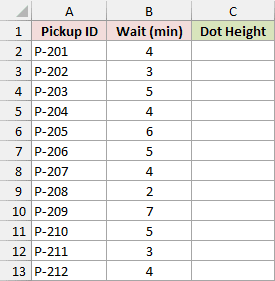
To recreate the example, enter the headings Pickup ID, Wait (min), and Dot Height in A1:C1. Use pickup IDs P-201 through P-212 in A2:A13.
Enter these waits in B2:B13, in this order: 4, 3, 5, 4, 6, 5, 4, 2, 7, 5, 3, 4.
The completed helper values are on the example workbook’s Scatter Data sheet. The following steps show how to calculate them and build the chart.
Calculate a Separate Height for Each Repeated Value
Enter this formula in C2:
=COUNTIF($B$2:B2,B2)
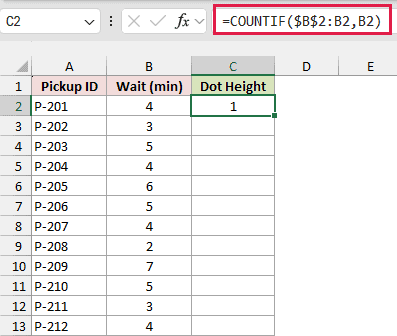
The formula counts how many times the current wait has appeared so far. The first 4 gets height 1, the second gets 2, and later 4s get 3 and 4.
The start of the range, $B$2, stays fixed. The endpoint, B2, moves when you copy the formula down, so each row includes one more observation.
Use a filled-down formula here because each row needs a different expanding range. Counting every value against the entire dataset would give duplicates identical heights.
Here are the steps to finish the helper and insert the chart:
- Select C2:C13 and press Ctrl+D to fill the formula down.
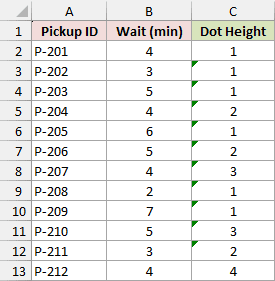
C2:C13 should contain 1, 1, 1, 2, 1, 2, 3, 1, 1, 3, 2, 4. The four-minute pickups now have four different heights.
- Select B1:C13. Leave the pickup IDs out of the chart selection.
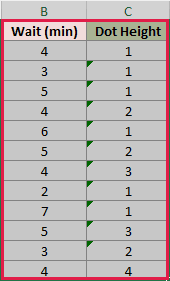
Column B supplies the horizontal values, and column C supplies the vertical values. This is how the scatter chart places each dot.
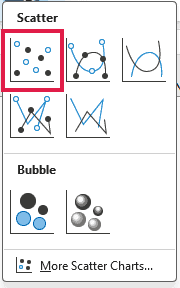
- On the Insert tab, open Insert Scatter (X, Y) or Bubble Chart and choose Scatter, the first option with markers only.
Excel creates a chart with a separate dot for every pickup. The repeated waits appear in vertical stacks.
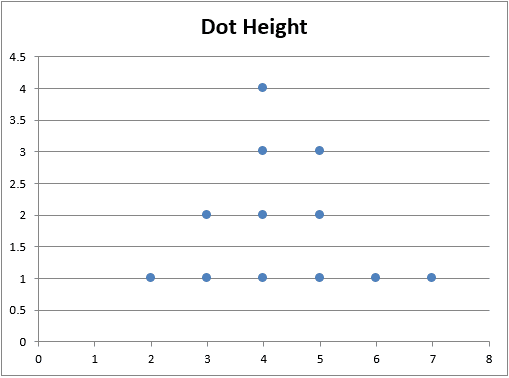
Choose the markers-only version. Connecting the observations with lines adds a path through the pickup order, which isn’t part of the frequency display.
Format the Scale and Chart Titles
The automatic scales work, but whole-number ticks make this small dataset easier to read. These settings leave space around the lowest and highest waits.
Here are the formatting steps for this example:
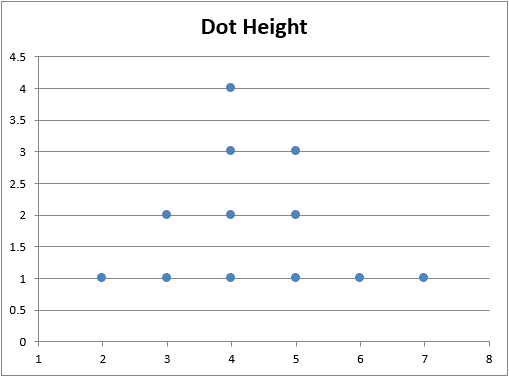
- Right-click the horizontal axis and choose Format Axis. Under Axis Options, set the Minimum bound to 1, Maximum to 8, and Major unit to 1.
- Right-click the vertical axis and choose Format Axis. Set Minimum to 0, Maximum to 5, and Major unit to 1.
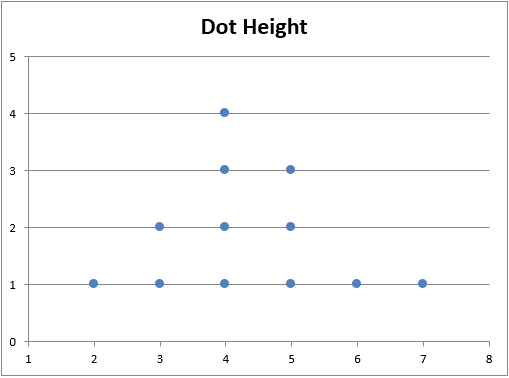
The vertical numbers identify positions in a stack. The tallest dot above a wait value shows how many observations have that wait.
- Change the chart title to Cafe Pickup Waits. Then choose Chart Design > Add Chart Element > Axis Titles > Primary Horizontal, and type Wait (min).
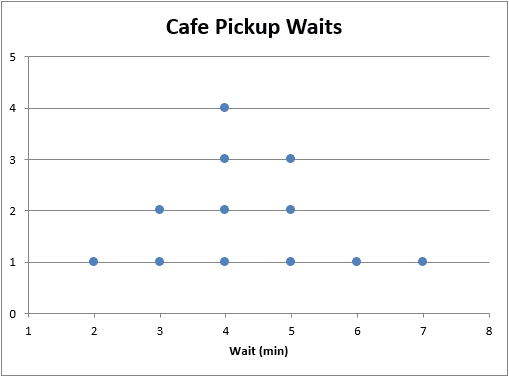
Four dots sit above 4 minutes, so that is the most common wait. Altogether, the chart contains 12 dots, matching the 12 pickups.
Note: The bounds above suit this example. For your own data, include every observed value horizontally and leave room above the largest stack. Fixed bounds won’t expand when new values fall outside them.
These screenshots use desktop Excel for Windows. The same COUNTIF and Scatter approach works in desktop Excel for Mac, although chart commands and formatting controls differ.
Method #2: Using the REPT Function
If you only need a dot display beside your data, you can build it in cells. Each row represents a wait value, and repeated dots extend to the right.
Below I have the same 12 pickup waits in A1:B13. A separate area in D1:F7 lists the waits, their frequencies, and their dots.
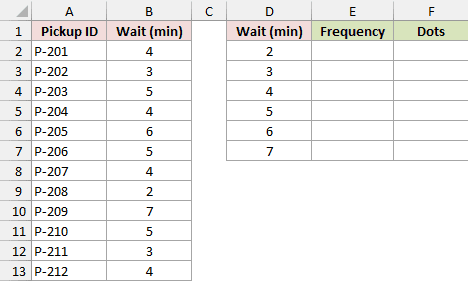
Use Wait (min), Frequency, and Dots as the headings in D1:F1. Enter 2, 3, 4, 5, 6, 7 in D2:D7.
First, enter this formula in E2 and fill it down through E7:
=COUNTIF($B$2:$B$13,D2)
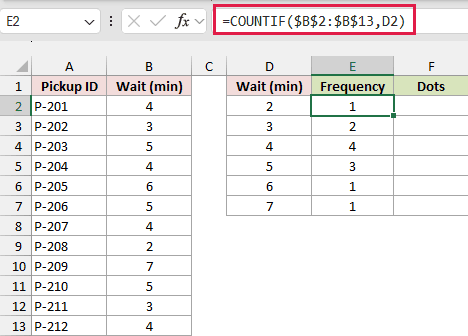
Here, the entire source range stays fixed because each row needs the total count for one wait value. E2:E7 returns 1, 2, 4, 3, 1, 1.
Next, enter this formula in F2 and fill it down through F7. You can copy the dot symbol directly from the formula:
=REPT("● ",E2)
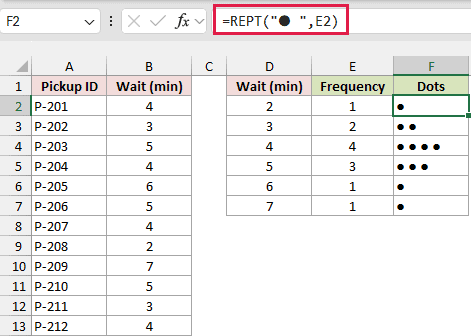
REPT repeats the dot and its following space once for each pickup. The four-minute row displays four dots.
This is a worksheet display, so you can format or print it with the surrounding cells. It doesn’t create a movable Excel chart or a numeric chart axis.
Keep the same font and size throughout the Dots column. Widen column F if the longest row doesn’t fit, so dots don’t run into neighboring content.
Note: Include missing values in the summary when you want equal numeric intervals. A value with frequency zero returns an empty dot string. For uneven decimal values, use the scatter-chart method for an accurate numeric scale.
Additional Notes About Dot Plots in Excel
- Use actual numbers in the source column. Numbers stored as text can produce unexpected chart positions.
- One dot represents one observation in these examples. If you use a different key, such as one dot for ten observations, label it clearly.
- When you add pickups below the example’s last row, extend the helper formulas, chart source, and summary count ranges to include them.
- The example workbook contains completed helper data and the cell-based display. Build the chart from the Scatter Data sheet using Method #1.
Frequently Asked Questions
These questions cover a few choices you may face with your own data.
Do I Need to Sort the Values First?
No. Each wait supplies its own horizontal coordinate, and the expanding count assigns a different height to every repeated wait, wherever it appears in the list.
Can I Start With a Frequency Table?
Yes. For the cell method, use your existing frequency table counts in REPT.
For the scatter method, you need one coordinate pair for every dot you want plotted.
What If My Measurements Have Lots of Decimal Places?
Exact decimal values may each appear only once. If grouping is useful, choose and label a rounding interval before counting. Grouping changes which observations count as equal.
Is a Dot Plot the Same as a Histogram?
A frequency dot plot shows individual observations as dots. A histogram shows counts in intervals as bars. Histograms are usually more manageable when individual dots become too crowded.
Conclusion
I’d use the scatter-chart method for a conventional frequency dot plot, especially when numeric spacing matters. For a small summary beside your data, REPT keeps the dots in worksheet cells.
Other Excel articles you may also like:
