
Tab characters inside Excel cells can be hard to spot. They may look like spaces, but Excel treats them as different characters.
Pressing Tab moves your selection to another cell. Tabs in a pasted TSV file can also separate columns. Here, we’re working with tabs already stored inside cells.
I recommend SUBSTITUTE when you want to choose the replacement. I’ll show you how to count tabs, replace or remove them, use CLEAN, and run a VBA macro.
Method #1: Using the SUBSTITUTE Function
SUBSTITUTE lets you replace tabs with spaces, commas, or nothing. It’s the most precise option here because you choose exactly which character changes.
The Replace Tabs sheet contains eight original export labels in A2:A9, including Harbor, Maple, Cedar, Pine South, Oak Central, Birch, Willow Annex, and Elm.
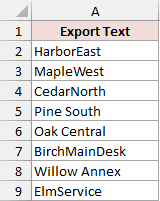
The tabs are actual characters inside those cells. In the explanations below, [TAB] marks their positions. That notation isn’t stored in the workbook.
For example, the first label contains Harbor[TAB]East. The Cedar label has two adjacent tabs, while Willow Annex has no tab.
Find and Count the Tabs
Before replacing anything, you can count the tabs in each cell. Enter this formula in B2:
=LEN(A2:A9)-LEN(SUBSTITUTE(A2:A9,CHAR(9),""))
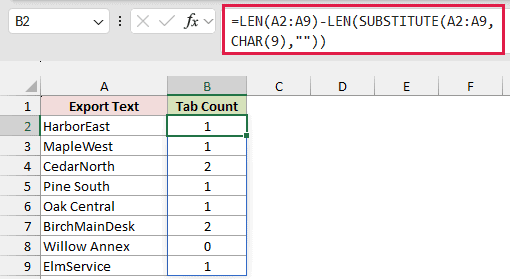
CHAR returns the character associated with a code. Code 9 represents a tab.
SUBSTITUTE removes the tabs, and LEN compares the text lengths before and after removal. Each tab is one character, so the difference gives the count.
The eight results are 1, 1, 2, 1, 1, 2, 0, and 1. This identifies the rows containing tabs, including tabs at either end.
LEN and SUBSTITUTE are available in older and current Excel versions. These range formulas spill in Excel 2021, Excel 2024, Microsoft 365, and modern Excel for the web.
Enter them outside an Excel Table, and keep the cells below each formula clear so the results have room to spill.
Replace Tabs With Spaces
To replace each tab with one regular space, enter this formula in C2:
=SUBSTITUTE(A2:A9,CHAR(9)," ")
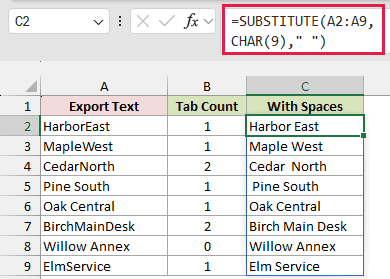
The formula returns all eight cleaned labels. The first result is Harbor East, and the Birch result is Birch Main Desk.
The three main arguments tell SUBSTITUTE where to look, what to replace, and what to insert.
Here, A2:A9 supplies the original text, CHAR identifies the tab character, and the quoted space supplies its replacement.
Because the optional occurrence argument is omitted, SUBSTITUTE replaces every tab in each cell.
Each tab becomes exactly one space. Cedar therefore gets two spaces, Pine South gets a leading space, and Oak Central gets a trailing space.
Existing regular spaces stay unchanged. Other control characters also remain untouched.
Replace Tabs With a Different Separator
You can use a comma followed by a space instead. Enter this formula in D2:
=SUBSTITUTE(A2:A9,CHAR(9),", ")
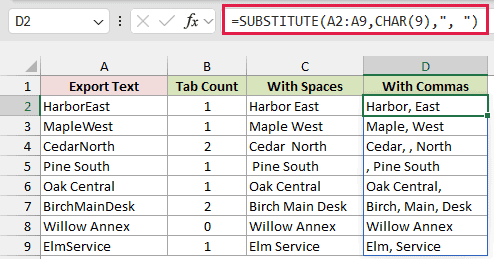
The first result becomes Harbor, East. The Birch result becomes Birch, Main, Desk.
Two adjacent tabs produce the replacement twice. That makes the Cedar result Cedar, , North. SUBSTITUTE doesn’t collapse repeated separators.
Remove Tabs Completely
If you don’t want a replacement character, use an empty string. Enter this formula in E2:
=SUBSTITUTE(A2:A9,CHAR(9),"")
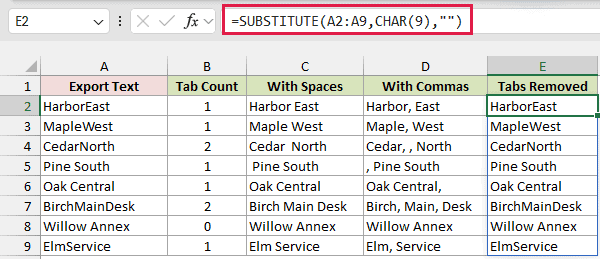
The first result becomes HarborEast because the tab disappears without leaving a separator.
Be careful with this option. Removing tabs can join words together. Use a space when the tab separates words that should remain distinct.
All these formulas preserve the original text in column A.
To overwrite the originals, keep a backup, copy the result range, and use Paste Special > Values over the corresponding source cells.
Use a Fill-Down Formula in Excel 2019 or 2016
The Legacy Replace sheet shows the single-cell approach for versions without dynamic array spilling. Enter this formula in B2, then fill it down through B9:
=SUBSTITUTE(A2,CHAR(9)," ")
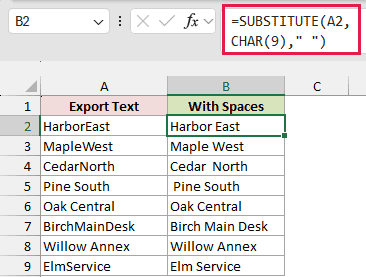
Each copied formula handles one row. In the modern example above, one formula returns all eight rows automatically.
Method #2: Using the CLEAN Function
CLEAN removes control characters, including tabs. Use it when you also want to remove other control characters from the text.
The Clean Controls sheet contains three labels: Harbor[TAB]East, Maple[LF]West, and Birch[TAB]Main[LF]Desk.
Here, [LF] marks an actual line feed, which creates an in-cell line break. Like [TAB], this notation appears only in the explanation.
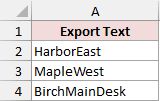
Enter this formula in B2:
=CLEAN(A2:A4)
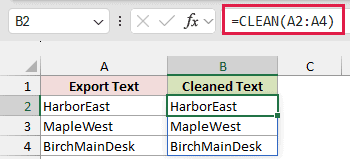
The results are HarborEast, MapleWest, and BirchMainDesk.
CLEAN removes ASCII control characters with codes 0 through 31. It replaces them with nothing, so it doesn’t insert spaces between words.
It also removes the line feeds in this example. Any intended line breaks disappear along with the tabs.
Use SUBSTITUTE when you need to preserve line breaks or replace tabs with a chosen separator.
CLEAN doesn’t remove every invisible Unicode character. Its control-character cleanup has a specific scope.
In older Excel versions, apply CLEAN to one source cell, then fill the formula down instead of supplying the whole range.
Method #3: Running a VBA Macro
A macro is useful when you repeatedly need to replace tabs directly in selected text cells in desktop Excel. Excel for the web cannot run VBA.
Save a copy first. This macro changes the original cells, and ordinary Undo is unavailable after it runs.
The macro replaces every tab with one space. It limits its work to selected cells within the used range and skips formulas, numbers, and Excel errors.
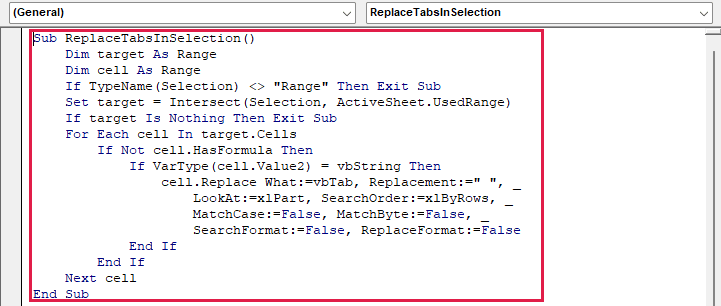
Use this code:
Sub ReplaceTabsInSelection()
    Dim target As Range
    Dim cell As Range
    If TypeName(Selection) <> "Range" Then Exit Sub
    Set target = Intersect(Selection, ActiveSheet.UsedRange)
    If target Is Nothing Then Exit Sub
    For Each cell In target.Cells
        If Not cell.HasFormula Then
            If VarType(cell.Value2) = vbString Then
                cell.Replace What:=vbTab, Replacement:=" ", _
                    LookAt:=xlPart, SearchOrder:=xlByRows, _
                    MatchCase:=False, MatchByte:=False, _
                    SearchFormat:=False, ReplaceFormat:=False
            End If
        End If
    Next cell
End SubThe following steps use Windows shortcuts.
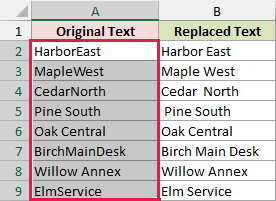
- On the In Place sheet, select A2:A9. These are the same eight source labels. Leave column B as the expected-result comparison.
- Press Alt+F11 to open the Visual Basic Editor, choose Insert > Module, and paste the code into the module.
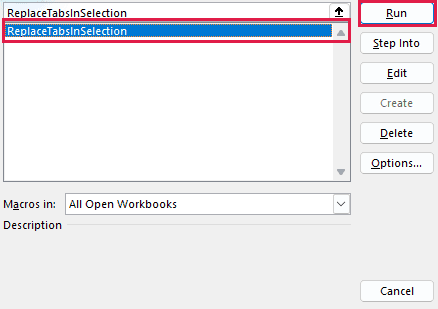
- Press Alt+F11 to return to Excel. Press Alt+F8 to open the Macro dialog, then select ReplaceTabsInSelection.
- Click Run to replace the tabs in the selected text cells.
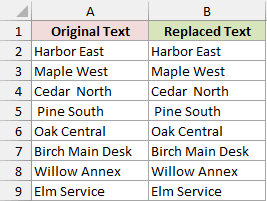
Column A now contains results such as Harbor East and Birch Main Desk. Formulas, numbers, and Excel errors are skipped by the macro’s checks.
Repeated tabs become repeated spaces, just as they do with SUBSTITUTE.
The .xlsx example workbook does not contain this macro. To retain the code, save your own working copy as an Excel Macro-Enabled Workbook (.xlsm).
Follow your organization’s macro policy. You don’t need to enable all macros or change that policy to follow this tutorial.
If the sheet is protected, work in your own unprotected copy or ask the owner for access.
Additional Notes About Tab Characters in Excel
Keep these details in mind before cleaning cells:
- Embedded tabs are characters. These methods target actual U+0009 tab characters stored inside individual cells.
- Select only intended source cells for the macro. On the In Place sheet, leave the comparison results in column B outside your selection.
Frequently Asked Questions
These answers cover a few common points of confusion when working with tabs.
Is a Tab the Same as a Space?
No. A tab has character code 9, while a regular space has code 32. They can look similar, but replacing one doesn’t automatically replace the other.
Can Ctrl+J Find Tab Characters?
No. Ctrl+J represents a line feed, character code 10, rather than a tab.
Typing CHAR(9), \t, or ^t into Find what isn’t the procedure taught here. CHAR is a formula function; use SUBSTITUTE to target tabs explicitly.
Why Do Pasted Tabs Split Text Into Separate Cells?
Excel may parse pasted tab-separated text as separate fields and place each field in its own column.
This article targets characters already inside each cell. Adjust the import settings upstream, or deliberately join fields if you need their contents in one cell.
Why Are Two Spaces Left After Replacing Tabs?
Two adjacent tabs become two spaces because each tab receives one replacement. Existing regular spaces also remain.
Repeated delimiters can represent empty fields, so check their purpose before collapsing the resulting spaces.
Does CLEAN Preserve Line Breaks?
No. CLEAN removes line feeds along with tabs. Use SUBSTITUTE to target tabs when intentional line breaks need to stay.
Can I Replace Only One Occurrence of a Tab?
Yes. SUBSTITUTE has an optional fourth argument, instance_num, that identifies which occurrence to replace. Omitting it, as these examples do, replaces every occurrence.
Conclusion
I’ve shown you how to count and replace tabs with SUBSTITUTE, remove control characters with CLEAN, and update selected cells with a VBA macro.
I hope you found this article helpful.
Other Excel articles you may also like:
