
When you’re writing a macro, you often need to know where something is, not just what it holds. Maybe you want to tell the user which cell they’re on, log where a value was found, or figure out where your data ends.
VBA gives you this through the Address property. It works on any range.
That means the same property tells you the address of the active cell, a selection, a found cell, or the last cell in your data. By default it returns an absolute address like $E$5, but a few optional arguments change the format.
In this article, I’ll show you how to get a cell address with ActiveCell.Address and Selection.Address, change the address style with the Address arguments, find a value’s address with Range.Find, and get the last used cell, row, and column numbers.
Method #1: Using the Range.Address Property
Every method in this article is built on one property: Range.Address. You point it at a cell, and it returns that cell’s address as text.
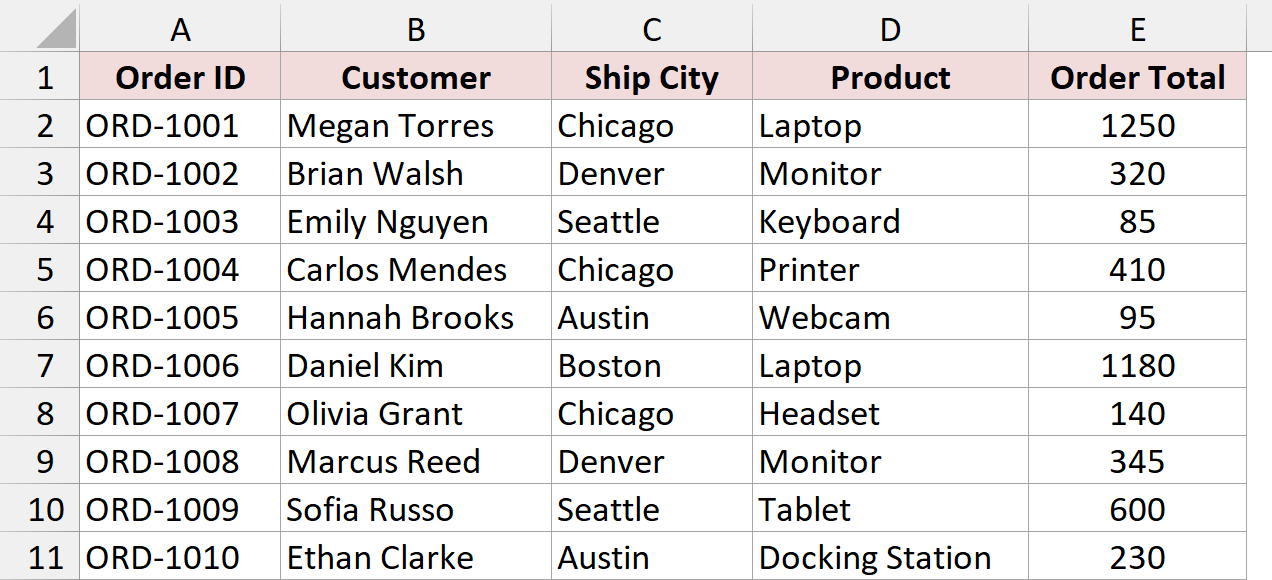
Below I have a dataset of orders on a sheet called Orders, with the Order ID, Customer, Ship City, Product, and Order Total in columns A to E. I want VBA to tell me the address of cell E5.
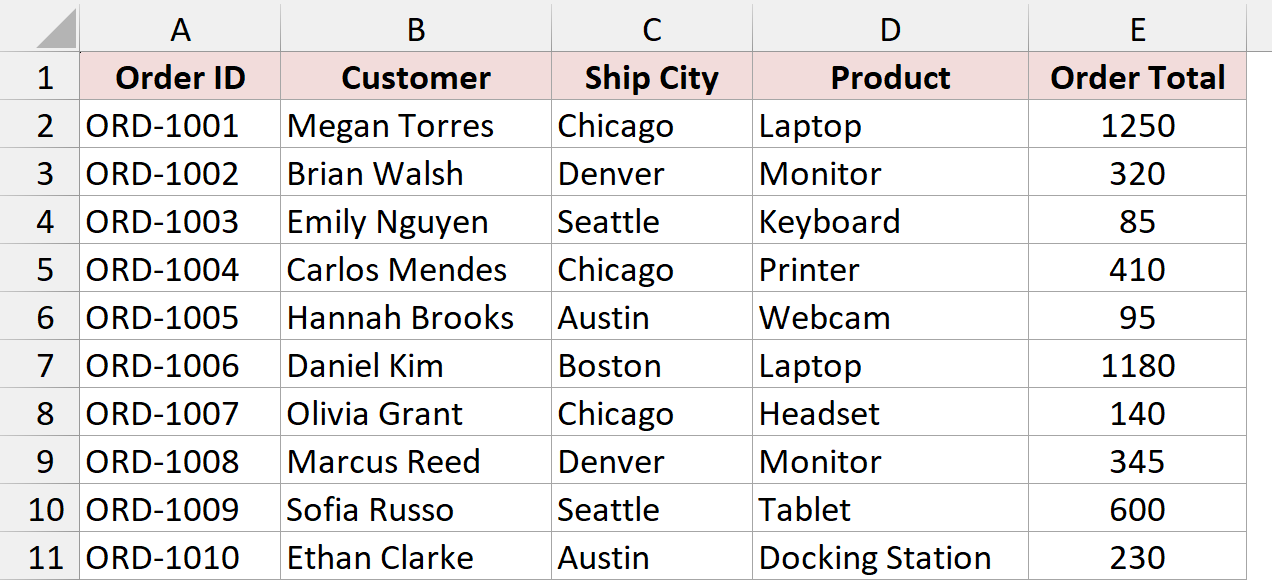
Here is the VBA code:
Sub GetCellAddress()
    MsgBox Range("E5").Address
End SubHere are the steps to use this macro:
- Open the example file. If you see a yellow Protected View bar, click Enable Editing.
- Click File, then Save As, and save a copy as an Excel Macro-Enabled Workbook (.xlsm). A regular .xlsx file can’t keep macros.
- Press Alt + F11 to open the VBA Editor.
- Click Insert, then Module.
- Paste the code above into the new module.
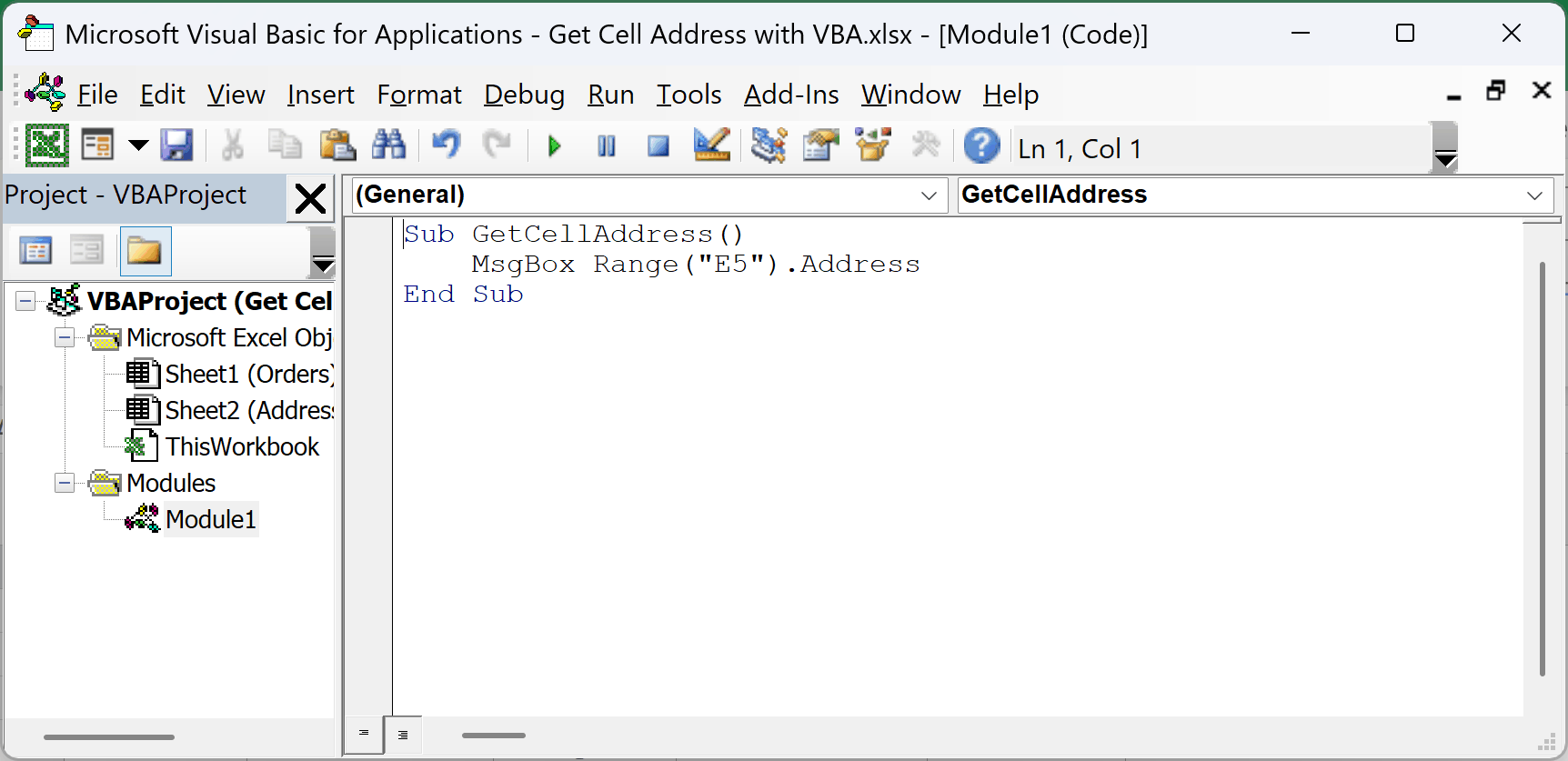
- Go back to the Orders sheet, press Alt + F8, select GetCellAddress, and click Run. You can also click inside the code and press F5.
A message box pops up with the address $E$5.
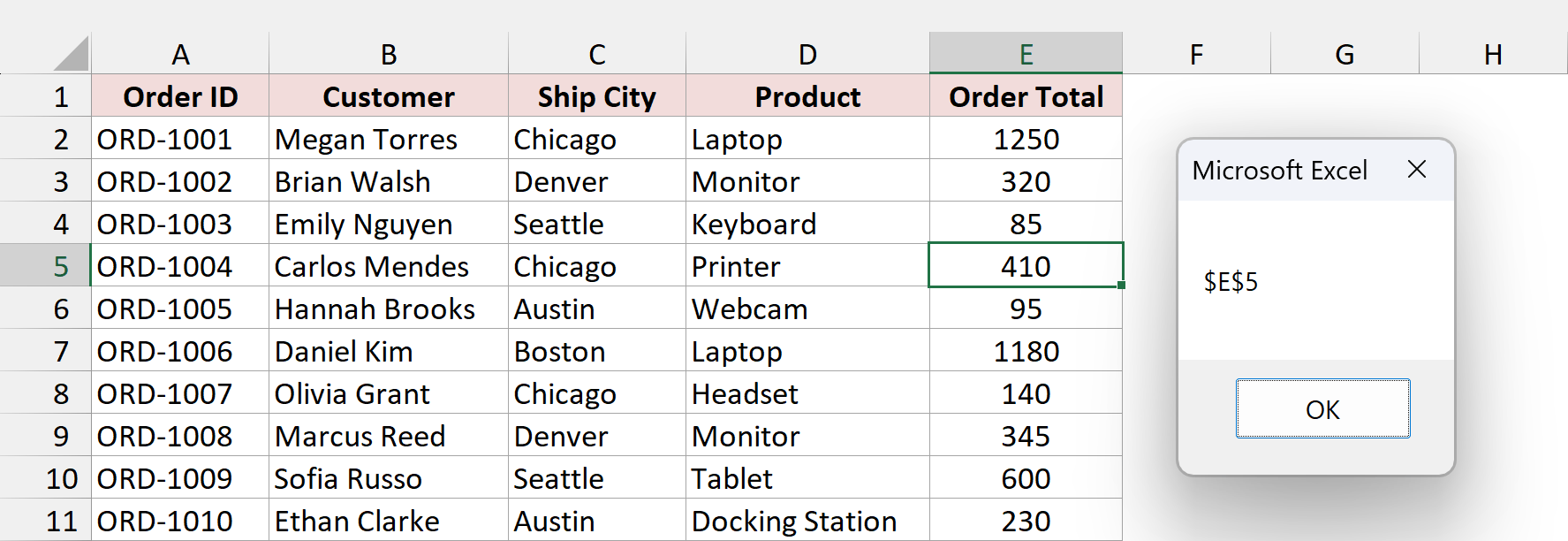
Range(“E5”) points to the cell, and .Address returns its address as a string. The dollar signs mean it’s an absolute reference, which is what Address returns unless you tell it otherwise (Method #4 shows how).
On its own, this looks a bit pointless since you already typed E5. It gets useful when the range comes from somewhere else, like the active cell, a selection, or a search result, and that’s what the rest of the methods cover.
Note: Range(“E5”) without a sheet name refers to whatever sheet is active when the macro runs. If you run it from another sheet, use Worksheets(“Orders”).Range(“E5”).Address instead.
Method #2: Using ActiveCell.Address
This is the one most people are after. ActiveCell.Address returns the address of whichever cell is currently selected, so the same macro gives a different answer depending on where you click.
Below I have the same orders dataset, and I’ve selected cell D7 (the Laptop order for Daniel Kim). I want the macro to tell me which cell I’m on.
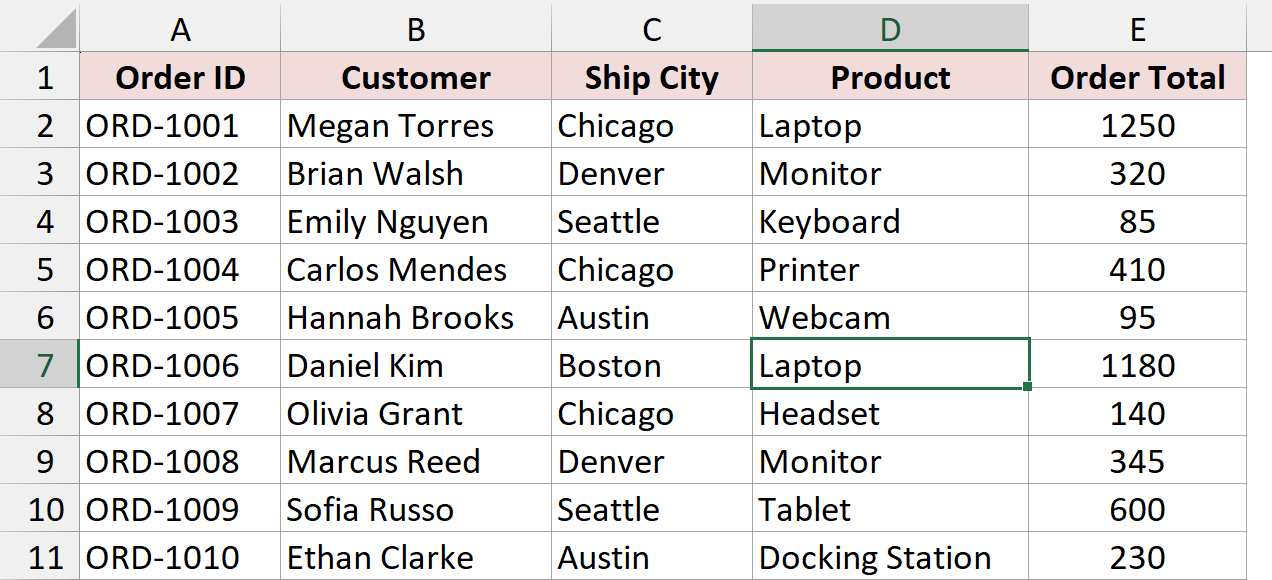
Here is the VBA code:
Sub GetActiveCellAddress()
    MsgBox "The active cell is " & ActiveCell.Address
End SubTo run it, paste the code into a module in your .xlsm copy (Alt + F11, then Insert > Module), go back to the Orders sheet, select a cell, and press Alt + F8 to run GetActiveCellAddress.
With D7 selected, the message box shows “The active cell is $D$7”.
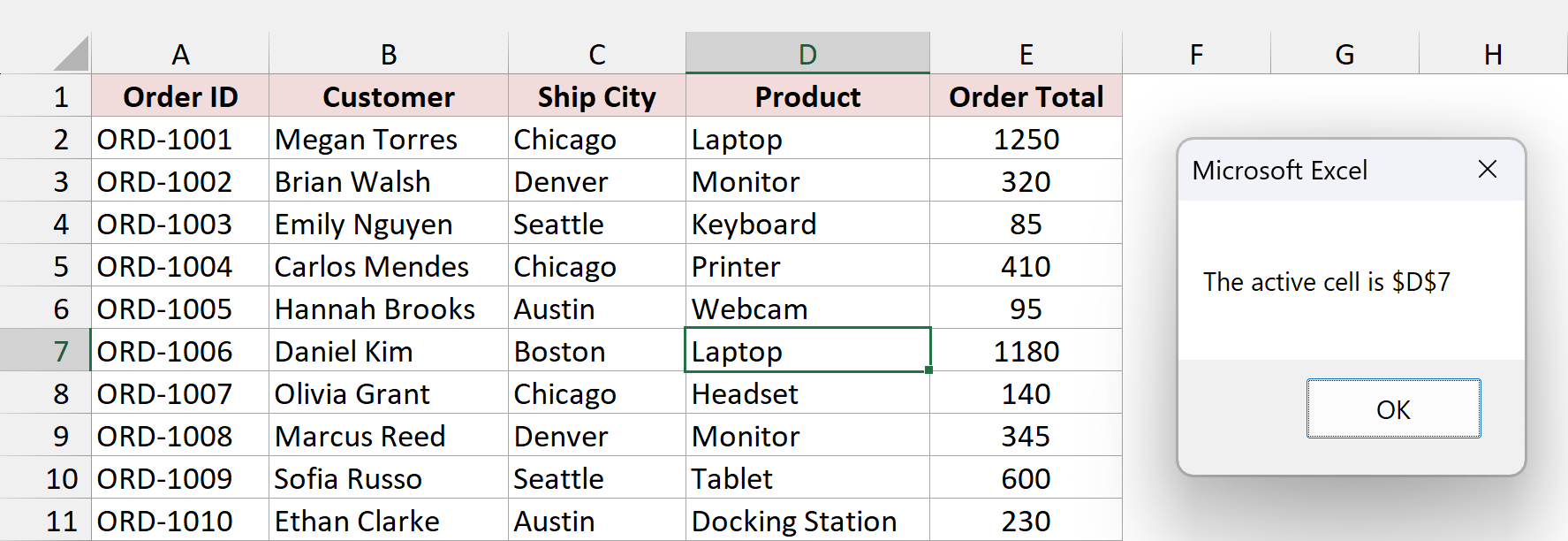
The active cell is the single cell with the thick border around it. The & joins the text “The active cell is ” with the address, so the message reads like a sentence instead of a bare $D$7.
Click a different cell and run it again, and you’ll get that cell’s address.
Note: If you select a range, ActiveCell is still just one cell, the one you started the selection from. To get the address of the whole selection, use Method #3.
Method #3: Using Selection.Address
If you’ve selected more than one cell, ActiveCell only gives you one of them. Selection.Address returns the address of the whole selected range.
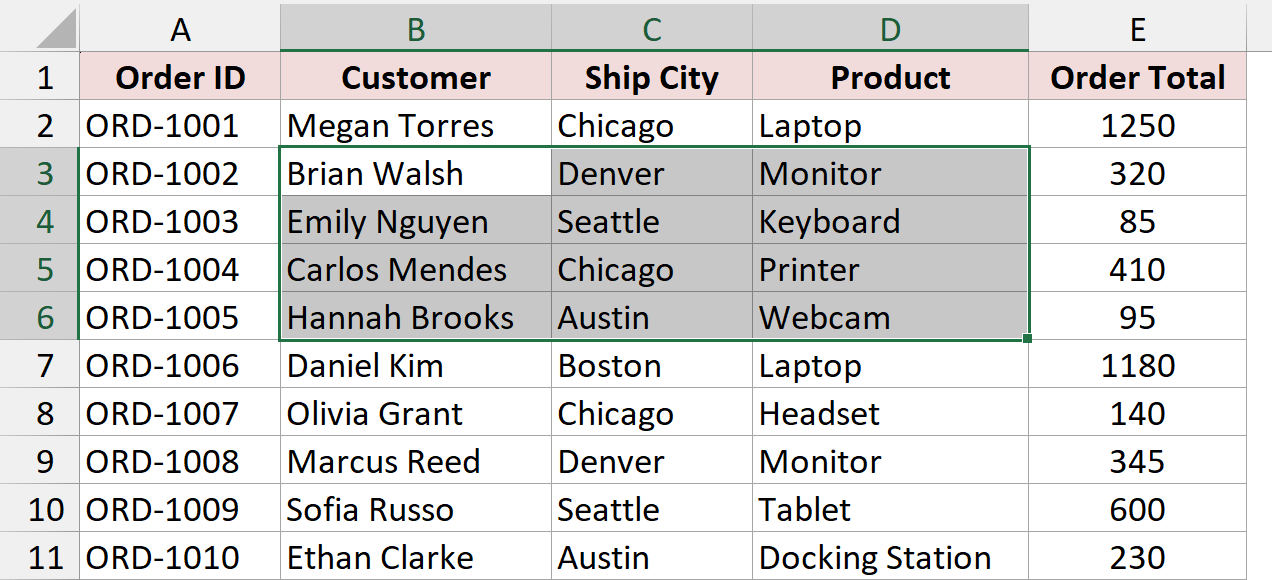
Below I have the orders dataset with the range B3:D6 selected (the customer, city, and product for the second to fifth orders). I want the macro to return the address of that whole block.
Here is the VBA code:
Sub GetSelectionAddress()
    MsgBox "You selected " & Selection.Address
End SubPaste the code into a module in your .xlsm copy, select a range on the Orders sheet, then press Alt + F8 and run GetSelectionAddress.
With B3:D6 selected, the message box shows “You selected $B$3:$D$6”.
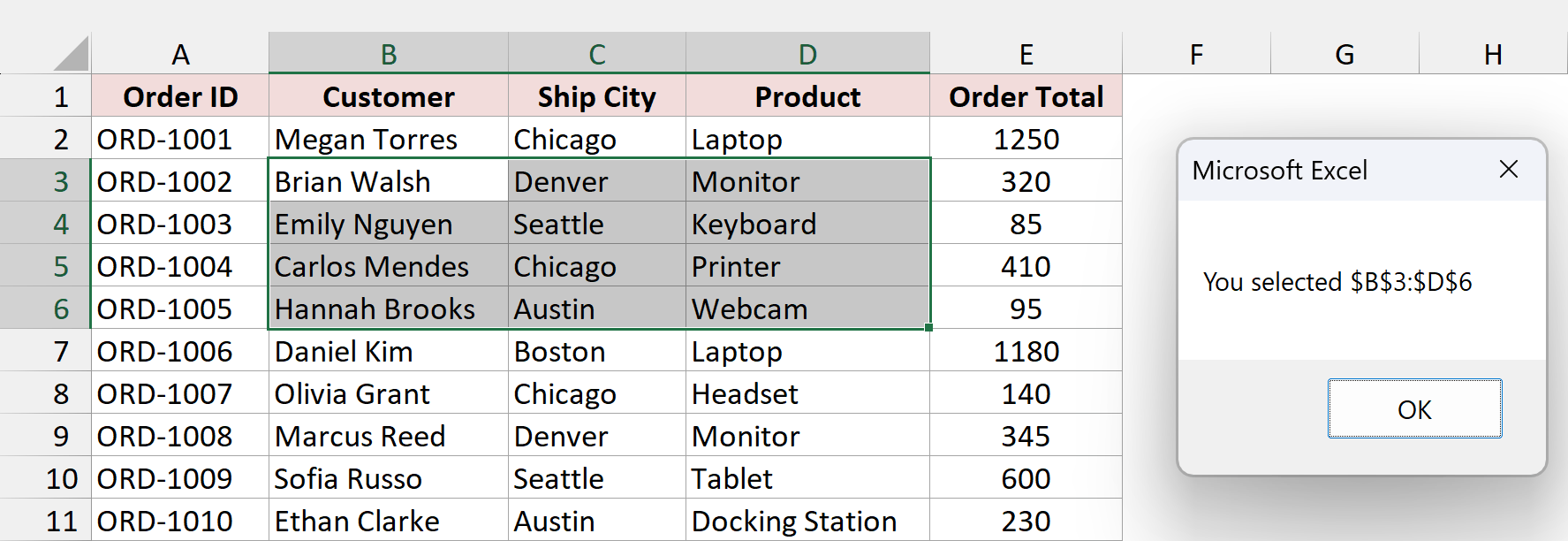
For a range, Address returns the top-left cell and the bottom-right cell joined by a colon, the same way you’d write the range in a formula.
If you hold Ctrl and select two separate blocks, say B3:B6 and D3:D6, the result lists both areas with a comma between them: $B$3:$B$6,$D$3:$D$6.
Note: Selection can also be a chart or a shape if one is selected, and then .Address fails with an error. If your users might click a shape first, check that TypeName(Selection) = “Range” before reading the address.
Method #4: Using the Address Arguments
So far every address has come back with dollar signs. That’s the default, but Address takes a few optional arguments that change the format:
- RowAbsolute: True (default) puts a $ before the row number.
- ColumnAbsolute: True (default) puts a $ before the column letter.
- ReferenceStyle: xlA1 (default) or xlR1C1 for the row-and-column style.
- External: True adds the workbook and sheet name.
- RelativeTo: the starting cell for a relative R1C1 address.
Below I have the same orders dataset. This time I want to get the address of cell E5 in each of these formats and write the results to cells instead of a message box, so I can see them side by side.
The example file has a second sheet called Address Formats, with the format names in A2:A8 and a Result column in B. Here is the VBA code that fills it in:
Sub ShowAddressFormats()
    Dim cell As Range
    Set cell = Worksheets("Orders").Range("E5")

    With Worksheets("Address Formats")
        .Range("B2").Value = cell.Address
        .Range("B3").Value = cell.Address(RowAbsolute:=False, ColumnAbsolute:=False)
        .Range("B4").Value = cell.Address(RowAbsolute:=True, ColumnAbsolute:=False)
        .Range("B5").Value = cell.Address(RowAbsolute:=False, ColumnAbsolute:=True)
        .Range("B6").Value = cell.Address(ReferenceStyle:=xlR1C1)
        .Range("B7").Value = cell.Address(RowAbsolute:=False, ColumnAbsolute:=False, _
            ReferenceStyle:=xlR1C1, RelativeTo:=Worksheets("Orders").Range("A1"))
        .Range("B8").Value = "'" & cell.Address(External:=True)
    End With
End SubThe example file already shows the results, so clear B2:B8 on the Address Formats sheet first. Then paste the code into a module in your .xlsm copy, press Alt + F8, and run ShowAddressFormats.
The macro fills in the Result column:
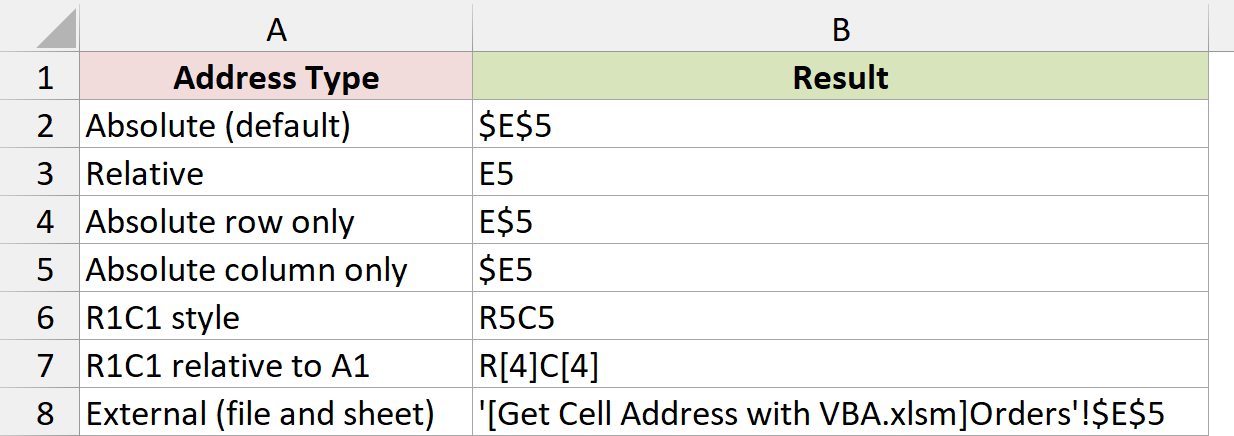
Here’s what each line returns:
- cell.Address returns $E$5, the default absolute address.
- RowAbsolute:=False, ColumnAbsolute:=False returns E5, a relative address with no dollar signs. This is the one to use when you want a clean address to show a user.
- RowAbsolute:=True, ColumnAbsolute:=False returns E$5, so only the row is locked.
- RowAbsolute:=False, ColumnAbsolute:=True returns $E5, so only the column is locked.
- ReferenceStyle:=xlR1C1 returns R5C5, which means row 5, column 5.
- Adding RelativeTo returns R[4]C[4], which means 4 rows down and 4 columns right of A1.
- External:=True returns the workbook and sheet name too: ‘[Get Cell Address with VBA.xlsm]Orders’!$E$5. You’ll see your own file name here.
You can also pass the arguments by position, so cell.Address(False, False) gives the same E5 as the named version. I find the named version easier to read a month later.
Note: When the file or sheet name has a space, Excel wraps it in single quotes, so the external address starts with an apostrophe. A leading apostrophe in a cell is treated as a hidden text marker, which is why the code adds an extra “‘” in front. Without it, the cell would lose the first quote.
Method #5: Using the Range.Find Method
When you don’t know where a value is, Range.Find searches for it and returns the cell it lands on. It’s the same method you’d use to find a value in a range with VBA, and adding .Address turns the result into a location.
Below I have the orders dataset with customer names in column B. I want to find the address of the cell that holds “Daniel Kim”.
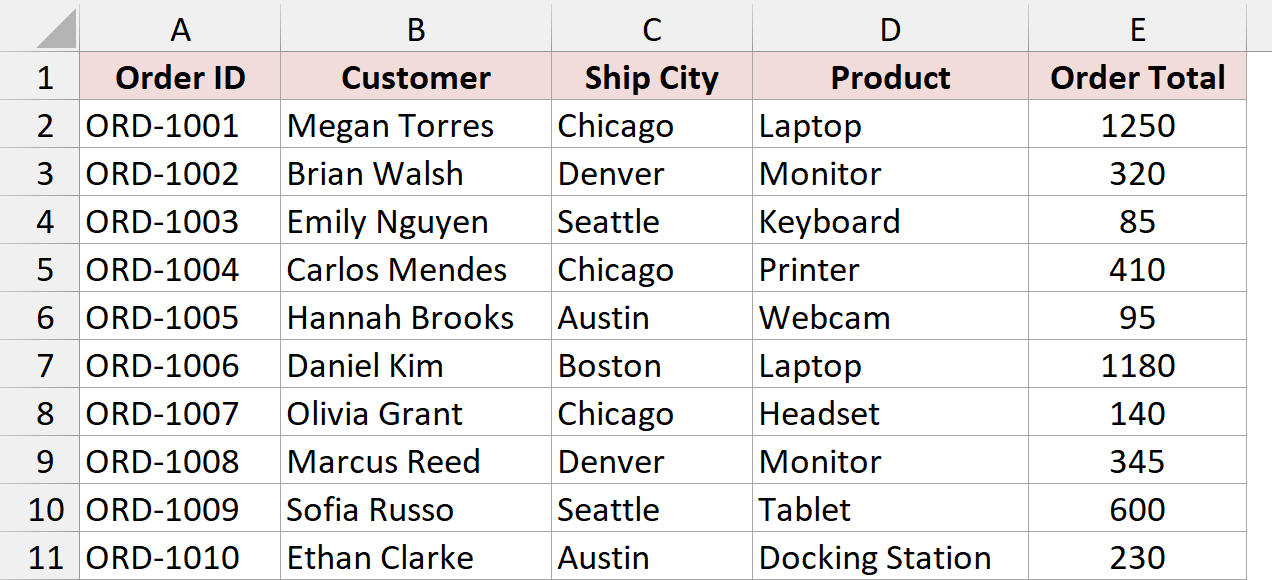
Here is the VBA code:
Sub FindCellAddress()
    Dim foundCell As Range
    Set foundCell = Range("B2:B11").Find(What:="Daniel Kim", LookIn:=xlValues, LookAt:=xlWhole)

    If foundCell Is Nothing Then
        MsgBox "Daniel Kim was not found"
    Else
        MsgBox "Daniel Kim is in cell " & foundCell.Address
    End If
End SubPaste the code into a module in your .xlsm copy, make sure the Orders sheet is active, then press Alt + F8 and run FindCellAddress.
The message box shows “Daniel Kim is in cell $B$7”.
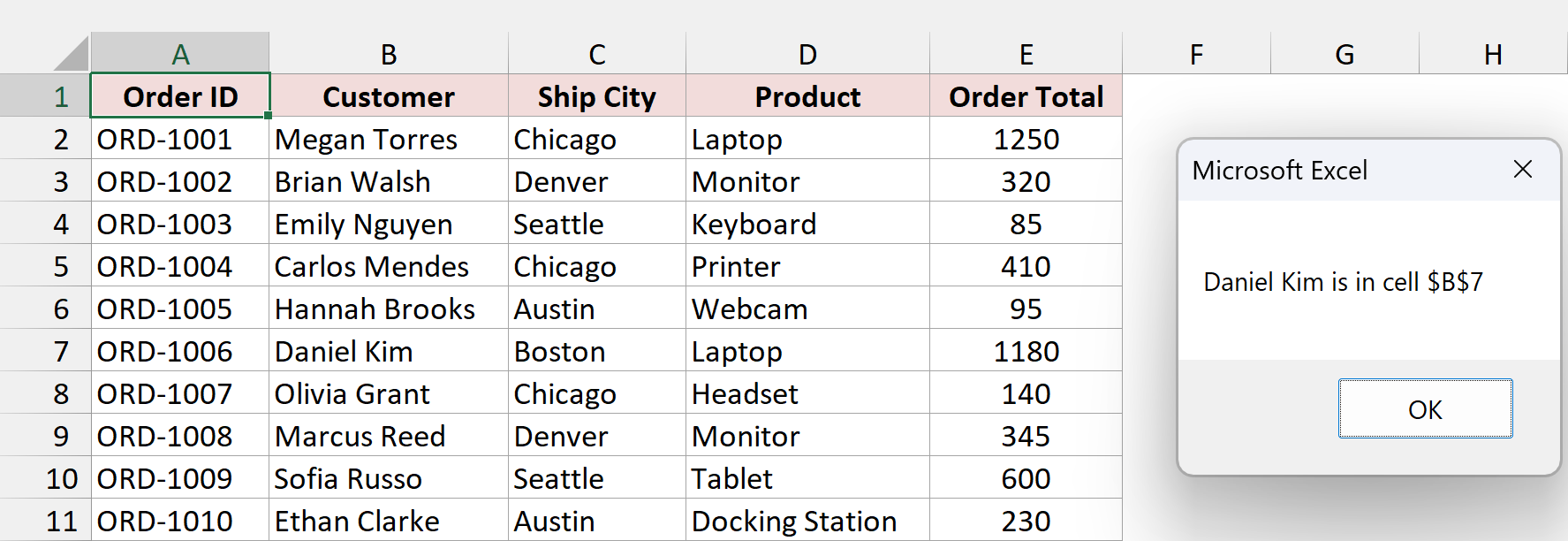
Find returns the matching cell as a Range, or Nothing if there’s no match. The If check matters. Without it, calling .Address on Nothing stops the macro with an “Object variable or With block variable not set” error.
LookAt:=xlWhole makes Find match the whole cell, so “Kim” on its own wouldn’t count as a match.
Now, what if the value shows up more than once? Find stops at the first match, so you need FindNext to keep going. Here, I want the address of every order shipped to Chicago in column C.
Sub FindAllAddresses()
    Dim searchRange As Range
    Dim foundCell As Range
    Dim firstAddress As String
    Dim allAddresses As String

    Set searchRange = Range("C2:C11")
    Set foundCell = searchRange.Find(What:="Chicago", _
        After:=searchRange.Cells(searchRange.Cells.Count), _
        LookIn:=xlValues, LookAt:=xlWhole)

    If foundCell Is Nothing Then
        MsgBox "Chicago was not found"
        Exit Sub
    End If

    firstAddress = foundCell.Address
    Do
        If allAddresses = "" Then
            allAddresses = foundCell.Address
        Else
            allAddresses = allAddresses & ", " & foundCell.Address
        End If
        Set foundCell = searchRange.FindNext(foundCell)
    Loop While foundCell.Address <> firstAddress

    MsgBox "Chicago appears in " & allAddresses
End SubRun FindAllAddresses the same way, and the message box shows “Chicago appears in $C$2, $C$5, $C$8”.
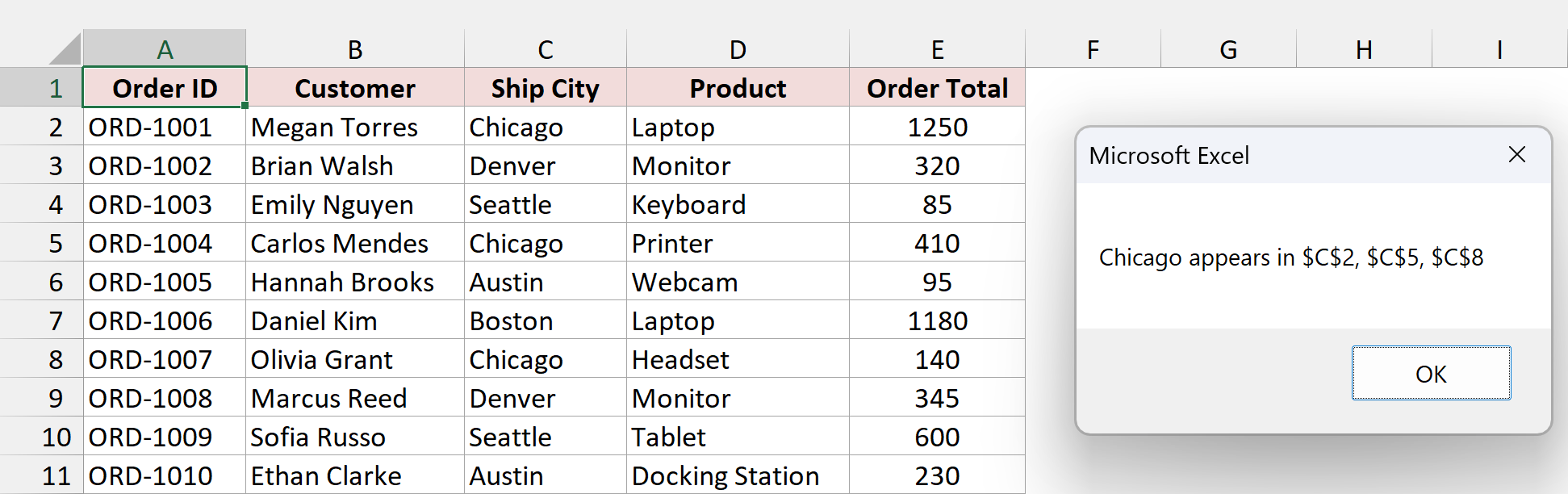
FindNext wraps back to the top once it reaches the end of the range, so the loop saves the first address and stops when it comes back around to it. Each address gets added to the allAddresses string with a comma in between.
Note: Find starts searching after the first cell of the range, so without the After argument it would check C2 last and report $C$5 as the first match. Pointing After to the last cell makes the search start at the top.
Method #6: Using End(xlUp) and UsedRange
A lot of macros need to know where the data ends, so they can add a new row below it or loop through every record. This method gets the address of the last cell with data.
Below I have the orders dataset in A1:E11. I want VBA to tell me the address of the last cell in the table.
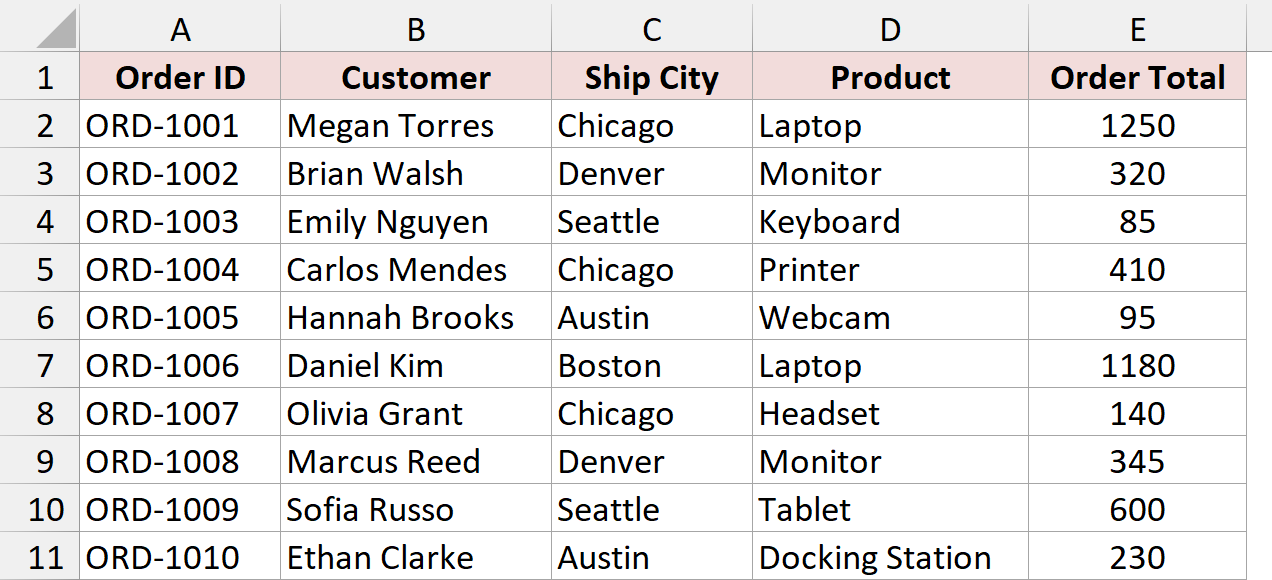
Here is the VBA code:
Sub GetLastCellAddress()
    Dim lastRow As Long
    Dim lastCol As Long

    lastRow = Cells(Rows.Count, "A").End(xlUp).Row
    lastCol = Cells(1, Columns.Count).End(xlToLeft).Column

    MsgBox "The last cell with data is " & Cells(lastRow, lastCol).Address
End SubPaste the code into a module in your .xlsm copy, make sure the Orders sheet is active, then press Alt + F8 and run GetLastCellAddress.
The message box shows “The last cell with data is $E$11”.
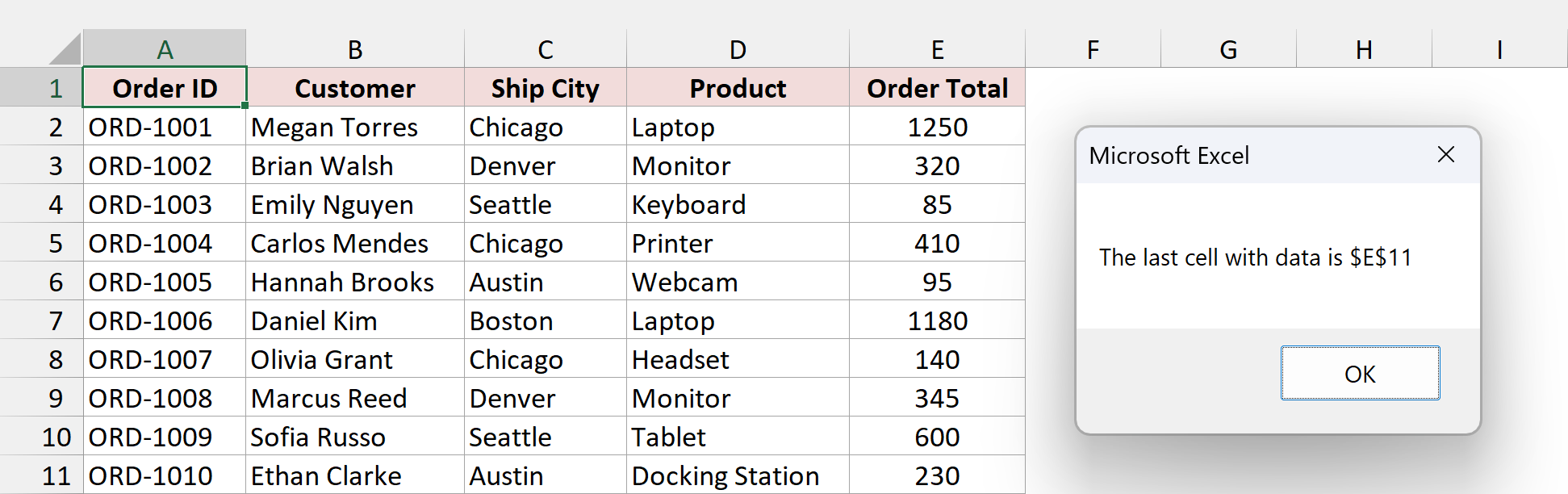
Cells(Rows.Count, “A”) is the very last cell in column A. End(xlUp) jumps up from there to the last filled cell, the same as pressing Ctrl + Up Arrow. Its .Row gives 11, which is the usual way to find the last row with VBA.
The column line does the same thing sideways along row 1 and returns 5. Cells(11, 5) is then E11.
If you want the address of the whole data block instead of one cell, UsedRange is a one-liner:
Sub GetUsedRangeAddress()
    MsgBox "The data range is " & ActiveSheet.UsedRange.Address
End SubRun it on the Orders sheet, and the message box shows “The data range is $A$1:$E$11”.
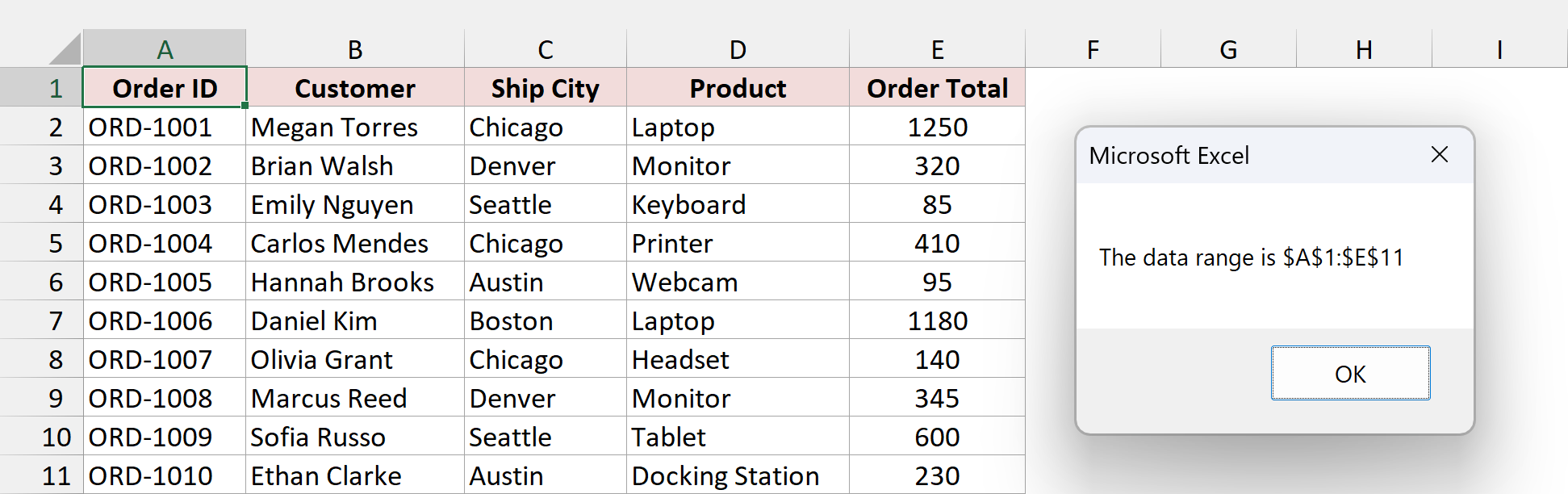
Note: UsedRange also counts cells that only have formatting, or that had data you’ve since deleted. If it returns a bigger range than you expect, use the End(xlUp) version, which only looks at cells with values.
Method #7: Using the Row and Column Properties
Sometimes you don’t want a text address at all. You want the row number and column number so you can use them in a loop or pass them to Cells(). The Row and Column properties return those as numbers.
Below I have the orders dataset with cell C9 selected (Denver, in the Ship City column). I want the row number, the column number, and the column letter of that cell.
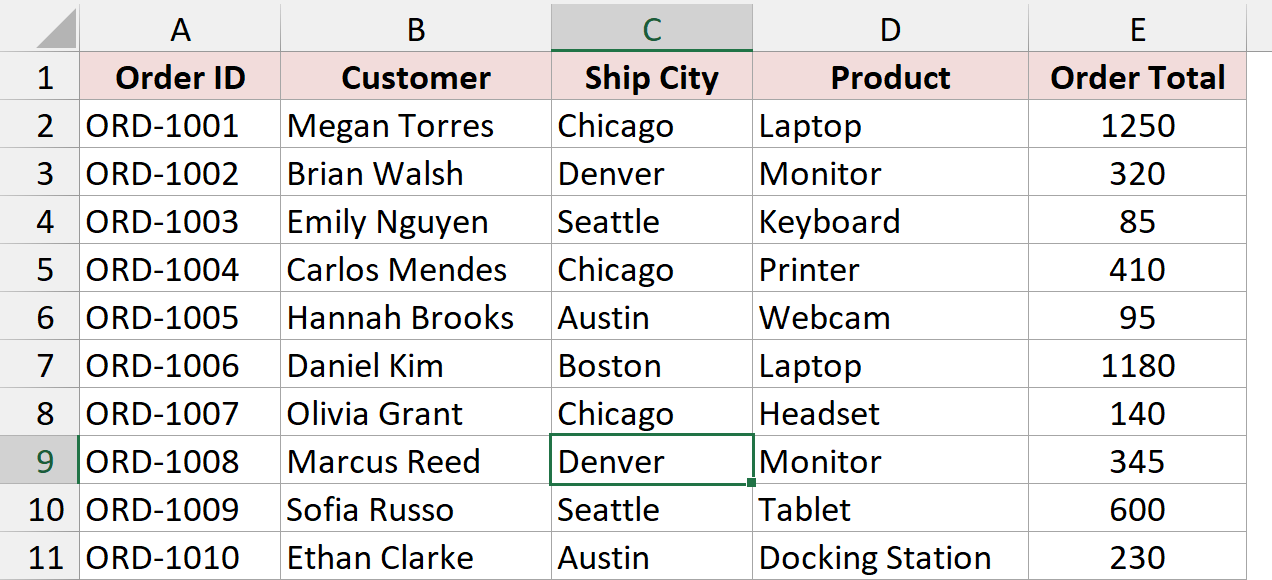
Here is the VBA code:
Sub GetRowAndColumn()
    MsgBox "Row: " & ActiveCell.Row & ", Column: " & ActiveCell.Column & _
        ", Column letter: " & Split(ActiveCell.Address, "$")(1)
End SubPaste the code into a module in your .xlsm copy, select a cell on the Orders sheet, then press Alt + F8 and run GetRowAndColumn.
With C9 selected, the message box shows “Row: 9, Column: 3, Column letter: C”.
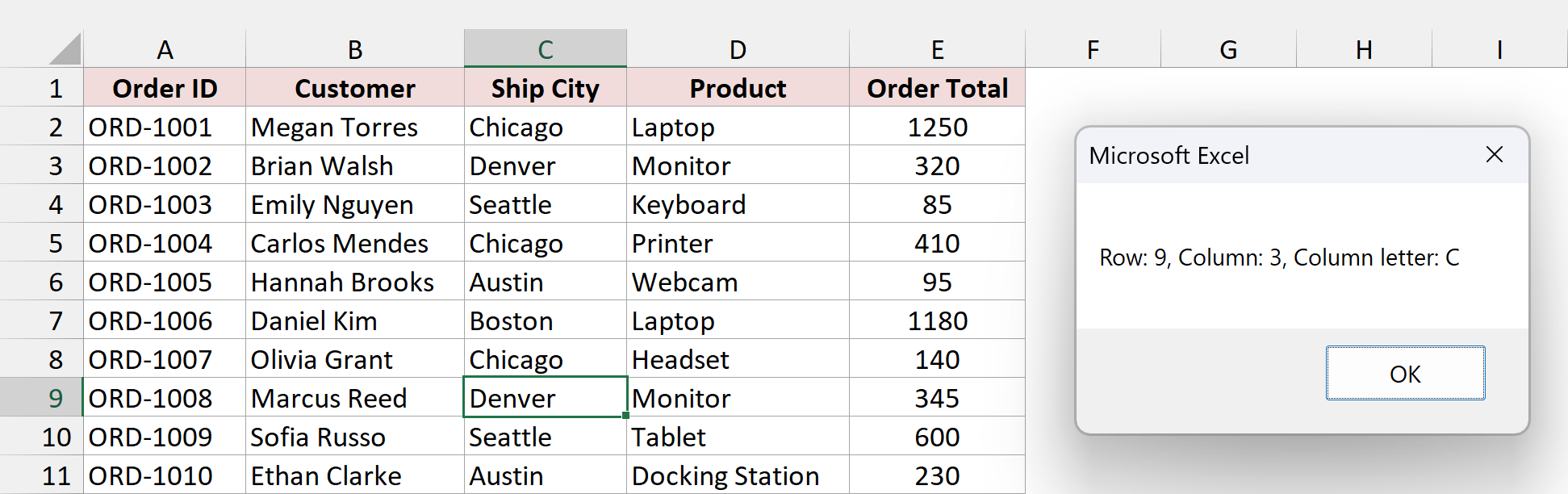
ActiveCell.Row returns 9 and ActiveCell.Column returns 3, because C is the third column.
There’s no built-in property for the column letter, so the code takes the address $C$9 and splits it at each $ sign. That gives three pieces (an empty one, “C”, and “9”), and (1) picks the second one, the letter.
This also works in reverse. If you have the numbers and need the address, Cells(9, 3).Address returns $C$9.
Additional Notes About Getting a Cell Address with Excel VBA
- Address returns text, not a cell. If you store an address in a variable and later need the cell back, wrap it in Range(), like Range(“$C$9”). The dollar signs are fine there.
- Use Debug.Print to skip the pop-up. Debug.Print ActiveCell.Address writes the address to the Immediate window (press Ctrl + G in the VBA Editor), which is handy while you’re testing and don’t want to click OK every time.
- The shortcuts here are for Windows. On a Mac, open the VBA Editor from the Developer tab by clicking Visual Basic, and run macros from Developer > Macros.
- Qualify the sheet when it matters. Range and Cells without a sheet name always work on the active sheet. A macro that runs from a button on another sheet should use Worksheets(“Orders”).Range(…) so it reads the right cells.
- No VBA? Use a formula. If you just need an address in a cell and not inside a macro, the ADDRESS function builds one from a row and column number, and the CELL function with “address” returns the address of a referenced cell. Combined with MATCH or INDEX, they get the cell address instead of the value of a lookup.
Frequently Asked Questions
Here are some questions people often ask about getting cell addresses in VBA.
How do I include the sheet name in the address without the workbook name?
Join the sheet name and the address yourself: Worksheets(“Orders”).Name & “!” & Range(“E5”).Address returns Orders!$E$5. External:=True would add the workbook name as well, which you may not want.
How do I get the address of a named range in VBA?
Pass the name to Range and read its Address. If OrderTotals is a named range that refers to E2:E11 on the Orders sheet, Range(“OrderTotals”).Address returns $E$2:$E$11.
What address does VBA return for a merged cell?
Range(“G1”).Address returns only the top-left cell, $G$1, even if G1:H1 is merged. To get the full merged block, use Range(“G1”).MergeArea.Address, which returns $G$1:$H$1.
Conclusion
Getting a cell address in VBA always comes back to the Address property. You just change what you point it at: a fixed range, the active cell, the selection, a Find result, or the last used cell.
For everyday macros, ActiveCell.Address is the one I reach for first. When you need a different style, like E5 without dollar signs or an R1C1 address, add the arguments from Method #4.
I hope you found this article helpful.
Other Excel articles you may also like: