
To convert seconds, minutes, or decimal hours to time in Excel, divide by 86400, 1440, or 24 respectively. Then apply the custom format [h]:mm:ss to display the result as hours, minutes, and seconds.
Excel stores time as a fraction of a day. That’s why formatting raw seconds alone gives the wrong result. For example, 9000 seconds becomes 2:30:00 only after you divide it by the number of seconds in a day.
In this tutorial, I’ll show you how to use division, the CONVERT function, and Paste Special to create numeric time values you can add up. I’ll also show you the format that keeps durations above 24 hours from resetting.
Check What Your Numbers Represent
Start with the source unit. All three inputs below represent two hours and 30 minutes:
| Source Unit | Raw Number | Divide By | Duration |
|---|---|---|---|
| Seconds | 9000 | 86400 | 2:30:00 |
| Minutes | 150 | 1440 | 2:30:00 |
| Decimal hours | 2.5 | 24 | 2:30:00 |
There are 24 hours, 1440 minutes, and 86400 seconds in a day. Dividing by the matching daily total converts your input to Excel’s time value.
Clock codes such as 1430 represent 2:30 PM in military-time notation. Those digits need a different conversion; the examples below work with duration totals whose units you already know.
Method #1: Dividing by the Daily Unit Count
I’d use division for most conversions. The formula is short, the original number stays available, and the result remains numeric.
The examples use encoding jobs with durations exported in seconds, minutes, or decimal hours. Each unit has its own sheet, so you can follow the part that matches your data.
Converting Seconds to Time
On the Seconds sheet, column A lists the encoding jobs and B2:B9 contains their durations in seconds. We want a duration in column C.
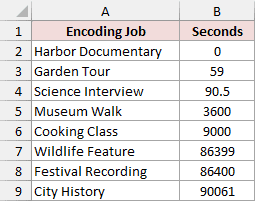
Enter this formula in C2, then copy it down to C9:
=B2/86400
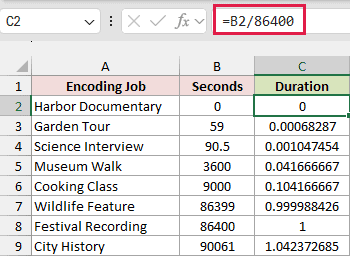
We’re using one row at a time to make the unit conversion and later copy-and-paste method easy to compare. These formulas also work in versions without dynamic arrays.
The formula divides B2 by the number of seconds in a day. Cooking Class has 9000 seconds, so the result is about 0.104166667 days. At first, Excel may display that decimal instead of a time.
Select C2:C9 and press Ctrl + 1 in Excel for Windows. In Format Cells, choose Custom and enter [h]:mm:ss in the Type box.
![Custom number format [h]:mm:ss keeps elapsed hours above 24 visible](https://spreadsheetplanet.com/wp-content/uploads/2026/10/m1-elapsed-format-dialog.png)
Click OK to display the results as elapsed hours, minutes, and seconds.
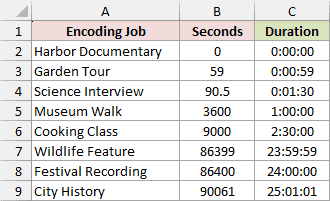
Cooking Class displays 2:30:00. City History, which has 90061 seconds, displays 25:01:01.
The brackets around h keep the total hours. A regular h:mm:ss format resets the displayed hour after 24 hours, which would hide the extra day in a long duration.
Keeping Fractional Seconds Visible
Science Interview has 90.5 seconds. The conversion keeps the half-second, but a format without decimal seconds doesn’t show it.
Select C4, open Format Cells, and enter [h]:mm:ss.000 in the Custom category.
![Custom number format [h]:mm:ss.000 displays fractional seconds](https://spreadsheetplanet.com/wp-content/uploads/2026/10/m1-fractional-format-dialog.png)
Click OK. Science Interview now displays 0:01:30.500.
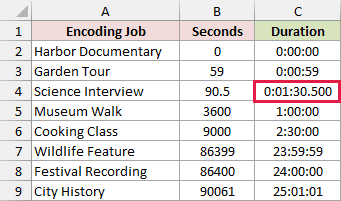
Changing the number format changes the display, not the underlying value. Apply this format to the whole output range if all your durations need millisecond precision.
Adding the Converted Durations
Because these results are numbers, the SUM function can add them directly. On the Seconds sheet, enter the following formula in C10:
=SUM(C2:C9)
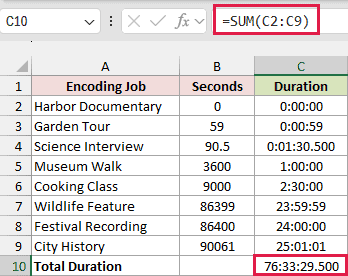
With [h]:mm:ss.000 applied to C10, the total is 76:33:29.500. Keep the brackets on the total too, or Excel will display only the hours left after complete days.
Converting Minutes to Time
On the Minutes sheet, B2:B9 contains durations measured in minutes. The output goes in column C.
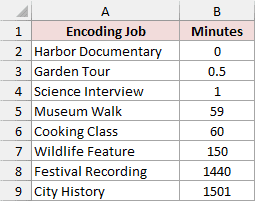
Enter this formula in C2 and copy it down to C9:
=B2/1440
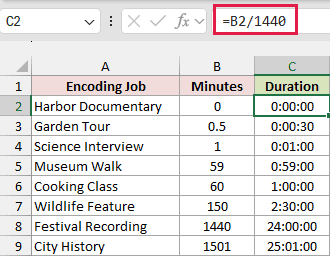
Apply [h]:mm:ss to C2:C9. Wildlife Feature has 150 minutes and displays 2:30:00. City History has 1501 minutes and displays 25:01:00.
This uses the same conversion as the seconds example, with 1440 as the daily unit count.
Converting Decimal Hours to Time
On the Hours sheet, B2:B9 contains decimal hours. For example, 2.5 means two hours plus half an hour.
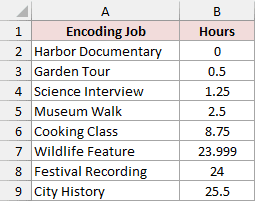
Enter this formula in C2 and copy it down to C9:
=B2/24
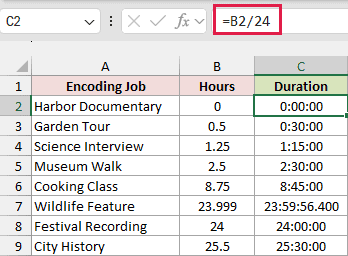
Apply [h]:mm:ss to the results. Museum Walk has 2.5 hours and displays 2:30:00. City History has 25.5 hours and displays 25:30:00.
The example file uses [h]:mm:ss.000 for Wildlife Feature so you can also see the fractional seconds in 23.999 hours: 23:59:56.400.
Note: Decimal hours use a fraction of an hour. Science Interview has 1.25 hours, which is 1 hour and 15 minutes because a quarter of an hour is 15 minutes. A decimal point does not separate hours from minutes.
Method #2: Using the CONVERT Function
If you’d rather specify units than remember a divisor, use the CONVERT function. It changes seconds into days, giving Excel a numeric value that you can format as time.
Below is the same encoding-job list with durations in seconds. We want numeric time values in an output column.
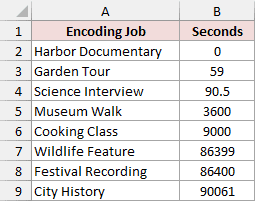
Enter this formula in the first output row and copy it down for the remaining jobs:
=CONVERT(B2,"sec","day")
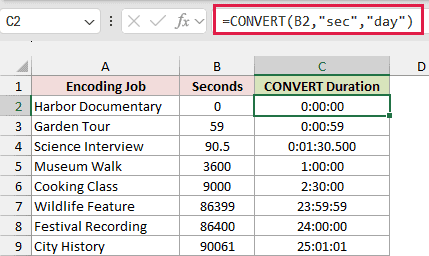
Apply [h]:mm:ss to the results, or [h]:mm:ss.000 where you want fractional seconds. The formula returns the same numeric values as dividing by 86400.
B2 is the number to convert. The code "sec" tells Excel the source is seconds, and "day" tells it to return a day fraction.
For minutes, change the source code to "mn". For decimal hours, use "hr". Keep "day" as the destination unit in both cases.
In the downloaded file, enter the CONVERT formula in D2 and copy it down to D9. Column C already holds the division results, so column D lets you compare both methods on the Seconds, Minutes, and Hours sheets.
Note: CONVERT’s unit codes are case-sensitive. Use the lowercase codes shown here. An unrecognized unit code returns #N/A.
Method #3: Applying Paste Special Division
For a one-time conversion without formulas, use Paste Special. It changes the selected values, so keep the original seconds in a separate column.
On the Paste Special sheet, the original encoding durations are in B2:B9. We’ll work on a copy in column C.
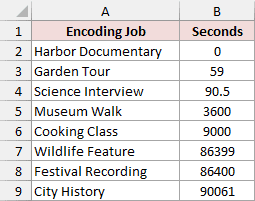
Here are the steps in Excel for Windows:
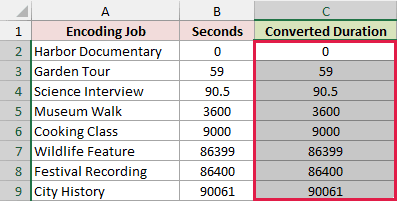
- Copy B2:B9 and paste the values into C2:C9. Use Converted Duration as the column C heading.
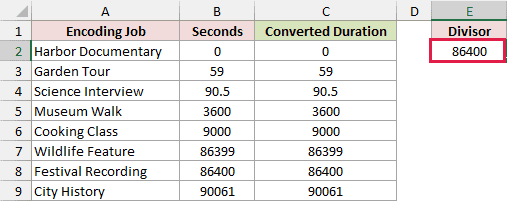
- Enter Divisor in E1 and 86400 in E2. Leave column D empty between the table and this small divisor block.
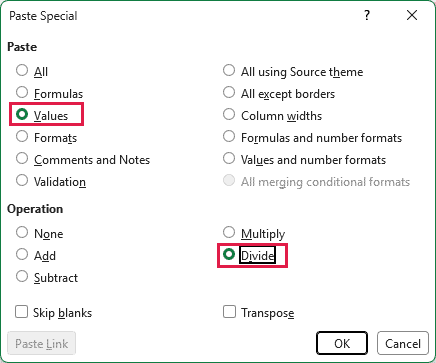
- Copy E2, select C2:C9, and choose Home > Paste > Paste Special. In the dialog, select Values under Paste and Divide under Operation.
- Click OK, then format C2:C9 as [h]:mm:ss using Format Cells. Use [h]:mm:ss.000 for C4 to show its half-second.
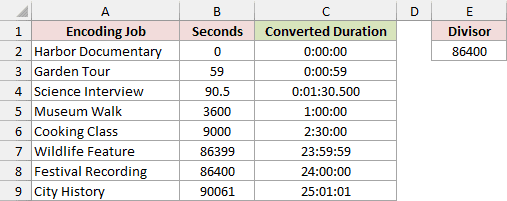
The selected values are divided by the copied 86400. Column B stays unchanged, and column C contains numeric durations without formulas. Cooking Class becomes 2:30:00, and City History becomes 25:01:01.
Use 1440 in the divisor cell for minutes, or 24 for decimal hours. Keep each batch to a single known source unit.
Additional Notes About Converting Numbers to Time in Excel
Check these points when working with your own exported data:
- Check for empty source cells. Division and CONVERT treat a blank referenced cell as zero. A displayed zero duration can therefore mean missing data. Check that every source entry is a nonblank number before converting it.
- Keep this workflow to nonnegative durations. Negative inputs need a separate approach to displaying negative time. Don’t hide them by replacing errors or hash displays with zero.
- Check regional settings. The formulas shown use commas between arguments and a period for decimal seconds. Your Excel settings may require different separators.
- These examples don’t require dynamic arrays. The formulas use individual cell references and can be copied down. They also work in Excel 2016 and 2019, alongside newer desktop versions.
- The reader file already contains the results. To practice from scratch, make a copy and clear the relevant output cells first. The screenshot examples show each stage separately; the download keeps both formula methods together for comparison.
Frequently Asked Questions
Here are a few related cases that can change how you handle the source numbers.
How Do I Show Total Minutes and Seconds?
After converting the source to an Excel time value, use [m]:ss as the custom format. The brackets keep the total minutes instead of resetting them after each hour. Keep [h]:mm:ss when you want total hours instead.
Can I Convert a Column That Mixes Seconds and Hours?
Only if you know the unit for each row. A plain number doesn’t identify its own unit. Separate the rows into groups with the same unit, then use the matching divisor or CONVERT source code for each group.
Why Does Excel Show Hash Marks Instead of Time?
First, widen the output column. If the value is negative, widening won’t fix it under Excel’s usual 1900 date system. Check the source for negative durations and handle those separately rather than treating the hashes as a zero result.
Why Not Use the TIME Function for Total Seconds?
The TIME function builds a clock time from hours, minutes, and seconds. It wraps at 24 hours, and its individual arguments have a documented upper limit of 32767. Division or CONVERT preserves long elapsed durations without those TIME limits.
Should I Use TEXT to Format the Result?
Use a custom number format when you want to add or calculate with the converted durations. TEXT returns a text string, which is useful for labels. The division and CONVERT methods keep the result numeric so you can use it in calculations.
Conclusion
I’ve shown you three ways to convert numeric durations into Excel time values. I’d start with division and use [h]:mm:ss to keep total hours visible. I hope you found this article helpful.
Other Excel articles you may also like:
