
Excel’s CONVERT function converts a number from one measurement unit to another compatible unit.
It handles tasks such as converting distances, weights, or temperatures without maintaining conversion factors yourself. Unit codes are case-sensitive, so their spelling matters.
In this article, I’ll show you how to convert distances and temperatures, choose units from cells, and handle invalid unit codes.
CONVERT Function Syntax in Excel
The CONVERT function takes a number in one measurement unit and returns its equivalent in another unit.
=CONVERT(number, from_unit, to_unit)
- number (required) is the value you want to convert.
- from_unit (required) is the code for the number’s current measurement unit.
- to_unit (required) is the code for the measurement unit you want returned.
The two units must belong to the same measurement group. For example, you can convert hours to minutes, but not hours to kilometers.
Here are the codes used throughout the examples:
| Measurement | Common unit codes | Examples |
|---|---|---|
| Distance | m, mi, ft | meter, mile, foot |
| Mass | g, kg, ozm, lbm | gram, kilogram, ounce mass, pound mass |
| Temperature | C, F, K | Celsius, Fahrenheit, Kelvin |
| Time | mn, min, hr, day | minute, hour, day |
| Volume | l, ml, cup, gal | liter, milliliter, cup, gallon |
| Metric prefixes | k, m | kilo, milli |
Unit codes and prefixes are case-sensitive. For example, km works for kilometers, while KM returns #N/A.
When to Use CONVERT Function
- Convert distances, weights, temperatures, times, and volumes without typing conversion factors.
- Keep formulas readable when other people need to understand the units being used.
- Store source and destination unit codes in cells for row-by-row conversions.
- Convert a calculated total by placing SUM or another function inside CONVERT.
- Pair CONVERT with IFERROR when worksheet users may enter invalid or incompatible unit codes.
Example 1: Convert Miles to Kilometers
Let’s start with distances from a multi-city road trip.
Below is the dataset. Column A lists each trip leg, and column B contains the distance in miles.
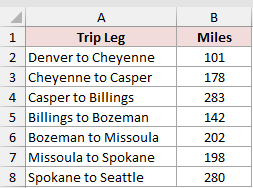
We want to convert each distance from miles to kilometers.
Enter this formula in C2, then copy it down through C8:
=CONVERT(B2,"mi","km")
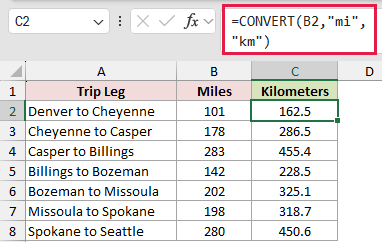
The formula reads the mileage in B2. The code mi identifies miles, and km asks Excel to return kilometers.
The first 101-mile leg becomes 162.5 kilometers. The 280-mile final leg becomes 450.6 kilometers.
You could multiply by 1.609344 instead. CONVERT saves you from remembering the factor and makes both units visible in the formula.
Example 2: Convert Fahrenheit to Celsius
Temperature conversions work a little differently.
Below is the dataset. Column A lists cities, and column B contains their high temperatures in Fahrenheit.
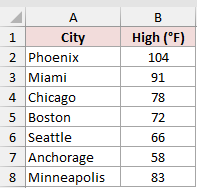
We want to convert each Fahrenheit value to Celsius without writing the temperature arithmetic ourselves.
Enter this formula in C2, then copy it down through C8:
=CONVERT(B2,"F","C")
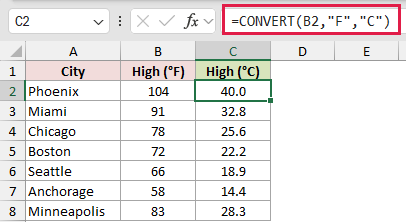
The F code tells Excel the starting scale, while C sets the destination scale.
Phoenix’s 104°F converts to 40.0°C. Miami’s 91°F converts to 32.8°C with the worksheet formatted to one decimal place.
CONVERT handles the offset between the temperature scales, so you do not need to build the usual subtraction and multiplication formula.
Example 3: Use Unit Codes From Cells
Unit codes can also come straight from worksheet cells.
Below is the dataset. Each row contains a value, its current unit code, and its destination unit code.
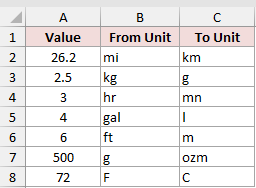
We want column D to follow the unit codes entered in columns B and C.
Enter this formula in D2, then copy it down through D8:
=CONVERT(A2,B2,C2)
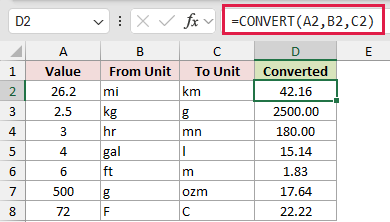
Instead of fixed text codes, the formula reads from_unit from B2 and to_unit from C2.
That same formula converts 26.2 miles to 42.16 kilometers, 2.5 kilograms to 2,500 grams, and three hours to 180 minutes.
The code kg combines the kilo prefix k with the gram code g. Similarly, ml combines milli with liters.
Example 4: Convert Cups to Milliliters
Let’s use CONVERT for a recipe worksheet.
Below is the dataset. Column A lists ingredients, and column B contains amounts in cups.
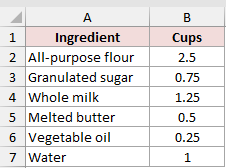
We want each cup measurement converted to milliliters.
Enter this formula in C2, then copy it down through C7:
=CONVERT(B2,"cup","ml")
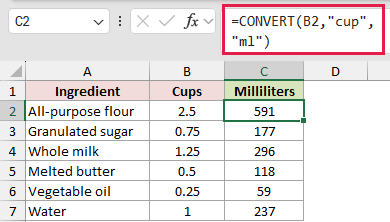
The code cup is the source unit. The destination code ml uses the milli prefix with the liter code l.
With whole-number formatting, 2.5 cups displays as 591 milliliters. One cup displays as 237 milliliters.
Pro Tip: This formula converts volume, not weight. A cup of flour and a cup of sugar have the same volume but different weights.
Example 5: Convert Minutes to Hours and Days
A task log gives us both individual conversions and a converted total.
Below is the dataset. Rows 2 through 7 contain project tasks and their durations in minutes.
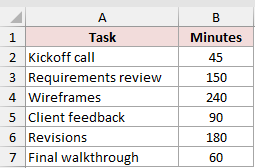
We want hours beside each task and the total time expressed in days.
Enter this formula in C2, then copy it down through C7:
=CONVERT(B2,"mn","hr")
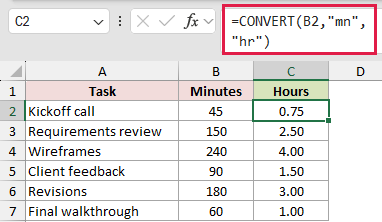
The mn code represents minutes, and hr represents hours. The 45-minute kickoff call becomes 0.75 hours.
For the summary card in B9, wrap SUM inside CONVERT:
=CONVERT(SUM(B2:B7),"mn","day")
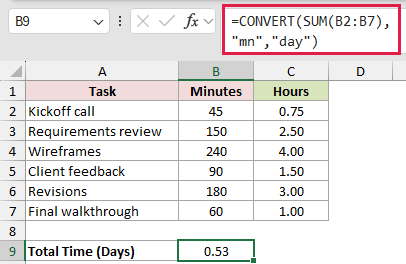
SUM first adds the six task times to get 765 minutes. CONVERT then changes that total to 0.53 days with the cell’s two-decimal formatting.
Dividing each value by 60 and the total by 1,440 would also work. CONVERT lets the same formula structure handle both target units.
Example 6: Handle CONVERT Errors With IFERROR
Finally, let’s see what happens when unit codes are invalid.
Below is the dataset. Columns A through C contain values, source units, and destination units. Two rows use invalid or incompatible codes.
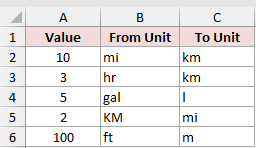
We want to identify failed conversions and replace their errors with a useful message.
First, enter the raw CONVERT formula in D2 and copy it down through D6:
=CONVERT(A2,B2,C2)
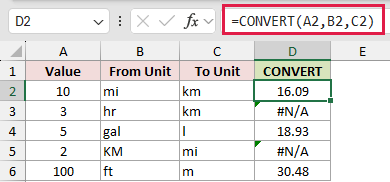
The formula returns #N/A in D3 because hours and kilometers belong to different measurement groups.
It also returns #N/A in D5 because KM uses the wrong case. Excel expects lowercase km.
To see why IFERROR is better for worksheet inputs, enter this formula in E2 and copy it down through E6:
=IFERROR(CONVERT(A2,B2,C2),"Check units")
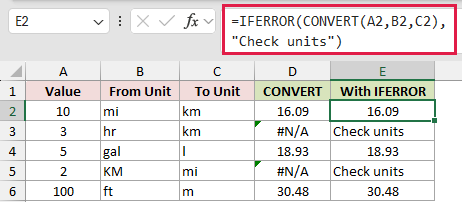
IFERROR returns the text “Check units” for both bad rows. Valid rows still show their converted values, including 16.09 kilometers for 10 miles.
Use IFERROR when unit codes come from worksheet cells. It keeps the output readable, but you should still correct the invalid codes at their source.
Tips & Common Mistakes
- Unit codes and prefixes are case-sensitive. Check the spelling and capitalization first when CONVERT returns #N/A.
- CONVERT also returns #N/A when the source and destination units measure different things, such as time and distance.
- A non-numeric
numberargument returns #VALUE!. Clean or validate imported values before passing them to CONVERT. - Some codes are not obvious. Use
lbmfor pound mass,ozmfor ounce mass, andmnorminfor minutes. - CONVERT does not lift over a range. In Excel 365, use
=MAP(B2:B8,LAMBDA(x,CONVERT(x,"mi","km")))when you want one formula that spills. - A typed conversion factor can be shorter for a familiar calculation. CONVERT is clearer when the unit names matter or the factor is easy to forget.
If the conversion will change, put the unit codes in cells instead of rewriting the formula.
That keeps the worksheet easy to update and makes invalid entries easier to find.
Related Excel Functions / Articles:
