
The BAHTTEXT function in Excel converts a number to Thai text and adds the appropriate Baht wording. Its result is text, not a formatted numeric value.
This makes BAHTTEXT useful for Thai receipts, payment records, and other documents that need an amount written in words.
In this article, I’ll show you how to convert amounts to Thai currency text, handle Baht and satang, and create receipt wording that updates automatically.
BAHTTEXT Function Syntax in Excel
The BAHTTEXT function needs one argument:
=BAHTTEXT(number)
numberis a numeric value, a reference to a numeric cell, or a formula that returns a number.
When to Use BAHTTEXT Function
- Write Thai Baht amounts in words beside payment records.
- Convert calculated line totals without retyping their values.
- Include Baht and satang wording for fractional amounts.
- Build receipt text that updates when the underlying total changes.
Example 1: Convert Baht Amounts to Thai Text
A payment register can display its numeric amounts and Thai wording side by side.
Below are six payment references, their THB amounts, and an empty Amount in Thai column.
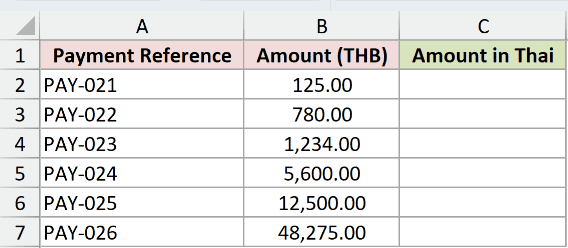
I want Excel to convert every amount into Thai Baht text.
Here is the formula:
=BAHTTEXT(B2:B7)
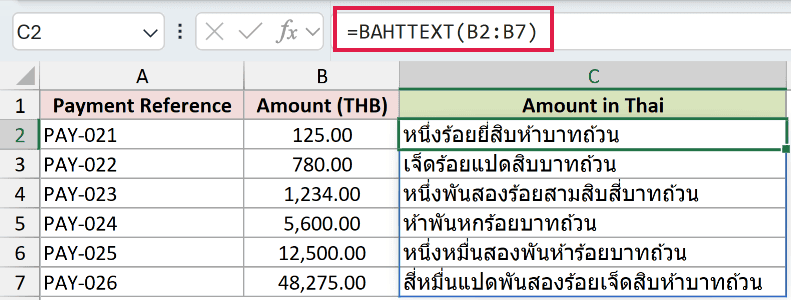
The first amount, 125, returns หนึ่งร้อยยี่สิบห้าบาทถ้วน. The value 1,234 returns หนึ่งพันสองร้อยสามสิบสี่บาทถ้วน.
This one formula spills six text results in Excel 2021, Excel 2024, Microsoft 365, and Excel for the web.
Pro Tip: BAHTTEXT creates Thai currency wording. If you only need a numeric currency display, apply a currency number format instead.
Example 2: Convert Calculated Line Totals
BAHTTEXT can use results produced by another formula.
Below are five services with hours, rates, and empty columns for the line total and its Thai wording.
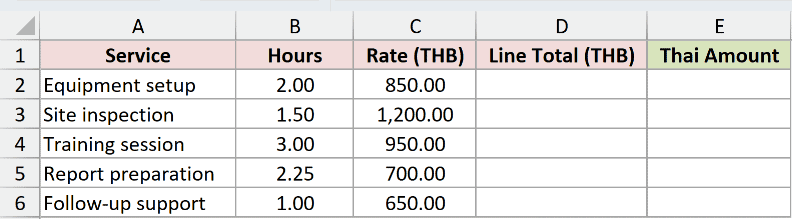
I first want to multiply the hours by the rate for each service.
Here is the line-total formula:
=B2:B6*C2:C6
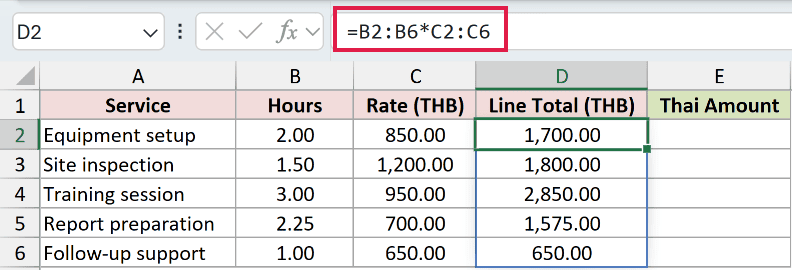
Excel multiplies each row and spills the results into D2:D6. The equipment setup total is 1,700.00 THB.
Next, I want BAHTTEXT to convert the complete spilled range.
Here is the conversion formula:
=BAHTTEXT(D2#)
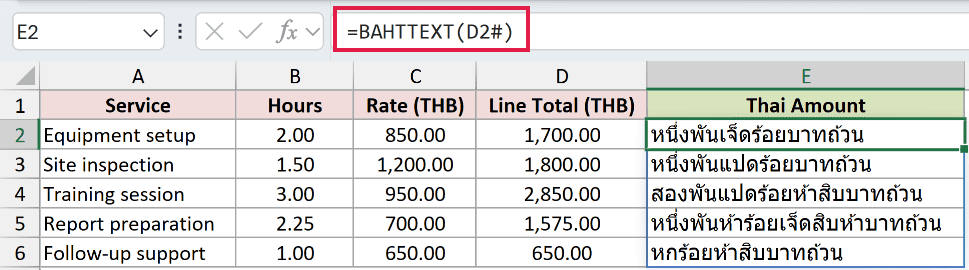
The spill operator in D2# refers to every line total produced from D2. BAHTTEXT returns one Thai text result for each amount.
The first result is หนึ่งพันเจ็ดร้อยบาทถ้วน, which corresponds to 1,700.00 THB.
Pro Tip: Keep the cells beneath both formulas clear. A blocked output area causes a #SPILL! error.
Example 3: Convert Baht and Satang Amounts
Fractional THB values let you see how BAHTTEXT handles satang.
Below are five settlement amounts with an empty Thai Amount column.
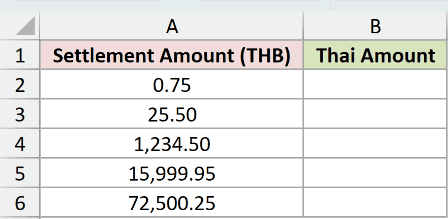
I want to convert each whole or fractional amount into Thai currency wording.
Here is the formula:
=BAHTTEXT(A2:A6)
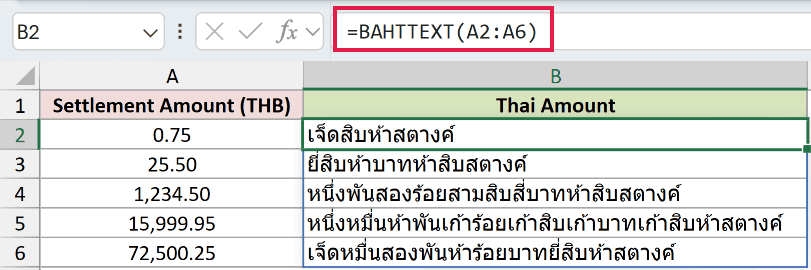
The value 0.75 returns เจ็ดสิบห้าสตางค์. The value 25.50 returns ยี่สิบห้าบาทห้าสิบสตางค์.
Whole Baht and satang are combined when both parts are present. BAHTTEXT supplies the Thai currency-unit wording automatically.
Pro Tip: BAHTTEXT is specific to Thai Baht. The TEXT function can format numbers, but it does not spell currency amounts in words.
Example 4: Build Dynamic Receipt Wording
You can combine BAHTTEXT with other text to create a receipt line.
Below are three service charges, an empty total, and an empty Receipt Wording result.
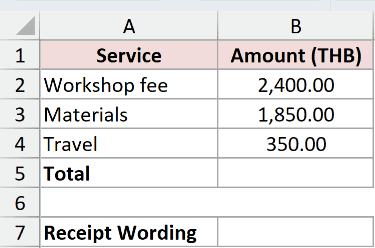
I first want to total the three service charges.
Here is the SUM formula:
=SUM(B2:B4)
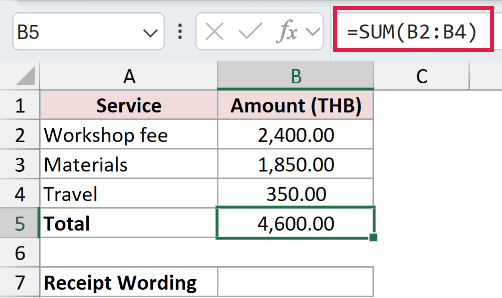
The SUM function adds the workshop fee, materials, and travel amounts. The total in B5 is 4,600.00 THB.
Now I want to place a Thai label before the amount in words.
Here is the receipt formula:
="ยอดรวม "&BAHTTEXT(B5)
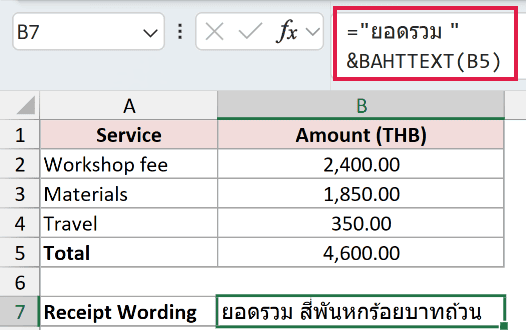
The ampersand joins the fixed label to the BAHTTEXT result. Cell B7 returns ยอดรวม สี่พันหกร้อยบาทถ้วน.
If any service amount changes, SUM recalculates the total and the receipt wording updates with it.
Pro Tip: Keep the space inside "ยอดรวม ". Without it, the label and the converted amount run together.
Tips & Common Mistakes
- BAHTTEXT returns Thai currency text. It does not provide an English number-to-words option.
- A numeric value, cell reference, or formula result can supply the required argument.
- Desktop Excel’s Regional and Language Options can change the Baht format style, so output may differ across computers.
- Excel 2019 and earlier need a single-cell formula copied down instead of a spilling range formula.
- Use currency formatting when you want a numeric display that remains available for calculations.
I covered direct conversion, calculated line totals, satang wording, and a receipt line that stays linked to its total.
I hope you found this article helpful.
