
Checks, invoices, and receipts often need the amount written out, like “One Thousand Two Hundred Eighty-Four Dollars and Thirty Cents” for 1,284.30.
Excel has no built-in function that writes numbers as English words. You either build the words with a formula or add a small custom function with VBA.
I’ll show you a formula that spells out any number, a version that writes dollars and cents, and the SpellNumber macro for older Excel versions.
Method #1: Using a LET and LAMBDA Formula
This is the method I recommend if you have Microsoft 365 or Excel 2024. It needs no macro, so your file stays a regular .xlsx.
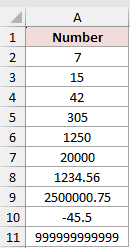
Below I have a dataset with numbers in column A. I want the same number written out in words in column B.
Enter this formula in cell B2 and copy it down to B11:
=LET(n,A2,ones,TEXTSPLIT(",One,Two,Three,Four,Five,Six,Seven,Eight,Nine,Ten,Eleven,Twelve,Thirteen,Fourteen,Fifteen,Sixteen,Seventeen,Eighteen,Nineteen",","),tens,TEXTSPLIT(",,Twenty,Thirty,Forty,Fifty,Sixty,Seventy,Eighty,Ninety",","),grp,LAMBDA(x,LET(h,INT(x/100),t,MOD(x,100),TRIM(IF(h,INDEX(ones,h+1)&" Hundred ","")&IF(t<20,INDEX(ones,t+1),INDEX(tens,INT(t/10)+1)&IF(MOD(t,10),"-"&INDEX(ones,MOD(t,10)+1),""))))),s,TEXT(ABS(n),"0.##########"),p,FIND(".",s),i,--LEFT(s,p-1),d,MID(s,p+1,15),g,MOD(INT(i/10^{12,9,6,3,0}),1000),words,IF(i=0,"Zero",TEXTJOIN(" ",TRUE,MAP(g,{" Trillion"," Billion"," Million"," Thousand",""},LAMBDA(a,b,IF(a,grp(a)&b,""))))),IF(n<0,"Minus ","")&words&IF(d="",""," Point "&TEXTJOIN(" ",TRUE,INDEX({"Zero","One","Two","Three","Four","Five","Six","Seven","Eight","Nine"},--MID(d,SEQUENCE(LEN(d)),1)+1))))
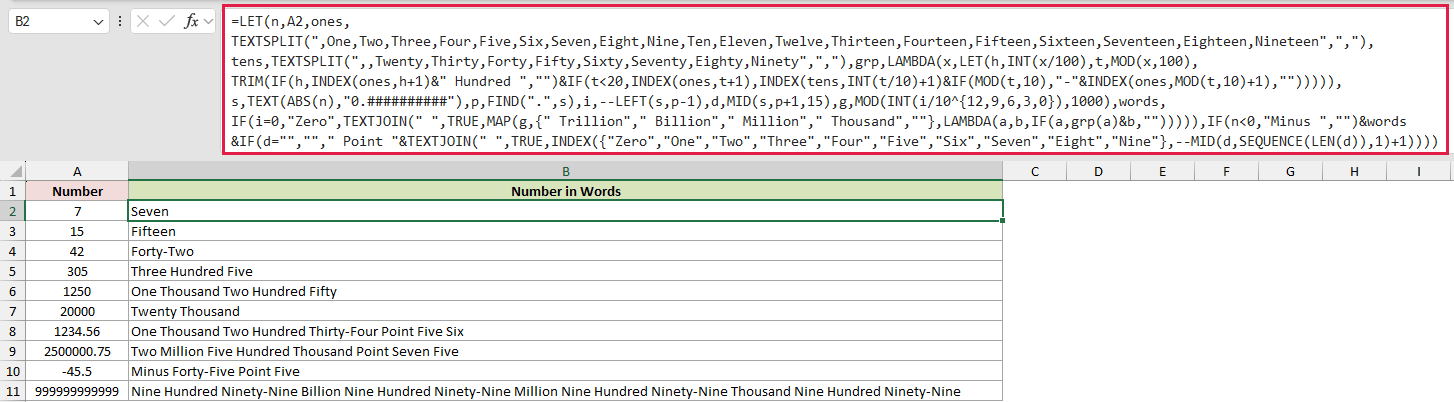
The formula converts one number at a time, so it goes in B2 and gets copied down. It does not spill from a range.
How does this formula work?
Yes, it’s long. But it’s built from a few small pieces, and you don’t need to change any of them to use it.
ones and tens are the word lists. TEXTSPLIT splits each comma-separated list into an array, like “One”, “Two”, “Three” and so on.
Both lists start with an empty item. That way, a zero digit returns nothing instead of the word “Zero” in the middle of a number.
grp is a small LAMBDA that turns any number from 0 to 999 into words. It handles the hundreds, the teens, and hyphenated tens like Forty-Two.
s turns the number into text, such as “1234.56”. Then i picks up the whole part before the decimal point, and d picks up the digits after it.
g splits the whole part into five groups of three digits: trillions, billions, millions, thousands, and the rest. For 2500000, the groups are 0, 0, 2, 500, and 0.
MAP runs grp on every group and adds its scale word, like ” Million”. TEXTJOIN then joins the pieces with spaces and skips the empty groups.
Finally, the formula adds “Minus” for a negative number. If there are decimals, it adds “Point” and reads each digit on its own, so 1234.56 ends with “Point Five Six”.
Note: This formula uses LET, LAMBDA, MAP, TEXTSPLIT, and SEQUENCE, so it needs Microsoft 365 or Excel 2024. In older versions, use the VBA method below.
Method #2: Using a LET and LAMBDA Formula (Dollars and Cents)
If you’re filling in checks or invoices, “Point Five Six” is not what you want. This version of the formula writes the amount as dollars and cents.
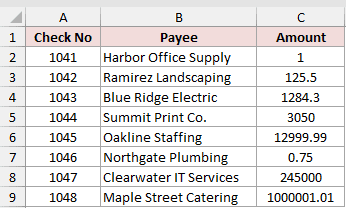
Below I have a dataset of check payments, with the amount in column C. I want the amount written in words in column D.
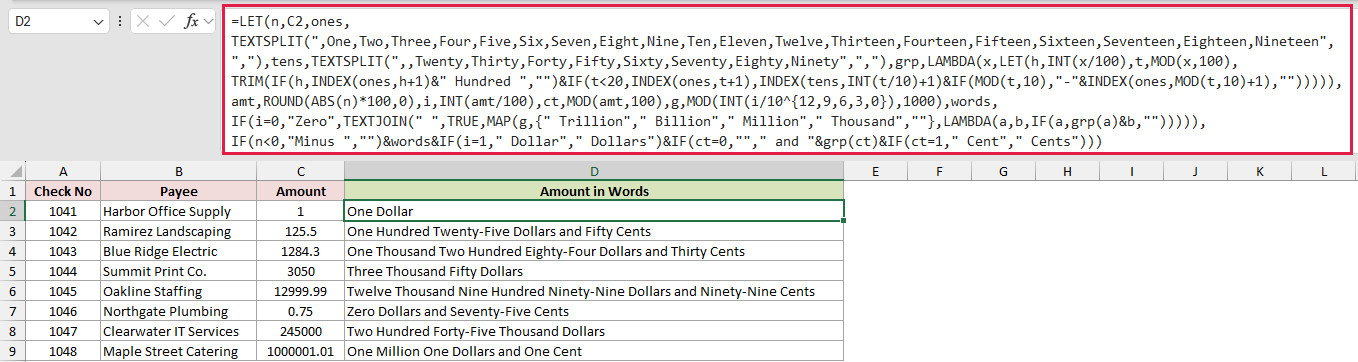
Enter this formula in cell D2 and copy it down to D9:
=LET(n,C2,ones,TEXTSPLIT(",One,Two,Three,Four,Five,Six,Seven,Eight,Nine,Ten,Eleven,Twelve,Thirteen,Fourteen,Fifteen,Sixteen,Seventeen,Eighteen,Nineteen",","),tens,TEXTSPLIT(",,Twenty,Thirty,Forty,Fifty,Sixty,Seventy,Eighty,Ninety",","),grp,LAMBDA(x,LET(h,INT(x/100),t,MOD(x,100),TRIM(IF(h,INDEX(ones,h+1)&" Hundred ","")&IF(t<20,INDEX(ones,t+1),INDEX(tens,INT(t/10)+1)&IF(MOD(t,10),"-"&INDEX(ones,MOD(t,10)+1),""))))),amt,ROUND(ABS(n)*100,0),i,INT(amt/100),ct,MOD(amt,100),g,MOD(INT(i/10^{12,9,6,3,0}),1000),words,IF(i=0,"Zero",TEXTJOIN(" ",TRUE,MAP(g,{" Trillion"," Billion"," Million"," Thousand",""},LAMBDA(a,b,IF(a,grp(a)&b,""))))),IF(n<0,"Minus ","")&words&IF(i=1," Dollar"," Dollars")&IF(ct=0,""," and "&grp(ct)&IF(ct=1," Cent"," Cents")))
How does this formula work?
The word lists and the grp LAMBDA are the same as in Method #1. The difference is in how the formula treats the decimals.
amt rounds the amount to whole cents. So 1284.3 becomes 128430 cents.
i is the number of whole dollars and ct is the leftover cents. For 1284.3, that’s 1284 dollars and 30 cents.
The dollars are written the same way as before. The formula then adds “Dollar” for exactly one dollar and “Dollars” for everything else.
The cents use the same grp LAMBDA, so 30 becomes “Thirty Cents”. When the cents are zero, that part is left out, so 3050 becomes “Three Thousand Fifty Dollars”.
Note: Amounts are rounded to the nearest cent, so 10.456 is written as “Ten Dollars and Forty-Six Cents”. Amounts under one dollar start with “Zero Dollars”.
Method #3: Using a VBA SpellNumber Function
If you’re on an older version of Excel, or you’d rather type a short formula, you can create your own SpellNumber function with VBA.
Once it’s added, you use it like any other Excel function. It can write the words both ways: as a plain number or as dollars and cents.
Below I have a dataset with numbers in column A. I want the words in column B and the dollar version in column C.
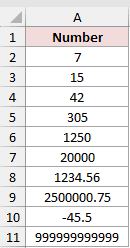
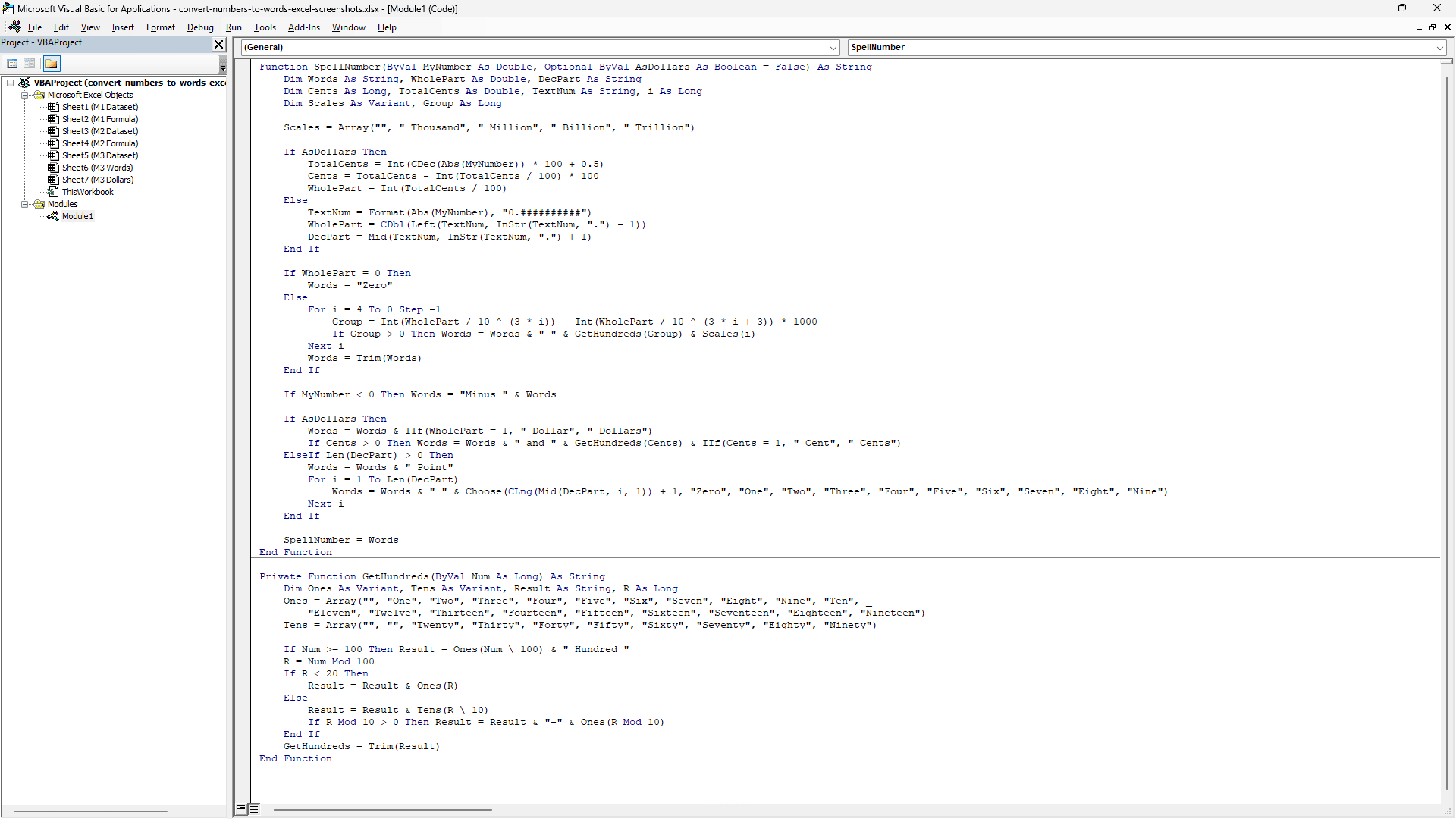
Here is the VBA code:
Function SpellNumber(ByVal MyNumber As Double, Optional ByVal AsDollars As Boolean = False) As String
    Dim Words As String, WholePart As Double, DecPart As String
    Dim Cents As Long, TotalCents As Double, TextNum As String, i As Long
    Dim Scales As Variant, Group As Long

    Scales = Array("", " Thousand", " Million", " Billion", " Trillion")

    If AsDollars Then
        TotalCents = Int(CDec(Abs(MyNumber)) * 100 + 0.5)
        Cents = TotalCents - Int(TotalCents / 100) * 100
        WholePart = Int(TotalCents / 100)
    Else
        TextNum = Format(Abs(MyNumber), "0.##########")
        WholePart = CDbl(Left(TextNum, InStr(TextNum, ".") - 1))
        DecPart = Mid(TextNum, InStr(TextNum, ".") + 1)
    End If

    If WholePart = 0 Then
        Words = "Zero"
    Else
        For i = 4 To 0 Step -1
            Group = Int(WholePart / 10 ^ (3 * i)) - Int(WholePart / 10 ^ (3 * i + 3)) * 1000
            If Group > 0 Then Words = Words & " " & GetHundreds(Group) & Scales(i)
        Next i
        Words = Trim(Words)
    End If

    If MyNumber < 0 Then Words = "Minus " & Words

    If AsDollars Then
        Words = Words & IIf(WholePart = 1, " Dollar", " Dollars")
        If Cents > 0 Then Words = Words & " and " & GetHundreds(Cents) & IIf(Cents = 1, " Cent", " Cents")
    ElseIf Len(DecPart) > 0 Then
        Words = Words & " Point"
        For i = 1 To Len(DecPart)
            Words = Words & " " & Choose(CLng(Mid(DecPart, i, 1)) + 1, "Zero", "One", "Two", "Three", "Four", "Five", "Six", "Seven", "Eight", "Nine")
        Next i
    End If

    SpellNumber = Words
End Function

Private Function GetHundreds(ByVal Num As Long) As String
    Dim Ones As Variant, Tens As Variant, Result As String, R As Long
    Ones = Array("", "One", "Two", "Three", "Four", "Five", "Six", "Seven", "Eight", "Nine", "Ten", _
        "Eleven", "Twelve", "Thirteen", "Fourteen", "Fifteen", "Sixteen", "Seventeen", "Eighteen", "Nineteen")
    Tens = Array("", "", "Twenty", "Thirty", "Forty", "Fifty", "Sixty", "Seventy", "Eighty", "Ninety")

    If Num >= 100 Then Result = Ones(Num \ 100) & " Hundred "
    R = Num Mod 100
    If R < 20 Then
        Result = Result & Ones(R)
    Else
        Result = Result & Tens(R \ 10)
        If R Mod 10 > 0 Then Result = Result & "-" & Ones(R Mod 10)
    End If
    GetHundreds = Trim(Result)
End FunctionHere are the steps to add this code to your workbook:
- Press Alt + F11 to open the VBA Editor.
- Click Insert, then Module.
- Paste the code above into the module window.
- Close the VBA Editor to go back to your worksheet.
Now enter this formula in cell B2 and copy it down to B11:
=SpellNumber(A2)
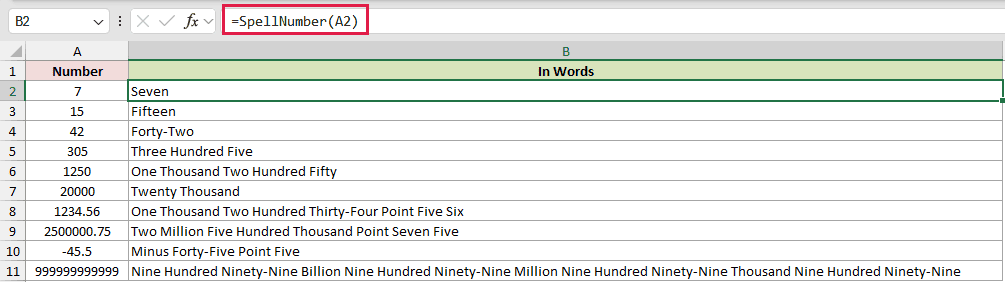
This returns the same words as Method #1. For example, 1234.56 becomes “One Thousand Two Hundred Thirty-Four Point Five Six”.
To get dollars and cents instead, enter this formula in cell C2 and copy it down to C11:
=SpellNumber(A2,TRUE)

The second argument tells the function to write currency. Leave it out, or set it to FALSE, to get plain words.
How does this code work?
SpellNumber breaks the whole number into groups of three digits, from trillions down to ones. A helper function called GetHundreds turns each group into words.
In dollar mode, it rounds the amount to the nearest cent and adds Dollar or Dollars. It adds the cents only when there are any.
In plain mode, it reads each digit after the decimal point one by one, just like Method #1.
Note: Save the file as an Excel Macro-Enabled Workbook (.xlsm), or the code is lost when you close it. SpellNumber also works only in the workbook that has the code.
Additional Notes About Converting Numbers to Words in Excel
- The result is text, not a number. Keep the original number in its own column if you need to add it up or use it in other formulas.
- Excel keeps only 15 significant digits. A longer number loses its extra digits as you type it, so the words match what Excel stored.
- The largest scale word the methods use is Trillion. That covers any number Excel can store with full accuracy.
- Method #1 looks for a period as the decimal point. The plain mode of SpellNumber does the same. If your system uses a comma as the decimal separator, use Method #2 or
=SpellNumber(A2,TRUE)instead.
Frequently Asked Questions
Is There a Built-In Function to Convert Numbers to Words in Excel?
Not for English. The only built-in option is BAHTTEXT, which writes a number as Thai text.
For English words, Microsoft suggests a custom VBA function like the one in Method #3.
Can I Use a Different Currency Instead of Dollars?
Yes. In the Method #2 formula, replace ” Dollar” and ” Dollars” with your currency, like ” Euro” and ” Euros”. Do the same with ” Cent” and ” Cents”.
Can Excel Write Numbers in Lakh and Crore?
Not with these methods. They use the Thousand, Million, and Billion system. The Indian system groups digits differently after the thousands, so it needs its own formula or macro.
Why Does 1234.56 Become “Point Five Six” and Not “Point Fifty-Six”?
That’s how decimals are usually read out. Each digit after the point is said on its own. If you want “Fifty-Six Cents”, use Method #2 or =SpellNumber(A2,TRUE).
Conclusion
Excel can’t spell out numbers on its own, but one formula can do it for you.
If you have Microsoft 365 or Excel 2024, I recommend the LET and LAMBDA formula, since it needs no macro. For checks and invoices, use the dollars and cents version.
On older versions, the SpellNumber VBA function does the same job with a much shorter formula.
Other Excel articles you may also like:
