
The COUPPCD function in Excel returns the coupon date on or immediately before a bond’s settlement date.
Excel works backward from the maturity date using the payment frequency. The result can anchor accrued-interest calculations and portfolio reports.
In this article, I’ll show you how to find the date, use it with ACCRINT, and preserve month-end schedules.
COUPPCD Function Syntax in Excel
The COUPPCD function uses the bond’s dates, payment frequency, and day-count basis.
=COUPPCD(settlement, maturity, frequency, [basis])
- settlement (required) is the date when the security is purchased.
- maturity (required) is the date when the security expires.
- frequency (required) is the number of coupon payments per year: 1 for annual, 2 for semiannual, or 4 for quarterly.
- basis (optional) sets the day-count convention. Use 0 for US 30/360, 1 for actual/actual, 2 for actual/360, 3 for actual/365, or 4 for European 30/360.
When to Use COUPPCD Function
- Find the coupon date that starts the current interest-accrual period.
- Add the last coupon date to a bond holdings report.
- Supply ACCRINT with the start of a regular coupon period.
- Check how annual, semiannual, and quarterly payment schedules affect coupon dates.
- Preserve month-end coupon dates when working backward from maturity.
Example 1: Find the Last Coupon Date
Let’s start with a single bond and a straightforward lookup.
Below is an input card containing the settlement date, maturity date, frequency, and basis. Two labelled cells will show the formatted result and its unformatted comparison.
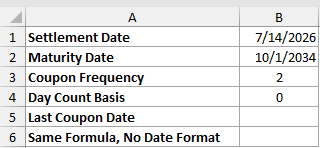
We want to find the latest coupon date on or before the settlement date.
Here is the formula:
=COUPPCD(B1,B2,B3,B4)
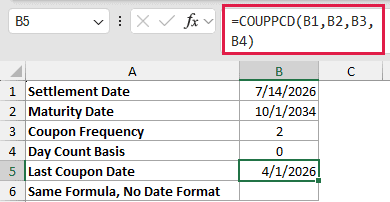
With a date format applied, B5 shows 4/1/2026.
Here is the same formula in the comparison cell without a date format:
=COUPPCD(B1,B2,B3,B4)
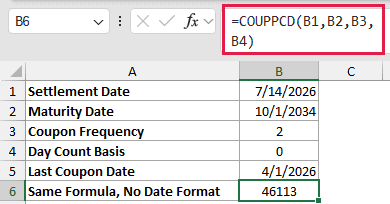
B6 displays 46113. This is the same answer as B5, not a different coupon date. The cell’s number format changes how Excel displays it.
Pro Tip: COUPPCD returns an Excel date serial. Apply a date format when the result appears as a whole number.
Example 2: Calculate Accrued Bond Interest
Here’s how the previous coupon date fits into an accrued-interest calculation.
Below is a bond input card with settlement, maturity, coupon rate, face amount, frequency, and basis. Three labelled cells will hold the accrual date, day count, and interest.
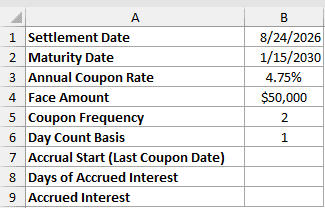
We want to find when accrual started, count the accrued days, and calculate the interest due at settlement.
First, find the accrual start date:
=COUPPCD(B1,B2,B5,B6)
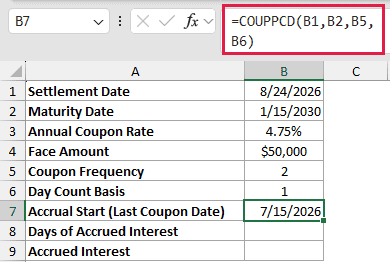
B7 returns 7/15/2026, the last coupon date for this bond.
Next, subtract that date from the settlement date:
=B1-B7
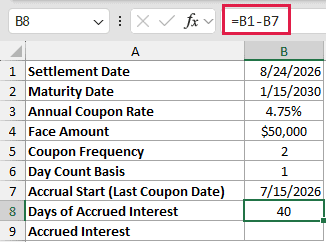
B8 returns 40 days. This direct subtraction matches the actual/actual basis selected in B6.
Now calculate the accrued interest:
=ACCRINT(B7,COUPNCD(B1,B2,B5,B6),B1,B3,B4,B5,B6)
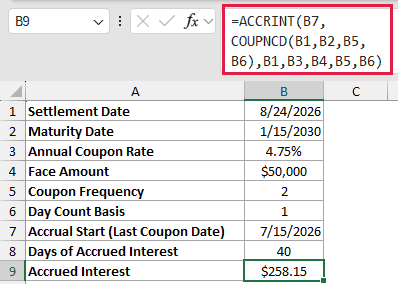
ACCRINT uses B7 as its issue argument and the next coupon date as its first-interest argument. The result is $258.15.
For other day-count conventions, direct date subtraction may not match the convention. COUPDAYBS is the dedicated function for counting days from the previous coupon.
Example 3: Add Dates to Bond Holdings
Now let’s calculate the last coupon date for several holdings.
Below is a holdings table with each bond’s maturity, frequency, and basis, plus a shared as-of date. Column E will hold each result.
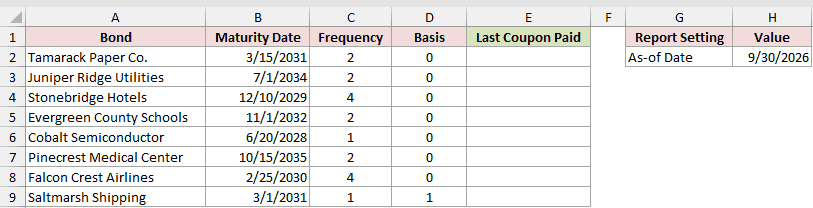
We want to populate the Last Coupon Paid column for every bond in the report.
Enter this formula in E2 and copy it down:
=COUPPCD($H$2,B2,C2,D2)
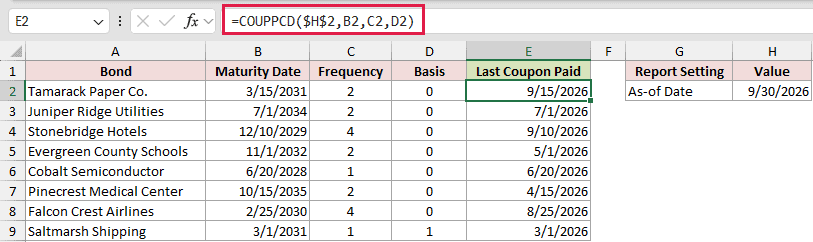
The absolute reference keeps the as-of date fixed. The maturity, frequency, and basis references change for each row.
Tamarack Paper Co. returns 9/15/2026. Saltmarsh Shipping, which pays annually, returns 3/1/2026.
COUPPCD does not accept a plain range, so copying the formula down is the default method. A plain range returns one #VALUE! instead of spilling.
Example 4: Handle Settlement on Coupon Date
This example checks the dates immediately around two scheduled coupon payments.
Below is a timing table with settlement dates before, on, and after each coupon. Column C will hold the results, using the maturity, frequency, and basis in the bond card.
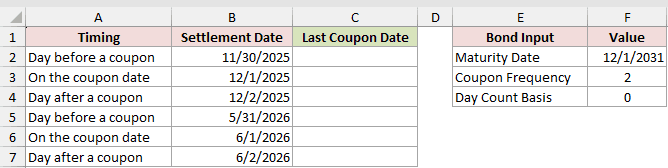
We want to see which coupon date Excel returns for each settlement date.
Enter this formula in C2 and copy it down:
=COUPPCD(B2,$F$2,$F$3,$F$4)
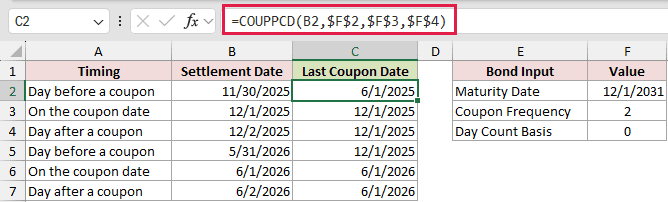
A settlement of 11/30/2025 returns 6/1/2025. A settlement on 12/1/2025 returns 12/1/2025 itself, and 12/2/2025 also returns 12/1/2025.
In Excel, COUPPCD returns the coupon date itself when settlement falls on it, so the function means on or before settlement.
Example 5: Preserve Month-End Coupon Dates
Month-end maturities need special care because their coupon dates stay at month end.
Below is a bond table with maturity, settlement, frequency, and basis columns. Column F will show the last coupon date for each row.
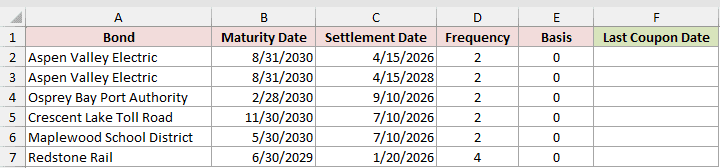
We want to calculate the correct prior coupon date without losing month-end alignment.
Enter this formula in F2 and copy it down:
=COUPPCD(C2,B2,D2,E2)
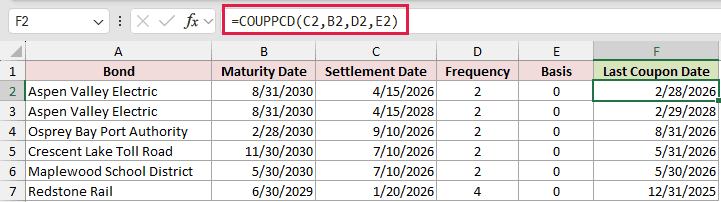
For Aspen Valley Electric, the results are 2/28/2026 and 2/29/2028. Excel keeps the schedule on the last day of February, including leap year.
The bond maturing on 2/28/2030 returns 8/31/2026, not 8/28/2026. Redstone Rail’s quarterly schedule returns 12/31/2025 from its 6/30/2029 maturity.
A maturity that is not at month end keeps its calendar day. Maplewood School District returns 5/30/2026 from a 5/30/2030 maturity.
Example 6: Track Dates in Month-End Reports
Finally, let’s use COUPPCD across a series of reporting dates.
Below is a table of month-end report dates and an empty result column. The bond card supplies one maturity date, frequency, and basis for every row.
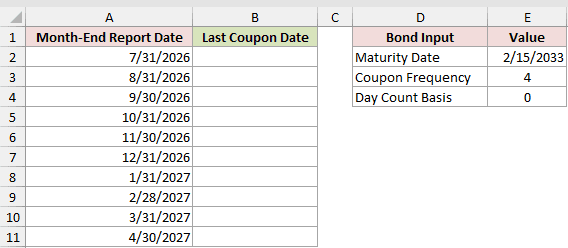
We want to show the coupon period attached to each reporting date.
Enter this formula in B2 and copy it down:
=COUPPCD(A2,$E$2,$E$3,$E$4)
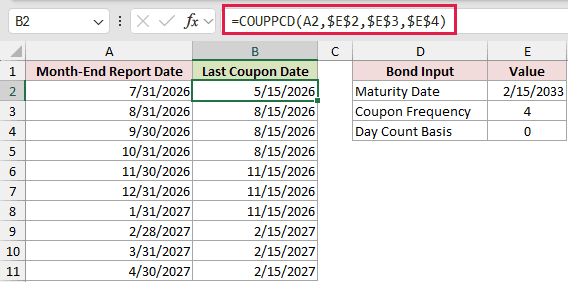
The first report returns 5/15/2026. The August through October reports return 8/15/2026, then the November report moves to 11/15/2026.
The result changes only when a report date crosses the next coupon date. Several month ends can therefore share the same answer.
Pro Tip: In Excel 2021, Excel 2024, and Microsoft 365, =COUPPCD(A2:A11+0,$E$2,$E$3,$E$4) spills the dates. A plain range returns one #VALUE!.
Tips & Common Mistakes
- COUPPCD accepts coupon frequencies of 1, 2, or 4. A monthly frequency of 12 returns #NUM!.
- A settlement date equal to or later than maturity returns #NUM!. Non-date text returns #VALUE!.
- Basis 0 is the default. Changing the basis does not move the coupon date, though it can change day counts in related coupon functions.
- A date typed as text can work, but real Excel dates or the DATE function are safer when workbooks move between regional settings.
- COUPPCD is available in every current version of Excel. Before Excel 2007, it belonged to the Analysis ToolPak add-in.
COUPPCD gives related bond calculations a reliable starting date.
Its on-or-before behavior also works neatly across settlement and reporting dates.
Other Excel articles you may also like:
