
The YEARFRAC function in Excel returns the fraction of a year between two dates using a specified day-count basis.
It is useful for prorating annual amounts or measuring elapsed years. Choose the basis deliberately, especially when a contract specifies how days should be counted.
In this article, I’ll show you how to calculate fractional years, compare day-count bases, and prorate annual amounts.
YEARFRAC Function Syntax in Excel
The YEARFRAC function takes two dates and returns the portion of a year between them.
=YEARFRAC(start_date, end_date, [basis])
- start_date (required) is the beginning date of the period.
- end_date (required) is the ending date of the period.
- basis (optional) sets the day-count convention. Use 0 for US 30/360, 1 for actual/actual, 2 for actual/360, 3 for actual/365, or 4 for European 30/360. If omitted, Excel uses 0.
When to Use YEARFRAC Function
- Measure the number of years between two dates, including partial years.
- Calculate age as of a fixed date or today’s date.
- Compare results under different financial day-count conventions.
- Prorate an annual charge for part of a year.
- Calculate simple interest accrued between two dates.
Example 1: Calculate Years Between Two Dates
Let’s start with a straightforward date interval.
Below is the dataset. Columns B and C contain subscription dates, while column D will show the years covered.
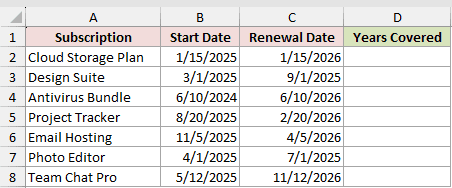
We want to calculate the year fraction for each subscription using YEARFRAC’s default basis.
Here is the formula for cell D2:
=YEARFRAC(B2,C2)
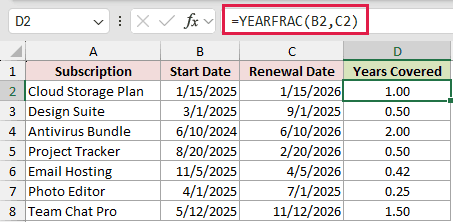
The formula uses the start date in B2 and renewal date in C2. It is copied down through D8 for the remaining subscriptions.
The results are 1.00, 0.50, 2.00, 0.50, 0.42, 0.25, and 1.50 years.
Because the basis argument is omitted, Excel uses the US 30/360 convention. It treats each year as twelve 30-day months rather than counting the actual months between two dates.
Pro Tip: The default basis can differ from the fraction based on actual calendar days, especially around month-end dates. Use 1 when you need actual days over the actual year length.
Example 2: Calculate Age With YEARFRAC
Now let’s calculate each applicant’s age on a fixed date.
Below is the dataset. Column B contains birth dates, column C will show whole-year ages, and E2 holds the as-of date.
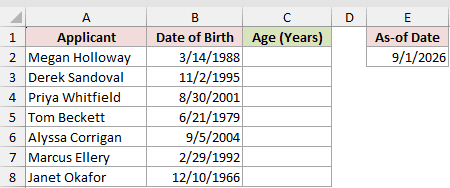
We want to return each applicant’s completed years as of September 1, 2026.
Here is the formula for cell C2:
=INT(YEARFRAC(B2,$E$2,1))
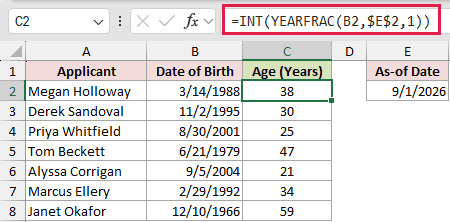
YEARFRAC uses basis 1 to measure the actual fraction of a year. INT then removes the decimal portion and leaves the completed years.
The absolute reference $E$2 keeps the as-of date fixed when the formula is copied down through C8.
The seven ages are 38, 30, 25, 47, 21, 34, and 59.
For exact whole-year ages, =DATEDIF(B2,$E$2,"y") is more direct and avoids rare edge cases near a birthday. YEARFRAC remains useful when you also need fractional years.
Pro Tip: Replace $E$2 with TODAY() if the age should update automatically. Keep the fixed cell when every record must use the same reporting date.
Example 3: Compare All Five Basis Codes
Here’s where the optional basis argument starts to matter.
Below is the dataset. E2 and F2 hold one date pair, while rows 2 through 6 list the five available basis codes.
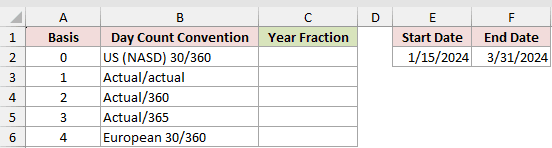
We want to compare the year fraction returned by each convention for the same 76-day period.
Here is the formula for cell C2:
=YEARFRAC($E$2,$F$2,A2)
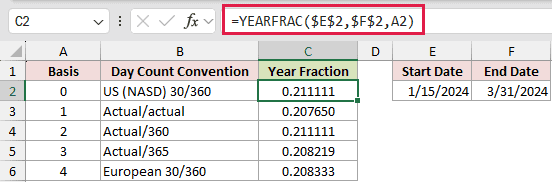
The two absolute references keep the dates fixed. The relative reference A2 changes as the formula is copied down through C6.
- Basis 0, US 30/360, returns 0.211111.
- Basis 1, actual/actual, returns 0.207650 because 2024 has 366 days.
- Basis 2, actual/360, returns 0.211111.
- Basis 3, actual/365, returns 0.208219.
- Basis 4, European 30/360, returns 0.208333.
Basis 0 and basis 2 happen to match here, but they use different counting rules. That won’t be true for every date pair.
Pro Tip: Don’t pick a basis by whichever result looks right. Use the convention required by your contract or accounting rule.
Example 4: Prorate an Annual Premium
Next, we’ll use the returned fraction inside a larger calculation.
Below is the dataset. It contains policy dates and annual premiums, while column E will calculate the premium earned before cancellation.
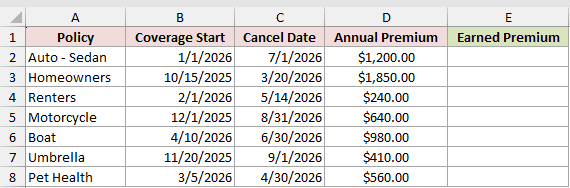
We want to prorate each annual premium using actual days over a 365-day year.
Here is the formula for cell E2:
=D2*YEARFRAC(B2,C2,3)
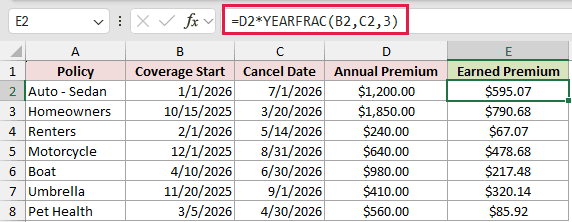
YEARFRAC returns the covered portion of the year using basis 3. The formula multiplies that fraction by the annual premium in D2.
For the first policy, 181 covered days produce a fraction of 181/365. Multiplying that by $1,200 returns an earned premium of $595.07.
The formula is copied down through E8, so every policy uses its own dates and annual premium.
You could reproduce basis 3 with =(C2-B2)/365. YEARFRAC is clearer when the day-count convention may change or needs to be stated explicitly.
Example 5: Calculate Accrued Simple Interest
Finally, let’s calculate interest accrued on several short-term notes.
Below is the dataset. It contains principal, annual rate, issue date, and settlement date, while column F will show accrued interest.
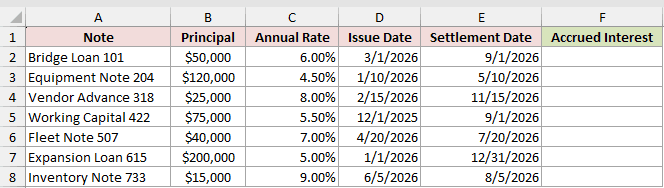
We want to multiply each note’s principal and annual rate by the fraction of a year it was outstanding.
Here is the formula for cell F2:
=B2*C2*YEARFRAC(D2,E2)
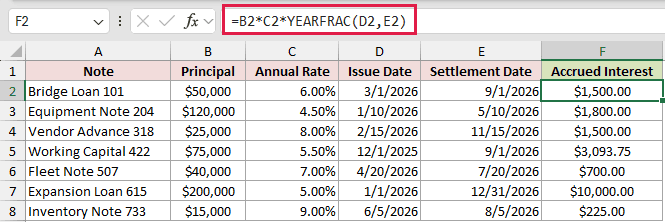
YEARFRAC uses the default US 30/360 basis because the optional argument is omitted. The formula then multiplies the year fraction by principal and rate.
For Bridge Loan 101, the fraction is 0.5. Multiplying $50,000 by 6% by 0.5 returns $1,500.00 in accrued interest.
The formula is copied down through F8 for the remaining notes.
Pro Tip: Match the basis to the note’s stated day-count convention. Changing the basis changes the accrued interest, even when the dates, principal, and rate stay the same.
Tips & Common Mistakes
- Omitting the basis doesn’t mean Excel counts actual days. It selects basis 0, the US 30/360 convention.
- YEARFRAC doesn’t spill over date ranges in Excel 365. Use per-row formulas, or use
=MAP(B2:B8,C2:C8,LAMBDA(s,e,YEARFRAC(s,e)))when you need one spilling formula. - With basis 0, YEARFRAC can return an incorrect result when the start date is the last day of February. Use basis 1 or 3 for those dates.
- Basis values below 0 or above 4 return #NUM!. Invalid dates return #VALUE!.
- Excel truncates date arguments to whole numbers, so any time portion attached to a date is ignored.
- Use basis 1 for age calculations, but use DATEDIF when you need exact completed years near birthday edge cases.
I’ve shown you how to use YEARFRAC for date intervals, age, basis comparisons, proration, and accrued interest.
The same formula pattern works across these jobs, with the basis controlling how Excel measures the year.
Related Excel Functions / Articles:
