
The DATEVALUE function in Excel converts a text date into an Excel date serial number.
That lets you sort, compare, or calculate with dates imported as text. The text must follow a date format Excel recognizes under your regional settings.
In this article, I’ll show you how to convert text dates, remove time from text timestamps, and handle imported dates with unusual separators.
DATEVALUE Function Syntax in Excel
The DATEVALUE function takes a text date and returns its Excel date serial number.
=DATEVALUE(date_text)
- date_text (required) is text in a date format Excel recognizes, or a reference to a cell containing text in that format.
When to Use DATEVALUE Function
- Convert dates imported or pasted as text into values Excel can sort, filter, and calculate with.
- Turn several recognized text date formats into consistently formatted dates.
- Remove the time portion from timestamps stored as text.
- Calculate the number of days between two dates that are currently text.
- Clean imported dates that use separators Excel does not recognize.
Example 1: Convert Text Dates to Serial Numbers
Let’s start by converting a column of text dates with one formula.
Below is the dataset. Column A lists invoice numbers, and column B contains invoice dates stored as text.
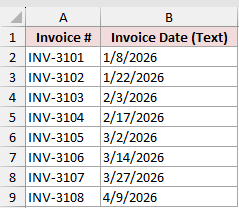
We want to convert all eight text dates and display the underlying numbers Excel uses for them.
Here is the formula:
=DATEVALUE(B2:B9)
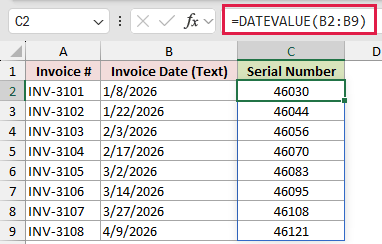
DATEVALUE reads the entire range in column B. The results spill from C2 through C9, so you enter the formula only once.
The result cells use the General format to reveal the serial numbers. For example, 1/8/2026 returns 46030, while 4/9/2026 returns 46121.
Pro Tip: Keep C2:C9 empty before entering the formula. Any value blocking the output range causes a #SPILL! error.
Example 2: Convert Mixed Text Date Formats
Mixed text formats give DATEVALUE a more realistic test.
Below is the dataset. Column A lists customers, and column B contains text dates with varied separators, month names, and year positions.
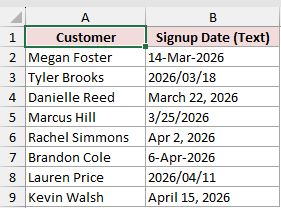
We want to convert every recognized entry into a real date in column C.
Here is the formula:
=DATEVALUE(B2:B9)
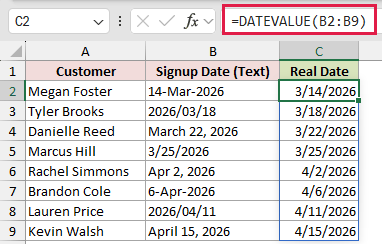
DATEVALUE recognizes each entry, including 14-Mar-2026, 2026/03/18, and March 22, 2026. The result column is date-formatted, so you see dates instead of serial numbers.
The stored results are still numbers. That means Excel can use them in calculations even though the cells display dates such as 3/14/2026.
Pro Tip: DATEVALUE follows your Windows regional settings. An entry such as 3/4/2026 is March 4 with US settings, but April 3 with UK settings.
Example 3: Remove Time From Text Timestamps
A text timestamp shows the difference between DATEVALUE and VALUE.
Below is the dataset. Column A lists ticket numbers, and column B contains timestamps stored as text.
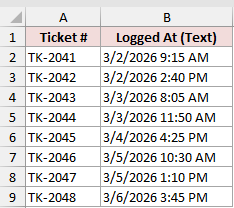
We want column C to keep each date while dropping its time.
Here is the DATEVALUE formula:
=DATEVALUE(B2:B9)
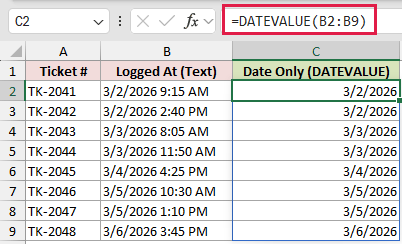
To show how DATEVALUE differs, we’ll use VALUE in column D to preserve both the date and time.
Here is the VALUE formula:
=VALUE(B2:B9)
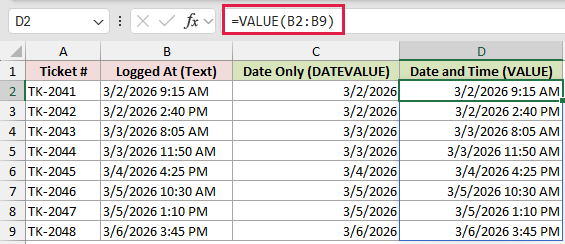
DATEVALUE ignores the time portion. The first result in C2 displays 3/2/2026 even though B2 contains 3/2/2026 9:15 AM.
VALUE keeps the time as the decimal part of the serial number. With the date-and-time format applied, D2 displays the complete 3/2/2026 9:15 AM timestamp.
Use DATEVALUE for the date alone and VALUE when the timestamp’s time must stay.
Example 4: Calculate Days Between Text Dates
Let’s use the converted serial numbers in a date calculation.
Below is the dataset. Column A lists order numbers, while columns B and C contain order and ship dates stored as text.
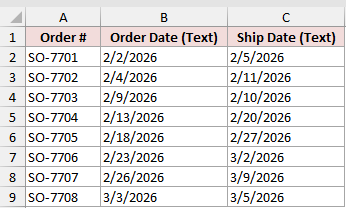
We want to find the number of days between each order date and ship date.
Here is the formula:
=DATEVALUE(C2:C9)-DATEVALUE(B2:B9)
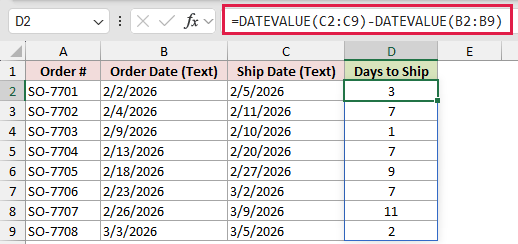
Each DATEVALUE call converts one text range into serial numbers. Subtracting the order serials from the ship serials returns the elapsed days.
For example, SO-7701 took 3 days to ship, while SO-7707 took 11 days. The one formula spills all eight answers into column D.
You can also use =DAYS(DATEVALUE(C2:C9),DATEVALUE(B2:B9)) in newer Excel versions. DAYS reads a little more clearly, while subtraction works across more versions.
Example 5: Fix Dot-Separated Text Dates
Imported dates often arrive with separators DATEVALUE cannot handle by itself.
Below is the dataset. Column A lists employees, and column B contains hire dates written with periods.
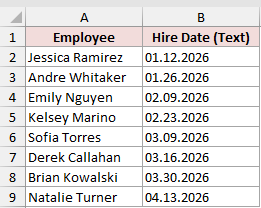
We want to replace the periods with slashes and convert the cleaned text in one step.
Here is the formula:
=DATEVALUE(SUBSTITUTE(B2:B9,".","/"))
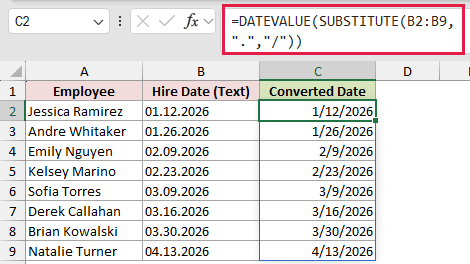
SUBSTITUTE changes each period to a slash before DATEVALUE receives the text. With US regional settings, 01.12.2026 becomes 01/12/2026 and returns January 12, 2026.
The nested formula spills all eight converted dates. This pattern works when the separator is the only thing preventing Excel from recognizing the dates.
For fixed strings such as 20260314, build the date from its year, month, and day parts. Changing separators alone will not make that format readable.
Example 6: Handle Mixed Real Dates and Text
Finally, let’s clean a column that contains two different value types.
Below is the dataset. Column A lists projects, and column B mixes text dates with existing Excel date values.
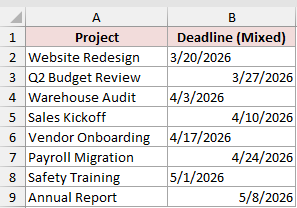
We want to convert only the text entries while leaving the real dates unchanged.
Here is the formula:
=IF(ISTEXT(B2:B9),DATEVALUE(B2:B9),B2:B9)
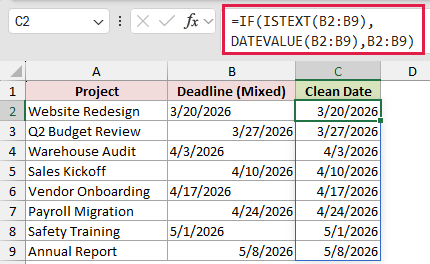
ISTEXT checks every value in column B. If an entry is text, DATEVALUE converts it. Otherwise, IF returns the existing date value unchanged.
DATEVALUE expects text. Passing an existing Excel date directly to DATEVALUE returns #VALUE!, even if that cell displays a perfectly normal date.
The formula spills a clean set of dates from C2 through C9 without changing the source column.
Pro Tip: If you want to replace the source values instead, Text to Columns or Paste Special with multiplication can convert many text dates in place.
Tips & Common Mistakes
- DATEVALUE returns a number. Apply a date format when you want the result to display as a date instead of a serial number.
- Recognized formats depend on your Windows regional settings. Avoid ambiguous text such as 3/4/2026 when files move between regions.
- If the text omits the year, DATEVALUE uses the current year from your computer’s system date.
- With the default Windows setting, two-digit years 00 through 29 map to 2000 through 2029, while 30 through 99 map to 1930 through 1999. The boundary follows your regional setting.
- DATEVALUE accepts dates from January 1, 1900, through December 31, 9999. Text outside that range returns #VALUE!.
- In Excel 365, range-based DATEVALUE formulas spill automatically. Blocked output cells cause #SPILL!, while an
@before DATEVALUE forces a single result. - VALUE and double unary coercion can also convert recognized text dates. DATEVALUE is often easier to understand later because its purpose is explicit.
DATEVALUE is most useful when a date looks right but Excel still treats it as text.
If your source column mixes text with existing date values, use the ISTEXT pattern so DATEVALUE only receives the entries it can convert.
Related Excel Functions / Articles:
