
Excel’s DOLLARFR function converts a decimal value into fractional notation, so the digits after the decimal point represent a numerator over a chosen denominator.
For example, 101.3125 converted to 32nds returns 101.10. That means 101 and 10/32, not the ordinary decimal 101.1.
The result only looks like a regular decimal. Its number format must preserve the numerator, and you should keep the original decimal value for calculations.
In this article, I’ll show you how to create fractional price quotes, compare denominators, and round prices to valid ticks.
DOLLARFR Function Syntax in Excel
DOLLARFR needs the decimal value and the denominator used for the fractional part.
=DOLLARFR(decimal_dollar, fraction)
- decimal_dollar (required) is the decimal number you want to convert.
- fraction (required) is the whole number used as the denominator. Excel truncates decimals, so 16.9 acts as 16.
When to Use DOLLARFR Function
- Display decimal security prices as quotes in 8ths, 16ths, 32nds, or 64ths.
- Turn decimal hours into an hours-and-minutes label using a denominator of 60.
- Compare how the same decimal price appears under different quote denominators.
- Round model prices to a valid tick before displaying them as fractional quotes.
- Build hyphenated desk quotes for reports and messages.
Example 1: Convert Decimal Prices to 32nds
Let’s start with the function’s most common job: converting decimal security prices into quotes measured in 32nds.
Below is the dataset. Column A lists the securities, column B holds their model prices, and column C will hold the fractional quotes.
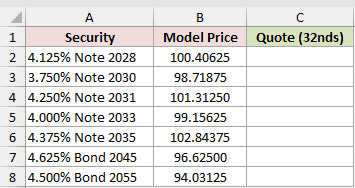
We want to convert each model price into 32nds.
Enter this formula in C2, then copy it down:
=DOLLARFR(B2,32)
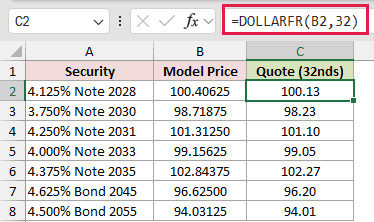
The first model price becomes 100.13, meaning 100 and 13/32. The 101.31250 price becomes 101.10, meaning 101 and 10/32.
That trailing zero matters. A 0.00 number format preserves 101.10, while General displays 101.1 and hides how many 32nds the quote contains.
A Fraction number format such as # ??/32 displays 101.3125 as 101 10/32 while the cell stays a real number.
This format rounds the display to the nearest 32nd. It does not replace Example 4’s rounding step when the quote must be a clean tick.
Example 2: Convert Decimal Hours to Minutes
Here’s a useful non-financial example using a pilot’s route log.
Below is the dataset. Column A lists each route, column B contains block time in decimal hours, and column C will hold the hours-and-minutes notation.
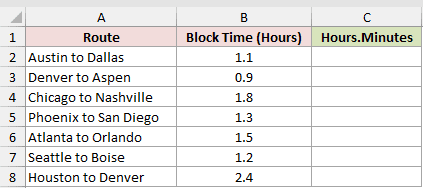
We want the digits after the point to represent minutes out of 60.
Enter this formula in C2, then copy it down:
=DOLLARFR(B2,60)
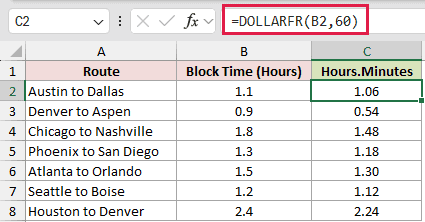
The 1.5-hour Atlanta to Orlando route becomes 1.30. Here, .30 means 30 minutes, not three-tenths of an hour.
The 0.00 format keeps that trailing zero visible. The 2.4-hour Houston to Denver route becomes 2.24, meaning 2 hours and 24 minutes.
For real time calculations, divide the decimal hours by 24 and apply an [h]:mm format. DOLLARFR’s hours.minutes result is a display label rather than an Excel time.
Example 3: Compare Several Fraction Denominators
Now let’s see how the numerator changes when the denominator changes.
Below is the dataset. Column A contains decimal prices. Cells B1:E1 hold 8, 16, 32, and 64, which the formula uses as its denominators.
The grid below those headers, B2:E7, is empty until the formula runs.
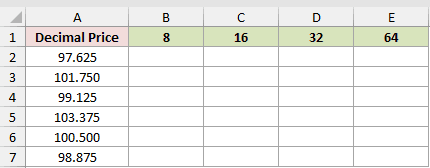
We want one formula to create the entire comparison grid.
Enter this formula in B2. It spills into B2:E7:
=DOLLARFR(A2:A7+0,B1:E1+0)
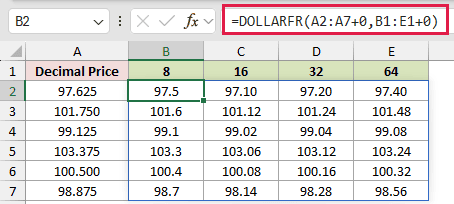
A plain range returns a single #VALUE!. Adding +0 to both ranges makes them computed arrays, and the formula then spills across the grid.
The 97.625 price appears as 97.5 in 8ths, 97.10 in 16ths, 97.20 in 32nds, and 97.40 in 64ths.
Use one decimal place for 8ths and two for 16ths, 32nds, and 64ths. Otherwise, a valid numerator can lose a trailing zero.
Range formulas like this spill in Excel 2021, Excel 2024, and Microsoft 365.
In Excel 2019 and earlier, enter =DOLLARFR($A2,B$1) in B2, then fill it across and down.
Example 4: Round Prices to the Nearest 32nd
Model prices often do not land exactly on a valid quote tick.
Below is the dataset. Columns A and B contain issuers and model prices.
Column C is headed “Quote (No Rounding)” for the problem, and column D is headed “Quote (Nearest 32nd)” for the fix. Both are empty until their formulas run.
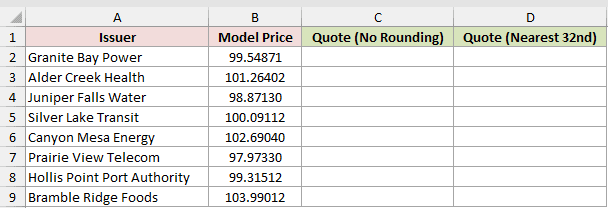
First, we want to expose the problem caused by converting without rounding.
Enter this formula in C2, then copy it down:
=DOLLARFR(B2,32)
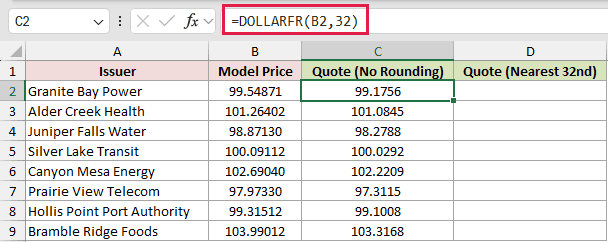
The unrounded problem column returns fractional numerators such as 99.1756 and 101.0845. These are not clean 32nd ticks.
Now we want to round each model price to the nearest 32nd before converting it.
Enter this formula in D2, then copy it down:
=DOLLARFR(ROUND(B2*32,0)/32,32)
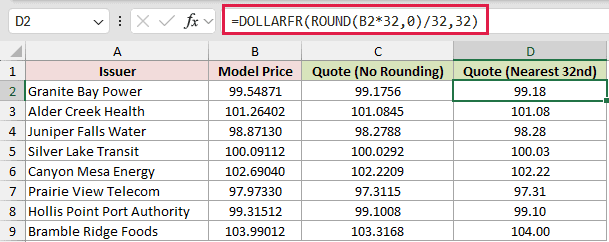
The fix multiplies the price by 32, rounds to a whole tick, divides by 32, and then converts that rounded decimal to fractional notation.
Granite Bay Power changes from the problematic 99.1756 to 99.18.
Bramble Ridge Foods starts at 103.3168, which represents 103 and 31.68/32. The nearest tick is 32/32, so it carries into the whole number and becomes 104.00.
Example 5: Build Hyphenated Desk Quotes
Fractional security quotes are often written with a hyphen instead of a decimal point.
Below is the dataset. Columns A and B contain securities and decimal prices, while column C will hold the text quotes.
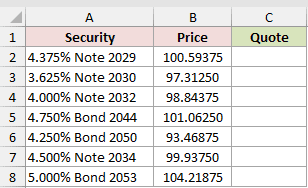
We want quotes such as 100-19 while keeping two numerator digits.
Enter this formula in C2, then copy it down:
=SUBSTITUTE(TEXT(DOLLARFR(B2,32),"0.00"),".","-")
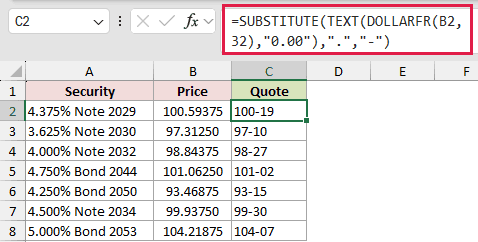
TEXT first keeps two digits after the point. SUBSTITUTE then changes the point to a hyphen. The formula returns text such as 100-19 and 97-10.
Because the final result is text, it suits reports and quote labels. Keep the original decimal price for any later arithmetic.
Example 6: Fix DOLLARFR Input Errors
Finally, let’s look at the inputs that cause errors or quiet surprises.
Below is the troubleshooting dataset. Columns A to C identify each case, decimal value, and fraction. Column D will hold the result or deliberate error.
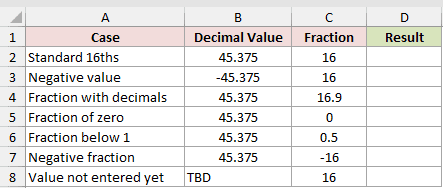
We want to test each value and fraction with the same formula pattern.
Enter this formula in D2, then copy it down:
=DOLLARFR(B2,C2)
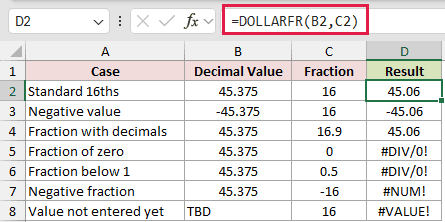
- The standard 16ths case returns 45.06, while the negative value returns -45.06. Negative decimal values work normally.
- The fraction 16.9 is silently truncated to 16, so that row also returns 45.06.
- A fraction of 0 returns
#DIV/0!. - A fraction of 0.5 is truncated to 0 and returns
#DIV/0!. - A negative fraction returns
#NUM!. - The text value
TBDreturns#VALUE!.
Fix these inputs at the source. Wrapping the formula in IFERROR would hide a fraction or value that still needs attention.
Tips & Common Mistakes
- DOLLARFR is available in every current version of Excel (Analysis ToolPak add-in functions before Excel 2007). Only the spilling behavior has the newer-version requirement described in Example 3.
- Match the cell format to the denominator. Use
0.0for 8ths and0.00for 16ths, 32nds, and 60ths so trailing zeros remain visible. - Do not sum or average DOLLARFR results. They look like decimals, but their fractional digits are numerators. Calculate with the original values instead.
- DOLLARDE performs the reverse conversion, turning fractional notation back into a decimal value.
- A fraction of 10 leaves the value unchanged. For example, 1.5 remains 1.5.
- DOLLARFR converts a value to fractional notation, but it does not round to a valid tick. Round the decimal first when the numerator must be whole.
DOLLARFR can turn a stored decimal into the fractional quote your worksheet needs.
Keep the source decimal for calculations, then format or round the displayed quote to match its denominator.
Related Excel Functions / Articles:
