
The DOLLARDE function in Excel converts a number written in fractional notation into a regular decimal number.
In this notation, the digits after the point are a numerator, not decimal digits. The denominator tells Excel how to interpret them.
In this article, I’ll show you how to convert market quotes, avoid a quiet typing trap, and clean imported text quotes.
DOLLARDE Function Syntax in Excel
DOLLARDE takes the fractional value and the denominator used by that value.
=DOLLARDE(fractional_dollar, fraction)
- fractional_dollar (required) is the number written with its numerator after the decimal point.
- fraction (required) is the denominator used to interpret that numerator.
When to Use DOLLARDE Function
- Convert Treasury and other market quotes written in fractional notation into decimals you can calculate with.
- Interpret older stock prices quoted in eighths or sixteenths.
- Clean imported broker quotes that use a hyphen between the whole number and numerator.
- Convert feet-and-inches entries into decimal feet when the source uses a point between the two parts.
Example 1: Convert Treasury Quotes in 32nds
Let’s start with the function’s most common use.
Below is the dataset of securities and quoted prices in 32nds. Column C will hold each decimal price.
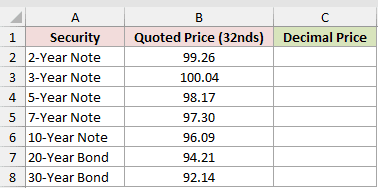
We want to convert all the quotes with one formula in C2.
Here is the formula:
=DOLLARDE(B2:B8+0,32)
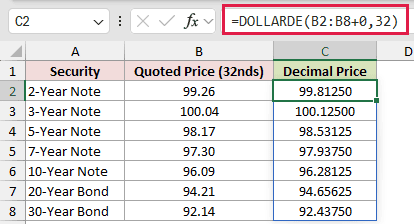
The quoted price 99.26 means 99 and 26/32, so DOLLARDE returns 99.81250. A quote of 100.04 becomes 100.12500.
The +0 turns the range into a computed array. DOLLARDE returns one #VALUE! from a plain range instead of processing each cell.
This spilled formula works in Excel 2021, Excel 2024, and Microsoft 365. In Excel 2019 and earlier, enter a single-cell version and fill it down.
DOLLARDE is available in every current version of Excel.
Example 2: Avoid the Single-Digit Typing Trap
Now let’s look at a mistake that can produce believable but wrong results.
Below is a comparison of intended quotes and deliberately mixed typed prices. Column C will show how Excel interprets each entry.
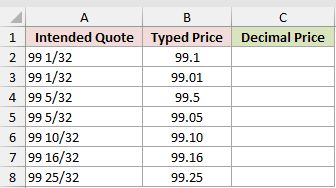
We want to convert the typed prices and expose the two incorrect entries.
Here is the formula:
=DOLLARDE(B2:B8+0,32)
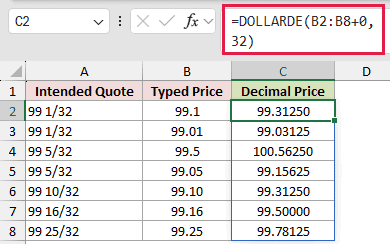
For 32nds, DOLLARDE reads two digits after the point. The mistaken 99.1 entry is therefore read as 99 and 10/32, returning 99.31250.
To enter 99 and 1/32 correctly, type 99.01. That row returns 99.03125.
The mistaken 99.5 entry is even quieter. Excel reads it as 99 and 50/32, so it rolls over and returns 100.56250 without an error.
The correct entry for 99 and 5/32 is 99.05, which returns 99.15625.
Formatting 99.1 to show two decimal places changes only its display. Excel still stores 99.1, which DOLLARDE reads as 10/32.
Pro Tip: If you type 99 5/32 as a mixed fraction, Excel stores the decimal value directly. That entry no longer needs DOLLARDE.
Example 3: Convert Quotes With Mixed Denominators
Here’s how to handle rows that don’t all use the same denominator.
Below is a stock trade blotter with dates, deliberately mixed quote precision, and denominators. Column E will hold the decimal prices.
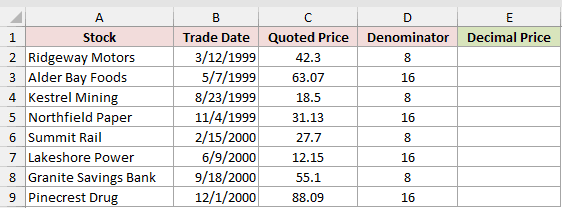
We want each row to use the denominator listed beside its quoted price.
Enter this formula in E2 and copy it down the column:
=DOLLARDE(C2,D2)
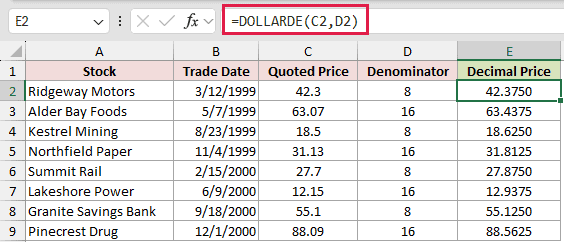
The denominator controls how many digits DOLLARDE reads. It reads one digit for eighths but two digits for sixteenths.
Ridgeway Motors’ 42.3 quote uses eighths and returns 42.3750. Alder Bay Foods’ 63.07 quote uses sixteenths and returns 63.4375.
This example stays per-row so the denominator choice is easy to inspect. The same pattern also suits older Excel versions without spilled arrays.
Example 4: Convert Hyphenated Broker Quotes
Imported quote feeds often arrive as text with a hyphen instead of a point.
Below is a list of securities and broker quote strings. Column C will hold the converted decimal prices.
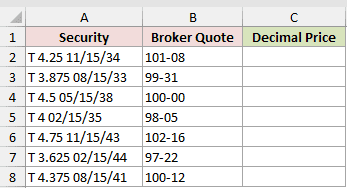
We want to replace each hyphen and convert the resulting 32nds notation.
Here is the formula:
=DOLLARDE(SUBSTITUTE(B2:B8,"-",".")+0,32)
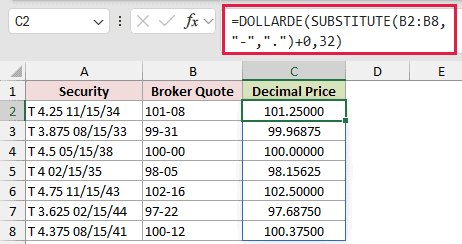
SUBSTITUTE changes the quote text into the point notation DOLLARDE expects.
The +0 then turns the substituted text into numbers before DOLLARDE runs.
This formula assumes Excel uses a point as the decimal separator.
The quote 101-08 returns 101.25000, while 99-31 returns 99.96875.
In Microsoft 365 and Excel 2024, TEXTBEFORE and TEXTAFTER offer another route. They can split the whole number and numerator around the hyphen.
Example 5: Convert Feet and Inches
DOLLARDE isn’t limited to financial quotes. It can interpret other fixed denominators too.
Below is a room list with lengths and widths entered as feet.inches. Columns D and E will hold decimal feet.
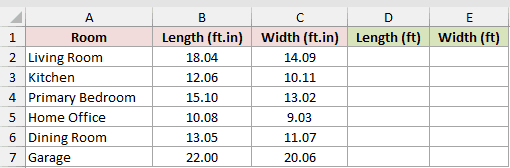
We want one formula to convert both measurement columns using 12 as the denominator.
Here is the formula:
=DOLLARDE(B2:C7+0,12)
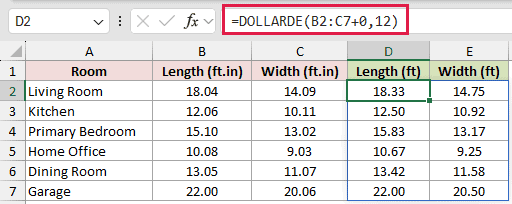
The formula spills across two columns and down the room list. With twelfths, DOLLARDE reads two digits after the point as inches.
The Living Room length of 18.04 returns 18.33 feet, and its width of 14.09 returns 14.75 feet.
A 5.09 entry would mean 5 feet 9 inches and return 5.75 feet. This notation works only when the data follows that fixed pattern.
Example 6: Calculate With Fractional Quotes
Finally, let’s calculate a new close without treating quote notation as ordinary decimals.
Below is a watchlist with prior closes and signed changes in 32nds. Columns D and E will hold the decimal result and new close in 32nds notation.
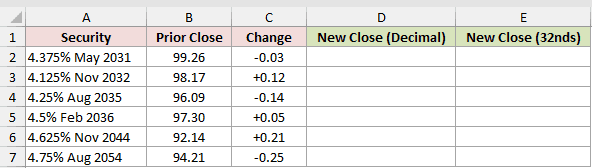
We first want to convert both inputs before adding them.
Here is the calculation:
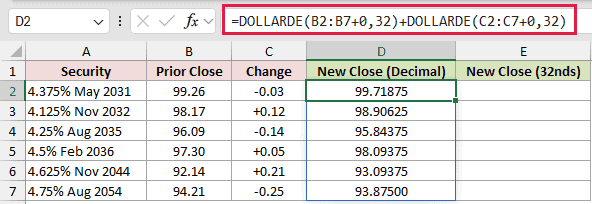
=DOLLARDE(B2:B7+0,32)+DOLLARDE(C2:C7+0,32)
Next, DOLLARFR converts those decimal results back to the new closes in 32nds notation.
D2# refers to the whole spilled result in column D. Spill references require Excel 2021 or later.
Here is the back-conversion formula:
=DOLLARFR(D2#+0,32)
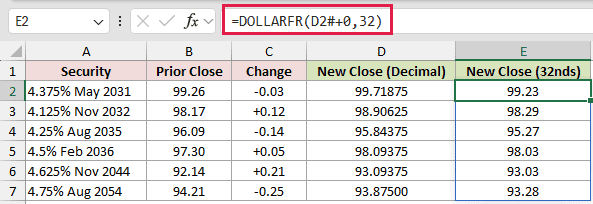
For the 4.5% February 2036 security, 97.30 plus 0.05 in 32nds becomes 98.09375 in decimal form.
DOLLARFR returns the new close as 98.03 in 32nds notation, meaning 98 and 3/32. Adding the inputs as ordinary decimals would incorrectly suggest 97.35.
Negative changes work too. The first row combines 99.26 with -0.03 and returns 99.71875, which converts back to 99.23.
Tips & Common Mistakes
- DOLLARDE reads the digits after the point in 99.26 as a numerator, not ordinary decimal digits.
- A numerator at or above its denominator rolls over silently. It doesn’t return an error, so validate imported quotes before calculating with them.
- A
fractionof 0 returns#DIV/0!, while a negativefractionreturns#NUM!. Fix the denominator instead of hiding these errors. - Excel truncates a decimal denominator. For example, 16.9 behaves like 16.
- A denominator of 10 leaves 1.1 unchanged because fractional tenths and decimal tenths are identical.
- Make sure the intended spill area is empty. Blocked cells cause a
#SPILL!error. - Number formatting can hide floating-point noise in converted results. Keep enough decimal places for the denominator you’re using.
DOLLARDE makes fractional notation usable in ordinary calculations, but the input’s digit placement matters.
Use it after confirming the denominator. Include a leading zero for single-digit numerators when DOLLARDE reads two digits, as it does with 12ths, 16ths, and 32nds.
Related Excel Functions / Articles:
