
Excel’s IPMT function returns the interest portion of a payment for a specified period, assuming constant payments and a constant interest rate.
It can separate interest from principal in a car loan or mortgage schedule. Use PPMT for the principal portion and PMT for the full periodic payment.
In this article, I’ll show you how to calculate interest for annual or monthly payments, compare payment timing, and total interest across loan periods.
IPMT Function Syntax in Excel
IPMT returns the interest part of a single payment for a loan with a constant interest rate and equal payments.
=IPMT(rate, per, nper, pv, [fv], [type])
- rate – the interest rate for each period.
- per – the period you want the interest for. It has to be between 1 and nper.
- nper – the total number of payment periods in the loan.
- pv – the present value, which is the loan amount you start with.
- [fv] – optional. The future value, or the balance you want left after the last payment. Defaults to 0.
- [type] – optional. Use 0 if payments are due at the end of each period (the default) or 1 if they are due at the start.
When to Use IPMT Function
- To see how much interest you pay in a specific month or year of a loan.
- To build an amortization schedule that splits each payment into interest and principal.
- To compare how the interest portion shrinks as a loan gets paid down.
- To work out the total interest cost of a loan before you commit to it.
Example 1: Interest on an Annual Loan Payment
Let’s start with a simple example.
Below is a small table with the details of a loan: the loan amount, the annual interest rate, the loan term in years, and the period we care about.
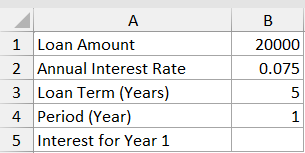
I want to find the interest portion of the very first yearly payment.
Here is the formula:
=IPMT(B2,B4,B3,B1)
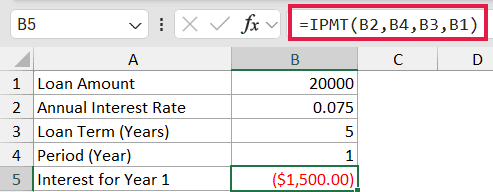
The arguments map straight to the table. The rate is in B2, the period (year 1) is in B4, the loan term is in B3, and the loan amount is in B1.
The result comes back as -1500. The number is negative because this is money leaving your pocket, so Excel shows it as a cash outflow.
If you would rather see a positive figure, just put a minus sign in front of the function or enter the loan amount as a negative number.
Example 2: Interest on a Monthly Loan Payment
Most loans are paid monthly, not yearly, so here’s how to handle that.
Below is the dataset with a $250,000 mortgage at a 6% annual rate over 30 years, and we want the first monthly payment.
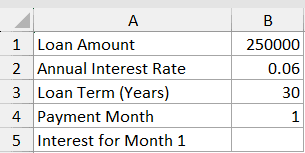
I want the interest portion of the very first monthly payment.
Here is the formula:
=IPMT(B2/12,B4,B3*12,B1)
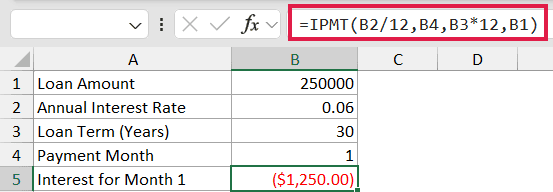
The trick here is matching the rate and the period count to the payment frequency.
Since payments are monthly, divide the annual rate by 12 (B2/12) and multiply the years by 12 to get the total number of months (B3*12).
The result is -1250, which is the interest part of the first monthly payment. Forgetting to convert the rate and term to a monthly basis is the most common IPMT mistake, so always check that those two arguments line up with how often the loan is paid.
Example 3: Interest for Several Periods at Once
Here’s a handy one if you want the interest for a whole stretch of payments instead of just one.
Below is the dataset with a column of month numbers from 1 to 12. This is for a $15,000 loan at 9% over 3 years (36 months).
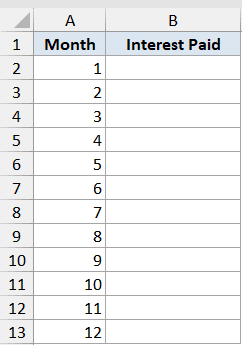
I want the interest for each of the first 12 months, all from a single formula.
Here is the formula:
=IPMT(0.09/12,A2:A13,36,15000)
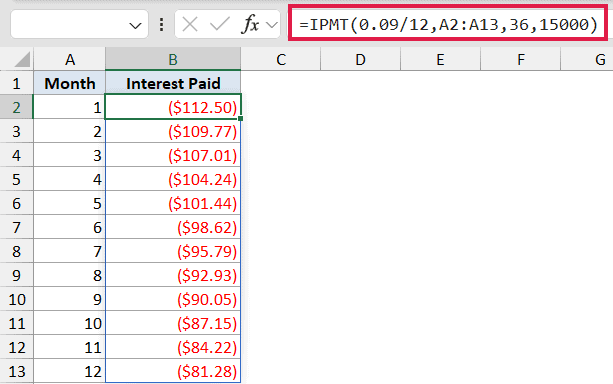
Instead of giving the per argument a single period, I handed it the whole range A2:A13. In Excel 365 the formula spills down automatically and returns the interest for each month in one go.
Notice how the interest gets a little smaller every month, from -112.50 in month 1 down to -81.28 in month 12. That’s because more of each payment goes toward the principal as the balance drops, leaving less to cover interest.
Example 4: Payments Made at the Start of the Period
So far every payment has been due at the end of the period, which is the default. Let’s see what happens when payments are due at the start instead.
Below is the dataset for a $10,000 loan at 8% over 2 years, paid monthly.
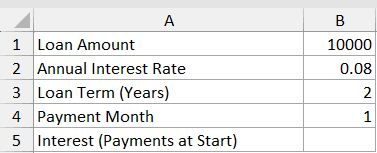
I want the interest for month 1 when payments are made at the beginning of each period.
Here is the formula:
=IPMT(B2/12,B4,B3*12,B1,0,1)
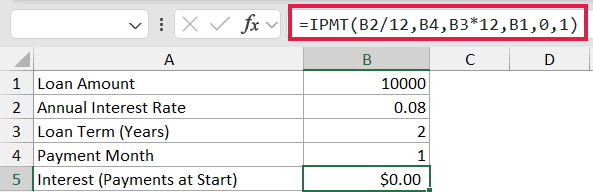
The two extra arguments are what change things. The fifth argument (0) is the future value, and the sixth argument (1) tells Excel the payments happen at the start of each period.
The result is 0. That makes sense once you think about it: if the very first payment is made the moment the loan starts, no time has passed for interest to build up yet, so there’s nothing to charge. From the second period onward you’ll start to see interest again.
Example 5: Total Interest Paid Over the Loan
Let’s finish with something a bit more useful. Instead of one period, let’s add up the interest across the entire loan.
Below is the dataset for a $30,000 loan at 6.5% over 5 years, paid monthly.
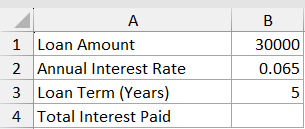
I want the grand total of interest paid across all 60 monthly payments.
Here is the formula:
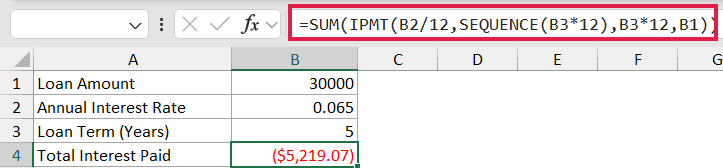
=SUM(IPMT(B2/12,SEQUENCE(B3*12),B3*12,B1))
How this formula works:
SEQUENCE(B3*12)builds a list of period numbers from 1 to 60 (5 years times 12 months).- IPMT takes that list and works out the interest for every single one of those 60 months.
- SUM then adds all of those monthly interest amounts into one number.
The result is -5219.07, which is the total interest you’d pay over the life of the loan. This is a quick way to compare the real cost of two loans without building a full payment schedule.
Tips & Common Mistakes
- Match the rate and period to the payment frequency. For monthly payments, divide the annual rate by 12 and multiply the years by 12. Mixing an annual rate with a monthly period count is the number one cause of wrong answers.
- The result is negative on purpose. IPMT treats the payment as money going out, so it returns a negative value when the loan amount is positive. Put a minus sign in front of the function if you want a positive figure.
- per must be between 1 and nper. If you ask for a period outside that range, IPMT returns a #NUM! error.
- IPMT is only the interest part. To get the principal portion of the same payment, use PPMT, and for the full payment amount use PMT. The interest from IPMT plus the principal from PPMT always equals the total PMT payment.
IPMT breaks down any loan payment so you can see exactly how much of it is interest.
The main thing to get right is matching the rate and period to how often the loan is paid, and after that it works the same on a car loan, a mortgage, or anything else with a fixed rate.
And if you’re on Excel 365, feeding it a range of periods gets you the interest for a whole schedule in one formula.
Related Excel Functions / Articles:
