
The LENB function in Excel returns the length of text using Excel’s byte-counting rules.
On a setup without double-byte language settings, LENB returns the same count as LEN, which counts characters.
LENB’s byte-counting behavior depends on the default editing language. Using Japanese text alone doesn’t switch that behavior on.
I’ll show you how to check menu item lengths, count skills in a list, and avoid counting a date’s stored value instead of its displayed text.
LENB Function Syntax in Excel
Microsoft has deprecated LENB and recommends LEN. LENB still works and returns the results shown here.
=LENB(text)
- text (required): The text to count, supplied as quoted text, a cell reference, or a range. Spaces and punctuation are included.
LENB counts each double-byte character as 2 bytes only when a DBCS language is enabled and set as the default editing language. These languages include Japanese, Chinese, and Korean.
Otherwise, LENB behaves like LEN for ordinary text. All worked results below come from an English Excel setup, so they don’t demonstrate a DBCS byte difference.
When to Use LENB Function
- Check text lengths in an existing workbook that uses byte-oriented text functions.
- Flag menu descriptions that exceed a field’s length limit.
- Count comma-separated entries by comparing lengths before and after removing commas.
- Check formatted dates or detect extra spaces in imported codes.
Example 1: Count Email Subject Line Characters
Let’s start with a column of email subject lines.
Below is the dataset. Column A contains the subject lines, and column B has the Characters header and empty result cells.
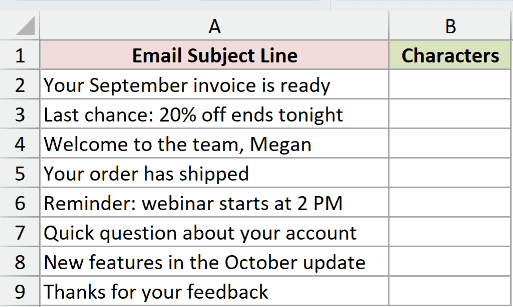
We want to return the length of each subject line in column B.
Enter this formula in B2:
=LENB(A2:A9)
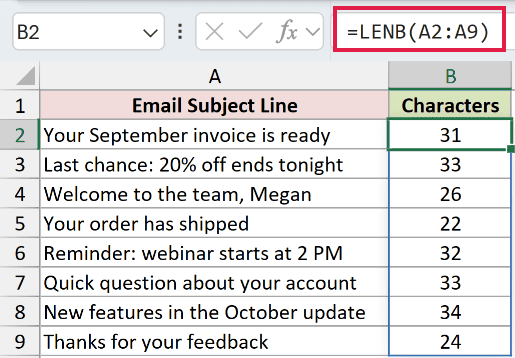
The formula spills into B2:B9, returning a separate count for each subject line. Spaces, punctuation, and digits all contribute to the length.
“Your September invoice is ready” returns 31, while “Your order has shipped” returns 22. The full column shows 31, 33, 26, 22, 32, 33, 34, 24.
Range formulas spill in Excel 2021, Excel 2024, and Microsoft 365. In Excel 2019 and earlier, use a single-cell reference and copy the per-row formula down.
Example 2: Check Menu Item Lengths
Now let’s turn those lengths into a useful check for a point-of-sale screen.
Below is the dataset. Column A lists menu items, column B will flag their length, and the setting card in D1:E2 holds the character limit.
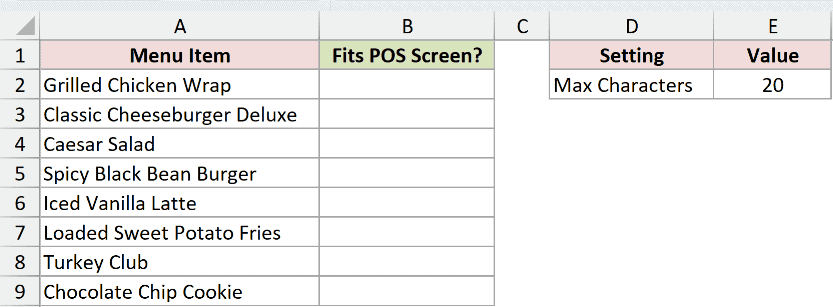
We want to flag names exceeding the 20-character limit typed in E2.
Enter this formula in B2:
=IF(LENB(A2:A9)>E2,"Too long","OK")
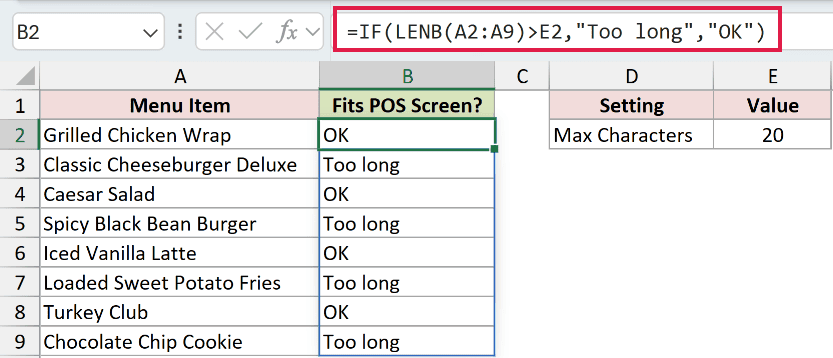
LENB measures each name, and IF compares that length with E2. The results spill into B2:B9 as Too long or OK.
“Grilled Chicken Wrap” returns OK, while “Classic Cheeseburger Deluxe” returns Too long. “Caesar Salad” and “Turkey Club” also return OK.
The greater-than comparison allows names at the limit to pass. Changing E2 updates the check throughout the spilled column.
Review any menu items flagged as Too long before entering them into the point-of-sale system.
Example 3: Count Skills in Each Job Posting
A length comparison can also count entries inside a cell.
Below is the dataset. Column A lists job titles, column B contains comma-separated skills, and column C has space for each skill count.
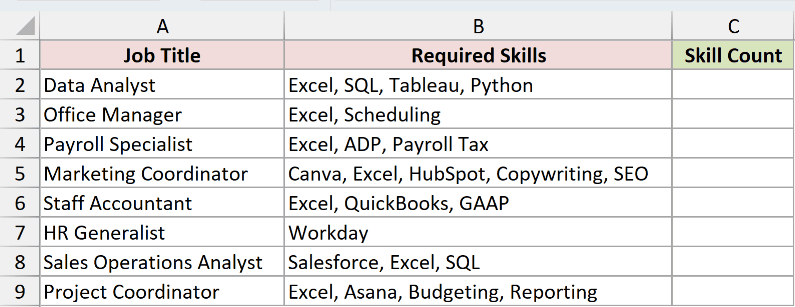
We want to count the skills listed for each job without splitting them into separate columns.
Enter this formula in C2:
=LENB(B2:B9)-LENB(SUBSTITUTE(B2:B9,",",""))+1
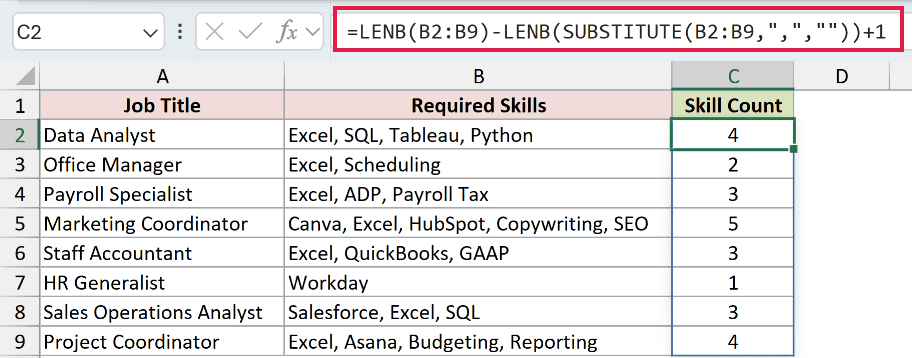
The results spill into C2:C9. Data Analyst returns 4, Marketing Coordinator returns 5, and HR Generalist returns 1 for its lone entry, “Workday.”
How this formula works:
- The first LENB measures each original skills list.
- SUBSTITUTE removes commas, and the second LENB measures the remaining text.
- Subtracting the lengths counts the removed commas. Adding 1 converts that separator count into an item count.
Spaces after commas remain in both versions, so they cancel out in the subtraction. The full result column is 4, 2, 3, 5, 3, 1, 3, 4.
Pro Tip: Use this on nonempty lists with a comma between entries. Blank cells, trailing commas, or commas inside an individual skill name need attention before you trust the count.
Example 4: Count Displayed Date Characters
Dates need an extra step because Excel stores them as serial numbers.
Below is the dataset. Columns A and B hold shipments and dates; column C will demonstrate the wrong count, and column D will hold the corrected count.
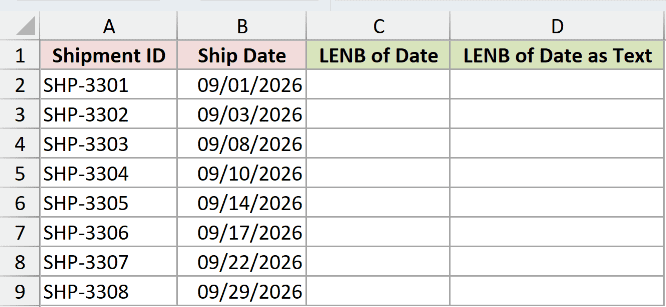
We want the length of each displayed date, including its slashes and leading zeros.
First, enter this in C2 to demonstrate the mistake of counting the date directly:
=LENB(B2:B9)
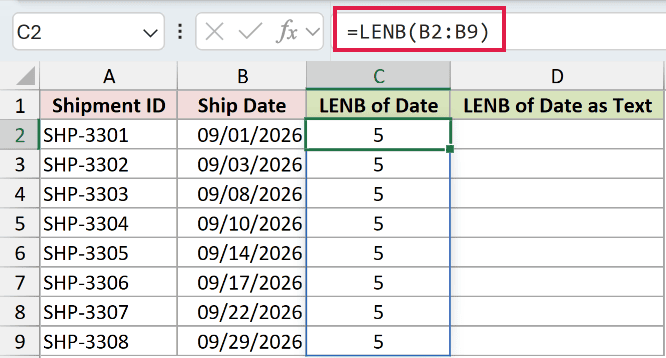
The mistake spills 5 throughout C2:C9. LENB is counting the stored serial number, even though B2 displays 09/01/2026.
Changing the date’s cell format alone doesn’t change what LENB counts.
For the correct count, enter this formula in D2:
=LENB(TEXT(B2:B9,"mm/dd/yyyy"))
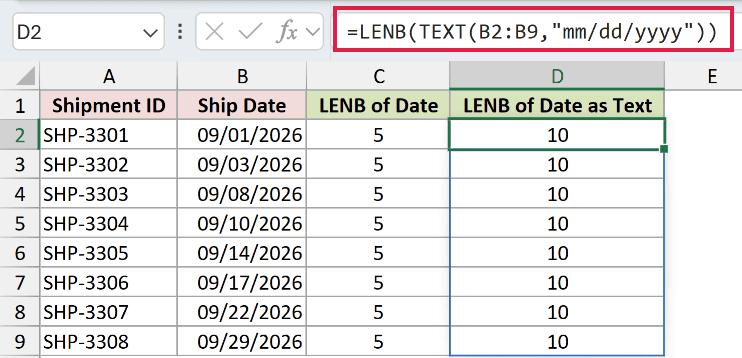
TEXT converts each date into text using mm/dd/yyyy, matching the worksheet’s date format. LENB then measures that text, and 10 spills throughout D2:D9.
The format string is explicit. If you change how the dates appear on the sheet, update the TEXT format too when you want the counts to match.
Example 5: Flag Extra Spaces in Coupon Codes
Extra spaces can be hard to spot in a list of coupon codes.
Below is the dataset. Column A contains coupon codes, including some with extra spaces, and column B has the Has Extra Spaces? header and empty results.
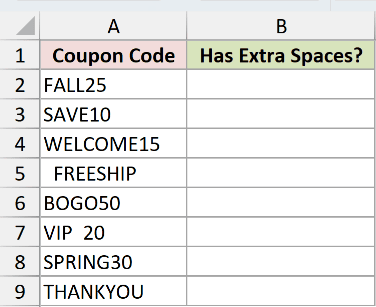
We want to flag codes whose length changes after TRIM removes extra spaces.
Enter this formula in B2:
=LENB(A2:A9)<>LENB(TRIM(A2:A9))
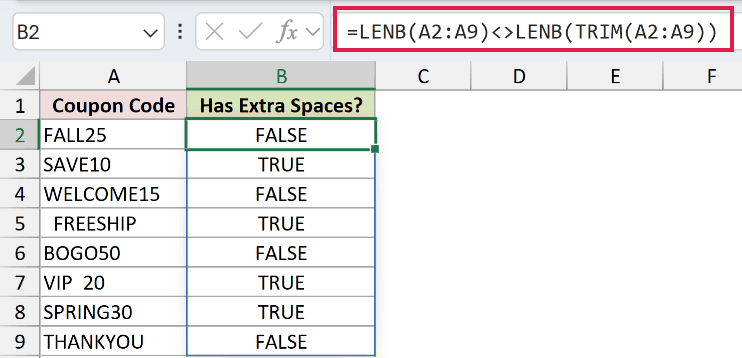
The formula compares each original length with its trimmed length. The <> operator means “not equal,” and the TRUE/FALSE results spill into B2:B9.
TRIM removes leading and trailing ordinary spaces and reduces repeated internal spaces. If that changes the length, the flag is TRUE.
The trailing space after SAVE10 produces TRUE in B3. The leading spaces before FREESHIP and repeated internal spaces in VIP 20 also produce TRUE.
SPRING30’s trailing space returns TRUE in B8. The unchanged codes return FALSE, giving FALSE, TRUE, FALSE, TRUE, FALSE, TRUE, TRUE, FALSE down the result column.
Review flagged codes before cleaning them, especially when an internal space could be intentional.
Tips & Common Mistakes
- Choose LEN for everyday character counts. Use LENB when you need its DBCS behavior or maintain formulas that already use byte-oriented functions.
- The editing language controls byte counting. A DBCS language must be enabled and set as the default editing language. Typing Japanese text alone doesn’t change this setting.
- Empty text and empty cells both return 0. A LENB check cannot distinguish a truly blank cell from a formula returning empty text.
- Invisible characters can affect the count. Spaces and line breaks count. TRIM’s ordinary-space cleanup isn’t a check for every possible invisible character.
- Errors pass through. If the source cell contains
#N/A, LENB returns#N/Atoo. Check the source value when a count unexpectedly shows an error.
Other Excel articles you may also like:
