
The OCT2DEC function in Excel converts an octal number into a decimal number you can use in calculations.
Octal values can appear in older system exports, backup logs, and memory addresses. Their digits look familiar, but reading them as ordinary decimal numbers changes their meaning.
For example, an octal block count of 20 represents 16 blocks. OCT2DEC performs that conversion and returns a number, so you can use the result directly.
I’ll show you how to convert a column, handle leading zeros and negative codes, and use OCT2DEC before adding octal addresses.
OCT2DEC Function Syntax in Excel
OCT2DEC takes the octal value you want to convert:
=OCT2DEC(number)
- number (required): The octal value, supplied as a number, text, or a cell reference. It can contain up to 10 octal characters, including leading zeros.
Negative values use a special encoding called two’s complement. OCT2DEC recognizes a 10-character code starting with a digit from 4 through 7 as negative.
When to Use OCT2DEC Function
- Convert octal counts from a backup log into numbers you can total or compare.
- Read signed inventory adjustments from a legacy export.
- Convert octal addresses before doing arithmetic, then return the answer to octal if needed.
- Check imported octal values for invalid characters or excessive padding.
Example 1: Convert Backup Block Counts
Let’s start with a backup log that stores block counts in octal.
Below is the dataset. Column A names each backup, column B contains octal block counts, and column C will hold the decimal counts.
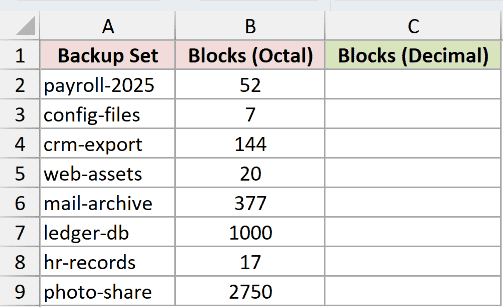
We want to convert each backup’s block count into an ordinary number.
Enter this formula in C2:
=OCT2DEC(B2)
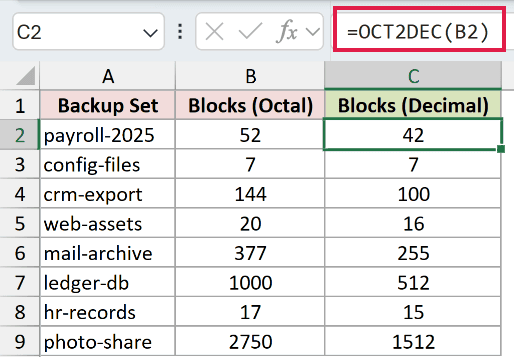
Copy C2 down through C9. Each formula reads the octal count beside it and returns its decimal value.
For payroll-2025, 52 converts to 42. The crm-export count of 144 becomes 100, while photo-share’s 2750 becomes 1512.
These results are numbers, so you can total them or compare them with other numeric counts without another conversion.
The examples use a cell reference copied down. Passing a bare range to OCT2DEC returns a single #VALUE!, so replacing B2 with a range isn’t enough.
Pro Tip: =OCT2DEC(+B2:B9) spills the converted counts. The + makes Excel pass the range’s values in a form OCT2DEC can process.
Pro Tip: This works in Excel 2021, Excel 2024, and Microsoft 365. In Excel 2019 and earlier, copy the per-row formula down as shown here.
Example 2: Handle Text and Leading Zeros
An octal value doesn’t have to be stored as a number for OCT2DEC to read it.
Below is the dataset. Column A describes each entry method, column B holds the octal input, and column C will show the conversion.
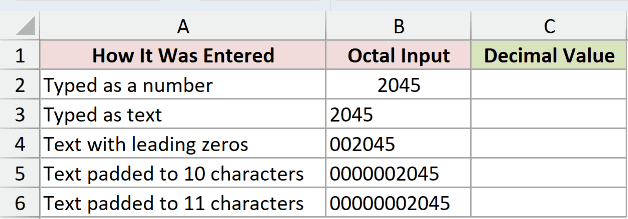
We want to see whether text storage and leading zeros change the decimal value.
Enter this formula in C2:
=OCT2DEC(B2)
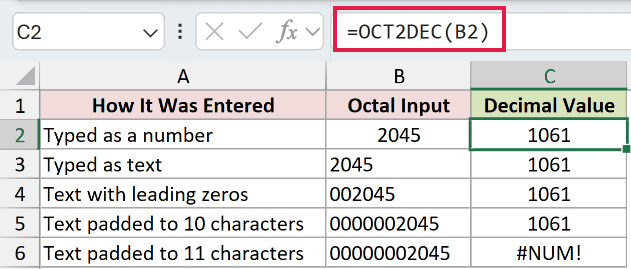
Copy it down through C6. The number 2045, text 2045, and padded text 002045 all return 1061.
The text 0000002045 also returns 1061. Its leading zeros don’t change the value, and its length stays within the 10-character limit.
But 00000002045 returns #NUM! in C6. It’s 11 characters long, so the extra padding makes an otherwise valid value fail.
OCT2DEC counts the leading zeros toward its input limit even though they don’t affect the converted value.
Example 3: Decode Negative Inventory Adjustments
A long octal code can represent a stock reduction rather than a large positive adjustment.
Below is the dataset. Column A contains SKUs, column B stores octal adjustments as text, and columns C and D will show contrasting interpretations.
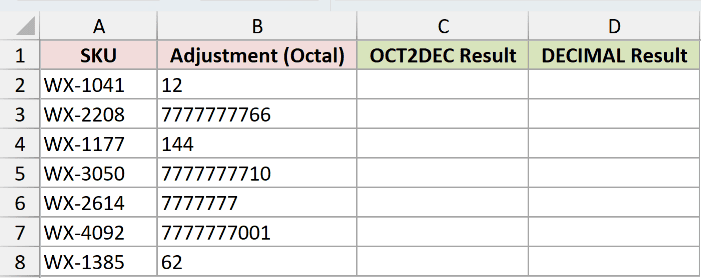
We want to decode the signed adjustments correctly and see why a general base conversion can misread them.
Enter the OCT2DEC formula in C2:
=OCT2DEC(B2)
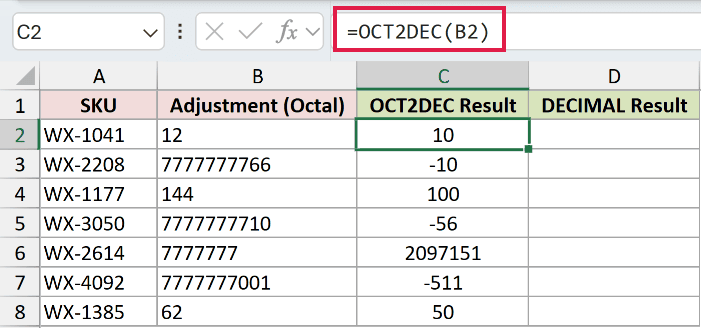
Copy it down through C8. The code 7777777766 returns -10, 7777777710 returns -56, and 7777777001 returns -511.
These are 10-character codes with a negative sign encoded in their leading digit. They don’t need a visible minus sign in the source cell.
The shorter code 7777777 returns positive 2097151. Starting with a high digit alone doesn’t make an octal input negative.
For comparison, DECIMAL converts text from a specified number base to decimal. It doesn’t interpret these octal codes as signed adjustments the way OCT2DEC does.
Enter this comparison formula in D2 and copy it through D8:
=DECIMAL(B2,8)
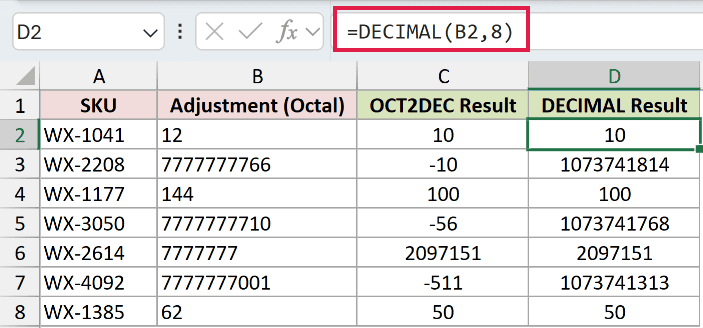
The final argument tells DECIMAL to read octal digits. For 7777777766, it returns 1073741814, whereas OCT2DEC returns -10.
That positive comparison result is the wrong interpretation for this signed inventory export. For the shorter positive input 144, both columns return 100.
Choose the interpretation that matches the export’s format. Here, OCT2DEC preserves the intended stock reductions.
Example 4: Add Octal Memory Addresses
Before adding octal values, convert them to decimal so Excel uses their actual values.
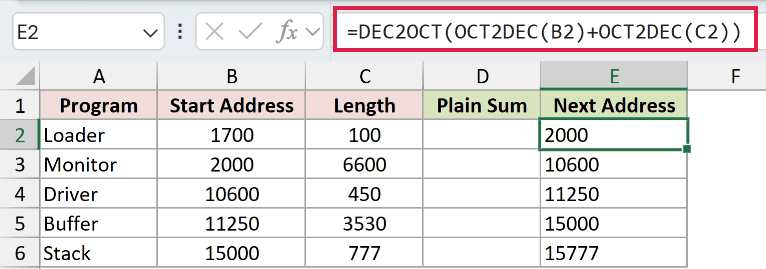
Below is the dataset. Column A lists programs, while columns B and C contain octal start addresses and lengths. Columns D and E will compare calculations.
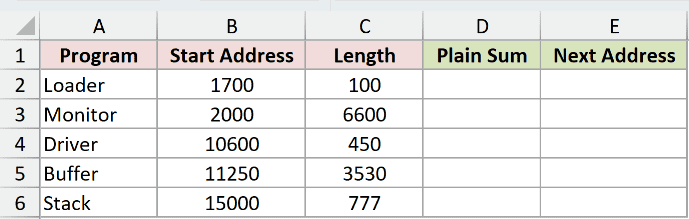
We want each program’s next address in octal after adding its length to its start address.
DEC2OCT converts a decimal number back to octal text. Here it converts the sum after OCT2DEC has decoded each input.
Enter the correct formula in E2 and copy it through E6:
=DEC2OCT(OCT2DEC(B2)+OCT2DEC(C2))
How this formula works:
- OCT2DEC converts the start address in B2 to decimal.
- The second OCT2DEC converts the length in C2 to decimal.
- Excel adds the converted numbers, then DEC2OCT returns the total as octal text.
Loader’s next address is 2000. Monitor returns 10600, Driver returns 11250, and Buffer returns 15000.
Now enter this deliberately incorrect calculation in D2 and copy it through D6:
=B2+C2
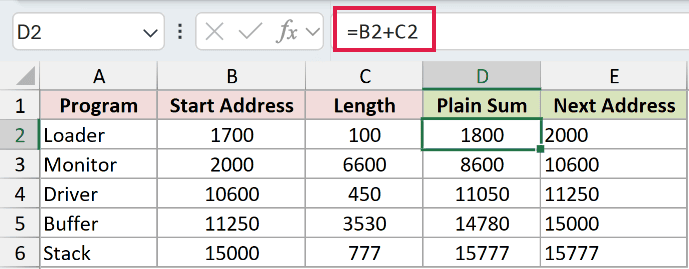
The plain-sum mistake treats the source digits as decimal numbers. Loader returns 1800, which isn’t even a valid octal address because it contains an 8.
Driver’s incorrect 11050 is less obvious because all its digits look valid. The correct next address is 11250.
For Stack, the plain-sum comparison happens to match the correct 15777 because no digit carries are needed.
Example 5: Check OCT2DEC Limits and Errors
Finally, let’s separate valid boundary values from inputs OCT2DEC can’t read.
Below is the dataset. Column A describes each input case, column B contains the test values, and column C will show results or deliberate errors.
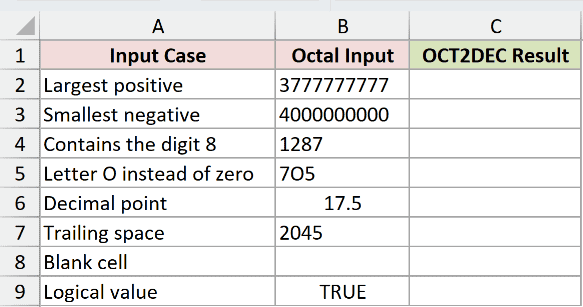
We want to identify which inputs convert successfully and explain each failure.
Enter this formula in C2 and copy it through C9:
=OCT2DEC(B2)
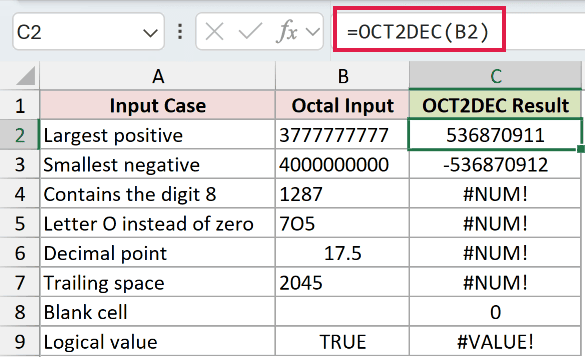
The largest positive input, 3777777777, returns 536870911. The next boundary code, 4000000000, returns the smallest negative value, -536870912.
The remaining rows show these behaviors:
- C4 returns
#NUM!: The input1287contains an8, which isn’t an octal digit. - C5 returns
#NUM!: The input7O5contains the letter O rather than a digit. - C6 returns
#NUM!: The input17.5contains a decimal point. OCT2DEC doesn’t truncate it into a valid octal integer. - C7 returns
#NUM!: The text2045has a trailing space. Remove the space from the source value. - C8 returns
0: B8 is blank. OCT2DEC silently converts the empty input to zero. - C9 returns
#VALUE!: B9 contains the logical valueTRUE, which isn’t accepted as an octal input.
Pro Tip: Check source cells for blanks. The 0 in C8 is a successful calculation, so an error check alone won’t distinguish missing data from an actual zero.
Tips & Common Mistakes
- Confirm that the source really is octal. OCT2DEC interprets the supplied digits as octal even when the cell stores an ordinary Excel number.
- Don’t type a minus sign for an encoded negative. In testing, the input
-17returned#NUM!. Use the source system’s signed octal code. - Check both ends of imported text. Leading and trailing spaces can cause
#NUM!, even when the visible digits look correct. - Keep padding within the input limit. Leading zeros are accepted, but they still count toward the 10-character maximum.
- Keep the result numeric when doing more arithmetic. OCT2DEC already returns a number. Convert back to octal only when the destination needs octal digits.
OCT2DEC turns octal counts and signed codes into numbers you can calculate with. The examples cover leading zeros, address arithmetic, and input checks that help prevent misleading results.
Related Excel Functions / Articles:
