
The OCT2BIN function in Excel converts an octal number to binary and returns the result as text.
It’s useful when a code is recorded in octal but you need to inspect its binary pattern. The optional places argument keeps leading zeros where a fixed width matters.
In this article, I’ll show you how to pad binary labels, read signed results, and handle octal values beyond OCT2BIN’s normal limit.
OCT2BIN Function Syntax in Excel
OCT2BIN takes the octal value and an optional output width:
=OCT2BIN(number, [places])
- number (required): The octal value to convert, entered directly or supplied through a cell reference. Valid octal text works too.
- places (optional): The number of characters in the binary result. Excel adds leading zeros when needed. Omit it for the shortest result. OCT2BIN ignores this argument for negative octal inputs.
The largest positive octal input is 777. The lowest supported negative value is encoded as 7777777000. Example 4 shows what happens outside those limits.
When to Use OCT2BIN Function
- Build an answer key for octal-to-binary practice problems.
- Convert octal labels into binary patterns with a consistent width.
- Inspect signed offsets stored as octal codes.
- Check which imported values are valid before using their binary results.
Example 1: Convert Octal Practice Problems
Let’s start with an answer key where each problem has its own octal value.
Below is the dataset. Column A identifies each problem, column B holds the octal numbers, and column C will hold the binary answers.
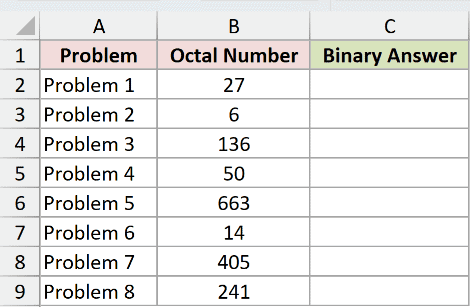
We want to convert each value in column B into binary.
Enter this formula in C2, then copy it down through C9:
=OCT2BIN(B2)
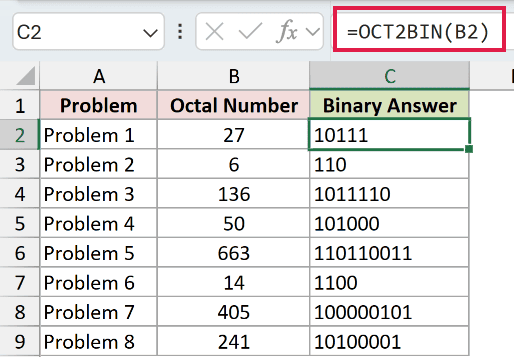
The octal input 27 returns 10111. Further down, 136 returns 1011110, while 663 returns 110110011.
Because places is omitted, OCT2BIN doesn’t add leading zeros. The answers can therefore have different lengths.
These results are text strings. Although they look like ordinary numbers, they’re binary representations of the octal inputs.
The copied-down formula works in every version. A bare cell range passed to OCT2BIN returns a single #VALUE!, so don’t replace B2 with the whole column’s range.
Example 2: Keep Leading Zeros in Binary Labels
A label is easier to compare when every binary pattern has the same width.
Below is the dataset. Column A lists parameters, column B contains octal labels stored as text, and columns C and D will compare unpadded and padded results.
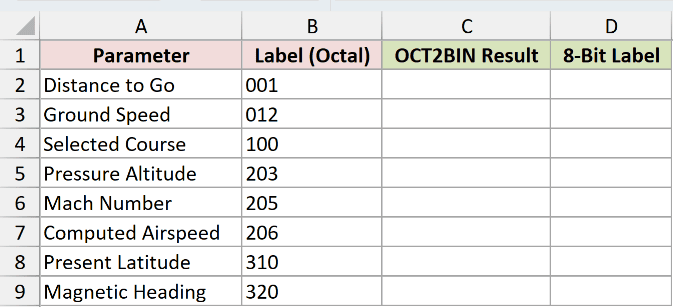
We want to preserve an eight-bit width for every converted label.
First, enter the unpadded comparison in C2 and copy it down through C9:
=OCT2BIN(B2)
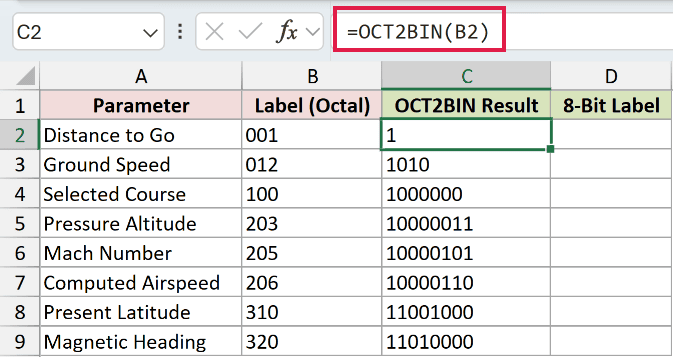
Distance to Go, with octal label 001, returns 1. Ground Speed, with label 012, returns 1010.
Both conversions are valid, but their results don’t retain the width needed for this label display.
Now enter the padded formula in D2 and copy it down through D9:
=OCT2BIN(B2,8)
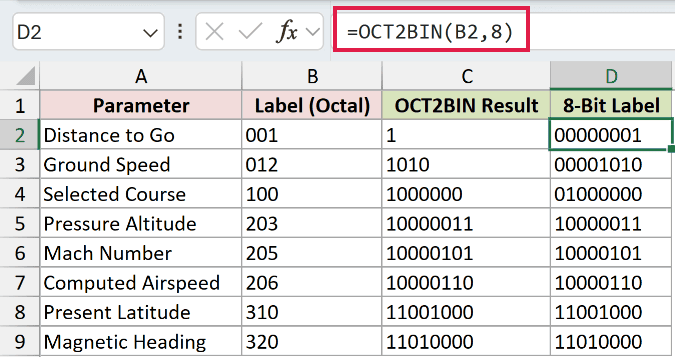
Distance to Go now returns 00000001, and Ground Speed returns 00001010. Selected Course changes from 1000000 to 01000000.
Pressure Altitude already returns 10000011 without padding, so its padded result stays 10000011. Places adds missing zeros without changing the represented value.
Pro Tip: Keep the source label column formatted as Text before entering labels with leading zeros. OCT2BIN accepts those text labels, so there’s no need to remove their zeros first.
Example 3: Convert Signed Calibration Offsets
Negative offsets use an encoded octal value rather than a minus sign.
Below is the dataset. Columns A through C contain sensors, decimal offsets, and their octal codes. Column D will show the binary patterns.
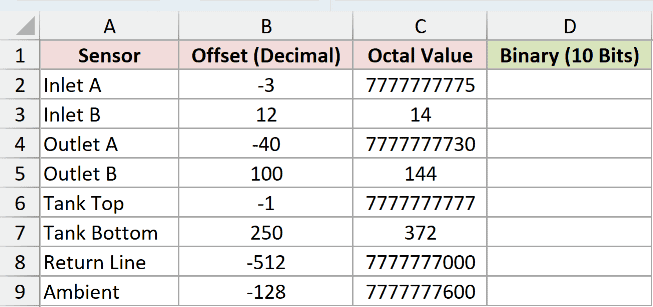
We want the positive and negative offsets displayed at the same binary width.
Enter this formula in D2, then copy it down through D9:
=OCT2BIN(C2,10)
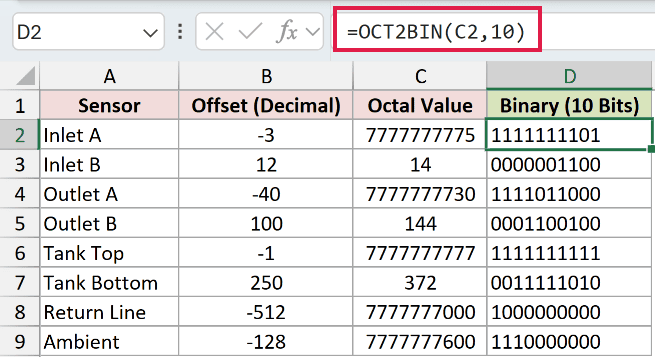
Inlet A’s octal code 7777777775 returns 1111111101, representing the decimal offset -3 shown in column B.
Inlet B’s octal code 14 returns 0000001100, matching its decimal offset of 12. Column B contains typed reference values, not calculated results.
The negative results use two’s complement, a binary encoding that stores the sign within the bit pattern. They don’t display a minus sign.
At this ten-bit width, the negative patterns start with 1, while the padded positive patterns start with 0.
For example, Tank Top’s -1 returns 1111111111. Return Line’s -512 returns 1000000000.
Pro Tip: Places is ignored for negative values, which already return ten characters. Here, 10 pads the positive results so their widths match the negative results.
Example 4: Diagnose OCT2BIN Input Errors
Some invalid inputs produce an error, but a blank cell can quietly look like a valid conversion.
Below is the dataset. Column A describes each test, column B holds the input, and column C will show the conversion or its deliberate error.
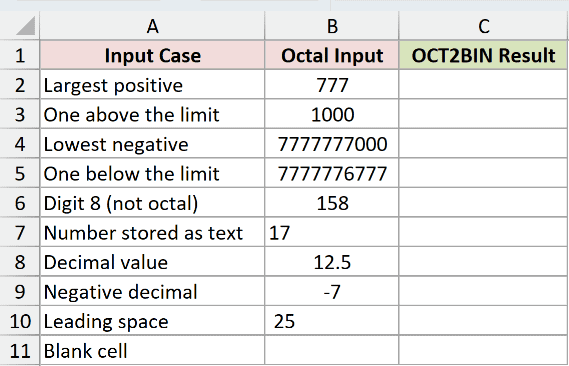
We want to distinguish out-of-range values, invalid octal entries, and inputs Excel accepts.
Enter this formula in C2, then copy it down through C11:
=OCT2BIN(B2)
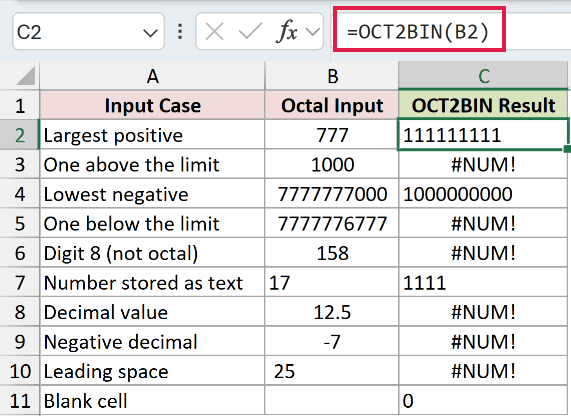
The boundary rows show where a direct conversion stops:
- C2:
777returns111111111, the largest positive input supported by OCT2BIN. - C3:
1000returns#NUM!because it exceeds the positive limit. - C4:
7777777000returns1000000000, the lowest supported negative value. - C5:
7777776777returns#NUM!because its encoded negative value is below that limit.
The remaining deliberate errors have different causes:
- C6:
158returns#NUM!because it contains a digit that isn’t valid in octal. - C8:
12.5returns#NUM!. OCT2BIN doesn’t truncate a fractional input into a valid octal value. - C9:
-7returns#NUM!. A minus sign isn’t the encoded negative octal form OCT2BIN expects. - C10: The text
25returns#NUM!because it contains a leading space.
The text input 17 in B7 returns 1111 in C7.
The empty B11 cell returns 0 in C11. That result doesn’t tell you the source was missing, so check blank inputs before treating them as recorded values.
Example 5: Convert Longer Values Digit by Digit
A positive octal value above 777 needs a different approach.
Below is the dataset. Column A contains longer octal values. Columns B and C will compare a digit-by-digit conversion with a direct alternative.
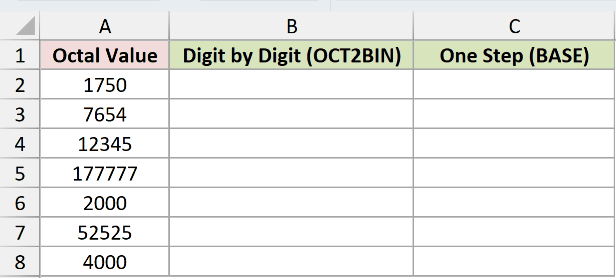
We want OCT2BIN to convert each digit separately, then join the binary pieces into a complete pattern.
The formula uses LEN to count digits, SEQUENCE to list their positions, and MID to extract them. CONCAT joins OCT2BIN’s converted pieces.
Enter this formula in B2, then copy it down through B8:
=CONCAT(OCT2BIN(MID(A2,SEQUENCE(LEN(A2)),1),3))
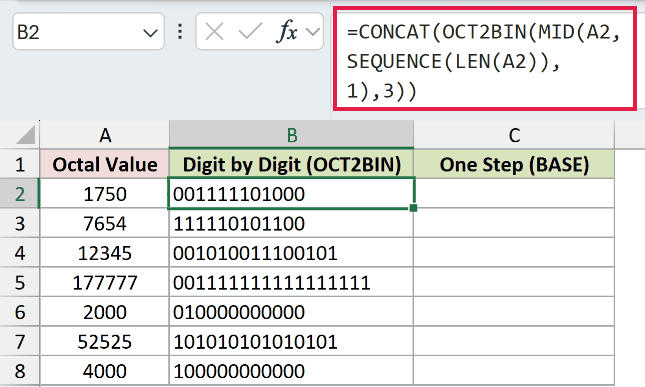
For 1750, the result is 001111101000. The longer input 12345 returns 001010011100101.
How this formula works:
- LEN counts the characters in A2 so the formula knows how many digits to extract.
- SEQUENCE creates the positions of those digits.
- MID extracts a single digit at each position and passes the resulting list to OCT2BIN.
- OCT2BIN converts each digit with places set to
3, preserving the full binary group for that digit. - CONCAT joins the groups into the final text result.
This formula needs Excel 2021, Excel 2024, or Microsoft 365 because it uses SEQUENCE. It returns a single joined string per row, so copy it down.
Here, OCT2BIN accepts the list produced by MID directly. This differs from passing a bare worksheet range, which returns #VALUE!.
For a shorter alternative, DECIMAL converts the base-8 text into its decimal number, and BASE writes that value in binary.
Together, they avoid OCT2BIN’s direct-input ceiling.
Enter this comparison formula in C2, then copy it down through C8:
=BASE(DECIMAL(A2,8),2)
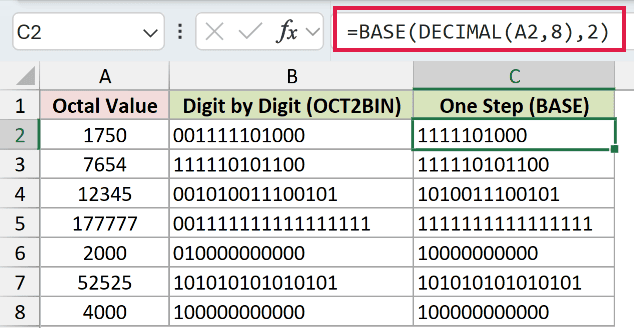
For 1750, this returns 1111101000. It represents the same value as 001111101000, but drops the leading zeros retained by the digit-by-digit method.
For 7654, both columns return 111110101100 because the first converted group doesn’t need leading zeros.
Use the OCT2BIN approach when you want to retain each digit’s binary group. The comparison is shorter when you only need the complete binary value.
Tips & Common Mistakes
- Places must fit the positive result. Too few places returns
#NUM!. Zero, negative places, and places above10also return#NUM!for positive inputs. - Fractional places are truncated. In testing, places
4.9behaved like4. This applies to places, not to a fractional octal input. - Nonnumeric places return
#VALUE!. Check the width argument separately from the octal input when diagnosing an error. - A bare range isn’t a working spill formula. Put a
+in front of the range to make OCT2BIN spill one result per row. This needs Excel 2021, Excel 2024 or Microsoft 365. In older versions, copy the per-row formula down. - Keep binary output as text. The leading zeros are part of the displayed pattern. Don’t remove them when another system expects a fixed width.
Other Excel articles you may also like:
