
Excel’s SCAN function applies a calculation to each value in a range or array and returns every intermediate result.
For a running total, that means the total after each entry. Each step uses the previous result, so you can also track balances or streaks.
You define the calculation with LAMBDA. One formula spills the results into neighboring cells, keeping the same shape as the input range.
In this article, I’ll show you how to build running totals, track streaks that reset, and maintain a running maximum.
SCAN Function Syntax in Excel
The SCAN function passes each value through a LAMBDA and returns the accumulator after every step.
=SCAN([initial_value],array,lambda(accumulator,value,body))
- initial_value (optional) is the starting value for the accumulator.
- array (required) is the range or array that SCAN processes.
- lambda (required) declares two named parameters, then takes the body expression as its third argument.
- accumulator holds the result from the previous step.
- value is the current item from the array.
- body returns the accumulator passed to the next step.
REDUCE gives you the final answer. SCAN gives you every step on the way.
When to Use SCAN Function
- Build a running total with one formula that spills.
- Carry a balance forward when each new result depends on the previous result.
- Count consecutive matches and reset the count when a condition fails.
- Track a running maximum or minimum.
- Build cumulative text or process a two-dimensional range in sequence.
Example 1: Build a Running Total
Let’s start with a school fundraiser running total.
Below is the dataset. Column A lists ten weeks, and column B contains the amount raised each week.
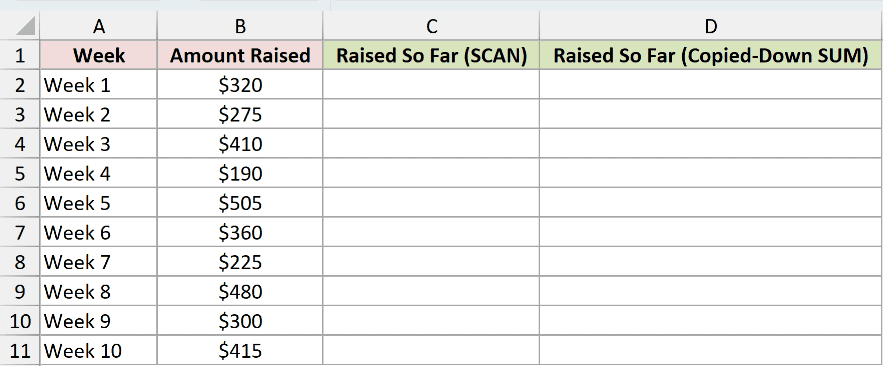
We want one SCAN formula to return the total raised after every week.
Here is the formula:
=SCAN(0,B2:B11,LAMBDA(a,v,a+v))
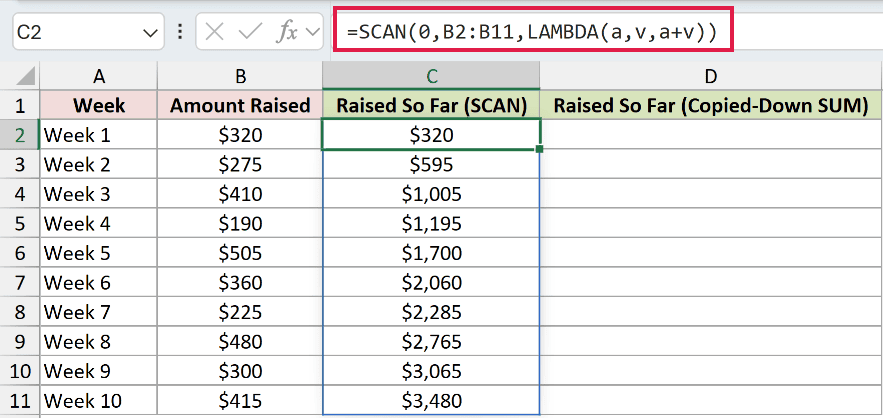
The accumulator a starts at 0. SCAN adds each weekly amount v, then passes the new total to the next step.
The running total reaches $595 after Week 2 and $3,480 after Week 10.
For comparison, enter this formula in D2 and copy it down through D11 to confirm that a regular SUM returns the same numbers:
=SUM($B$2:B2)
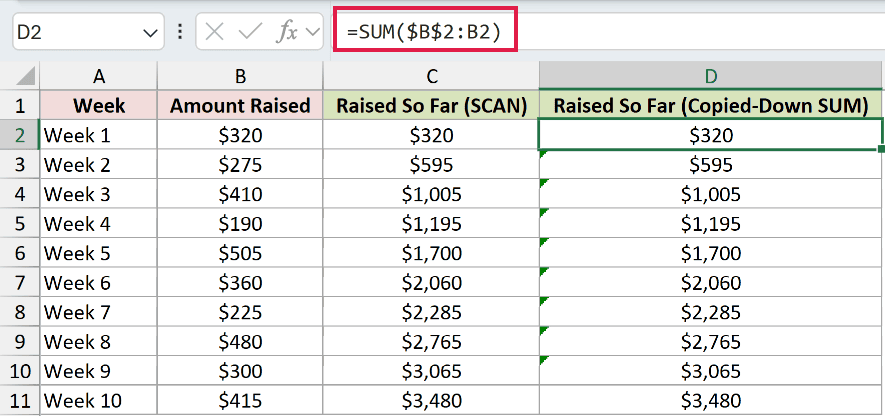
The copied-down SUM also runs from $320 to $3,480. It is a perfectly good choice for a plain running total.
The practical difference is maintenance. SCAN creates the whole column with one formula, leaving no fill handle to stop early or drag too far.
Pro Tip: Keep every cell in the intended output area empty. Any obstruction causes a #SPILL! error because Excel cannot place the complete result.
Example 2: Keep a Balance Above Zero
Here’s a case where each step depends on the balance before it.
Below is the dataset. Columns A and B list shipment IDs and charges. Empty column C awaits Credit Remaining, while E:F holds the $500 Starting Credit you type.
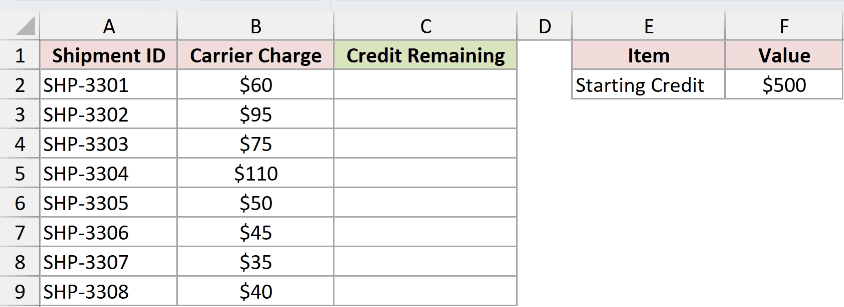
We want to subtract each charge while preventing the remaining credit from falling below zero.
Here is the formula:
=SCAN($F$2,B2:B9,LAMBDA(a,v,MAX(0,a-v)))
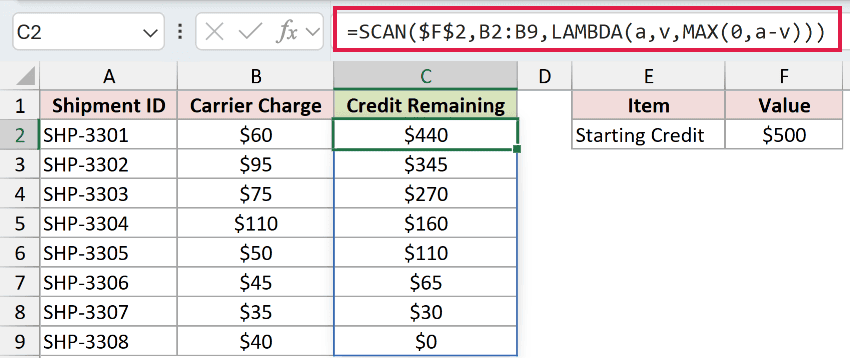
The typed value in F2 seeds the accumulator with $500. Each step subtracts the current charge, while MAX prevents a negative balance.
The first two charges leave $440 and $345. The final $40 charge leaves $0 rather than a negative amount.
A row-by-row formula that references the balance above can also work. SCAN keeps the entire stateful calculation in one formula instead.
Example 3: Count a Streak That Resets
Now let’s count consecutive shipping days that meet a target.
Below is the dataset. Columns A and B contain dates and order counts. Empty column C awaits Days Hitting Target in a Row, while E:F holds your 120 Daily Target.
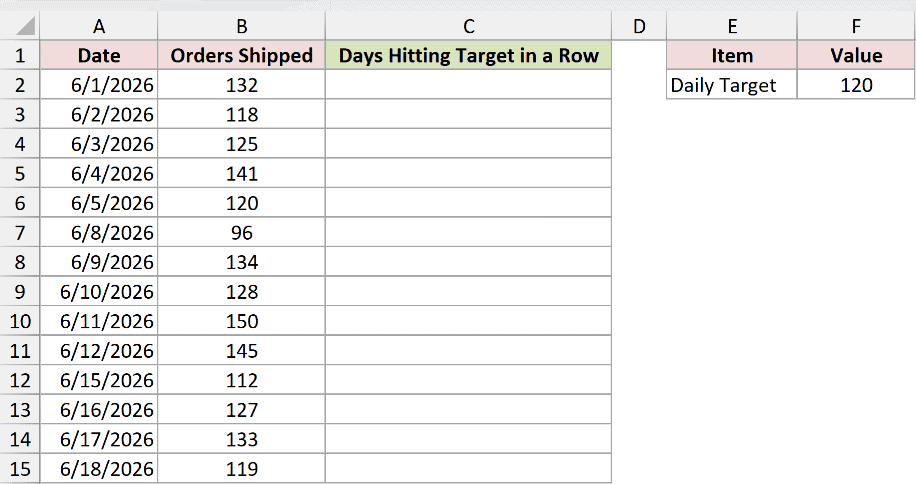
We want the streak to increase on a successful day and reset to zero after a miss.
Here is the formula:
=SCAN(0,B2:B15,LAMBDA(a,v,IF(v>=$F$2,a+1,0)))
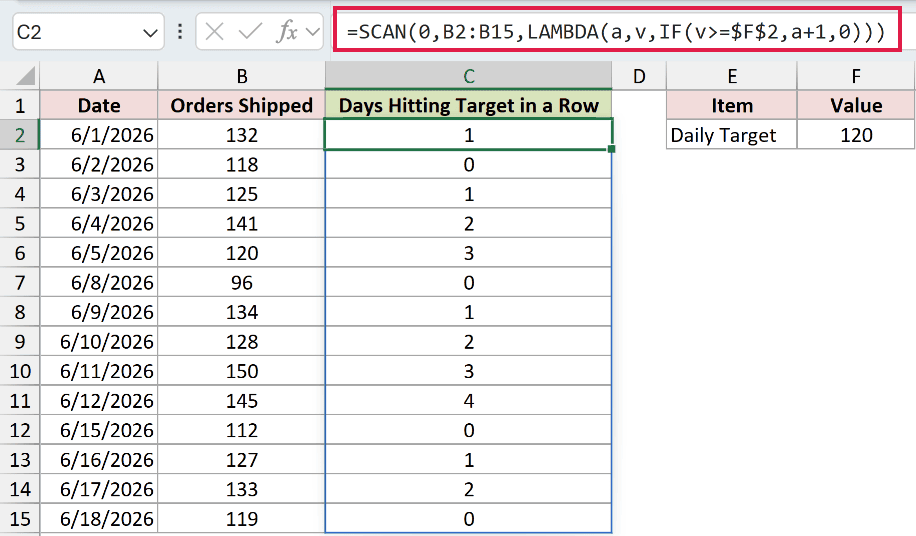
The LAMBDA adds 1 when the current order count meets the target. Otherwise, it returns 0 and starts the next streak from scratch.
The streak reaches 4 on June 12, then resets to 0 on June 15 when shipments fall to 112.
A copied-down formula can reference the previous streak cell. SCAN removes that dependency on a correctly filled formula in every row.
Pro Tip: To return only the longest streak, wrap the SCAN formula inside MAX. SCAN supplies every step, and MAX keeps the largest one.
Example 4: Track a Running Peak
Next, we’ll carry the highest value seen so far.
Below is the dataset. Column A lists the months, and column B contains website sessions for each month.
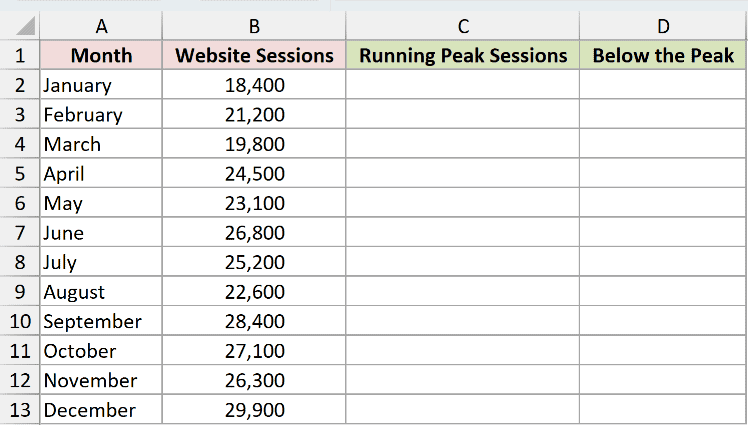
We want to keep the highest session count seen up to each month.
Here is the formula:
=SCAN(0,B2:B13,LAMBDA(a,v,MAX(a,v)))
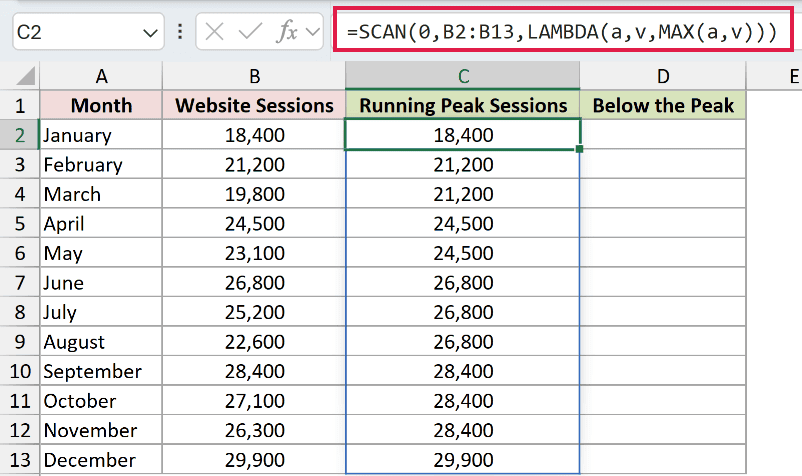
At each step, MAX compares the previous peak with the current month. The larger number becomes the next accumulator value.
March records 19,800 sessions, but its running peak stays at February’s 21,200. December sets a new peak of 29,900.
Now enter this formula in D2 and copy it down through D13 to measure each month against the running peak:
=B2/C2-1
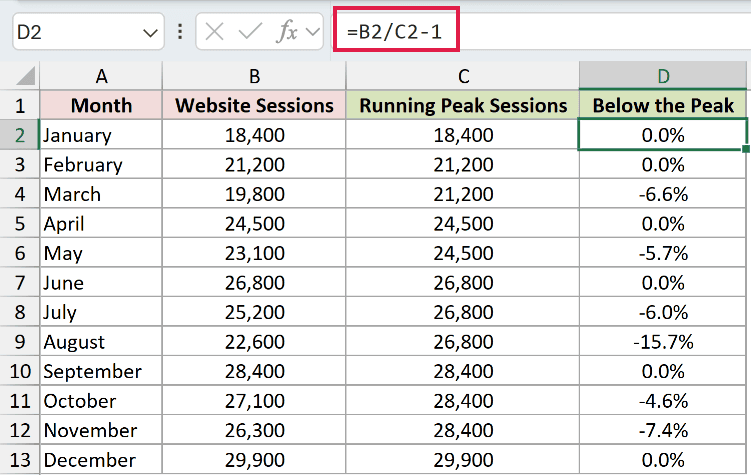
Months that set a new peak return 0.0%. August’s displayed result is -15.7%, which means it sits below the June peak.
A copied-down expanding MAX formula tracks the same peak when its starting reference is anchored correctly. SCAN handles the sequence with one formula.
Pro Tip: Starting at 0 works here because every session count is positive. For data that can be negative, use its minimum as the starting value.
Example 5: Build a Route as Text
The accumulator does not have to be a number.
Below is the dataset. Column A identifies each route leg, and column B lists the checkpoint reached on that leg.
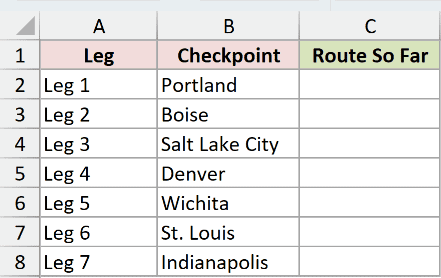
We want each result to show the complete route traveled up to that checkpoint.
Here is the formula:
=SCAN("",B2:B8,LAMBDA(a,v,IF(a="",v,a&" > "&v)))
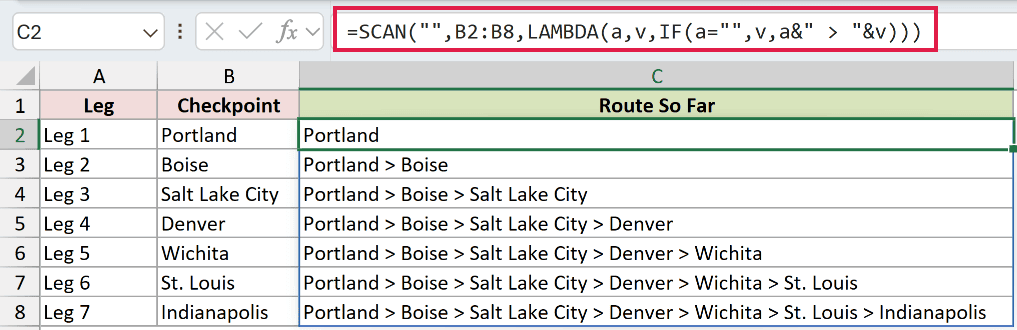
The empty text seed starts the route. The IF avoids a separator before Portland, then each later step appends > and the current checkpoint.
The third result is Portland > Boise > Salt Lake City.
The last result is Portland > Boise > Salt Lake City > Denver > Wichita > St. Louis > Indianapolis.
A copied-down TEXTJOIN formula is shorter for this task. If you need only the finished route, TEXTJOIN or REDUCE is the better fit.
Example 6: Scan a Two-Dimensional Range
Finally, let’s see how SCAN moves through more than one column.
Below is the dataset. Column A lists six baking days. Columns B through D contain morning, afternoon, and evening loaf counts.

We want a cumulative loaf count after every shift, while keeping the same six-row by three-column shape.
Here is the formula:
=SCAN(0,B2:D7,LAMBDA(a,v,a+v))
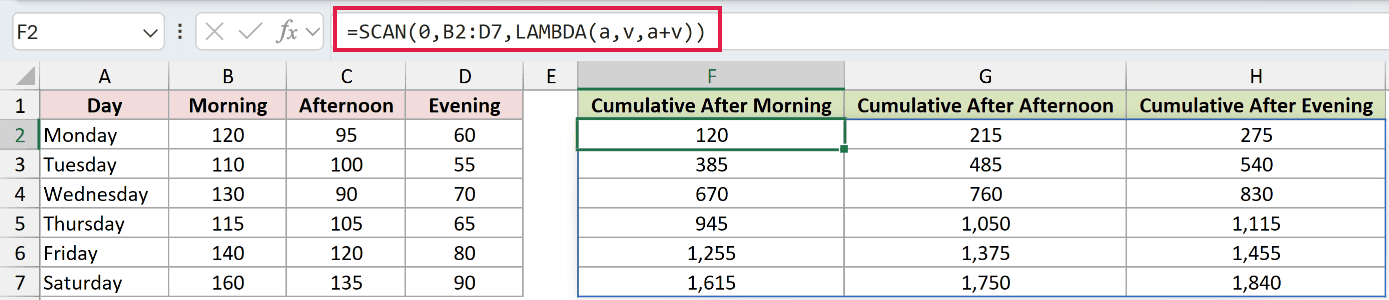
SCAN reads a two-dimensional range in row-major order. It moves across each row first, then continues on the next row.
Monday’s results are 120, 215, and 275. Tuesday morning continues from Monday evening and returns 385, not a new total of 110.
The final Saturday evening result is 1,840. Entered in F2, the formula spills through F2:H7, matching the input’s six-row by three-column shape.
A two-dimensional SCAN has no per-column variant. For separate running totals down each shift column, run a separate SCAN formula for each column.
Tips & Common Mistakes
- SCAN requires Microsoft 365, Excel 2024, or Excel for the web. Excel 2021 and earlier return #NAME?.
- The initial value is optional. A leading comma in
=SCAN(,B2:B11,LAMBDA(a,v,a+v))deliberately omits it and uses zero. - The LAMBDA declares two named parameters for the accumulator and current value, then takes the calculation body as its third argument.
- Parameter names such as
aandvare arbitrary, but the names inside the calculation must match the declaration. - A blocked spill range returns #SPILL!. Use a reference such as
C2#when another formula needs the complete spilled result. - A wrong LAMBDA parameter count returns #VALUE! with an Incorrect Parameters message.
- SCAN reads a two-dimensional array across each row before moving down. Use separate SCAN calculations when columns need independent running results.
We used SCAN to build running totals, balances, streaks, peaks, cumulative text, and a row-major total across a two-dimensional range.
For a plain running total, SUM is still fine. Use SCAN when one spilling formula makes the chain easier to follow and harder to break.
Related Excel Functions / Articles:
