
The TBILLEQ function in Excel converts a Treasury bill’s discount rate into its bond-equivalent yield, an annualized rate based on the price you pay.
A bill’s quoted discount rate measures the discount against its face value, while your return depends on the lower price you pay.
TBILLEQ makes that conversion using the settlement date, maturity date, and discount rate. Its result helps you compare bills on a consistent yield basis.
I’ll show you how to compare bill terms, avoid a misleading CD comparison, and spot where the short manual yield formula stops matching Excel.
TBILLEQ Function Syntax in Excel
The function takes the bill’s dates and quoted discount rate:
=TBILLEQ(settlement, maturity, discount)
- settlement (required): The date your purchase settles. Use your settlement date, which can differ from the bill’s original issue date.
- maturity (required): The date the bill pays its face value. It must be after settlement and no more than one calendar year later.
- discount (required): The bill’s annual discount rate. Enter it as a percentage, such as
3.950%, rather than as a whole number.
Use cells containing Excel dates for the date arguments. TBILLEQ ignores any time portion, and the returned yield should be formatted as a percentage.
When to Use TBILLEQ Function
- Convert a quoted Treasury bill discount rate into a bond-equivalent yield.
- Compare bills with different maturity dates using the same yield convention.
- Compare a short bill with a CD quoted on a compatible annual rate basis.
- Check how changing the discount rate affects the yield for fixed settlement and maturity dates.
Example 1: Convert a Bill’s Discount Rate
Let’s start with a bill whose dates and discount rate are already on the sheet.
Below is the dataset. Cells B1:B3 hold the settlement date, maturity date, and discount rate; the labelled B4 cell will hold the bond-equivalent yield.
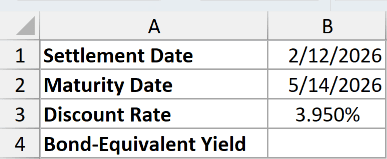
We want to convert this bill’s quoted discount rate into its annualized bond-equivalent yield.
Enter this formula in B4:
=TBILLEQ(B1,B2,B3)
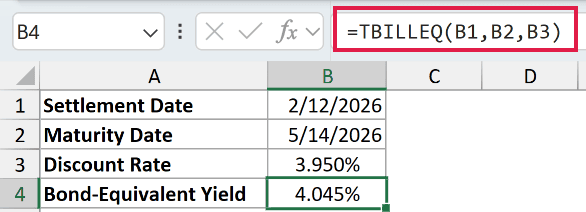
The bill settles on 2/12/2026 and matures on 5/14/2026. With a discount rate of 3.950%, TBILLEQ returns 4.045%.
The yield is higher because the calculation relates the return to the discounted purchase price and uses a 365-day year.
That percentage expresses the yield on an annual basis. The return earned over this bill’s shorter holding period covers only the time you hold it.
Example 2: Compare Yields Across Bill Terms
Now let’s put several bill terms on the same yield basis.
Below is the dataset. Columns A:C contain terms, maturity dates, and discount rates. Column D and the Best Term card await results; G2 contains the shared settlement date.
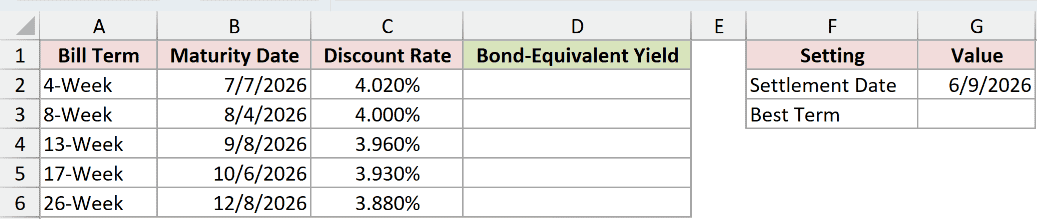
We want to calculate each bill’s bond-equivalent yield, then identify the term with the highest result.
Enter this formula in D2 and copy it down through D6:
=TBILLEQ($G$2,B2,C2)
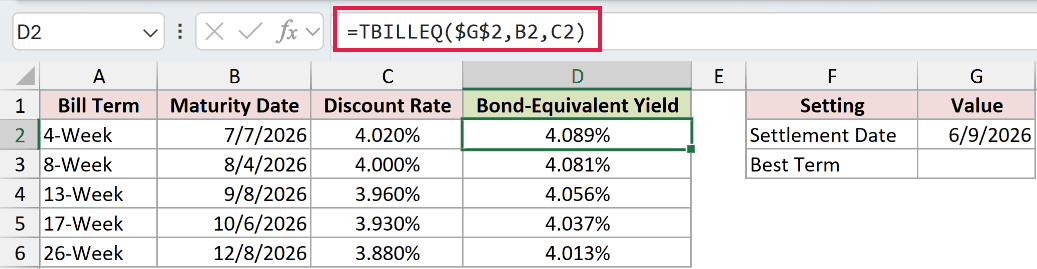
The absolute reference $G$2 keeps settlement fixed at 6/9/2026. The maturity and discount references move to each bill’s row as you copy down.
The 4-Week bill returns 4.089%, followed by 4.081%, 4.056%, 4.037%, and 4.013% for the remaining terms.
To name the highest-yielding term, MAX finds the largest yield. XLOOKUP then finds that yield’s row and returns its bill term.
Enter the combined formula in G3:
=XLOOKUP(MAX(D2:D6),D2:D6,A2:A6)
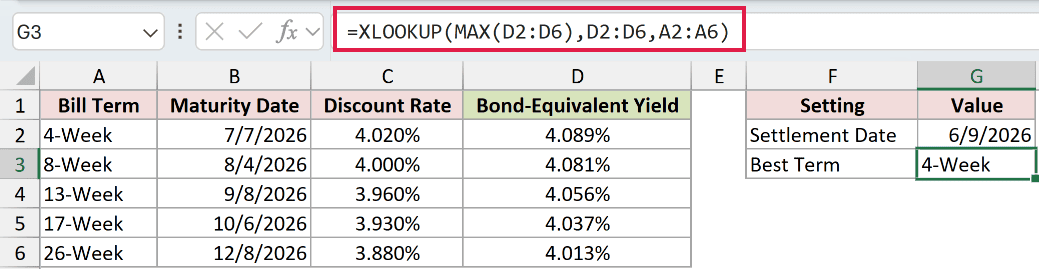
The Best Term card returns 4-Week. Here, “best” means the highest bond-equivalent yield in this sample, without considering how long you want to hold the bill.
The XLOOKUP helper requires Excel 2021 or later. You can still calculate and compare the TBILLEQ column in every version.
Example 3: Avoid a Misleading CD Comparison
Comparing a bill’s raw discount rate with a CD rate can point you toward the wrong higher-yielding option.
Below is the dataset. The card holds bill dates, its discount rate, and a CD rate, followed by labelled cells for the yield and comparison decisions.
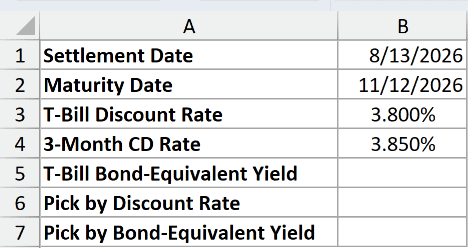
We want to compare the bill with the CD after converting the bill’s discount rate to a compatible yield.
The CD’s 3.850% input is a nominal annual rate for this short-term comparison. It isn’t APY, which includes compounding.
First, calculate the bill’s bond-equivalent yield in B5:
=TBILLEQ(B1,B2,B3)
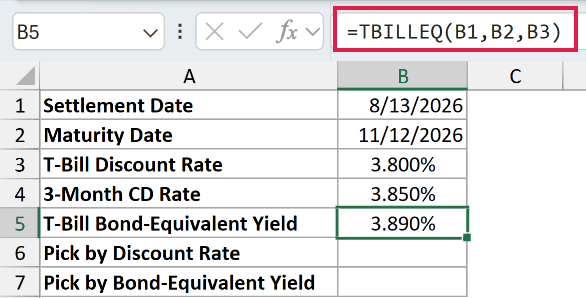
For settlement on 8/13/2026 and maturity on 11/12/2026, the 3.800% discount rate converts to 3.890%.
Next, B6 demonstrates the wrong comparison. IF tests a condition and returns the matching label; here, it incorrectly compares the raw discount rate with the CD rate.
Enter this deliberate mistake in B6:
=IF(B3>B4,"T-Bill","CD")
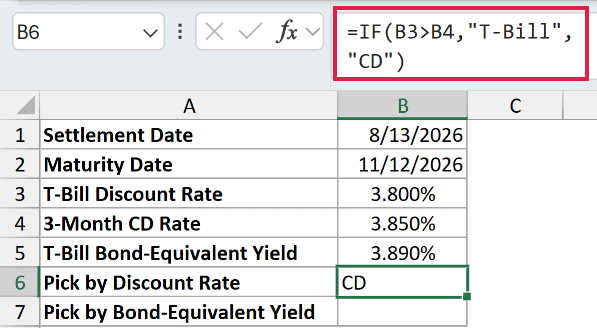
This misleading comparison returns CD, because 3.800% is below 3.850%. The comparison uses rates measured on different bases.
In B7, use the converted yield for the rate comparison:
=IF(B5>B4,"T-Bill","CD")
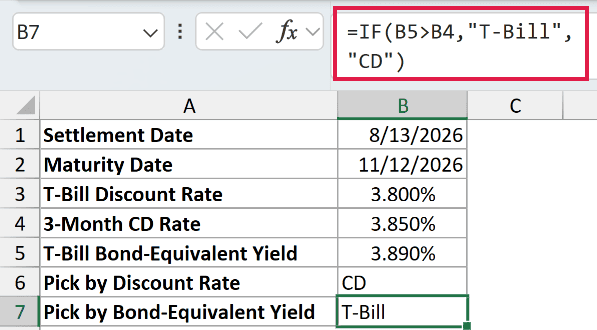
This comparison returns T-Bill, because its 3.890% bond-equivalent yield exceeds the CD’s 3.850% nominal rate.
The labels compare these sample rates only.
Example 4: Check the Short-Term Yield Calculation
Let’s unpack why TBILLEQ returns a higher rate than the quoted discount.
Below is the dataset. B1:B3 contain the bill’s dates and discount rate, with labelled cells for days, price, yield, and manual comparison calculations.
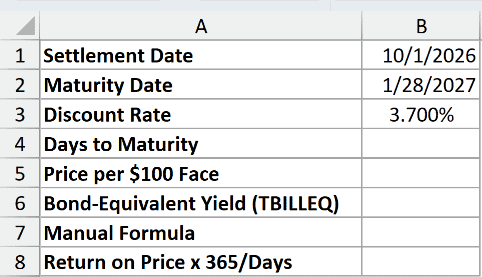
We want to reproduce this short bill’s TBILLEQ result from its discount rate and from its purchase price.
Calculate the days to maturity in B4:
=B2-B1
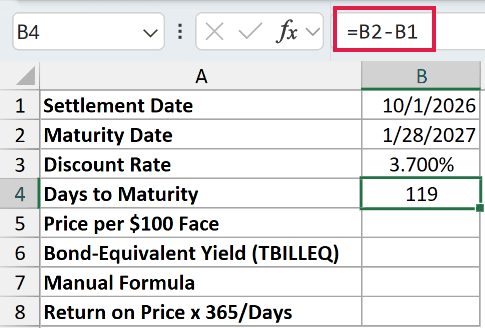
Subtracting settlement on 10/1/2026 from maturity on 1/28/2027 returns 119 days.
Calculate the price per $100 face value in B5:
=100*(1-B3*B4/360)
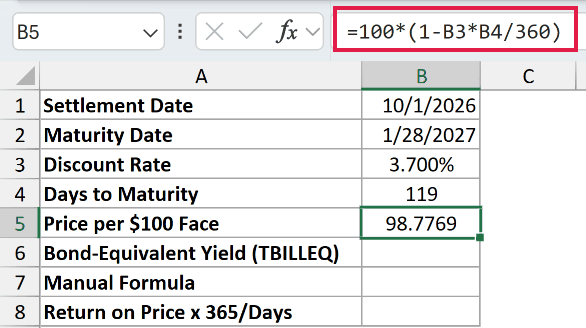
The price is 98.7769. The formula applies the 3.700% discount rate over the actual days to maturity using a 360-day year.
Now calculate the bond-equivalent yield in B6:
=TBILLEQ(B1,B2,B3)
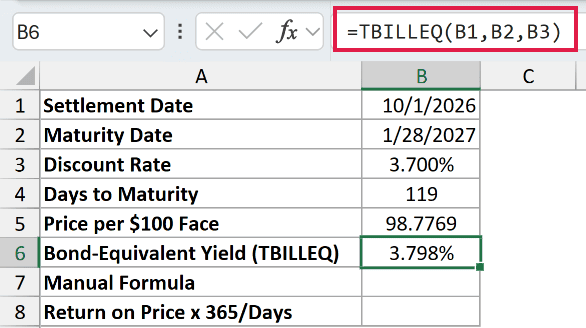
TBILLEQ returns 3.798%.
For comparison, enter the short manual yield formula in B7:
=365*B3/(360-B3*B4)
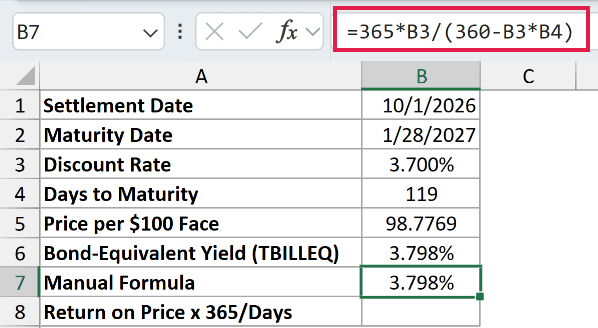
The manual comparison also displays 3.798%. This calculation matches TBILLEQ when the days to maturity are no more than 182.
For another comparison, calculate the annualized return on the purchase price in B8:
=(100-B5)/B5*365/B4
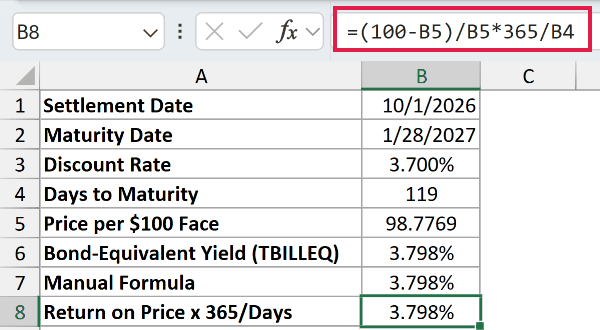
This comparison displays 3.798% too.
How this formula works:
100-B5finds the difference between the face value received and the price paid.- Dividing by
B5measures that gain against the money invested. - Multiplying by
365/B4annualizes the holding-period return using a 365-day year.
Pro Tip: Keep the reference to B5 in the return calculation. Its displayed price is rounded, while the cell retains the precision used by the formula.
Example 5: See What Changes Above 182 Days
The short manual calculation stops matching TBILLEQ when maturity is more than 182 days away.
Below is the dataset. Bill terms and maturities sit beside columns for days, yield, and comparisons; the side card holds the shared settlement date and discount rate.

We want to compare TBILLEQ with the short formula on both sides of the 182-day boundary.
Calculate days in C2, then copy down through C5:
=B2-$I$2

With settlement fixed at 11/5/2026, the rows return 182, 183, 273, and 364 days.
Enter TBILLEQ in D2 and copy down through D5:
=TBILLEQ($I$2,B2,$I$3)

At the shared 3.600% discount rate, the yields display 3.718%, 3.718%, 3.729%, and 3.753%.
Column E is the comparison that becomes wrong above 182 days. Enter the short formula in E2 and copy down through E5:
=365*$I$3/(360-$I$3*C2)

The short-formula comparison displays 3.718%, 3.718%, 3.752%, and 3.788%. Its longer-term results overstate the bond-equivalent yield.
To expose the comparison gap, enter this in F2 and copy down through F5:
=D2-E2

The comparison differences display 0.0000%, -0.0002%, -0.0231%, and -0.0351%. These are differences between rates, not relative percentage changes.
The 183-day yields look identical at the displayed precision, but their nonzero comparison difference shows they aren’t equal.
Above 182 days, Excel switches to Treasury’s longer quadratic calculation. Let TBILLEQ handle that switch instead of extending the short formula to longer bills.
Example 6: Spill Yields for Different Discount Rates
You can also calculate a rate grid with one formula, provided you prepare the range argument correctly.
Below is the dataset. Column A contains trial discount rates, column B awaits yields, and E2:E3 contain the fixed settlement and maturity dates.
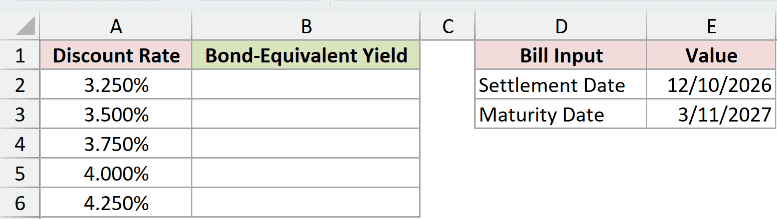
We want one formula to calculate the yield for every trial rate using the same bill dates.
Enter this formula in B2:
=TBILLEQ(E2,E3,+A2:A6)
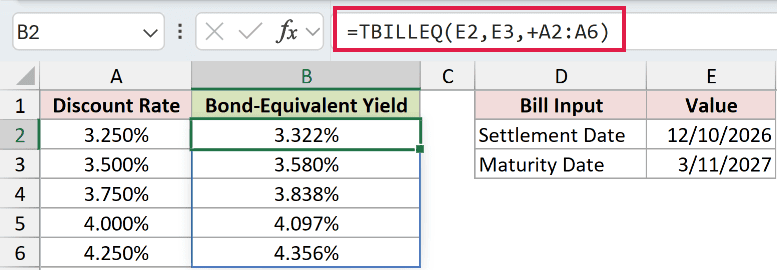
The leading + converts the range into a numeric array that TBILLEQ can process. A bare range returns a single #VALUE! error.
The formula spills into B2:B6, returning 3.322%, 3.580%, 3.838%, 4.097%, and 4.356%.
The dates stay fixed at 12/10/2026 and 3/11/2027, so this grid isolates the effect of changing the discount rate.
This spill works in Excel 2021, Excel 2024, and Microsoft 365. In Excel 2019 and earlier, use individual rate references and copy a per-row formula down.
Example 7: Diagnose Errors and Rate Entry Mistakes
Some invalid inputs produce an error, but a missing percent sign can return a number that looks like an answer.
Below is the dataset. Each case has settlement, maturity, and discount inputs, with column E reserved for the valid result and deliberate mistake demonstrations.
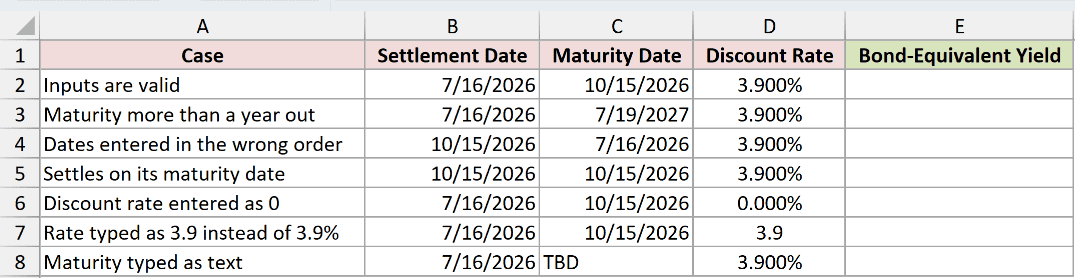
We want to see how TBILLEQ responds to each input problem beside a valid comparison case.
Enter this formula in E2 and copy it down through E8:
=TBILLEQ(B2,C2,D2)
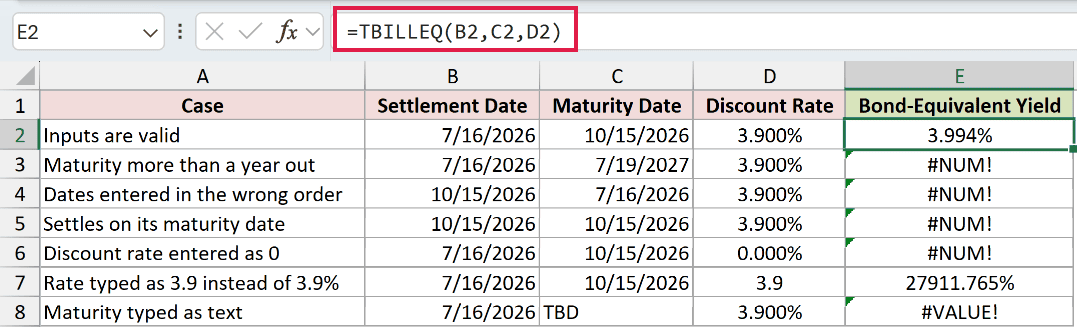
The valid comparison row returns 3.994% from the 3.900% discount rate. Every row below it deliberately demonstrates an input mistake.
- E3 returns
#NUM!: Maturity on 7/19/2027 is more than one calendar year after settlement on 7/16/2026. Check the maturity date. - E4 returns
#NUM!: The dates are reversed. Settlement must come before maturity. - E5 returns
#NUM!: Settlement and maturity are the same date. TBILLEQ requires a positive period between them. - E6 returns
#NUM!: The discount rate is0.000%. Supply a positive discount rate. - E7 returns
27911.765%: The rate was mistakenly typed as3.9instead of3.9%. Excel calculates with that wrong input without returning an error. - E8 returns
#VALUE!: The maturity cell containsTBD, which Excel can’t interpret as a date. Replace the placeholder with the maturity date.
Tips & Common Mistakes
- Use your settlement date. The calculation starts when your purchase settles, so don’t automatically substitute the bill’s original issue date.
- Check the rate’s meaning. TBILLEQ expects a discount rate. A purchase price or an already-converted yield is the wrong input.
- Respect the maturity limit. Maturity must be after settlement and no more than one calendar year later. A negative discount rate also returns
#NUM!. - Keep date inputs consistent. Recognizable text dates can work, but cells holding actual Excel dates avoid dependence on text interpretation. Time portions are ignored.
- Don’t extend the short formula. Once the term exceeds 182 days, use TBILLEQ’s result rather than the short-formula comparison.
- Keep comparisons on the same basis. The CD example uses a nominal annual rate. Substituting an APY changes the comparison because APY includes compounding.
Other Excel articles you may also like:
