
To sum a range with Excel VBA, you can call Excel’s SUM function from your macro using WorksheetFunction.Sum.
The total can stay in a VBA variable or be written to a cell. If you want it to update when the source values change, your macro can insert a SUM formula instead.
In this article, I’ll show you both approaches, plus Evaluate and a loop. I’ll also cover changing ranges, multiple ranges, and totals that exclude filtered or hidden rows.
The main difference between the four approaches is whether the macro writes a fixed total or leaves a formula behind:
| Approach | What the Example Writes | Updates When Inputs Change? |
|---|---|---|
| WorksheetFunction.Sum | A fixed total | Run the macro again |
| A SUM formula | A worksheet formula | Yes, with automatic calculation |
| Worksheet.Evaluate | A fixed total | Run the macro again |
| For Each loop | A fixed total | Run the macro again |
Method #1: Using WorksheetFunction.Sum
I recommend this method when you need a total inside a macro. It calls the same SUM function you use in a worksheet, so you don’t need to add the cells one at a time.
Below I have eight cabin reservations on the Cabin Bookings sheet. The lodging charges are in C2:C9, and I want their total in G2.
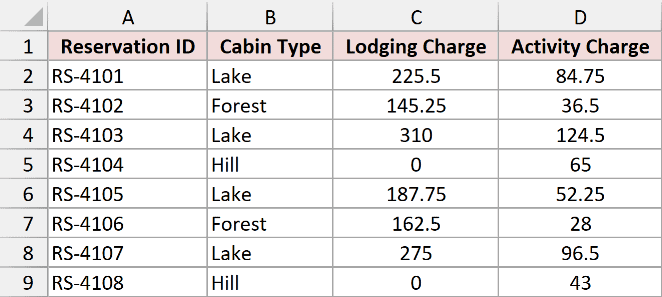
Use this complete procedure:
Public Sub SumFixedRange()
    Dim ws As Worksheet
    Dim total As Double
    Set ws = ThisWorkbook.Worksheets("Cabin Bookings")
    total = Application.WorksheetFunction.Sum(ws.Range("C2:C9"))
    ws.Range("G2").Value2 = total
End SubHere are the steps to use it in Excel for Windows:
- Open the downloaded example file in desktop Excel. If it opens in Protected View, click Enable Editing.
- Save a copy as an Excel Macro-Enabled Workbook with the
.xlsmextension. - On Cabin Bookings, select G2 and press Delete to clear the saved answer. Keep the label in F2.
- Press Alt + F11, then choose Insert > Module in the VBA Editor. Insert the module into your example workbook’s project.
- Paste the code into the module, click inside
SumFixedRange, and press F5. - Press Alt + F11 to return to the worksheet.
Cell G2 now contains 1306.
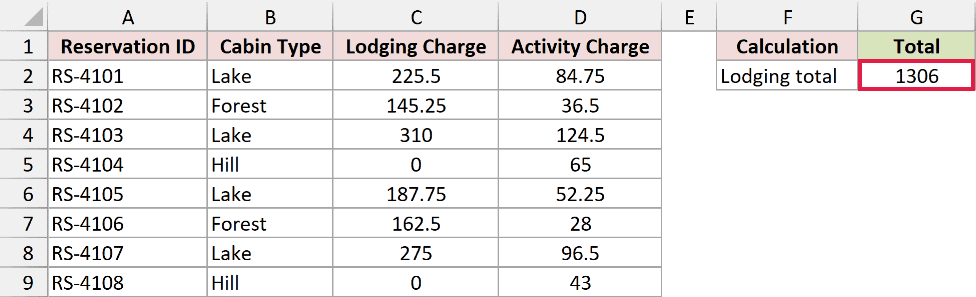
How does the code work?
ws points to the Cabin Bookings sheet in the workbook containing the macro. WorksheetFunction.Sum adds its lodging charges and returns the answer as a Double.
The last line writes that number to G2. There is no formula in G2, so changing a lodging charge won’t update it until you run the macro again.
Use Double for totals that can contain decimals. An Integer or Long cannot preserve the decimal part, and an Integer also has a much smaller limit.
Note: Paste the code into the workbook that contains your data. ThisWorkbook means the workbook holding the macro, which may differ from the workbook currently active on screen.
Summing More Than One Range
You can pass several ranges to SUM in the same call. On Cabin Bookings, the lodging charges are in C2:C9 and activity charges are in D2:D9.
The following procedure writes the activity total to G3 and the combined total to G4:
Public Sub SumMultipleRanges()
    Dim ws As Worksheet
    Set ws = ThisWorkbook.Worksheets("Cabin Bookings")
    ws.Range("G3").Value2 = Application.WorksheetFunction.Sum(ws.Range("D2:D9"))
    ws.Range("G4").Value2 = Application.WorksheetFunction.Sum( _
        ws.Range("C2:C9"), ws.Range("D2:D9"))
End SubClear G3:G4, paste the procedure into the same module, and run SumMultipleRanges with F5.
The activity charges total 530.5, and the combined total is 1836.5.
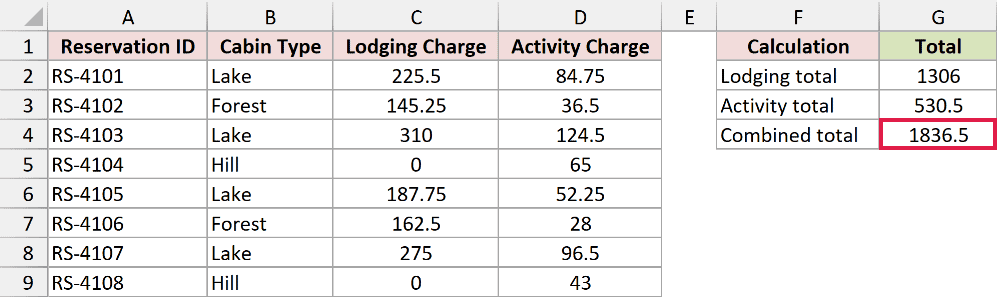
A range can also cover a row or an entire column. For example, ws.Range("C2:D2") refers to the first reservation’s two charges, while ws.Range("C:C") refers to the whole lodging column.
Keep the output cell outside the range you add. A whole-column total can accidentally include an existing total farther down that column.
Summing the Selected Cells
The macro can use Selection to add the cells you choose. In this example, select C2:C4 on Cabin Bookings to add the lodging charges for the first three reservations.
Public Sub SumSelectedCells()
    Dim ws As Worksheet
    Dim chosen As Range
    Set ws = ThisWorkbook.Worksheets("Cabin Bookings")
    If TypeName(Application.Selection) <> "Range" Then
        MsgBox "Select the cells you want to add first."
        Exit Sub
    End If
    Set chosen = Application.Selection
    ws.Range("G5").Value2 = Application.WorksheetFunction.Sum(chosen)
End SubClear G5, select C2:C4, and run SumSelectedCells from the VBA Editor. The code writes 680.75 to G5.
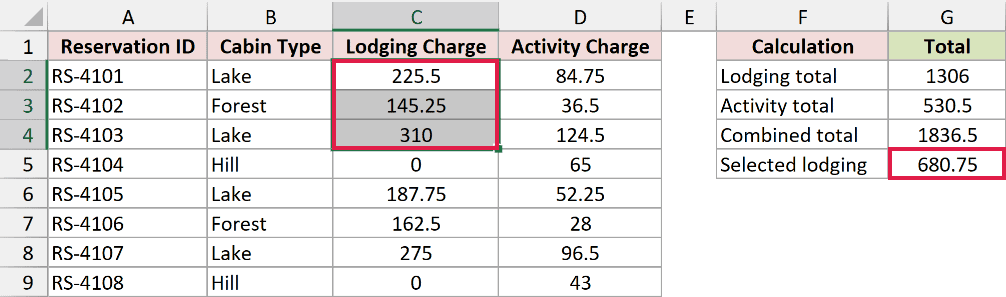
The type check prevents the procedure from trying to sum a selected chart or another non-cell object. The output still goes to Cabin Bookings, even if you select cells elsewhere.
Summing a Named Range
The example file already has a workbook-level name, LodgingCharges, referring to ‘Cabin Bookings’!$C$2:$C$9.
This procedure uses that name instead of repeating the cell addresses:
Public Sub SumNamedRange()
    Dim ws As Worksheet
    Set ws = ThisWorkbook.Worksheets("Cabin Bookings")
    ws.Range("G6").Value2 = Application.WorksheetFunction.Sum( _
        ThisWorkbook.Names("LodgingCharges").RefersToRange)
End SubClear G6 on Cabin Bookings, paste the procedure into your module, and run SumNamedRange. The result is 1306.
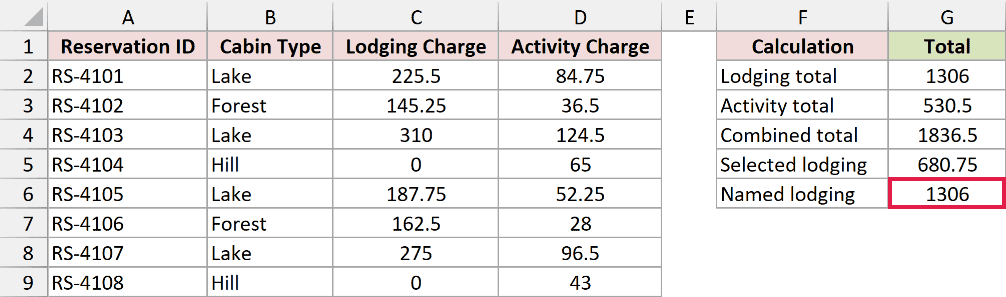
RefersToRange returns the cells behind the name. If you adapt this example, the defined name must refer to a cell range and exist in the workbook containing the macro.
Summing a Range That Grows
A fixed reference such as C2:C9 won’t include a new record added below row 9. On Growing List, I have added reservation RS-4109, with a lodging charge of 198.75 in C10.
Here is the code to find the last record before adding the lodging charges:
Public Sub SumGrowingRange()
    Dim ws As Worksheet
    Dim lastRow As Long
    Set ws = ThisWorkbook.Worksheets("Growing List")
    ' Reservation IDs identify records, including records with a blank charge.
    lastRow = ws.Cells(ws.Rows.Count, "A").End(xlUp).Row
    If lastRow < 2 Then
        ws.Range("G2").Value2 = 0
        Exit Sub
    End If
    ws.Range("G2").Value2 = Application.WorksheetFunction.Sum( _
        ws.Range("C2", ws.Cells(lastRow, "C")))
End SubClear G2 on Growing List and run SumGrowingRange. It includes C10 and returns 1504.75.
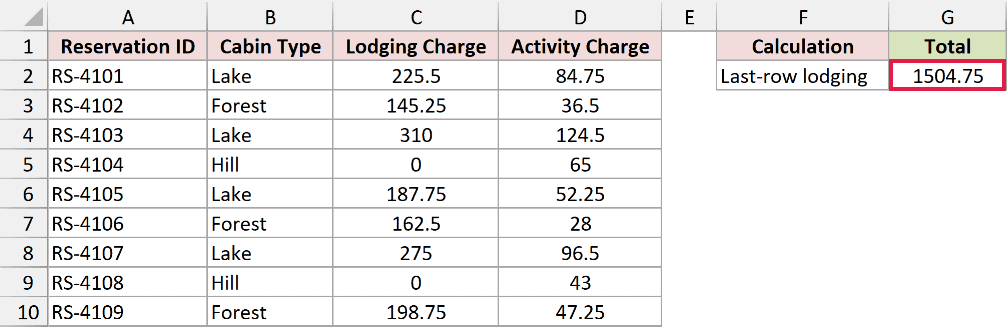
The code finds the last populated row in column A because reservation IDs identify the records. It then builds a range from C2 to the lodging cell on that row.
Using the ID column also lets the sum cross a blank lodging cell without stopping there. If the sheet contains only the header row, the procedure writes zero.
lastRow is a Long because it stores a row number. The total itself can still contain decimals.
Summing an Excel Table Column
The Growing List data is also an Excel table named CabinStays. Its Lodging Charge column contains the same nine charges.
An Excel table lets you refer to the column by its name:
Public Sub SumTableColumn()
    Dim ws As Worksheet
    Dim amounts As Range
    Set ws = ThisWorkbook.Worksheets("Growing List")
    Set amounts = ws.ListObjects("CabinStays").ListColumns("Lodging Charge").DataBodyRange
    If amounts Is Nothing Then
        ws.Range("G3").Value2 = 0
    Else
        ws.Range("G3").Value2 = Application.WorksheetFunction.Sum(amounts)
    End If
End SubClear G3 on Growing List and run SumTableColumn. The result is 1504.75.
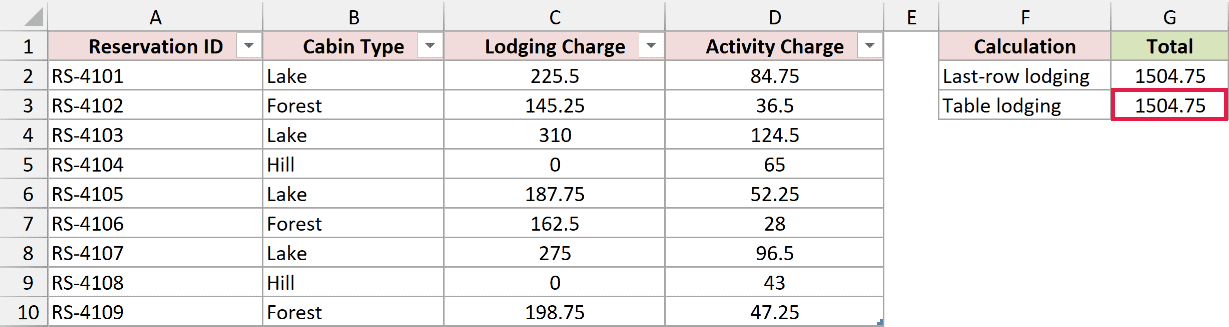
DataBodyRange includes the table column’s data cells and excludes its header and totals row. When you add records inside the table, the referenced data range expands with it.
The Nothing check handles a table with no data rows. The table reference can grow, but this macro still writes a fixed answer, so run it again after adding a booking.
Method #2: Inserting a SUM Formula
If you want the total to update after editing a charge, have VBA write a formula into the worksheet.
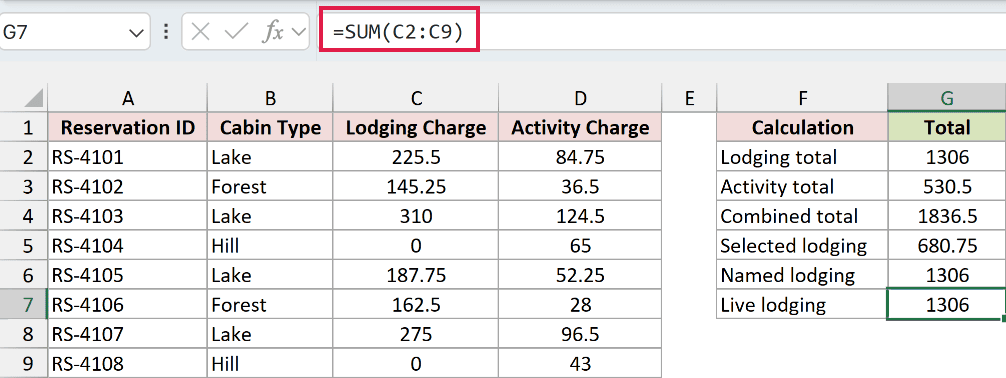
Below I have the Cabin Bookings data again. I want to sum lodging charges in C2:C9, leaving the formula in G7.
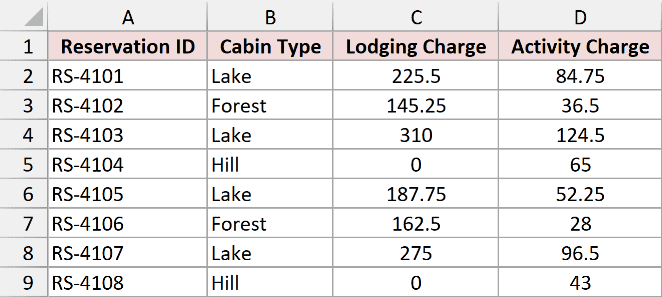
Here is the VBA code:
Public Sub InsertSumFormula()
    Dim ws As Worksheet
    Set ws = ThisWorkbook.Worksheets("Cabin Bookings")
    ws.Range("G7").Formula = "=SUM(C2:C9)"
End SubIn your macro-enabled example workbook, clear G7 on Cabin Bookings. Paste this procedure into a standard module, click inside InsertSumFormula, and press F5.
G7 displays 1306, and its formula bar shows =SUM(C2:C9).
How does the code work?
The Formula property writes the quoted text as an Excel formula. Excel calculates the total in the cell, rather than VBA calculating it and storing only the answer.
With automatic calculation enabled, changing a charge inside C2:C9 updates G7. If calculation is set to manual, recalculate the workbook to update it.
This is still a fixed range. Appending a record below C9 won’t automatically extend that reference; use a table reference or have the macro build the correct ending row when that is what you need.
Method #3: Using Worksheet.Evaluate
Here’s another option when your macro already builds an Excel expression as text. Evaluate calculates that expression and returns its result without leaving a formula in the output cell.
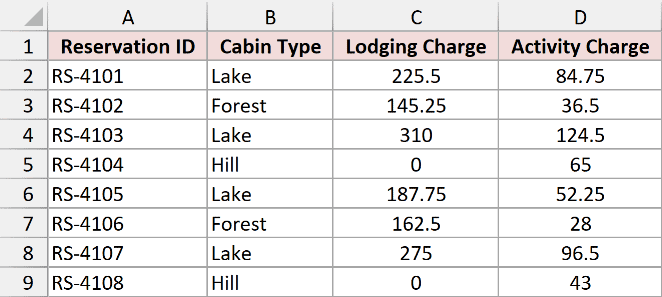
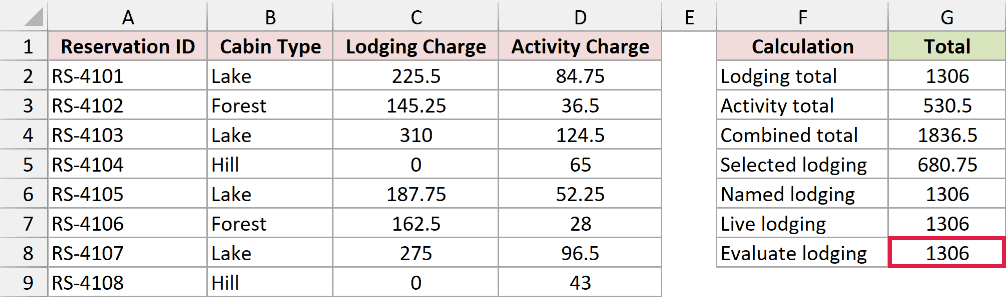
Below I have lodging charges in C2:C9 on Cabin Bookings. This time, I want their total in G8.
Use this complete procedure:
Public Sub EvaluateSum()
    Dim ws As Worksheet
    Dim result As Variant
    Set ws = ThisWorkbook.Worksheets("Cabin Bookings")
    result = ws.Evaluate("SUM(C2:C9)")
    If IsError(result) Then
        Err.Raise vbObjectError + 513, "EvaluateSum", _
            "The range contains an Excel error."
    End If
    ws.Range("G8").Value2 = result
End SubClear G8 on Cabin Bookings, paste the procedure into a standard module in your macro-enabled example workbook, and run EvaluateSum with F5.
The code writes 1306 to G8.
How does the code work?
ws.Evaluate evaluates SUM(C2:C9) in the context of the Cabin Bookings worksheet. Qualifying it with ws keeps the reference tied to that sheet.
The result is stored in a Variant so the code can test whether Excel returned an error. If it did, the procedure raises an error instead of writing an apparently valid total.
G8 holds a fixed value after the macro runs. For an ordinary range total, I would use WorksheetFunction.Sum because the Range argument is easier to follow.
Method #4: Using a For Each Loop
A loop lets you inspect each cell before adding it. I would use it when the macro needs rules applied to individual cells, rather than as my first choice for a straightforward sum.
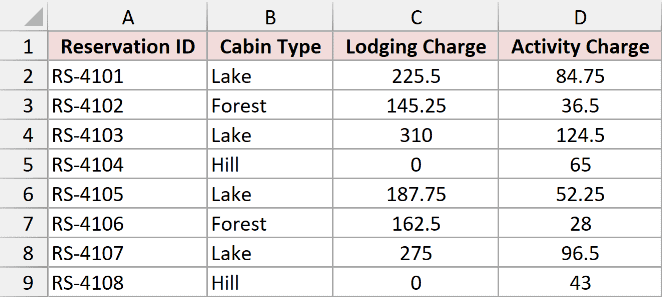
Below I have the same Cabin Bookings lodging charges in C2:C9. I want their total in G9.
Paste both procedures below into the same standard module. The first calls the function underneath it:
Public Sub SumWithLoop()
    Dim ws As Worksheet
    Set ws = ThisWorkbook.Worksheets("Cabin Bookings")
    ws.Range("G9").Value2 = SumNumericCells(ws.Range("C2:C9"))
End Sub

Public Function SumNumericCells(ByVal source As Range) As Double
    Dim cell As Range
    Dim value As Variant
    Dim total As Double
    For Each cell In source.Cells
        value = cell.Value2
        If IsError(value) Then
            Err.Raise vbObjectError + 514, "SumNumericCells", _
                "The range contains an Excel error."
        End If
        ' Value2 returns worksheet numbers as Double, including dates as serials.
        ' Text, text numbers, blanks, and Boolean values are not added.
        If VarType(value) = vbDouble Then total = total + value
    Next cell
    SumNumericCells = total
End FunctionClear G9 on Cabin Bookings, click inside SumWithLoop, and press F5. The result is 1306.
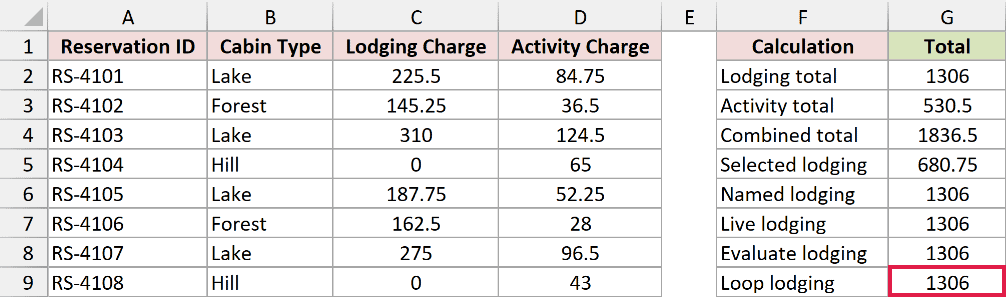
How does the code work?
For Each visits every cell in the range. Value2 reads its underlying value, and the type check adds numeric cells while leaving out text, text numbers, blanks, and Boolean values.
The function raises an error if it encounters an Excel error value. It doesn’t silently skip a broken source cell and return a lower total.
For worksheet numeric cells read with Value2, vbDouble identifies the values to add. Dates are stored as numbers too, so keep date cells out of an amount range.
Sum a Range With Criteria, Filters, or Hidden Rows
The examples above add every numeric value in the referenced range. A condition or a filtered list needs a different worksheet function, which you can still call from VBA.
Summing Values That Match a Condition
On Cabin Bookings, cabin types are in B2:B9 and lodging charges are in C2:C9. To total only Lake cabins, use SUMIF, which checks the cabin type before adding its corresponding charge.
Public Sub SumByCriteria()
    Dim ws As Worksheet
    Set ws = ThisWorkbook.Worksheets("Cabin Bookings")
    ws.Range("G10").Value2 = Application.WorksheetFunction.SumIf( _
        ws.Range("B2:B9"), "Lake", ws.Range("C2:C9"))
End SubClear G10 on Cabin Bookings and run SumByCriteria. The Lake lodging total is 998.25.
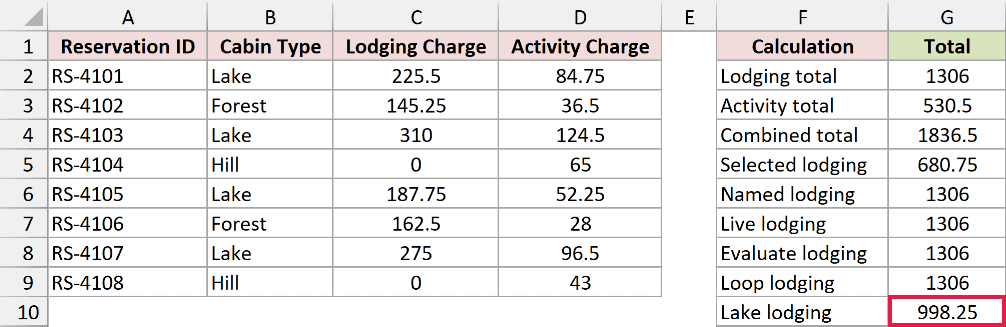
The first range contains the values to check, "Lake" is the condition, and the last range contains the charges to add.
Summing a Filtered List
On Filtered Bookings, the cabin-type filter already shows only Lake bookings. Ordinary SUM still includes the filtered-out rows, so its lodging total remains 1306.
SUBTOTAL with function number 9 adds the lodging charges while excluding rows removed by that filter:
Public Sub SumFilteredRows()
    Dim ws As Worksheet
    Set ws = ThisWorkbook.Worksheets("Filtered Bookings")
    ws.Range("G12").Value2 = Application.WorksheetFunction.Sum(ws.Range("C2:C9"))
    ws.Range("G13").Value2 = Application.WorksheetFunction.Subtotal(9, ws.Range("C2:C9"))
End SubClear G12:G13 on Filtered Bookings and run SumFilteredRows. G12 contains the all-row total of 1306, while G13 contains 998.25 for the filtered list.
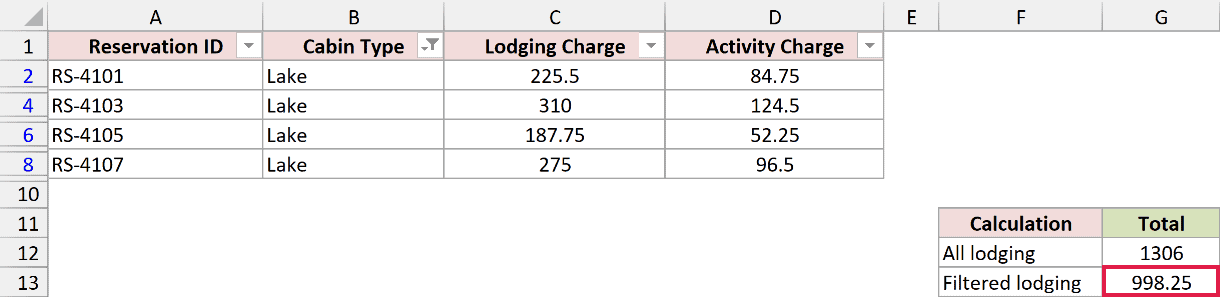
The output cells sit below the filter’s row range so filtering the data doesn’t hide either answer.
Excluding Manually Hidden Rows
The Hidden Bookings sheet has no filter applied. Row 4, containing a lodging charge of 310, is manually hidden.
For this case, SUBTOTAL 9 includes that manually hidden row, while 109 excludes it:
Public Sub SumHiddenRows()
    Dim ws As Worksheet
    Set ws = ThisWorkbook.Worksheets("Hidden Bookings")
    ws.Range("G2").Value2 = Application.WorksheetFunction.Subtotal(9, ws.Range("C2:C9"))
    ws.Range("G3").Value2 = Application.WorksheetFunction.Subtotal(109, ws.Range("C2:C9"))
End SubClear G2:G3 on Hidden Bookings and run SumHiddenRows. The totals are 1306 including the hidden row and 996 excluding it.
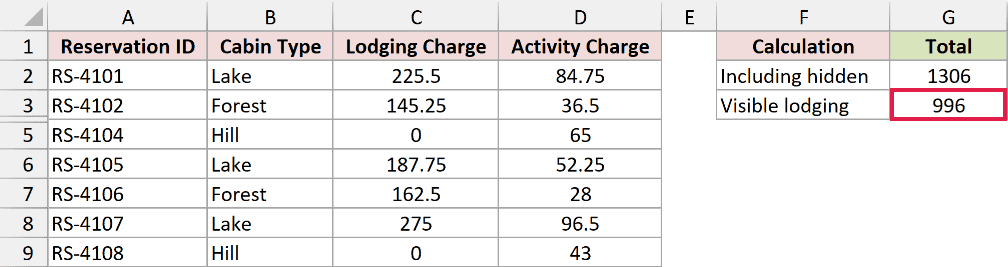
Both codes exclude filtered-out rows. Use 109 when you also want to exclude rows that have been manually hidden.
Why a VBA Sum Skips Values or Returns an Error
On Data Checks, the imported-charge column contains numeric values, a number stored as text, a blank, the word Pending, TRUE, and a deliberate #N/A error.
The numeric values in B2:B7 total 535.5. The text number 145.25 in B3 is ignored when SUM receives the cell range as its argument.
Including the error in B8 makes the longer sum fail. The saved worksheet result displays #N/A; calling WorksheetFunction.Sum on that error-containing range raises run-time error 1004.
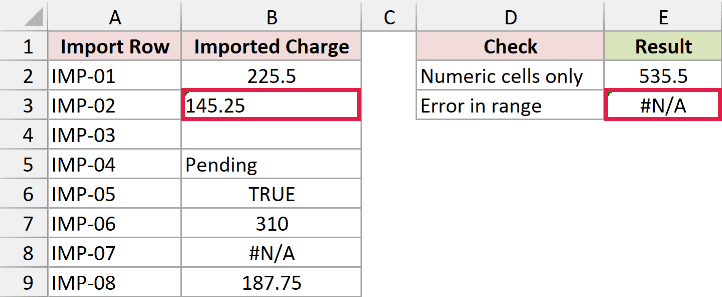
Convert numbers stored as text into numeric values when they are supposed to contribute to the total. If a source cell contains an error, fix its cause or explicitly choose a calculation that handles errors the way your task requires.
The loop in Method #4 deliberately follows the numeric-cell rule and rejects source errors. A simple IsNumeric check behaves differently because it also accepts many numeric strings.
Additional Notes About Summing a Range with VBA in Excel
A few range-reference details are worth checking when adapting the examples:
- Qualify both ends of a constructed range. In the growing-range code, both Range and Cells belong to
ws, so the ending cell can’t accidentally come from a different active sheet. - Keep totals out of their own source ranges. A previous total in the same column can be added again if you use a whole-column reference.
- Check overlapping ranges. If the same numeric cell appears in two arguments, SUM adds its value twice. Use disjoint ranges when each value should count once.
Frequently Asked Questions
These questions cover using the same approaches in other VBA situations.
Does VBA Have Its Own SUM Function?
VBA doesn’t have a standalone SUM function in its language library. Application.WorksheetFunction.Sum calls Excel’s worksheet SUM function from your VBA procedure.
Can I Sum Ranges From Different Worksheets?
Yes. Pass each worksheet’s Range object to WorksheetFunction.Sum, qualifying each one with its own worksheet or workbook. The ranges don’t need to be on the same sheet.
Can I Run These VBA Macros in Excel for the Web?
No. Open the workbook in desktop Excel to create, edit, or run VBA macros. The setup shortcuts in this article are for Windows; the worksheet calculations themselves don’t require a recent dynamic-array version of Excel.
Conclusion
In this tutorial, I showed you four ways to sum a range with Excel VBA, including how to leave a SUM formula that updates when its inputs change. I hope you found this article helpful.
Other Excel articles you may also like: