
The “Fixed objects will move” warning can interrupt filtering or saving in Excel. It concerns worksheet objects, which can include pictures, buttons, shapes, and older cell notes.
The awkward part is finding the item behind it. A sheet can look like ordinary data while containing a hidden object or a note you haven’t opened.
I’ll show you how to check their placement settings, remove unwanted items, and update multiple notes with VBA. These steps are for desktop Excel on Windows.
Before You Change Anything
Save a backup copy first. Keep the original available until you have repeated the action that caused the warning and checked your workbook’s layout.
If the warning keeps returning and you cannot reach the worksheet, see the first FAQ below before trying these methods.
Start with the affected worksheet. Changing an unrelated picture will not resolve a problem caused by a different object or note.
| What You Find | Where to Start |
|---|---|
| A picture, shape, or button you need | Method #1: Change its placement |
| Legacy cell notes | Method #2: Check their properties |
| An object or note you no longer need | Method #3: Remove that item |
| Many notes to update | Method #4: Use the VBA macro |
These are troubleshooting options, not guaranteed fixes for every workbook. The screenshots illustrate the settings to inspect; a fixed object does not always produce this warning.
Method #1: Changing Object Placement
I recommend checking object placement first when the worksheet contains a picture, shape, or button you want to keep.
Excel lets an object move with its underlying cells, move and resize with them, or remain independent of them.
The example below contains a shape beside the worksheet data. You can inspect a picture in much the same way.
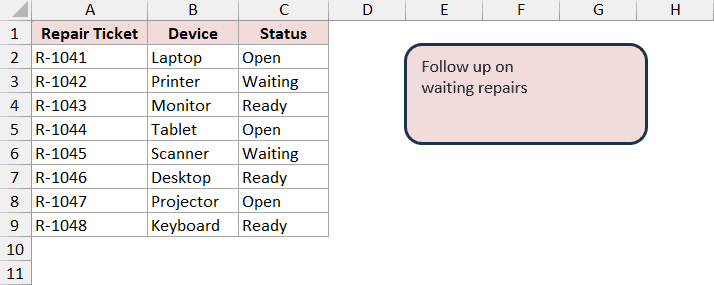
Here are the steps to check a shape’s placement:
- On the affected sheet, go to Home > Find & Select > Selection Pane. Select the shape by its name in the pane.
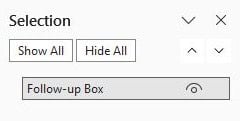
The Selection Pane helps you inspect objects that overlap or are difficult to select directly. Review its entries instead of assuming the visible shape is the only object.
- Right-click the shape’s border and open Size and Properties. In the formatting pane, expand Properties.
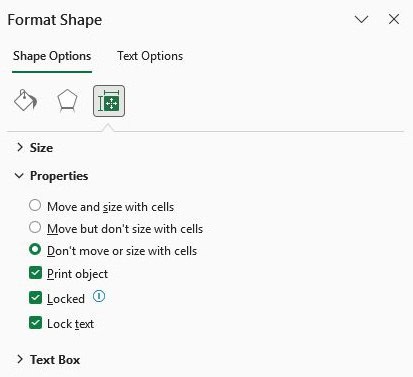
- If Don’t move or size with cells is selected, try Move and size with cells. Close the pane and repeat the action that triggered the warning.
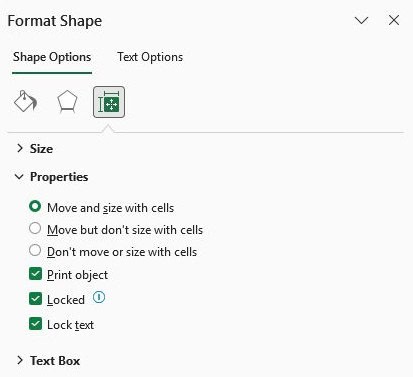
This changes the object’s attachment to the cells beneath it. Check the object after filtering or changing row heights, since it can now resize with those cells.
If its dimensions must stay fixed, Move but don’t size with cells is the alternative to test. It allows movement while retaining the object’s size.
Form controls use a Format Control dialog instead. Where available, its Properties tab contains the placement choices. Available options depend on the control type.
Note: Changing placement can affect a dashboard’s layout. Test one object at a time in your backup copy, and retain a change only if it helps and the layout still works.
Method #2: Changing Note Properties
If checking shapes doesn’t help, inspect the worksheet’s notes. This is especially relevant when the warning appears during filtering.
In Microsoft 365, Notes are the older cell annotations. Comments are threaded conversations with replies. The placement settings here apply to notes.
Below, a note is attached to a cell in the worksheet. Its yellow box has its own position and size settings.
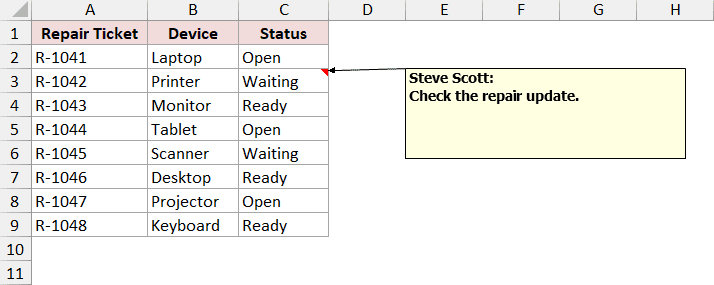
Here are the steps to change a note’s placement:
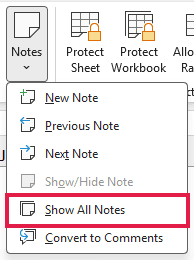
- Go to Review > Notes > Show All Notes to locate the notes on the worksheet.
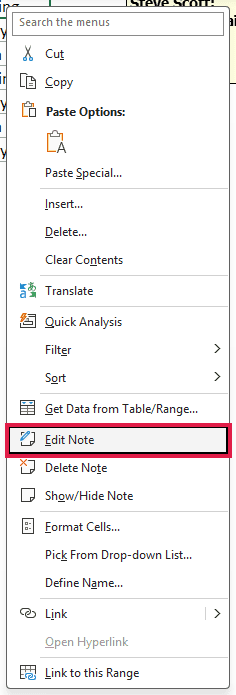
- Right-click the cell containing the note and choose Edit Note.
- Right-click the border of the note box, rather than its text, and choose Format Comment.
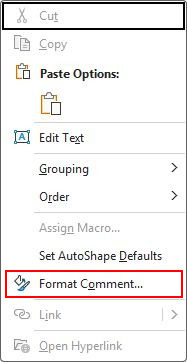
The dialog still uses the word “Comment.” If you see only font settings, close it and select the note’s border before trying again.
- On the Properties tab, select Move and size with cells, then click OK. Retry the filter or other action that produced the warning.
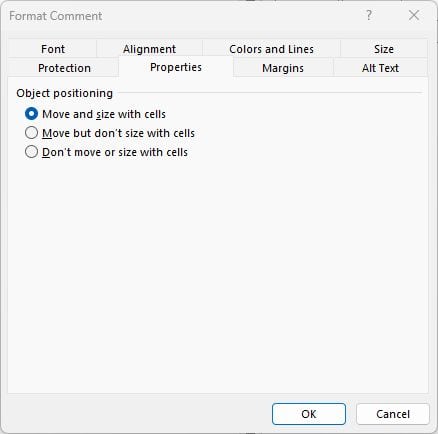
Check other notes if the warning continues. For a sheet containing many notes, Method #4 applies this placement setting to all of them at once.
Method #3: Removing Unneeded Objects or Notes
If an old shape or annotation serves no purpose, removing it is another option. First confirm what it does, particularly if it could be a macro button.
The worksheet below contains a shape that is no longer needed. Removing a shape leaves the cell contents beneath it in place.
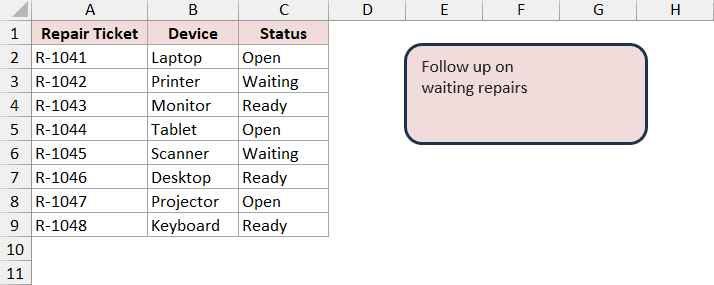
Here are the steps to remove an unwanted shape:
- Open Home > Find & Select > Selection Pane. Select only the object you have identified as unnecessary.
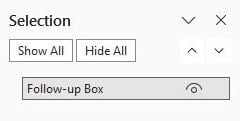
- Press Delete while the object is selected. Check that the intended object disappeared, then retry the action that triggered the warning.
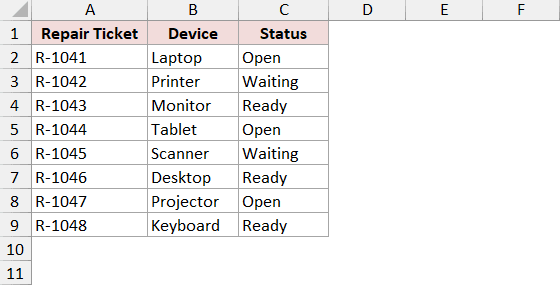
For an unwanted note, use the cell’s Delete Note command instead of deleting the cell itself. Copy any information you still need before removing it.
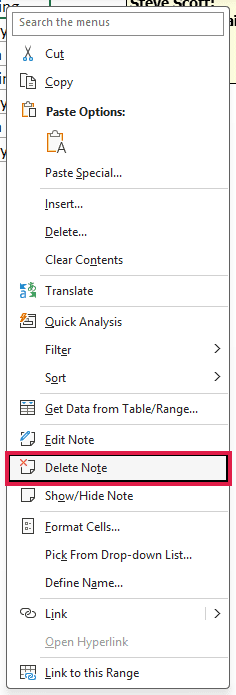
Note: Do not select every object and press Delete without reviewing them. That can remove charts, pictures, and controls your workbook still needs.
Method #4: Updating Note Placement With VBA
For a worksheet containing many notes, a short macro can change their placement together. It targets legacy notes on the active worksheet only.
The worksheet below illustrates notes attached to several cells. The macro keeps their text and changes how their boxes attach to the worksheet.
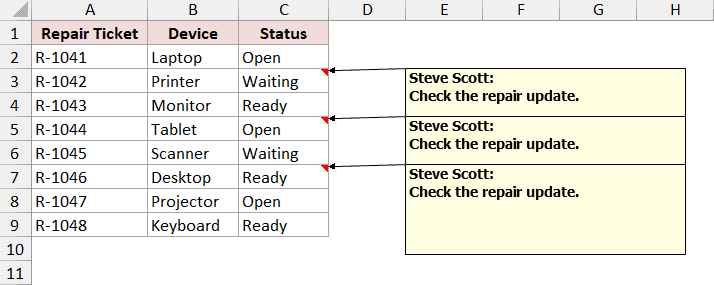
Save a backup before running it. VBA changes cannot normally be reversed with Ctrl + Z, and this macro can resize note boxes when cells change size.
Here is the VBA code:
Sub UpdateNotePlacement()
    Dim ws As Worksheet
    Dim cellNote As Comment

    If Not TypeOf ActiveSheet Is Worksheet Then
        MsgBox "Select a worksheet first."
        Exit Sub
    End If

    Set ws = ActiveSheet
    If ws.ProtectContents Or ws.ProtectDrawingObjects Then
        MsgBox "Unprotect this worksheet before continuing."
        Exit Sub
    End If

    If ws.Comments.Count = 0 Then
        MsgBox "There are no legacy notes on this worksheet."
        Exit Sub
    End If

    For Each cellNote In ws.Comments
        cellNote.Shape.Placement = xlMoveAndSize
    Next cellNote

    MsgBox "Note placement updated. Retry the original action."
End SubHere are the steps to run the macro:
- Select the affected worksheet and press Alt + F11 to open the VBA Editor.
- In the Project Explorer, select your workbook, then choose Insert > Module.
- Paste the code into that module.
- Return to Excel with Alt + F11, confirm the affected sheet is active, then press Alt + F8. Select UpdateNotePlacement and click Run.
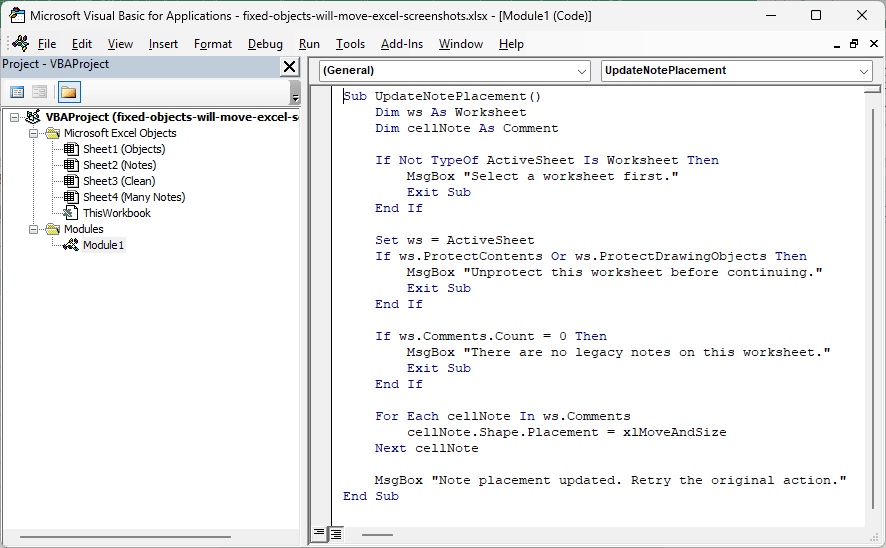
The Comments collection uses Excel’s older terminology for notes. The macro does not change threaded comments, ordinary shapes, or notes on other worksheets.
xlMoveAndSize tells each note box to move and resize with its underlying cells. After running it, repeat the operation that previously produced the warning.
Save as Excel Macro-Enabled Workbook (.xlsm) if you want to keep the macro. An .xlsx file cannot store VBA code.
If your organization blocks macros, use the manual note settings instead. There is no need to weaken Excel’s global macro-security settings for this repair.
Additional Notes About Fixed Objects in Excel
- Check each affected worksheet separately. Fixing objects on one sheet does not change objects elsewhere in the workbook.
- Keep an original
.xlsfile when testing a newer format. Use.xlsmif it contains VBA you need to preserve; format conversion alone is not a guaranteed fix. - Worksheet protection can prevent object edits. Ask the workbook owner for access if you cannot change the relevant settings.
- This warning is different from “Cannot shift objects off sheet”. Do not assume instructions for that message apply to this one.
Frequently Asked Questions
What If Clicking OK Does Not Let Me Use Excel?
Allow time for Excel to finish the current operation. Repeatedly dismissing the warning does not change the underlying object settings.
If Excel remains unusable, ending its process is a last resort: unsaved changes in other workbooks in that process can also be lost.
After restarting, check the Document Recovery pane if it appears. Recovery depends on the saved or AutoRecover copies available, so it is not guaranteed.
Why Does Go To Special Say “No Objects Found”?
That result does not establish that the workbook is free of problematic notes or objects. Check legacy notes separately and confirm you are inspecting the affected worksheet.
Does This Warning Mean My Formulas Are Wrong?
The message concerns worksheet objects. It is not, by itself, evidence of a formula error or circular reference. Avoid deleting formula columns as a general fix.
What If the Warning Still Appears After These Changes?
Check whether it happens in one workbook or across unrelated files. For broader Excel freezes, Microsoft’s safe-mode troubleshooting can help identify application or add-in problems.
If only one file remains affected, preserve the original and consider Microsoft’s workbook-repair process. Neither safe mode nor repair is a guaranteed cure for this particular warning.
Conclusion
I’ve covered how to check object and note placement, remove unwanted items, and update notes in bulk. Start with the affected sheet’s objects and preserve a backup.
I hope you found this article helpful.
Other Excel articles you may also like:
