
Conditional formatting in Excel can highlight a cell when its text contains any word from a separate list. The word can appear anywhere in the cell, so a search for “light” can match both “Prism light display” and “Lighthouse lens.”
The built-in Text That Contains rule checks one keyword at a time. To check an editable list with one rule, you need a formula.
In this article, I’ll show you five ways to do this, including built-in rules, a list-based formula, and a VBA macro. Method #2 is the one I’d use for a list that changes.
Method #1: Applying the Text That Contains Rules
For two or three keywords that rarely change, Excel’s built-in rule is easy to set up. You repeat it for each word and choose the same fill color.
Below I have ten museum exhibits on the Short List sheet. Their descriptions are in B2:B11. D2:D5 contains “water,” “light,” and “sound,” with one blank cell. I want to highlight descriptions containing any of those words.
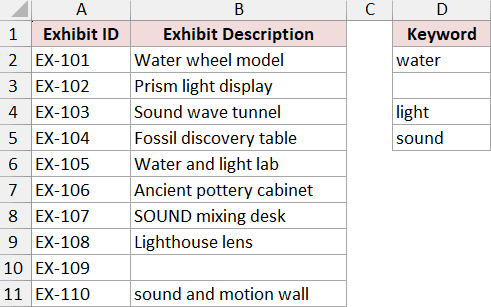
The download contains the finished rules. These steps start by clearing them so you can rebuild the example. The ribbon paths and shortcuts below are for Excel on Windows.
Here are the steps to apply the built-in rules:
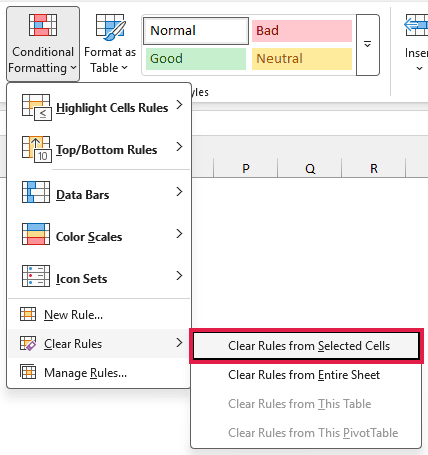
- Select B2:B11. If using the completed download, choose Home > Conditional Formatting > Clear Rules > Clear Rules from Selected Cells. Keep B2:B11 selected.
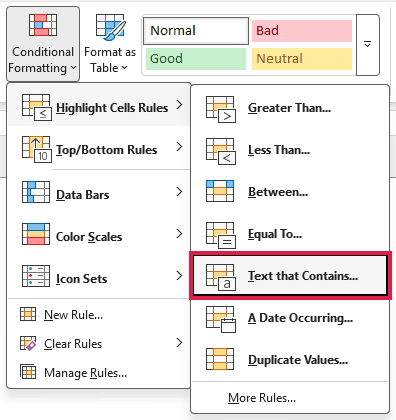
- Choose Home > Conditional Formatting > Highlight Cells Rules > Text that Contains.
- Type water in the text box. Choose Yellow Fill with Dark Yellow Text from the format list.
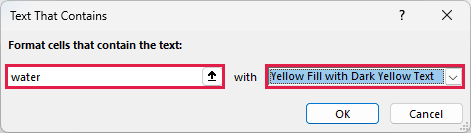
- Click OK to apply the rule.
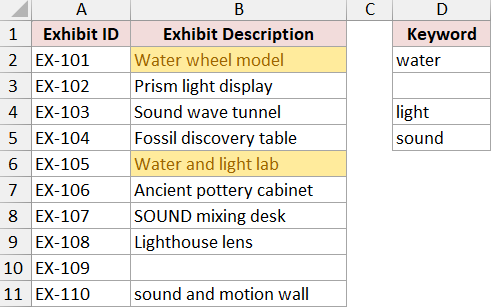
Two descriptions highlight: Water wheel model and Water and light lab. Capitalization does not affect this rule.
- Select B2:B11 again and repeat Steps 2 to 4 for light, then sound. Use the same format each time. Skip the blank keyword cell.
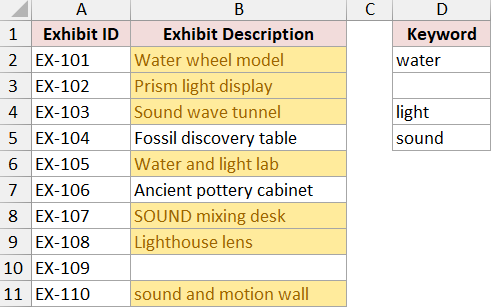
Seven descriptions now have a yellow fill. Lighthouse lens is included because “light” appears inside “Lighthouse.” A partial match does not have to be a separate word.
Note: These rules use the words you typed into their dialogs. Changing the displayed list in column D will not change those words. Use Method #2 when you want the rule to read the list itself.
Method #2: Using SUMPRODUCT and SEARCH
With a longer list, creating a separate rule for every word gets tedious. This formula checks the whole list in one rule, and highlighting updates when you edit a keyword within the referenced range. This is my recommended approach.
On the Any Keyword sheet, the exhibit descriptions are in B2:B11 and the keywords are in D2:D5. I want any nonblank keyword to trigger a highlight, even when its capitalization differs from the description.
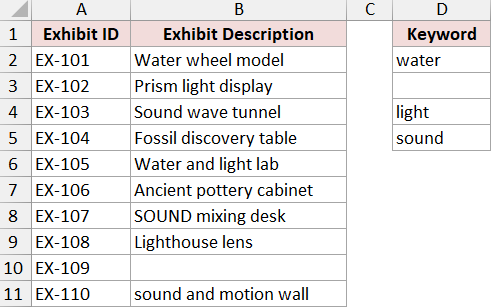
Here are the steps to create the list-based rule:
- Select B2:B11, starting at B2. In the completed download, first clear the existing rule using Home > Conditional Formatting > Clear Rules > Clear Rules from Selected Cells.
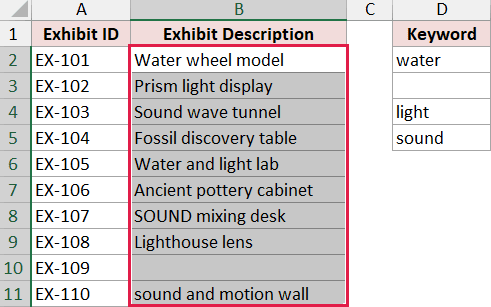
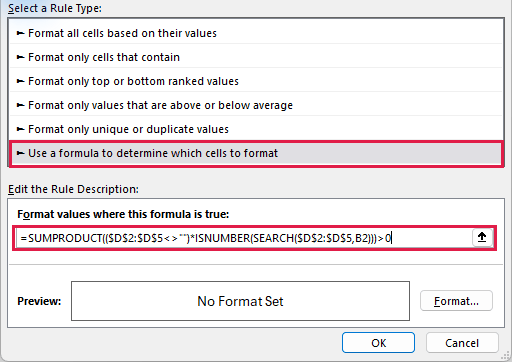
- Choose Home > Conditional Formatting > New Rule. Select Use a formula to determine which cells to format and enter this formula:
=SUMPRODUCT(($D$2:$D$5<>"")*ISNUMBER(SEARCH($D$2:$D$5,B2)))>0
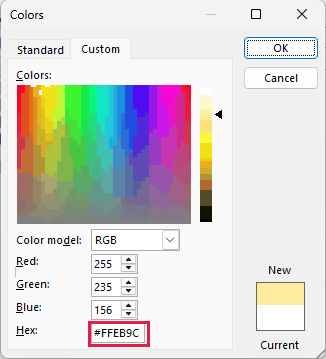
- Click Format, then Fill. Choose a light yellow. To match the workbook exactly, click More Colors > Custom and enter #FFEB9C in the Hex box.
- Click OK to close Colors if you opened it, then OK to close Format Cells and OK to create the rule.
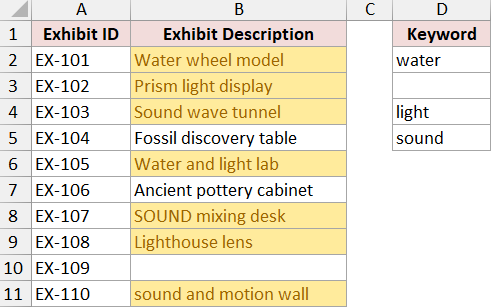
The highlighted cells are B2, B3, B4, B6, B8, B9, and B11. The blank description in B10 stays unhighlighted, and the blank keyword in D3 does not make every description match.
How does this formula work?
For Water wheel model in B2, SEARCH checks each entry in D2:D5. It returns a position when it finds the text and an error when it does not. SEARCH ignores case, so lowercase “water” matches the capitalized “Water.”
ISNUMBER turns those results into TRUE or FALSE. The separate $D$2:$D$5<>"" test excludes empty keywords, including formulas that return empty text. That matters because searching for an empty string can otherwise produce a match.
Multiplication converts those tests into 1s and 0s. SUMPRODUCT adds them, and >0 asks whether at least one nonempty keyword matched. Water and light lab matches two keywords, but still receives the format just once.
The dollar signs keep $D$2:$D$5 fixed. B2 stays relative, so Excel tests B3 on the next row, then B4. Do not change it to $B$2, which would make every description depend on the first one.
This is the same kind of test used to check if a cell contains text, but here its TRUE/FALSE result controls a fill. Enter it in the conditional-formatting dialog, not a worksheet cell. Excel evaluates it separately for each cell in the selected range.
Note: The list range has a fixed end. Editing D2:D5 updates this rule, but a keyword added in D6 is outside it. Extend both keyword references in the formula when you extend the list.
Method #3: Using SUMPRODUCT and FIND
If capitalization matters, replace SEARCH with FIND. FIND checks the text exactly as it is written, so lowercase “sound” will not match uppercase “SOUND.”
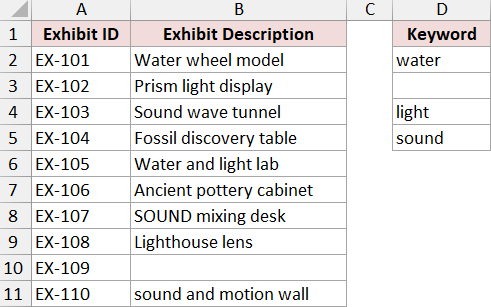
On the Match Case sheet, I have the exhibit descriptions in B2:B11 and lowercase keywords in D2:D5. This time, I only want descriptions containing one of those keywords with matching capitalization.
Here are the steps to apply the case-sensitive rule:
- Select B2:B11, starting at B2. If using the completed download, first choose Home > Conditional Formatting > Clear Rules > Clear Rules from Selected Cells.
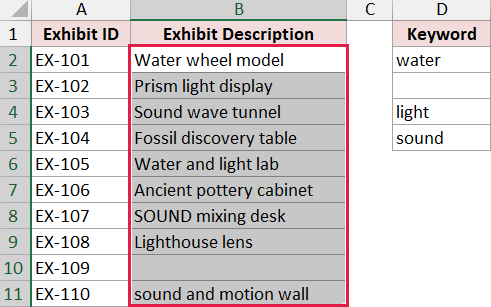
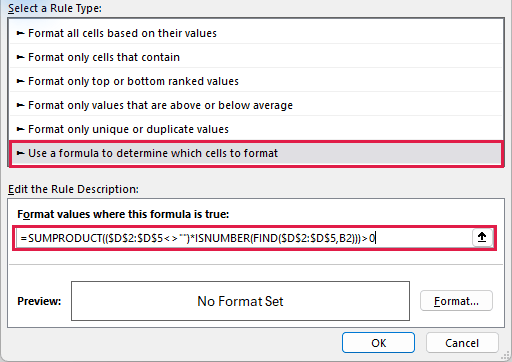
- Choose Home > Conditional Formatting > New Rule > Use a formula to determine which cells to format. Enter this formula:
=SUMPRODUCT(($D$2:$D$5<>"")*ISNUMBER(FIND($D$2:$D$5,B2)))>0
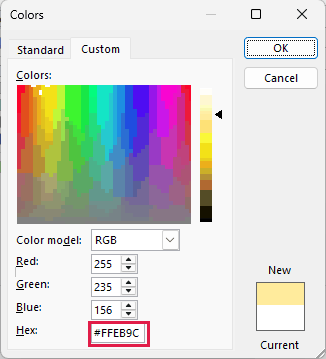
- Click Format > Fill and choose a light yellow. For the workbook color, use More Colors > Custom and enter #FFEB9C.
- Click OK to close Colors if it is open, then OK in Format Cells and OK in New Formatting Rule.
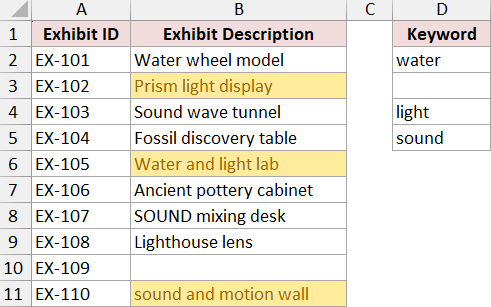
Only B3, B6, and B11 highlight: Prism light display, Water and light lab, and sound and motion wall.
How does this formula work?
FIND returns the starting position of a keyword only when its case matches. ISNUMBER turns each result into TRUE or FALSE, and SUMPRODUCT counts the matches after empty keywords have been excluded.
Water and light lab still matches because it contains lowercase “light.” Water wheel model, Sound wave tunnel, SOUND mixing desk, and Lighthouse lens lose their highlights because their matching text has different capitalization.
Note: FIND also treats * and ? as literal characters. SEARCH treats them as wildcards, so switching functions changes both case sensitivity and how those characters are interpreted.
Method #4: Using Find All and Fill Color
For a one-time highlight, you can find matching cells and color them directly. This is useful for a short list when you want a fixed snapshot rather than rules that recalculate.
On the Static Highlight sheet, the exhibit descriptions are in B2:B11 and the keywords are in D2:D5. I want to fill cells containing “water,” “light,” or “sound,” without adding conditional formatting.
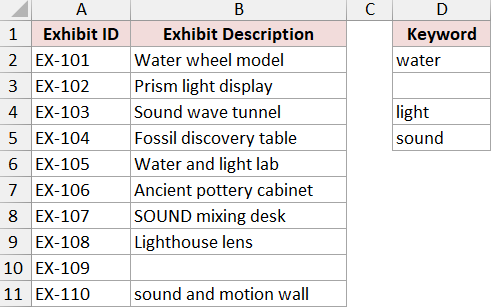
Here are the steps to find and color the matches:
- Select B2:B11. In the completed download, clear its saved fills using Home > Fill Color > No Fill. Keep B2:B11 selected.
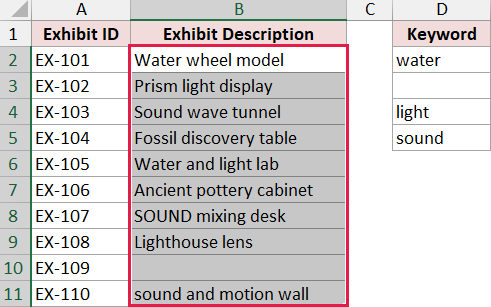
- Press Ctrl + F and type water. Click Options, set Within to Sheet and Look in to Values. Clear Match case and Match entire cell contents. Remove any saved Find Format criteria if a format is shown, then click Find All.
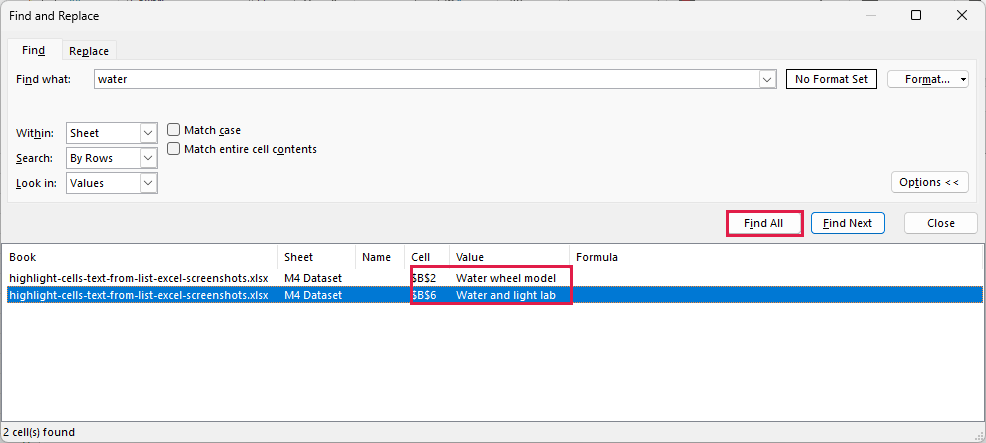
- Click a result in the list and press Ctrl + A to select all found cells. Click Close. On the Home tab, open Fill Color and choose a light yellow. Do not click a worksheet cell before applying the fill, or you will lose the multiple-cell selection.
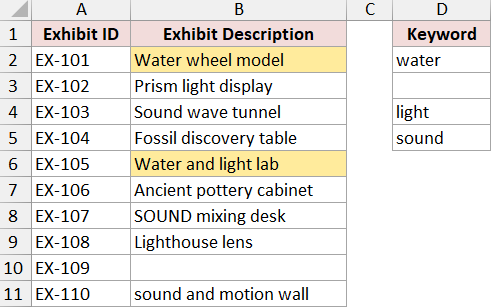
- Select the full range B2:B11 again. Repeat Steps 2 and 3 for light, then sound, using the same fill. Skip blank keywords. If a search finds no cells, close the dialog and move to the next keyword.
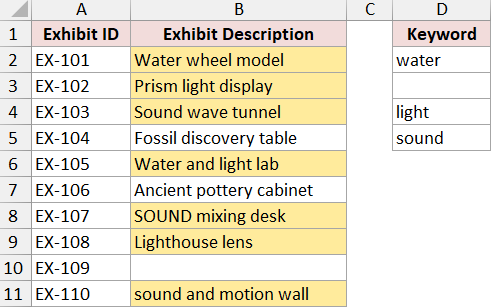
The same seven descriptions are highlighted. These fills stay where you put them, even if a description or keyword changes later. Clear the fills and repeat the searches to update the result.
Method #5: Running a VBA Macro
If you repeat the same static-highlighting task, a macro can loop through the list for you. This version ignores case and treats keyword characters literally.
On the Static Highlight sheet, the descriptions are in B2:B11 and the keywords are in D2:D5. The macro checks every description against each nonempty keyword, then fills the matching cells.
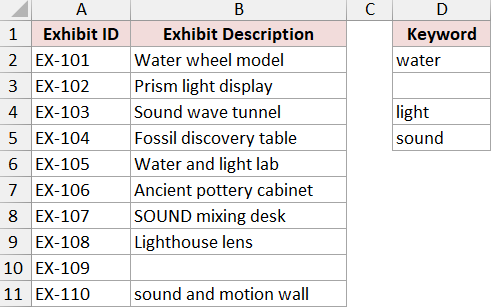
The code clears existing fills in B2:B11 before applying new ones. Use it on this example sheet or a copy of your data if you need to preserve existing fills. It does not remove conditional-formatting rules, which can override a normal fill.
Here is the complete VBA code:
Sub HighlightListMatches()
    Dim ws As Worksheet
    Dim target As Range, keyword As Range
    Set ws = ThisWorkbook.Worksheets("Static Highlight")

    ws.Range("B2:B11").Interior.Pattern = xlNone
    For Each target In ws.Range("B2:B11")
        If Not IsError(target.Value2) Then
            For Each keyword In ws.Range("D2:D5")
                If Not IsError(keyword.Value2) Then
                    If Len(CStr(keyword.Value2)) > 0 Then
                        If InStr(1, CStr(target.Value2), _
                            CStr(keyword.Value2), vbTextCompare) > 0 Then
                            target.Interior.Color = RGB(255, 235, 156)
                            Exit For
                        End If
                    End If
                End If
            Next keyword
        End If
    Next target
End SubHere are the steps to run it in desktop Excel for Windows:
- Open the downloaded workbook. If Protected View appears, click Enable Editing for this file. Save a copy as Excel Macro-Enabled Workbook (.xlsm).
- Open the Static Highlight sheet. Select B2:B11 and choose Home > Fill Color > No Fill so you can see the macro add the highlights.
- Press Alt + F11, choose Insert > Module, and paste the complete code into the new module.
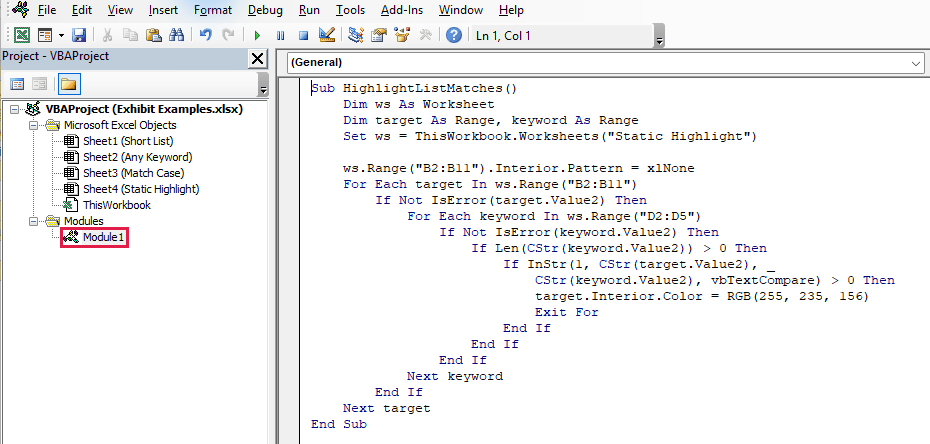
- Place the cursor inside HighlightListMatches and press F5. Press Alt + F11 to return to the worksheet.
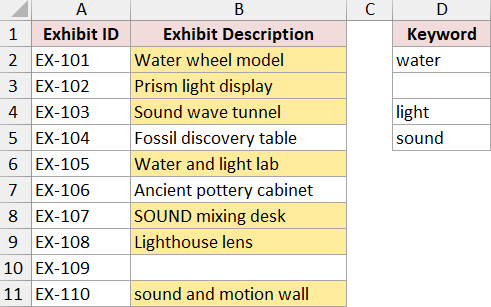
The macro applies the yellow fill to B2, B3, B4, B6, B8, B9, and B11. InStr checks whether a keyword occurs inside the description; vbTextCompare makes that comparison case-insensitive.
The empty keyword is skipped, and Exit For moves to the next description as soon as one keyword matches. Re-running the macro clears the old fills and calculates the new set. It does not run automatically when a cell changes.
Note: VBA does not run in Excel for the web. The download is an .xlsx file without embedded macros; paste this code into your own .xlsm copy. For different data, change the worksheet name and the two ranges in the code.
Additional Notes About Highlighting Text from a List in Excel
- Check the Applies to range. In Conditional Formatting > Manage Rules, it should be
$B$2:$B$11for these examples. A formula starting with B2 must align with the first cell being formatted. - Keep the keyword list clean. A space is not an empty keyword. The blank check excludes empty cells, but does not trim unwanted spaces.
- Watch for wildcard characters. In SEARCH-based rules and Find, use
~*for a literal asterisk and~?for a literal question mark. FIND and this VBA macro already treat those characters literally. - The download contains finished examples. Short List, Any Keyword, and Match Case contain live rules. Static Highlight contains ordinary fills shared by Methods #4 and #5. Clear only the relevant rules or fills when rebuilding a method.
Frequently Asked Questions
These questions cover a few variations you may need after setting up the basic highlight.
Can the Keyword List Be on Another Worksheet?
Yes. A workbook-level named range is a convenient way to reference a keyword list elsewhere in the same workbook. Replace both keyword-range references in the rule with that name, while keeping B2 aligned with the cells being formatted.
Can Each Keyword Use a Different Highlight Color?
Yes. Give each keyword its own conditional-formatting rule and choose a different format for each. If a cell matches multiple rules with conflicting fills, the higher-priority rule determines the fill. Review the order in Manage Rules.
Can I Require Every Keyword Instead of Any Keyword?
Yes, but the condition must compare the number of matched nonempty keywords with the total number of nonempty keywords, rather than simply test whether there is a match. Also require at least one keyword, so an entirely empty list does not pass.
Can I Color Only the Matching Text Inside a Cell?
Conditional formatting applies to the whole cell. To color only certain characters in a text constant, edit the cell, select those characters, and change their font color. That manual formatting will not update from the keyword list.
Conclusion
I showed you five ways to highlight cells containing text from a list. I’d use Method #2 because one rule checks every keyword and updates as the list changes. I hope you found this article helpful.
Other Excel articles you may also like:
