
When Rows to repeat at top is greyed out in Excel, you cannot choose the header rows that should appear on every printed page.
The fix depends on what is disabled. A grey row-reference box usually calls for a different check than a grey Print Titles button on the ribbon.
I would start by returning to the worksheet and opening Print Titles from Page Layout. Then check whether multiple sheets, a cell edit, or a chart are selected.
In this tutorial, I’ll show you how to check those causes, check the printer setup, and confirm that your headers repeat.
Method #1: Using the Page Layout Tab
Start here if you opened File > Print > Page Setup and found that the Rows to repeat at top box would not accept a row reference.
That entry point can show the Sheet tab with its print-area and print-title boxes disabled. Reopen the dialog from the worksheet to make those controls available.
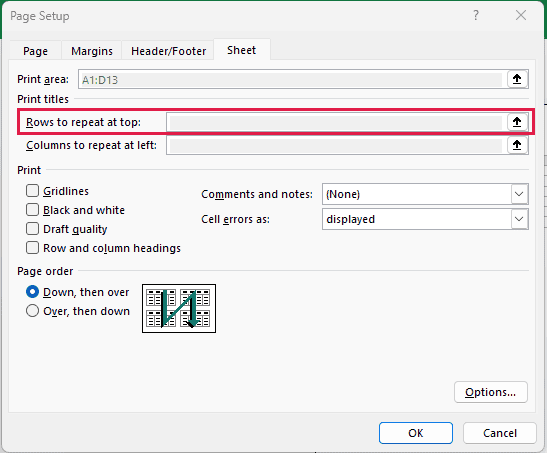
Here are the steps to use the worksheet entry point:
- Click Cancel to close Page Setup, then press Esc to return from Print to your worksheet.
- Click a cell in the worksheet you want to print.
- On the Page Layout tab, click Print Titles in the Page Setup group.
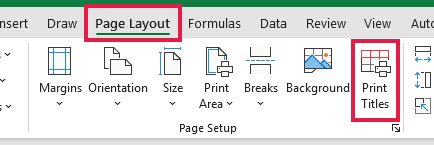
- In the Page Setup dialog box, open the Sheet tab if it is not already selected.
The Rows to repeat at top box should now be available, provided you have only one worksheet selected.

Leave the dialog open if the box works. The final check below shows what to enter and how to check a later printed page.
If the box is still grey, cancel the dialog and check for grouped worksheets next.
Method #2: Ungrouping the Worksheets
If more than one worksheet is selected, Excel disables the Rows to repeat at top and Columns to repeat at left boxes.
This can happen after you Ctrl-click sheet tabs or use Select All Sheets. The workbook title may show Group, and multiple tabs appear selected.
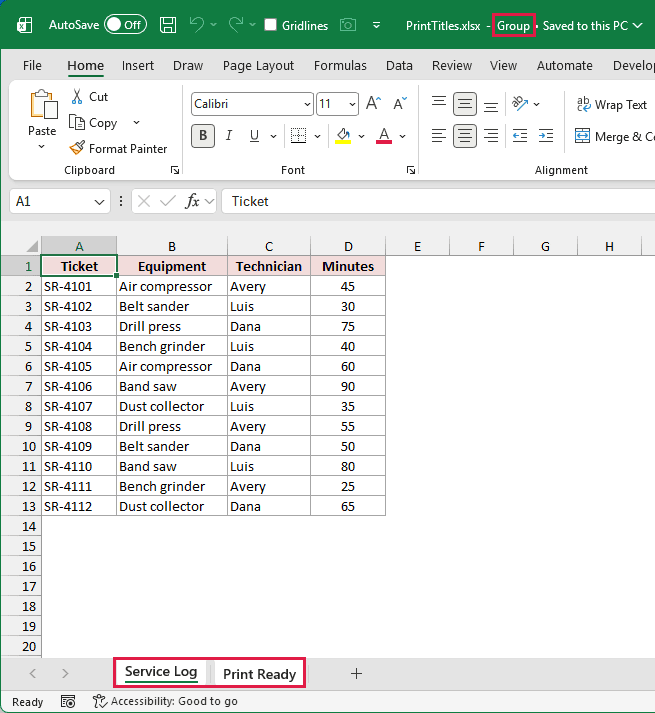
Here are the steps to return to a single sheet:
- Close the Page Setup dialog if it is open.
- Right-click one of the selected worksheet tabs and choose Ungroup Sheets.
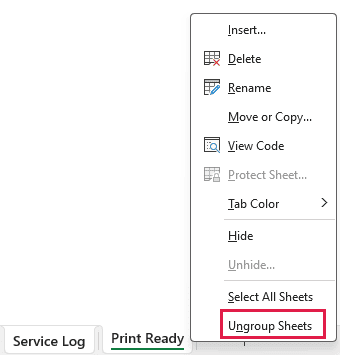
- Click the tab of the worksheet you want to configure.
- Open Page Layout > Print Titles, then check Rows to repeat at top again.
If an unselected worksheet tab is visible, clicking it also cancels the group. Then select the sheet you actually want to print.
Set the repeating rows for each worksheet separately. You can select several sheets again afterward if you want to print them together.
Note: Avoid typing into worksheet cells while sheets are grouped. An edit can affect the same cell on every selected sheet.
Method #3: Finishing the Cell Edit
If the Print Titles ribbon button itself is grey, check whether you are still editing a cell or its formula bar.
You may see an insertion point inside the cell or formula bar. Excel keeps some ribbon commands unavailable until that edit ends.
To leave edit mode and retry:
- Press Enter to keep the current edit. If you want to discard that unfinished edit, press Esc instead.
- Click Page Layout > Print Titles.
You do not need to change the cell’s contents to use Print Titles. The important part is finishing or cancelling the current edit.
Method #4: Deselecting the Chart
A selected chart can also disable the Print Titles button. Click back into the worksheet before trying to choose its repeating rows.
Check for selection handles around a chart. Contextual tabs such as Chart Design and Format are another clue that Excel is working with the chart.
To return to the worksheet:
- Click a worksheet cell outside the chart, such as A1.
- Open Page Layout > Print Titles again.
This does not delete or change the chart. It changes the active selection so that you can configure the worksheet’s print titles.
If you are on a separate chart sheet, click the tab containing the worksheet data first. Repeating worksheet rows is not a setting for a standalone chart page.
Method #5: Checking the Printer Setup
If the Print Titles button stays disabled after those checks, make sure Windows has a printer installed.
Microsoft lists a missing printer as another cause of the disabled command. An empty printer list needs attention before you can rely on Excel’s page settings.
Here are the checks for Windows 11:
- Open Start > Settings > Bluetooth & devices > Printers & scanners.
- Check whether your printer appears in the installed device list.
- If no printer is installed, use Add device and follow the setup instructions for your printer.
- Return to Excel and try Page Layout > Print Titles again.
Microsoft’s printer installation instructions cover wired, wireless, and manually added printers.
You do not need to remove an installed printer or change your default printer just to try the earlier fixes.
Confirm That the Header Rows Repeat
Once the row-reference box is available, choose the actual worksheet rows containing your labels.
In this example, the service log has Ticket, Equipment, Technician, and Minutes in row 1. I want those four labels on both printed pages.
Follow these steps to check the repaired setting:
- Open Page Layout > Print Titles and select the Sheet tab.
- Enter $1:$1 in Rows to repeat at top.

- Click OK, then press Ctrl+P to open print preview.
- Move to page 2 with the next-page control below the preview.
The four labels should appear above that page’s records as well. Check a later page, since row 1 would appear on the first page even without print titles.
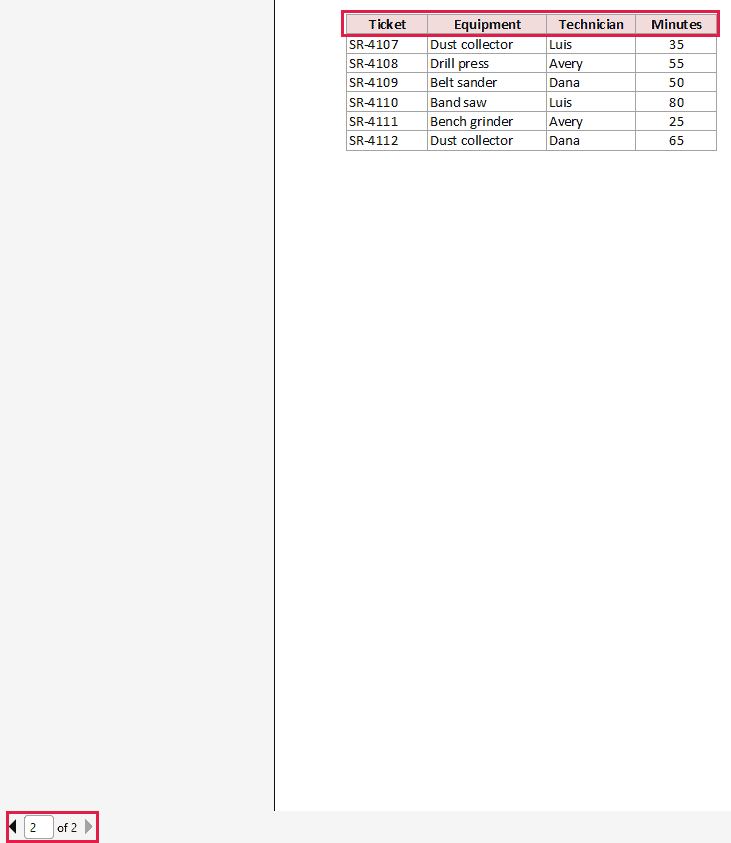
For two header rows, enter $1:$2. You can also use the range selector beside the box to select the complete header rows.
Additional Notes About Print Titles in Excel
The fixes above use desktop Excel for Windows. These related settings and platform differences can explain why your screen looks different.
- Excel for the web: Repeating column headers when printing is not currently supported. Open the workbook in desktop Excel to set print titles.
- Excel for Mac: Microsoft documents Page Layout > Page Setup > Sheets, then the Print Titles boxes. The Windows key sequences and dialog labels can differ.
- Freeze Panes: This keeps rows visible while scrolling. It does not choose the rows repeated on printed pages.
- Print Headings: This prints Excel’s row numbers and column letters. It does not substitute your own column labels for print titles.
- A one-page printout: There is no second page on which to see a repeated header. Check the page count before treating that as a failure.
Microsoft’s print-title documentation includes the desktop and web availability details.
Frequently Asked Questions
These answers cover a few common points of confusion while checking Print Titles.
Why Is Rows to Repeat at Top Grey but the Print Titles Button Works?
Check how you opened Page Setup and whether multiple worksheets are selected. Return to one worksheet and open Page Layout > Print Titles.
Those checks address the row-reference boxes. Cell editing, a selected chart, and a missing printer can disable the ribbon command itself.
Can I Set Print Titles for All Selected Sheets at Once?
The row and column print-title boxes are unavailable when multiple worksheets are selected. Ungroup the sheets and configure each worksheet separately.
Does Switching to Page Layout View Fix This?
The Page Layout ribbon tab and Page Layout worksheet view are different things. Use the ribbon tab to open Print Titles.
Changing the view alone does not remove a grouped-sheet selection, finish a cell edit, or deselect a chart.
Why Do My Headers Still Appear Only on the First Page?
Reopen Print Titles and check the saved row reference. Make sure it points to the rows containing your labels, then check page 2 in print preview.
Also check that you configured the worksheet you are printing. Print-title settings belong to the individual worksheet.
Conclusion
In this article, I showed you how to restore access to Print Titles and its row-reference box, then check the repeated header on a later page.
I hope you found this article helpful.
Other Excel articles you may also like:
