
Excel’s DAYS function returns the number of days between an end date and a start date.
Use it to measure elapsed calendar days, including weekends and holidays. The argument order matters: an end date before the start date produces a negative result.
In this article, I’ll show you how to calculate turnaround times, include both endpoints when needed, and compare calendar days with working days.
DAYS Function Syntax in Excel
The DAYS function has two required arguments:
=DAYS(end_date,start_date)
end_dateis the later date for the calculation.start_dateis the earlier date. Excel subtracts this value fromend_date, so the argument order matters.
When to Use the DAYS Function
- Calculate turnaround time between received and completed dates.
- Count a billing period, including both endpoints when needed.
- Flag records whose end date comes before their start date.
- Compare several starting dates with one fixed as-of date.
- Work with recognizable date text that Excel can convert to dates.
For more date-counting choices, see my guide to calculating days between dates in Excel or use the days between dates calculator.
Example 1: Calculate Lab Turnaround Days
Let’s start with a simple elapsed-time calculation.
Below is the dataset with seven lab batches, their received dates, and their report dates.
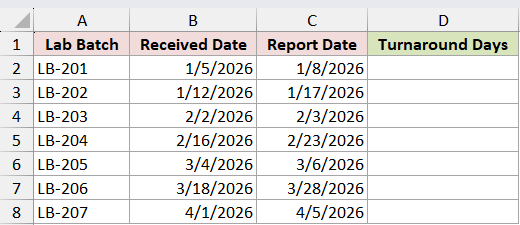
I want to calculate the calendar-day turnaround for every batch.
Here is the formula:
=DAYS(C2:C8,B2:B8)
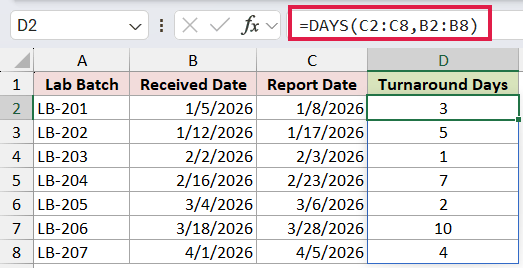
DAYS subtracts each received date in B2:B8 from the matching report date in C2:C8. The seven results spill from D2 to D8 and range from 1 to 10 days.
LB-201, for example, was received on January 5 and reported on January 8, so the result is 3.
Pro Tip: When both columns contain valid Excel dates, =C2:C8-B2:B8 is shorter and returns the same results. DAYS makes the start-and-end intent more obvious and can also convert recognizable date text.
Example 2: Count Both Billable Endpoints
Now let’s include both the first and last day in a billing count.
Below is the dataset with seven equipment leases and their first and last billable dates.
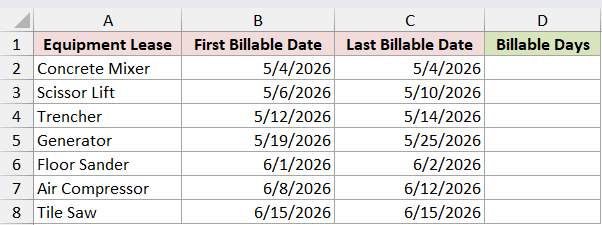
I want a one-day lease to return 1 instead of 0.
Here is the formula:
=DAYS(C2:C8,B2:B8)+1
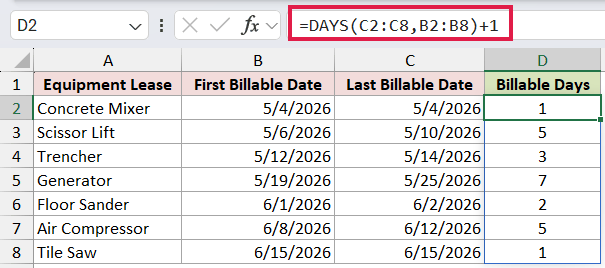
DAYS returns the difference between the two date serial numbers. Adding 1 counts both endpoints, so a lease that starts and ends on May 4 returns 1 billable day.
The spilled results are 1, 5, 3, 7, 2, 5, and 1 days.
Example 3: Flag Reversed Warranty Dates
Here’s a useful data-quality check for date records.
Below is the dataset with seven warranty claims and their filed and resolved dates.
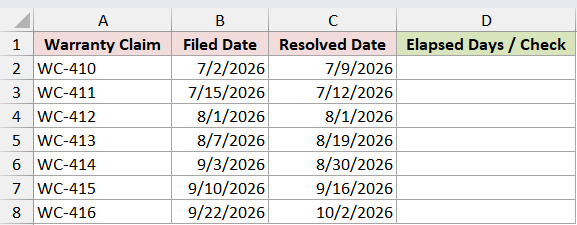
I want to show Check dates when a resolved date comes before its filed date.
Here is the formula:
=IF(DAYS(C2:C8,B2:B8)<0,"Check dates",DAYS(C2:C8,B2:B8))
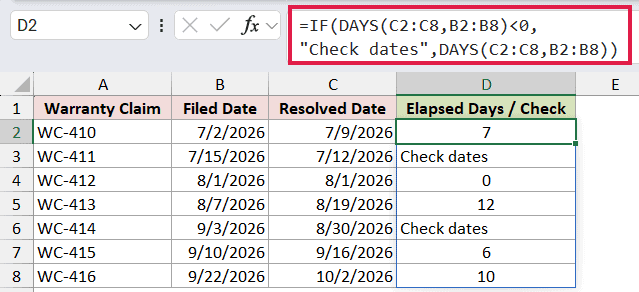
DAYS returns a negative number when the end date is earlier than the start date. The IF function replaces those negative results with Check dates and leaves valid elapsed-day results unchanged.
WC-411 and WC-414 are flagged. A claim filed and resolved on the same day returns 0.
Pro Tip: =IF(C2:C8<B2:B8,"Check dates",C2:C8-B2:B8) is shorter and avoids calculating DAYS twice. The DAYS version keeps the elapsed-day calculation explicit.
Example 4: Calculate Days on Loan
This example compares several dates with one fixed date.
Below is the dataset with seven library items, their checkout dates, and an as-of date in E2.
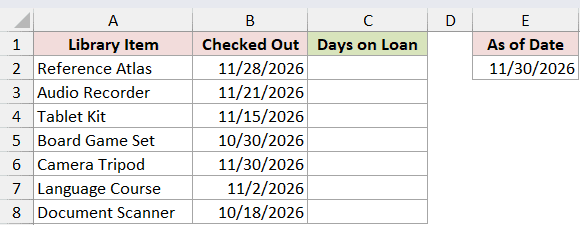
I want the number of calendar days each item has been on loan as of November 30, 2026.
Here is the formula:
=DAYS($E$2,B2:B8)
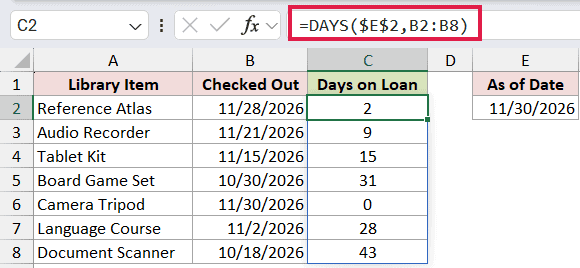
The fixed reference $E$2 supplies the same end date for every checkout date in B2:B8. The results spill from C2 to C8, with values from 0 to 43 days.
The dollar signs also keep E2 fixed if you copy the formula elsewhere.
Example 5: Calculate DAYS from Text Dates
DAYS can also work with date text that Excel recognizes.
Below is the dataset with six renewal batches and start and end dates stored as U.S. English text.
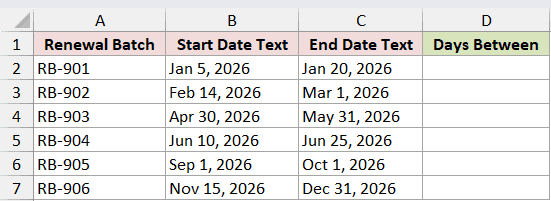
I want to calculate the days between each pair without adding helper columns.
Here is the formula:
=DAYS(C2:C7,B2:B7)
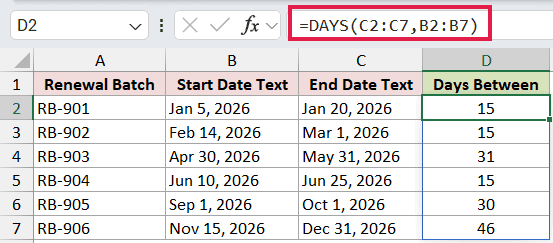
DAYS converts each recognized text argument as though DATEVALUE had processed it, then subtracts the start date from the end date. The six results spill from D2 to D7.
Text-date recognition follows your regional settings. If the results are wrong or return #VALUE!, first check whether Excel is recognizing the dates correctly.
Example 6: Compare Calendar Days and Workdays
Finally, let’s compare two different ways to count a date interval.
Below is the dataset with six vendor-setup tasks, their request dates, and their activation dates.
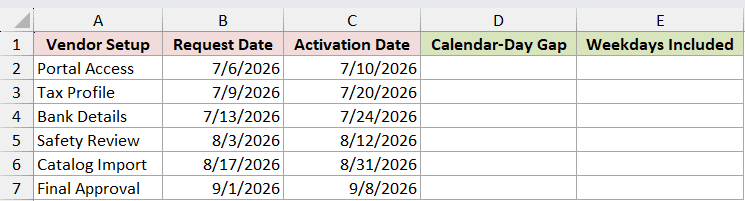
First, I want the calendar-day gap between each request and activation date.
Here is the DAYS formula:
=DAYS(C2:C7,B2:B7)
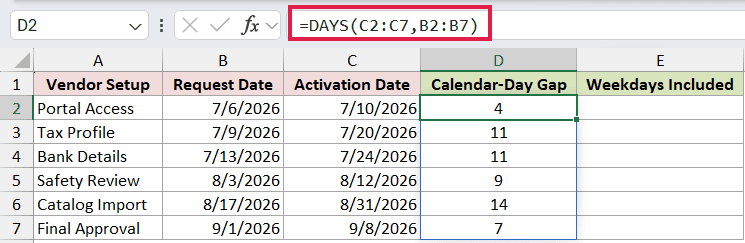
DAYS returns the date difference, including weekends. It does not add 1 for the start date, so July 6 through July 10 returns a gap of 4 calendar days.
Next, I want the number of Monday-through-Friday workdays in each interval, including eligible start and end dates.
Here is the NETWORKDAYS formula:
=MAP(B2:B7,C2:C7,LAMBDA(s,e,NETWORKDAYS(s,e)))
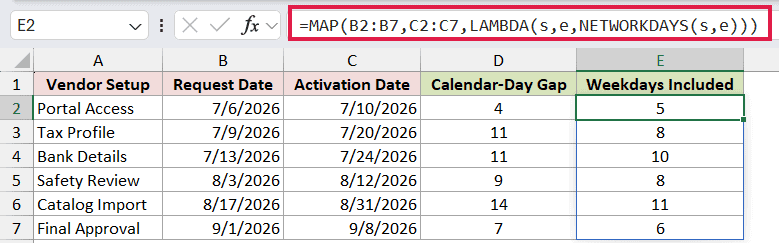
MAP passes each date pair to NETWORKDAYS. NETWORKDAYS excludes Saturdays and Sundays but counts both endpoints when they are weekdays, so July 6 through July 10 returns 5.
MAP is available in Excel for Microsoft 365 and Excel 2024. In Excel 2021 or earlier, enter =NETWORKDAYS(B2,C2) in E2 and fill it down.
Tips & Common Mistakes
- Put the end date first and the start date second. Reversing them returns a negative number.
- DAYS returns the serial-number difference, so the same start and end date produces 0 unless you add 1 for inclusive counting.
- Range-based DAYS formulas spill in Excel 2021, Excel 2024, and Microsoft 365. In older versions, use one date pair per row and fill the formula down.
- Use real Excel dates when possible. Unrecognized text returns #VALUE!, and numeric values outside Excel’s valid date range return #NUM!.
- Use NETWORKDAYS when weekends should be excluded. It can also accept an optional holiday range.
I use DAYS for clear calendar-day differences, especially when the end-date-first argument order helps document the calculation. These examples cover ordinary gaps, inclusive billing, date validation, fixed dates, text dates, and workday comparisons.
I hope you found this article helpful.
Related Excel Functions / Articles:
