
If you want a calendar you can actually work in, planning exhibit dates, deadlines, or events, Excel is a surprisingly good place to build one. The tricky part is getting the days to line up under the right weekdays without dragging cells around by hand.
The good news is you don’t have to.
In this article I’ll show you three ways to make a calendar in Excel: a built-in template you fill in, a formula grid that rebuilds itself for any month, and a short macro that does it for you.
Method #1: Using a Built-In Calendar Template
The fastest way to get a working calendar is to let Excel do the layout for you. Excel offers several downloadable calendar templates, so you can pick one and add events in the areas the template provides.
I run a small art gallery, and I want a calendar to track when each piece goes on exhibit. Below is the list of pieces I’m scheduling.
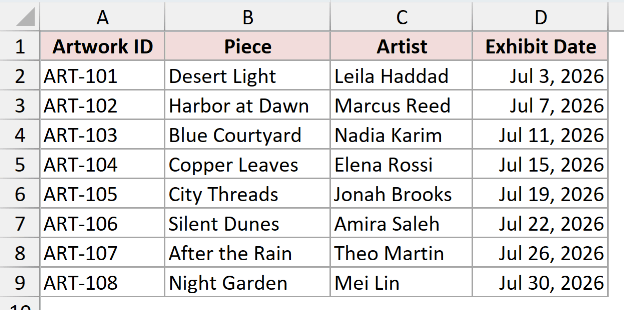
Here are the steps to make a calendar from a template:
- In Windows, open Excel and choose File > New. On Mac, choose File > New from Template.
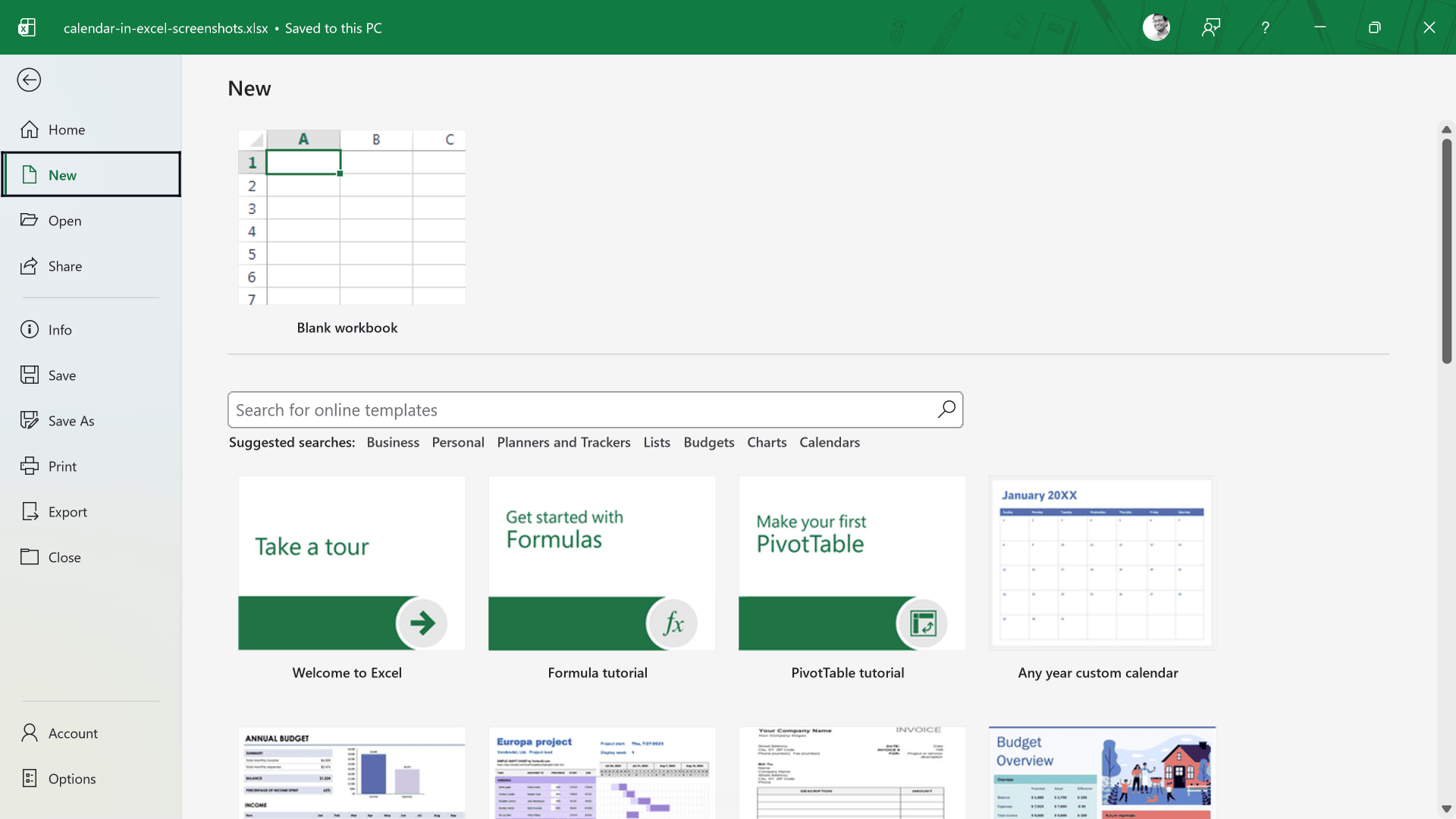
- In the search box at the top, type calendar and press Enter.
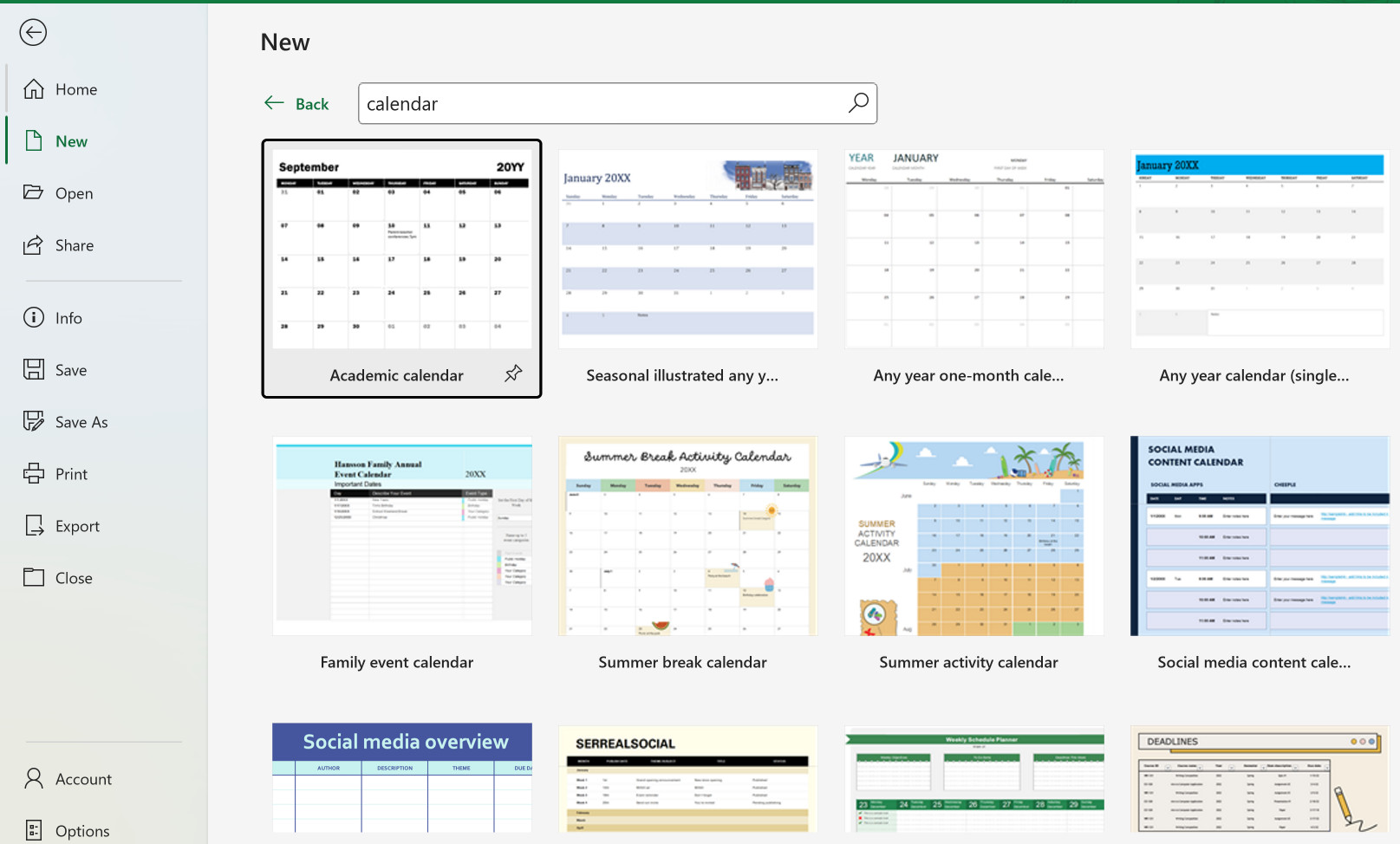
- Pick a template you like, such as a monthly or yearly calendar, and click Create.
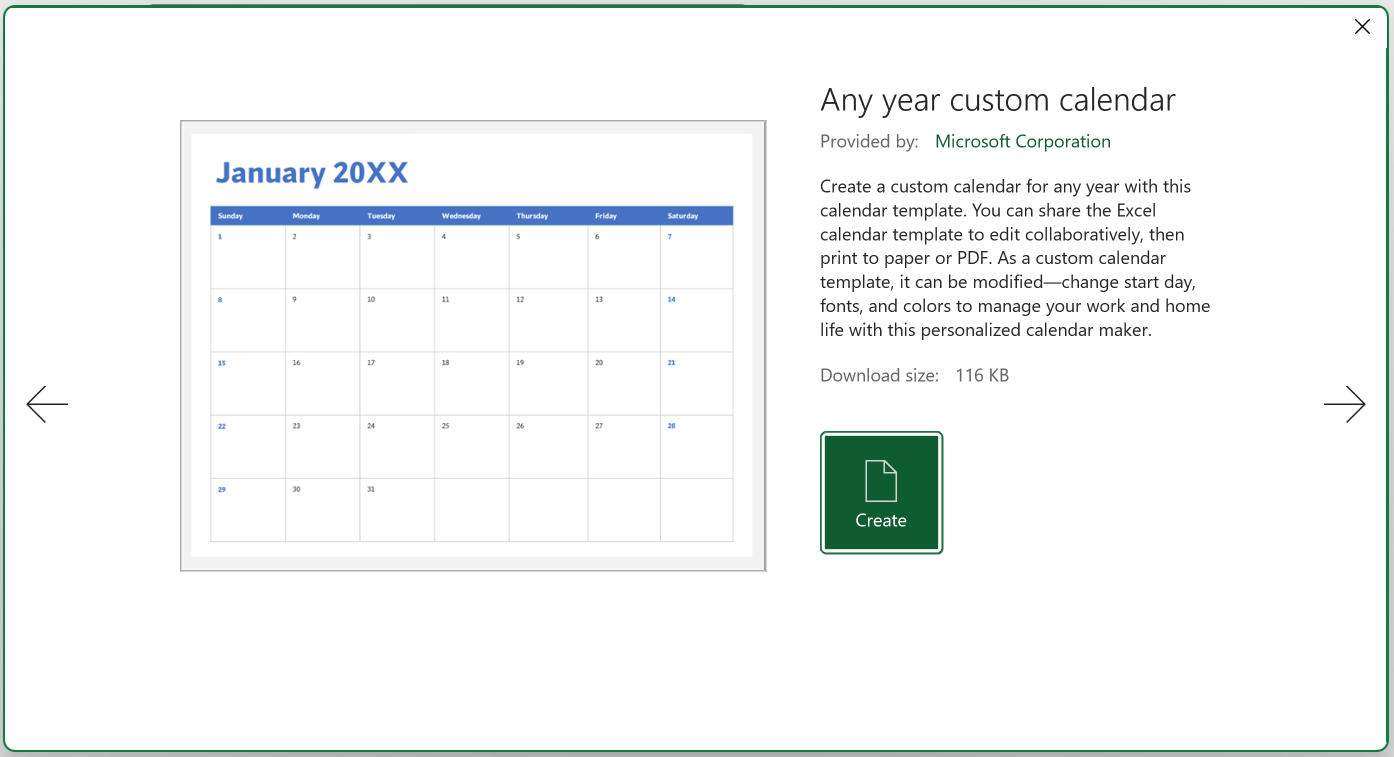
- Set the month and year if the template asks for them. Add events only in designated event or note areas, and do not type over cells that display dates or look blank within the date rows because they may contain formulas.
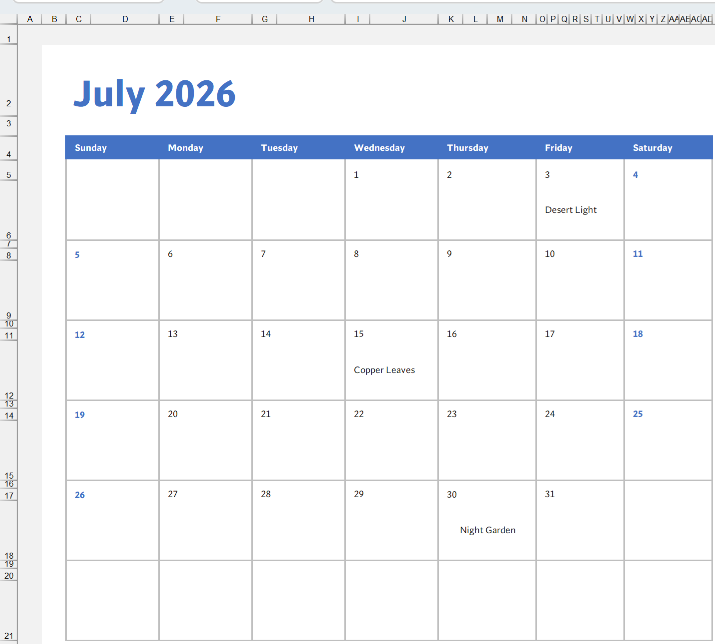
Once you’ve added your exhibit dates in the template’s event areas, you have a clean, print-ready calendar without building the layout yourself.
Note: Some calendar templates provide month and year input cells that update the grid. Check the instructions in the template you choose, since template controls vary.
This is the method I’d reach for most of the time. It looks polished out of the box, and you spend your time on the events instead of the layout.
Method #2: Using the SEQUENCE Function
If you’d rather own the whole thing and have it rebuild for any month, a formula grid is the way to go. You type a year and a month into two cells, and the calendar fills itself in.
The idea is simple. I keep the year in one cell and the month in another.
The formula works out which date sits in the top-left corner of the grid, then spills the rest of the days across a 6-row by 7-column block.
Here’s my setup: I put the year in cell B1 (2026) and the month number in B2 (7 for July). I also typed the weekday headers Sun through Sat in row 4.
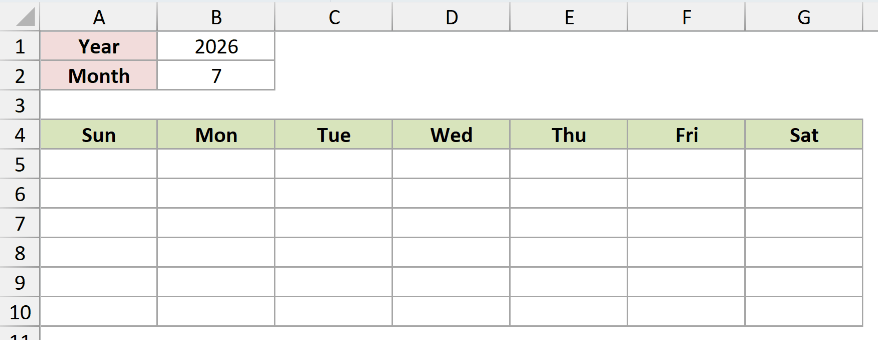
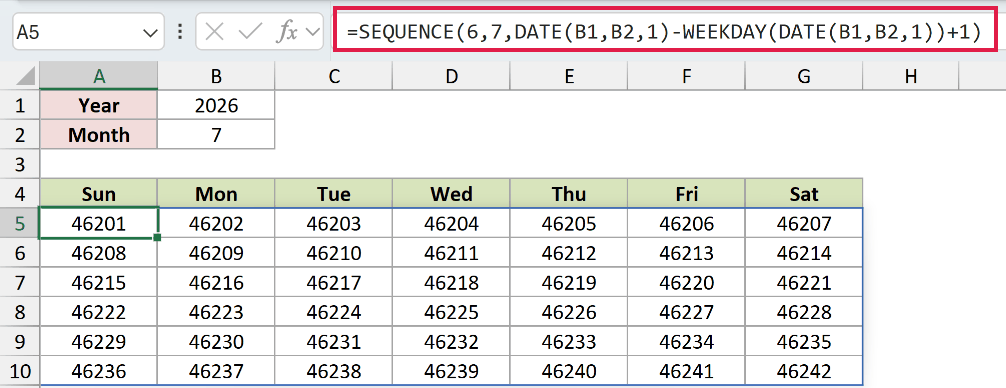
Now select cell A5 and enter this formula:
=SEQUENCE(6,7,DATE(B1,B2,1)-WEEKDAY(DATE(B1,B2,1))+1)
The formula spills down and across automatically to fill a 6×7 grid. Right now those cells show raw date serial numbers like 46201, since that’s how Excel stores dates under the hood.
SEQUENCE is available in Microsoft 365 and Excel 2021 and later. In Excel 2019 and earlier, this formula isn’t available.
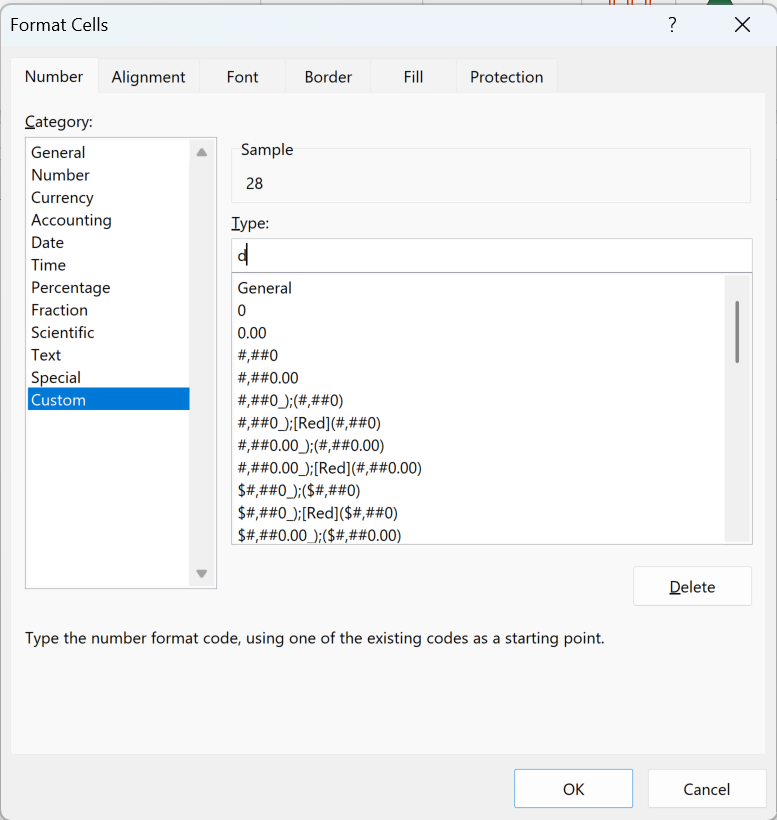
To show only the day number, select A5:G10, press Ctrl + 1 on Windows or Command + 1 on Mac to open Format Cells, choose Custom, and type d in the Type box.
That leaves you with a clean grid of day numbers under the right weekdays.
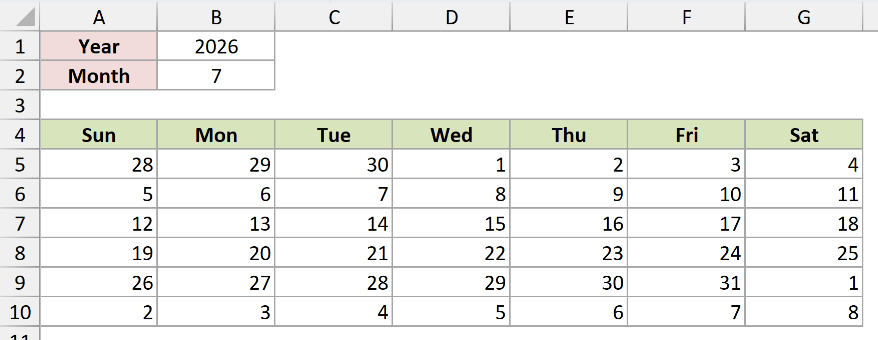
Optional: To gray the dates outside the selected month, select A5:G10, choose Home > Conditional Formatting > New Rule > Use a formula to determine which cells to format, and enter =MONTH(A5)<>$B$2. Pick a light gray font or fill, then click OK.
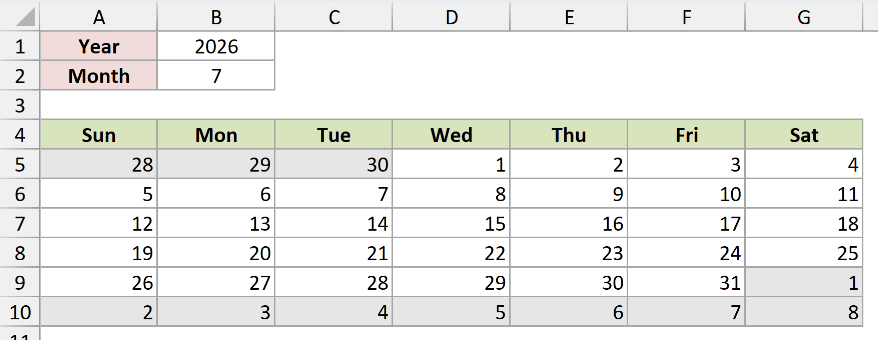
How does this formula work?
DATE(B1,B2,1) builds the first day of the month, July 1, 2026 in my case. WEEKDAY(...) returns 4 for that date, because it’s a Wednesday and Sunday counts as 1.
Subtracting the weekday and adding 1 walks back to the Sunday that starts the calendar week, which is June 28 here. That becomes the top-left cell of the grid.
SEQUENCE(6,7, start) then fills 6 rows and 7 columns, counting up one day at a time from that Sunday. The result is a full month laid out under the correct weekdays, with a few trailing days from the neighboring months.
Note: To show the next month without changing B2, enter =SEQUENCE(6,7,EDATE(DATE(B1,B2,1),1)-WEEKDAY(EDATE(DATE(B1,B2,1),1))+1) in A5. EDATE advances the demonstrated year and month controls by one month.
Because everything keys off B1 and B2, changing either cell rebuilds the calendar instantly. That makes this grid handy when you want the same layout for every month of the year.
Method #3: Using VBA
If you build calendars often, or you want a button that spits one out on demand, a short macro is worth it. It reads a year and a month from two cells and writes the grid for you.
I’m using the same layout as before: the year in B1, the month number in B2, and the weekday headers in row 4. The macro fills the days below.
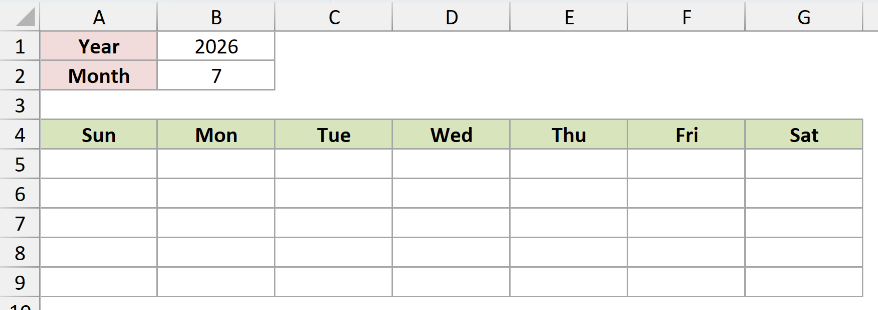
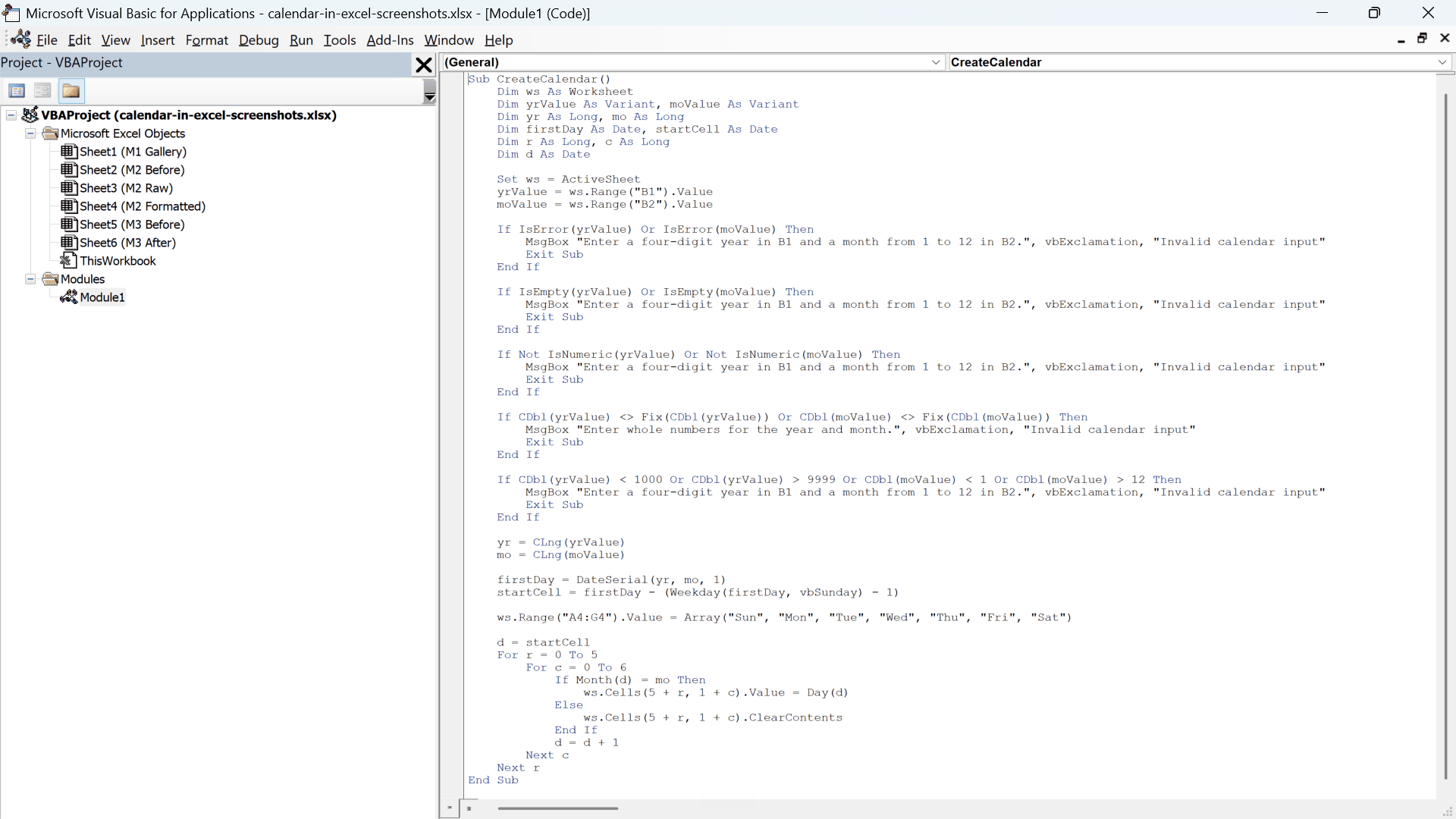
Here is the VBA code:
Sub CreateCalendar()
    Dim ws As Worksheet
    Dim yrValue As Variant, moValue As Variant
    Dim yr As Long, mo As Long
    Dim firstDay As Date, startCell As Date
    Dim r As Long, c As Long
    Dim d As Date

    Set ws = ActiveSheet
    yrValue = ws.Range("B1").Value
    moValue = ws.Range("B2").Value

    If IsError(yrValue) Or IsError(moValue) Then
        MsgBox "Enter a four-digit year in B1 and a month from 1 to 12 in B2.", vbExclamation, "Invalid calendar input"
        Exit Sub
    End If

    If IsEmpty(yrValue) Or IsEmpty(moValue) Then
        MsgBox "Enter a four-digit year in B1 and a month from 1 to 12 in B2.", vbExclamation, "Invalid calendar input"
        Exit Sub
    End If

    If Not IsNumeric(yrValue) Or Not IsNumeric(moValue) Then
        MsgBox "Enter a four-digit year in B1 and a month from 1 to 12 in B2.", vbExclamation, "Invalid calendar input"
        Exit Sub
    End If

    If CDbl(yrValue) <> Fix(CDbl(yrValue)) Or CDbl(moValue) <> Fix(CDbl(moValue)) Then
        MsgBox "Enter whole numbers for the year and month.", vbExclamation, "Invalid calendar input"
        Exit Sub
    End If

    If CDbl(yrValue) < 1000 Or CDbl(yrValue) > 9999 Or CDbl(moValue) < 1 Or CDbl(moValue) > 12 Then
        MsgBox "Enter a four-digit year in B1 and a month from 1 to 12 in B2.", vbExclamation, "Invalid calendar input"
        Exit Sub
    End If

    yr = CLng(yrValue)
    mo = CLng(moValue)

    firstDay = DateSerial(yr, mo, 1)
    startCell = firstDay - (Weekday(firstDay, vbSunday) - 1)

    ws.Range("A4:G4").Value = Array("Sun", "Mon", "Tue", "Wed", "Thu", "Fri", "Sat")

    d = startCell
    For r = 0 To 5
        For c = 0 To 6
            If Month(d) = mo Then
                ws.Cells(5 + r, 1 + c).Value = Day(d)
            Else
                ws.Cells(5 + r, 1 + c).ClearContents
            End If
            d = d + 1
        Next c
    Next r
End SubHere are the steps to run this macro:
- In Windows, press Alt + F11 to open the Visual Basic Editor. On Mac, choose Tools > Macro > Visual Basic Editor.
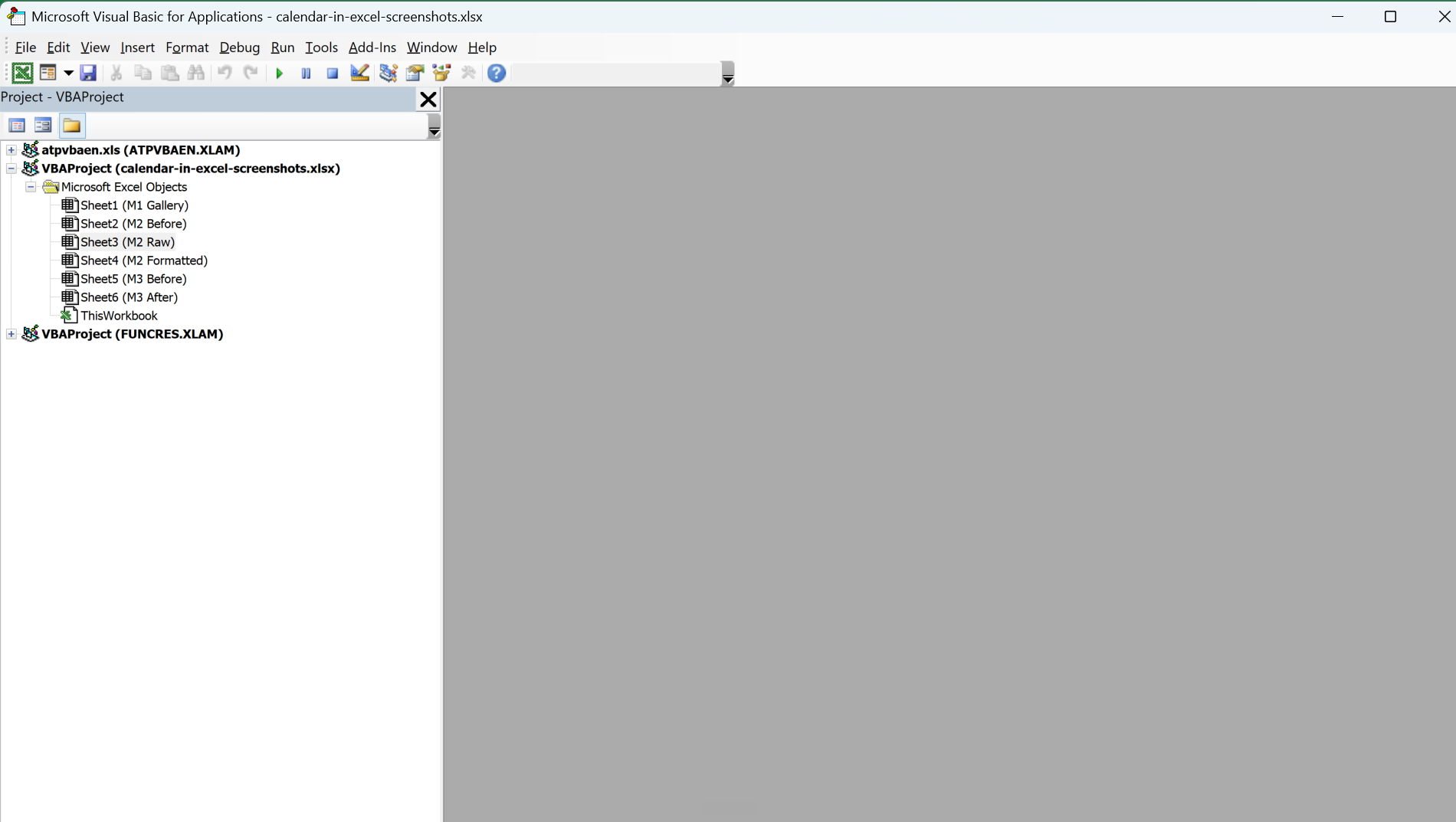
- Click Insert, then Module, and paste the code into the blank window.
- Press F5 to run it (Fn + F5 on some Mac keyboards), then switch back to the sheet to see the filled calendar.
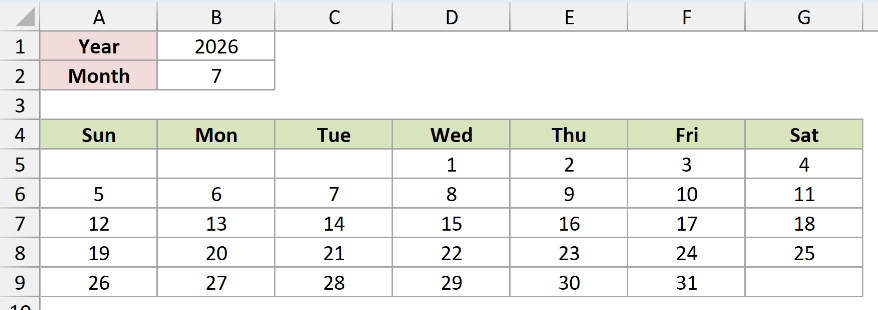
The macro figures out the first day of your chosen month, steps back to the Sunday that opens the week, then loops through 42 cells writing the day number.
It only writes a number when the date belongs to the month you asked for, so days from the neighboring months stay blank.
Note: A workbook with a macro has to be saved as a macro-enabled file. Use File, then Save As, and pick the Excel Macro-Enabled Workbook (.xlsm) format, or the code won’t be there next time you open it.
Additional Notes About Making a Calendar in Excel
- Excel stores every date as a serial number, so any calendar you build with DATE or SEQUENCE is doing real date math. That’s why it handles leap years and month lengths for you.
- The formula and VBA grids assume the week starts on Sunday. For a Monday start, use
WEEKDAY(DATE(B1,B2,1),2)in the formula, usevbMondayin the macro, and reorder the headers from Mon through Sun. - To highlight weekends in the formula grid, select the grid and use conditional formatting with a rule like
=WEEKDAY(A5,2)>5, which flags Saturdays and Sundays because those cells contain real dates. - If you plan to reuse a formula calendar, name the year and month cells (for example, CalYear and CalMonth) so the formula reads clearly instead of pointing at bare cell references.
Frequently Asked Questions
How do I add public holidays to my Excel calendar?
Keep a small table of holiday dates on another sheet, then use conditional formatting with a COUNTIF or MATCH rule against that list to color the matching days in your grid.
Why does my calendar show days from other months?
A month rarely starts on a Sunday or ends on a Saturday, so the grid fills the leading and trailing gaps with neighboring days. The VBA method blanks those out, and you can grey them with formatting in the formula version.
Can I make a full-year calendar on one sheet?
Yes. Build one monthly block, then copy it 11 times and point each copy at a different month number. Or search the templates for a yearly calendar, which lays out all 12 months for you.
Does the calendar update when the actual date changes?
Only if you drive it from TODAY. If you want the grid to always show the current month, replace the month input with a formula based on the TODAY function so it rolls over on its own.
Conclusion
I’ve covered three practical ways to make a calendar in Excel, from a ready-made template to a flexible formula grid and a reusable macro. I hope you found this article helpful.
Other Excel articles you may also like:
- How to Autofill Dates in Excel (Autofill Months/Years)
- How to Insert Date in Excel? (Shortcut + Formulas)
- How to Add Months to a Date in Excel
- List All Dates Between Two Dates in Excel
- How to Create an Attendance Tracker
- How to Create a Gantt Chart in Excel
- First Day of the Week in Excel
- Rolling month headers in Excel
