
The FLOOR function in Excel rounds a number down to a specified multiple, with the direction depending on the signs of its arguments.
For positive quantities, it is useful for rounding down to complete packs or time intervals. Check negative-number behavior before applying the same formula to credits or adjustments.
In this article, I’ll show you how to round prices and quantities down to set multiples, round time blocks, and handle negative-number rules.
FLOOR Function Syntax in Excel
The FLOOR function rounds a number down to a multiple you specify, with special sign rules for negative numbers.
=FLOOR(number, significance)
- number (required) is the value you want to round down.
- significance (required) is the multiple to which Excel rounds the number.
When to Use FLOOR Function
- Round prices down to fixed increments, such as $0.25.
- Reduce inventory quantities to complete cases or packs.
- Round times down to the previous interval for payroll or scheduling.
- Find the usable portion of points, materials, or capacity based on a fixed block size.
Example 1: Round Prices Down to Nearest Quarter
Let’s start with a cafe menu that uses quarter-dollar price increments.
Below is the dataset. Column A lists each menu item, and column B contains its cost-plus price.
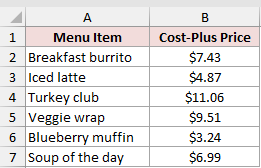
We want to round every price down to the nearest $0.25 with one spilling formula.
Here is the formula:
=FLOOR(B2:B7,0.25)
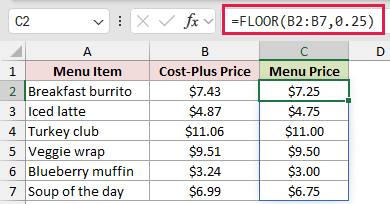
The range B2:B7 supplies all six prices. The significance of 0.25 tells Excel to return the next lower quarter-dollar multiple.
A price of $7.43 becomes $7.25, while $11.06 becomes $11.00. The formula spills all six results into C2:C7.
Pro Tip: FLOOR always rounds down to the selected multiple. If you want the nearest multiple instead, use MROUND.
Example 2: Round Quantities Down to Full Cases
A practical use is separating shippable stock from loose units.
Below is the dataset. Columns A through C list each product, its units on hand, and its case size.
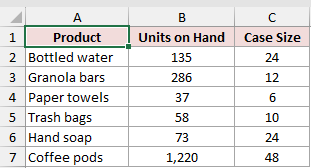
We want to round each stock quantity down using the case size on the same row.
Here is the formula:
=FLOOR(B2:B7,C2:C7)
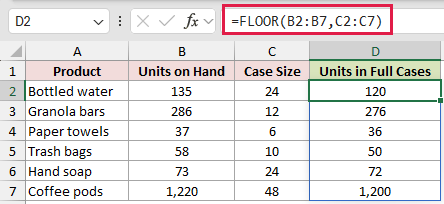
Both arguments are ranges, so each quantity uses its matching case size. Excel returns the largest full-case quantity that does not exceed the available stock.
For example, 135 bottles with a case size of 24 returns 120. Likewise, 37 paper towel rolls in cases of six returns 36.
Example 3: Round Times Down to 15 Minutes
Now let’s round employee clock-in times down to the previous quarter hour.
Below is the dataset. Column A lists each employee, and column B contains the clock-in time.
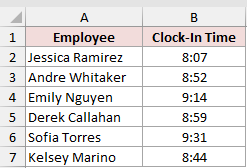
We want one formula to round all six times down to 15-minute intervals.
Here is the formula:
=FLOOR(B2:B7,TIME(0,15,0))
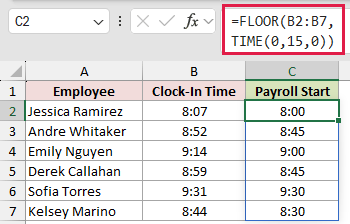
Excel stores times as fractions of a day. TIME(0,15,0) creates a 15-minute value that FLOOR can use as the significance.
An 8:07 clock-in becomes 8:00, and 8:59 becomes 8:45.
Pro Tip: Format both the source and result columns as time. Otherwise, Excel may display the underlying decimal values instead of readable times.
Example 4: Use a Cell for Significance
A cell reference makes the rounding block easy to change without editing the formula.
Below is the dataset. Columns A and B list each member and loyalty balance. The setting card in E1:F2 stores the 500-point redemption block.
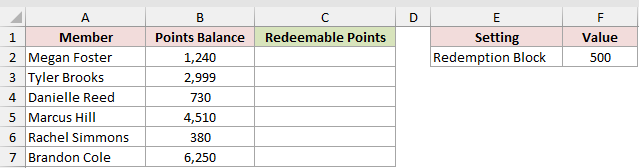
We want to round every balance down using the block size stored in F2.
Here is the formula:
=FLOOR(B2:B7,$F$2)
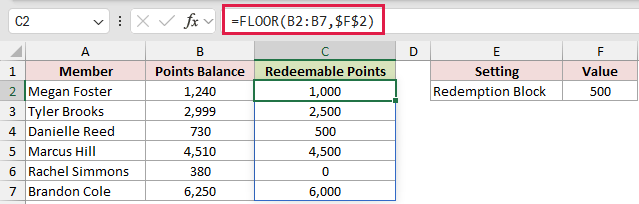
The absolute reference $F$2 keeps the redemption block fixed while the balances come from B2:B7.
A balance of 2,999 returns 2,500 redeemable points. A balance of 380 returns 0 because it is smaller than one complete 500-point block.
You can change F2 later, and the entire spilled result updates without changing the formula.
Example 5: Compare FLOOR and FLOOR.MATH With Negatives
Negative numbers are where FLOOR’s sign rules become easy to miss.
Below is the dataset. Columns A and B list each weather station and its overnight low before rounding to multiples of five.
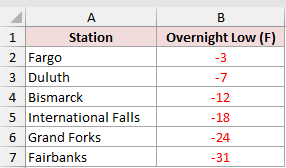
We want to see how positive significance, negative significance, and FLOOR.MATH mode 1 affect the same temperatures.
First, here is FLOOR with a positive significance:
=FLOOR(B2:B7,5)
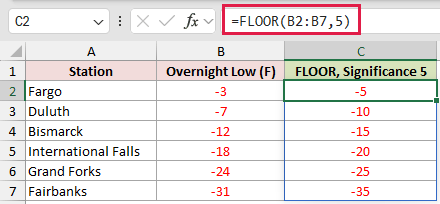
This rounds negative numbers away from zero. For example, -3 becomes -5, and -12 becomes -15.
For comparison, here is FLOOR with a negative significance to show how matching signs changes the rounding direction:
=FLOOR(B2:B7,-5)
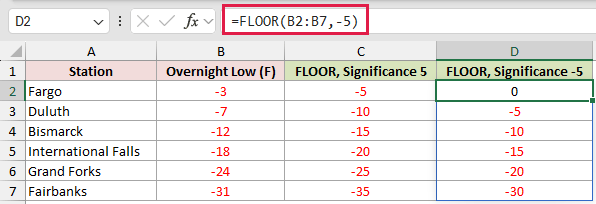
Matching the signs changes the direction for these negative values. This time, -3 becomes 0, and -12 becomes -10.
Finally, here is FLOOR.MATH with mode set to 1 to show a clearer way to control the rounding direction:
=FLOOR.MATH(B2:B7,5,1)
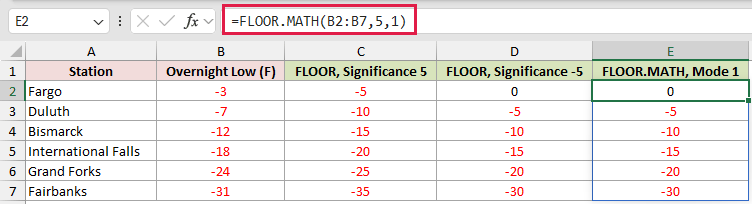
The nonzero mode tells FLOOR.MATH to round negative numbers toward zero. Its results match the negative-significance FLOOR formula without changing the significance sign.
FLOOR.MATH is usually clearer for new workbooks because the mode argument states how negative values should behave.
Pro Tip: FLOOR.MATH with its default mode still rounds negative numbers away from zero. Set mode to a nonzero value when you want negative results rounded toward zero.
Example 6: Avoid the #NUM! Sign Mismatch
Here’s the sign mismatch that can break a FLOOR calculation.
Below is the dataset. Columns A and B list each trading day and its positive or negative profit and loss value.
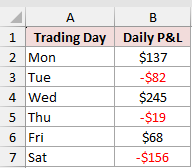
We want to round every value in $10 steps without losing the positive rows to errors.
First, here is FLOOR with a negative significance:
=FLOOR(B2:B7,-10)
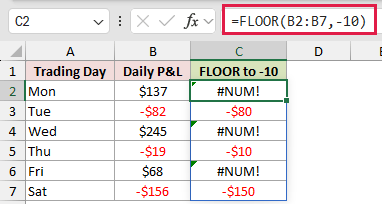
The negative rows return a result because their sign matches the significance. The positive values in C2, C4, and C6 return #NUM! because their signs do not match.
For example, -82 becomes -80 and -19 becomes -10. Positive values such as 137 return an error instead of a rounded result.
For comparison, here is the FLOOR.MATH version to show why it is safer with mixed signs:
=FLOOR.MATH(B2:B7,10,1)
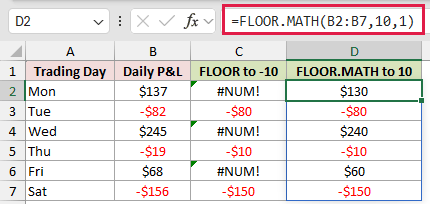
FLOOR.MATH accepts the mixed signs and returns a result for every row. It rounds 137 to 130, -82 to -80, and -19 to -10.
This is the safer choice when one range may contain both positive and negative numbers.
Tips & Common Mistakes
- FLOOR is a compatibility function. For new workbooks, FLOOR.MATH gives you clearer control over negative-number rounding.
- The significance cannot be zero. For a nonzero number, zero significance returns a #DIV/0! error.
- A positive number with a negative significance returns #NUM!. Check both signs when FLOOR works on some rows but fails on others.
- In Excel 365, range-based FLOOR formulas spill automatically. Keep the output area empty to avoid a #SPILL! error.
- In older Excel versions, enter the row-level formula in the first result cell and copy it down instead of using one range-based formula.
- Use ROUNDDOWN when you need a fixed number of decimal places. Use FLOOR when you need a fixed multiple, such as 0.25, 10, or 500.
I hope you found this article helpful. We used FLOOR to round prices, case quantities, times, and point balances to practical multiples.
We also compared negative-number behavior with FLOOR.MATH and saw how a sign mismatch can produce a #NUM! error.
Related Excel Functions / Articles:
