
If you want to remove hidden characters from imported text, the CLEAN function can help you tidy up the cells.
In this article, I’ll show you five examples, including removing line breaks and handling characters that CLEAN leaves behind.
In Excel 2021 and later, you can also give CLEAN a range and let the results spill into the cells below.
CLEAN Function Syntax in Excel
CLEAN takes one argument:
=CLEAN(text)
- text: The text or cell reference containing the characters you want to remove. This argument is required.
CLEAN removes ASCII control characters numbered 0 through 31. These include tabs, line feeds, and carriage returns that can arrive with imported data.
It returns the cleaned text without changing the original cell. Ordinary spaces and nonbreaking spaces need separate treatment, as you’ll see below.
When to Use CLEAN Function
- Remove tabs or line breaks attached to imported reference numbers.
- Prepare text before matching records or comparing labels.
- Combine hidden-character removal with a separate spacing cleanup.
- Check which cells contain characters CLEAN can remove.
Example 1: Remove Hidden Characters From Ticket IDs
Let’s start with a column of imported ticket IDs.
Below is the dataset in A1:B9 on the Example 1 sheet. Column A contains eight IDs, and column B is reserved for the cleaned results.
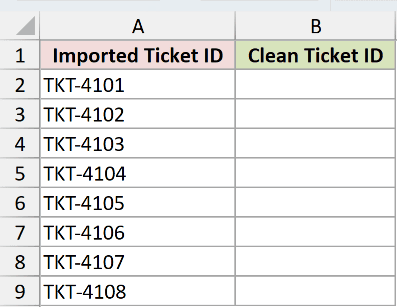
I want to remove the tabs and line breaks without changing the ticket numbers.
Enter this formula in B2:
=CLEAN(A2:A9)
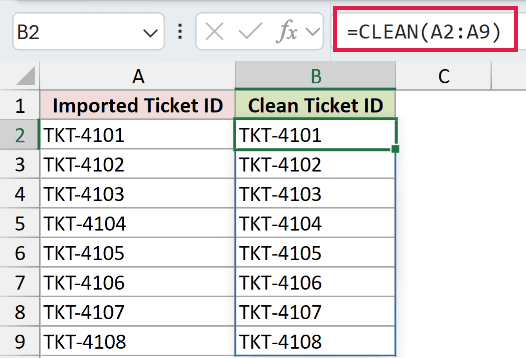
The formula fills B2:B9 with the cleaned IDs, from TKT-4101 through TKT-4108. You only enter it in B2.
Some source characters appear as small boxes, while others are difficult to see. CLEAN removes them whether Excel displays a visible symbol or not.
The ID in A5 already contains no control characters, so its result is unchanged.
Pro Tip: Keep B3:B9 empty before entering the formula. A value anywhere in the destination range can block the spill and produce a #SPILL! error.
Example 2: Combine CLEAN With TRIM
Hidden characters and extra spaces often arrive together.
Below is the dataset on the Example 2 sheet. Column A contains service labels, with separate result columns for CLEAN alone and CLEAN combined with TRIM.
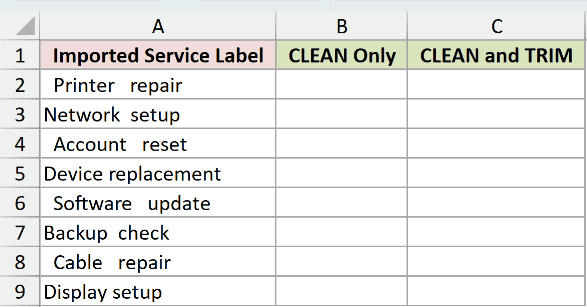
I want readable service labels with single spaces between words and no spaces at either end.
First, enter this formula in B2:
=CLEAN(A2:A9)
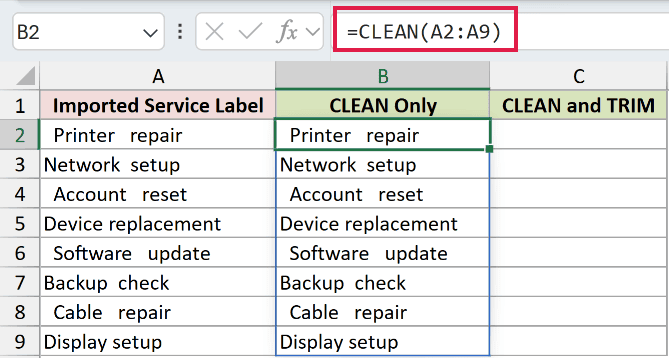
The tabs disappear, but the extra ordinary spaces remain. The first result still has two leading spaces and three spaces between Printer and repair.
Enter the combined formula in C2:
=TRIM(CLEAN(A2:A9))
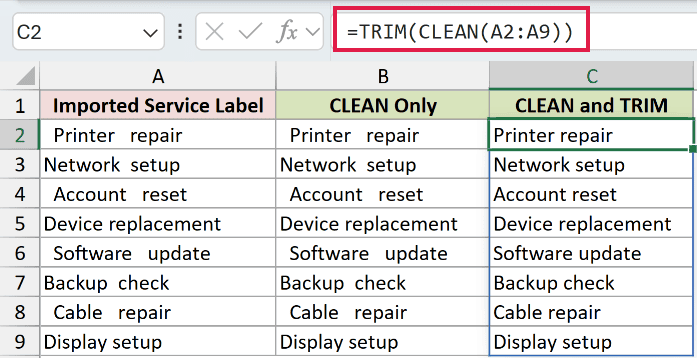
CLEAN removes the control characters first. TRIM then removes leading and trailing ordinary spaces and reduces repeated spaces between words to one.
The first result is now Printer repair. The same formula also tidies labels such as Network setup and Account reset.
Pro Tip: TRIM keeps a single ordinary space between words. It does not remove every space, and it does not remove nonbreaking spaces on its own.
Example 3: Remove Line Breaks Without Joining Words
A line break can also separate words that need to stay apart.
Below is the dataset on the Example 3 sheet. Each shipping note in A2:A7 has a line break, with two result columns beside it.
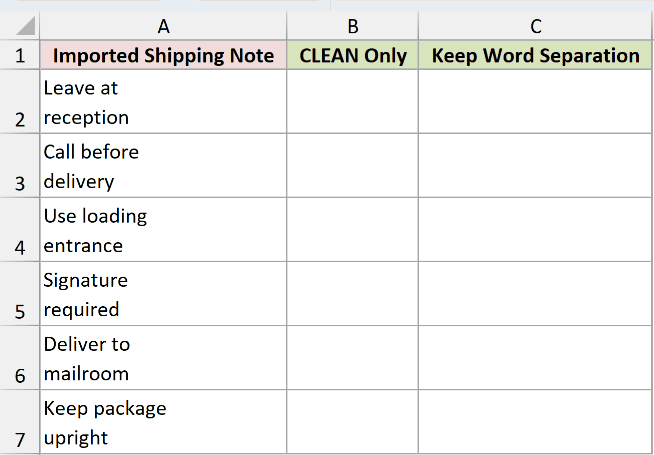
I want each note on one line while keeping a space where the line break was.
Here is CLEAN alone in B2:
=CLEAN(A2:A7)
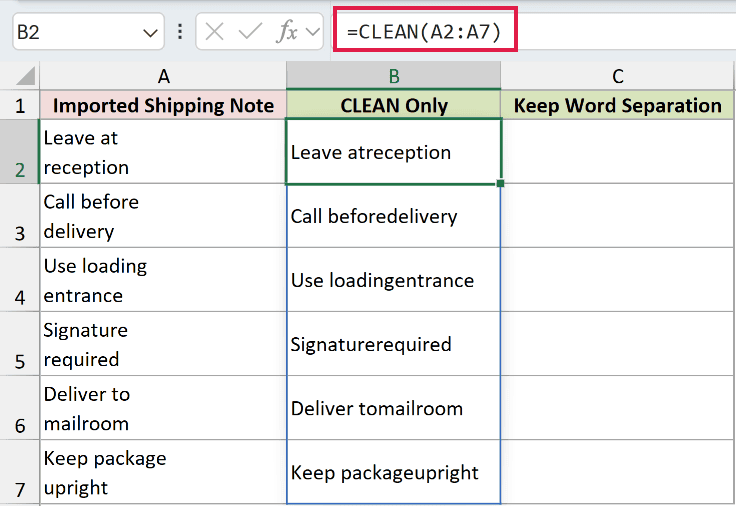
The first note becomes Leave atreception. CLEAN deletes the line break rather than replacing it with a space.
Use this formula in C2 to keep the words separate:
=TRIM(CLEAN(SUBSTITUTE(A2:A7,CHAR(10)," ")))
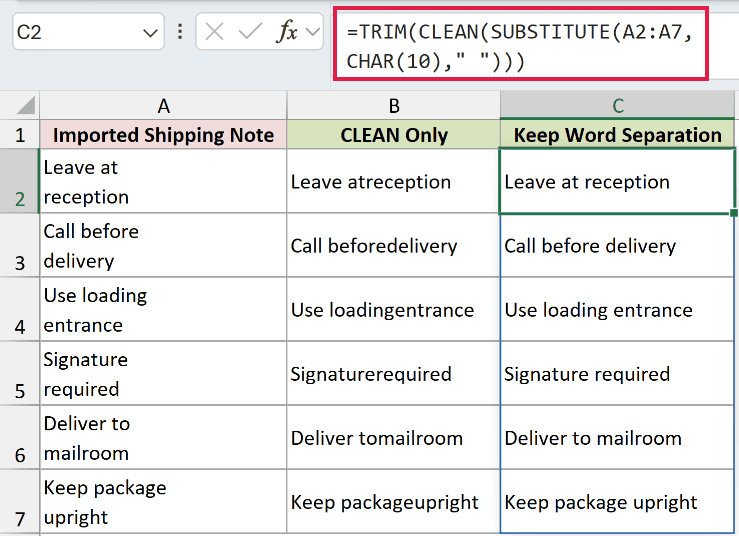
How this formula works:
- CHAR(10) supplies the line-feed character used in these notes.
- SUBSTITUTE replaces each line feed with an ordinary space.
- CLEAN removes any remaining control characters.
- TRIM tidies any repeated spaces left by the replacement.
C2 now shows Leave at reception, and C3 shows Call before delivery.
Pro Tip: This example replaces line feeds, character 10. If your source uses carriage returns, character 13, as the only word separator, replace those with spaces before applying CLEAN too.
Example 4: Handle Nonbreaking Spaces
Text copied from a web page can contain spaces that CLEAN doesn’t remove.
Below is the dataset on the Example 4 sheet. The supply labels in A2:A7 contain nonbreaking spaces, sometimes alongside tabs or line breaks.
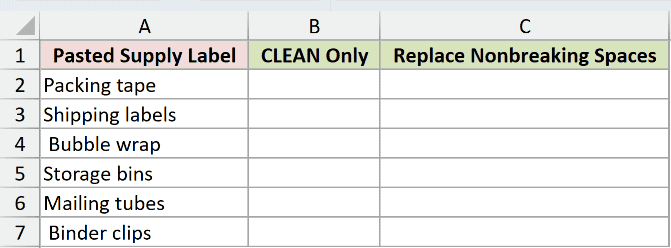
I want the labels to use ordinary spaces so they can match consistently with other text.
Enter this formula in B2 to see CLEAN’s result:
=CLEAN(A2:A7)
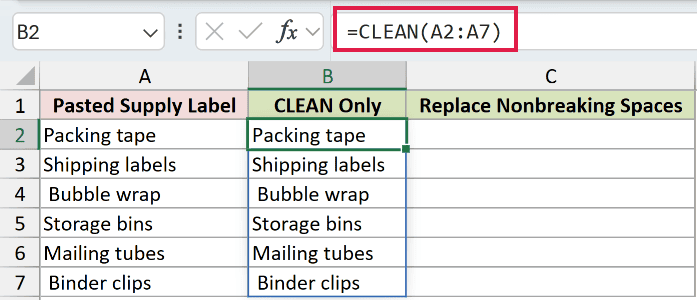
CLEAN removes the control characters, but the nonbreaking spaces remain. The labels may look correct even though they still contain a different space character.
Enter this formula in C2:
=TRIM(CLEAN(SUBSTITUTE(A2:A7,CHAR(160)," ")))
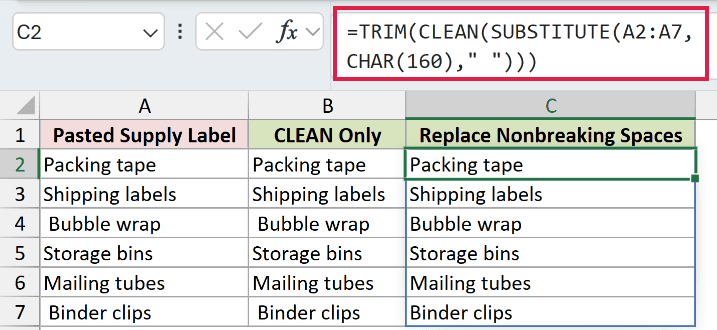
SUBSTITUTE changes character 160 to an ordinary space. CLEAN removes the control characters, and TRIM removes surplus ordinary spaces.
The results include Packing tape, Shipping labels, and Bubble wrap, with ordinary spaces between the words.
The sample uses Excel’s Windows character set. CHAR uses the computer’s character set, so check the character mapping when moving this formula between platforms.
Example 5: Find Cells That Need Cleaning
You can also use CLEAN to check the source text before replacing anything.
Below is the dataset on the Example 5 sheet. Column A contains queue names, with columns for a removed-character count and a Yes/No flag.
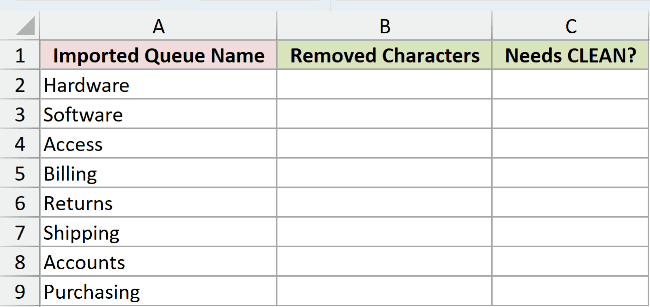
I want to identify the affected queue names and count how many characters CLEAN removes from each one.
Enter this formula in B2:
=LEN(A2:A9)-LEN(CLEAN(A2:A9))
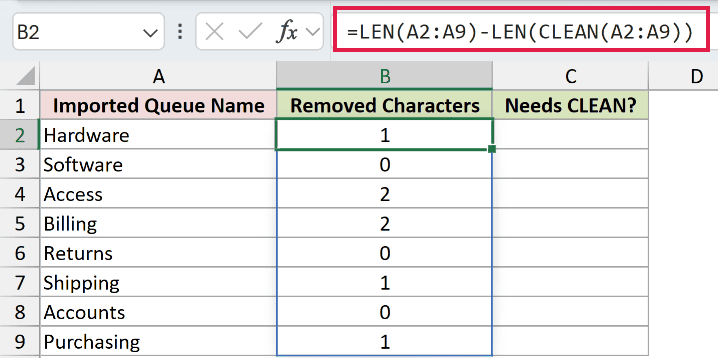
LEN counts the characters before and after cleaning. Subtracting the second count from the first gives the number removed.
B2:B9 returns 1, 0, 2, 2, 0, 1, 0, 1. Access and Billing each contain two removable characters.
For a simple flag, enter this formula in C2:
=IF(A2:A9=CLEAN(A2:A9),"No","Yes")
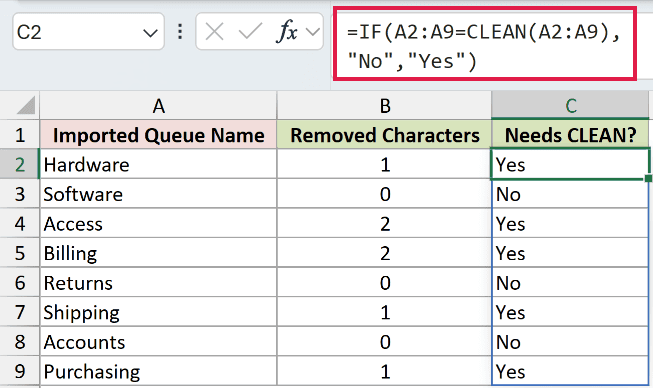
IF returns No when cleaning leaves the text unchanged, and Yes when it removes something. Five queue names return Yes.
Pro Tip: A No result means CLEAN found nothing it could remove. It does not prove the text is free of extra spaces or other unwanted Unicode characters.
Tips & Common Mistakes
- CLEAN handles ASCII control characters 0 through 31. It does not remove every nonprinting Unicode character.
- Ordinary spaces need TRIM or a targeted replacement. Nonbreaking spaces need separate handling before TRIM can tidy them.
- Removing a line break can join words. Replace the separator with a space first when the space carries meaning.
- Range-based examples spill in Excel 2021, Excel 2024, and Microsoft 365. In Excel 2019 and earlier, use the single-cell form and copy it down.
- CLEAN returns text. Cleaning a numeric-looking entry does not automatically turn it into a number.
- The original column stays unchanged. Review the results before using Paste Special > Values to replace source data.
I’ve shown how to remove hidden characters, keep word spacing intact, and flag text that needs cleaning.
I hope you found this article helpful.
Other Excel articles you may also like:
