
Excel’s BIN2OCT function returns the octal equivalent of a binary number as text.
Octal groups binary digits into sets of three. That makes BIN2OCT useful for turning Unix permission bits into familiar codes such as 755 and 644.
In this article, I’ll show you how to convert permission bits, add leading zeros, handle 12-bit modes, and diagnose troublesome imported values.
BIN2OCT Function Syntax in Excel
The BIN2OCT function accepts a binary number and an optional output width.
=BIN2OCT(number, [places])
- number (required) is the binary value to convert. It can contain up to 10 binary digits, with the tenth digit acting as the sign bit.
- places (optional) sets the number of characters in the result. Excel adds leading zeros when needed. If you leave places out, BIN2OCT returns the minimum number of characters needed.
When to Use BIN2OCT Function
- Convert binary permission bits into Unix chmod codes.
- Format umask values with a fixed number of digits.
- Convert separate binary flag groups and join their octal results.
- Compare converted permission codes with a numeric policy list.
- Check imported binary data for invalid characters or excess length.
Example 1: Convert Permission Bits to chmod Codes
Let’s start with a web server’s file and folder permissions.
Below is the dataset. It lists paths and nine permission bits, while the green chmod Code header and empty cells show where the results will appear.
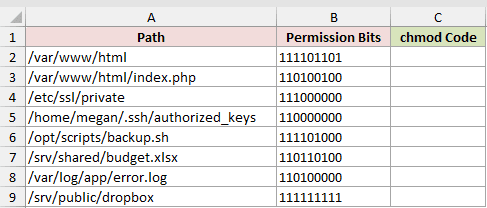
Column C should return the chmod code for each path.
Here is the formula entered in C2 and copied down:
=BIN2OCT(B2)
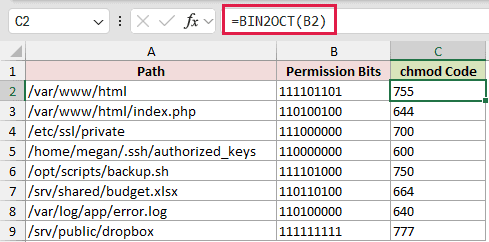
Each three-bit group becomes one octal digit. The bits 111101101 return 755, while 110100100 returns 644.
All eight inputs start with 1 but remain positive. BIN2OCT treats a leading 1 as a sign bit only when the input contains 10 digits.
The returned chmod codes are text, even though they look like numbers.
Pro Tip: In Excel 2021, Excel 2024, and Microsoft 365, =BIN2OCT(B2:B9&"") spills all eight codes. A plain =BIN2OCT(B2:B9) returns one #VALUE! instead.
Example 2: Convert Symbolic Permissions to Octal
Here’s how to work with the permission strings shown by an ls -l listing.
Below is the dataset. It lists files and nine-character symbolic permissions, with an empty green chmod Code column for the converted results.
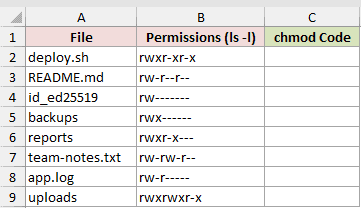
Column C should translate each permission string and return its chmod code.
Here is the formula entered in C2 and copied down:
=BIN2OCT(SUBSTITUTE(SUBSTITUTE(SUBSTITUTE(SUBSTITUTE(B2,"-","0"),"r","1"),"w","1"),"x","1"))
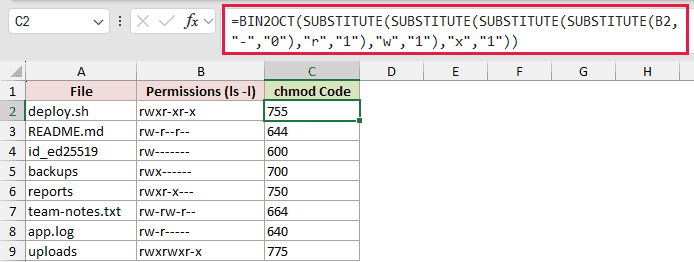
The nested SUBSTITUTE functions change each hyphen to 0 and each r, w, or x to 1. BIN2OCT then converts the resulting binary string.
The formula returns 755 for deploy.sh, 644 for README.md, 600 for id_ed25519, and 775 for uploads.
If the file-type character is still attached to the permission string, use RIGHT(B2,9) to keep its final nine characters before applying the replacements.
Microsoft 365 users can shorten the replacements with =BIN2OCT(REGEXREPLACE(REGEXREPLACE(B2,"-","0"),"[rwx]","1")). The SUBSTITUTE version works in every Excel version that supports BIN2OCT.
Example 3: Add Leading Zeros to Umask Values
Now let’s format account umasks in the four-digit style commonly used by Linux.
Below is the dataset. It lists accounts and their umask bits, with empty green columns headed “Umask” and “Umask (4 Digits).”
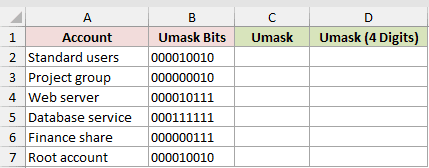
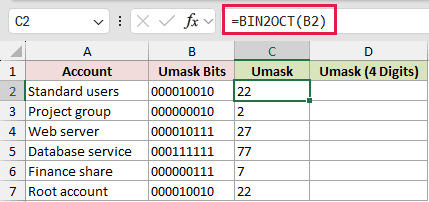
Column C should return each umask without extra padding.
Here is the formula entered in C2 and copied down:
=BIN2OCT(B2)
Column D should return the same umask with four characters.
Here is the padded formula entered in D2 and copied down:
=BIN2OCT(B2,4)
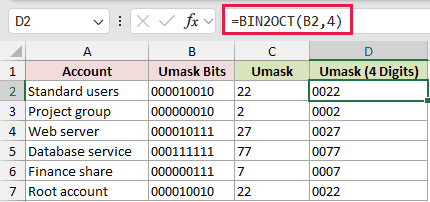
Without places, 000010010 returns 22. Setting places to 4 returns 0022, while 000000010 changes from 2 to 0002.
A umask removes permissions. For example, 022 turns a new file’s default 666 permissions into 644.
Example 4: Convert 12-Bit Unix Modes
BIN2OCT accepts no more than 10 binary digits, so 12-bit Unix modes need a different approach.
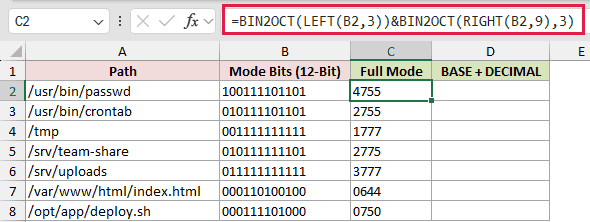
Below is the dataset. It lists paths and 12-bit modes, with empty green columns headed “Full Mode” and “BASE + DECIMAL.”
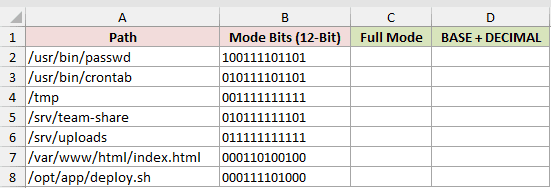
Column C should convert the special bits and permission bits separately, then join their octal digits.
Here is the formula entered in C2 and copied down:
=BIN2OCT(LEFT(B2,3))&BIN2OCT(RIGHT(B2,9),3)
Column D should convert the full 12-bit value in one calculation.
Here is the alternative formula entered in D2 and copied down:
=BASE(DECIMAL(B2,2),8,4)
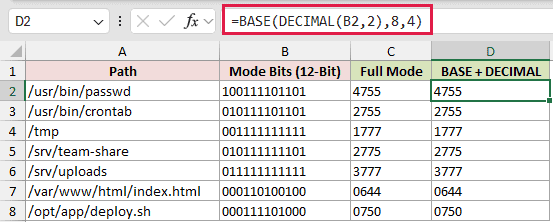
The first three bits represent setuid, setgid, and sticky flags. The final nine bits represent the usual owner, group, and other permissions.
The places value of 3 keeps the permission portion at three digits. Both formulas return 4755 for /usr/bin/passwd and 1777 for /tmp.
BASE with DECIMAL is available in Excel 2013 and later. It handles the complete 12-bit string without splitting it and matches every result in column C.
Example 5: Audit Permission Codes Against Policy
Here’s a permission audit where the required modes were entered as numbers.
Below is the dataset. It lists paths, current permission bits, and required numeric modes, with an empty green Status column for the audit result.
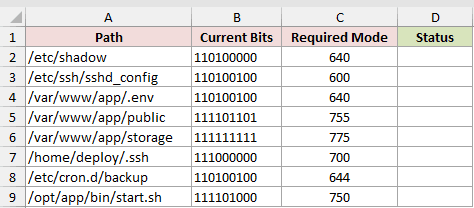
Column D should return OK when the current mode matches the policy and Fix when it doesn’t.
Here is the formula entered in D2 and copied down:
=IF(BIN2OCT(B2)+0=C2,"OK","Fix")
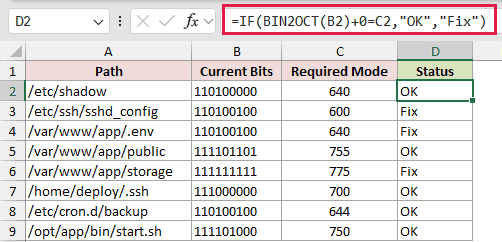
BIN2OCT returns text, while the required modes in column C are numbers. Adding 0 converts the octal text to a number before the comparison.
The audit flags sshd_config, .env, and storage as Fix. The other five rows return OK.
Without +0, a text result such as “644” doesn’t equal the number 644, so the comparison returns FALSE.
Example 6: Diagnose Invalid Binary Inputs
The last example shows what happens when imported permission data isn’t clean.
Below is the dataset. It lists files and imported bit strings, with an empty green BIN2OCT Result column for values and expected errors.
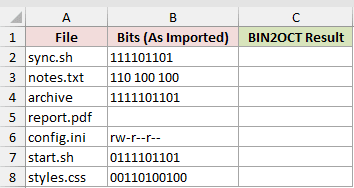
Column C should reveal how BIN2OCT handles each imported value.
Here is the formula entered in C2 and copied down:
=BIN2OCT(B2)
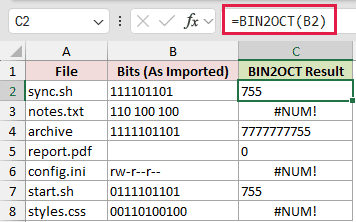
The clean sync.sh row returns 755. Spaces in notes.txt and symbolic letters in config.ini produce #NUM! errors.
You can remove the spaces from notes.txt with =SUBSTITUTE(B3," ",""). The symbolic value needs the replacements used in Example 2.
The archive value has 10 digits starting with 1, so Excel reads this 10-digit value as a negative number in two’s-complement notation. Its result is 7777777755, representing -19.
A blank input returns 0 instead of an error. That makes report.pdf risky because a missing value can resemble a real mode.
The leading zero in start.sh keeps its 10-digit value positive, and the row returns 755. The 11-character styles.css input returns #NUM!.
Tips & Common Mistakes
- Store binary values as text so the cell keeps their leading zeros. BIN2OCT still returns 7 for
"0000000111", but those zeros count toward its 10-character limit. - The places argument pads positive results with leading zeros. If places is too small, zero, negative, or greater than 10, Excel returns #NUM!.
- BIN2OCT returns #NUM! when places refers to an empty cell. Leave the optional argument out when you don’t need padding.
- Excel truncates a non-integer places value. A text number such as
"3"is accepted. - Negative binary values always return 10-character octal text. BIN2OCT ignores places for these values.
- BIN2OCT returns #NUM! when the input has a space anywhere, a decimal such as 1.5, a non-binary digit such as 102, a prefix such as
0b101, or a minus sign such as -101. - BIN2OCT returns #VALUE! when number is TRUE or refers to a cell holding TRUE. It returns 0 when number is
""or refers to an empty cell. - Symbolic permissions containing
sortneed extra handling. The four-SUBSTITUTE formula in Example 2 leaves those letters and returns #NUM!. - Use
OCT2BIN(BIN2OCT(1100100))as a quick round-trip check. It returns the original binary value, 1100100.
BIN2OCT turns permission bits into chmod codes, and places keeps umasks padded.
Split 12-bit modes before conversion, and check imported bits before you trust the result.
Related Excel Functions / Articles:
