
The COSH function in Excel returns the hyperbolic cosine of a real number. Its result is always at least 1, and positive and negative inputs return matching values.
COSH expects a plain number rather than an angle. You shouldn’t convert its input from degrees to radians as you would for the COS function.
In this article, I’ll show you how to calculate COSH values, model cable sag and height, and check the function against its EXP and SINH identities.
COSH Function Syntax in Excel
The COSH function has one required argument.
=COSH(number)
- number (required) is the real number for which you want the hyperbolic cosine.
When to Use COSH Function
- Calculate the hyperbolic cosine of positive, negative, or zero values.
- Model the sag of a hanging cable between two supports.
- Calculate cable heights at different positions along a span.
- Check hyperbolic formulas against equivalent EXP and SINH expressions.
Example 1: Calculate COSH for Multiple Numbers
Let’s start by seeing how COSH behaves across negative, zero, and positive inputs.
Below is the dataset. Column A contains the input numbers. The COSH Result column in column B is empty for now and will hold the results.
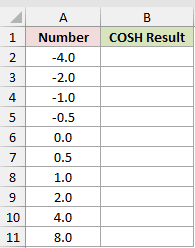
We want one COSH formula to calculate every result in column B.
Here is the formula:
=COSH(A2:A11)
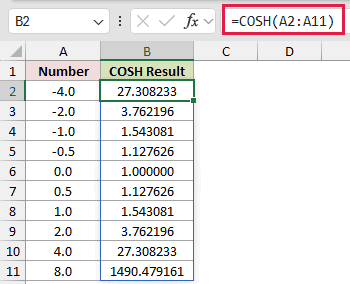
The range in A2:A11 makes the formula spill down column B. Each input gets its own COSH result.
Range-based COSH formulas spill in Excel 2021, Excel 2024, and Microsoft 365. In Excel 2019 and earlier, calculate one row and fill the formula down.
COSH is an even function. Inputs of -2.0 and 2.0 both return 3.762196, while -4.0 and 4.0 both return 27.308233.
Zero is the function’s minimum point and returns 1.000000. By 8.0, the result has grown to 1490.479161.
Pro Tip: Keep the cells below the formula empty. A blocked spill range prevents Excel from placing all the results and causes a #SPILL! error.
Example 2: Calculate Power-Line Cable Sag
Here’s a practical engineering use for COSH.
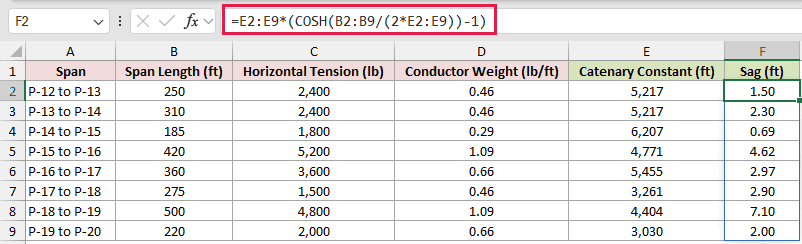
Below is the dataset. It lists each span, its length, horizontal tension, and conductor weight, followed by empty columns for the catenary constant and sag.
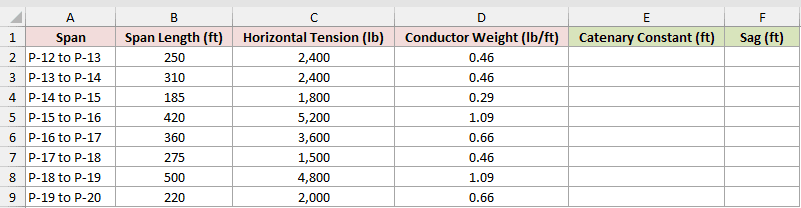
We first want to calculate the catenary constant for every span.
Here is the formula:
=C2:C9/D2:D9
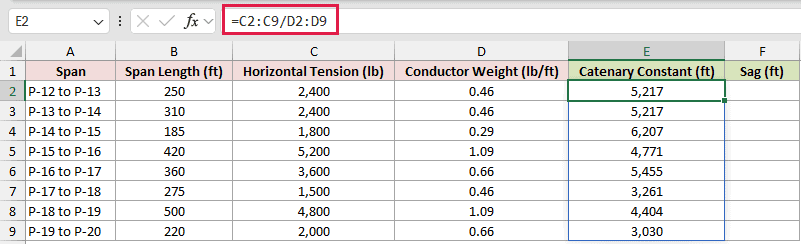
The catenary constant divides horizontal tension by conductor weight per foot. It is a length, not the raw tension value.
For P-12 to P-13, the formula returns a catenary constant of 5,217 feet.
Next, we want to use that constant and the span length to calculate sag.
Here is the formula:
=E2:E9*(COSH(B2:B9/(2*E2:E9))-1)
How this formula works:
B2:B9/(2*E2:E9)expresses half of each span relative to its catenary constant.COSH(B2:B9/(2*E2:E9))-1subtracts the low-point baseline from the hyperbolic factor.- Multiplying that difference by
E2:E9returns the vertical sag at midspan in feet.
P-12 to P-13 has 1.50 feet of sag. With the same tension and conductor weight, the longer P-13 to P-14 span has 2.30 feet.
The P-18 to P-19 span has the largest displayed sag in the table at 7.10 feet.
Pro Tip: For the first span, COSH(250/(2*2400/0.46)) calculates COSH of the span length divided by twice the catenary constant and returns 1.000287. Multiply the horizontal tension by this factor to get the tension at the pole.
Example 3: Find Cable Height Along a Span
Now let’s calculate a complete cable profile between two poles.
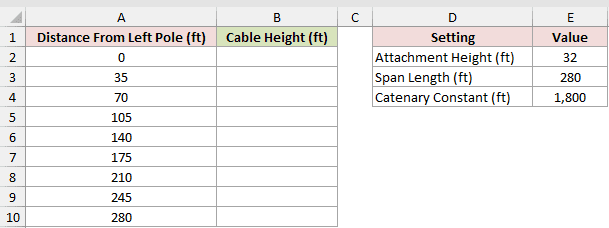
Below is the dataset. Column A lists distances from the left pole, and column B will hold cable heights.
The setting card has Attachment Height (ft) 32 in E2, Span Length (ft) 280 in E3, and Catenary Constant (ft) 1,800 in E4.
We want one formula to return the cable height at every listed distance.
Here is the formula:
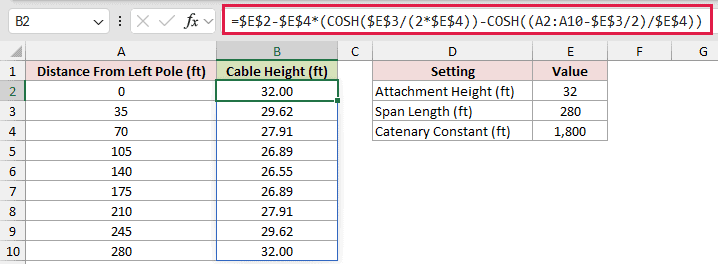
=$E$2-$E$4*(COSH($E$3/(2*$E$4))-COSH((A2:A10-$E$3/2)/$E$4))
How this formula works:
$E$3/(2*$E$4)evaluates the first COSH term at the poles using half the span and the catenary constant.(A2:A10-$E$3/2)/$E$4centers each distance on the midpoint, and the second COSH term evaluates the curve at that position.- Their difference, multiplied by
$E$4, is how far the cable sits below the 32-foot attachment height. - Subtracting that drop from
$E$2returns the cable height. The absolute references keep all three settings fixed as the formula spills.
The cable is 32.00 feet high at both poles and drops to 26.55 feet at the 140-foot midpoint.
Matching heights on opposite sides show the curve’s symmetry. The heights at 35 and 245 feet are both 29.62 feet.
Pro Tip: Plot the distance and height columns as an XY scatter chart if you want to see the cable’s curved profile.
Example 4: Compare COSH With EXP and SINH
Finally, let’s use column C for an EXP expression equal to COSH and column D for an identity check that should return 1.
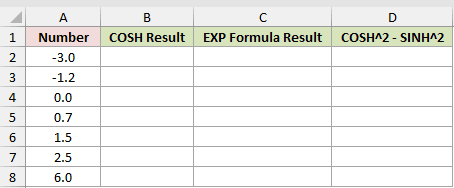
Below is the dataset. Column A contains the inputs, while three empty result columns will hold COSH, its EXP comparison, and the COSH and SINH identity check.
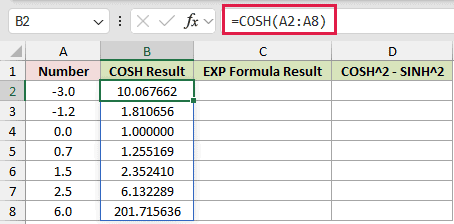
We first want to calculate the built-in COSH results.
Here is the formula:
=COSH(A2:A8)
Next, we want to calculate the equivalent EXP expression for comparison.
Here is the comparison formula:
=(EXP(A2:A8)+EXP(-A2:A8))/2
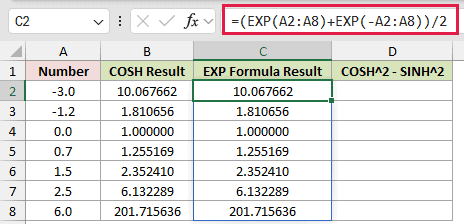
The EXP formula averages the positive and negative exponential values. It matches the built-in COSH result across the displayed rows.
For an input of -3.0, columns B and C both return 10.067662. At 6.0, they both return 201.715636.
We also want to check the identity formed by COSH and SINH.
Here is the identity formula:
=COSH(A2:A8)^2-SINH(A2:A8)^2
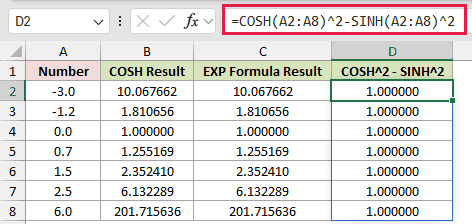
Every displayed identity result is 1.000000. This provides a useful check while the inputs remain reasonably small.
Pro Tip: Large inputs can cause cancellation in this identity. At an input of 30, the calculation returns 0 instead of 1.
Tips & Common Mistakes
- Don’t wrap a COSH input in RADIANS or multiply it by PI divided by 180. COSH works with a plain number, not a circular angle.
- COSH itself works in every Excel version. Only the range-based spilling behavior depends on a newer version.
- Positive and negative inputs return the same result. ACOSH returns the positive input value from a COSH result, so it loses the original sign.
- A blank cell is treated as 0 and returns 1. Numeric text works, while nonnumeric text returns #VALUE!.
- COSH at 709.78 still works, but 709.79 returns #NUM!. Very large positive or negative inputs can therefore overflow.
- COSH plus SINH equals EXP. Cable-length calculations use SINH, while cable sag and height use COSH.
- The
@symbol limits a range formula to one result. For example,=@COSH(A2:A11)returns one result instead of spilling.
When the inputs come from a cable model, check that the catenary constant uses the same length unit as the span.
That unit check helps prevent plausible-looking sag and height results from being wrong.
Other Excel articles you may also like:
