
The DEC2OCT function in Excel converts a decimal integer to octal text. It can also pad positive results with leading zeros when you specify the optional places argument.
Octal skips the digits 8 and 9, so decimal 8 becomes octal 10. DEC2OCT is useful for systems that number PLC I/O addresses or character escape codes in octal.
You will learn how to convert a column, control code width, and catch inputs that can fail or truncate silently.
DEC2OCT Function Syntax in Excel
The DEC2OCT function takes a decimal number and an optional result width.
=DEC2OCT(number, [places])
- number (required) is the decimal value to convert. It must be from -536,870,912 through 536,870,911.
- places (optional) sets the result width for a positive value by padding with leading zeros. If the width is too small, DEC2OCT returns
#NUM!.
When to Use DEC2OCT Function
- Convert decimal equipment addresses into octal codes.
- Create fixed-width octal escape sequences from characters.
- Convert negative decimal values into 10-character two’s-complement octal codes.
- Convert positive values near the function’s upper limit and identify when BASE is a better fit.
- Diagnose imported values that contain decimals, text, or invalid places settings.
Example 1: Convert Decimal Addresses to Octal
Let’s start with whole-number PLC point numbers written in base 10.
Below is the dataset. It lists each device and its PLC point number as a base-10 whole number, while the green Octal Address column will hold the converted codes.
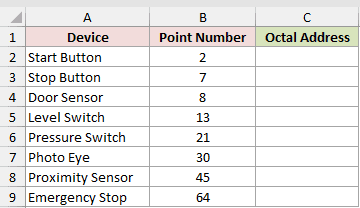
We want one formula to convert every point number into its octal address.
Here is the formula:
=DEC2OCT(B2:B9+0)
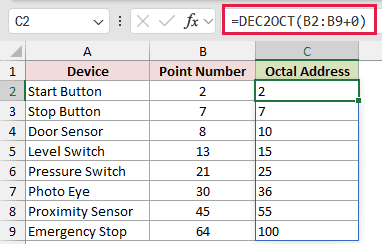
The formula spills eight results down column C. Adding +0 turns the plain range into a computed array that DEC2OCT can process.
DEC2OCT will not take a plain range such as B2:B9. Without the +0, it returns one #VALUE! instead of a converted column.
Point 7 stays 7, point 8 becomes 10, and point 64 becomes 100. The returned octal codes are digit-only text.
Range spilling works in Excel 2021, Excel 2024, and Microsoft 365. In Excel 2019 and earlier, use a single-cell formula and fill it down.
Example 2: Build Octal Escape Codes
Here’s a practical use for the optional places argument.
Below is the dataset. Column A contains special characters, and the green Octal Escape column will hold each fixed-width escape code.
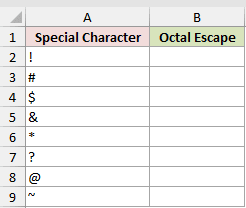
We want to turn each character into a backslash followed by three octal digits.
Here is the formula:
="\"&DEC2OCT(CODE(A2:A9),3)
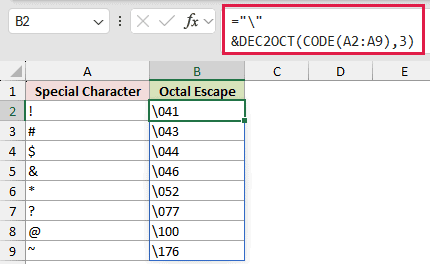
CODE returns each character’s numeric code. DEC2OCT converts that array, places pads every result to three digits, and "\"& adds the leading backslash.
The exclamation point returns \041, the question mark returns \077, and the tilde returns \176.
CODE already produces a computed array, so DEC2OCT can spill these results without adding +0 to a worksheet range.
Example 3: Convert Signed Position Offsets
Now let’s look at positive and negative offsets from a machine log.
Below is the dataset. Column A contains signed position offsets, while the two green columns will hold their octal codes and decoded decimal values.
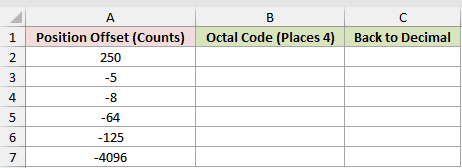
We want to encode every offset and then convert each code back to decimal as a check.
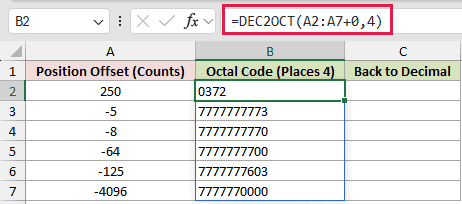
Here is the DEC2OCT formula:
=DEC2OCT(A2:A7+0,4)
And here is the OCT2DEC formula that reverses the conversion:
=OCT2DEC(B2:B7+0)
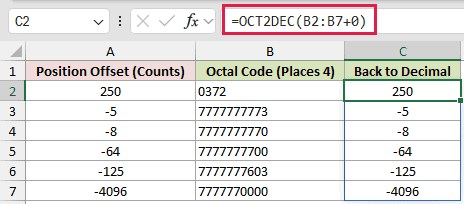
The places argument pads positive 250 to 0372. Negative values ignore places and return a 10-character two’s-complement code.
For example, -5 becomes 7777777773, while -4,096 becomes 7777770000.
OCT2DEC is the direct inverse. It converts those two codes back to -5 and -4,096.
These codes represent signed values, not large positive values.
Example 4: Handle Large Decimal Values
Next, we’ll test file sizes against DEC2OCT’s upper limit.
Below is the dataset. It lists archive files and byte sizes, while the green result columns will compare DEC2OCT with the BASE fix for large values.
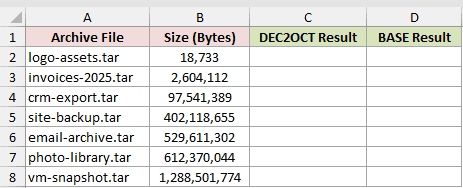
We want to convert every file size to octal and identify the values DEC2OCT cannot handle.
Here is the DEC2OCT formula:
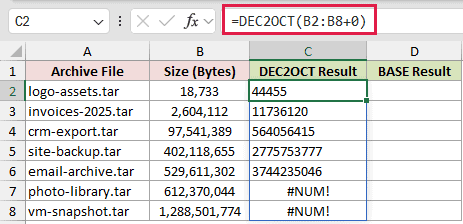
=DEC2OCT(B2:B8+0)
Here is the BASE formula used to fix those large-value failures:
=BASE(B2:B8,8)
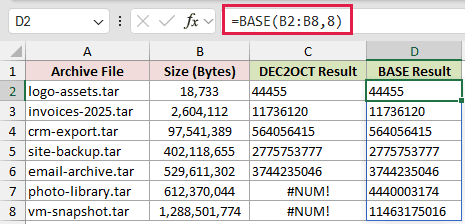
DEC2OCT converts values through 536,870,911. The deliberate #NUM! cells in C7 and C8 show that 612,370,044 and 1,288,501,774 exceed that limit.
BASE is the fix for these large positive values. It returns 4440003174 in D7 and 11463175016 in D8.
BASE is available in Excel 2013 and later, spills without +0, and does not share DEC2OCT’s upper cap. However, BASE does not handle negative numbers.
Example 5: Troubleshoot Inputs and Places
Finally, let’s inspect several values imported from a CSV file.
Below is the troubleshooting dataset. It pairs each imported value with a places setting, while the green Octal Result column will show each outcome.
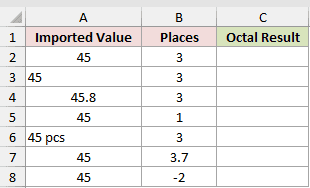
We want to see how DEC2OCT handles numeric text, decimals, and invalid places settings.
Enter this formula in C2 and copy it down through C8:
=DEC2OCT(A2,B2)
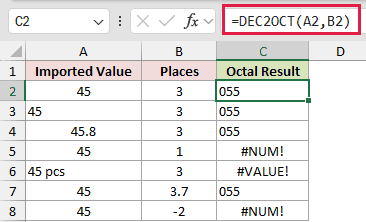
These rows are deliberate troubleshooting cases, not alternative answers:
- C2 converts 45 with three places to
055. - C3 also returns
055because numeric text such as “45” is converted successfully. - C4 is a silent truncation trap. DEC2OCT truncates 45.8 to 45, so the result remains
055instead of rounding up. - C5 deliberately returns
#NUM!because one place cannot hold the two-digit result55. - C6 deliberately returns
#VALUE!because “45 pcs” is not numeric text. - C7 reveals another silent truncation. The places value 3.7 is treated as 3, so the result is
055. - C8 deliberately returns
#NUM!because the places value is -2.
The per-row layout is intentional here. It keeps each bad input beside its own formula and makes every error cause easy to inspect.
Tips & Common Mistakes
- DEC2OCT returns text. Convert the result before using it in arithmetic or numeric comparisons.
- Keep every cell in the intended spill area empty. An obstruction causes a
#SPILL!error. - Do not add the implicit-intersection operator
@to a range formula. It prevents the formula from returning the full converted column. - The places argument can be no more than 10. A value of 11 returns
#NUM!, while negative numbers ignore places completely. - A blank input returns the text value
0. Check blank source cells first if that result would be misleading. - Use DEC2BIN when the target system expects binary text.
- Use DEC2HEX when the target system expects hexadecimal text.
- DEC2OCT is available in every current Excel version. Spill behavior still depends on the version rules covered in Example 1.
Use DEC2OCT when the destination specifically expects octal text and the input stays within the supported range.
Validate imported inputs before conversion, because DEC2OCT can truncate decimals without warning.
Related Excel Functions / Articles:
