
Excel’s EVEN function returns a number rounded away from zero to the nearest even integer. Numbers that are already even integers stay unchanged.
This is handy when quantities come in pairs. Five paddlers need six seats in two-seat canoes, while a group of twelve needs exactly twelve seats.
I’ll show you how to reserve seats, calculate paper for double-sided printing, and compare EVEN with CEILING.MATH when negative numbers are involved.
EVEN Function Syntax in Excel
The EVEN function takes one required argument:
=EVEN(number)
- number: The numeric value to round to an even integer. You can supply a number, cell reference, or calculation. A range can return multiple results in dynamic-array Excel.
When to Use EVEN Function
- Reserve enough seats when seating comes in pairs.
- Calculate paper requirements for double-sided documents.
- Round a calculated staffing requirement to an even headcount.
- Round positive or negative values to even integers, moving away from zero.
Example 1: Round Canoe Seats to Even Numbers
Let’s start with groups booking two-seat canoes.
Below is the dataset with Tour Group and Paddlers inputs, plus empty result cells under Canoe Seats to Reserve.
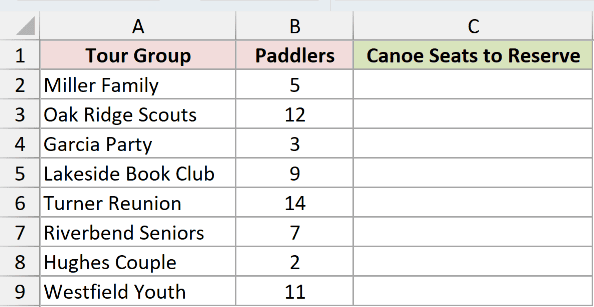
I want to calculate the smallest even seat allocation that fits each group, starting in cell C2.
Here is the formula:
=EVEN(B2:B9)
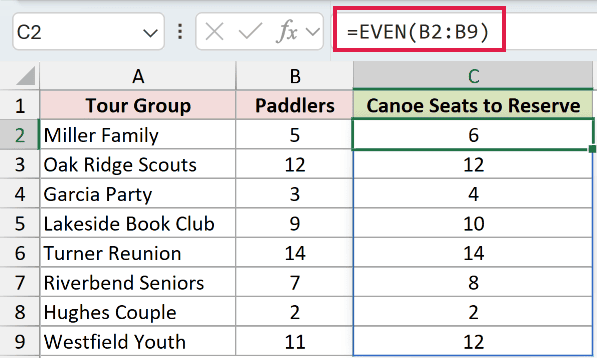
EVEN rounds each paddler count separately. The Miller Family’s 5 paddlers become 6 seats, and the Garcia Party’s 3 become 4.
Oak Ridge Scouts already have an even count of 12, so their result stays 12. The Turner Reunion’s 14 also stays unchanged.
In Excel 2021, Excel 2024, and Microsoft 365, entering this formula in C2 spills the eight results into C2:C9 automatically.
Pro Tip: Keep C3:C9 empty before entering the formula so the results can spill. In Excel 2019 and earlier, reference one paddler cell at a time and fill down.
Example 2: Calculate Paper for Double-Sided Printing
Now let’s turn an even page count into a paper count.
Below is the dataset with Document and Pages inputs, plus empty result cells under Printed Pages and Sheets of Paper.
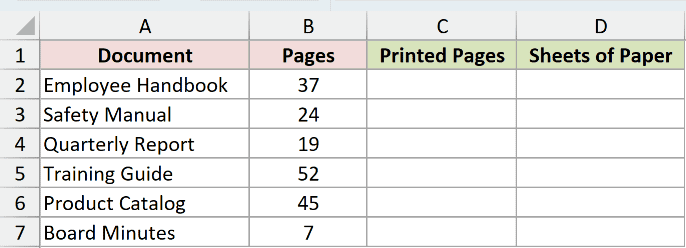
I want to round each document’s page count to an even total in C2:C7, allowing a blank final side when needed.
Here is the formula:
=EVEN(B2:B7)
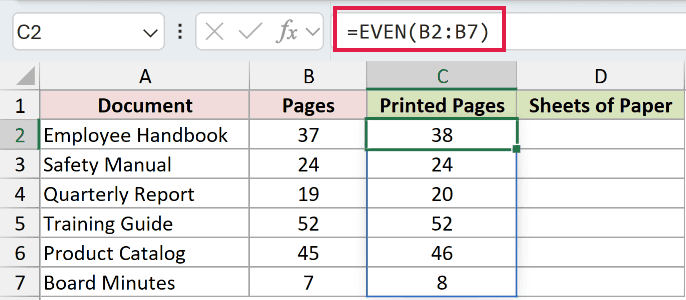
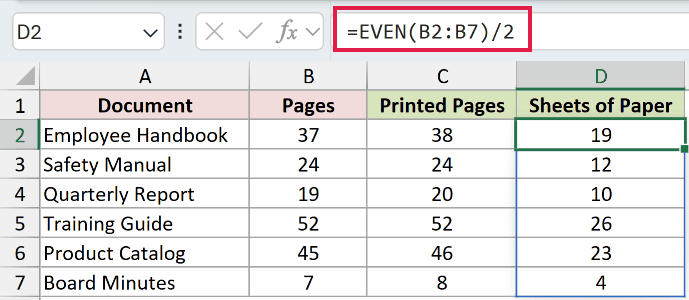
The Employee Handbook’s 37 pages become 38 in the Printed Pages column. The Safety Manual’s 24 pages remain 24.
Next, I want the number of physical sheets in D2:D7, with two page positions per sheet.
Here is the formula:
=EVEN(B2:B7)/2
How this formula works:
EVEN(B2:B7)rounds each page count to an even number, leaving room for both sides of the last sheet.- Dividing by 2 converts those page positions into sheets of paper.
- The Employee Handbook needs 19 sheets because 38 divided by 2 is 19. The Product Catalog needs 23 sheets for its 45 content pages.
Pro Tip: This assumes double-sided printing with one document page on each side. The Printed Pages total includes a blank final side when the document has an odd page count.
Example 3: Round Calculated Staffing to Pairs
EVEN can round a calculation directly, without a separate intermediate column.
Below is the dataset with Site, Coverage Hours, and Hours per Guard inputs, plus empty result cells under Guards Needed.
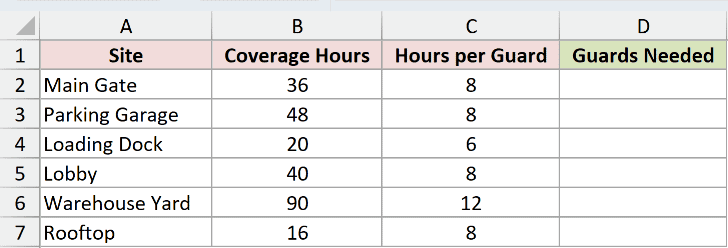
I want to divide each site’s total guard-hours by hours per guard, then round to an even headcount in D2:D7.
Here is the formula:
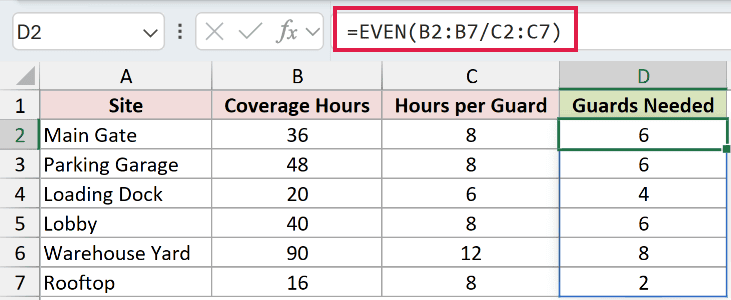
=EVEN(B2:B7/C2:C7)
How this formula works:
B2:B7/C2:C7divides each site’s Coverage Hours by its Hours per Guard. For Main Gate, 36 divided by 8 is 4.5.- EVEN rounds that requirement away from zero to the next even integer. Main Gate therefore needs 6 guards.
- Parking Garage needs exactly 6 guards, so its result stays 6. Lobby’s calculated requirement is 5, which becomes 6.
- The formula spills one result per site into D2:D7. Warehouse Yard returns 8, while Rooftop returns 2.
Pro Tip: Enter total guard-hours in Coverage Hours. For example, two guards working together for eight hours contribute 16 guard-hours over eight elapsed hours.
Example 4: EVEN vs CEILING.MATH for Negative Numbers
Negative values make the rounding direction easier to see.
Below is the dataset with positive numbers, zero, and negative numbers under Value, plus empty cells under EVEN Result and CEILING.MATH Result.
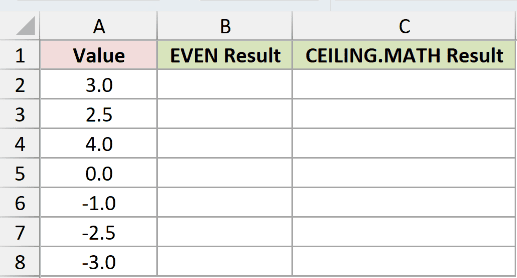
I want to see how EVEN rounds each value, starting in B2.
Here is the formula:
=EVEN(A2:A8)
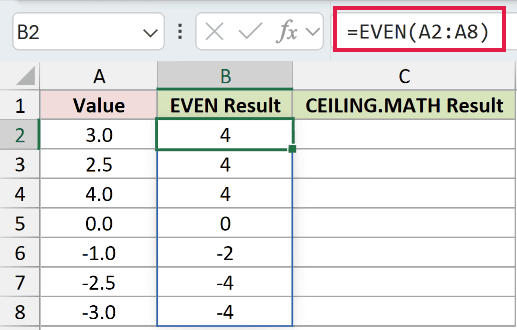
The positive values 3 and 2.5 both return 4. The existing even integer 4 stays 4, and zero stays zero.
For negatives, EVEN moves away from zero. The value -1 returns -2, while -2.5 and -3 both return -4.
Now I want to compare those results with CEILING.MATH using a multiple of 2, starting in C2.
Here is the formula:
=CEILING.MATH(A2:A8,2)
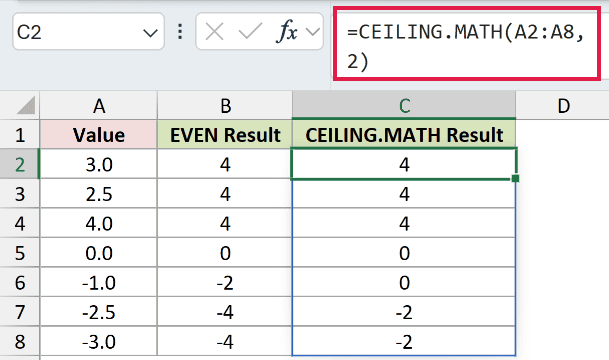
How this formula works:
A2:A8supplies the same seven values used by EVEN.- The second argument, 2, sets the rounding multiple to 2.
- With its default negative-number behavior, CEILING.MATH rounds toward zero. Here, -1 returns 0, while -2.5 and -3 return -2.
- Both columns match for the positive values and zero.
Pro Tip: Set the third argument of CEILING.MATH to 1 to round negative numbers away from zero. With a multiple of 2, it then matches EVEN for every value in this example.
Tips & Common Mistakes
- Rounding away from zero is the key rule. Positive values increase to an even integer; negative values become more negative. Existing even integers and zero remain unchanged.
- EVEN rounds; ISEVEN tests. Use ISEVEN when you want TRUE or FALSE indicating whether a number is even. Use ODD when you need rounding to an odd integer.
- ROUNDUP does not enforce even results. Rounding to a whole number can still leave an odd integer, which matters when quantities must come in pairs.
- MROUND serves a different purpose. It rounds to the nearest chosen multiple and can round down, so it may leave too few seats or sheets.
- Nonnumeric input returns
#VALUE!. Check the referenced inputs if a result contains this error. - Blocked output cells can cause
#SPILL!. Clear the intended spill range. For these examples in Excel 2019 and earlier, use individual cell references and fill down.
We used EVEN to reserve canoe seats, calculate paper for double-sided printing, and round staffing requirements to pairs.
We also compared EVEN with CEILING.MATH and saw how their default rounding directions produce different results for negative numbers.
Related Excel Functions / Articles:
