
A broken axis chart in Excel lets you compare small bars that one much taller bar would otherwise squash near the bottom.
It skips an empty stretch of the vertical scale, giving the smaller values room while still showing the top of the largest bar.
Excel has no built-in setting to break a chart axis in any version, including Microsoft 365, so you have to build the break yourself.
I’ll show you how to stack two column charts with separate scales, then how to create a single stacked column chart using helper columns.
Method #1: Stacking Two Column Charts
I recommend starting with this approach because each half keeps a real scale. You can read the small values and the large value against their own axis labels.
You make two copies of the same column chart, zoom one into the low values and the other into the top of the big bar.
Then you stack them so they read as one chart with a break in the middle.
Below I have a dataset of units sold by product in A1:B7. I want to compare the smaller bars without losing the Phone Cases value.
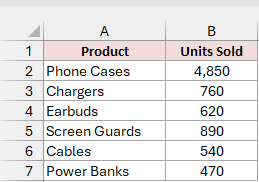
Here are the steps to build the two halves of the chart:
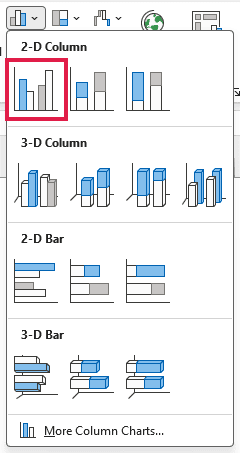
- Select A1:B7. On the Insert tab, click Insert Column or Bar Chart and choose Clustered Column, the first icon under 2-D Column.
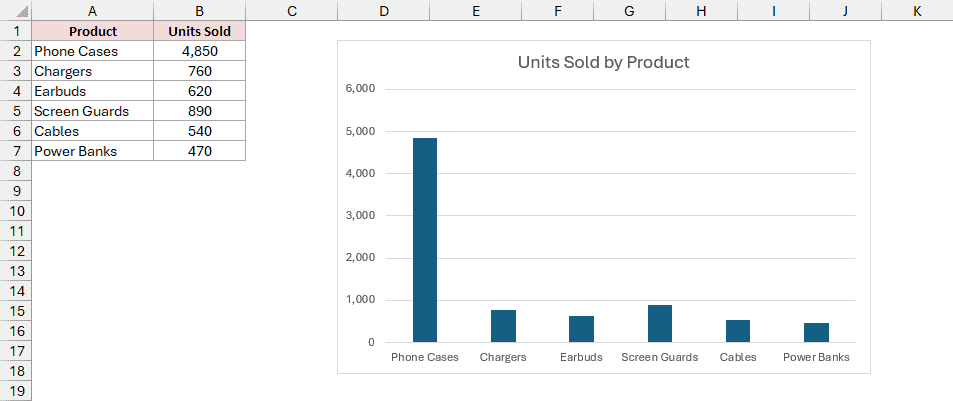
Excel adds a chart with an axis from 0 to 6,000. The Phone Cases bar shoots toward 5,000, squashing the other five bars near the bottom.
That’s the problem the break will fix.
Click the chart title and replace the default Units Sold with Units Sold by Product.
- Make this chart the bottom half. Right-click the numbers on the vertical axis and click Format Axis. In the Format Axis pane, under Axis Options, set Bounds Maximum to 1000 and Units Major to 250.
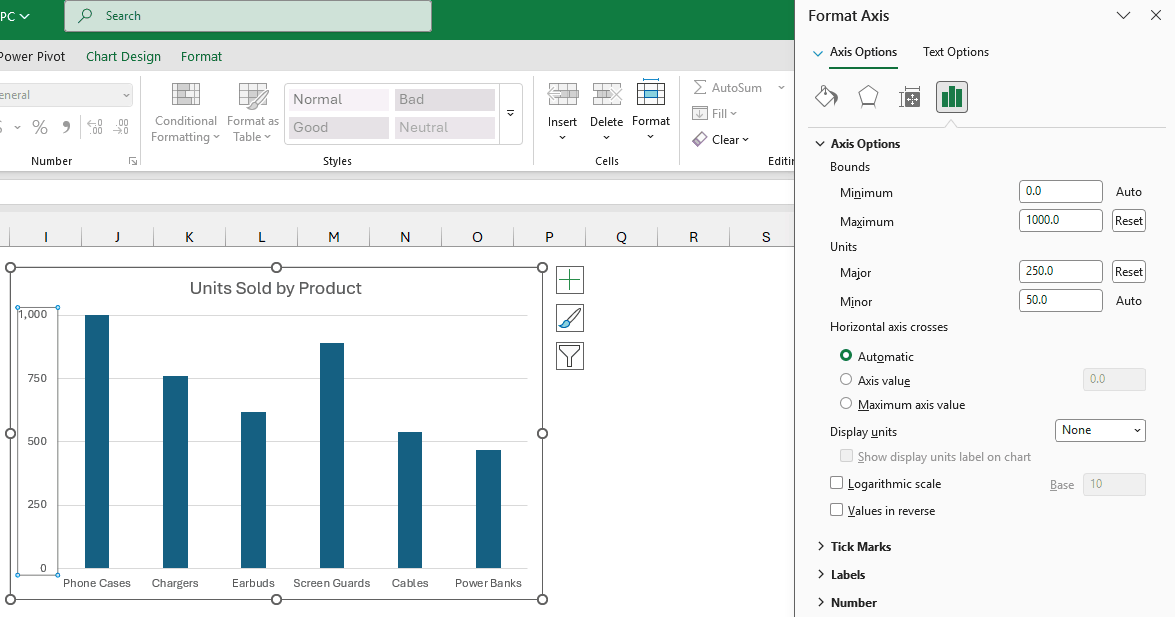
Your axis now runs from 0 to 1,000 in steps of 250, so you can compare the five small bars easily.
The Phone Cases bar runs off the top. That’s fine because the upper chart will show the top of that bar.
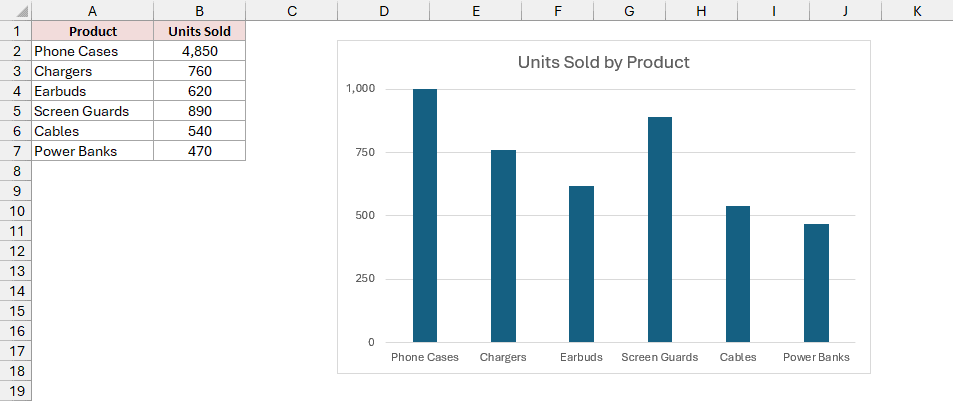
- Click the chart border to select the whole chart and press Ctrl + C. Click an empty cell to its right and press Ctrl + V. In the copy, right-click the vertical axis numbers and click Format Axis. Under Axis Options, set Bounds Maximum to 5000 first, then Minimum to 4500.
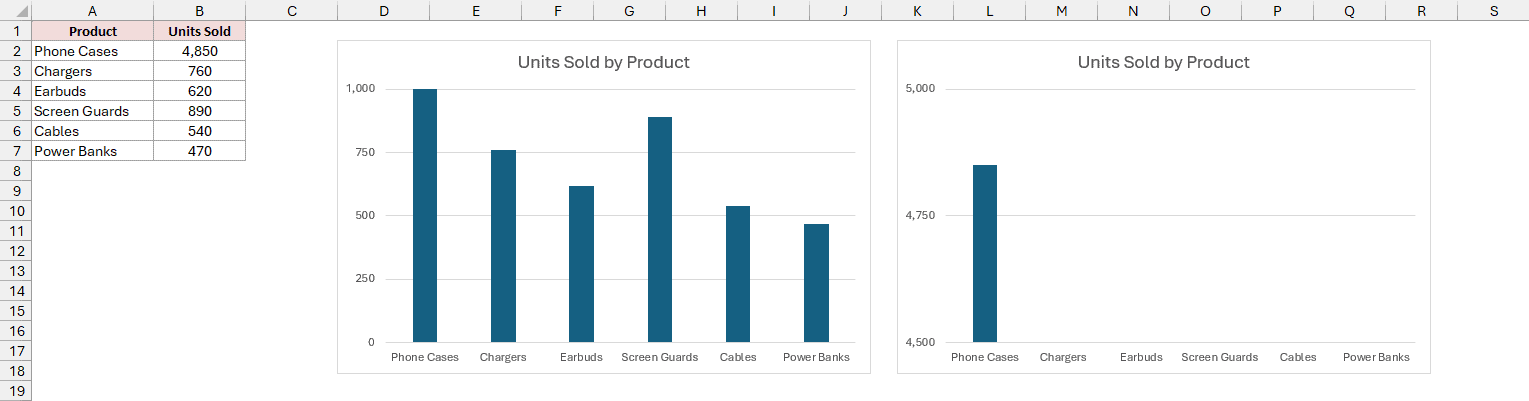
Only the Phone Cases bar reaches into the copy’s 4,500 to 5,000 range.
- Tidy the two halves so you can join them:
- In the copy, which becomes the top half, click the product names along the bottom and press Delete.
- In the bottom chart, click the chart title and press Delete.
- Select each chart, go to the Format tab, click Shape Outline, and choose No Outline so no border runs between the halves.
Note: Keep both charts the same width so the bars line up. Here, the axis labels 5,000 and 1,000 have the same width, so the plot areas line up on their own.
- Drag the middle handle on the top chart’s bottom edge to make it about half the height of the bottom chart. Drag it directly above the bottom chart, lining up the left and right edges. Hold Alt while you drag each chart so both snap to the same column edge.
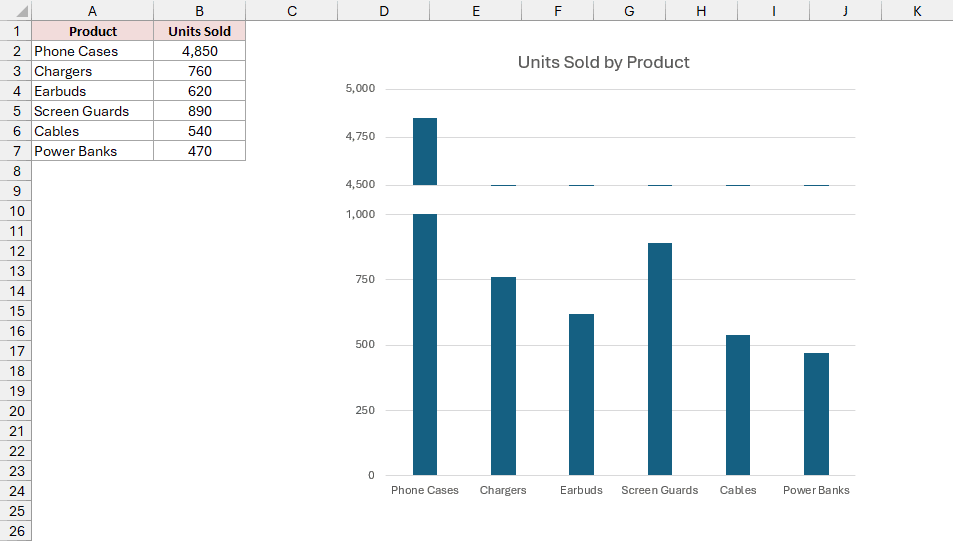
You have the two scales in place. I’ll add two short diagonal marks where they meet to show that the middle stretch has been skipped.
- Click any empty cell so neither chart is selected. On the Insert tab, click Shapes and choose Line.
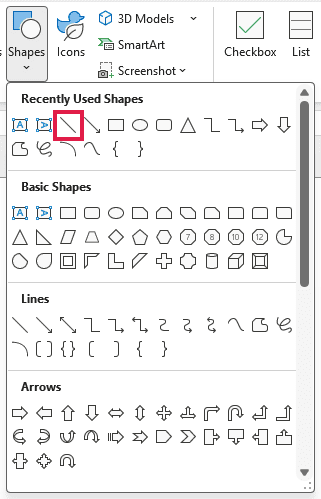
- Hold Shift and drag a short slanted line across the vertical axis, just right of the 4,500 and 1,000 labels, where the halves meet. Press Ctrl + C and Ctrl + V to copy it. Place the copy just above the first line to make two parallel break marks. To change their color, use Shape Format > Shape Outline.
- Group everything so it moves together. Click the top chart, hold Ctrl, and click the bottom chart and both lines. Right-click one of the selected objects and choose Group > Group.
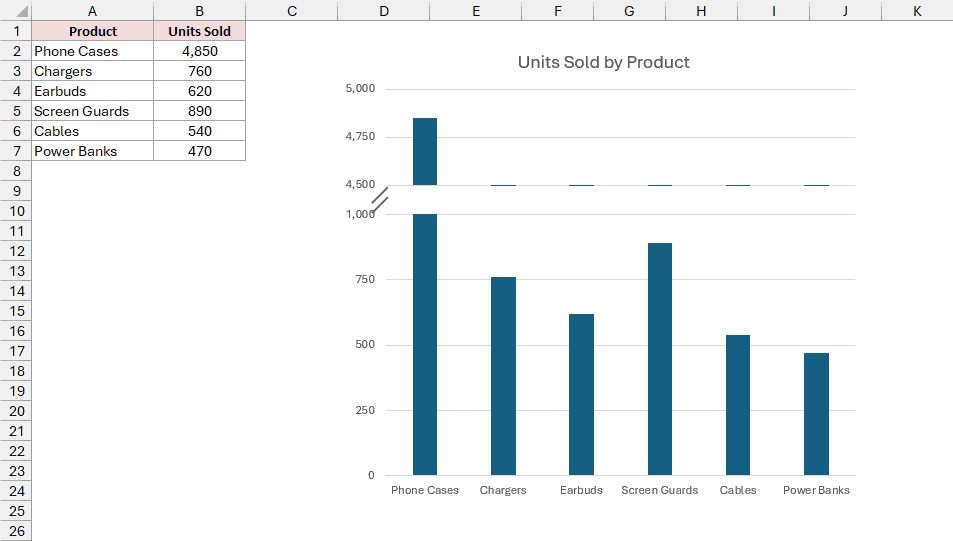
You now have what reads as one chart, with Phone Cases at 4,850 on the upper scale.
The other products use the 0 to 1,000 scale below.
The other products appear as a thin line at 4,500 in the top half because their values fall below that chart’s minimum.
The bars update when you change the numbers, but the axis bounds stay fixed. Adjust a panel’s Minimum or Maximum if a value moves outside its range.
Method #2: Using Helper Columns and a Stacked Column Chart
Here’s another way to build the break. You get one real chart object, with the break controlled by cells B9:B11.
You change the break by editing those cells instead of axis bounds. The trade-off is that you remove the vertical axis and label each bar with its real value.
You split each bar into three pieces that sit on top of one another. Excel calls this a stacked column chart.
- The bottom piece stops at the break point.
- An invisible middle piece makes the gap.
- The top piece shows how far the large value goes beyond the point where the scale resumes.
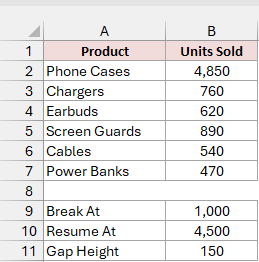
Below I have a dataset of units sold by product in A1:B7, plus three break settings in A9:B11 to separate Phone Cases from the smaller bars.
Enter these settings below the data:
- A9: Break At. Enter 1,000 in B9, where the bottom piece stops.
- A10: Resume At. Enter 4,500 in B10, where the top piece starts counting from.
- A11: Gap Height. Enter 150 in B11, the height of the empty gap in chart units.
First, add the three columns that calculate the pieces. These are the helper columns:
- C1: Below Break
- D1: Gap
- E1: Above Break
In Excel 2021 or later, including Microsoft 365, enter this formula in C2.
It fills C2:C7 automatically, which is called spilling:
=IF(B2:B7>$B$9,$B$9,B2:B7)
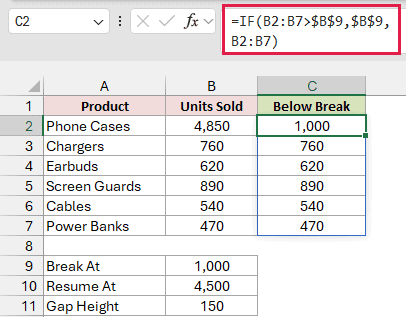
The formula caps any value above the break at 1,000. Everything else passes through, so C2:C7 contains 1,000, 760, 620, 890, 540, and 470.
For the gap, enter this formula in D2. It spills down to D7 automatically:
=IF(B2:B7>$B$9,$B$11,0)
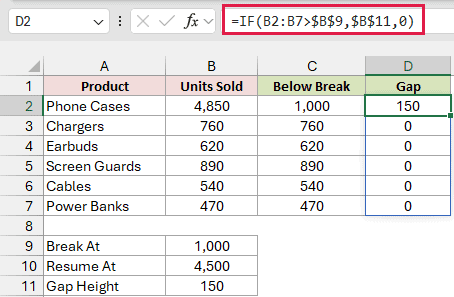
Only the bar that crosses the break gets the 150-unit gap. D2 returns 150 for Phone Cases, and D3:D7 returns 0 for the other products.
For the top piece, enter this formula in E2. It spills down to E7 automatically:
=IF(B2:B7>$B$9,B2:B7-$B$10,0)
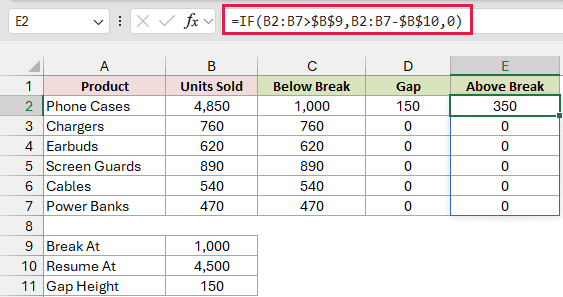
For Phone Cases, 4,850 minus 4,500 returns 350, the part you show above the gap. E3:E7 returns 0 because those products don’t cross the break.
All three formulas compare your sales with Break At in B9.
In Excel 2019 or earlier, enter the single-cell versions below in row 2, then copy them down to row 7.
The dollar signs keep B9:B11 fixed as you copy.
- C2:
=IF(B2>$B$9,$B$9,B2) - D2:
=IF(B2>$B$9,$B$11,0) - E2:
=IF(B2>$B$9,B2-$B$10,0)
With the three pieces calculated, here are the steps to build and format your chart:
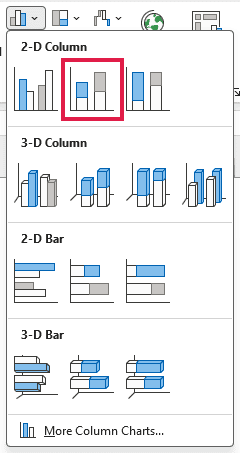
- Select A1:A7, hold Ctrl, and select C1:E7. Skip column B because you’re plotting the three pieces. On the Insert tab, click Insert Column or Bar Chart and choose Stacked Column, the second icon under 2-D Column.
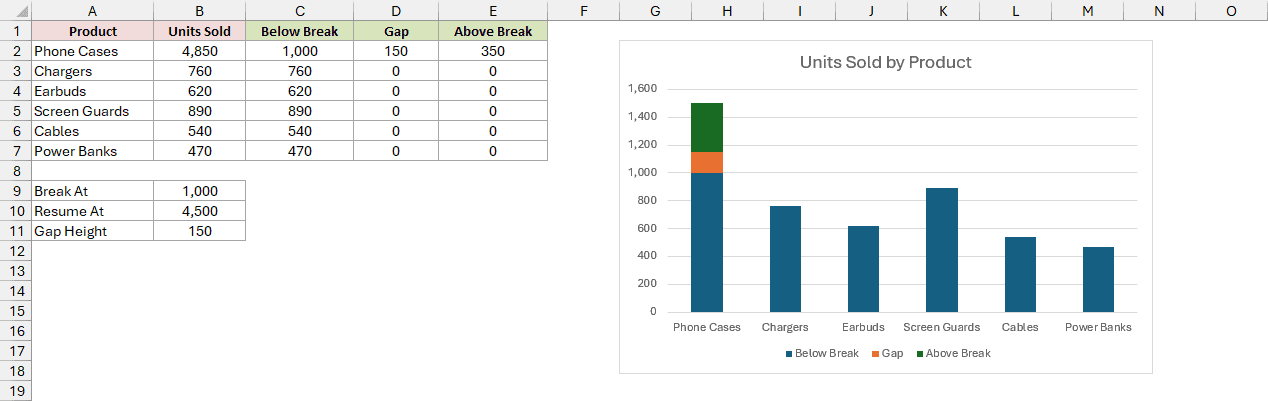
The Phone Cases bar now has three colored pieces:
- Blue for Below Break.
- Orange for Gap.
- Green for Above Break.
The colors may look different in older Excel versions.
The other bars are only blue. Click the chart title and type Units Sold by Product.
- Click the orange Gap piece on the Phone Cases bar and press Ctrl + 1. In the Format Data Series pane, go to Fill & Line, open Fill, and select No fill.
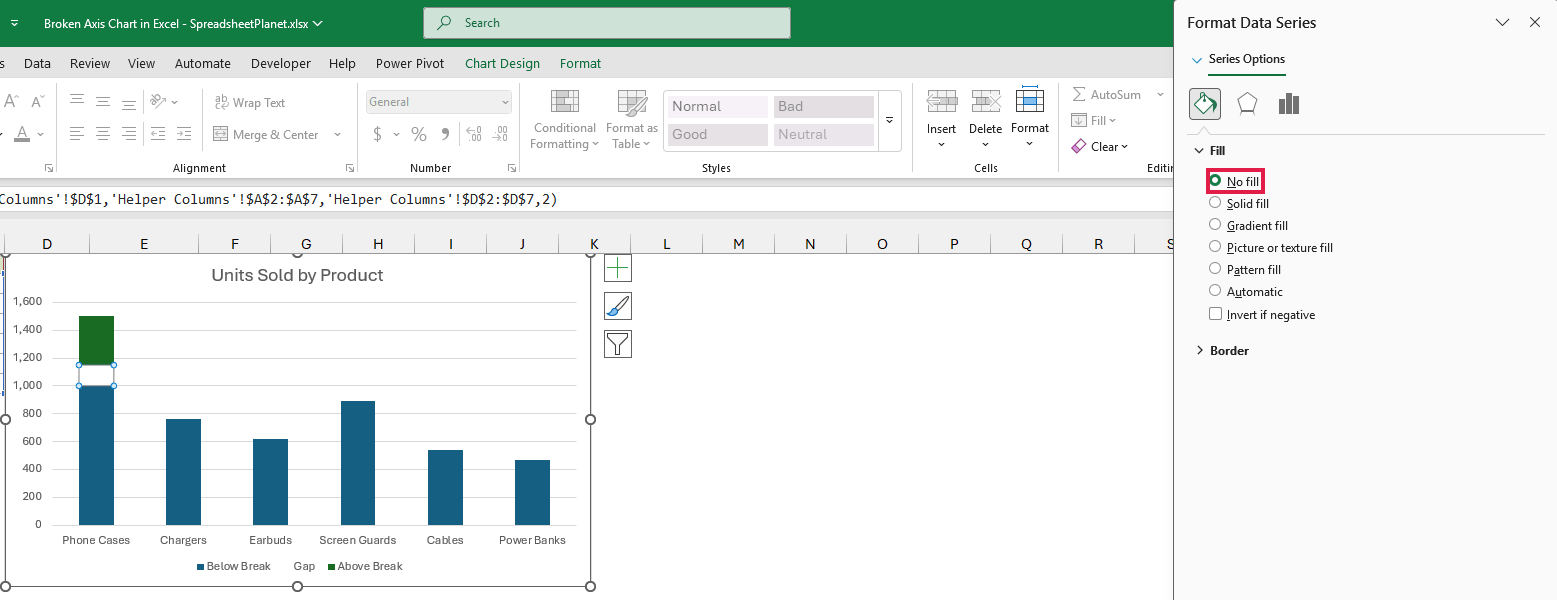
You can now see the gap inside the Phone Cases bar. I’ll use the original sales numbers for the labels so you can read each bar’s real value.
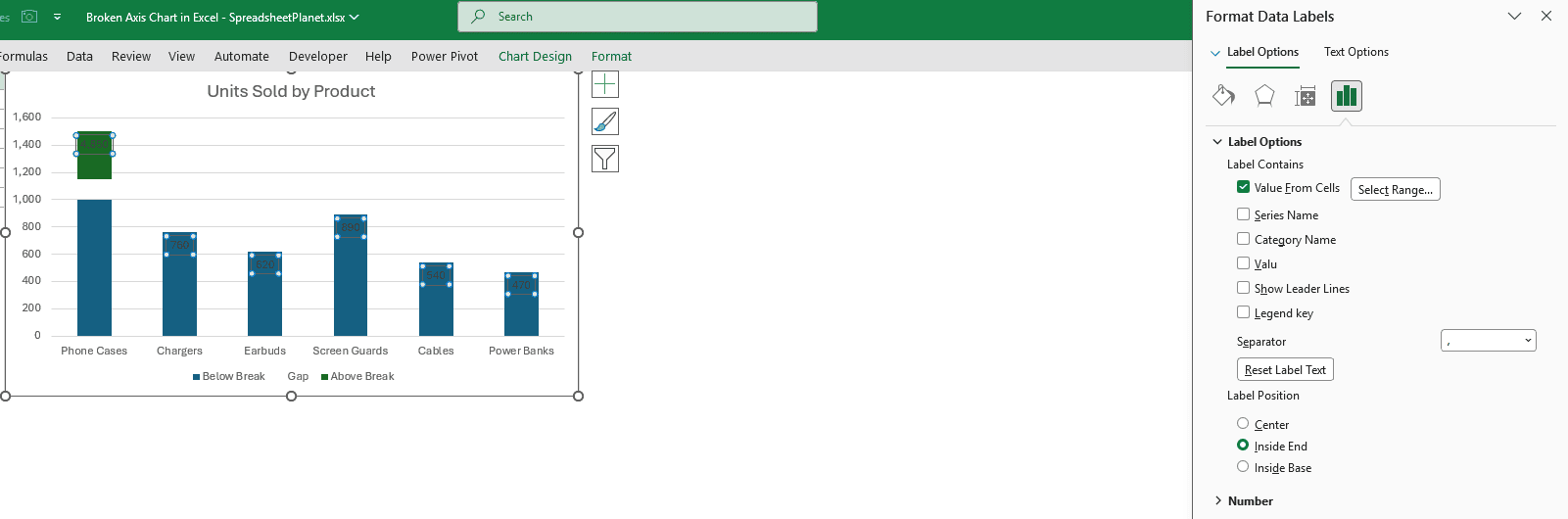
- Right-click the green Above Break piece and click Add Data Labels (if a small submenu opens, pick Add Data Labels again). Right-click any of the new labels and click Format Data Labels. Under Label Options, check Value From Cells. Select B2:B7 in the box that opens and click OK. Uncheck Value, then choose Inside End under Label Position.
Note: Value From Cells needs Excel 2013 or later.
The green series contains a point for every product, including the five zero values, so you can use it to label every bar.
Value From Cells reads the real numbers from column B. Your labels show 4,850, 760, 620, 890, 540, and 470 instead of the top pieces’ sizes.
- Finish the chart’s appearance:
- Click the green piece. On the Format tab, click Shape Fill and pick the same color as the Below Break bars, the Accent 1 color in the top row of Theme Colors, so the top piece looks like part of the same bar.
- Click any label to select all of them, then use the Home tab to make them bold and white so they stand out inside the bars.
- Click the vertical axis and press Delete. Click any gridline and press Delete, then click the legend and press Delete. The axis shows stacked heights (1,500 for Phone Cases) rather than real sales values, so the labels take its place.
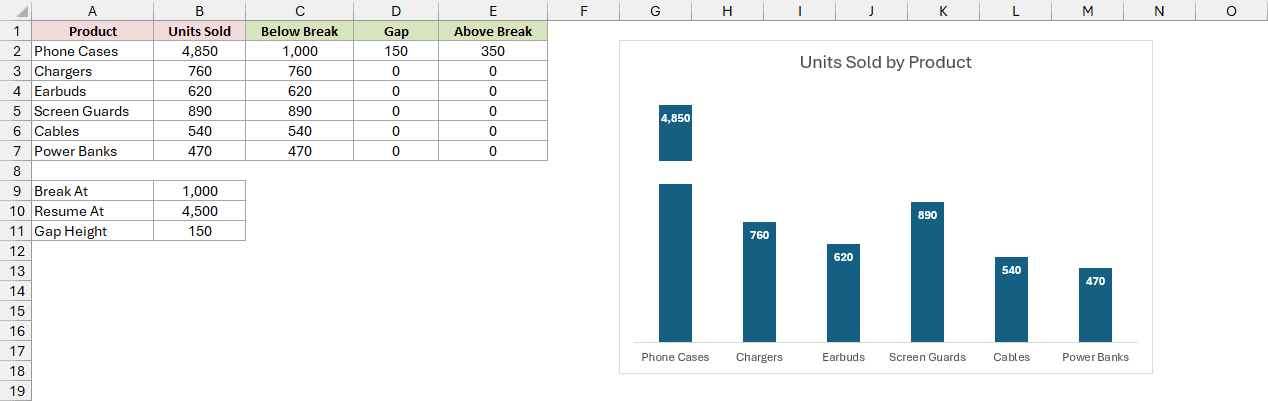
Change any number in column B or the break settings in B9:B11, and your formulas recalculate and the chart redraws itself.
Keep every value either at or below Break At or above Resume At.
A value between them gives a negative top piece, such as 1,200 minus 4,500. Move B9 or B10 if that happens.
Additional Notes About Broken Axis Charts in Excel
- A break changes how tall the bars look relative to each other. Show it clearly with marks or a visible gap, and keep the real values visible.
- Use a broken axis when only one or two values sit far above the rest. It gives the smaller bars room for a useful comparison.
- Put the break where you don’t need to compare bars. Here, that means above the largest normal value, 890, and below the Phone Cases value.
- To space out values such as 10, 100, 1,000, and 10,000 without a break, I’d usually use a logarithmic scale instead. Right-click the vertical axis, click Format Axis, and select Logarithmic scale under Axis Options.
Frequently Asked Questions
You can adapt these charts to other layouts or return to a continuous axis.
Can I break the axis in a horizontal bar chart?
Yes. For Method #1, use two clustered bar charts with different bounds on their horizontal value axes and place them side by side.
For Method #2, choose Stacked Bar instead of Stacked Column. The helper columns still split each bar into the same three pieces.
Can I break the axis of a line chart?
Yes. Follow Method #1 with two line charts showing the same data. Set different vertical axis bounds, then stack the charts and add the break marks.
How do I remove a broken axis in Excel?
For Method #1, ungroup the objects, then delete the top chart and the two lines. Right-click the bottom chart’s vertical axis and click Format Axis.
Under Axis Options, click Reset beside Bounds Maximum and beside Units Major so both return to Auto.
For Method #2, create a normal chart from A1:B7 using the original sales values instead of the helper columns.
Conclusion
I’ve shown you how to build a broken axis using two charts and using helper columns in a single stacked column chart.
I recommend Method #1 when you want a real axis on both sides of the break.
Use Method #2 when you want one real chart object and prefer changing the break in cells B9:B11 instead of axis bounds.
Other Excel articles you may also like:
