
A pro rata calculation in Excel works out a proportional amount, such as a charge for part of a month or each team’s share of a bill.
Multiply the full amount by the units used, then divide by the total units. The part that needs care is choosing those units. Calendar days, working days, and usage totals can produce different answers.
I’ll show you how to calculate a partial month’s charge, count only eligible workdays, and split a shared cost by usage. I’ll also show you how to handle a rounding difference when the allocated amounts must add up to the original total.
Choose the Right Basis for Your Pro Rata Calculation
Before entering a formula, decide what the full amount covers and what fraction you need. Use the same unit above and below the division line.
| What You Need to Calculate | Portion to Use | Total to Divide By |
|---|---|---|
| Part of a monthly calendar-based charge | Service days within that month | Actual days in that month |
| Part of an amount based on scheduled workdays | Eligible service workdays | Eligible workdays in the full period |
| Each team’s share of one fixed pool | That team’s usage | Combined usage of all included teams |
The examples below assume nonnegative amounts and usage counts, plus real Excel dates without a time component. Each service or billing-period start date must come before or on its end date.
The calendar example also requires the first day of the billing month as its month anchor.
Check that each denominator is positive. A period with no eligible workdays or a usage list totaling zero cannot support these calculations. The example file doesn’t automatically reject every invalid edit, so check those inputs before relying on a result.
Calculate a Partial Month Using Calendar Days
Use actual calendar days when your agreement divides a monthly amount by the number of days in that particular month. Both the first and last service dates count in this example.
On the Calendar Months sheet, column B holds each full monthly amount. Column C holds the first day of the billing month, and columns D and E hold the service start and end dates.
North Desk costs $930 for the full month of October 2026. Its service starts on October 12 and ends on October 31. We want to calculate the charge for those days.
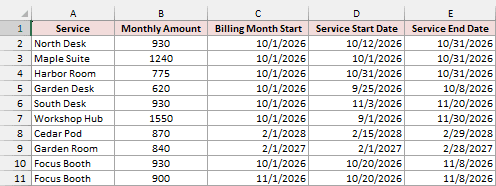
First, enter this formula in F2 to count the service days that fall within the billing month:
=MAX(0,MIN(E2,EOMONTH(C2,0))-MAX(D2,C2)+1)
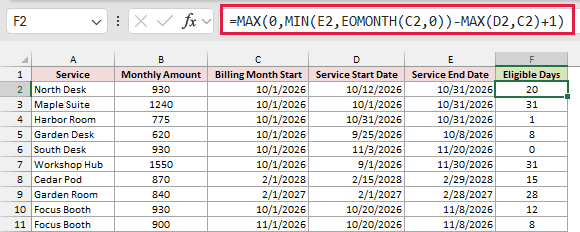
Copy the formula down through F11. For North Desk, it returns 20 eligible days.
The EOMONTH function returns the last day of the billing month. MIN chooses the earlier of that date and the service end date. The inner MAX chooses the later of the billing-month start and service start.
Subtracting those two boundaries and adding 1 includes both endpoint dates. The outer MAX returns zero when a valid service interval has no overlap with the month.
That zero has a specific meaning. It doesn’t prove the source dates are valid. Reversing a service start and end date can also produce zero, which is why the date checks above come first.
Next, enter this formula in G2 to get the number of calendar days in the billing month:
=DAY(EOMONTH(C2,0))
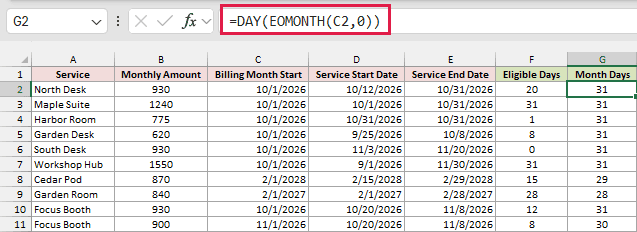
Copy it through G11. EOMONTH returns the month-end date, and DAY extracts its day number. October returns 31; February 2028 returns 29.
Now enter this formula in H2 to calculate the amount:
=ROUND(B2*F2/G2,2)
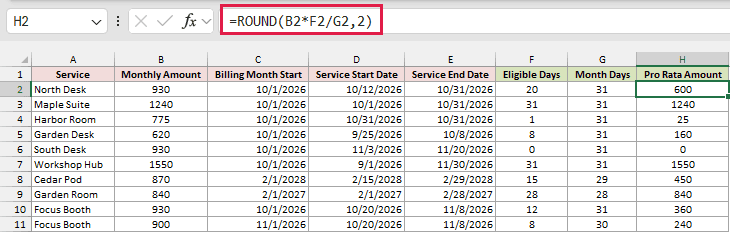
Copy it through H11. North Desk’s calculation is $930 multiplied by 20/31, which returns $600.00. ROUND rounds the calculated amount to two decimal places.
We’re keeping the calendar formulas per row because MIN and MAX must compare the dates belonging to one service record. Passing whole date columns into those functions would combine records rather than calculate each row’s overlap.
The other rows show some useful boundary cases. Harbor Room has one day of service and returns $25.00. South Desk starts after October ends, so it returns zero. Cedar Pod covers 15 of February 2028’s 29 days and returns $450.00.
Focus Booth runs from October 20 through November 8, so it has a separate row for each billing month. October contributes $360.00 from a $930 monthly amount.
November contributes $240.00 from a $900 monthly amount. Together, the two charges total $600.00.
Note: Use a separate billing-month row when a service crosses month boundaries. Each row clips the service dates to that month and uses that month’s full amount and actual day count.
Prorate an Amount Using Eligible Workdays
If the agreement bases the amount on scheduled workdays, count those days in both parts of the fraction. Keep the weekend pattern and excluded dates identical in the service count and full-period count.
On the Workday Credits sheet, column B holds the full-period amount. Columns C and D hold the period boundaries. Columns E and F hold the service dates.
This example uses Saturday and Sunday as weekends. Cell A12 contains October 26, 2026, an invented site closure for this example. It isn’t a statement that the date is a public holiday.
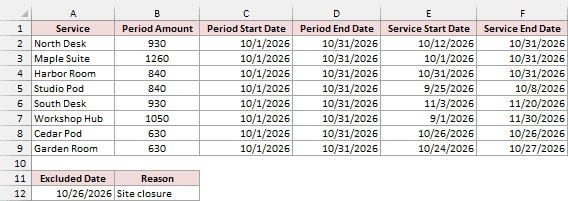
Enter this formula in G2 to count the eligible service workdays:
=IF(MAX(C2,E2)>MIN(D2,F2),0,NETWORKDAYS.INTL(MAX(C2,E2),MIN(D2,F2),1,$A$12))
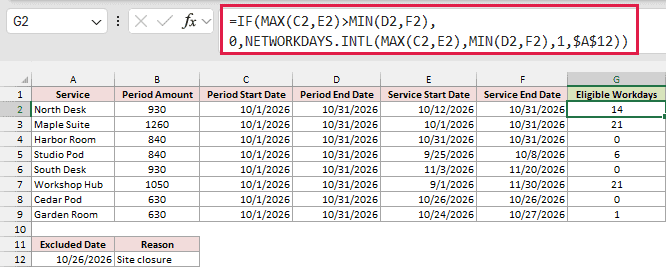
Copy it through G9. MIN and MAX clip the service dates to the full period. IF returns zero when those valid intervals don’t overlap, avoiding a reversed interval in the workday count.
NETWORKDAYS.INTL counts the whole workdays between the clipped dates. The 1 specifies Saturday and Sunday weekends. The fixed reference $A$12 excludes the same site closure from every row.
It already includes eligible endpoint days, so don’t add 1. For North Desk, the result is 14 workdays.
Next, enter this formula in H2 to count the eligible workdays in the full period:
=NETWORKDAYS.INTL(C2,D2,1,$A$12)
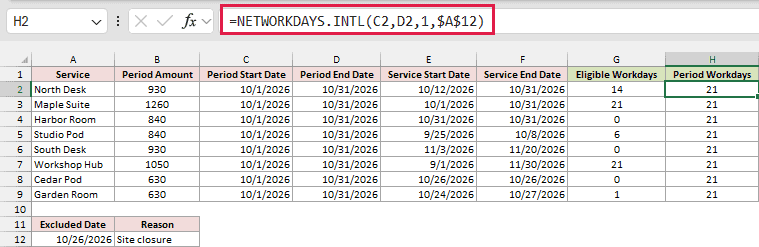
Copy it through H9. October 2026 contains 21 eligible workdays under this example’s calendar. The formula uses the same weekend code and excluded date as the service count.
Finally, enter this formula in I2:
=ROUND(B2*G2/H2,2)
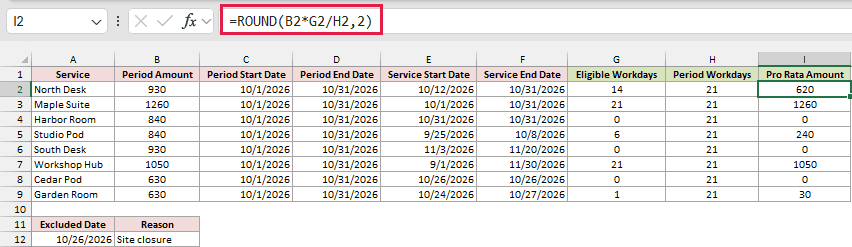
Copy it through I9. North Desk returns $620.00, calculated as $930 multiplied by 14/21.
Harbor Room’s service falls on a Saturday, so it has no eligible workday. Cedar Pod’s service falls only on the declared site closure. Both return zero under this calendar.
The North Desk result differs from the $600.00 calendar-day result because the two examples use different allocation rules. Choose the rule specified by the agreement before calculating the amount.
Allocate a Fixed Pool by Usage
A shared bill uses the same proportional calculation, with each team’s usage divided by everyone’s combined usage. This allocates the entire pool among the listed teams.
On the Usage Allocation sheet, columns A and B contain eight teams and their printed-page counts. The teams printed 188 pages in total. Cell B11 holds the $100.00 pool to allocate.
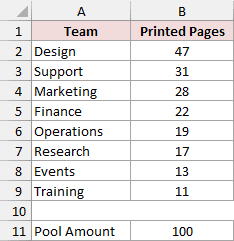
The range formulas in C2 and D2 use dynamic arrays in Microsoft 365, Excel 2021, Excel 2024, and Excel for the web. Excel 2019 and earlier require a per-row approach instead.
The download already contains these formulas. To inspect or edit them, select C2 or D2. If you recreate them in a blank copy, keep C3:C9 and D3:D8 empty. D9 holds its own formula.
Enter this formula in C2:
=ROUND($B$11*B2:B9/SUM($B$2:$B$9),2)
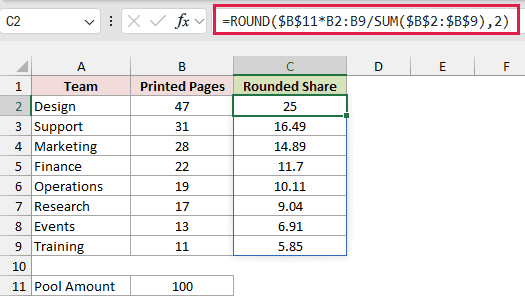
The formula spills the rounded shares through C9. SUM adds all the printed pages. Each team’s page count is divided by that total, then multiplied by the fixed pool amount in $B$11.
Design printed 47 of the 188 pages, so its share is $25.00. Support’s 31 pages produce a rounded share of $16.49.
To check the rounded amounts, enter this formula in B12:
=SUM(C2:C9)
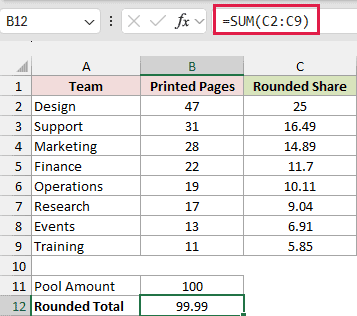
The rounded shares total $99.99. Rounding each share separately has left one cent unallocated.
Enter this formula in B13 to calculate the difference:
=ROUND(B11-B12,2)
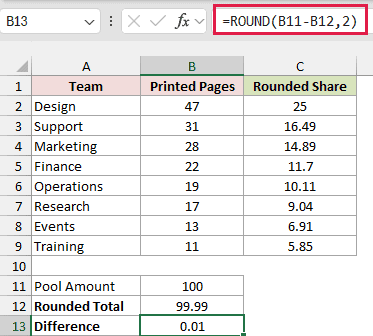
The difference is $0.01. Before adjusting a team’s amount, agree on how to allocate that residual. In this example, the teams agree that the final listed team, Training, receives the remaining amount.
Enter this formula in D2 to carry the first seven rounded shares into the final-allocation column:
=C2:C8
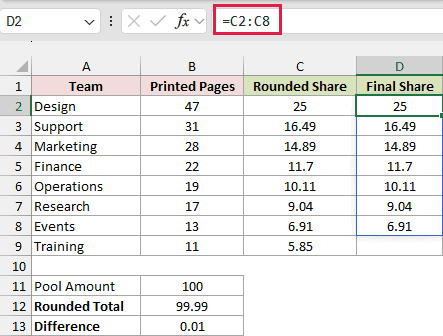
It spills through D8, leaving D9 available for Training’s residual amount. Those first seven shares add up to $94.14.
Enter this formula in D9:
=ROUND($B$11-SUM(D2:D8),2)
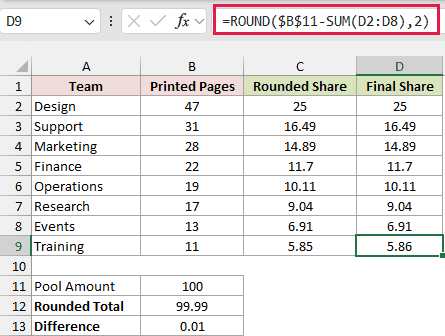
Training receives $5.86, which is the $100.00 pool minus the other teams’ $94.14. Its independently rounded share in C9 was $5.85, so it receives the residual cent under the agreed rule.
Check the final allocation by entering this formula in B14:
=SUM(D2:D9)
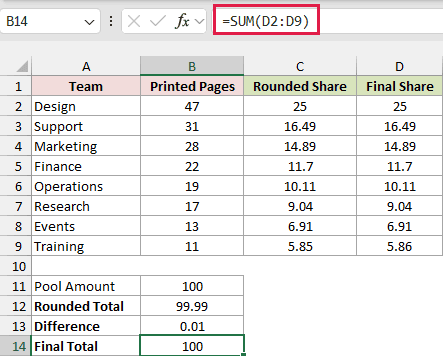
The final total is $100.00, matching the original pool. Keep both columns so you can see the rounded proportional shares and the final agreed allocations.
Additional Notes About Pro Rata Calculations in Excel
Use the calculation that matches the amount’s stated basis:
- For an annual amount with a specified year-based convention, the YEARFRAC function calculates the fraction of a year between two dates. Select its basis deliberately; its default is US 30/360.
- When an agreement explicitly uses a standardized 30-day month, DAYS360 counts days under a 30/360 convention. It isn’t a replacement for actual calendar-day counting.
- Round at the point your agreement requires. These examples round each final charge or allocated share to cents, rather than rounding the daily rate first.
- A cell’s number format controls its display. It doesn’t replace rounding the stored calculation, and it doesn’t resolve a difference between a pool and the sum of rounded allocations.
Frequently Asked Questions
Here are a few other questions that come up when setting up a pro rata calculation.
Can I Calculate the Unused Amount Instead of the Used Amount?
Yes. For one full-period amount, subtract the calculated used amount from the full amount to find its unused portion. Apply the same date-inclusion rule to both portions so they don’t overlap or leave an uncounted day.
What if My Agreement Excludes the Final Service Date?
The date formulas above assume the final service date counts. If your agreement uses an exclusive end boundary, convert it to the last included date before using this model.
Don’t remove 1 from only one side of the fraction without checking the period definition.
Can I Prorate by Hours Instead of Days?
Yes. Multiply the full amount by the hours used, then divide by the total hours that amount covers. For a shared pool, divide each participant’s hours by the combined hours. Keep the same unit in the numerator and denominator.
Why Does Excel Show a #SPILL! Error for the Usage Example?
Check for other values or formulas blocking C3:C9 or D3:D8. Existing results from a working spill are normal; only its top-left cell is editable. The formula in D9 is outside both spill ranges.
Clear any blocking contents from a working copy, then enter the formula in its starting cell. Enter the separate residual formula in D9.
Conclusion
I’ve shown you how to calculate proportional amounts using calendar days, eligible workdays, and usage counts, including a check for rounding differences. I hope you found this article helpful.
Other Excel articles you may also like:
