
Excel’s FORMULATEXT function returns a cell’s formula as text, including the opening equals sign.
The returned string matches what Excel displays in the formula bar. This makes formulas available for documentation, comparison, and worksheet audits.
In this article, I’ll show you how to display formulas beside their results, identify hard-coded values, and check formulas for a required cell reference.
FORMULATEXT Function Syntax in Excel
FORMULATEXT has one required argument.
=FORMULATEXT(reference)
referenceis the cell or range containing the formula text you want to return. It can point to another worksheet or an open workbook.
When to Use FORMULATEXT Function
- Display formulas beside their calculated results.
- Find typed values mixed into a formula column.
- Build a formula index for another worksheet.
- Check whether formulas follow a required reference pattern.
- Create audit notes that update when source formulas change.
Example 1: Display Formulas Beside Results
This example makes a calculation column easier to inspect.
Below is the dataset with service tickets, hours, rates, calculated costs, and an empty Formula Text column.
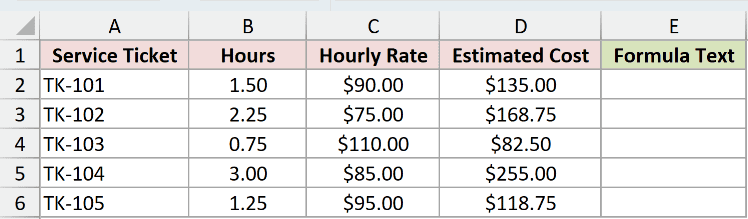
We want one formula in E2 to display every formula used in D2:D6.
Here is the formula:
=FORMULATEXT(D2:D6)
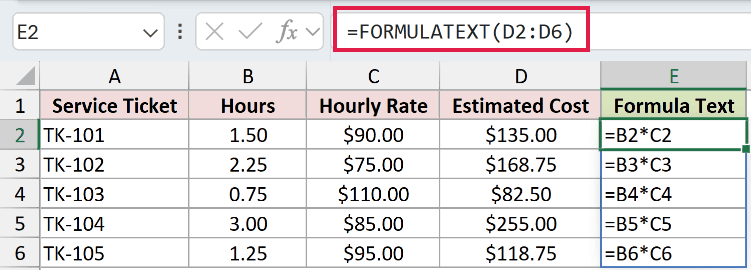
The results are =B2*C2, =B3*C3, =B4*C4, =B5*C5, and =B6*C6.
FORMULATEXT returns those formulas as text. It does not return the calculated costs of $135.00, $168.75, $82.50, $255.00, and $118.75.
In current dynamic-array Excel, the range reference spills five results from E2 through E6.
Pro Tip: In Excel 2021, Excel 2024, Microsoft 365, and Excel for the web, keep E2:E6 clear so the formula can spill.
Example 2: Find Hard-Coded Values in Formulas
A typed value can hide inside a column that otherwise contains formulas.
Below is the dataset with monthly plan variances. March’s variance is typed directly, while the other variance cells contain formulas.
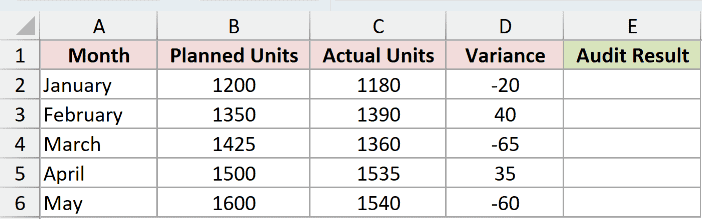
We want the audit column to show each formula or label a typed value clearly.
Here is the formula:
=IF(ISFORMULA(D2:D6),FORMULATEXT(D2:D6),"Hard-coded value")
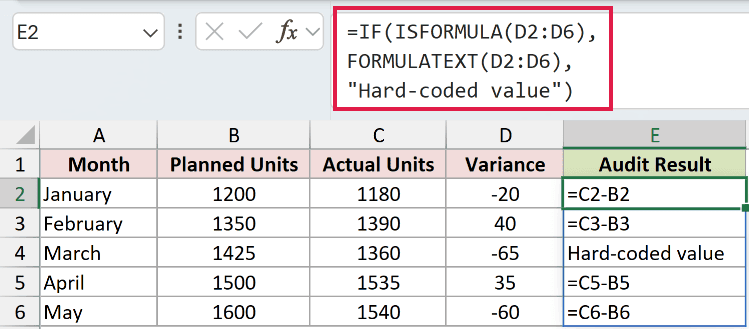
ISFORMULA checks each variance cell first. The IF function returns its formula text when TRUE and Hard-coded value when FALSE.
The March row receives the warning because D4 contains -65 as a typed number. The other rows display their actual subtraction formulas.
Pro Tip: Test with ISFORMULA before calling FORMULATEXT on mixed cells. A constant passed directly to FORMULATEXT returns #N/A.
Example 3: Build a Cross-Sheet Formula Index
FORMULATEXT can document a source calculation from another worksheet.
The support sheet stores a $25,000 budget and a $24,700 forecast. Its forecast formula adds five planned expense amounts.
Below is the index dataset with the Forecast Spend metric and an empty Formula Text cell.
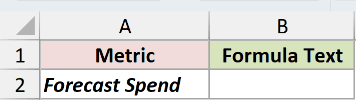
We want B2 on the index sheet to display the forecast formula from the support sheet.
Here is the formula:
=FORMULATEXT('Example 3 Data'!B2)

The result is =SUM(4200,5700,3800,6100,4900), exactly as entered in the source cell.
The sheet name needs single quotes because it contains spaces. If the source formula changes, the displayed formula text changes with it.
Pro Tip: FORMULATEXT can reference another open workbook too. If that external workbook is closed, Excel returns #N/A.
Example 4: Check Formulas for a Required Reference
Formula text can be searched like any other text string.
Below is the dataset with delivery routes, hours, calculated charges, an empty audit column, and a standard rate in F2.
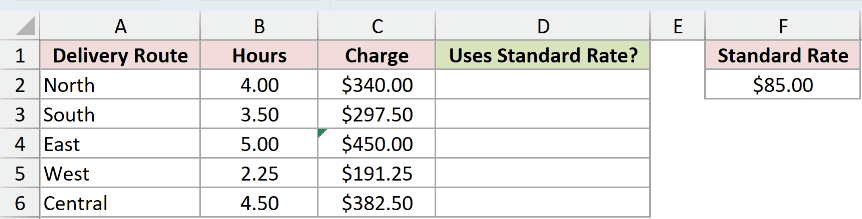
We want to identify which charge formulas use the absolute standard-rate reference $F$2.
Here is the formula:
=ISNUMBER(SEARCH("$F$2",FORMULATEXT(C2:C6)))
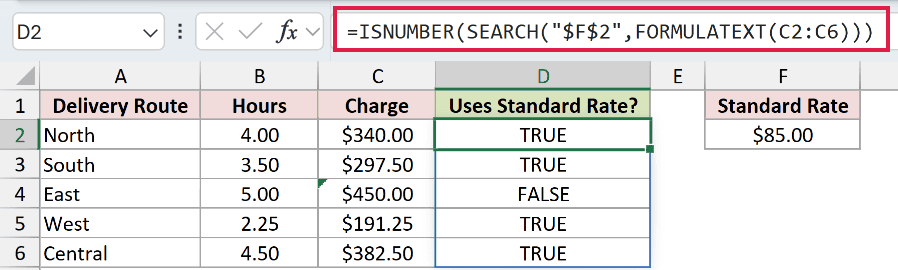
FORMULATEXT exposes each charge formula. SEARCH looks for $F$2, and ISNUMBER converts a found position into TRUE.
The results are TRUE, TRUE, FALSE, TRUE, and TRUE. The East route is FALSE because its charge formula uses a typed rate of 90.
Pro Tip: Search for the exact reference style you require. A relative reference such as F2 will not match the literal text $F$2.
Tips & Common Mistakes
- Remember that FORMULATEXT returns text, not the formula’s calculated value.
- Expect
#N/Awhen the referenced cell has no formula, the formula exceeds 8,192 characters, or protection prevents Excel from displaying it. - Keep an external source workbook open. FORMULATEXT returns
#N/Awhen that workbook is closed. - Leave the spill range blank in current dynamic-array Excel to avoid a
#SPILL!error. - Use per-row references in Excel 2019 and earlier when you need formula text for several cells.
- Use Show Formulas when you only need a temporary worksheet-wide view instead of formula text in cells.
I covered formula display, hard-coded-value checks, cross-sheet documentation, and reference-pattern audits.
I hope you found this article helpful.
Related Excel Functions / Articles:
