
The ISNONTEXT function in Excel returns TRUE when a value isn’t text and FALSE when it is text.
That makes it useful for checking imported entries, but TRUE doesn’t mean an entry is a valid number. Blank cells, logical values, and errors also pass the test.
A cell that looks empty can go either way. A genuinely blank cell is nontext, while an empty string returned by a formula is text.
I’ll show you how to flag nontext entries, exclude blanks from a count, and check formula results that look empty.
ISNONTEXT Function Syntax in Excel
ISNONTEXT takes the value you want to check:
=ISNONTEXT(value)
- value (required): The value, cell reference, or range to test. It can also be a formula whose result you want to check.
ISNONTEXT checks the value’s type without converting it. A number stored as text stays text for this test.
When to Use ISNONTEXT Function
- Check an imported column for text entries mixed with numbers.
- Count nontext entries, with an additional condition when blanks should be excluded.
- Investigate why a blank-looking formula result behaves differently from an empty cell.
- Add readable status labels to a column containing amounts, text, and missing entries.
Example 1: Flag Nontext Inventory Entries
Let’s start with an inventory count that includes numbers, text, and a missing entry.
Below is the dataset. Column A lists items, column B holds Units Counted, and column C has the Not Text? header for the checks.
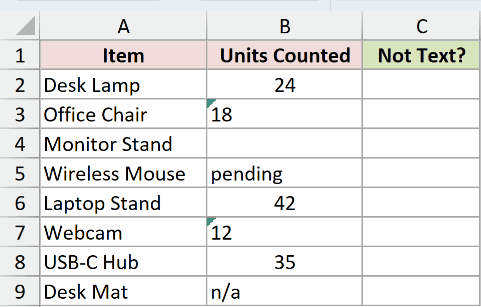
We want to check each inventory entry without converting its contents.
Enter this formula in C2:
=ISNONTEXT(B2:B9)
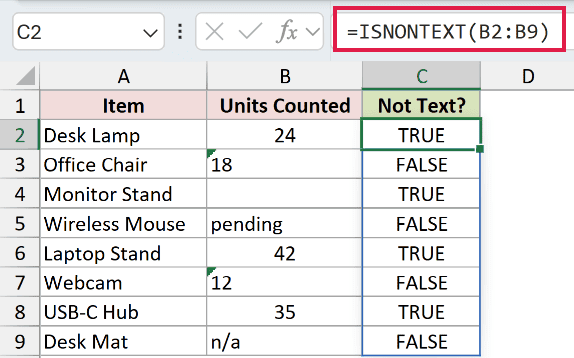
The formula spills into C2:C9, returning a separate result for each cell in B2:B9.
Range formulas spill in Excel 2021, Excel 2024, and Microsoft 365. In Excel 2019 and earlier, use a single-cell reference and fill the formula down.
Desk Lamp’s 24 returns TRUE. Office Chair’s 18 and Webcam’s 12 return FALSE because those entries are stored as text.
The words pending and n/a also return FALSE. Laptop Stand and USB-C Hub return TRUE because their counts are real numbers.
Monitor Stand’s empty cell returns TRUE too. That’s correct for a nontext test, but it doesn’t mean someone has entered a count.
Pro Tip: ISNUMBER returns TRUE only for numbers. Use it when an inventory count must be numeric, since ISNONTEXT also accepts blanks, logical values, and errors.
Example 2: Compare ISNONTEXT, ISTEXT, and ISNUMBER
ISTEXT returns TRUE for text and FALSE otherwise, the opposite of ISNONTEXT. ISNUMBER checks only for numbers. Comparing them shows which nontext values are actually numeric.
Below is the dataset. Columns A and B describe each input, while C holds the ISNONTEXT check and D and E hold comparison tests.
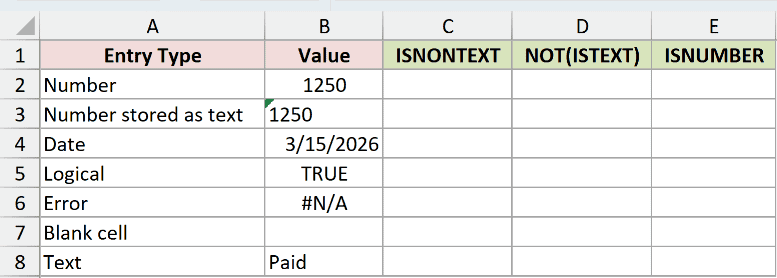
We want to compare the tests on numbers, a date, a logical value, an error, a blank, and text.
The NA function returns the #N/A error. The dataset uses =NA() in B6 so we can see how ISNONTEXT handles an error value.
Enter the ISNONTEXT formula in C2:
=ISNONTEXT(B2:B8)
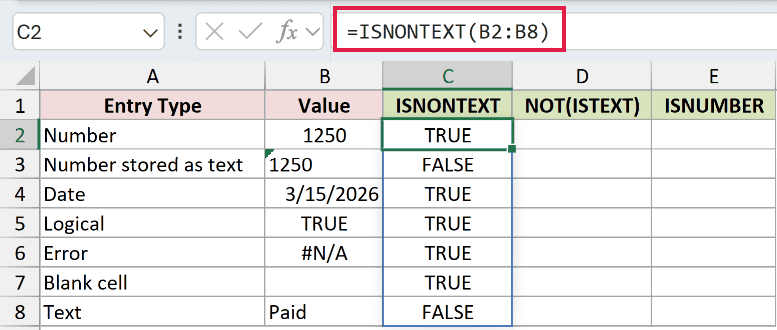
The results spill into C2:C8. The number, date, logical value, error, and blank return TRUE. The text number and Paid return FALSE.
Notice that the #N/A input returns TRUE instead of passing the error through. An error value isn’t text.
NOT flips TRUE to FALSE and FALSE to TRUE. Applying it to ISTEXT gives the same nontext check as ISNONTEXT.
Enter this comparison formula in D2:
=NOT(ISTEXT(B2:B8))
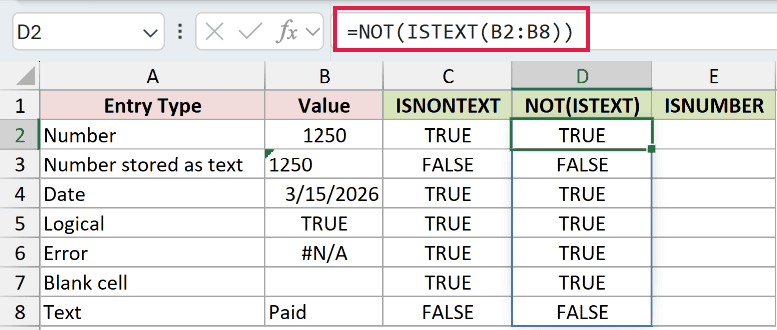
This comparison spills into D2:D8 and matches column C throughout. ISNONTEXT gives us the same answer with one function.
For the stricter ISNUMBER comparison, enter this formula in E2:
=ISNUMBER(B2:B8)
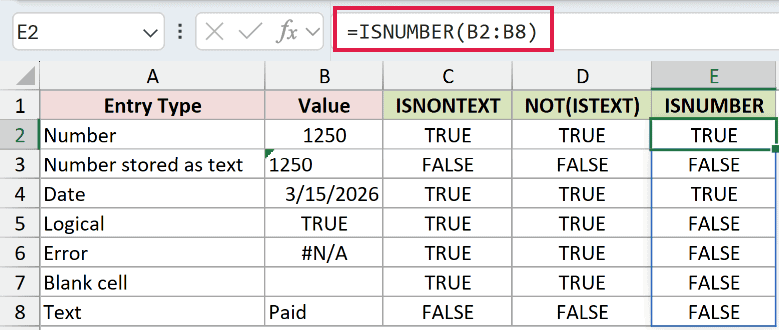
The ISNUMBER comparison spills into E2:E8. Only the number and the date return TRUE. The logical value, error, blank, and text entries return FALSE.
The date 3/15/2026 passes this comparison because Excel stores real dates as numbers. Choose the test according to what your column should contain.
Example 3: Count Nontext Entries Without Blanks
A nontext count can overstate how many timesheet entries have actually arrived.
Below is the dataset. Column B holds weekly hours, text entries, and blanks. The labels beneath the list reserve cells for the raw and blank-excluding counts.
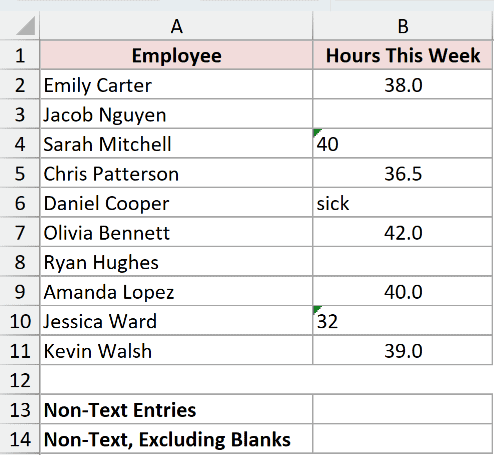
We want to count populated nontext entries, so we’ll first expose the inflated count and then exclude the blanks.
SUMPRODUCT multiplies corresponding values in arrays and adds the results. Here, it adds the ISNONTEXT results after we convert TRUE to 1 and FALSE to 0.
Enter this raw-count formula in B13 to demonstrate the mistake:
=SUMPRODUCT(--ISNONTEXT(B2:B11))
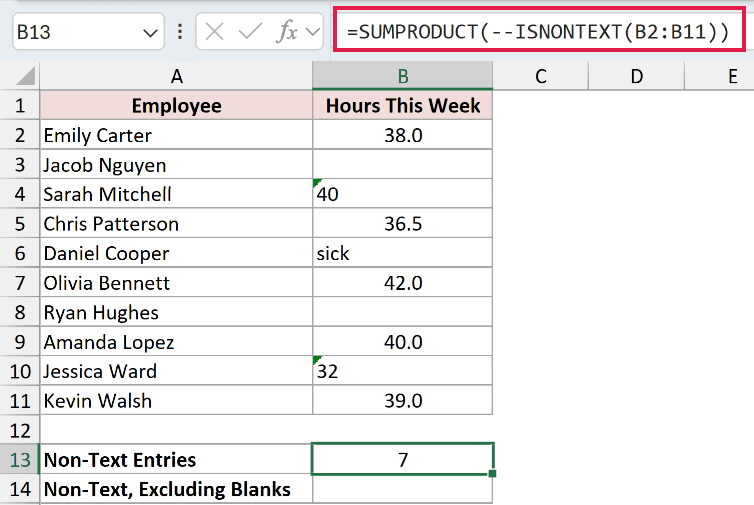
B13 returns 7. That’s an inflated count of submitted nontext entries because Jacob Nguyen’s and Ryan Hughes’s blank cells also pass ISNONTEXT.
The double minus converts TRUE to 1 and FALSE to 0. Text entries, including Sarah Mitchell’s 40 and Jessica Ward’s 32, don’t contribute.
To fix the blank problem, enter this formula in B14:
=SUMPRODUCT(ISNONTEXT(B2:B11)*(B2:B11<>""))
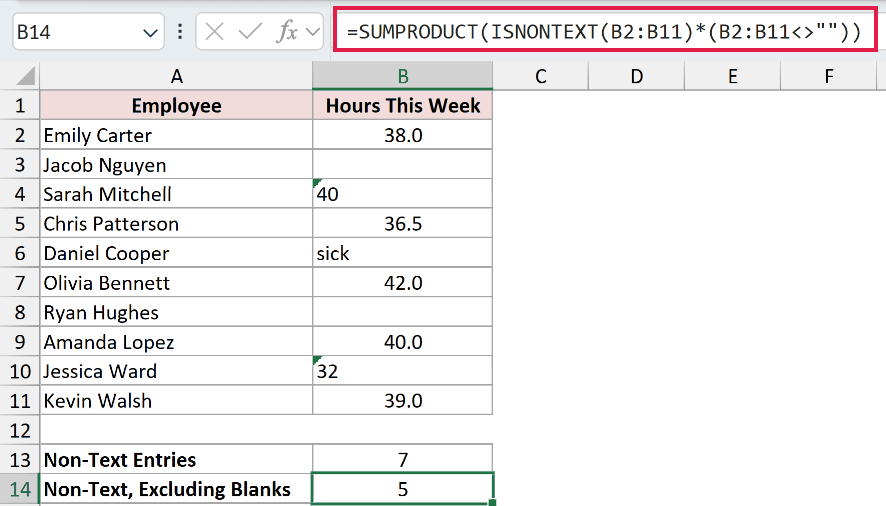
The corrected count in B14 is 5. Each entry must now be nontext and pass the not-empty condition.
SUMPRODUCT combines those conditions and returns a single count. These count formulas don’t spill.
Pro Tip: Excluding blanks doesn’t turn this into a numbers-only test. Logical values and errors are also nontext, so ISNONTEXT alone can’t confirm that an entry contains numeric hours.
Example 4: Check Blank-Looking Formula Results
IF checks a condition and returns one result when it is TRUE and another when it is FALSE. Here, it creates blank-looking results for ISNONTEXT to check.
Below is the dataset. Order quantities and prices feed the Line Total formulas in D. Column E checks those results with ISNONTEXT.
ISBLANK returns TRUE only for a genuinely empty cell. Column F uses it to show why a blank-looking formula result differs from an empty cell.
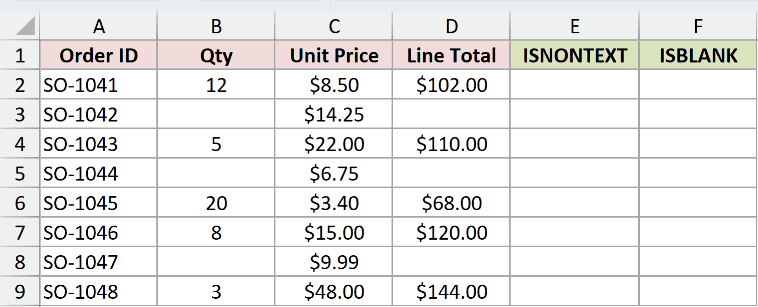
We want to check how each test treats the existing Line Total formulas, including rows with missing quantities.
The dataset helper in D2 is =IF(B2="","",B2*C2), copied down through D9. It returns an empty string when the quantity is missing.
Enter the ISNONTEXT formula in E2:
=ISNONTEXT(D2:D9)
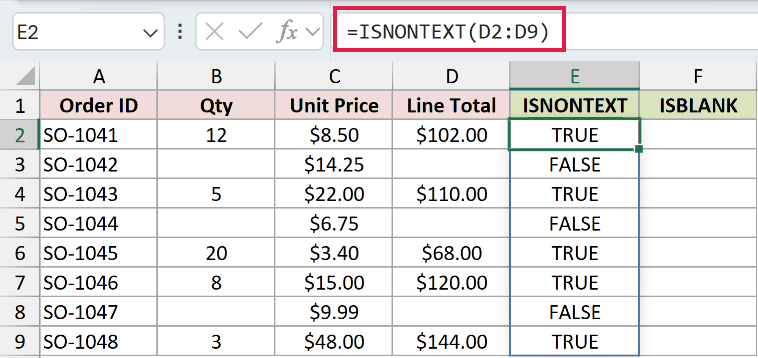
The results spill into E2:E9. SO-1041’s $102.00 returns TRUE, while the blank-looking result for SO-1042 returns FALSE.
The empty-string results for SO-1044 and SO-1047 also return FALSE. Those formula results are text, even though there’s nothing visible in the cells.
For the ISBLANK comparison, enter this formula in F2:
=ISBLANK(D2:D9)
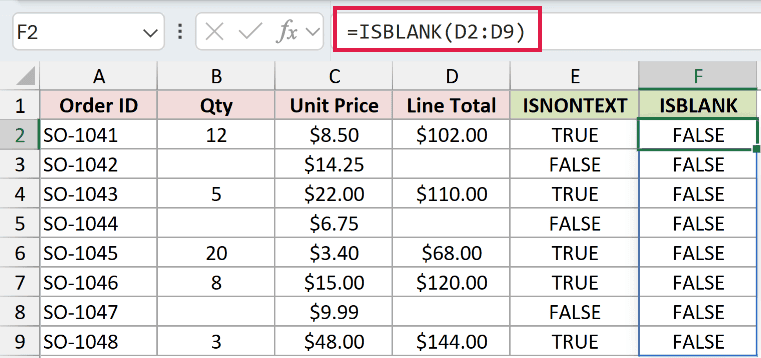
The ISBLANK comparison spills into F2:F9 and returns FALSE throughout. Every Line Total cell contains a formula, including the ones displaying an empty string.
ISNONTEXT tells us these blank-looking results are text, while ISBLANK confirms the cells aren’t empty. Use an empty-string comparison when you need to detect these results.
Example 5: Label Imported Payment Entries
A status column can make a payment import easier to review than a list of TRUE and FALSE results.
Below is the dataset. Column A lists invoices, column B contains imported payment entries, and column C has a Status header for the labels.
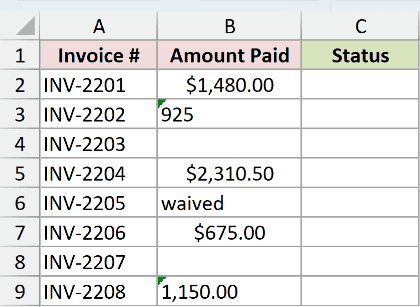
We want to label missing entries separately before checking which populated entries contain text.
Enter this formula in C2:
=IF(B2:B9="","Missing",IF(ISNONTEXT(B2:B9),"OK","Text: check"))
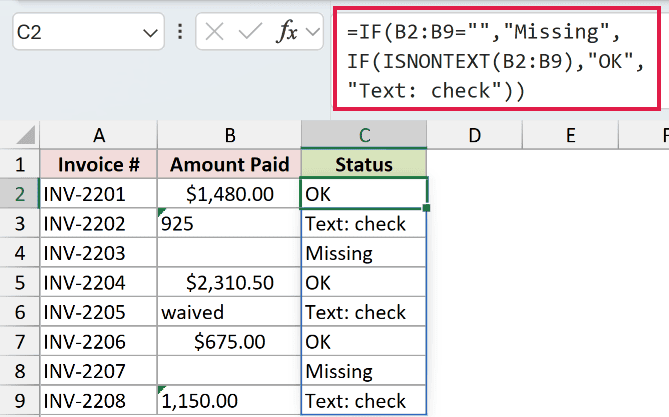
The formula spills the status labels into C2:C9.
How this formula works:
- The outer IF checks for empty entries first and labels them Missing.
- For the remaining entries, ISNONTEXT checks the value type.
- The inner IF returns OK for nontext and Text: check for text.
INV-2201’s $1,480.00 returns OK. INV-2202’s text entry 925 returns Text: check, while INV-2203 returns Missing.
The waived entry and the text amount 1,150.00 also return Text: check. They need review for different reasons, but both are text.
Checking for missing entries first prevents a blank from passing ISNONTEXT and receiving the OK label.
Pro Tip: The OK label here means the populated entry passed the nontext check. For payment validation, use ISNUMBER when logical values or other nonnumeric entries must also be rejected.
Tips & Common Mistakes
- A text number is still text. ISNONTEXT doesn’t convert imported numeric text. Review those entries before relying on them in calculations.
- Errors count as nontext. ISNONTEXT returning TRUE doesn’t mean a cell is error-free. ISERROR returns TRUE for errors, so it can distinguish them from other nontext values.
- Appearance isn’t the test. A genuinely blank cell passes ISNONTEXT, but an empty string or a cell containing only an apostrophe doesn’t.
- TRUE means nontext. ISNONTEXT checks whether a cell contains text and returns FALSE when it does. It doesn’t tell you which kind of nontext value you have.
Before using a nontext result to accept an entry, decide whether blanks, logical values, and errors belong in that column.
Other Excel articles you may also like:
