
The PRICEDISC function in Excel calculates the price per $100 face value of a discount security from its quoted discount rate, settlement date, and maturity date.
Discount securities, such as commercial paper, are bought below their redemption value. The difference between what you pay and what you receive at maturity is your return.
PRICEDISC converts the quoted rate into a price. That price still needs to be scaled to your face amount before it becomes the dollar cost of your purchase.
I’ll show you how to calculate that purchase cost, compare day-count methods, and spot input mistakes that can produce a price without an error.
PRICEDISC Function Syntax in Excel
PRICEDISC uses the following arguments:
=PRICEDISC(settlement, maturity, discount, redemption, [basis])
- settlement (required): The date you take ownership of the security. Use a real Excel date.
- maturity (required): The date the security is redeemed. It must come after settlement.
- discount (required): The quoted annual discount rate. Enter it as a percentage, such as
4.20%. - redemption (required): The redemption value per $100 face value. This is separate from the total face amount you buy.
- basis (optional): The convention Excel uses to count days and measure the year. Leaving it out selects US (NASD) 30/360.
The available basis codes are:
- 0: US (NASD) 30/360, the default.
- 1: Actual/actual.
- 2: Actual/360.
- 3: Actual/365.
- 4: European 30/360.
The actual methods count calendar days. The 30/360 methods use standardized months, with different date-adjustment rules for the US and European versions.
When to Use PRICEDISC Function
- Convert a quoted commercial paper discount rate into a purchase price.
- Calculate the dollar cost of a banker’s acceptance from its term and face amount.
- Compare prices across maturity dates or quoted discount rates.
- Check how the day-count convention changes the price of the same security.
Example 1: Price a Commercial Paper Note
Let’s start with a single note so you can see what each argument does.
Below is the dataset. The card contains settlement, maturity, discount rate, redemption, and basis inputs in B1:B5. Cell B6 will hold the price.
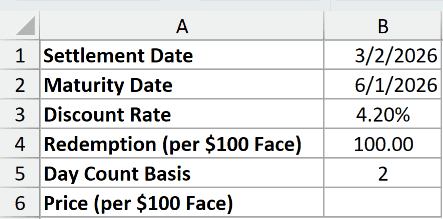
We want the purchase price per $100 face value for this commercial paper note.
Enter this formula in B6:
=PRICEDISC(B1,B2,B3,B4,B5)
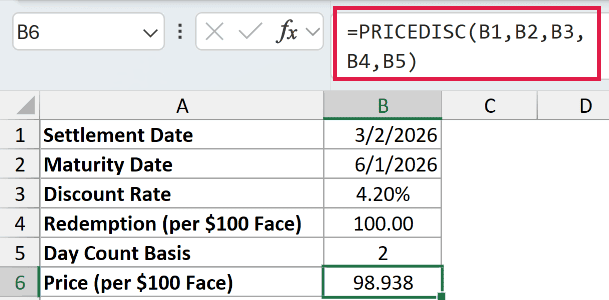
The formula returns 98.938, using the 4.20% discount rate and basis 2, or Actual/360.
Excel calculates the discount over the time between settlement and maturity, then subtracts it from redemption. The displayed price is below the redemption value of 100.00.
This price applies to $100 face value. Scale it to your holding to calculate the total purchase cost.
Example 2: Calculate the Dollar Purchase Cost
A quote may give you a term in days instead of a maturity date.
Below is the dataset. The card holds settlement, a 60-day term, face amount, discount rate, and basis. Cells B6 and B7 will show price and cost.
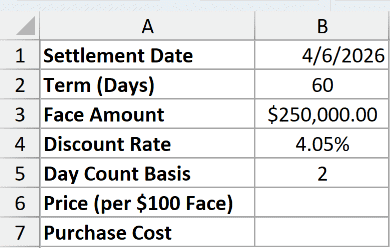
We want the dollar cost of this banker’s acceptance using its quoted term and face amount.
First, calculate the price in B6:
=PRICEDISC(B1,B1+B2,B4,100,B5)
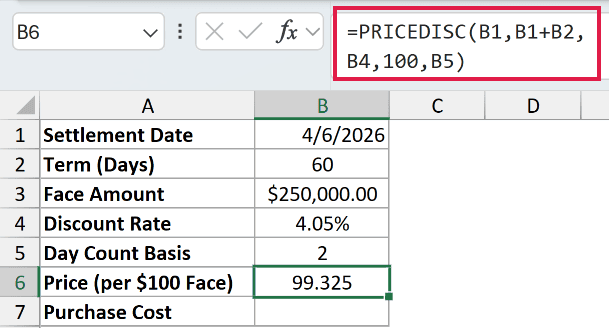
The formula returns 99.325. Within the maturity argument, B1+B2 adds the term in days to the settlement date.
Redemption is entered directly as 100 because the quote is per $100 face value. The total face amount stays in B3.
Now calculate the purchase cost in B7:
=B6/100*B3
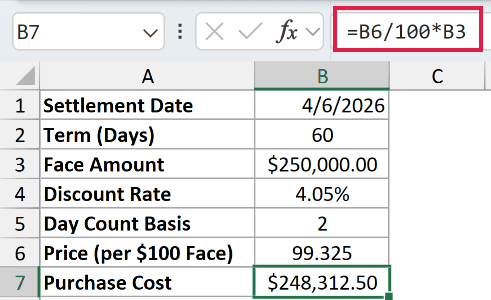
The result is $248,312.50 for a face amount of $250,000.00.
Dividing the price by 100 turns it into a proportion of face value. Multiplying by B3 scales that proportion to the actual purchase.
Pro Tip: Keep redemption and face amount separate. In this example, putting the total holding into PRICEDISC’s redemption argument would change the scale before the purchase-cost formula scales it again.
Example 3: Compare Commercial Paper Maturities
Now let’s price a list of notes with different maturity dates and quoted rates.
Below is the dataset. Columns A:C list terms, maturities, and rates. The purchase settings are in F:G, and column D will hold each price.

We want to price each note using its own maturity and rate while keeping the purchase settings fixed.
Enter this formula in D2, then copy it down through D7:
=PRICEDISC($G$2,B2,C2,$G$3,$G$4)
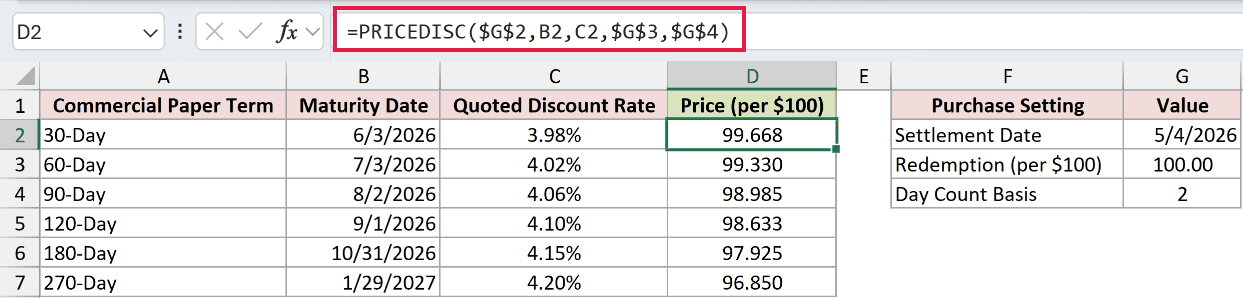
The dollar signs lock settlement, redemption, and basis. The references to B2 and C2 move down to each note’s maturity and quoted rate.
The 30-Day note returns 99.668, while the 270-Day note returns 96.850.
The longest note also has the highest quoted rate, 4.20%. Both the longer term and the higher rate increase its discount, leaving a lower purchase price.
This example uses a copied formula for each note. The bid-rate example below shows how to return a column of prices from a single formula.
Example 4: Compare Day-Count Bases
Even with the dates and discount rate fixed, the basis can change your price.
Below is the dataset. Columns A:B list basis codes and methods, E:F holds the note inputs, and column C will show the corresponding prices.
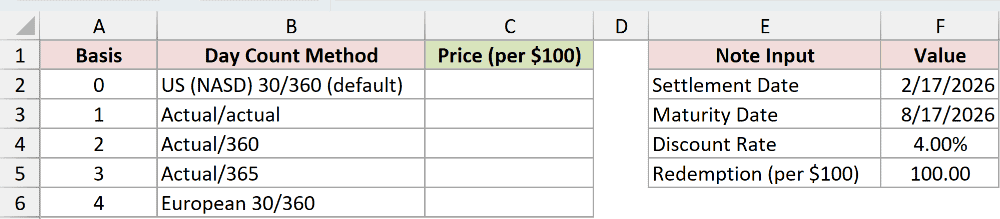
We want to isolate the effect of the day-count method on the same note.
Enter this formula in C2, then copy it down through C6:
=PRICEDISC($F$2,$F$3,$F$4,$F$5,A2)
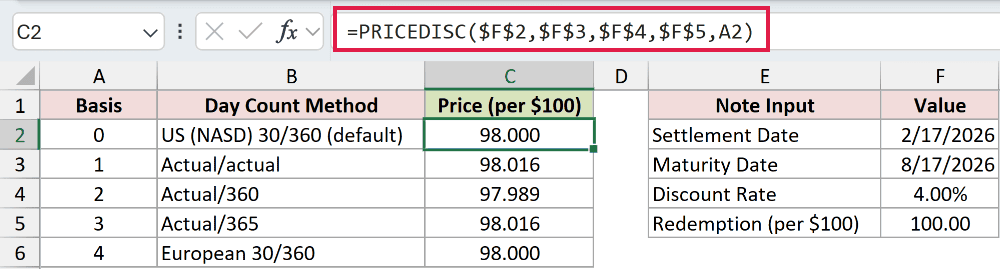
The locked references keep the note unchanged. Only the basis reference moves as you copy the formula down.
- US (NASD) 30/360 returns 98.000.
- Actual/actual returns 98.016.
- Actual/360 returns 97.989.
- Actual/365 returns 98.016.
- European 30/360 returns 98.000.
Several methods agree for these dates. Use the convention specified for your security even when these sample prices match.
Omitting basis selects the US method shown in the default row.
Pro Tip: Use the day-count convention attached to the quote. Choosing whichever basis produces a preferred price changes the calculation’s assumptions.
Example 5: Spill a Bid-Rate Price Grid
You can also hold a bill’s dates fixed and try different bid discount rates.
Below is the dataset. Column A contains bid discount rates, E2:E3 holds the bill’s dates, and column B will hold the prices.
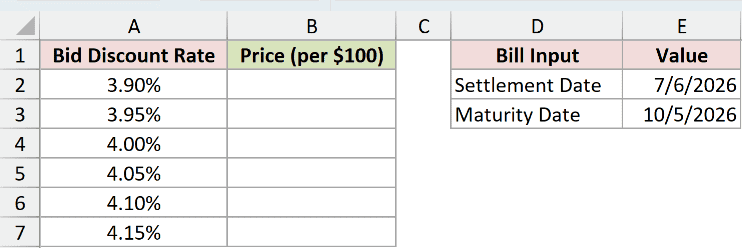
We want a single formula to calculate the price for every listed bid rate.
Enter this formula in B2:
=PRICEDISC(E2,E3,+A2:A7,100,2)
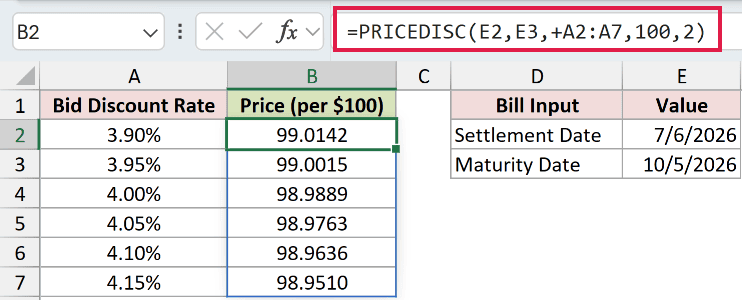
The + before A2:A7 turns the cell range into an array of numbers PRICEDISC can process. A bare range returns a single #VALUE! instead.
The results spill into B2:B7, meaning Excel fills the output cells from the formula entered in B2.
This spill works in Excel 2021, Excel 2024, and Microsoft 365. In Excel 2019 and earlier, use a per-row calculation copied down, as in the preceding examples.
The formula supplies redemption as 100 and basis as 2 directly. The card contains only the dates.
At 3.90%, the price is 99.0142. At 4.00%, it’s 98.9889, and at 4.15%, it’s 98.9510.
With the dates unchanged, a higher discount rate means a lower purchase price.
Example 6: Check the Rate Behind the Price
The quoted discount rate and the return on your purchase cost measure different things.
Below is the dataset. The card holds the note’s dates, discount rate, redemption, and basis. The labelled cells beneath them will show price and rate checks.
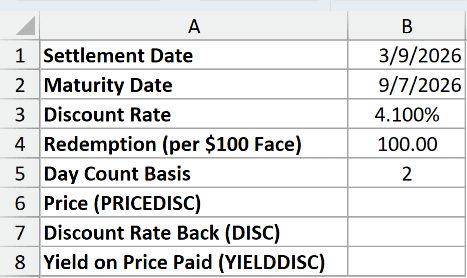
We want to calculate the price, recover its original discount rate, and compare that rate with the yield on the amount paid.
Start with PRICEDISC in B6:
=PRICEDISC(B1,B2,B3,B4,B5)
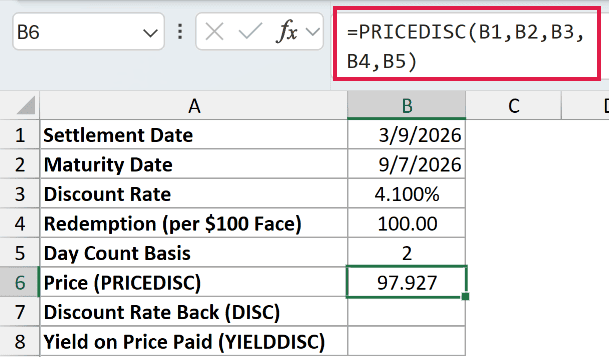
The price displays as 97.927, based on the quoted 4.100% discount rate.
DISC calculates the discount rate from a price. Here, it checks whether the price from PRICEDISC leads back to the original quote.
Enter this formula in B7:
=DISC(B1,B2,B6,B4,B5)
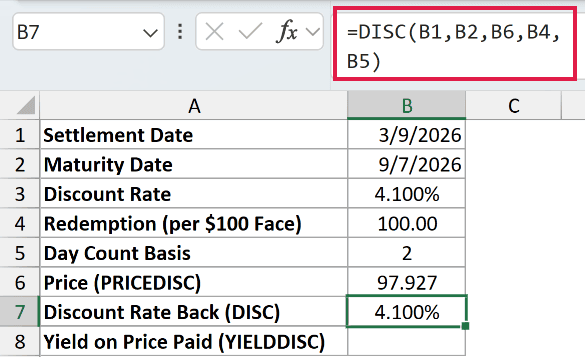
The result displays as 4.100%, matching the input rate. Both calculations use the same dates, redemption, and basis.
YIELDDISC calculates the annualized yield on the price paid for a discount security. It helps explain why PRICEDISC’s input discount rate isn’t the investor’s yield.
Enter this formula in B8:
=YIELDDISC(B1,B2,B6,B4,B5)
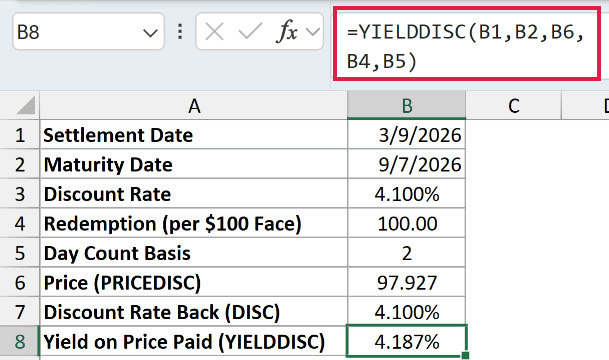
The yield displays as 4.187%, above the quoted 4.100% discount rate.
The discount rate measures the discount against redemption. The yield measures the return against the lower purchase price, which makes the percentage larger here.
Keep B6 as the reference in both checks. That uses the underlying calculated price rather than a retyped version of its rounded display.
Example 7: Find Errors and Silent Input Mistakes
A returned number doesn’t always mean the inputs are right.
Below is the dataset. Each row lists a test case, settlement, maturity, discount rate, and basis. Column F will show a price or a deliberate error.
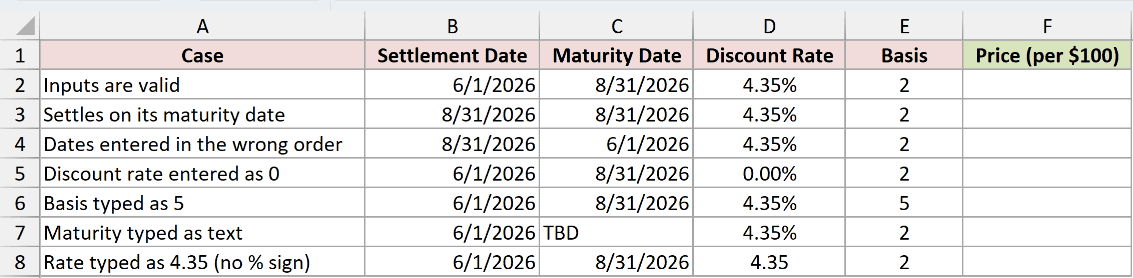
We want to identify which inputs cause errors and which mistake slips through as a numeric price.
Enter this formula in F2, then copy it down through F8:
=PRICEDISC(B2,C2,D2,100,E2)
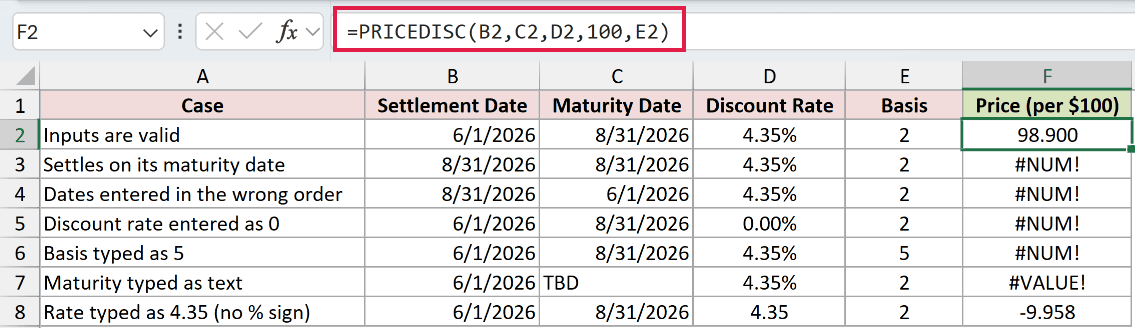
The valid row returns 98.900. The remaining rows deliberately change an input so you can see what needs fixing.
- F3 returns
#NUM!: Settlement equals maturity. Settlement must come before maturity. - F4 returns
#NUM!: The dates are reversed. Put the purchase date before the redemption date. - F5 returns
#NUM!: The discount rate is0.00%. Supply a positive discount rate. - F6 returns
#NUM!: Basis5isn’t a valid code. Use the convention specified for the security. - F7 returns
#VALUE!: The maturity cell containsTBD. Replace the placeholder with a real date. - F8 returns
-9.958: The rate was typed as4.35without the percent sign. This is a deliberate mistake, not a usable price.
Excel accepts the rate as a number and calculates a negative price without raising an error.
Pro Tip: Check the entered rate as well as the result. Here, 4.35% is the intended input; 4.35 produces a numeric answer from the wrong rate. An error-only check won’t flag it.
Tips & Common Mistakes
- Use the quoted discount rate. A yield on the purchase price is a different measure, as the rate check above shows.
- Keep redemption on the right scale. PRICEDISC expects redemption per $100 face value. Scale the returned price separately when calculating a holding’s dollar cost.
- Don’t leave basis to chance. An omitted basis selects US (NASD) 30/360. Enter the code explicitly when the quote uses another convention.
- Check redemption if you see
#NUM!. A redemption value of0returned that error in testing. - Use real dates. Replace a maturity placeholder such as
TBDwith a real date. - Keep the calculation suited to the security. PRICEDISC applies simple discounting. Don’t treat its output as a general valuation of a long-term investment with recurring payments.
Other Excel articles you may also like:
