
Filter by Color in Excel is the quickest way to pull out the rows you’ve highlighted, like urgent requests or overdue items. So it’s frustrating when the option is greyed out or shows the wrong rows.
The catch is that Excel doesn’t filter by the color you see. It filters by the exact fill stored in each cell, and only inside the range it thinks your data covers.
In this article, I’ll show you five common reasons Filter by Color stops working, like a blank row or two shades that only look identical, and how to fix each.
Reason #1: You’re Filtering a Column That Has No Colors
Filter by Color only looks at the column whose filter arrow you clicked. If the colored cells sit in a different column, the option is greyed out.
Below I have a list of maintenance requests. I’ve highlighted the urgent issues in the Issue column (column D) with an orange fill.
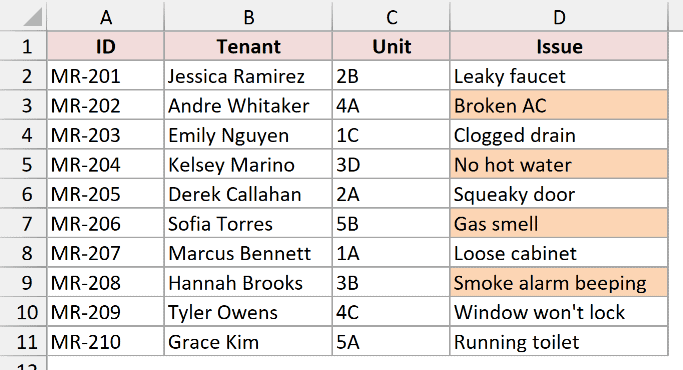
I’ve turned on the filter (Data > Filter), and now I want to show only the urgent requests. When I click the filter arrow in the Tenant column, Filter by Color is greyed out.
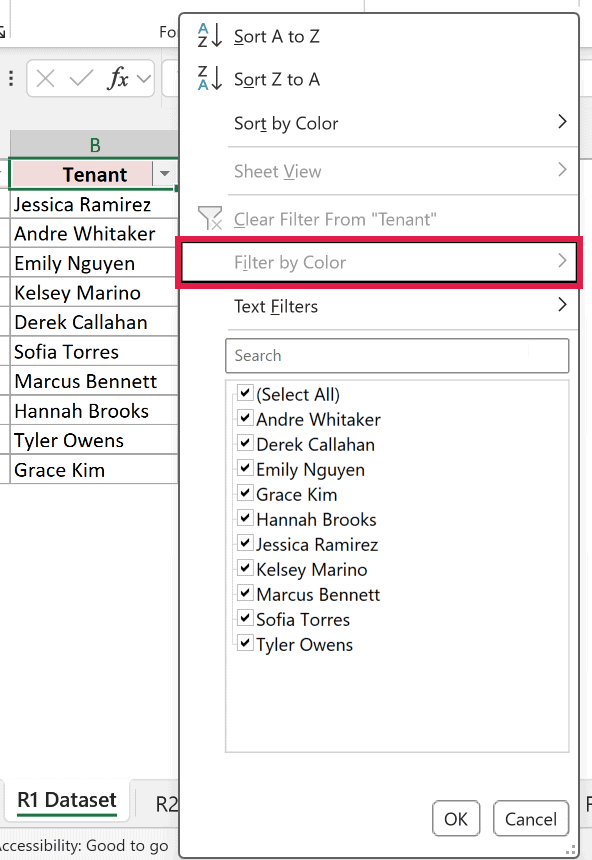
That’s because none of the cells in the Tenant column have a fill color. Excel has nothing to offer, so it disables the option.
Fix: Open the Filter in the Colored Column
The fix is to use the filter arrow of the column that actually holds the colors. Here are the steps:
- Click the filter arrow in the Issue column header. This time, Filter by Color is available.
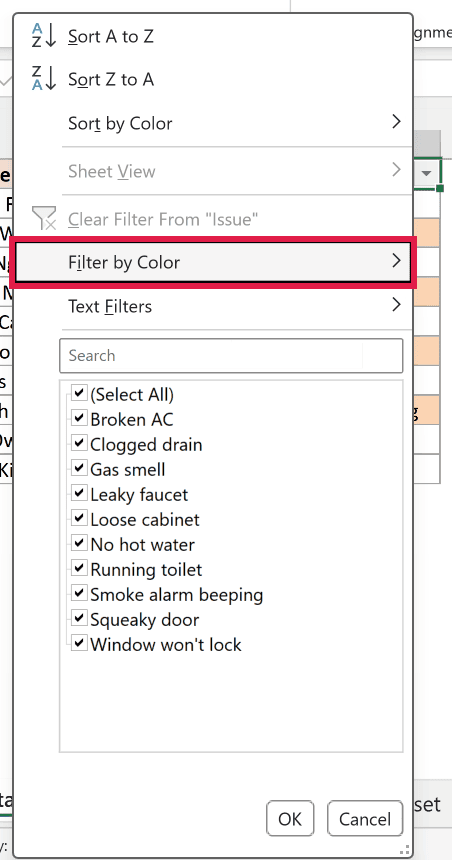
- Hover over Filter by Color and click the orange square under Filter by Cell Color.
Excel now shows only the four urgent requests.
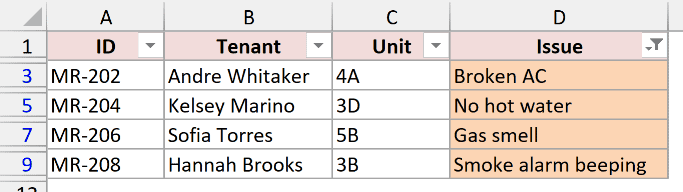
If your highlight covers whole rows, you can filter from any column. When only one column is colored, always use that column’s filter arrow.
Reason #2: Your Data Has a Blank Row
When you turn on the filter from a single cell, Excel guesses where your data ends. A completely blank row tells Excel the data stops there.
Below I have the same requests, with the urgent rows colored orange. There’s an empty row (row 7) in the middle of the list.
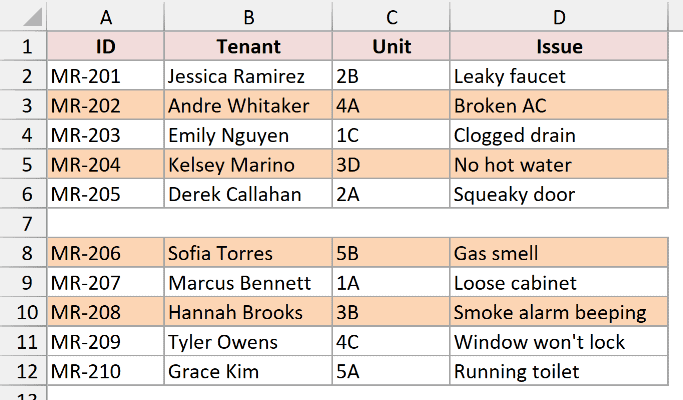
When I click A1, turn on the filter, and filter column A by the orange color, here is what I get:
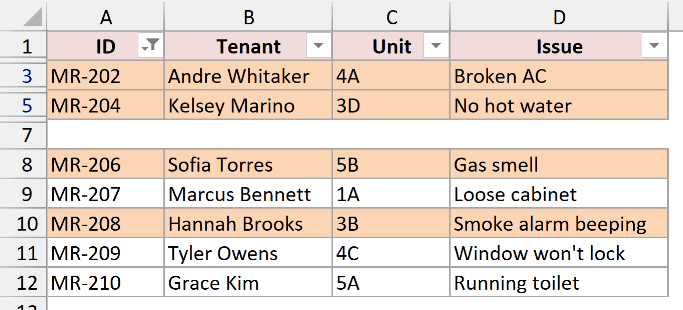
The rows above the blank row were filtered correctly. But everything below it is still showing, including requests that aren’t orange.
Excel applied the filter to A1:D6 only. The rows after the blank row were never part of the filter, so they just sit there untouched.
Fix: Delete the Blank Row and Apply the Filter Again
The cleanest fix is to remove the blank row, so Excel sees one continuous list. Here are the steps:
- Turn the filter off by going to the Data tab and clicking Filter (or press Control + Shift + L).
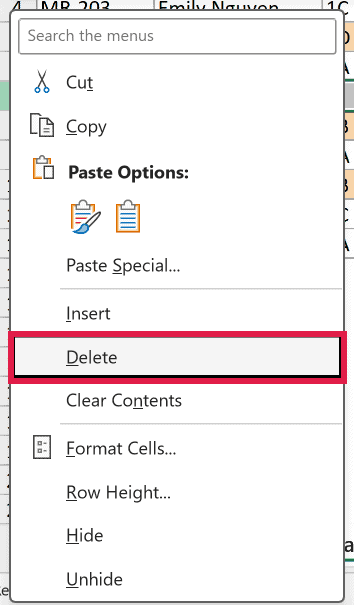
- Right-click the row number of the blank row (7) and click Delete.
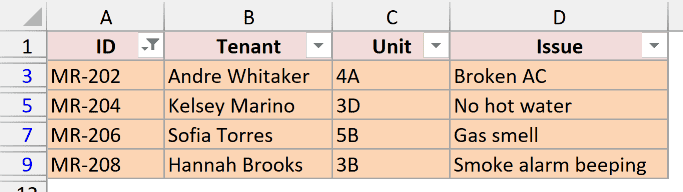
- Select any cell in the data, press Control + Shift + L, and filter column A by the orange color again.
Now the filter covers the whole list, and only the four orange rows are visible.
If you need to keep the blank row, select the entire range (A1:D12 here) before you click Filter. Excel then filters exactly the range you selected, blank row included.
Reason #3: The Colors Look the Same but Aren’t
Filter by Color matches the exact color code, not what your eyes see. Two oranges that look identical on screen can be two different colors to Excel.
This often happens when rows are pasted in from another workbook, or colored with a custom shade instead of a palette swatch.
Below I have the requests list with four orange rows. Two of them (MR-206 and MR-208) use a slightly different orange that came in from another file.
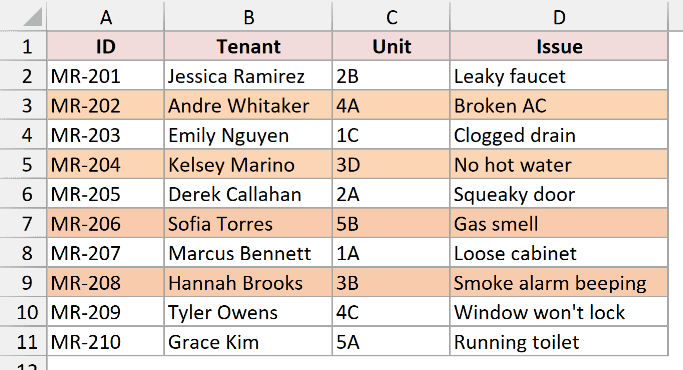
When I filter column A by the orange color, only two rows show up.

MR-206 and MR-208 are missing because their fill is a different shade. A quick way to spot this is the Filter by Color list itself. It shows two orange squares instead of one.
Fix: Apply One Fill Color to All the Rows
The fix is to give every row that should match the same fill color. Here’s how to do it:
- Clear the filter so all the rows are visible (Data tab > Clear).
- Select all four orange rows. Hold the Control key to select ranges that aren’t next to each other.
- On the Home tab, click the Fill Color arrow and pick the orange swatch (Orange, Accent 6, Lighter 60%).
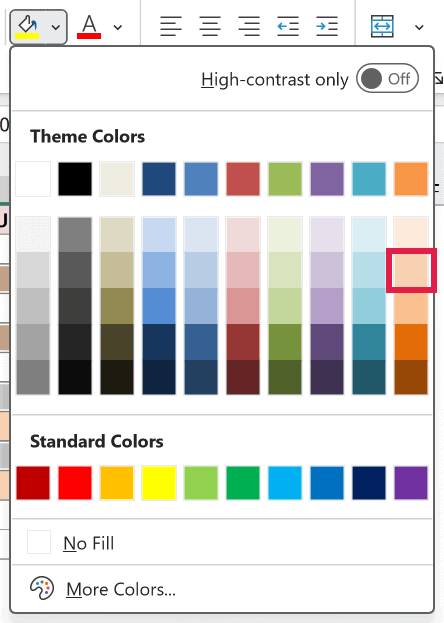
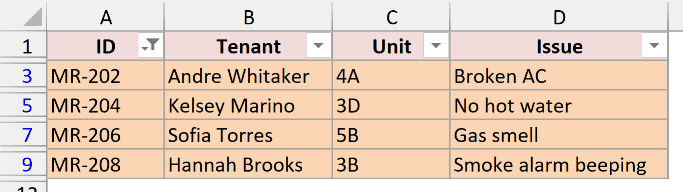
- Filter column A by the orange color again.
All four urgent rows now show up, because they share one color.
Note: To avoid this in the future, pick your highlight colors from the Fill Color palette instead of More Colors. A palette swatch always gives you the exact same color code.
Reason #4: You Changed the Colors After Filtering
A filter doesn’t update itself when you change a cell’s color. It keeps showing whatever matched at the moment you applied it.
Below I have the requests list, with the urgent requests (MR-202, MR-204, MR-206, and MR-208) colored orange.
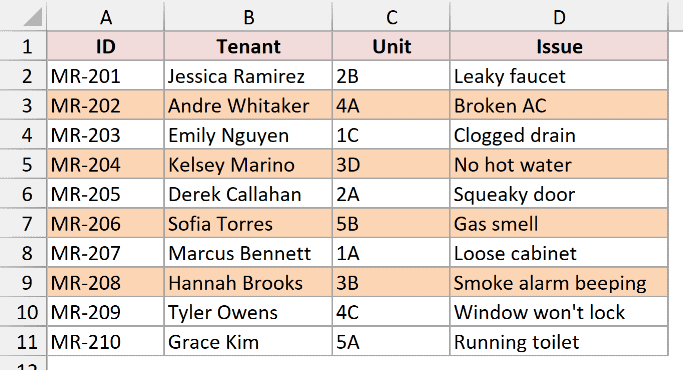
I filtered column A by the orange color, so only the four urgent rows are showing.
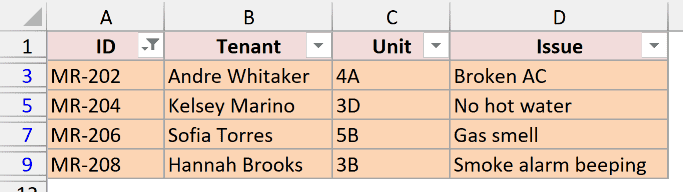
The hot water at MR-204 is fixed now, so I removed its orange fill. But the row is still sitting in my filtered list.
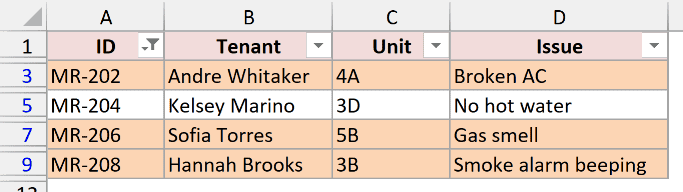
The same thing happens the other way round. If you color a row that’s currently hidden, it stays hidden until the filter runs again.
Fix: Reapply the Filter
Excel has a Reapply button that runs the current filter again against the latest colors. Here’s how to use it:
- Go to the Data tab and click Reapply in the Sort & Filter group (or press Control + Alt + L).
MR-204 drops out of the list, and only the rows that are still orange remain.
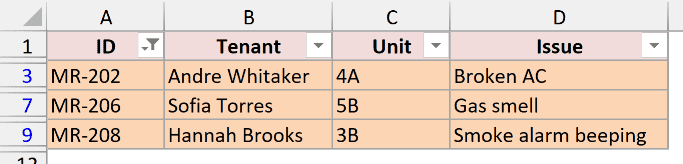
This also matters with conditional formatting. When a value change makes a rule add or remove a color, press Control + Alt + L to update the filter.
Reason #5: You Need to Filter by More Than One Color
Excel’s Filter by Color lets you pick only one color per column. Pick a second color and it replaces the first, so you can’t show orange and blue rows together.
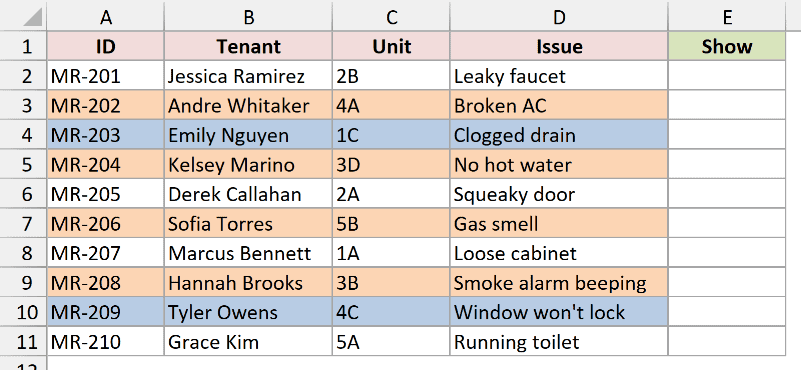
Below I have the requests list with urgent requests in orange and requests waiting on parts in blue. I want to see both groups at once.
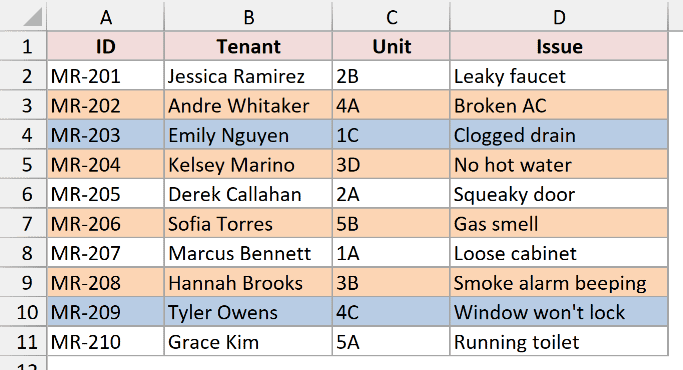
Fix: Tag the Colors in a Helper Column
The workaround is to type a tag next to each color you want, then filter by that tag. Here are the steps:
- Add a helper column next to the data. I typed Show in E1.
- Turn on the filter for A1:E11 and filter column A by the orange color. Select E2:E11, type Show, and press Control + Enter.
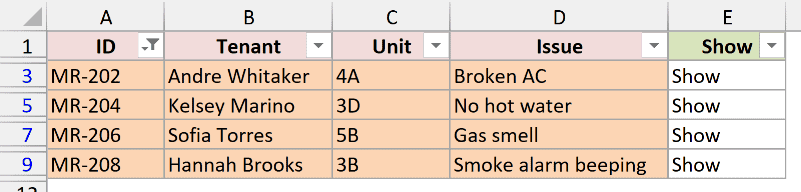
Control + Enter puts the text in every selected cell that’s visible. The hidden rows don’t get it.
- Now filter column A by the blue color instead. Select E2:E11 again, type Show, and press Control + Enter.

- Clear the color filter from column A. Then click the filter arrow in the Show column and uncheck (Blanks).
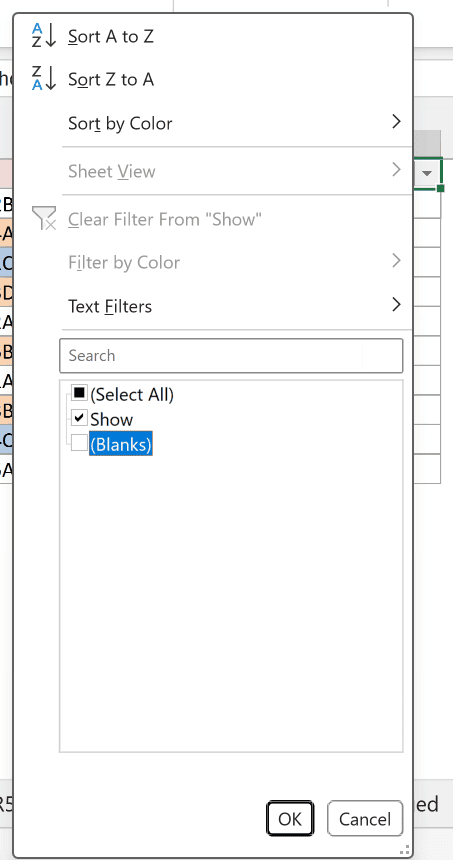
- Click OK.
Now both the orange and the blue rows are visible together.
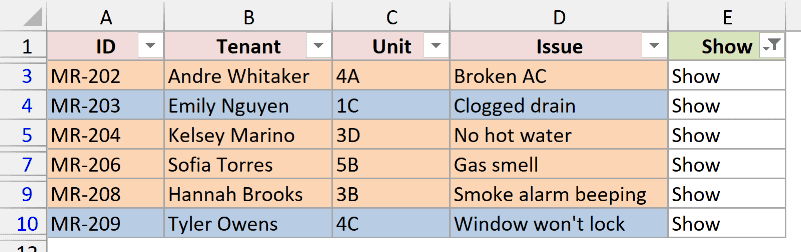
The tags are plain text, so they don’t change when the colors do. If you recolor rows later, clear column E and tag them again.
Additional Notes About Filter by Color in Excel
A few more things that can trip up Filter by Color:
- The banded colors from an Excel Table style aren’t cell fills. A Table column with only banding has Filter by Color greyed out.
- Conditional formatting colors do work. You can filter by a color that a rule applied, as long as you reapply the filter when the values change.
- If you colored the text instead of the cell, look under Filter by Font Color in the Filter by Color list, not Filter by Cell Color.
- A cell filled with white looks empty, but white isn’t the same as No Fill. Excel treats it as a color and gives it its own square in the list.
- A greyed out Filter button is a different problem. When the whole Filter command is unavailable, check whether the sheet is protected or you have grouped sheets selected.
Frequently Asked Questions
Here are some questions people often ask about Filter by Color in Excel.
Can I filter by color with a formula like FILTER?
No. Excel has no worksheet function that returns a cell’s fill color, so FILTER can’t see colors. Use the helper-column approach from Reason #5 or a short VBA macro.
Is there a faster way to filter by one cell’s color?
Yes. Right-click a cell that has the color you want, then go to Filter > Filter by Selected Cell’s Color. Excel uses that exact color for the filter.
Does Filter by Color work in an old .xls file?
Yes. Filter by Color still works when an .xls file is open in Compatibility Mode, so the file format isn’t the reason it’s greyed out.
Why is Sort by Color available when Filter by Color is greyed out?
Excel keeps Sort by Color clickable even in a column without colors. Filter by Color is disabled because there’s no color to filter by, so check Reason #1.
Conclusion
In this article, I covered five reasons Filter by Color in Excel stops working and how to fix each one. If the option is greyed out, check the column first, since that’s the usual cause.
I hope you found this article helpful.
Other Excel articles you may also like:
