
Excel Find and Replace helps you locate text, numbers, formulas, and formatting, then update the matching cells.
When it stops working, the cause is usually a selected range, a saved search option, hidden characters, or a worksheet setting.
These checks use desktop Excel for Windows. The spill formulas require Microsoft 365, Excel 2021, or Excel 2024.
Note: Select one cell and press Ctrl+F. On the Find tab, open Options >>.
Choose Within: Workbook and Look in: Values, uncheck Match case and Match entire cell contents, and clear Find Format.
Reason #1: A Range of Cells Is Selected
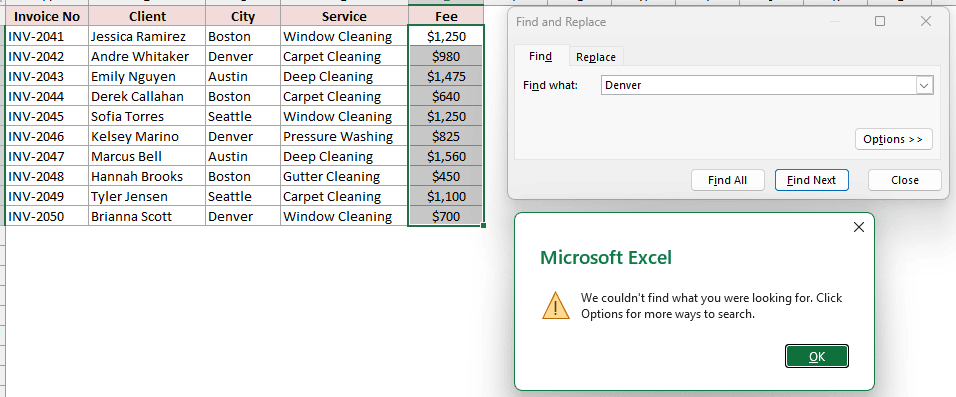
With Within set to Sheet, Find searches only the selected range when you select two or more cells before opening the dialog.
On the Invoices sheet, I selected E2:E11 and searched for Denver. Excel reports that it cannot find the data.
The selected range excludes column C, where the city names are stored.
Fix: Select a Single Cell Before Searching
To search the whole worksheet instead:
- Click A1 and press Ctrl+F. Open Options >>, set Within to Sheet, enter Denver, and click Find Next.
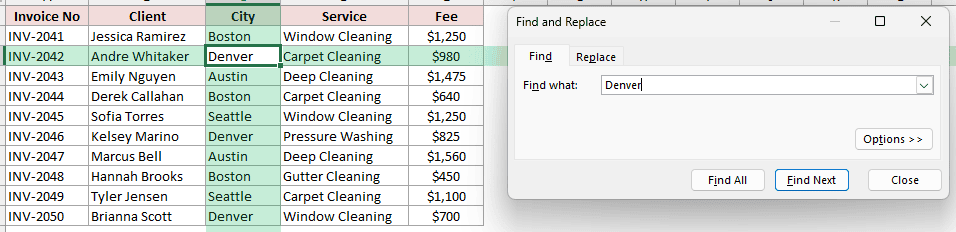
Excel finds Denver in cell C3. Selecting one cell lets Find search beyond the Fee column.
Reason #2: Match Entire Cell Contents Is Checked
On the Invoices sheet, cell D3 contains Carpet Cleaning. Searching for Carpet fails when Match entire cell contents is checked.
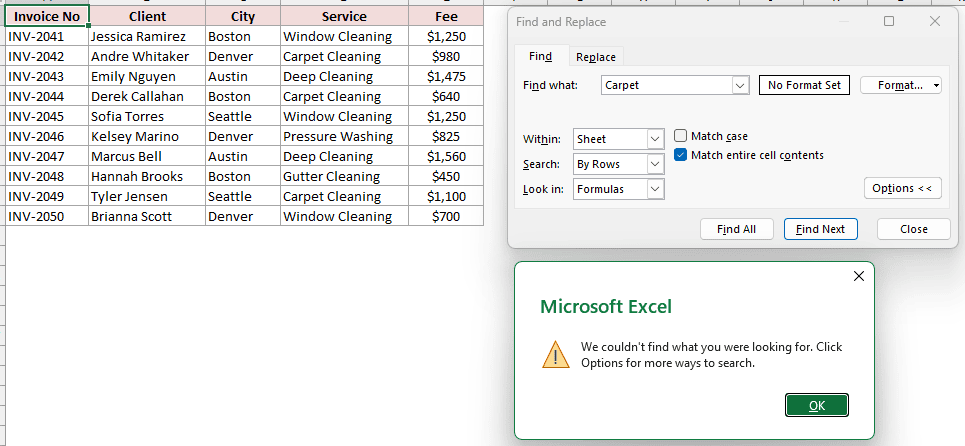
Excel is looking for a cell that contains only Carpet, not a cell where that word forms part of a longer entry.
Fix: Uncheck Match Entire Cell Contents
To allow partial matches:
- Click Options >>, uncheck Match entire cell contents, and click Find Next.
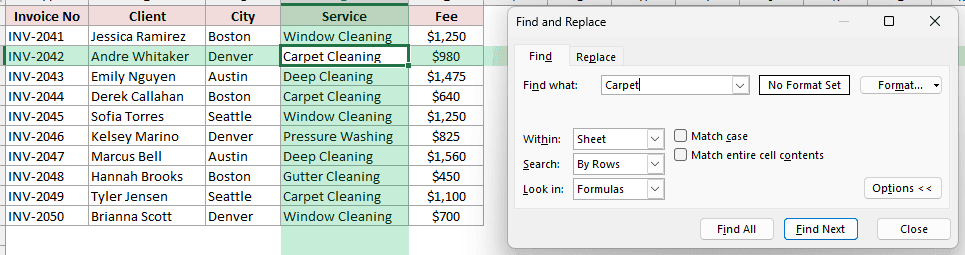
Excel now finds Carpet Cleaning in D3 because partial matches are allowed.
Reason #3: Match Case Is Checked
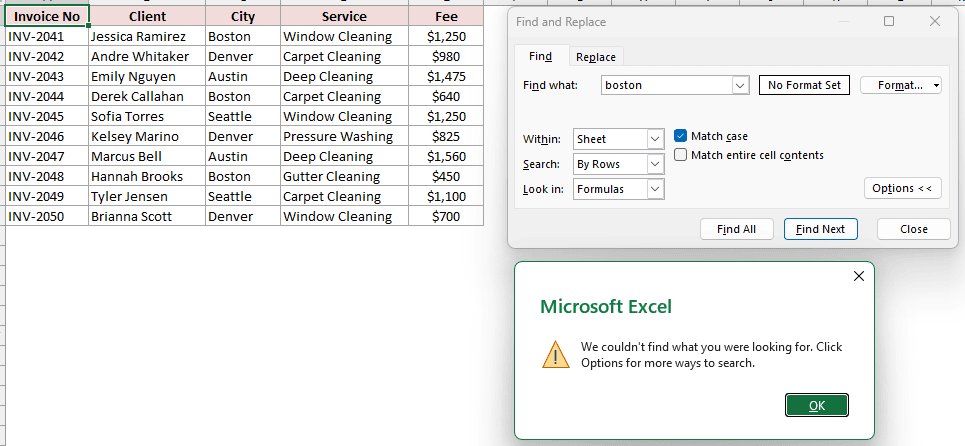
On the Invoices sheet, Boston appears in C2, C5, and C9. Searching for lowercase boston fails when Match case is checked.
Fix: Uncheck Match Case
To make the search ignore capitalization:
- Click Options >>, uncheck Match case, and click Find Next.
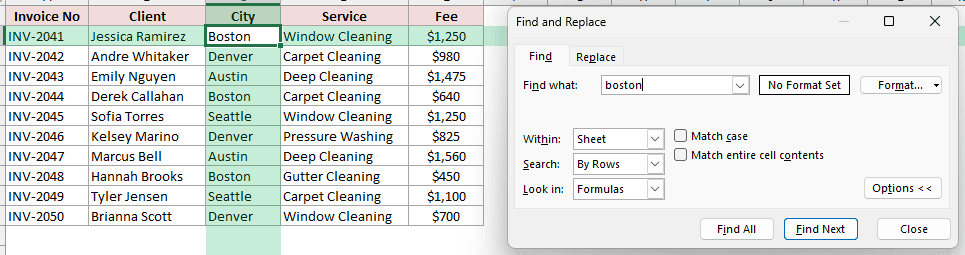
Excel finds the first matching city in C2, even though the letter case differs.
Reason #4: Look In Is Set to Formulas
On the Invoices sheet, E2 stores 1250 but displays $1,250. Searching for 1,250 fails when Look in is set to Formulas.
These examples use a comma thousands separator and a decimal point. If your regional settings display different separators, search for the value as displayed.
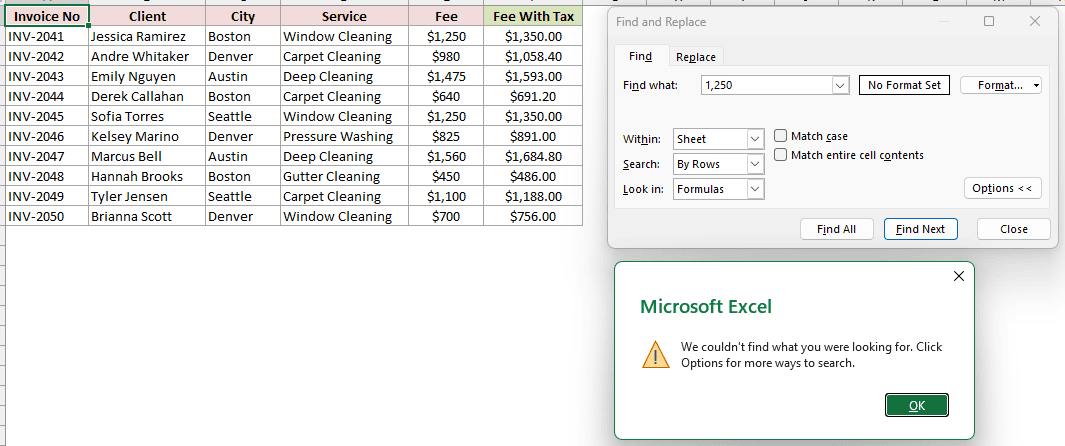
The same issue affects F2. Its stored formula is =E2:E11*1.08, while the displayed result is $1,350.00.
Fix #1: Change Look In to Values
To search the displayed value of a formatted number or formula result:
- On the Find tab, click Options >>, set Look in to Values, enter 1,250, and click Find Next.
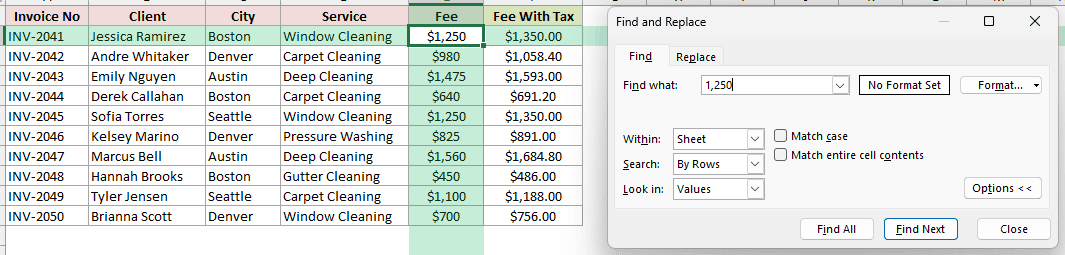
Excel finds E2. With Values selected, a search for 1,350 also finds the formula result in F2.
Fix #2: Search for the Stored Value When Replacing
On the Replace tab, Look in offers only the Formulas choice. Replace searches formulas and stored entries, not formatted display strings or calculated results.
To replace a number such as the fee in E2, search for its stored value:
- Press Ctrl+H, search for the stored value 1250, enter the replacement, and click Replace or Replace All.
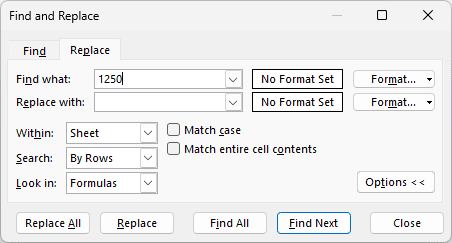
Note: Replace cannot change the displayed result $1,350.00 directly because F2 contains a formula. Edit the source value in E2 or change the formula instead.
Reason #5: Within Is Set to Sheet
I am on the Invoices sheet, but Damaged Rug is stored in C3 on the Refunds sheet. A sheet-level search returns no match.
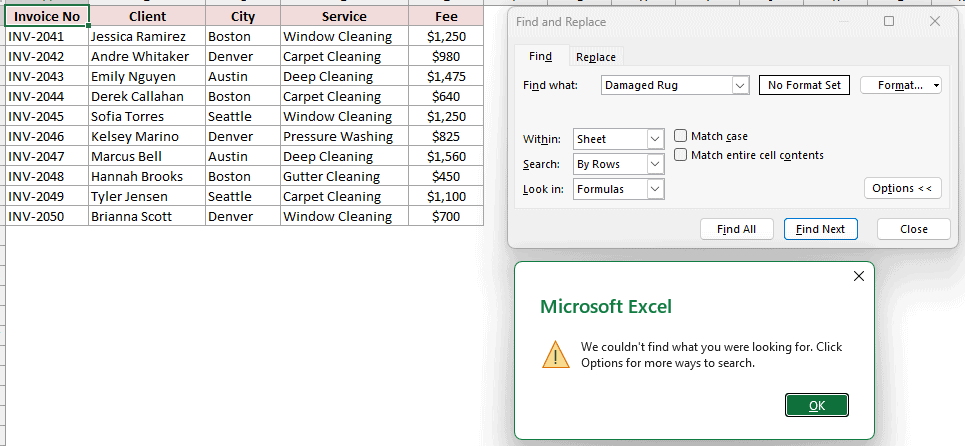
Fix: Change Within to Workbook
To search every worksheet in the open workbook:
- Click Options >>, set Within to Workbook, enter Damaged Rug, and click Find All.
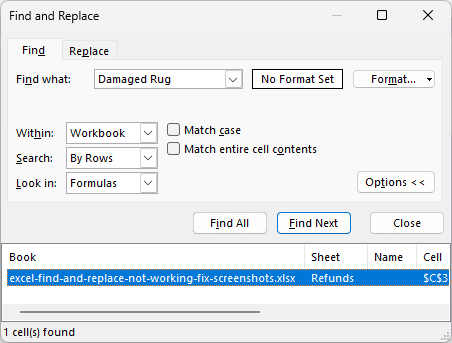
Find All lists Refunds in the Sheet column and $C$3 in the Cell column. Clicking the result jumps to the matching cell.
Reason #6: An Old Format Is Still Set in the Dialog
The Format criterion stays set after the previous Find or Replace search.
On the Invoices sheet, Boston is not bold. A saved bold-font criterion prevents Excel from finding the entry in C2.
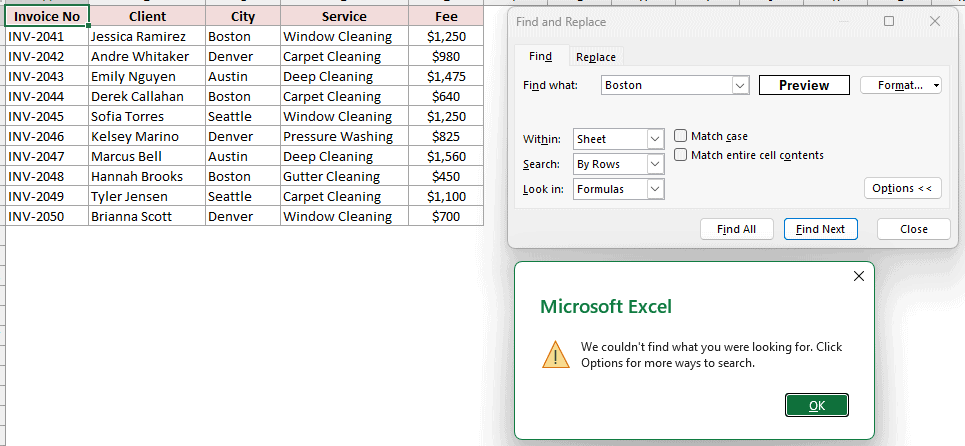
The Find dialog shows a format preview when a criterion is active, but it is easy to overlook.
Fix: Clear the Find Format
To remove the saved format criterion:
- Click Options >>, open the Format menu, choose Clear Find Format, and search for Boston again.
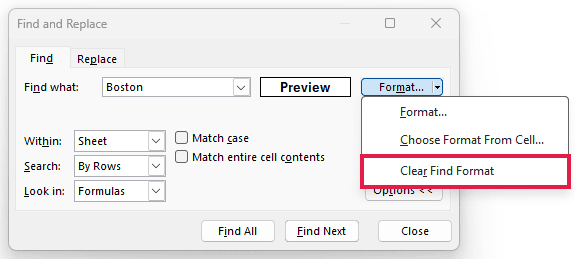
Excel finds C2 once the unwanted format filter is removed. On the Replace tab, clear Find Format beside Find what to remove search-format restrictions.
Clear Replace Format beside Replace with only removes formatting that would be applied to the replacement.
Reason #7: The Search Text Has a Wildcard Character
Find and Replace treats an asterisk as any sequence of characters and a question mark as any single character.
On the Promo Codes sheet, searching for SAVE*10 with Match entire cell contents checked matches A2:A5, not just the literal code in A2.
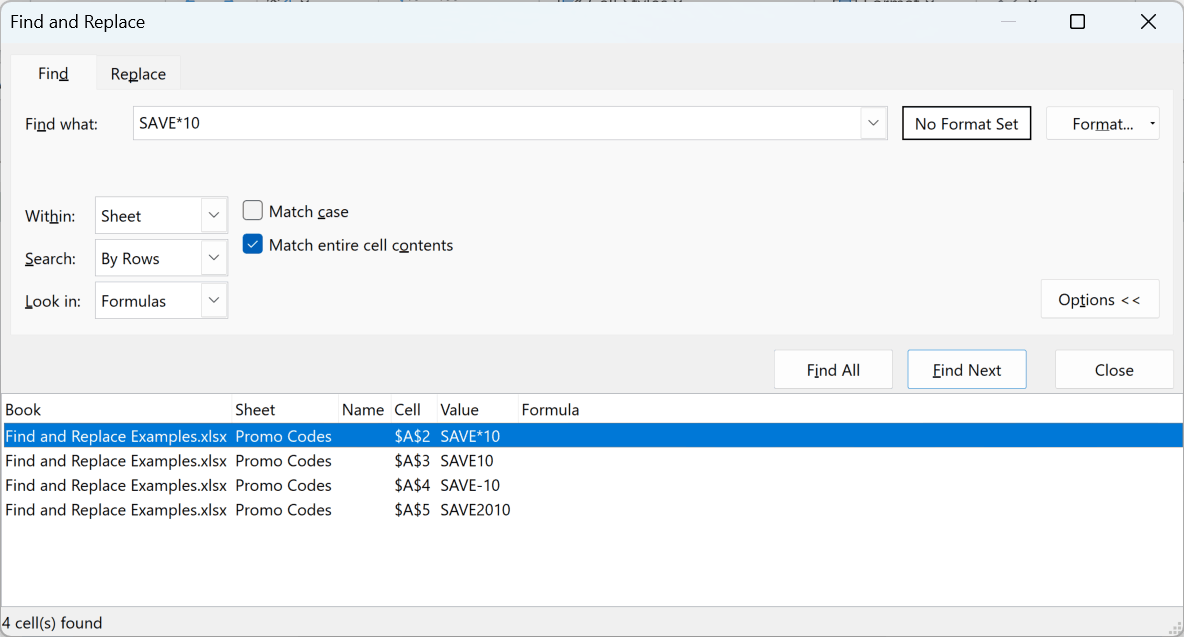
Those matches are SAVE*10, SAVE10, SAVE-10, and SAVE2010. Replace All would change all four codes.
Fix: Add a Tilde (~) Before the Character
Use a tilde to treat the next wildcard as an ordinary character:
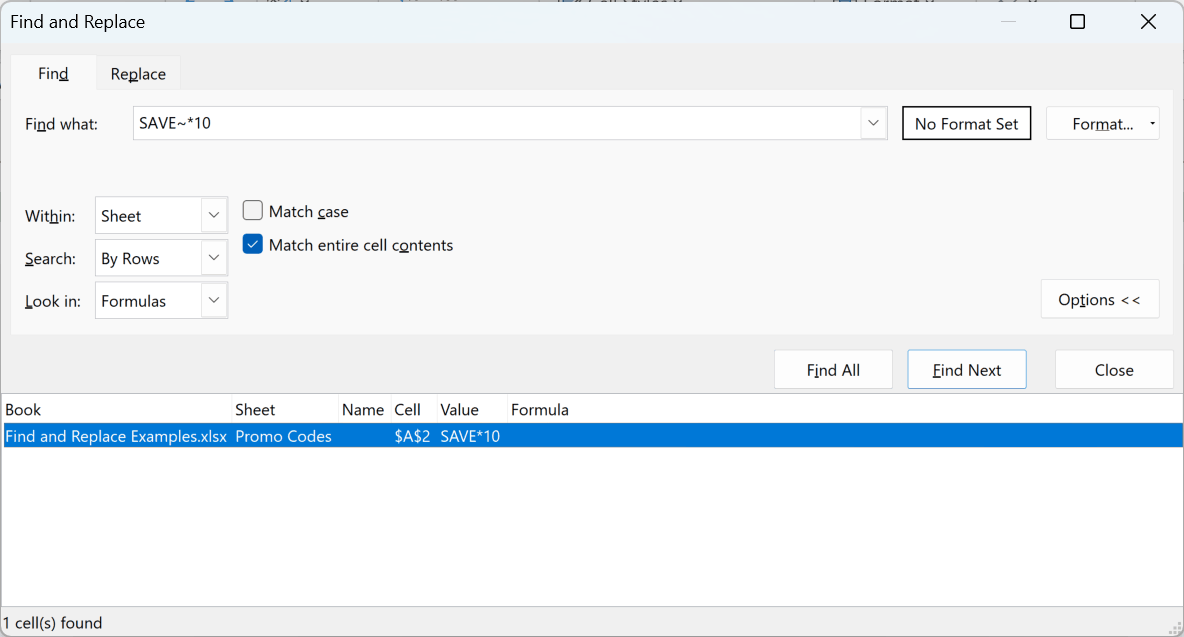
- Search for SAVE~*10 to find the literal asterisk in A2 only.
Use SPRING~?15 when you need to find the literal question mark in SPRING?15.
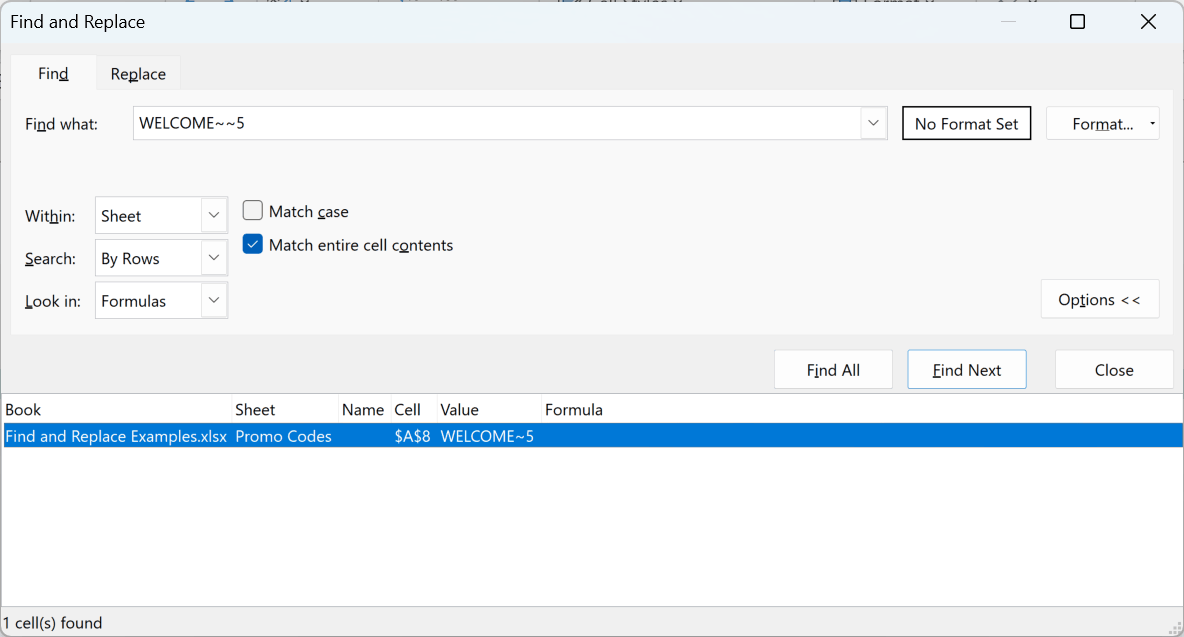
- Search for WELCOME~~5 to find the literal tilde in A8.
Searching for WELCOME~5 instead finds WELCOME5 in A9 because the single tilde escapes the following character.
Reason #8: The Cells Have Extra or Hidden Spaces
Text can look correct while containing a leading space, a double space, or a non-breaking space copied from a website.
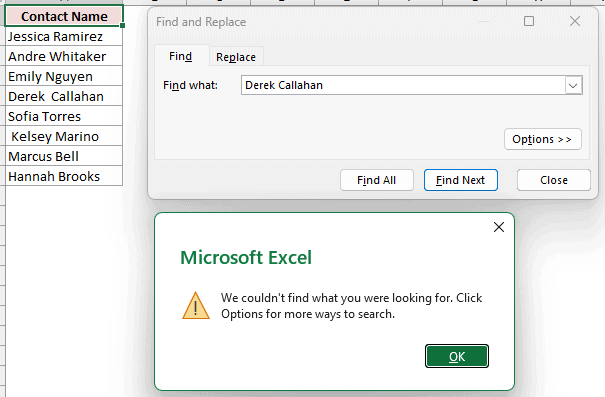
On the Contacts sheet, a default search for Derek Callahan fails because A5 contains two spaces between the names.
With Match entire cell contents checked, Emily Nguyen and Kelsey Marino also fail because their cells contain trailing or leading spaces.
Fix: Remove the Extra Spaces, Then Search Again
I use the LEN results in column B to spot names whose character counts are longer than expected.
Enter this formula in B2:
=LEN(A2:A9)
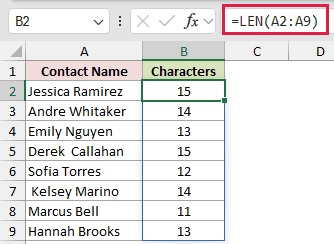
The formula spills through B9. Emily Nguyen returns 13 instead of 12, Derek Callahan returns 15 instead of 14, and Kelsey Marino returns 14 instead of 13.
For the double space, select A2:A9 on Contacts and press Ctrl+H. Open Options >>, set Within to Sheet, and uncheck Match entire cell contents.
Enter two spaces in Find what, enter one space in Replace with, and replace the match.
For the trailing non-breaking space in A4, keep Match entire cell contents unchecked. Hold Alt and type 0160 on the numeric keypad in Find what.
Leave Replace with empty to remove this trailing character. If a non-breaking space separates words, replace it with a normal space instead.
For leading or trailing normal spaces, use TRIM in a helper column, then paste the cleaned values back before searching again.
Reason #9: A Filter Is Hiding Rows
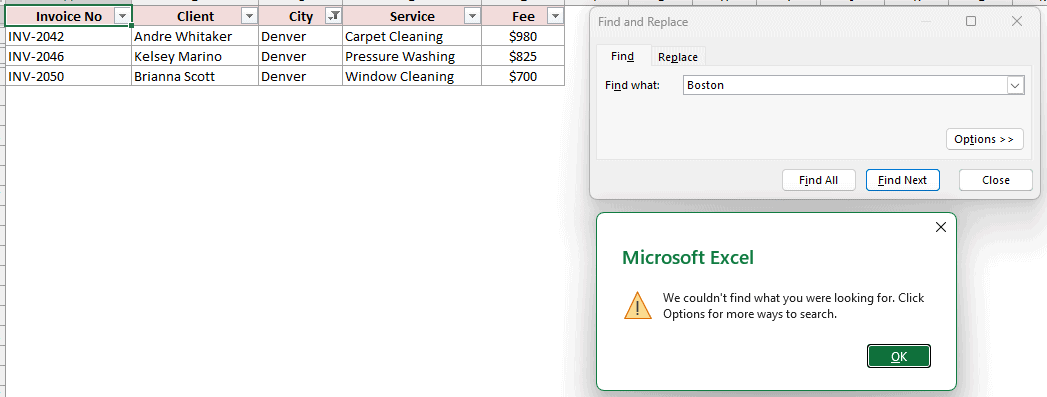
Find and Replace skips rows hidden by an active filter.
On the Invoices sheet, first filter City to show only Denver. A search for Boston then fails because the matching rows are filtered out.
Fix: Clear the Filter
To make every row searchable again:
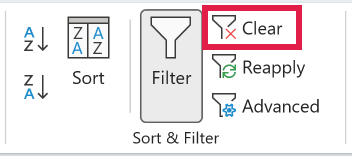
- On the Data tab, click Clear. You can also press Ctrl+Shift+L to remove the filter buttons and show every row.
Once the Boston rows are visible, Find locates C2 and Replace can change matching cells in those rows.
Reason #10: The Worksheet Is Protected
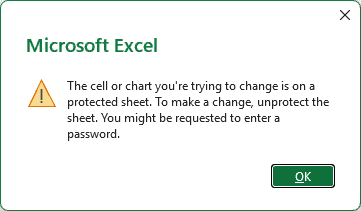
Find still works on a protected sheet, but Replace cannot change locked cells.
On the Invoices sheet, first protect the worksheet. Excel then leaves the locked cell unchanged and displays a protected-sheet message when I try to replace its value.
Fix: Unprotect the Sheet
With the required permission and password, unprotect the sheet before editing locked cells:
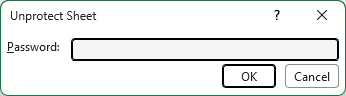
- Open the Review tab, click Unprotect Sheet, enter the password if prompted, and click OK.
You can now run Replace on the previously locked cells.
Additional Notes About Find and Replace in Excel
- Ctrl+F opens Find, while Ctrl+H opens Replace. Search options can persist until you close Excel, so check them when results seem wrong.
- Search By Rows or By Columns changes the order of results, not which cells qualify. On the Find tab, Look in can also search Notes or Comments.
- Replace All can change many cells at once. If the result is wrong, press Ctrl+Z once to undo the whole Replace All operation.
- Find does not search text inside shapes, text boxes, or charts. Search the cells or source data behind those objects instead.
- If none of these causes applies, go to File > Open > Browse and select the workbook. Click the arrow beside Open, then choose Open and Repair. You can also run an Office Quick Repair.
Frequently Asked Questions
Why Does Excel Find and Replace Say It Can’t Find Anything?
Excel usually has the wrong search scope or a saved option. Check the selected range, Within, Look in, Match case, Match entire cell contents, and Format settings.
Why Does Find Work but Replace Doesn’t in Excel?
Find can search displayed values, while Replace works with stored values and formulas. Replace also cannot edit locked cells on a protected worksheet.
How Do I Find and Replace an Asterisk in Excel?
Put a tilde before the asterisk. For example, search for SAVE~*10 to match the literal text SAVE*10.
Does Find and Replace Work on Filtered or Hidden Cells in Excel?
Rows hidden by a filter are skipped by both Find and Replace. Manually hidden rows may also be skipped when Find uses Look in: Values.
Clear the filter or unhide the rows before running the search if you need to include every cell.
How Do I Find and Replace Across All Sheets in Excel?
Open Options >> and set Within to Workbook. Use Find All to review matches across sheets before replacing them.
Conclusion
In this article, I covered the search settings, cell contents, filters, and protection settings that can stop Find and Replace from working.
I hope you found this article helpful.
Other Excel articles you may also like:
