
You can calculate a retirement date in Excel from an employee’s birth date and retirement age. The formula depends on whether retirement falls on a birthday or at month-end.
I’ll show you both options, including a month-end rule for employees born on the first day of a month.
You can then use the dates to count the days remaining and flag dates that have already passed.
Method #1: Using the EDATE Function
If retirement falls on the date an employee reaches a specified age, I recommend starting with EDATE. It adds a number of months to a birth date.
Below I have employee names, birth dates, and retirement ages. I want to calculate the date each employee reaches the age in column C.
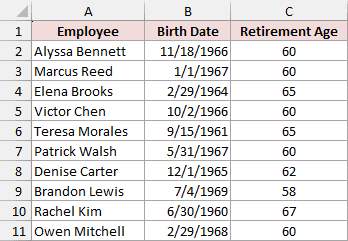
The screenshots display dates as month/day/year. Your display may differ with your date format and regional settings.
The examples use different retirement ages so you can apply the age that belongs to each employee. These are sample inputs, not eligibility rules.
In the download, use the Retirement Dates sheet. Columns D to F already contain the completed examples.
To build the first calculation yourself, enter Retirement Date in D1. Enter this formula in D2, keeping D3:D11 empty:
=EDATE(+B2:B11,12*C2:C11)
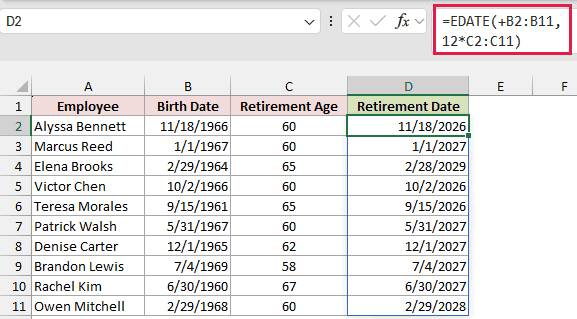
The formula spills into D2:D11 automatically in Microsoft 365. Format the output cells as dates if you see numbers instead of dates.
How does this formula work?
Alyssa’s birth date is November 18, 1966, and her retirement age is 60. Multiplying 60 by 12 gives 720 months.
EDATE adds those months to her birth date and returns November 18, 2026. Each remaining row uses its own birth date and retirement age.
The + before B2:B11 converts the date range into an array of values. Keep it in this formula so EDATE handles the entire list correctly.
Note: For a February 29 birth date, EDATE returns February 28 when the target year is not a leap year. Elena’s result is February 28, 2029; Owen’s is February 29, 2028. Check that this matches the retirement rule you need.
Method #2: Using the EOMONTH Function
If your retirement rule uses the last day of the month, use EOMONTH. It finds month-end after adding the required number of months to the birth date.
Below I have employee names, birth dates, and retirement ages in columns A to C. Column D shows the EDATE retirement dates from Method #1 for comparison.
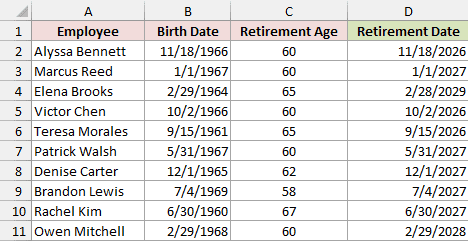
I want the retirement date to fall on the last day of the month in which each employee reaches the specified age.
On the Retirement Dates sheet, enter Month-End Date in E1. Enter this formula in E2, keeping E3:E11 empty:
=EOMONTH(+B2:B11,12*C2:C11)
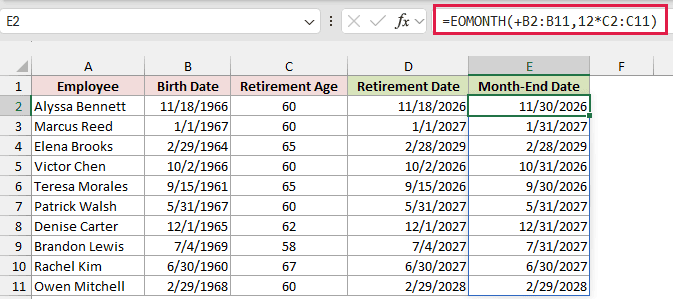
The formula spills down column E. Format E2:E11 as dates if needed.
How does this formula work?
The 12*C2:C11 part converts each retirement age into months. EOMONTH moves forward by that number of months and returns the last day of the resulting month.
Alyssa reaches age 60 on November 18, 2026. Her month-end retirement date is November 30, 2026.
Patrick reaches age 60 on May 31, 2027. Because that is already month-end, his results in columns D and E are the same.
Handling Birthdays on the First Day of the Month
Some retirement rules specify the previous month’s last day for employees born on the first. Apply this variation only if your rule requires that exception.
For example, Marcus reaches age 60 on January 1, 2027. Under this exception, his retirement date becomes December 31, 2026.
Enter Adjusted Month-End Date in F1. Enter this formula in F2, keeping F3:F11 empty:
=EOMONTH(+B2:B11,12*C2:C11-(DAY(B2:B11)=1))
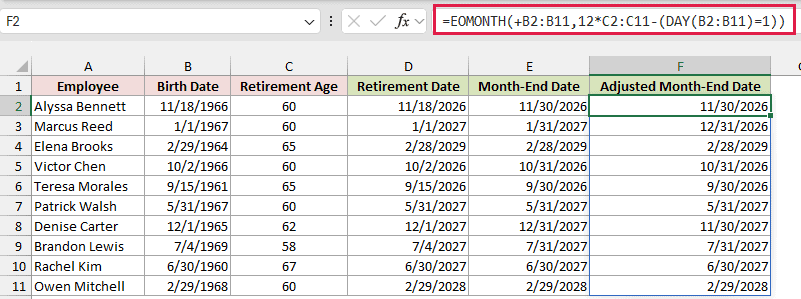
DAY extracts the day number from each birth date. The comparison DAY(B2:B11)=1 returns TRUE for first-of-month birthdays and FALSE for the others.
In this subtraction, TRUE becomes 1 and FALSE becomes 0. EOMONTH therefore moves back one month only for employees born on the first.
Denise’s adjusted date is November 30, 2027, instead of December 31, 2027. Alyssa’s date stays November 30, 2026.
Calculate Days Remaining Until Retirement in Excel
Once you have the retirement dates, you can compare them with an as-of date. This helps separate upcoming dates from those already reached.
The Time Remaining sheet uses the EDATE retirement dates from Method #1 in column D. Cell B13 contains October 2, 2026, so the example results stay consistent.
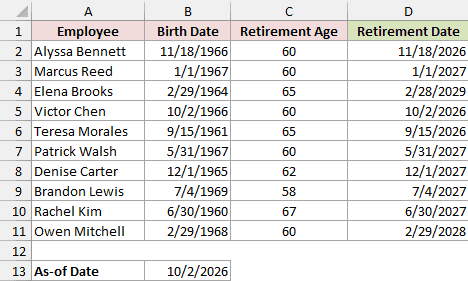
The countdown follows whichever retirement dates you put in column D. If your rule uses month-end, use those dates before calculating the remaining days.
To reproduce the download’s countdown, enter Days Remaining in E1. Enter this formula in E2, keeping E3:E11 empty:
=IF(D2:D11>$B$13,D2:D11-$B$13,0)
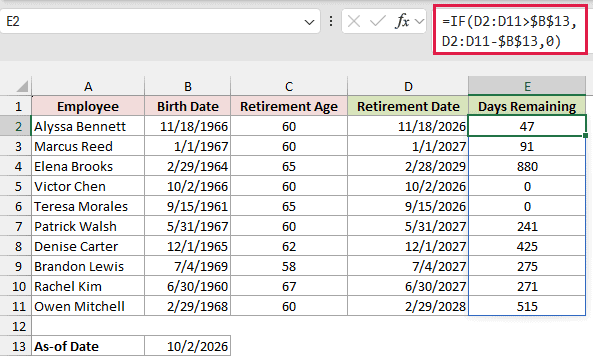
IF checks whether each retirement date is later than B13. For a future date, it subtracts B13; otherwise, it returns zero.
These are calendar days. Alyssa has 47 days remaining, while Marcus has 91. Keep column E formatted as numbers, not dates.
Victor and Teresa both show zero, but for different reasons. Victor’s calculated date is October 2, 2026; Teresa’s date was September 15, 2026.
To distinguish those cases, enter Date Status in F1. Enter this formula in F2, keeping F3:F11 empty:
=IF(D2:D11<$B$13,"Date passed",IF(D2:D11=$B$13,"Due today","Upcoming"))
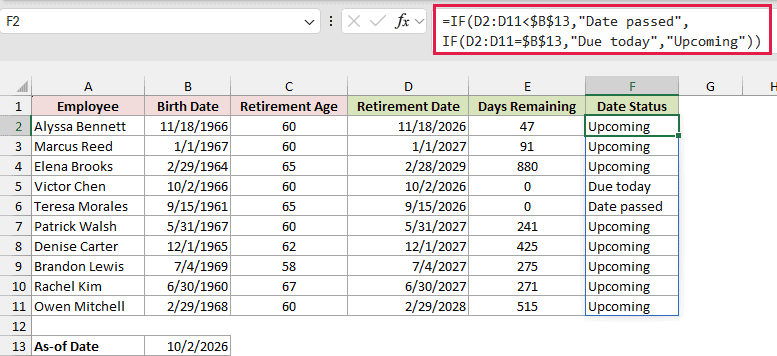
The first IF checks for a date before B13. The second checks whether it equals B13. Any later date gets the label Upcoming.
Victor shows Due today, Teresa shows Date passed, and Alyssa shows Upcoming. Here, “today” means the as-of date in B13.
Date passed describes the calculated date. It doesn’t confirm that the employee actually retired.
For a live countdown, replace the fixed date in B13 with the TODAY function. The results update when Excel recalculates the workbook.
Additional Notes About Calculating Retirement Dates in Excel
Before using the formulas with your own employee list, check these details:
- Supply the applicable retirement age and date rule. Excel calculates from your inputs; it doesn’t determine pension eligibility or your employer’s policy.
- Fill every birth date and retirement age before calculating. A missing birth date or age can produce a misleading date rather than an obvious error.
- Use genuine Excel dates. Text that looks like a date can cause a #VALUE! error; changing its display format alone doesn’t necessarily convert it.
- Keep the result cells below each formula empty. The range formulas need space to spill and use modern dynamic-array Excel; the examples were tested in Microsoft 365.
- Update all range endpoints if your list extends beyond row 11. The birth-date and retirement-age ranges must cover the same employees.
Frequently Asked Questions
Here are a few variations you might need when adapting the examples.
Can the Retirement Age Include Months?
Yes. EDATE and EOMONTH take a number of months, so express the required age as a total number of months before adding it to the birth date.
For example, 65 years and 6 months is 786 months. The download uses whole-year ages, so you would need to adapt its inputs and month calculation.
Can I Use a Hire Date Instead of a Birth Date?
Yes, if the rule is based on completed service. Use the hire date as the starting date and the required service period as the duration.
That produces a service anniversary. Whether it is also the retirement date depends on the rule you are applying.
Can I Calculate the Last Working Day Instead of the Retirement Date?
Yes, but first establish whether it can be the retirement date itself or must be an earlier date. Weekends and holidays may also change the answer.
WORKDAY or WORKDAY.INTL can help with that adjustment once you know the workweek, holiday list, and rule to apply.
Conclusion
I’ve shown how to calculate retirement dates with EDATE and EOMONTH, then use those dates for a countdown.
I’d start with EDATE if your rule sets retirement on the employee’s birthday. I hope you found this article helpful.
Other Excel articles you may also like:
