
Working out someone’s age from their date of birth sounds like simple subtraction, but it isn’t. A person born in December isn’t a year older until December comes around.
Excel has no AGE function, so you need a formula that compares the full dates, not just the years.
The most reliable one, DATEDIF, doesn’t even show up when you start typing it.
Get it slightly wrong and the mistakes are easy to miss. A shortcut formula can look right on most rows and still be a year off on someone’s birthday.
In this article, I’ll show you four ways to calculate age: DATEDIF for whole years, YEARFRAC for a decimal age, and DATEDIF with EDATE for exact years, months, and days.
Method #1: Using the DATEDIF Function
DATEDIF returns the difference between two dates in complete years, months, or days. Age is the number of complete years since someone was born, which is exactly what its “y” unit returns.
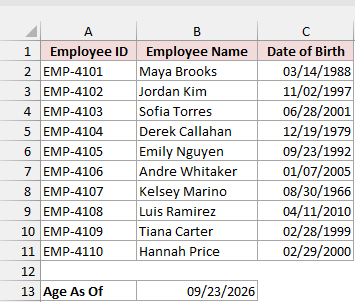
Below I have a list of employees with their date of birth in column C. The date I want to calculate their age on is in cell B13.
Here is the formula that calculates the age of every employee in one go:
=DATEDIF(C2:C11,B13,"y")
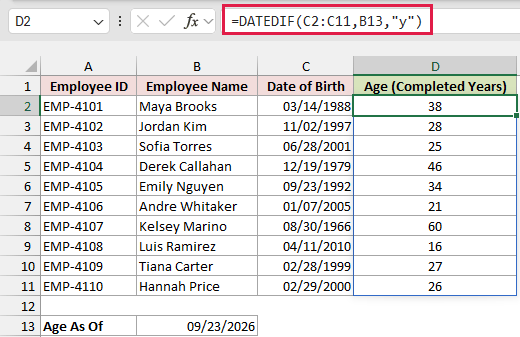
Enter it in D2 and it spills down the column automatically, one age for each birth date.
How does this formula work?
DATEDIF takes a start date, an end date, and a unit.
Here the start dates are the birth dates in C2:C11, and the end date is the as-of date in B13.
The “y” unit tells DATEDIF to return only complete years. So Jordan Kim, born on 11/02/1997, is 28 on 09/23/2026 because his 29th birthday is still a few weeks away.
If you want everyone’s age as of today, type =TODAY() in B13 instead of a fixed date. The ages then update on their own every day.
I like keeping a fixed date in a cell when the numbers go into a report, though. That way anyone checking your work gets the same ages you did.
Method #2: Using the YEARFRAC Function
If you’d rather see age as a decimal, like 38.5 years, YEARFRAC is the function to use. It returns the fraction of years between two dates.
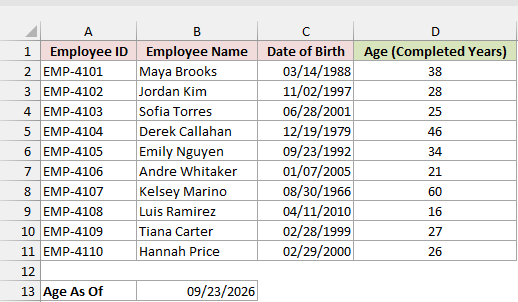
Below I have the same employee list. Column D already has the completed-years age from the DATEDIF formula, and the as-of date is in B13.
Here is the formula that returns the age as a decimal:
=YEARFRAC(C2,$B$13,1)
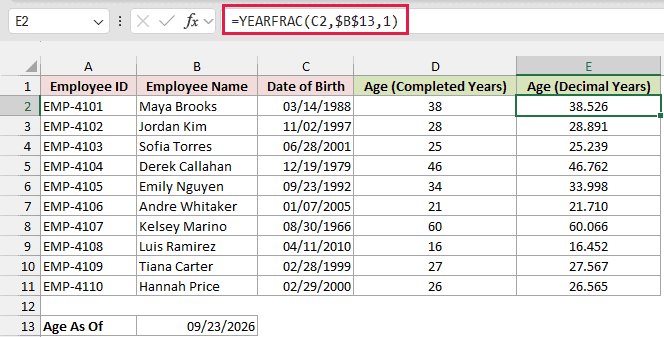
Enter it in E2 and drag it down to E11. YEARFRAC won’t accept a whole range of dates here, so this one needs to be filled down.
How does this formula work?
YEARFRAC takes a start date, an end date, and an optional basis that decides how days are counted. The basis 1 means actual days in actual years.
The dollar signs lock B13, so every row still uses the as-of date after you fill the formula down.
A lot of people take this one step further and wrap YEARFRAC in INT to get a whole number. Here is that formula:
=INT(YEARFRAC(C2,$B$13,1))
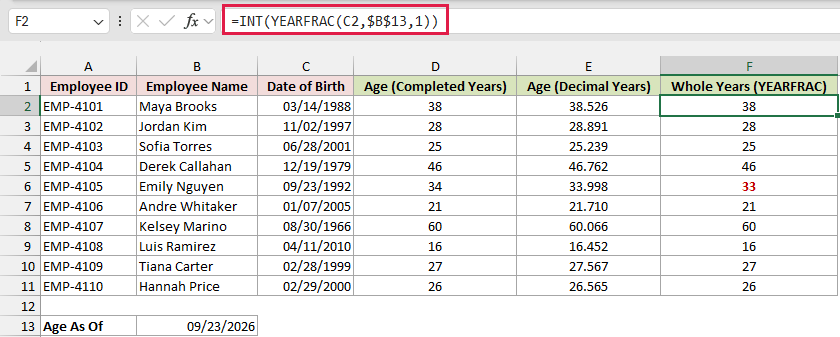
INT chops off the decimal part, so 38.526 becomes 38. For most rows, you get the same result as DATEDIF.
Now look at Emily Nguyen. Her date of birth is 09/23/1992, and the as-of date is 09/23/2026, so she turned 34 that day.
YEARFRAC returns 33.998 for her, and INT turns that into 33. The formula is a whole year off on the one day her age changes.
Note: YEARFRAC averages the length of the years it spans, so its result can land just below a whole number on a birthday. Use it when you want a decimal age, and use DATEDIF when you want whole years.
Method #3: Using DATEDIF (Years, Months, and Days)
Sometimes you want to show age as something like “38 years, 6 months, 9 days” instead of a single number.
You can do that by using DATEDIF three times with different units.
Below I have the employee list with the ages from the earlier formulas in columns D to F. The as-of date is in B13.
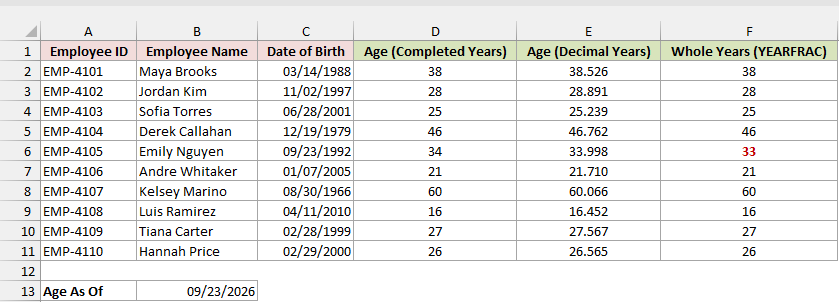
Here is the formula that returns the age in years, months, and days:
=DATEDIF(C2:C11,B13,"y")&" years, "&DATEDIF(C2:C11,B13,"ym")&" months, "&DATEDIF(C2:C11,B13,"md")&" days"
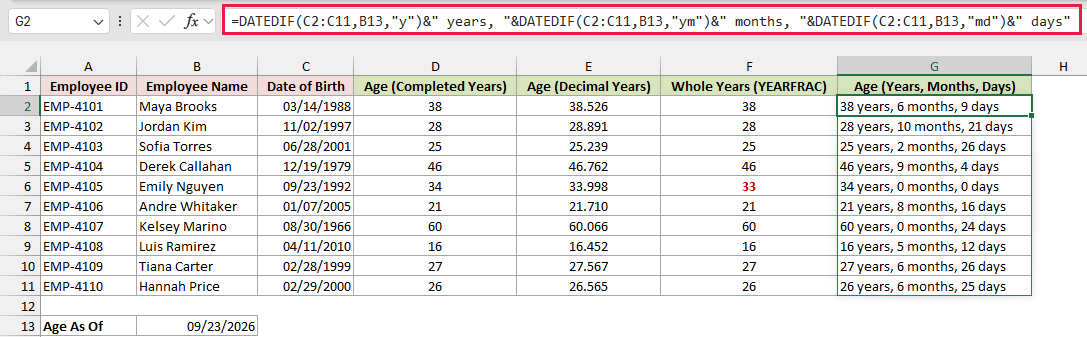
Enter it in G2 and it spills down to G11.
How does this formula work?
Each DATEDIF returns one piece of the age, and the ampersand (&) joins those pieces together with the words in between.
- “y” returns the complete years.
- “ym” returns the months left over after those complete years.
- “md” returns the days left over after the complete months.
For Emily Nguyen, who turned 34 on the as-of date, the result is “34 years, 0 months, 0 days”.
If you only need years and months, delete the last DATEDIF and the ” days” text from the formula.
The result is text, so you can’t sort by it or use it in calculations. Keep a numeric age column next to it if you need one.
Note: Microsoft doesn’t recommend the “md” unit because it can calculate inaccurate results. It works fine on this list, but it can return negative days for some month-end birthdays. Method #4 fixes that.
Method #4: Using DATEDIF and EDATE (Month-End Safe)
This method gives you the same years, months, and days result. The difference is that its days count doesn’t break on month-end birthdays like December 31 or May 31.
Below I have six employees with their date of birth in column C and their hire date in column D.
I want each person’s exact age on the day they were hired.
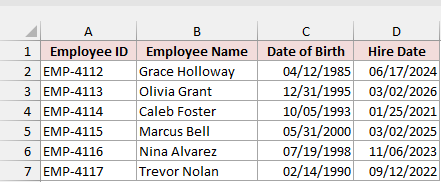
Here is the formula:
=DATEDIF(C2,D2,"y")&" years, "&DATEDIF(C2,D2,"ym")&" months, "&D2-EDATE(C2,DATEDIF(C2,D2,"m"))&" days"
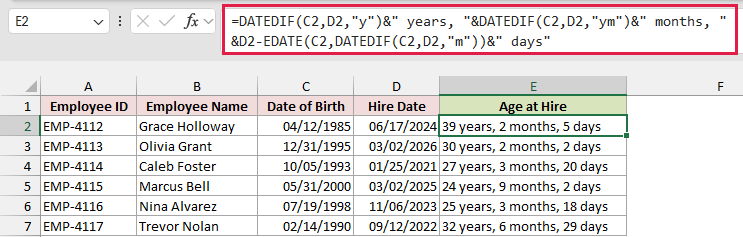
Enter it in E2 and drag it down to E7. EDATE won’t take a whole range of dates, so this one needs to be filled down.
How does this formula work?
The years and months parts are the same as in Method #3. The difference is how the days are counted.
DATEDIF(C2,D2,”m”) returns the total number of complete months between the two dates.
EDATE then adds that many months to the date of birth, which lands on the most recent “month birthday”.
Subtracting that date from the hire date in D2 leaves the extra days. Because EDATE handles short months properly, the days part doesn’t go negative the way “md” can.
Here is the “md” formula from Method #3 in column F, next to the safe version, so you can compare the two:
=DATEDIF(C2,D2,"y")&" years, "&DATEDIF(C2,D2,"ym")&" months, "&DATEDIF(C2,D2,"md")&" days"
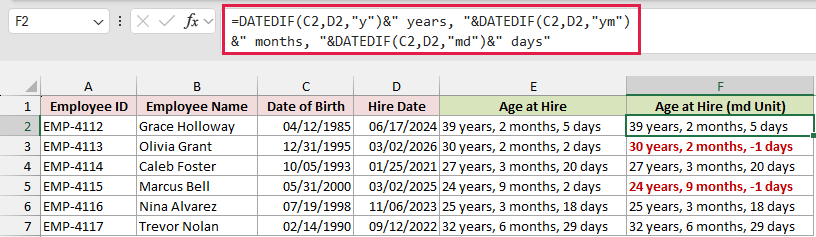
Olivia Grant was born on 12/31/1995 and hired on 03/02/2026. The “md” version says she was 30 years, 2 months, and -1 days old.
The safe formula in column E returns 30 years, 2 months, 2 days. Two months after December 31 is February 28, and two more days gets you to March 2.
Marcus Bell’s row shows the same -1 days problem.
Why Subtracting Years or Dividing by 365 Gives the Wrong Age
You’ll see two shortcut formulas for age all over the web. Both look fine at a glance, and both get some people wrong.
Below I have the employee list with the correct age from DATEDIF in column D and the as-of date in B13.
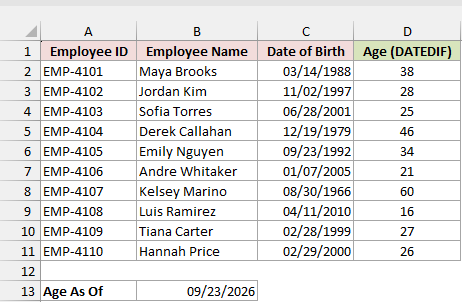
The first shortcut subtracts the birth year from the current year:
=YEAR(B13)-YEAR(C2:C11)
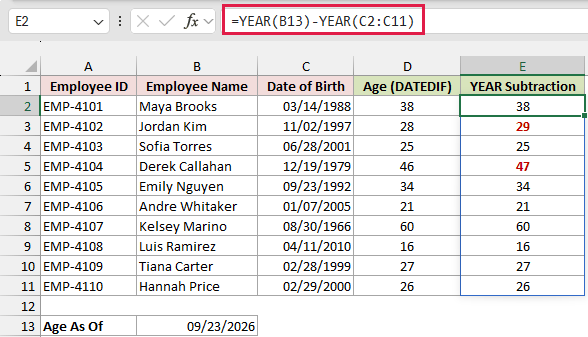
This formula ignores the month and day completely.
Jordan Kim gets 29 instead of 28, and Derek Callahan gets 47 instead of 46, because their birthdays haven’t come yet that year.
The second shortcut divides the number of days by 365.25 to allow for leap years:
=INT((B13-C2:C11)/365.25)
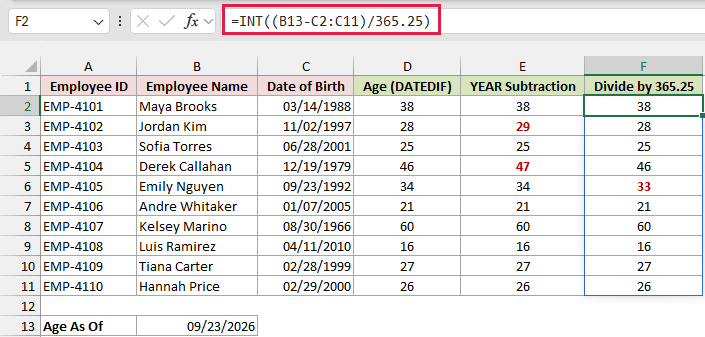
This one is closer, but it still misses on birthdays.
Emily Nguyen gets 33 on the day she turns 34, because the leap days in her lifetime don’t add up to exactly a quarter day per year.
Both formulas spill down the column, and I’ve marked the wrong results in red. DATEDIF in column D gets every row right, which is why it’s the one I’d use.
Finding the Next Birthday and the Date Someone Turns 65
Once you know how old someone is, a couple of related dates are easy to work out, like their next birthday or the day they reach retirement age.
Below I have the employee list with their date of birth in column C and the as-of date in B13.
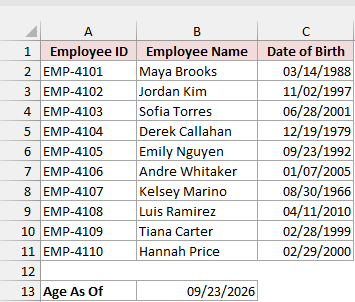
Here is the formula that returns each person’s next birthday:
=EDATE(C2,12*(DATEDIF(C2,$B$13,"y")+1))
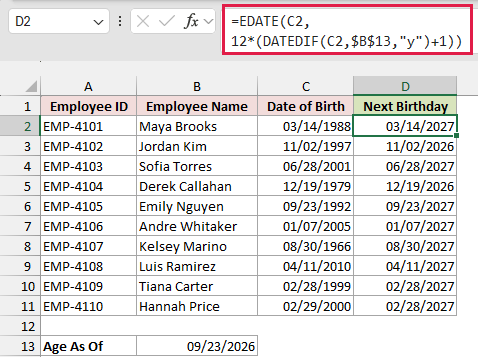
Enter it in D2 and drag it down to D11. If you see numbers like 46460 instead of dates, format the column as a date.
How does this formula work?
DATEDIF returns the person’s current age, and adding 1 gives the age they’ll turn next. Multiplying by 12 converts those years into months.
EDATE then adds that many months to the date of birth, which gives the date of the next birthday.
To find how many days are left until that birthday, subtract the as-of date:
=D2:D11-B13
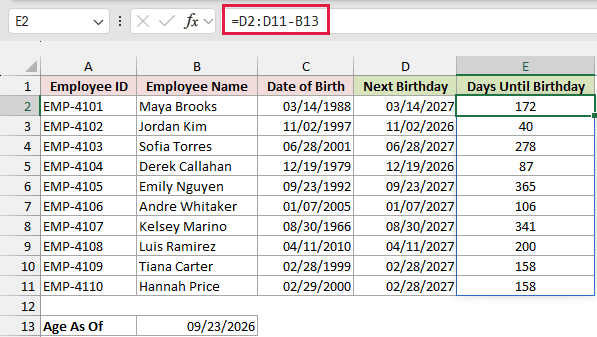
Enter it in E2 and it spills down the column. Jordan Kim’s birthday is 40 days away, while Derek Callahan’s is 87 days away.
Note: Emily Nguyen shows 365 days because the as-of date is her birthday, so the formula returns her next one a year later. Hannah Price was born on February 29, so EDATE puts her next birthday on 02/28/2027.
And here is the formula that returns the date each person turns 65:
=EDATE(C2,12*65)
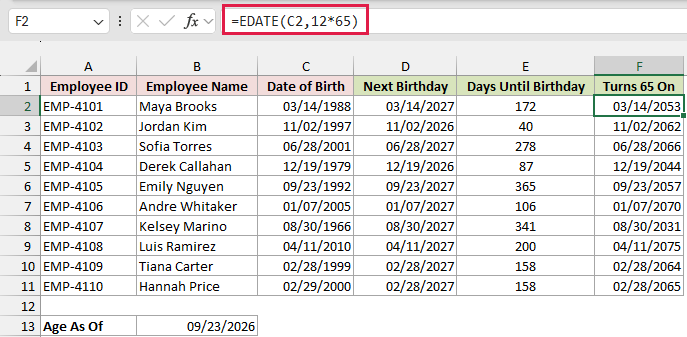
Enter it in F2 and drag it down to F11.
EDATE adds 780 months (65 years) to the date of birth, so Kelsey Marino, born on 08/30/1966, turns 65 on 08/30/2031.
Grouping Ages Into Age Brackets
If you report on age groups, like how many employees are under 18 or over 55, you can turn each age into a bracket with a lookup table.
Below I have the employee list with their age in column D.
On the right, there’s a small table in G1:H5 that lists the lowest age in each bracket and the bracket’s name.
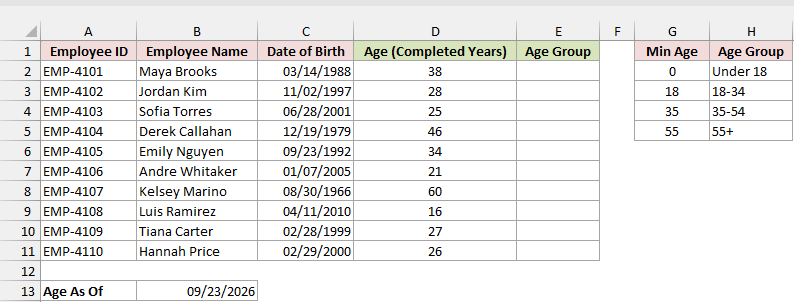
Here is the formula that returns the age group for every employee:
=XLOOKUP(D2:D11,G2:G5,H2:H5,,-1)
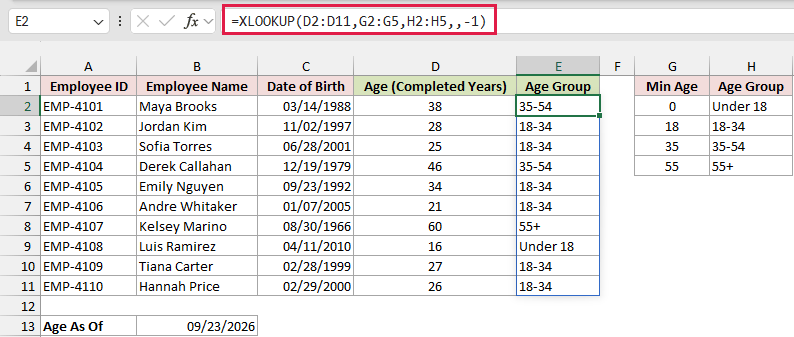
Enter it in E2 and it spills down the column.
How does this formula work?
XLOOKUP looks up each age in the Min Age column and returns the matching name from the Age Group column.
The -1 at the end tells XLOOKUP to find an exact match, or the next smaller value if there isn’t one.
So an age of 28 matches 18 and returns “18-34”.
Note: XLOOKUP works in Excel 2021 and later and in Microsoft 365. In older versions, you can get the same result with VLOOKUP and TRUE as its last argument, as long as the Min Age column is sorted from smallest to largest.
To count how many employees fall into each bracket, use this formula in I2:
=COUNTIF(E2:E11,H2:H5)
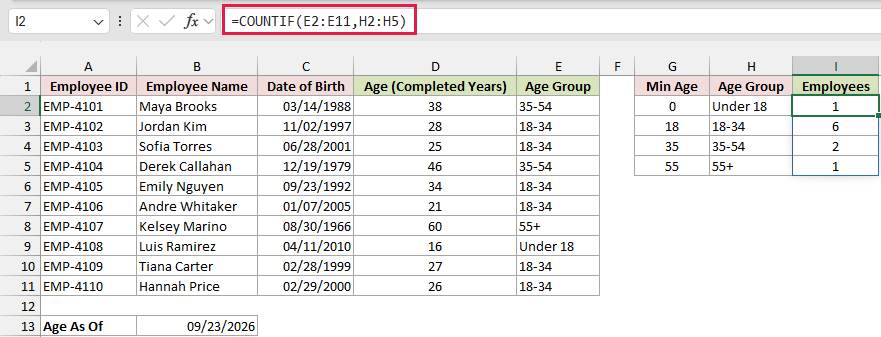
COUNTIF checks each bracket name in H2:H5 against the age groups in column E, so you get one count per bracket.
Six of the ten employees are in the 18-34 group.
Additional Notes About Calculating Age in Excel
- Make sure your dates are real dates. Excel right-aligns real dates by default. A left-aligned “date” is usually text, and age formulas will either fail or return the wrong result.
- Pick between a fixed date and TODAY() on purpose. A date typed into a cell keeps a report reproducible. TODAY() changes every day, which is great for a live tracker but not for a report you’ve already sent.
- Older versions of Excel don’t spill. The formulas that use C2:C11 need Excel 2021 or later, or Microsoft 365. In Excel 2019 and earlier, use C2 and $B$13 in the first cell and fill the formula down.
- Keep a numeric age column. Text results like “34 years, 0 months, 0 days” look nice, but you can’t average, sort, or filter them as numbers.
Frequently Asked Questions
Here are answers to a few common questions about calculating age in Excel.
Why does my age formula return #NUM! or #VALUE!?
#NUM! usually means the date of birth is later than the as-of date. DATEDIF needs the earlier date first.
#VALUE! usually means the date of birth is text. For example, “23/09/1992” typed into an Excel that uses month/day dates isn’t a real date. Convert it to a real date and the formula works.
Why doesn’t DATEDIF show up when I type it in Excel?
Excel keeps DATEDIF to support older workbooks from Lotus 1-2-3.
It doesn’t appear in the formula suggestions or the Insert Function list. Type it out in full and it works normally.
How does Excel calculate age for someone born on February 29?
In a non-leap year, DATEDIF adds the year on March 1. A person born on 02/29/2000 is 24 on 02/28/2025 and 25 on 03/01/2025.
EDATE rounds the other way, so a next-birthday formula shows February 28. If the exact day matters for your report, decide which rule you want and stick to it.
Why does DATEDIF return 126 when the date of birth is blank?
Excel treats an empty cell as zero, the starting point of its date system. So DATEDIF counts the years since 1900.
To return a blank instead, check the cell first. Here the date of birth is in B4 and the as-of date is in C4:
=IF(B4="","",DATEDIF(B4,C4,"y"))
How do I calculate age in months?
Use the “m” unit, which returns the total number of complete months.
With a date of birth of 07/14/1990 in B1 and an as-of date of 09/23/2026 in B2, this returns 434:
=DATEDIF(B1,B2,"m")
The download for this article has a small Age Calculator sheet that shows the age in years, months, and days, along with the next birthday.
Conclusion
Calculating age in Excel comes down to comparing the full dates, not just the years.
DATEDIF with the “y” unit is the formula I’d reach for in most cases, and the EDATE version handles exact years, months, and days.
I hope you found this article helpful.
Other Excel articles you may also like:
- How to Subtract Dates in Excel
- How to Convert Days to Years in Excel (Formulas)
- How to Calculate the Number of Months Between Two Dates in Excel?
- Calculate Days Between Two Dates in Excel (Workdays/Weekends)
- How to Add Years to a Date in Excel
- Days Between Dates Calculator
- How to Calculate Years of Service
